> ## Documentation Index
> Fetch the complete documentation index at: https://docs.orq.ai/llms.txt
> Use this file to discover all available pages before exploring further.
# MCP Gateway
> Bundle multiple MCP servers behind a single MCP Gateway endpoint with a unified tool surface, aliases, and per-team tool access controls.
Create a single client-facing MCP endpoint that bundles one or more **MCP Servers**. Clients connect to the MCP Gateway URL and get a unified tool surface without knowing individual server URLs or authentication details. The gateway acts as a **virtual MCP server**: it aggregates tools from multiple upstream servers behind one address.
This page covers **MCP Gateways**, client-facing endpoints that bundle upstream **MCP Servers** Orq connects to. This is a different feature from [Orq's own MCP server](/ai-studio/integrations/code-assistants/orq-mcp), which coding assistants connect to for workspace administration.
**MCP Portal** is the **AI Gateway** area that manages **MCP Gateways** and **MCP Servers**. Open it at **AI Gateway > MCP Portal** in the sidebar; the **MCP Gateways** tab lists every gateway in the workspace.
## How It Works
A **virtual MCP server** is a single endpoint that gives clients access to tools from multiple upstream **MCP Servers**. The gateway aggregates these servers behind one address, handles authentication and routing, and resolves tool-name conflicts internally. Clients connect to one URL and see all linked tools as if they came from one provider.
## Use Cases
* Exposing multiple MCP servers through a single endpoint for clients that cannot manage multiple connections.
* Aliasing server tools under consistent names so clients do not break when upstream tool names change.
* Governing tool access per team: admins build an MCP Gateway from a selected subset of tools across several **MCP Servers**, so the Marketing team and the Research team can share the same servers while reaching different tools.
## Set Up an MCP Gateway
Click Create MCP Gateway.
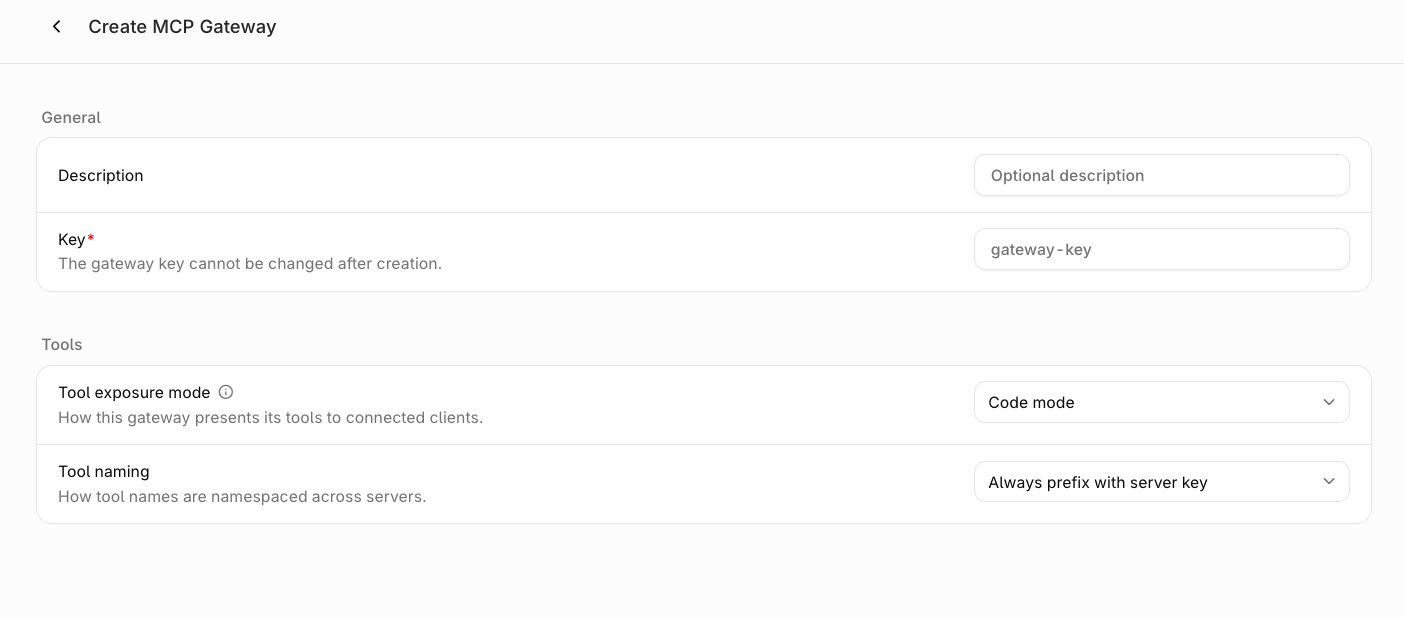 **General details**
* **Description** (optional): a note about what this MCP Gateway provides.
* **Key** (required): a unique identifier. Used in the MCP Gateway URL. Cannot be changed after creation.
**Tool settings**
* **Tool exposure mode**: how the MCP Gateway presents tools to connected clients. **Code mode** (default) exposes a single tool provided by the MCP Gateway that handles discovery and execution internally. **Direct mode** exposes each upstream tool individually.
* **Tool naming**: how tool names are namespaced across servers. **Always prefix with server key** (default) prefixes all tools with the server's key, or its alias if one is set per-link. **Prefix on collision** only prefixes conflicting names.
Click Create.
Both `key` and `display_name` are required. The console has no display name field and sets `display_name` to the key.
```bash cURL theme={"theme":{"light":"github-light","dark":"github-dark"}}
curl -X POST https://my.orq.ai/v2/mcp-gateways \
-H "Authorization: Bearer $ORQ_API_KEY" \
-H "Content-Type: application/json" \
-d '{
"key": "support-tools",
"display_name": "Support tools",
"mode": "MCP_GATEWAY_MODE_CODE",
"tool_naming": "MCP_TOOL_NAMING_PREFIX_WITH_SERVER_KEY"
}'
```
```typescript TypeScript theme={"theme":{"light":"github-light","dark":"github-dark"}}
import { Orq } from "@orq-ai/node";
const client = new Orq({
apiKey: process.env.ORQ_API_KEY,
});
const gateway = await client.mcpGateways.create({
key: "support-tools",
displayName: "Support tools",
mode: "MCP_GATEWAY_MODE_CODE",
toolNaming: "MCP_TOOL_NAMING_PREFIX_WITH_SERVER_KEY",
});
console.log(gateway.mcpGateway?.publicUrl);
```
```python Python theme={"theme":{"light":"github-light","dark":"github-dark"}}
import os
from orq_ai_sdk import Orq
client = Orq(api_key=os.environ["ORQ_API_KEY"])
gateway = client.mcp_gateways.create(
key="support-tools",
display_name="Support tools",
mode="MCP_GATEWAY_MODE_CODE",
tool_naming="MCP_TOOL_NAMING_PREFIX_WITH_SERVER_KEY",
)
print(gateway.mcp_gateway.public_url)
```
`mode` and `tool_naming` mirror the form's tool settings:
* **Tool exposure mode**: `MCP_GATEWAY_MODE_CODE` (**Code mode**, the default) or `MCP_GATEWAY_MODE_DIRECT` (**Direct mode**).
* **Tool naming**: `MCP_TOOL_NAMING_PREFIX_WITH_SERVER_KEY` (**Always prefix with server key**) or `MCP_TOOL_NAMING_PREFIX_ON_COLLISION` (**Prefix on collision**, the API default).
See the full [Create an MCP gateway API reference](/reference/mcp-gateway/create-an-mcp-gateway).
## After Creation
**Orq.ai** redirects to the **MCP Servers** tab of the new MCP Gateway. Click + Add server to link any server already configured in [MCP Servers](/ai-gateway/mcp-portal/mcp-servers). Only servers that have completed their initial sync can be linked.
Link only **MCP Servers** whose project access covers the **MCP Gateway** project access. An **MCP Gateway** on **All projects** therefore needs **MCP Servers** on **All projects**; change a server's own scope from its **Settings** tab, as described in [MCP Servers](/ai-gateway/mcp-portal/mcp-servers#after-creation).
**General details**
* **Description** (optional): a note about what this MCP Gateway provides.
* **Key** (required): a unique identifier. Used in the MCP Gateway URL. Cannot be changed after creation.
**Tool settings**
* **Tool exposure mode**: how the MCP Gateway presents tools to connected clients. **Code mode** (default) exposes a single tool provided by the MCP Gateway that handles discovery and execution internally. **Direct mode** exposes each upstream tool individually.
* **Tool naming**: how tool names are namespaced across servers. **Always prefix with server key** (default) prefixes all tools with the server's key, or its alias if one is set per-link. **Prefix on collision** only prefixes conflicting names.
Click Create.
Both `key` and `display_name` are required. The console has no display name field and sets `display_name` to the key.
```bash cURL theme={"theme":{"light":"github-light","dark":"github-dark"}}
curl -X POST https://my.orq.ai/v2/mcp-gateways \
-H "Authorization: Bearer $ORQ_API_KEY" \
-H "Content-Type: application/json" \
-d '{
"key": "support-tools",
"display_name": "Support tools",
"mode": "MCP_GATEWAY_MODE_CODE",
"tool_naming": "MCP_TOOL_NAMING_PREFIX_WITH_SERVER_KEY"
}'
```
```typescript TypeScript theme={"theme":{"light":"github-light","dark":"github-dark"}}
import { Orq } from "@orq-ai/node";
const client = new Orq({
apiKey: process.env.ORQ_API_KEY,
});
const gateway = await client.mcpGateways.create({
key: "support-tools",
displayName: "Support tools",
mode: "MCP_GATEWAY_MODE_CODE",
toolNaming: "MCP_TOOL_NAMING_PREFIX_WITH_SERVER_KEY",
});
console.log(gateway.mcpGateway?.publicUrl);
```
```python Python theme={"theme":{"light":"github-light","dark":"github-dark"}}
import os
from orq_ai_sdk import Orq
client = Orq(api_key=os.environ["ORQ_API_KEY"])
gateway = client.mcp_gateways.create(
key="support-tools",
display_name="Support tools",
mode="MCP_GATEWAY_MODE_CODE",
tool_naming="MCP_TOOL_NAMING_PREFIX_WITH_SERVER_KEY",
)
print(gateway.mcp_gateway.public_url)
```
`mode` and `tool_naming` mirror the form's tool settings:
* **Tool exposure mode**: `MCP_GATEWAY_MODE_CODE` (**Code mode**, the default) or `MCP_GATEWAY_MODE_DIRECT` (**Direct mode**).
* **Tool naming**: `MCP_TOOL_NAMING_PREFIX_WITH_SERVER_KEY` (**Always prefix with server key**) or `MCP_TOOL_NAMING_PREFIX_ON_COLLISION` (**Prefix on collision**, the API default).
See the full [Create an MCP gateway API reference](/reference/mcp-gateway/create-an-mcp-gateway).
## After Creation
**Orq.ai** redirects to the **MCP Servers** tab of the new MCP Gateway. Click + Add server to link any server already configured in [MCP Servers](/ai-gateway/mcp-portal/mcp-servers). Only servers that have completed their initial sync can be linked.
Link only **MCP Servers** whose project access covers the **MCP Gateway** project access. An **MCP Gateway** on **All projects** therefore needs **MCP Servers** on **All projects**; change a server's own scope from its **Settings** tab, as described in [MCP Servers](/ai-gateway/mcp-portal/mcp-servers#after-creation).
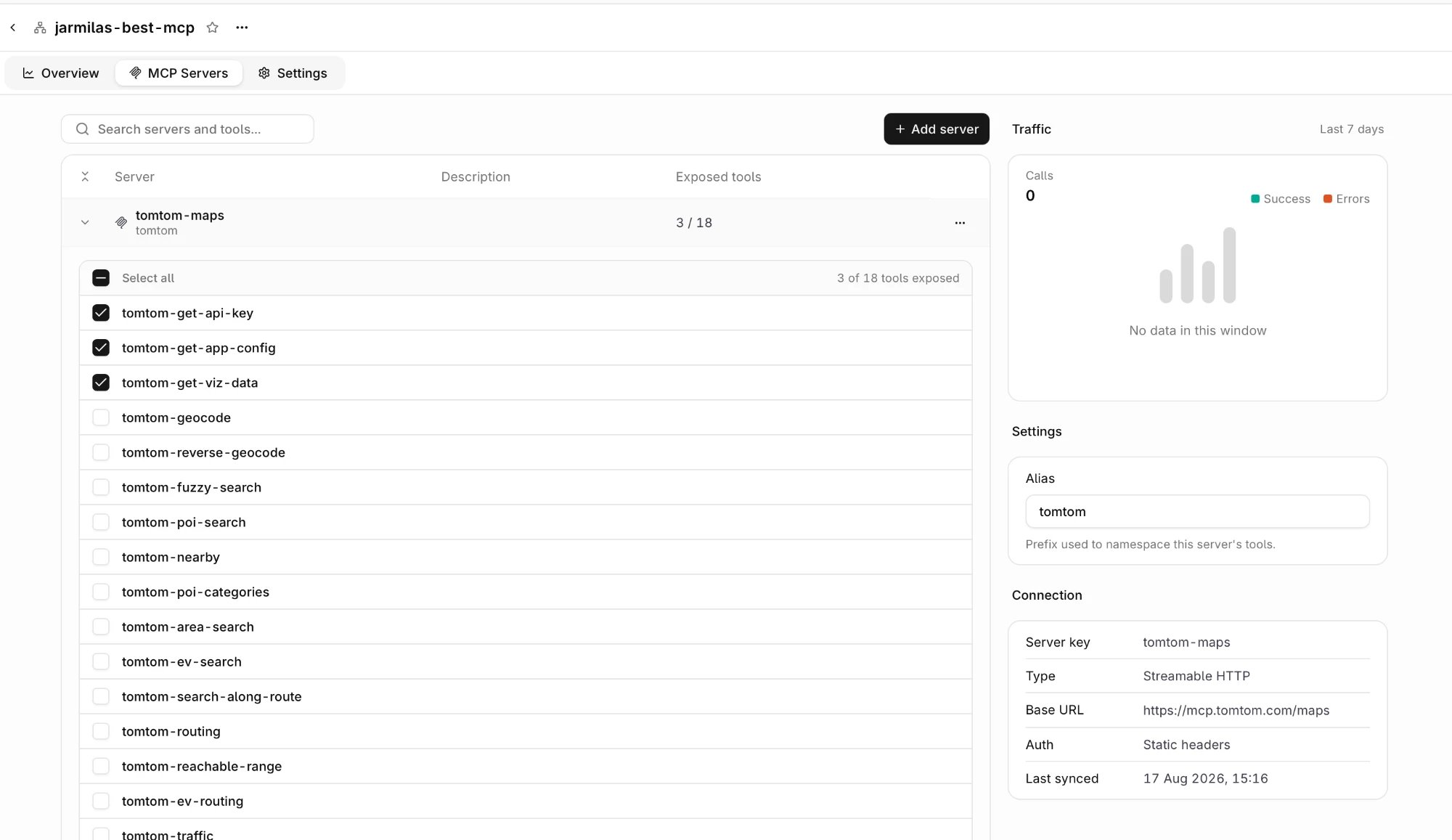 The MCP Gateway detail page has four tabs:
* **Overview**: traffic for the MCP Gateway and the **Connect** section with the command clients use to reach it.
* **MCP Servers**: linked servers and the tools each one exposes. Select a tool checkbox to expose it through the MCP Gateway, or clear it to stop exposing it. Both take effect immediately, with no save action. The side panel shows **Traffic** for the selected server, its **Alias** (the prefix that namespaces the server's tools), and its **Connection** details: server key, type, base URL, auth, and last sync time.
* **Clients**: MCP clients authorized through [OAuth](#oauth), with the option to revoke their access.
* **Settings**: the MCP Gateway description, tool settings, [plugins, egress policy and runtime limits](#security-settings), and [project access](#project-access), editable after creation.
## Roles and Permissions
Workspace roles decide who can view and manage the MCP Portal. MCP permissions follow the role and are not configurable per team or per gateway.
**Developer** and **Researcher** are [Enterprise plan](https://orq.ai/solutions/enterprise) roles. On the **Growth** plan every member is an **Admin**, so every action below is permitted. See [Members and teams](/ai-studio/organization/members-teams).
| Action | Admin | Developer | Researcher |
| --------------------------------------------------------------- | :---: | :-------: | :--------: |
| View MCP Gateways and MCP Servers | ✓ | ✓ | ✓ |
| View authorized clients | ✓ | ✓ | ✓ |
| View Toolsets | ✓ | ✓ | |
| View sessions and tool-call traffic | ✓ | ✓ | |
| Create and edit MCP Servers | ✓ | ✓ | |
| Delete MCP Servers | ✓ | | |
| Create, edit, and delete MCP Gateways | ✓ | | |
| Link servers and choose which tools a gateway exposes | ✓ | | |
| Set gateway sharing, egress policy, plugins, and runtime limits | ✓ | | |
| Create, edit, and delete Toolsets | ✓ | ✓ | |
| Revoke a session | ✓ | ✓ | |
| Revoke an authorized client | ✓ | | |
Authorizing a client is self-service: the person signing in approves it in the browser and holds the resulting token. Revoking an authorized client requires **Admin**; revoking a session also allows **Developer**.
Role permissions apply to people. [API keys](/ai-gateway/configuration/api-keys) are authorized separately, by the access granted to the key itself.
## Project Access
An MCP Gateway is visible to the projects that may use it. The **Access** column of the gateway list shows the current scope: **All Projects**, **No projects**, or the shared project names. A new gateway is shared with every project.
Change the scope on the **Settings** tab. Under **Access control**, pick **All projects** to share the gateway with the whole workspace, or **Custom** and set each project to **Enabled** or **Disabled**.
The `sharing` block on create or update replaces the scope. Send `all_projects` to share the gateway with every project, or `selected.project_ids` to list the projects that may use it. A **Disabled** project stops reaching the gateway.
```bash cURL theme={"theme":{"light":"github-light","dark":"github-dark"}}
curl -X PATCH https://my.orq.ai/v2/mcp-gateways/ \
-H "Authorization: Bearer $ORQ_API_KEY" \
-H "Content-Type: application/json" \
-d '{
"sharing": {
"selected": { "project_ids": ["proj_01HZXW2K7Y8Q9M0N1P2R3S4T5V"] }
}
}'
```
```typescript TypeScript theme={"theme":{"light":"github-light","dark":"github-dark"}}
import { Orq } from "@orq-ai/node";
const client = new Orq({
apiKey: process.env.ORQ_API_KEY,
});
await client.mcpGateways.update({
id: "mcp_gateway_01HZXW2K7Y8Q9M0N1P2R3S4T5V",
updateMcpGatewayRequest: {
sharing: {
selected: { projectIds: ["proj_01HZXW2K7Y8Q9M0N1P2R3S4T5V"] },
},
},
});
```
```python Python theme={"theme":{"light":"github-light","dark":"github-dark"}}
import os
from orq_ai_sdk import Orq
client = Orq(api_key=os.environ["ORQ_API_KEY"])
client.mcp_gateways.update(
id="mcp_gateway_01HZXW2K7Y8Q9M0N1P2R3S4T5V",
sharing={
"selected": {"project_ids": ["proj_01HZXW2K7Y8Q9M0N1P2R3S4T5V"]},
},
)
```
Send `all_projects` instead of `selected` to share the gateway with every project.
Project scope sets which projects may reach the gateway. An individual API key can be narrowed further through the API or an SDK with the `mcp_access` field. See [Restrict MCP gateway access per key](/ai-gateway/configuration/api-keys#restrict-mcp-gateway-access-per-key).
## Disable and Re-enable a Gateway
`status` is `MCP_GATEWAY_STATUS_ACTIVE` (default) or `MCP_GATEWAY_STATUS_DISABLED`. A disabled gateway keeps its configuration and rejects every request, so a gateway that is serving the wrong tool surface can be switched off without deleting it. Clients receive a JSON-RPC error with code `-32000` and the message `gateway disabled`. Set `status` back to `MCP_GATEWAY_STATUS_ACTIVE` to resume traffic.
```bash cURL theme={"theme":{"light":"github-light","dark":"github-dark"}}
curl -X PATCH https://my.orq.ai/v2/mcp-gateways/ \
-H "Authorization: Bearer $ORQ_API_KEY" \
-H "Content-Type: application/json" \
-d '{ "status": "MCP_GATEWAY_STATUS_DISABLED" }'
```
```typescript TypeScript theme={"theme":{"light":"github-light","dark":"github-dark"}}
import { Orq } from "@orq-ai/node";
const client = new Orq({
apiKey: process.env.ORQ_API_KEY,
});
await client.mcpGateways.update({
id: "mcp_gateway_01HZXW2K7Y8Q9M0N1P2R3S4T5V",
updateMcpGatewayRequest: {
status: "MCP_GATEWAY_STATUS_DISABLED",
},
});
```
```python Python theme={"theme":{"light":"github-light","dark":"github-dark"}}
import os
from orq_ai_sdk import Orq
client = Orq(api_key=os.environ["ORQ_API_KEY"])
client.mcp_gateways.update(
id="mcp_gateway_01HZXW2K7Y8Q9M0N1P2R3S4T5V",
status="MCP_GATEWAY_STATUS_DISABLED",
)
```
## Delete a Gateway
Delete a gateway from the **Delete** item in the gateway list row menu, the **Delete** item in the detail page overflow menu, or the Delete gateway button on the **Settings** tab. Each asks for confirmation.
```bash cURL theme={"theme":{"light":"github-light","dark":"github-dark"}}
curl -X DELETE https://my.orq.ai/v2/mcp-gateways/ \
-H "Authorization: Bearer $ORQ_API_KEY"
```
```typescript TypeScript theme={"theme":{"light":"github-light","dark":"github-dark"}}
import { Orq } from "@orq-ai/node";
const client = new Orq({
apiKey: process.env.ORQ_API_KEY,
});
await client.mcpGateways.delete({
id: "mcp_gateway_01HZXW2K7Y8Q9M0N1P2R3S4T5V",
});
```
```python Python theme={"theme":{"light":"github-light","dark":"github-dark"}}
import os
from orq_ai_sdk import Orq
client = Orq(api_key=os.environ["ORQ_API_KEY"])
client.mcp_gateways.delete(id="mcp_gateway_01HZXW2K7Y8Q9M0N1P2R3S4T5V")
```
See the full [Delete an MCP gateway API reference](/reference/mcp-gateway/delete-an-mcp-gateway).
## Security Settings
The **Settings** tab holds three sections that govern what the MCP Gateway forwards and where it may connect. Runtime limits and egress policy also appear on the **Create MCP Gateway** form.
### Plugins
[Plugins](/ai-gateway/features/plugins/overview) attached to an MCP Gateway run on every tool call it serves. [Guardrail Rules](/ai-gateway/configuration/guardrail-rules) do not run on tool calls, so plugins are the control for MCP tool traffic.
The MCP Gateway detail page has four tabs:
* **Overview**: traffic for the MCP Gateway and the **Connect** section with the command clients use to reach it.
* **MCP Servers**: linked servers and the tools each one exposes. Select a tool checkbox to expose it through the MCP Gateway, or clear it to stop exposing it. Both take effect immediately, with no save action. The side panel shows **Traffic** for the selected server, its **Alias** (the prefix that namespaces the server's tools), and its **Connection** details: server key, type, base URL, auth, and last sync time.
* **Clients**: MCP clients authorized through [OAuth](#oauth), with the option to revoke their access.
* **Settings**: the MCP Gateway description, tool settings, [plugins, egress policy and runtime limits](#security-settings), and [project access](#project-access), editable after creation.
## Roles and Permissions
Workspace roles decide who can view and manage the MCP Portal. MCP permissions follow the role and are not configurable per team or per gateway.
**Developer** and **Researcher** are [Enterprise plan](https://orq.ai/solutions/enterprise) roles. On the **Growth** plan every member is an **Admin**, so every action below is permitted. See [Members and teams](/ai-studio/organization/members-teams).
| Action | Admin | Developer | Researcher |
| --------------------------------------------------------------- | :---: | :-------: | :--------: |
| View MCP Gateways and MCP Servers | ✓ | ✓ | ✓ |
| View authorized clients | ✓ | ✓ | ✓ |
| View Toolsets | ✓ | ✓ | |
| View sessions and tool-call traffic | ✓ | ✓ | |
| Create and edit MCP Servers | ✓ | ✓ | |
| Delete MCP Servers | ✓ | | |
| Create, edit, and delete MCP Gateways | ✓ | | |
| Link servers and choose which tools a gateway exposes | ✓ | | |
| Set gateway sharing, egress policy, plugins, and runtime limits | ✓ | | |
| Create, edit, and delete Toolsets | ✓ | ✓ | |
| Revoke a session | ✓ | ✓ | |
| Revoke an authorized client | ✓ | | |
Authorizing a client is self-service: the person signing in approves it in the browser and holds the resulting token. Revoking an authorized client requires **Admin**; revoking a session also allows **Developer**.
Role permissions apply to people. [API keys](/ai-gateway/configuration/api-keys) are authorized separately, by the access granted to the key itself.
## Project Access
An MCP Gateway is visible to the projects that may use it. The **Access** column of the gateway list shows the current scope: **All Projects**, **No projects**, or the shared project names. A new gateway is shared with every project.
Change the scope on the **Settings** tab. Under **Access control**, pick **All projects** to share the gateway with the whole workspace, or **Custom** and set each project to **Enabled** or **Disabled**.
The `sharing` block on create or update replaces the scope. Send `all_projects` to share the gateway with every project, or `selected.project_ids` to list the projects that may use it. A **Disabled** project stops reaching the gateway.
```bash cURL theme={"theme":{"light":"github-light","dark":"github-dark"}}
curl -X PATCH https://my.orq.ai/v2/mcp-gateways/ \
-H "Authorization: Bearer $ORQ_API_KEY" \
-H "Content-Type: application/json" \
-d '{
"sharing": {
"selected": { "project_ids": ["proj_01HZXW2K7Y8Q9M0N1P2R3S4T5V"] }
}
}'
```
```typescript TypeScript theme={"theme":{"light":"github-light","dark":"github-dark"}}
import { Orq } from "@orq-ai/node";
const client = new Orq({
apiKey: process.env.ORQ_API_KEY,
});
await client.mcpGateways.update({
id: "mcp_gateway_01HZXW2K7Y8Q9M0N1P2R3S4T5V",
updateMcpGatewayRequest: {
sharing: {
selected: { projectIds: ["proj_01HZXW2K7Y8Q9M0N1P2R3S4T5V"] },
},
},
});
```
```python Python theme={"theme":{"light":"github-light","dark":"github-dark"}}
import os
from orq_ai_sdk import Orq
client = Orq(api_key=os.environ["ORQ_API_KEY"])
client.mcp_gateways.update(
id="mcp_gateway_01HZXW2K7Y8Q9M0N1P2R3S4T5V",
sharing={
"selected": {"project_ids": ["proj_01HZXW2K7Y8Q9M0N1P2R3S4T5V"]},
},
)
```
Send `all_projects` instead of `selected` to share the gateway with every project.
Project scope sets which projects may reach the gateway. An individual API key can be narrowed further through the API or an SDK with the `mcp_access` field. See [Restrict MCP gateway access per key](/ai-gateway/configuration/api-keys#restrict-mcp-gateway-access-per-key).
## Disable and Re-enable a Gateway
`status` is `MCP_GATEWAY_STATUS_ACTIVE` (default) or `MCP_GATEWAY_STATUS_DISABLED`. A disabled gateway keeps its configuration and rejects every request, so a gateway that is serving the wrong tool surface can be switched off without deleting it. Clients receive a JSON-RPC error with code `-32000` and the message `gateway disabled`. Set `status` back to `MCP_GATEWAY_STATUS_ACTIVE` to resume traffic.
```bash cURL theme={"theme":{"light":"github-light","dark":"github-dark"}}
curl -X PATCH https://my.orq.ai/v2/mcp-gateways/ \
-H "Authorization: Bearer $ORQ_API_KEY" \
-H "Content-Type: application/json" \
-d '{ "status": "MCP_GATEWAY_STATUS_DISABLED" }'
```
```typescript TypeScript theme={"theme":{"light":"github-light","dark":"github-dark"}}
import { Orq } from "@orq-ai/node";
const client = new Orq({
apiKey: process.env.ORQ_API_KEY,
});
await client.mcpGateways.update({
id: "mcp_gateway_01HZXW2K7Y8Q9M0N1P2R3S4T5V",
updateMcpGatewayRequest: {
status: "MCP_GATEWAY_STATUS_DISABLED",
},
});
```
```python Python theme={"theme":{"light":"github-light","dark":"github-dark"}}
import os
from orq_ai_sdk import Orq
client = Orq(api_key=os.environ["ORQ_API_KEY"])
client.mcp_gateways.update(
id="mcp_gateway_01HZXW2K7Y8Q9M0N1P2R3S4T5V",
status="MCP_GATEWAY_STATUS_DISABLED",
)
```
## Delete a Gateway
Delete a gateway from the **Delete** item in the gateway list row menu, the **Delete** item in the detail page overflow menu, or the Delete gateway button on the **Settings** tab. Each asks for confirmation.
```bash cURL theme={"theme":{"light":"github-light","dark":"github-dark"}}
curl -X DELETE https://my.orq.ai/v2/mcp-gateways/ \
-H "Authorization: Bearer $ORQ_API_KEY"
```
```typescript TypeScript theme={"theme":{"light":"github-light","dark":"github-dark"}}
import { Orq } from "@orq-ai/node";
const client = new Orq({
apiKey: process.env.ORQ_API_KEY,
});
await client.mcpGateways.delete({
id: "mcp_gateway_01HZXW2K7Y8Q9M0N1P2R3S4T5V",
});
```
```python Python theme={"theme":{"light":"github-light","dark":"github-dark"}}
import os
from orq_ai_sdk import Orq
client = Orq(api_key=os.environ["ORQ_API_KEY"])
client.mcp_gateways.delete(id="mcp_gateway_01HZXW2K7Y8Q9M0N1P2R3S4T5V")
```
See the full [Delete an MCP gateway API reference](/reference/mcp-gateway/delete-an-mcp-gateway).
## Security Settings
The **Settings** tab holds three sections that govern what the MCP Gateway forwards and where it may connect. Runtime limits and egress policy also appear on the **Create MCP Gateway** form.
### Plugins
[Plugins](/ai-gateway/features/plugins/overview) attached to an MCP Gateway run on every tool call it serves. [Guardrail Rules](/ai-gateway/configuration/guardrail-rules) do not run on tool calls, so plugins are the control for MCP tool traffic.
 Click Add Plugin to attach one. Each listed plugin has a icon to configure it and a icon to remove it.
| Plugin | Behavior on the MCP Gateway |
| ------------------- | --------------------------------------------------------------------------------------------------------------------------------------------------------------------------------------------------------------------------------------------------------------------------------------------------------------------------------------------------------------------------------------------------------------------------------------------------------------- |
| **PII Redaction** | Replaces personally identifiable information in free-text tool arguments with placeholders before the call reaches the upstream **MCP Server**, then restores the original values in the tool result. Arguments whose schema pins the value (`enum`, `const`, `pattern`, `format`) are forwarded unchanged. Configure the entities to mask, the detection threshold, and the failure behavior. See [PII Redaction](/ai-gateway/features/plugins/pii-redaction). |
| **Trace Scrubbing** | Masks the selected fields (`system`, `input`, `output`, `metadata`, `variables`, or `all`) in the traces the MCP Gateway stores for each tool call. See [Trace Scrubbing](/ai-gateway/features/plugins/trace-scrubbing). |
Plugins enforced at workspace level apply as a floor: an MCP Gateway can add plugins or tighten their settings, but cannot remove or weaken an enforced one.
### Egress Policy
Controls which upstream addresses the MCP Gateway may reach when it calls linked **MCP Servers**.
Click Add Plugin to attach one. Each listed plugin has a icon to configure it and a icon to remove it.
| Plugin | Behavior on the MCP Gateway |
| ------------------- | --------------------------------------------------------------------------------------------------------------------------------------------------------------------------------------------------------------------------------------------------------------------------------------------------------------------------------------------------------------------------------------------------------------------------------------------------------------- |
| **PII Redaction** | Replaces personally identifiable information in free-text tool arguments with placeholders before the call reaches the upstream **MCP Server**, then restores the original values in the tool result. Arguments whose schema pins the value (`enum`, `const`, `pattern`, `format`) are forwarded unchanged. Configure the entities to mask, the detection threshold, and the failure behavior. See [PII Redaction](/ai-gateway/features/plugins/pii-redaction). |
| **Trace Scrubbing** | Masks the selected fields (`system`, `input`, `output`, `metadata`, `variables`, or `all`) in the traces the MCP Gateway stores for each tool call. See [Trace Scrubbing](/ai-gateway/features/plugins/trace-scrubbing). |
Plugins enforced at workspace level apply as a floor: an MCP Gateway can add plugins or tighten their settings, but cannot remove or weaken an enforced one.
### Egress Policy
Controls which upstream addresses the MCP Gateway may reach when it calls linked **MCP Servers**.
 | Setting | Description |
| ------------------------- | ------------------------------------------------------------------------------------------------------------------------------------------------------------------------------------------------------------------------------------------------------------------------------------------ |
| **Allow private network** | Permit outbound requests to private IP ranges, loopback and link-local addresses. Off by default, which blocks server-side request forgery. The target address is checked again when the connection is opened, so a DNS record that later resolves to a private address is still rejected. |
| **Allow public internet** | Permit outbound requests to the public internet. Disable to restrict the MCP Gateway to the allowed domains only. |
| **Allowed domains** | One domain per line. When set, only these domains are permitted. |
| **Blocked domains** | One domain per line. Takes precedence over allowed domains. |
A call to a server that the policy rejects fails with the error code `EGRESS_DENIED`.
### Runtime Limits
Caps applied to traffic through the MCP Gateway.
| Limit | Default |
| ------------------------ | --------- |
| **Request timeout (ms)** | `30000` |
| **Tool timeout (ms)** | `30000` |
| **Max request bytes** | `1048576` |
| **Max response bytes** | `1048576` |
| **Max tools / gateway** | `100` |
| **Per-token req/min** | `60` |
| **Per-gateway req/min** | `1000` |
## Toolsets
**Toolsets** are named collections of tools from one or more linked servers. Create a toolset from the MCP Gateway detail page by adding tools from linked servers. Attach a toolset to an [Agent](/ai-studio/ai-engineering/build-agents) instead of listing individual tools. When the upstream server adds or removes tools, the toolset picks up the changes on the next sync.
| Field | Description |
| ---------------- | ----------------------------------------------------------------------------- |
| **Key** | Unique identifier within the project. |
| **Display name** | Human-readable label. |
| **Description** | What the toolset covers. |
| **Project** | The project the toolset belongs to. |
| **Tools** | List of server + tool name pairs. Servers must be linked to this MCP Gateway. |
## Scope Tools
A gateway exposes one tool surface to every project it is shared with. Which tools a caller then reaches depends on the gateway's exposure and on what the caller is bound to.
| Layer | What it controls | Where to set it |
| ------------------------- | ------------------------------------------------------------------------------------------------------------------------------------------------------------------------------------------------ | ---------------------------------------------------------------------------- |
| **Gateway tool exposure** | Which tools the gateway serves, from each linked **MCP Server**. | **MCP Servers** tab, tool checkboxes. |
| **Project access** | Whether a project reaches the gateway at all. | **Settings** tab, **Access control**. See [Project Access](#project-access). |
| **Toolset** | A named subset of the gateway's exposed tools, restricting the **Agent** or API key it is bound to. | See [Toolsets](#toolsets). |
| **API key** | Which gateways a key reaches, and which tools it calls inside them. `mcp_access.toolset_ids` restricts the key to the tools the gateway exposes that belong to the union of the listed toolsets. | See [API Keys](/ai-gateway/configuration/api-keys). |
Project access is a gate rather than a filter: a project either reaches the whole exposed tool surface or none of it. Tool-level narrowing comes from a toolset bound to an [Agent](/ai-studio/ai-engineering/build-agents), or from `mcp_access.toolset_ids` on an API key. Browser sign-ins and keys without toolset ids reach the full exposed surface.
### Give a Team its Own Tools
Two teams reaching the same gateway see the same tools, so separating their reach takes one of two shapes.
**A gateway per team.** Create an **MCP Gateway** for the team's project, expose only the tools the team may call, and share it with that project alone. Other projects cannot reach it.
**One gateway, a toolset per team.** Keep the shared gateway and bind each team's tools to what that team calls with:
1. Link the servers that provide the tools with + Add server on the **MCP Servers** tab.
2. Create a **Toolset** per team listing that team's tools. See [Toolsets](#toolsets).
3. Attach the toolset to the **Agent** the team runs, or set `mcp_access.toolset_ids` on the team's [API key](/ai-gateway/configuration/api-keys).
A toolset constrains only the agent or key it is bound to, so this shape does not separate teams whose members connect through a browser sign-in.
Assign projects to teams in **Settings → Organization → Teams**; team and project assignment requires the **Growth** plan or above. See [Members and teams](/ai-studio/organization/members-teams).
### Per-User Tool Scoping
Scoping tools to an individual user is not available. Individual tools cannot be granted to or withheld from a named user. Reach follows the gateway's exposure and the **Agent** or [API key](/ai-gateway/configuration/api-keys) the caller uses.
An [OAuth](#oauth) sign-in token is granted the `mcp:tools` and `mcp:resources` scopes on one **MCP Gateway**, so it authorizes the gateway as a whole rather than individual tools.
## Connect a Client
Any MCP-compatible client can reach the MCP Gateway, most often a coding agent such as [Claude Code](/ai-studio/integrations/code-assistants/claude-code), [Cursor](/ai-studio/integrations/code-assistants/cursor), or [Codex](/ai-studio/integrations/code-assistants/codex). See [Coding Agents](/ai-studio/integrations/overview) for the full list.
The examples below use `https://my.orq.ai` as the default host. For self-hosted or on-premise deployments, replace this with the base URL configured for your deployment. The API's `public_url` field returns the full connect endpoint (which may be relative when no public base URL is configured).
Clients authenticate in one of two ways:
* [**OAuth**](#oauth) (default): browser sign-in. Use this for interactive clients.
* [**API key**](#api-key): a bearer token in the client configuration. Use this for headless or non-interactive clients.
### OAuth
OAuth is the default. The client signs in through the browser and receives a token scoped to this MCP Gateway and to the person who signed in, so no workspace API key is stored in the client configuration.
This flow authenticates MCP clients to the MCP Gateway. The credentials the gateway uses to reach each upstream **MCP Server** are configured on the server itself. See [MCP Servers](/ai-gateway/mcp-portal/mcp-servers#set-up-an-mcp-server).
The **Connect** section on the **Overview** tab shows the gateway key and this command. Copy it from there, or run it with `` replaced:
| Setting | Description |
| ------------------------- | ------------------------------------------------------------------------------------------------------------------------------------------------------------------------------------------------------------------------------------------------------------------------------------------ |
| **Allow private network** | Permit outbound requests to private IP ranges, loopback and link-local addresses. Off by default, which blocks server-side request forgery. The target address is checked again when the connection is opened, so a DNS record that later resolves to a private address is still rejected. |
| **Allow public internet** | Permit outbound requests to the public internet. Disable to restrict the MCP Gateway to the allowed domains only. |
| **Allowed domains** | One domain per line. When set, only these domains are permitted. |
| **Blocked domains** | One domain per line. Takes precedence over allowed domains. |
A call to a server that the policy rejects fails with the error code `EGRESS_DENIED`.
### Runtime Limits
Caps applied to traffic through the MCP Gateway.
| Limit | Default |
| ------------------------ | --------- |
| **Request timeout (ms)** | `30000` |
| **Tool timeout (ms)** | `30000` |
| **Max request bytes** | `1048576` |
| **Max response bytes** | `1048576` |
| **Max tools / gateway** | `100` |
| **Per-token req/min** | `60` |
| **Per-gateway req/min** | `1000` |
## Toolsets
**Toolsets** are named collections of tools from one or more linked servers. Create a toolset from the MCP Gateway detail page by adding tools from linked servers. Attach a toolset to an [Agent](/ai-studio/ai-engineering/build-agents) instead of listing individual tools. When the upstream server adds or removes tools, the toolset picks up the changes on the next sync.
| Field | Description |
| ---------------- | ----------------------------------------------------------------------------- |
| **Key** | Unique identifier within the project. |
| **Display name** | Human-readable label. |
| **Description** | What the toolset covers. |
| **Project** | The project the toolset belongs to. |
| **Tools** | List of server + tool name pairs. Servers must be linked to this MCP Gateway. |
## Scope Tools
A gateway exposes one tool surface to every project it is shared with. Which tools a caller then reaches depends on the gateway's exposure and on what the caller is bound to.
| Layer | What it controls | Where to set it |
| ------------------------- | ------------------------------------------------------------------------------------------------------------------------------------------------------------------------------------------------ | ---------------------------------------------------------------------------- |
| **Gateway tool exposure** | Which tools the gateway serves, from each linked **MCP Server**. | **MCP Servers** tab, tool checkboxes. |
| **Project access** | Whether a project reaches the gateway at all. | **Settings** tab, **Access control**. See [Project Access](#project-access). |
| **Toolset** | A named subset of the gateway's exposed tools, restricting the **Agent** or API key it is bound to. | See [Toolsets](#toolsets). |
| **API key** | Which gateways a key reaches, and which tools it calls inside them. `mcp_access.toolset_ids` restricts the key to the tools the gateway exposes that belong to the union of the listed toolsets. | See [API Keys](/ai-gateway/configuration/api-keys). |
Project access is a gate rather than a filter: a project either reaches the whole exposed tool surface or none of it. Tool-level narrowing comes from a toolset bound to an [Agent](/ai-studio/ai-engineering/build-agents), or from `mcp_access.toolset_ids` on an API key. Browser sign-ins and keys without toolset ids reach the full exposed surface.
### Give a Team its Own Tools
Two teams reaching the same gateway see the same tools, so separating their reach takes one of two shapes.
**A gateway per team.** Create an **MCP Gateway** for the team's project, expose only the tools the team may call, and share it with that project alone. Other projects cannot reach it.
**One gateway, a toolset per team.** Keep the shared gateway and bind each team's tools to what that team calls with:
1. Link the servers that provide the tools with + Add server on the **MCP Servers** tab.
2. Create a **Toolset** per team listing that team's tools. See [Toolsets](#toolsets).
3. Attach the toolset to the **Agent** the team runs, or set `mcp_access.toolset_ids` on the team's [API key](/ai-gateway/configuration/api-keys).
A toolset constrains only the agent or key it is bound to, so this shape does not separate teams whose members connect through a browser sign-in.
Assign projects to teams in **Settings → Organization → Teams**; team and project assignment requires the **Growth** plan or above. See [Members and teams](/ai-studio/organization/members-teams).
### Per-User Tool Scoping
Scoping tools to an individual user is not available. Individual tools cannot be granted to or withheld from a named user. Reach follows the gateway's exposure and the **Agent** or [API key](/ai-gateway/configuration/api-keys) the caller uses.
An [OAuth](#oauth) sign-in token is granted the `mcp:tools` and `mcp:resources` scopes on one **MCP Gateway**, so it authorizes the gateway as a whole rather than individual tools.
## Connect a Client
Any MCP-compatible client can reach the MCP Gateway, most often a coding agent such as [Claude Code](/ai-studio/integrations/code-assistants/claude-code), [Cursor](/ai-studio/integrations/code-assistants/cursor), or [Codex](/ai-studio/integrations/code-assistants/codex). See [Coding Agents](/ai-studio/integrations/overview) for the full list.
The examples below use `https://my.orq.ai` as the default host. For self-hosted or on-premise deployments, replace this with the base URL configured for your deployment. The API's `public_url` field returns the full connect endpoint (which may be relative when no public base URL is configured).
Clients authenticate in one of two ways:
* [**OAuth**](#oauth) (default): browser sign-in. Use this for interactive clients.
* [**API key**](#api-key): a bearer token in the client configuration. Use this for headless or non-interactive clients.
### OAuth
OAuth is the default. The client signs in through the browser and receives a token scoped to this MCP Gateway and to the person who signed in, so no workspace API key is stored in the client configuration.
This flow authenticates MCP clients to the MCP Gateway. The credentials the gateway uses to reach each upstream **MCP Server** are configured on the server itself. See [MCP Servers](/ai-gateway/mcp-portal/mcp-servers#set-up-an-mcp-server).
The **Connect** section on the **Overview** tab shows the gateway key and this command. Copy it from there, or run it with `` replaced:
 ```bash theme={"theme":{"light":"github-light","dark":"github-dark"}}
npx add-mcp https://my.orq.ai/v3/mcp/ --name
```
Register the MCP Gateway directly in the client, replacing `` with the gateway key from the **Connect** section:
```bash wrap theme={"theme":{"light":"github-light","dark":"github-dark"}}
claude mcp add --transport http https://my.orq.ai/v3/mcp/
```
Claude Code opens the browser for approval on first use. Confirm with `claude mcp list`.
Add the MCP Gateway in **Cursor Settings → Tools & MCP → New MCP Server** and paste:
```json wrap theme={"theme":{"light":"github-light","dark":"github-dark"}}
{
"mcpServers": {
"": {
"url": "https://my.orq.ai/v3/mcp/"
}
}
}
```
Save the configuration and complete the browser approval when Cursor prompts for it.
```bash wrap theme={"theme":{"light":"github-light","dark":"github-dark"}}
codex mcp add --url https://my.orq.ai/v3/mcp/
```
Run `codex mcp login ` to complete the browser approval.
Add the MCP Gateway with the **MCP: Add Server** command, select **HTTP (HTTP or Server-Sent Events)**, and enter `https://my.orq.ai/v3/mcp/` as the server URL. VS Code writes a `.vscode/mcp.json`:
```json wrap theme={"theme":{"light":"github-light","dark":"github-dark"}}
{
"servers": {
"": {
"url": "https://my.orq.ai/v3/mcp/",
"type": "http"
}
}
}
```
VS Code opens the browser for approval on first connect.
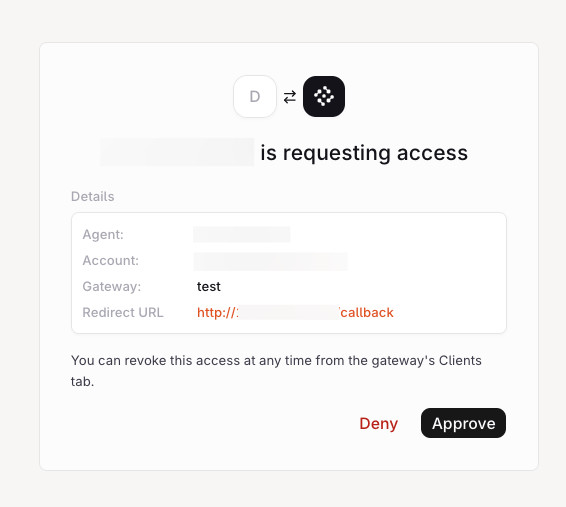
On first use the client opens the browser. The approval page names the client and the MCP Gateway it is requesting access to. Click Approve to issue the token, or Deny to reject the request.
```bash theme={"theme":{"light":"github-light","dark":"github-dark"}}
npx add-mcp https://my.orq.ai/v3/mcp/ --name
```
Register the MCP Gateway directly in the client, replacing `` with the gateway key from the **Connect** section:
```bash wrap theme={"theme":{"light":"github-light","dark":"github-dark"}}
claude mcp add --transport http https://my.orq.ai/v3/mcp/
```
Claude Code opens the browser for approval on first use. Confirm with `claude mcp list`.
Add the MCP Gateway in **Cursor Settings → Tools & MCP → New MCP Server** and paste:
```json wrap theme={"theme":{"light":"github-light","dark":"github-dark"}}
{
"mcpServers": {
"": {
"url": "https://my.orq.ai/v3/mcp/"
}
}
}
```
Save the configuration and complete the browser approval when Cursor prompts for it.
```bash wrap theme={"theme":{"light":"github-light","dark":"github-dark"}}
codex mcp add --url https://my.orq.ai/v3/mcp/
```
Run `codex mcp login ` to complete the browser approval.
Add the MCP Gateway with the **MCP: Add Server** command, select **HTTP (HTTP or Server-Sent Events)**, and enter `https://my.orq.ai/v3/mcp/` as the server URL. VS Code writes a `.vscode/mcp.json`:
```json wrap theme={"theme":{"light":"github-light","dark":"github-dark"}}
{
"servers": {
"": {
"url": "https://my.orq.ai/v3/mcp/",
"type": "http"
}
}
}
```
VS Code opens the browser for approval on first connect.
On first use the client opens the browser. The approval page names the client and the MCP Gateway it is requesting access to. Click Approve to issue the token, or Deny to reject the request.
 **Manage authorized clients**
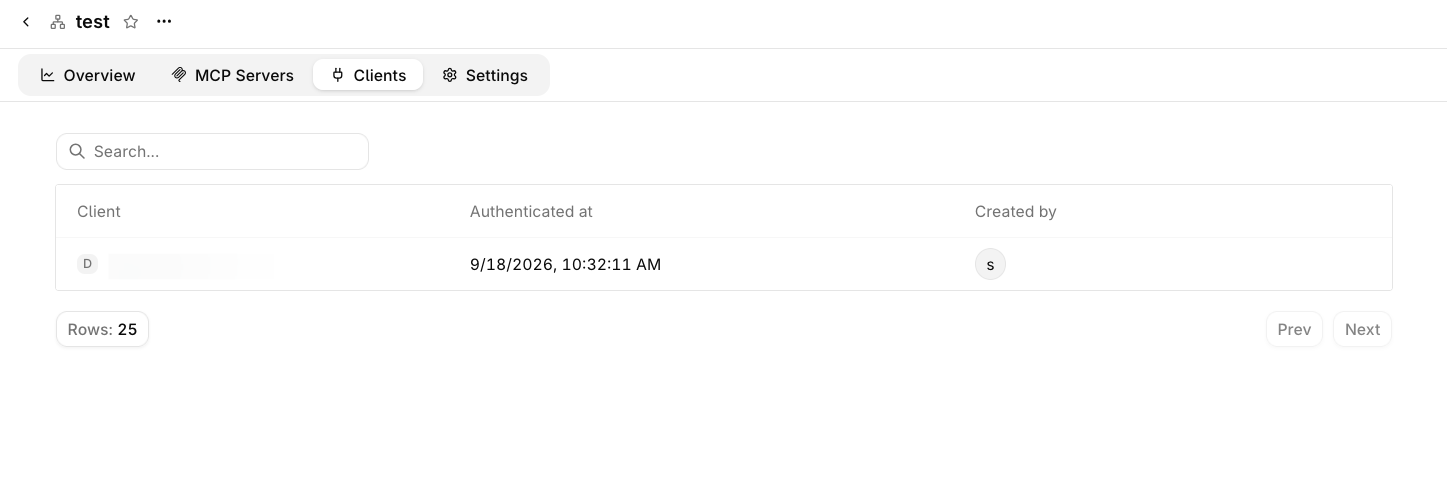
Every authorized client appears on the **Clients** tab with the client name, when it authenticated, and who created it. Choose **Revoke access** from a client's menu to stop the client refreshing its token; the access token it already holds stays valid until it expires, up to 30 minutes.
**Manage authorized clients**
Every authorized client appears on the **Clients** tab with the client name, when it authenticated, and who created it. Choose **Revoke access** from a client's menu to stop the client refreshing its token; the access token it already holds stays valid until it expires, up to 30 minutes.
 **How sign-in works**
The MCP Gateway implements the MCP authorization specification on top of OAuth 2.0:
* **Discovery**: an unauthenticated request to the gateway returns `401` with a `WWW-Authenticate` header pointing at the gateway's metadata documents. The protected-resource document at `/.well-known/oauth-protected-resource/v3/mcp/` names the authorization server; the authorization-server document at `/.well-known/oauth-authorization-server/v2/auth/mcp`, which serves every gateway, lists its endpoints.
* **Dynamic client registration**: the client registers at the authorization server's registration endpoint, so no client ID or secret needs provisioning in advance.
* **Authorization code with PKCE**: sign-in uses the authorization code flow with Proof Key for Code Exchange (PKCE) and the `S256` challenge method, which binds the authorization code to the client that requested it.
The token grants the `mcp:tools` and `mcp:resources` scopes on this MCP Gateway only, and the client refreshes it without another sign-in until access is revoked.
### API key
Pass an [API key](/ai-studio/organization/api-keys) as a bearer token instead of signing in. Set `ORQ_API_KEY`, then register the MCP Gateway:
```bash theme={"theme":{"light":"github-light","dark":"github-dark"}}
npx add-mcp https://my.orq.ai/v3/mcp/ \
--name \
--header "Authorization: Bearer $ORQ_API_KEY"
```
```bash wrap theme={"theme":{"light":"github-light","dark":"github-dark"}}
claude mcp add --transport http https://my.orq.ai/v3/mcp/ --header "Authorization: Bearer ${ORQ_API_KEY}"
```
Set `ORQ_API_KEY` before running the command. Confirm with `claude mcp list`.
```json wrap theme={"theme":{"light":"github-light","dark":"github-dark"}}
{
"mcpServers": {
"": {
"url": "https://my.orq.ai/v3/mcp/",
"headers": {
"Authorization": "Bearer YOUR_ORQ_API_KEY"
}
}
}
}
```
Replace `YOUR_ORQ_API_KEY` with an API key. Save the configuration; the server connects and shows a green indicator.
```bash wrap theme={"theme":{"light":"github-light","dark":"github-dark"}}
codex mcp add --url https://my.orq.ai/v3/mcp/ --bearer-token-env-var ORQ_API_KEY
```
Export `ORQ_API_KEY` in the shell that launches Codex.
```json wrap theme={"theme":{"light":"github-light","dark":"github-dark"}}
{
"inputs": [
{
"type": "promptString",
"id": "orq-api-key",
"description": "Orq.ai API Key",
"password": true
}
],
"servers": {
"": {
"url": "https://my.orq.ai/v3/mcp/",
"type": "http",
"headers": {
"Authorization": "Bearer ${input:orq-api-key}"
}
}
}
}
```
VS Code prompts for the API key on first connect and stores it in the OS secret store.
## Monitor Usage
The **Overview** tab reports how clients use the MCP Gateway. It opens on the last 7 days, and every card compares that window against the one before it. Change the window with the time range picker in the top right.
**How sign-in works**
The MCP Gateway implements the MCP authorization specification on top of OAuth 2.0:
* **Discovery**: an unauthenticated request to the gateway returns `401` with a `WWW-Authenticate` header pointing at the gateway's metadata documents. The protected-resource document at `/.well-known/oauth-protected-resource/v3/mcp/` names the authorization server; the authorization-server document at `/.well-known/oauth-authorization-server/v2/auth/mcp`, which serves every gateway, lists its endpoints.
* **Dynamic client registration**: the client registers at the authorization server's registration endpoint, so no client ID or secret needs provisioning in advance.
* **Authorization code with PKCE**: sign-in uses the authorization code flow with Proof Key for Code Exchange (PKCE) and the `S256` challenge method, which binds the authorization code to the client that requested it.
The token grants the `mcp:tools` and `mcp:resources` scopes on this MCP Gateway only, and the client refreshes it without another sign-in until access is revoked.
### API key
Pass an [API key](/ai-studio/organization/api-keys) as a bearer token instead of signing in. Set `ORQ_API_KEY`, then register the MCP Gateway:
```bash theme={"theme":{"light":"github-light","dark":"github-dark"}}
npx add-mcp https://my.orq.ai/v3/mcp/ \
--name \
--header "Authorization: Bearer $ORQ_API_KEY"
```
```bash wrap theme={"theme":{"light":"github-light","dark":"github-dark"}}
claude mcp add --transport http https://my.orq.ai/v3/mcp/ --header "Authorization: Bearer ${ORQ_API_KEY}"
```
Set `ORQ_API_KEY` before running the command. Confirm with `claude mcp list`.
```json wrap theme={"theme":{"light":"github-light","dark":"github-dark"}}
{
"mcpServers": {
"": {
"url": "https://my.orq.ai/v3/mcp/",
"headers": {
"Authorization": "Bearer YOUR_ORQ_API_KEY"
}
}
}
}
```
Replace `YOUR_ORQ_API_KEY` with an API key. Save the configuration; the server connects and shows a green indicator.
```bash wrap theme={"theme":{"light":"github-light","dark":"github-dark"}}
codex mcp add --url https://my.orq.ai/v3/mcp/ --bearer-token-env-var ORQ_API_KEY
```
Export `ORQ_API_KEY` in the shell that launches Codex.
```json wrap theme={"theme":{"light":"github-light","dark":"github-dark"}}
{
"inputs": [
{
"type": "promptString",
"id": "orq-api-key",
"description": "Orq.ai API Key",
"password": true
}
],
"servers": {
"": {
"url": "https://my.orq.ai/v3/mcp/",
"type": "http",
"headers": {
"Authorization": "Bearer ${input:orq-api-key}"
}
}
}
}
```
VS Code prompts for the API key on first connect and stores it in the OS secret store.
## Monitor Usage
The **Overview** tab reports how clients use the MCP Gateway. It opens on the last 7 days, and every card compares that window against the one before it. Change the window with the time range picker in the top right.
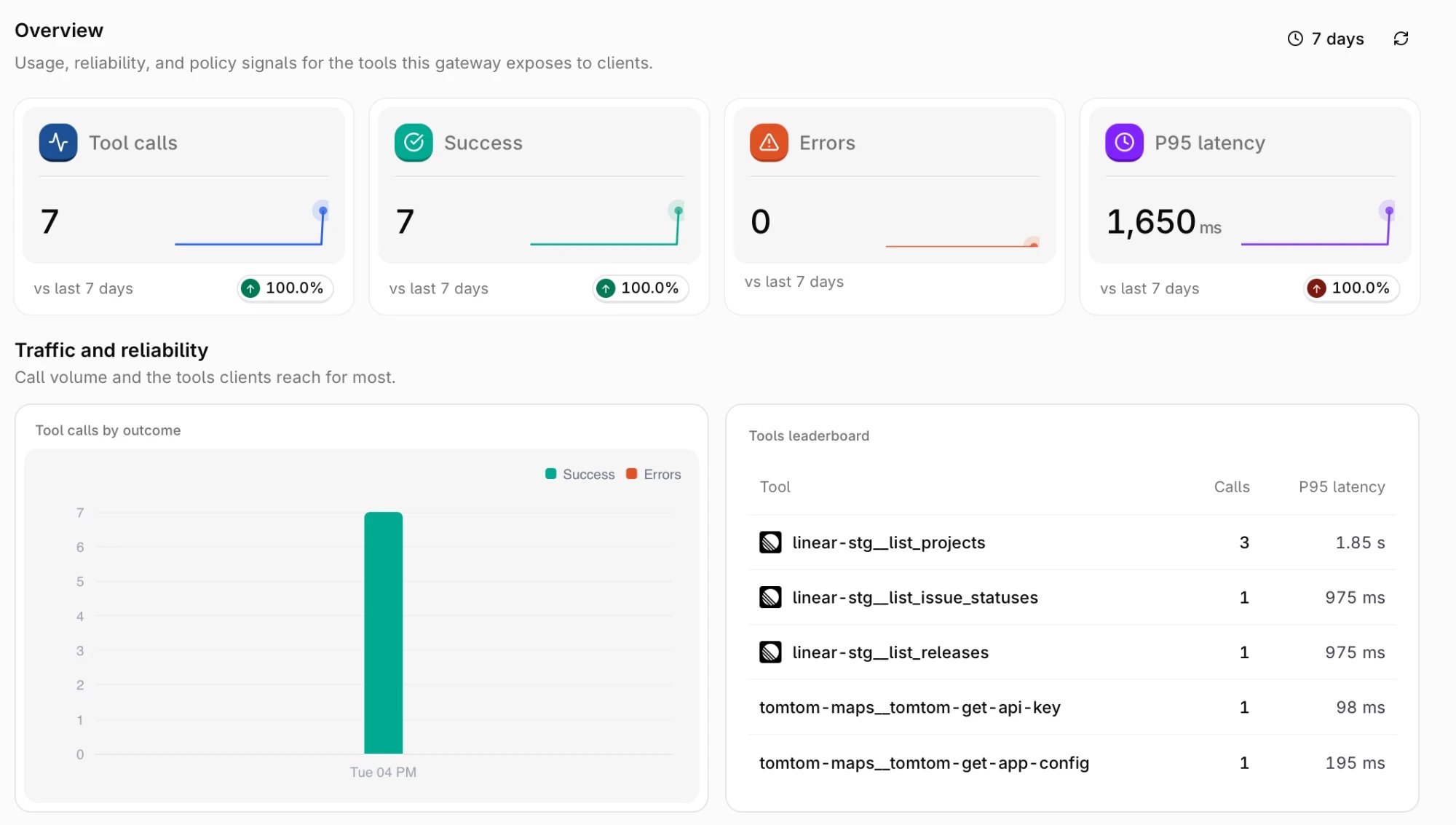 | Card | Description |
| --------------- | --------------------------------------------------- |
| **Tool calls** | Tool invocations routed through the MCP Gateway. |
| **Success** | Invocations that completed successfully. |
| **Errors** | Invocations that returned an error. |
| **P95 latency** | 95th percentile duration of successful invocations. |
**Traffic and reliability** breaks the same window down further:
* **Tool calls by outcome**: call volume over time, split into successes and errors.
* **Tools leaderboard**: the most called tools with their call count and P95 latency, listed under their namespaced names.
## Audit Changes
Changes to the MCP Gateway are recorded in [Audit Logs](/ai-studio/organization/audit-logs), so a change to the exposed tool surface can be traced back to whoever made it.
Entries are written under two entity types:
| Entity type | Recorded when |
| --------------- | ----------------------------------------------------------------------------------- |
| **MCP Gateway** | A gateway is created, updated, or deleted, including changes to its linked servers. |
| **MCP Server** | A server is created, updated, or deleted. |
Filter by either entity type on the Audit Logs page to see only MCP Portal activity.
| Card | Description |
| --------------- | --------------------------------------------------- |
| **Tool calls** | Tool invocations routed through the MCP Gateway. |
| **Success** | Invocations that completed successfully. |
| **Errors** | Invocations that returned an error. |
| **P95 latency** | 95th percentile duration of successful invocations. |
**Traffic and reliability** breaks the same window down further:
* **Tool calls by outcome**: call volume over time, split into successes and errors.
* **Tools leaderboard**: the most called tools with their call count and P95 latency, listed under their namespaced names.
## Audit Changes
Changes to the MCP Gateway are recorded in [Audit Logs](/ai-studio/organization/audit-logs), so a change to the exposed tool surface can be traced back to whoever made it.
Entries are written under two entity types:
| Entity type | Recorded when |
| --------------- | ----------------------------------------------------------------------------------- |
| **MCP Gateway** | A gateway is created, updated, or deleted, including changes to its linked servers. |
| **MCP Server** | A server is created, updated, or deleted. |
Filter by either entity type on the Audit Logs page to see only MCP Portal activity.