> ## Documentation Index
> Fetch the complete documentation index at: https://docs.orq.ai/llms.txt
> Use this file to discover all available pages before exploring further.
# Bring Your Own Model
> Connect fine-tuned, self-hosted, and privately deployed models from OpenAI-compatible endpoints, Azure AI Foundry, AWS Bedrock, or LiteLLM to the AI Gateway.
Use private models alongside public models through the same AI Gateway endpoint. Private models are useful when you have fine-tuned models, dedicated deployments, or self-hosted inference that should remain under your infrastructure and provider contracts.
## Supported private model sources
Add models from any endpoint that implements the OpenAI API, including self-hosted and private deployments.
Import OpenAI-compatible and publisher model deployments from an Azure AI Foundry project.
Add models using Amazon Bedrock inference profiles.
Import self-hosted or custom models exposed through your LiteLLM instance.
## Add a private model
In the AI Gateway sidebar, open **Models** and select **Model**.
Select OpenAI Compatible, Azure, AWS Bedrock, or Import from LiteLLM, then follow the prompts for that source.
Import or add the models to expose, then enable each model that should be available through the AI Gateway.
Reference an imported model as `@/`.
```text theme={"theme":{"light":"github-light","dark":"github-dark"}}
corp@azure/gpt-5.6-sol
```
Enabled private models are available for requests through [routing rules](/ai-gateway/configuration/routing-rules).
Enable models, filter by capability and region, and control model access by project.
### OpenAI Compatible
Choose this source for any endpoint that implements the OpenAI API, including self-hosted inference servers and private gateways.
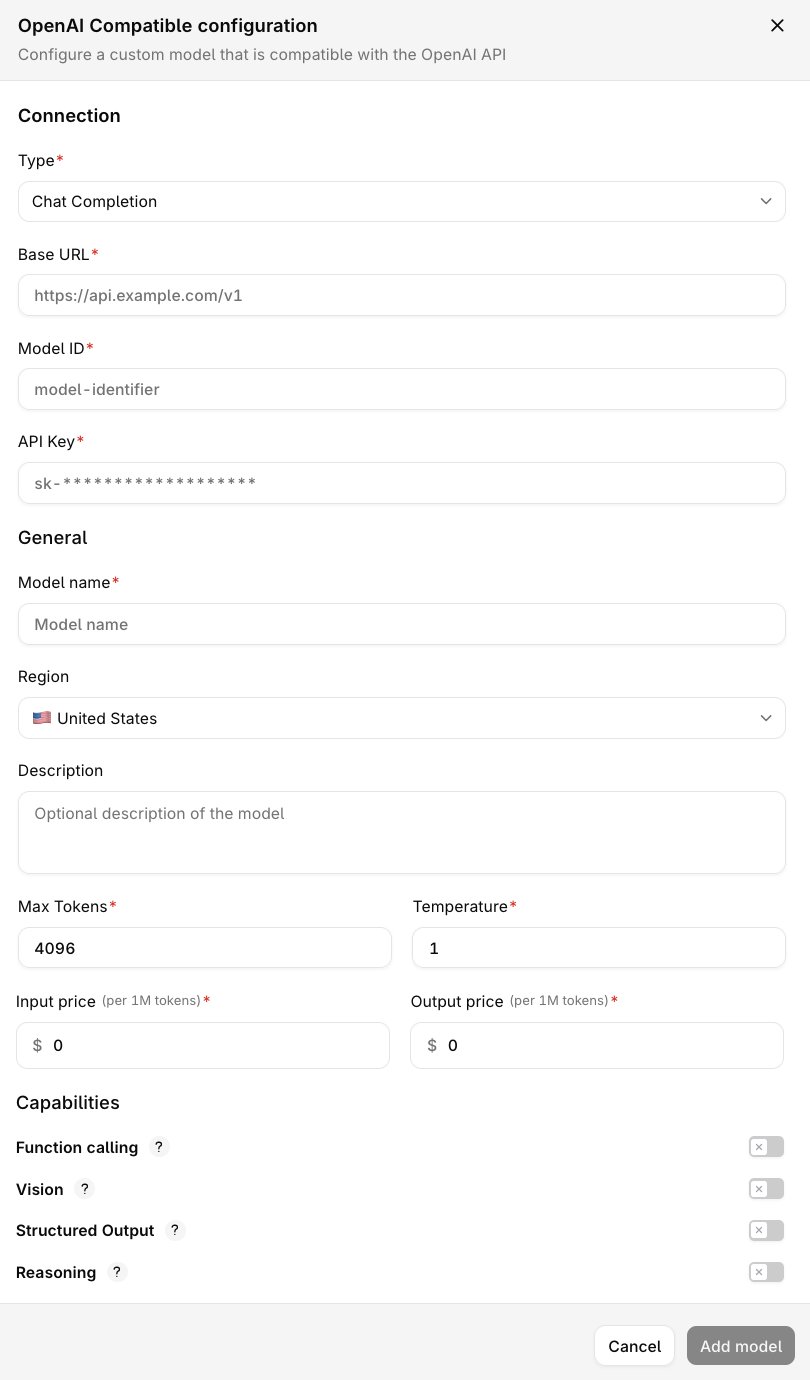 For the configuration fields, see [OpenAI-compatible models](/ai-studio/integrations/providers/open-ai-like).