> ## Documentation Index
> Fetch the complete documentation index at: https://docs.orq.ai/llms.txt
> Use this file to discover all available pages before exploring further.
# Create Tools
> Add function calling to LLM applications with tools. Create HTTP, Python, or JSON Schema tools to integrate AI models with external APIs and services.
Tools give models the ability to take action: call an API, run code, or invoke any external service. Tools require a model with function calling support, look for the `tools` tag in the [AI Gateway](/ai-gateway/using-the-router). For MCP server connections, see [MCP Portal](/ai-gateway/mcp-portal/mcp-servers).
The following Tools are available:
Pass the tool call back to the caller for local execution. Define parameters with JSON Schema.
Enforce structured output from the model using a full JSON Schema definition.
Make a real HTTP request to an external API at runtime. No extra code needed.
Connect upstream MCP servers. Manage authentication, tool discovery, and exposure from the **AI Gateway**.
Run arbitrary Python code at runtime. Define logic and parameters directly in the Studio.
## Choosing a tool type
**Orq.ai** executes every tool type except Function: the model calls the tool, the platform runs it, and the run continues without the application being involved. A Function Tool is the one that gets handed back. The platform returns the call and waits for the application to execute it and send the result, which makes it the escape hatch for anything the platform cannot reach on its own.
Pick a Function Tool when the code needs the application's own environment: a database connection, an internal client library, credentials that never leave the application, or logic that no single request can express. An [HTTP Tool](#http-tool) is less work when the capability is already a REST endpoint, because **Orq.ai** makes the request. Small self-contained logic can go in a [Python Tool](#python-tool), which runs on the platform with no application code at all.
## Function Tool
A Function Tool lets the model call custom code that runs in the application invoking the agent, not on the **Orq.ai** platform. Use it for database queries, internal APIs, or any logic that requires access to the application's environment.
Define a callable function using JSON Schema.
Open **Tools** in the **Managed Agents** section, then click Tool.
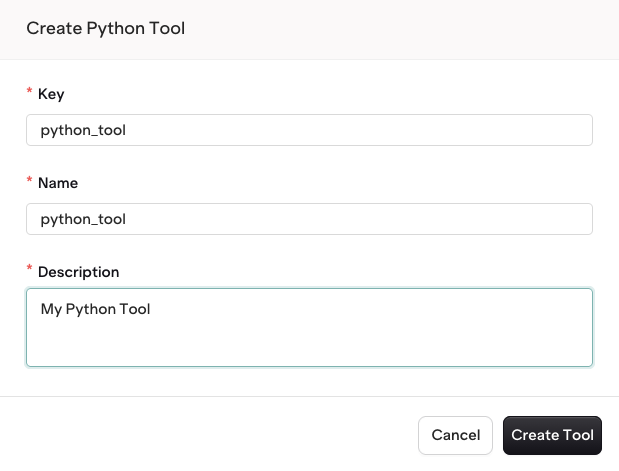
 Enter the main details of the tool:
* **Key**, used by models to reference the tool
* **Name**, used in the studio to find the tool
* **Description**, used to describe the tool
Make the Description as precise as possible, it is used notably by [Agents](/ai-studio/ai-engineering/build-agents) when looking up relevant tools for their tasks.
Enter the main details of the tool:
* **Key**, used by models to reference the tool
* **Name**, used in the studio to find the tool
* **Description**, used to describe the tool
Make the Description as precise as possible, it is used notably by [Agents](/ai-studio/ai-engineering/build-agents) when looking up relevant tools for their tasks.
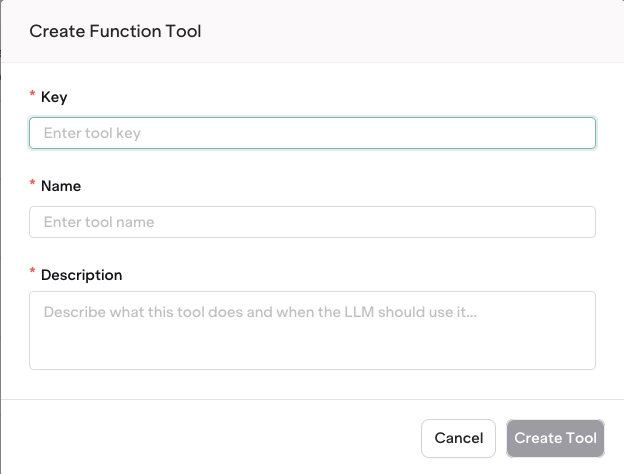 Function Tools are defined using JSON.
Here is an example of a JSON schema for a function `get_current_weather` that declares the fields `location (string)` and `unit (string)`:
```json theme={"theme":{"light":"github-light","dark":"github-dark"}}
{
"type": "object",
"properties": {
"unit": {
"type": "string",
"description": "The temperature unit, e.g. Celsius"
},
"location": {
"type": "string",
"description": "The city and state, e.g. San Francisco, CA"
}
},
"required": [
"location",
"unit"
]
}
```
The object defined here is based on [JSON Schema](https://json-schema.org/). This framework allows for extensible definition that fits your ideal function definition.
**Type**
Use here any of the valid JSON types: `object`, `string`, `integer`, `number`, `array`, etc. The top-level type will most commonly be an `object` holding other properties.
Learn more about all JSON types in [the JSON Schema definition](https://json-schema.org/understanding-json-schema/reference/type).
**Properties**
Properties are definitions of fields within an object. Here you can define any new variable. Nested properties are allowed.
**Required**
The `required` array within an object defines which fields must be entered for a JSON payload to be validated.
Once your tool is configured, click Publish to save a new version. Each published version is immutable and tracked in the [version history](#versions).
A Function Tool defines a callable function using a JSON Schema parameter definition. The caller executes the function locally and returns the result to the model.
| Field | Required | Description |
| --------------------- | -------- | ------------------------------------------------------ |
| `key` | Yes | Unique identifier (alphanumeric, hyphens, underscores) |
| `path` | Yes | Project path, e.g. `"Default"` |
| `type` | Yes | Must be `"function"` |
| `description` | Yes | Used by agents to decide when and how to call the tool |
| `display_name` | No | Human-readable name shown in the Studio |
| `function.name` | Yes | Function name |
| `function.parameters` | Yes | JSON Schema object describing the function parameters |
```bash cURL theme={"theme":{"light":"github-light","dark":"github-dark"}}
curl -X POST https://my.orq.ai/v2/tools \
-H "Authorization: Bearer $ORQ_API_KEY" \
-H "Content-Type: application/json" \
-d '{
"key": "get_weather",
"display_name": "Get Weather",
"description": "Returns the current weather for a given city",
"path": "Default",
"type": "function",
"function": {
"name": "get_weather",
"parameters": {
"type": "object",
"properties": {
"location": {
"type": "string",
"description": "The city name, e.g. Amsterdam"
},
"unit": {
"type": "string",
"description": "Temperature unit: celsius or fahrenheit"
}
},
"required": ["location"]
}
}
}'
```
```python Python theme={"theme":{"light":"github-light","dark":"github-dark"}}
from orq_ai_sdk import Orq
import os
orq = Orq(api_key=os.environ["ORQ_API_KEY"])
tool = orq.tools.create(request={
"key": "get_weather",
"display_name": "Get Weather",
"description": "Returns the current weather for a given city",
"path": "Default",
"type": "function",
"function": {
"name": "get_weather",
"parameters": {
"type": "object",
"properties": {
"location": {
"type": "string",
"description": "The city name, e.g. Amsterdam",
},
"unit": {
"type": "string",
"description": "Temperature unit: celsius or fahrenheit",
},
},
"required": ["location"],
},
},
})
```
```typescript Node theme={"theme":{"light":"github-light","dark":"github-dark"}}
import { Orq } from "@orq-ai/node";
const orq = new Orq({ apiKey: process.env["ORQ_API_KEY"] ?? "" });
const tool = await orq.tools.create({
key: "get_weather",
displayName: "Get Weather",
description: "Returns the current weather for a given city",
path: "Default",
type: "function",
function: {
name: "get_weather",
parameters: {
type: "object",
properties: {
location: {
type: "string",
description: "The city name, e.g. Amsterdam",
},
unit: {
type: "string",
description: "Temperature unit: celsius or fahrenheit",
},
},
required: ["location"],
},
},
});
```
See the full [Create Tool API reference](/reference/tools/create-tool).
```bash theme={"theme":{"light":"github-light","dark":"github-dark"}}
orq tools create \
--key get_weather \
--display-name "Get Weather" \
--description "Returns the current weather for a given city" \
--path Default \
--type function \
--function '{"name": "get_weather", "parameters": {"type": "object", "properties": {"location": {"type": "string", "description": "The city name, e.g. Amsterdam"}, "unit": {"type": "string", "description": "Temperature unit: celsius or fahrenheit"}}, "required": ["location"]}}'
```
See [install and setup](/reference/cli) to get started with the CLI. Run `orq tools create --help` for the full flag reference.
## JSON Schema Tool
Enforce structured output from the model using a full JSON Schema definition.
Open **Tools** in the **Managed Agents** section, then click Tool.
Enter the main details of the tool:
* **Key**, used by models to reference the tool
* **Name**, used in the studio to find the tool
* **Description**, used to describe the tool
Make the Description as precise as possible, it is used notably by [Agents](/ai-studio/ai-engineering/build-agents) when looking up relevant tools for their tasks.
Function Tools are defined using JSON.
Here is an example of a JSON schema for a function `get_current_weather` that declares the fields `location (string)` and `unit (string)`:
```json theme={"theme":{"light":"github-light","dark":"github-dark"}}
{
"type": "object",
"properties": {
"unit": {
"type": "string",
"description": "The temperature unit, e.g. Celsius"
},
"location": {
"type": "string",
"description": "The city and state, e.g. San Francisco, CA"
}
},
"required": [
"location",
"unit"
]
}
```
The object defined here is based on [JSON Schema](https://json-schema.org/). This framework allows for extensible definition that fits your ideal function definition.
**Type**
Use here any of the valid JSON types: `object`, `string`, `integer`, `number`, `array`, etc. The top-level type will most commonly be an `object` holding other properties.
Learn more about all JSON types in [the JSON Schema definition](https://json-schema.org/understanding-json-schema/reference/type).
**Properties**
Properties are definitions of fields within an object. Here you can define any new variable. Nested properties are allowed.
**Required**
The `required` array within an object defines which fields must be entered for a JSON payload to be validated.
Once your tool is configured, click Publish to save a new version. Each published version is immutable and tracked in the [version history](#versions).
A Function Tool defines a callable function using a JSON Schema parameter definition. The caller executes the function locally and returns the result to the model.
| Field | Required | Description |
| --------------------- | -------- | ------------------------------------------------------ |
| `key` | Yes | Unique identifier (alphanumeric, hyphens, underscores) |
| `path` | Yes | Project path, e.g. `"Default"` |
| `type` | Yes | Must be `"function"` |
| `description` | Yes | Used by agents to decide when and how to call the tool |
| `display_name` | No | Human-readable name shown in the Studio |
| `function.name` | Yes | Function name |
| `function.parameters` | Yes | JSON Schema object describing the function parameters |
```bash cURL theme={"theme":{"light":"github-light","dark":"github-dark"}}
curl -X POST https://my.orq.ai/v2/tools \
-H "Authorization: Bearer $ORQ_API_KEY" \
-H "Content-Type: application/json" \
-d '{
"key": "get_weather",
"display_name": "Get Weather",
"description": "Returns the current weather for a given city",
"path": "Default",
"type": "function",
"function": {
"name": "get_weather",
"parameters": {
"type": "object",
"properties": {
"location": {
"type": "string",
"description": "The city name, e.g. Amsterdam"
},
"unit": {
"type": "string",
"description": "Temperature unit: celsius or fahrenheit"
}
},
"required": ["location"]
}
}
}'
```
```python Python theme={"theme":{"light":"github-light","dark":"github-dark"}}
from orq_ai_sdk import Orq
import os
orq = Orq(api_key=os.environ["ORQ_API_KEY"])
tool = orq.tools.create(request={
"key": "get_weather",
"display_name": "Get Weather",
"description": "Returns the current weather for a given city",
"path": "Default",
"type": "function",
"function": {
"name": "get_weather",
"parameters": {
"type": "object",
"properties": {
"location": {
"type": "string",
"description": "The city name, e.g. Amsterdam",
},
"unit": {
"type": "string",
"description": "Temperature unit: celsius or fahrenheit",
},
},
"required": ["location"],
},
},
})
```
```typescript Node theme={"theme":{"light":"github-light","dark":"github-dark"}}
import { Orq } from "@orq-ai/node";
const orq = new Orq({ apiKey: process.env["ORQ_API_KEY"] ?? "" });
const tool = await orq.tools.create({
key: "get_weather",
displayName: "Get Weather",
description: "Returns the current weather for a given city",
path: "Default",
type: "function",
function: {
name: "get_weather",
parameters: {
type: "object",
properties: {
location: {
type: "string",
description: "The city name, e.g. Amsterdam",
},
unit: {
type: "string",
description: "Temperature unit: celsius or fahrenheit",
},
},
required: ["location"],
},
},
});
```
See the full [Create Tool API reference](/reference/tools/create-tool).
```bash theme={"theme":{"light":"github-light","dark":"github-dark"}}
orq tools create \
--key get_weather \
--display-name "Get Weather" \
--description "Returns the current weather for a given city" \
--path Default \
--type function \
--function '{"name": "get_weather", "parameters": {"type": "object", "properties": {"location": {"type": "string", "description": "The city name, e.g. Amsterdam"}, "unit": {"type": "string", "description": "Temperature unit: celsius or fahrenheit"}}, "required": ["location"]}}'
```
See [install and setup](/reference/cli) to get started with the CLI. Run `orq tools create --help` for the full flag reference.
## JSON Schema Tool
Enforce structured output from the model using a full JSON Schema definition.
Open **Tools** in the **Managed Agents** section, then click Tool.
Enter the main details of the tool:
* **Key**, used by models to reference the tool
* **Name**, used in the studio to find the tool
* **Description**, used to describe the tool
Make the Description as precise as possible, it is used notably by [Agents](/ai-studio/ai-engineering/build-agents) when looking up relevant tools for their tasks.
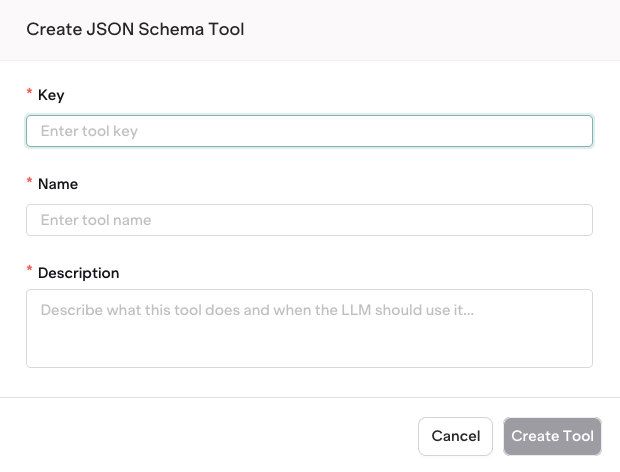 JSON Schema Tools are defined using JSON.
Here is an example of a JSON schema for a function `get_current_weather` that declares the fields `location (string)` and `unit (string)`:
```json theme={"theme":{"light":"github-light","dark":"github-dark"}}
{
"type": "object",
"properties": {
"unit": {
"type": "string",
"description": "The temperature unit, e.g. Celsius"
},
"location": {
"type": "string",
"description": "The city and state, e.g. San Francisco, CA"
}
},
"required": [
"location",
"unit"
]
}
```
The object defined here is based on [JSON Schema](https://json-schema.org/). This framework allows for extensible definition that fits your ideal function definition.
**Type**
Use here any of the valid JSON types: `object`, `string`, `integer`, `number`, `array`, etc. The top-level type will most commonly be an `object` holding other properties.
Learn more about all JSON types in [the JSON Schema definition](https://json-schema.org/understanding-json-schema/reference/type).
**Properties**
Properties are definitions of fields within an object. Here you can define any new variable. Nested properties are allowed.
**Required**
The `required` array within an object defines which fields must be entered for a JSON payload to be validated.
Once your tool is configured, click Publish to save a new version. Each published version is immutable and tracked in the [version history](#versions).
A JSON Schema Tool enforces structured output from the model using a full JSON Schema definition. Unlike Function Tools, the schema is defined at the top level with a `name` and `description`.
| Field | Required | Description |
| ------------------------- | -------- | ------------------------------------------------------ |
| `key` | Yes | Unique identifier (alphanumeric, hyphens, underscores) |
| `path` | Yes | Project path, e.g. `"Default"` |
| `type` | Yes | Must be `"json_schema"` |
| `description` | Yes | Used by agents to decide when and how to call the tool |
| `display_name` | No | Human-readable name shown in the Studio |
| `json_schema.name` | Yes | Schema name |
| `json_schema.description` | No | Describes the schema's purpose |
| `json_schema.schema` | Yes | JSON Schema object enforcing the output structure |
```bash cURL theme={"theme":{"light":"github-light","dark":"github-dark"}}
curl -X POST https://my.orq.ai/v2/tools \
-H "Authorization: Bearer $ORQ_API_KEY" \
-H "Content-Type: application/json" \
-d '{
"key": "extract_contact",
"display_name": "Extract Contact",
"description": "Extracts contact information from unstructured text",
"path": "Default",
"type": "json_schema",
"json_schema": {
"name": "extract_contact",
"description": "Extracts name, email, and phone from text",
"schema": {
"type": "object",
"properties": {
"name": { "type": "string" },
"email": { "type": "string" },
"phone": { "type": "string" }
},
"required": ["name"]
}
}
}'
```
```python Python theme={"theme":{"light":"github-light","dark":"github-dark"}}
from orq_ai_sdk import Orq
import os
orq = Orq(api_key=os.environ["ORQ_API_KEY"])
tool = orq.tools.create(request={
"key": "extract_contact",
"display_name": "Extract Contact",
"description": "Extracts contact information from unstructured text",
"path": "Default",
"type": "json_schema",
"json_schema": {
"name": "extract_contact",
"description": "Extracts name, email, and phone from text",
"schema": {
"type": "object",
"properties": {
"name": {"type": "string"},
"email": {"type": "string"},
"phone": {"type": "string"},
},
"required": ["name"],
},
},
})
```
```typescript Node theme={"theme":{"light":"github-light","dark":"github-dark"}}
import { Orq } from "@orq-ai/node";
const orq = new Orq({ apiKey: process.env["ORQ_API_KEY"] ?? "" });
const tool = await orq.tools.create({
key: "extract_contact",
displayName: "Extract Contact",
description: "Extracts contact information from unstructured text",
path: "Default",
type: "json_schema",
jsonSchema: {
name: "extract_contact",
description: "Extracts name, email, and phone from text",
schema: {
type: "object",
properties: {
name: { type: "string" },
email: { type: "string" },
phone: { type: "string" },
},
required: ["name"],
},
},
});
```
See the full [Create Tool API reference](/reference/tools/create-tool).
Pipe the body via `--stdin` for tool types other than `function`; per-field flags currently validate `--type` against `function` only.
```bash theme={"theme":{"light":"github-light","dark":"github-dark"}}
echo '{
"key": "extract_contact",
"display_name": "Extract Contact",
"description": "Extracts contact information from unstructured text",
"path": "Default",
"type": "json_schema",
"json_schema": {
"name": "extract_contact",
"description": "Extracts name, email, and phone from text",
"schema": {
"type": "object",
"properties": {
"name": { "type": "string" },
"email": { "type": "string" },
"phone": { "type": "string" }
},
"required": ["name"]
}
}
}' | orq tools create --stdin
```
See [install and setup](/reference/cli) to get started with the CLI. Run `orq tools create --help` for the full flag reference.
## HTTP Tool
Make a real HTTP request to an external API at runtime. Use `{{variable}}` syntax to inject dynamic values into any field.
Open **Tools** in the **Managed Agents** section, then click Tool.
Enter the main details of the tool:
* **Key**, used by models to reference the tool
* **Name**, used in the studio to find the tool
* **Description**, used to describe the tool
Make the Description as precise as possible, it is used notably by [Agents](/ai-studio/ai-engineering/build-agents) when looking up relevant tools for their tasks.
JSON Schema Tools are defined using JSON.
Here is an example of a JSON schema for a function `get_current_weather` that declares the fields `location (string)` and `unit (string)`:
```json theme={"theme":{"light":"github-light","dark":"github-dark"}}
{
"type": "object",
"properties": {
"unit": {
"type": "string",
"description": "The temperature unit, e.g. Celsius"
},
"location": {
"type": "string",
"description": "The city and state, e.g. San Francisco, CA"
}
},
"required": [
"location",
"unit"
]
}
```
The object defined here is based on [JSON Schema](https://json-schema.org/). This framework allows for extensible definition that fits your ideal function definition.
**Type**
Use here any of the valid JSON types: `object`, `string`, `integer`, `number`, `array`, etc. The top-level type will most commonly be an `object` holding other properties.
Learn more about all JSON types in [the JSON Schema definition](https://json-schema.org/understanding-json-schema/reference/type).
**Properties**
Properties are definitions of fields within an object. Here you can define any new variable. Nested properties are allowed.
**Required**
The `required` array within an object defines which fields must be entered for a JSON payload to be validated.
Once your tool is configured, click Publish to save a new version. Each published version is immutable and tracked in the [version history](#versions).
A JSON Schema Tool enforces structured output from the model using a full JSON Schema definition. Unlike Function Tools, the schema is defined at the top level with a `name` and `description`.
| Field | Required | Description |
| ------------------------- | -------- | ------------------------------------------------------ |
| `key` | Yes | Unique identifier (alphanumeric, hyphens, underscores) |
| `path` | Yes | Project path, e.g. `"Default"` |
| `type` | Yes | Must be `"json_schema"` |
| `description` | Yes | Used by agents to decide when and how to call the tool |
| `display_name` | No | Human-readable name shown in the Studio |
| `json_schema.name` | Yes | Schema name |
| `json_schema.description` | No | Describes the schema's purpose |
| `json_schema.schema` | Yes | JSON Schema object enforcing the output structure |
```bash cURL theme={"theme":{"light":"github-light","dark":"github-dark"}}
curl -X POST https://my.orq.ai/v2/tools \
-H "Authorization: Bearer $ORQ_API_KEY" \
-H "Content-Type: application/json" \
-d '{
"key": "extract_contact",
"display_name": "Extract Contact",
"description": "Extracts contact information from unstructured text",
"path": "Default",
"type": "json_schema",
"json_schema": {
"name": "extract_contact",
"description": "Extracts name, email, and phone from text",
"schema": {
"type": "object",
"properties": {
"name": { "type": "string" },
"email": { "type": "string" },
"phone": { "type": "string" }
},
"required": ["name"]
}
}
}'
```
```python Python theme={"theme":{"light":"github-light","dark":"github-dark"}}
from orq_ai_sdk import Orq
import os
orq = Orq(api_key=os.environ["ORQ_API_KEY"])
tool = orq.tools.create(request={
"key": "extract_contact",
"display_name": "Extract Contact",
"description": "Extracts contact information from unstructured text",
"path": "Default",
"type": "json_schema",
"json_schema": {
"name": "extract_contact",
"description": "Extracts name, email, and phone from text",
"schema": {
"type": "object",
"properties": {
"name": {"type": "string"},
"email": {"type": "string"},
"phone": {"type": "string"},
},
"required": ["name"],
},
},
})
```
```typescript Node theme={"theme":{"light":"github-light","dark":"github-dark"}}
import { Orq } from "@orq-ai/node";
const orq = new Orq({ apiKey: process.env["ORQ_API_KEY"] ?? "" });
const tool = await orq.tools.create({
key: "extract_contact",
displayName: "Extract Contact",
description: "Extracts contact information from unstructured text",
path: "Default",
type: "json_schema",
jsonSchema: {
name: "extract_contact",
description: "Extracts name, email, and phone from text",
schema: {
type: "object",
properties: {
name: { type: "string" },
email: { type: "string" },
phone: { type: "string" },
},
required: ["name"],
},
},
});
```
See the full [Create Tool API reference](/reference/tools/create-tool).
Pipe the body via `--stdin` for tool types other than `function`; per-field flags currently validate `--type` against `function` only.
```bash theme={"theme":{"light":"github-light","dark":"github-dark"}}
echo '{
"key": "extract_contact",
"display_name": "Extract Contact",
"description": "Extracts contact information from unstructured text",
"path": "Default",
"type": "json_schema",
"json_schema": {
"name": "extract_contact",
"description": "Extracts name, email, and phone from text",
"schema": {
"type": "object",
"properties": {
"name": { "type": "string" },
"email": { "type": "string" },
"phone": { "type": "string" }
},
"required": ["name"]
}
}
}' | orq tools create --stdin
```
See [install and setup](/reference/cli) to get started with the CLI. Run `orq tools create --help` for the full flag reference.
## HTTP Tool
Make a real HTTP request to an external API at runtime. Use `{{variable}}` syntax to inject dynamic values into any field.
Open **Tools** in the **Managed Agents** section, then click Tool.
Enter the main details of the tool:
* **Key**, used by models to reference the tool
* **Name**, used in the studio to find the tool
* **Description**, used to describe the tool
Make the Description as precise as possible, it is used notably by [Agents](/ai-studio/ai-engineering/build-agents) when looking up relevant tools for their tasks.
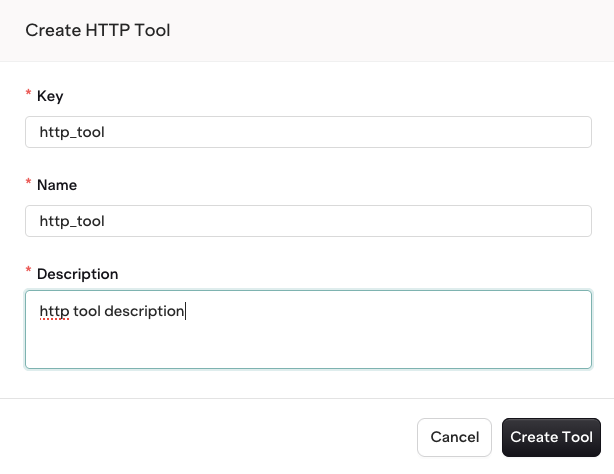 HTTP Tools are defined within the Studio, either using the UI or using JSON (use the toggle to change mode).
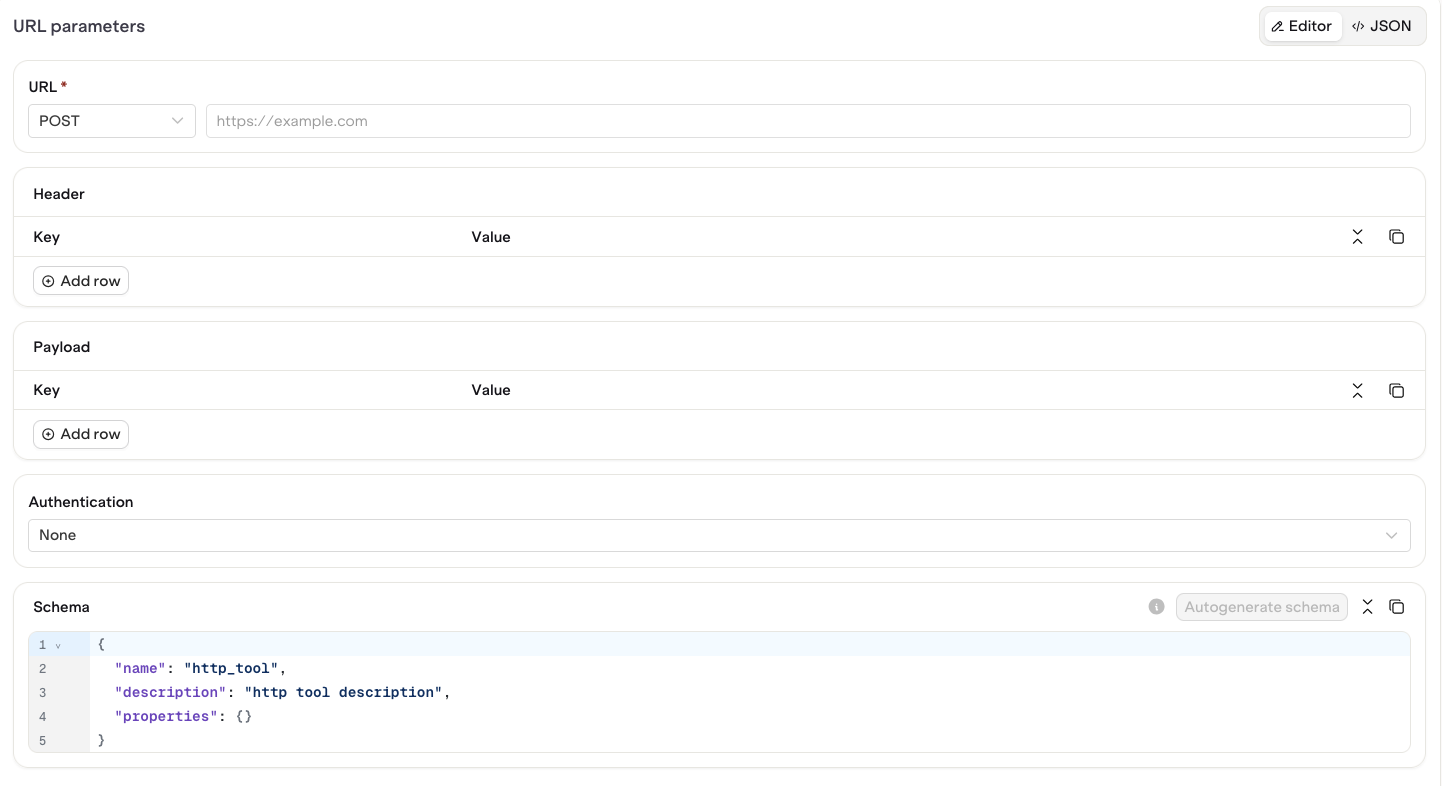 | Field | Description |
| ------------------ | -------------------------------------------------------------------------------------------------- |
| **URL** | Enter the API URL as well as the HTTP Method for the call |
| **Header** | Define Request Header Key-value pairs |
| **Payload** | Define Request Body Payload Key-value pairs (these are translated to JSON at runtime) |
| **Authentication** | Define an optional Bearer Authentication field and Token (Tokens are encrypted when saved in Orq). |
You can use **Variables** with the `{{variable}}` syntax within any configuration field. The variable will be resolved at runtime when the payload is built for the HTTP call.
Use the `Autogenerate Schema` when using variables to ensure variable definition is correctly created.
Once your tool is configured, click Publish to save a new version. Each published version is immutable and tracked in the [version history](#versions).
An HTTP Tool makes a real HTTP request to an external API at runtime. Use `{{variable}}` syntax in any field to inject dynamic values.
| Field | Required | Description |
| -------------------------- | -------- | ------------------------------------------------------ |
| `key` | Yes | Unique identifier (alphanumeric, hyphens, underscores) |
| `path` | Yes | Project path, e.g. `"Default"` |
| `type` | Yes | Must be `"http"` |
| `description` | Yes | Used by agents to decide when and how to call the tool |
| `display_name` | No | Human-readable name shown in the Studio |
| `http.blueprint.url` | Yes | Target URL. Supports `{{variable}}` syntax |
| `http.blueprint.method` | Yes | HTTP method: `GET`, `POST`, `PUT`, `PATCH`, `DELETE` |
| `http.blueprint.headers` | No | Key-value pairs sent with every request |
| `http.blueprint.timeout` | No | Request timeout in seconds, 1 to 600. Defaults to 60 |
| `http.blueprint.arguments` | No | Parameters the model can fill in at call time |
```bash cURL theme={"theme":{"light":"github-light","dark":"github-dark"}}
curl -X POST https://my.orq.ai/v2/tools \
-H "Authorization: Bearer $ORQ_API_KEY" \
-H "Content-Type: application/json" \
-d '{
"key": "search_products",
"display_name": "Search Products",
"description": "Searches the product catalog by keyword",
"path": "Default",
"type": "http",
"http": {
"blueprint": {
"url": "https://api.example.com/products/search",
"method": "GET",
"headers": {
"Accept": "application/json"
},
"timeout": 30
},
"arguments": {
"query": {
"type": "string",
"description": "Search keyword",
"send_to_model": true
}
}
}
}'
```
```python Python theme={"theme":{"light":"github-light","dark":"github-dark"}}
from orq_ai_sdk import Orq
import os
orq = Orq(api_key=os.environ["ORQ_API_KEY"])
tool = orq.tools.create(request={
"key": "search_products",
"display_name": "Search Products",
"description": "Searches the product catalog by keyword",
"path": "Default",
"type": "http",
"http": {
"blueprint": {
"url": "https://api.example.com/products/search",
"method": "GET",
"headers": {"Accept": "application/json"},
"timeout": 30,
},
"arguments": {
"query": {
"type": "string",
"description": "Search keyword",
"send_to_model": True,
}
},
},
})
```
```typescript Node theme={"theme":{"light":"github-light","dark":"github-dark"}}
import { Orq } from "@orq-ai/node";
const orq = new Orq({ apiKey: process.env["ORQ_API_KEY"] ?? "" });
const tool = await orq.tools.create({
key: "search_products",
displayName: "Search Products",
description: "Searches the product catalog by keyword",
path: "Default",
type: "http",
http: {
blueprint: {
url: "https://api.example.com/products/search",
method: "GET",
headers: { Accept: "application/json" },
timeout: 30,
},
arguments: {
query: {
type: "string",
description: "Search keyword",
sendToModel: true,
},
},
},
});
```
See the full [Create Tool API reference](/reference/tools/create-tool).
Pipe the body via `--stdin` for tool types other than `function`; per-field flags currently validate `--type` against `function` only.
```bash theme={"theme":{"light":"github-light","dark":"github-dark"}}
echo '{
"key": "search_products",
"display_name": "Search Products",
"description": "Searches the product catalog by keyword",
"path": "Default",
"type": "http",
"http": {
"blueprint": {
"url": "https://api.example.com/products/search",
"method": "GET",
"headers": { "Accept": "application/json" },
"arguments": {
"query": {
"type": "string",
"description": "Search keyword",
"send_to_model": true
}
}
}
}
}' | orq tools create --stdin
```
See [install and setup](/reference/cli) to get started with the CLI. Run `orq tools create --help` for the full flag reference.
## MCP Servers
MCP servers are now managed centrally in the **AI Gateway** under **MCP Portal**. Each server registers an upstream MCP endpoint, discovers tools automatically, and exposes them to **Agents** and **Gateways**.
MCP tools previously created through this page have been migrated to **MCP Portal**. Existing connections are now managed under **AI Gateway > MCP Portal > MCP Servers**. New MCP connections should be created through the **MCP Portal** instead.
Connect upstream MCP servers, configure authentication, and manage tool discovery.
Bundle multiple servers behind a single gateway endpoint with egress and rate limits.
MCP tool calls appear in traces with server hostname, tool name, arguments, and latency. See [MCP Tracing](/ai-studio/observability/mcp-tracing) for details.
## Python Tool
Python code is limited to 1 MB (1,048,576 bytes) per tool: roughly 1 million characters, or about 20,000 lines of typical Python. Larger code returns a `Code exceeds maximum size` error and does not run.
Run arbitrary Python code at runtime. Access parameters via `params` and store the result in `result`.
Open **Tools** in the **Managed Agents** section, then click Tool.
Enter the main details of the tool:
* **Key**, used by models to reference the tool
* **Name**, used in the studio to find the tool
* **Description**, used to describe the tool
Make the Description as precise as possible, it is used notably by [Agents](/ai-studio/ai-engineering/build-agents) when looking up relevant tools for their tasks.
| Field | Description |
| ------------------ | -------------------------------------------------------------------------------------------------- |
| **URL** | Enter the API URL as well as the HTTP Method for the call |
| **Header** | Define Request Header Key-value pairs |
| **Payload** | Define Request Body Payload Key-value pairs (these are translated to JSON at runtime) |
| **Authentication** | Define an optional Bearer Authentication field and Token (Tokens are encrypted when saved in Orq). |
You can use **Variables** with the `{{variable}}` syntax within any configuration field. The variable will be resolved at runtime when the payload is built for the HTTP call.
Use the `Autogenerate Schema` when using variables to ensure variable definition is correctly created.
Once your tool is configured, click Publish to save a new version. Each published version is immutable and tracked in the [version history](#versions).
An HTTP Tool makes a real HTTP request to an external API at runtime. Use `{{variable}}` syntax in any field to inject dynamic values.
| Field | Required | Description |
| -------------------------- | -------- | ------------------------------------------------------ |
| `key` | Yes | Unique identifier (alphanumeric, hyphens, underscores) |
| `path` | Yes | Project path, e.g. `"Default"` |
| `type` | Yes | Must be `"http"` |
| `description` | Yes | Used by agents to decide when and how to call the tool |
| `display_name` | No | Human-readable name shown in the Studio |
| `http.blueprint.url` | Yes | Target URL. Supports `{{variable}}` syntax |
| `http.blueprint.method` | Yes | HTTP method: `GET`, `POST`, `PUT`, `PATCH`, `DELETE` |
| `http.blueprint.headers` | No | Key-value pairs sent with every request |
| `http.blueprint.timeout` | No | Request timeout in seconds, 1 to 600. Defaults to 60 |
| `http.blueprint.arguments` | No | Parameters the model can fill in at call time |
```bash cURL theme={"theme":{"light":"github-light","dark":"github-dark"}}
curl -X POST https://my.orq.ai/v2/tools \
-H "Authorization: Bearer $ORQ_API_KEY" \
-H "Content-Type: application/json" \
-d '{
"key": "search_products",
"display_name": "Search Products",
"description": "Searches the product catalog by keyword",
"path": "Default",
"type": "http",
"http": {
"blueprint": {
"url": "https://api.example.com/products/search",
"method": "GET",
"headers": {
"Accept": "application/json"
},
"timeout": 30
},
"arguments": {
"query": {
"type": "string",
"description": "Search keyword",
"send_to_model": true
}
}
}
}'
```
```python Python theme={"theme":{"light":"github-light","dark":"github-dark"}}
from orq_ai_sdk import Orq
import os
orq = Orq(api_key=os.environ["ORQ_API_KEY"])
tool = orq.tools.create(request={
"key": "search_products",
"display_name": "Search Products",
"description": "Searches the product catalog by keyword",
"path": "Default",
"type": "http",
"http": {
"blueprint": {
"url": "https://api.example.com/products/search",
"method": "GET",
"headers": {"Accept": "application/json"},
"timeout": 30,
},
"arguments": {
"query": {
"type": "string",
"description": "Search keyword",
"send_to_model": True,
}
},
},
})
```
```typescript Node theme={"theme":{"light":"github-light","dark":"github-dark"}}
import { Orq } from "@orq-ai/node";
const orq = new Orq({ apiKey: process.env["ORQ_API_KEY"] ?? "" });
const tool = await orq.tools.create({
key: "search_products",
displayName: "Search Products",
description: "Searches the product catalog by keyword",
path: "Default",
type: "http",
http: {
blueprint: {
url: "https://api.example.com/products/search",
method: "GET",
headers: { Accept: "application/json" },
timeout: 30,
},
arguments: {
query: {
type: "string",
description: "Search keyword",
sendToModel: true,
},
},
},
});
```
See the full [Create Tool API reference](/reference/tools/create-tool).
Pipe the body via `--stdin` for tool types other than `function`; per-field flags currently validate `--type` against `function` only.
```bash theme={"theme":{"light":"github-light","dark":"github-dark"}}
echo '{
"key": "search_products",
"display_name": "Search Products",
"description": "Searches the product catalog by keyword",
"path": "Default",
"type": "http",
"http": {
"blueprint": {
"url": "https://api.example.com/products/search",
"method": "GET",
"headers": { "Accept": "application/json" },
"arguments": {
"query": {
"type": "string",
"description": "Search keyword",
"send_to_model": true
}
}
}
}
}' | orq tools create --stdin
```
See [install and setup](/reference/cli) to get started with the CLI. Run `orq tools create --help` for the full flag reference.
## MCP Servers
MCP servers are now managed centrally in the **AI Gateway** under **MCP Portal**. Each server registers an upstream MCP endpoint, discovers tools automatically, and exposes them to **Agents** and **Gateways**.
MCP tools previously created through this page have been migrated to **MCP Portal**. Existing connections are now managed under **AI Gateway > MCP Portal > MCP Servers**. New MCP connections should be created through the **MCP Portal** instead.
Connect upstream MCP servers, configure authentication, and manage tool discovery.
Bundle multiple servers behind a single gateway endpoint with egress and rate limits.
MCP tool calls appear in traces with server hostname, tool name, arguments, and latency. See [MCP Tracing](/ai-studio/observability/mcp-tracing) for details.
## Python Tool
Python code is limited to 1 MB (1,048,576 bytes) per tool: roughly 1 million characters, or about 20,000 lines of typical Python. Larger code returns a `Code exceeds maximum size` error and does not run.
Run arbitrary Python code at runtime. Access parameters via `params` and store the result in `result`.
Open **Tools** in the **Managed Agents** section, then click Tool.
Enter the main details of the tool:
* **Key**, used by models to reference the tool
* **Name**, used in the studio to find the tool
* **Description**, used to describe the tool
Make the Description as precise as possible, it is used notably by [Agents](/ai-studio/ai-engineering/build-agents) when looking up relevant tools for their tasks.
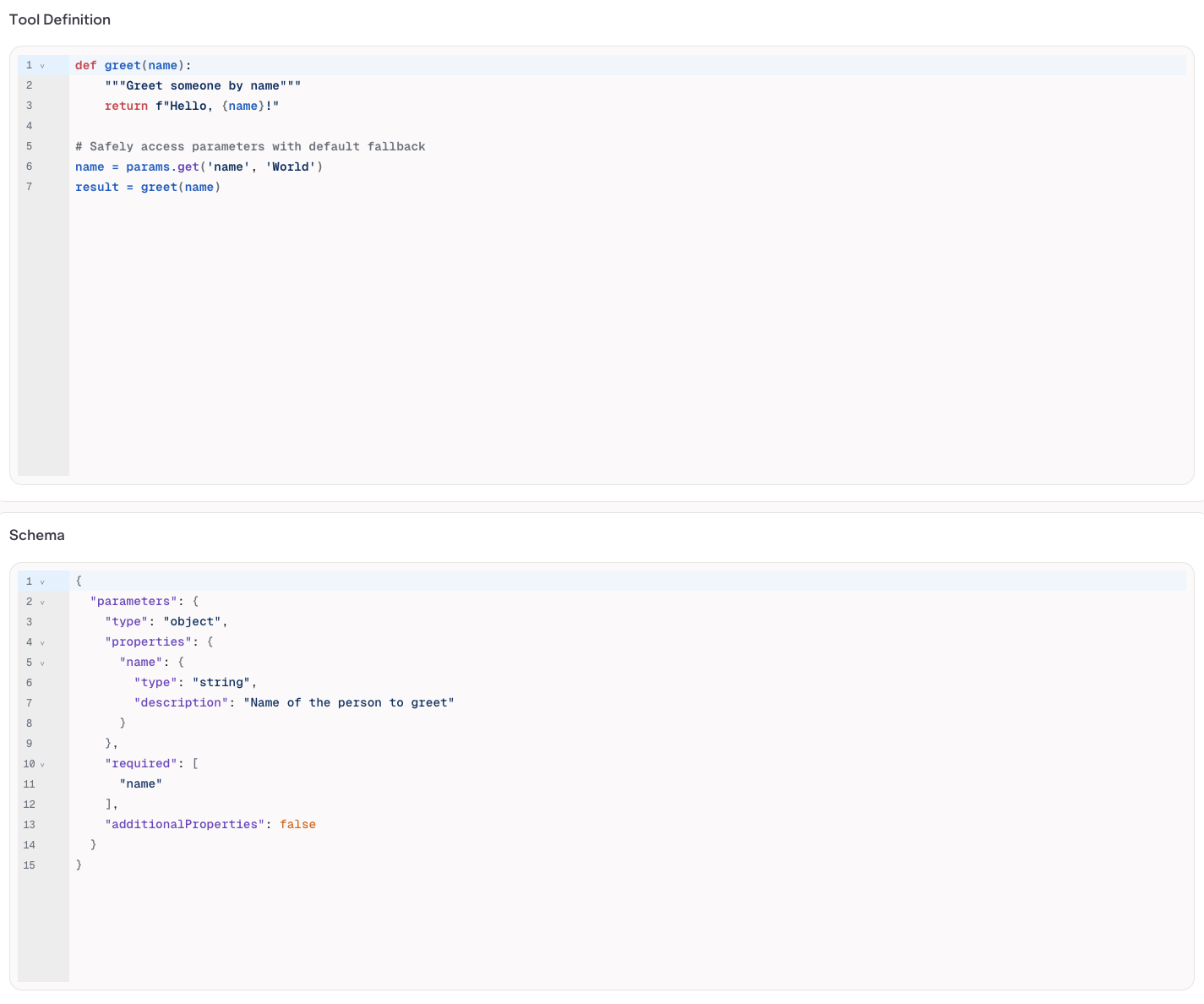
 Freely define the code to be run during Tool execution.
You can define the JSON Schema for the parameters to be sent into the tool. Here, see the `name` field defined and then further fetched using `params.get('name')`.
Ensure your return value is stored within the `result` field.
Freely define the code to be run during Tool execution.
You can define the JSON Schema for the parameters to be sent into the tool. Here, see the `name` field defined and then further fetched using `params.get('name')`.
Ensure your return value is stored within the `result` field.
 Once your tool is configured, click Publish to save a new version. Each published version is immutable and tracked in the [version history](#versions).
A Python Tool runs Python code at runtime. Define the logic directly in the `code` field and declare expected parameters using a JSON Schema.
| Field | Required | Description |
| ---------------------- | -------- | ------------------------------------------------------------------------------------ |
| `key` | Yes | Unique identifier (alphanumeric, hyphens, underscores) |
| `path` | Yes | Project path, e.g. `"Default"` |
| `type` | Yes | Must be `"code"` |
| `description` | Yes | Used by agents to decide when and how to call the tool |
| `display_name` | No | Human-readable name shown in the Studio |
| `code_tool.language` | Yes | Must be `"python"` |
| `code_tool.code` | Yes | Python code to execute. Access parameters via `params`, store the result in `result` |
| `code_tool.parameters` | Yes | JSON Schema object describing the expected input parameters |
```bash cURL theme={"theme":{"light":"github-light","dark":"github-dark"}}
curl -X POST https://my.orq.ai/v2/tools \
-H "Authorization: Bearer $ORQ_API_KEY" \
-H "Content-Type: application/json" \
-d '{
"key": "calculate_discount",
"display_name": "Calculate Discount",
"description": "Calculates the discounted price given a price and a discount percentage",
"path": "Default",
"type": "code",
"code_tool": {
"language": "python",
"code": "price = float(params.get(\"price\", 0))\ndiscount = float(params.get(\"discount\", 0))\nresult = price * (1 - discount / 100)",
"parameters": {
"type": "object",
"properties": {
"price": { "type": "number", "description": "Original price" },
"discount": { "type": "number", "description": "Discount percentage (0-100)" }
},
"required": ["price", "discount"]
}
}
}'
```
```python Python theme={"theme":{"light":"github-light","dark":"github-dark"}}
from orq_ai_sdk import Orq
import os
orq = Orq(api_key=os.environ["ORQ_API_KEY"])
tool = orq.tools.create(request={
"key": "calculate_discount",
"display_name": "Calculate Discount",
"description": "Calculates the discounted price given a price and a discount percentage",
"path": "Default",
"type": "code",
"code_tool": {
"language": "python",
"code": (
'price = float(params.get("price", 0))\n'
'discount = float(params.get("discount", 0))\n'
"result = price * (1 - discount / 100)"
),
"parameters": {
"type": "object",
"properties": {
"price": {"type": "number", "description": "Original price"},
"discount": {"type": "number", "description": "Discount percentage (0-100)"},
},
"required": ["price", "discount"],
},
},
})
```
```typescript Node theme={"theme":{"light":"github-light","dark":"github-dark"}}
import { Orq } from "@orq-ai/node";
const orq = new Orq({ apiKey: process.env["ORQ_API_KEY"] ?? "" });
const tool = await orq.tools.create({
key: "calculate_discount",
displayName: "Calculate Discount",
description: "Calculates the discounted price given a price and a discount percentage",
path: "Default",
type: "code",
codeTool: {
language: "python",
code: [
'price = float(params.get("price", 0))',
'discount = float(params.get("discount", 0))',
"result = price * (1 - discount / 100)",
].join("\n"),
parameters: {
type: "object",
properties: {
price: { type: "number", description: "Original price" },
discount: { type: "number", description: "Discount percentage (0-100)" },
},
required: ["price", "discount"],
},
},
});
```
See the full [Create Tool API reference](/reference/tools/create-tool).
Pipe the body via `--stdin` for tool types other than `function`; per-field flags currently validate `--type` against `function` only.
```bash theme={"theme":{"light":"github-light","dark":"github-dark"}}
echo '{
"key": "calculate_discount",
"display_name": "Calculate Discount",
"description": "Calculates the discounted price given a price and a discount percentage",
"path": "Default",
"type": "code",
"code_tool": {
"language": "python",
"code": "price = float(params.get(\"price\", 0))\ndiscount = float(params.get(\"discount\", 0))\nresult = price * (1 - discount / 100)",
"parameters": {
"type": "object",
"properties": {
"price": { "type": "number", "description": "Original price" },
"discount": { "type": "number", "description": "Discount percentage (0-100)" }
},
"required": ["price", "discount"]
}
}
}' | orq tools create --stdin
```
See [install and setup](/reference/cli) to get started with the CLI. Run `orq tools create --help` for the full flag reference.
## Versions
When you are done editing, click Publish to save your changes. You will be prompted to write a commit message and choose a version bump: **major**, **minor**, or **patch**.
Once your tool is configured, click Publish to save a new version. Each published version is immutable and tracked in the [version history](#versions).
A Python Tool runs Python code at runtime. Define the logic directly in the `code` field and declare expected parameters using a JSON Schema.
| Field | Required | Description |
| ---------------------- | -------- | ------------------------------------------------------------------------------------ |
| `key` | Yes | Unique identifier (alphanumeric, hyphens, underscores) |
| `path` | Yes | Project path, e.g. `"Default"` |
| `type` | Yes | Must be `"code"` |
| `description` | Yes | Used by agents to decide when and how to call the tool |
| `display_name` | No | Human-readable name shown in the Studio |
| `code_tool.language` | Yes | Must be `"python"` |
| `code_tool.code` | Yes | Python code to execute. Access parameters via `params`, store the result in `result` |
| `code_tool.parameters` | Yes | JSON Schema object describing the expected input parameters |
```bash cURL theme={"theme":{"light":"github-light","dark":"github-dark"}}
curl -X POST https://my.orq.ai/v2/tools \
-H "Authorization: Bearer $ORQ_API_KEY" \
-H "Content-Type: application/json" \
-d '{
"key": "calculate_discount",
"display_name": "Calculate Discount",
"description": "Calculates the discounted price given a price and a discount percentage",
"path": "Default",
"type": "code",
"code_tool": {
"language": "python",
"code": "price = float(params.get(\"price\", 0))\ndiscount = float(params.get(\"discount\", 0))\nresult = price * (1 - discount / 100)",
"parameters": {
"type": "object",
"properties": {
"price": { "type": "number", "description": "Original price" },
"discount": { "type": "number", "description": "Discount percentage (0-100)" }
},
"required": ["price", "discount"]
}
}
}'
```
```python Python theme={"theme":{"light":"github-light","dark":"github-dark"}}
from orq_ai_sdk import Orq
import os
orq = Orq(api_key=os.environ["ORQ_API_KEY"])
tool = orq.tools.create(request={
"key": "calculate_discount",
"display_name": "Calculate Discount",
"description": "Calculates the discounted price given a price and a discount percentage",
"path": "Default",
"type": "code",
"code_tool": {
"language": "python",
"code": (
'price = float(params.get("price", 0))\n'
'discount = float(params.get("discount", 0))\n'
"result = price * (1 - discount / 100)"
),
"parameters": {
"type": "object",
"properties": {
"price": {"type": "number", "description": "Original price"},
"discount": {"type": "number", "description": "Discount percentage (0-100)"},
},
"required": ["price", "discount"],
},
},
})
```
```typescript Node theme={"theme":{"light":"github-light","dark":"github-dark"}}
import { Orq } from "@orq-ai/node";
const orq = new Orq({ apiKey: process.env["ORQ_API_KEY"] ?? "" });
const tool = await orq.tools.create({
key: "calculate_discount",
displayName: "Calculate Discount",
description: "Calculates the discounted price given a price and a discount percentage",
path: "Default",
type: "code",
codeTool: {
language: "python",
code: [
'price = float(params.get("price", 0))',
'discount = float(params.get("discount", 0))',
"result = price * (1 - discount / 100)",
].join("\n"),
parameters: {
type: "object",
properties: {
price: { type: "number", description: "Original price" },
discount: { type: "number", description: "Discount percentage (0-100)" },
},
required: ["price", "discount"],
},
},
});
```
See the full [Create Tool API reference](/reference/tools/create-tool).
Pipe the body via `--stdin` for tool types other than `function`; per-field flags currently validate `--type` against `function` only.
```bash theme={"theme":{"light":"github-light","dark":"github-dark"}}
echo '{
"key": "calculate_discount",
"display_name": "Calculate Discount",
"description": "Calculates the discounted price given a price and a discount percentage",
"path": "Default",
"type": "code",
"code_tool": {
"language": "python",
"code": "price = float(params.get(\"price\", 0))\ndiscount = float(params.get(\"discount\", 0))\nresult = price * (1 - discount / 100)",
"parameters": {
"type": "object",
"properties": {
"price": { "type": "number", "description": "Original price" },
"discount": { "type": "number", "description": "Discount percentage (0-100)" }
},
"required": ["price", "discount"]
}
}
}' | orq tools create --stdin
```
See [install and setup](/reference/cli) to get started with the CLI. Run `orq tools create --help` for the full flag reference.
## Versions
When you are done editing, click Publish to save your changes. You will be prompted to write a commit message and choose a version bump: **major**, **minor**, or **patch**.
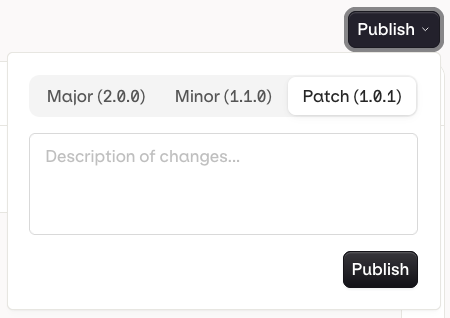 * **Patch** (e.g. `v1.0.0` to `v1.0.1`): small fixes, no behavior change
* **Minor** (e.g. `v1.0.0` to `v1.1.0`): new functionality, backwards compatible
* **Major** (e.g. `v1.0.0` to `v2.0.0`): breaking change or significant rework
Every time you publish, a new version of the tool is created. The **Versions** tab shows the full history. Versions are numbered (e.g. `v1.0.0`, `v1.1.0`) and each entry shows the author and publish timestamp.
* **Patch** (e.g. `v1.0.0` to `v1.0.1`): small fixes, no behavior change
* **Minor** (e.g. `v1.0.0` to `v1.1.0`): new functionality, backwards compatible
* **Major** (e.g. `v1.0.0` to `v2.0.0`): breaking change or significant rework
Every time you publish, a new version of the tool is created. The **Versions** tab shows the full history. Versions are numbered (e.g. `v1.0.0`, `v1.1.0`) and each entry shows the author and publish timestamp.
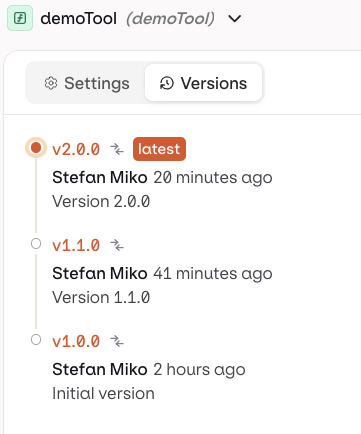 Use the Compare button to open a diff view to see what changed between versions.
## Using Tools
All tool types are supported. Reference a tool by `key` in the `settings.tools` array. Your agent's instructions must explicitly describe each tool and when to use it.
Learn more about [using tools in Agents](/ai-studio/ai-engineering/build-agents#add-tools).
Only **Function Tools** are supported. Import a previously created tool from the **Tools** tab in the deployment configuration.
Learn more about [using tools in Deployments](/ai-studio/ai-engineering/deployments#tools).
Use the Compare button to open a diff view to see what changed between versions.
## Using Tools
All tool types are supported. Reference a tool by `key` in the `settings.tools` array. Your agent's instructions must explicitly describe each tool and when to use it.
Learn more about [using tools in Agents](/ai-studio/ai-engineering/build-agents#add-tools).
Only **Function Tools** are supported. Import a previously created tool from the **Tools** tab in the deployment configuration.
Learn more about [using tools in Deployments](/ai-studio/ai-engineering/deployments#tools).