> ## Documentation Index
> Fetch the complete documentation index at: https://docs.orq.ai/llms.txt
> Use this file to discover all available pages before exploring further.
# Build an AI agent with Orq.ai
> Build an AI agent with Orq.ai: set up a coding agent or the CLI, connect a model, add tools, and call it from code. Beginner-friendly, no AI experience needed.
This guide walks through every step of getting started with **Orq.ai**. By the end, a working AI agent that can search the web and answer questions is live, with full visibility into every call it makes.
Setting up with a coding agent or the CLI covers every step in this guide. Studio and API alternatives are included where they exist.
## Set up an Account
[Sign up](https://my.orq.ai/auth/signup) for a free **Orq.ai** account and create a workspace.
Open the [AI Studio](https://my.orq.ai) getting-started screen, or **Settings > Organization > [API Keys](/ai-studio/organization/api-keys)**, and copy the key. It is displayed once.
Then open a terminal and export it, replacing `your-api-key-here`:
```bash macOS / Linux theme={"theme":{"light":"github-light","dark":"github-dark"}}
export ORQ_API_KEY="your-api-key-here"
```
```powershell Windows theme={"theme":{"light":"github-light","dark":"github-dark"}}
$env:ORQ_API_KEY = "your-api-key-here"
```
Paste this prompt into the coding agent to set everything up:
```prompt wrap theme={"theme":{"light":"github-light","dark":"github-dark"}}
Install the Orq.ai CLI, run `orq setup`, and build me an agent with web search.
```
Or install the CLI directly:
```bash theme={"theme":{"light":"github-light","dark":"github-dark"}}
curl -fsSL https://cli.orq.ai/install.sh | sh
```
`orq setup` signs in, creates a project-scoped API key, and connects the coding agents already on the machine to **Orq.ai**, including the **Orq MCP** server and **Orq Skills**.
Connecting a coding assistant directly? See [Orq Skills](/ai-studio/integrations/code-assistants/orq-skills) and [Orq MCP](/ai-studio/integrations/code-assistants/orq-mcp).
Full command list: [CLI reference](/reference/cli).
`orq setup` mints a project-scoped API key and writes it to `~/.orq/env` as a POSIX shell export. Source that file from bash or zsh to export the key for the terminal:
```bash theme={"theme":{"light":"github-light","dark":"github-dark"}}
source ~/.orq/env
```
The code samples in the next steps read the key from this environment variable.
## Create and run an Agent
Build an **Agent** named `my-assistant` with **OpenAI GPT-5.6 Sol** and the **Web Search** and **Web Scraper** tools.
See [Build Agents](/ai-studio/ai-engineering/build-agents) for the full field reference and configuration options.
```bash theme={"theme":{"light":"github-light","dark":"github-dark"}}
orq agents create \
--key my-assistant \
--role Assistant \
--description "A helpful assistant with web search" \
--instructions "You are a helpful assistant. Be concise and accurate. When answering questions that require current or up-to-date information, use the web search tool to find the latest data before responding." \
--path YOUR_PROJECT_NAME \
--model '{"id": "openai/gpt-5.6-sol", "parameters": {"temperature": 1}}' \
--settings '{"max_iterations": 5, "max_execution_time": 300, "tools": [{"type": "google_search"}, {"type": "web_scraper"}]}'
```
See [CLI reference](/reference/cli) for the full command reference. Run `orq agents create --help` for the full flag reference.
1. Open **Agents** in the **Managed Agents** section, then click Agent at the top of the list.
2. In the creation modal, configure the agent: name `my-assistant`, model `openai/gpt-5.6-sol`, description `A helpful assistant with web search`, temperature `1`, the **Web Search** and **Web Scraper** tools, and the agent instructions. See the [AI Studio guide](/ai-studio/ai-engineering/build-agents) for field-by-field setup.
3. Click Publish.
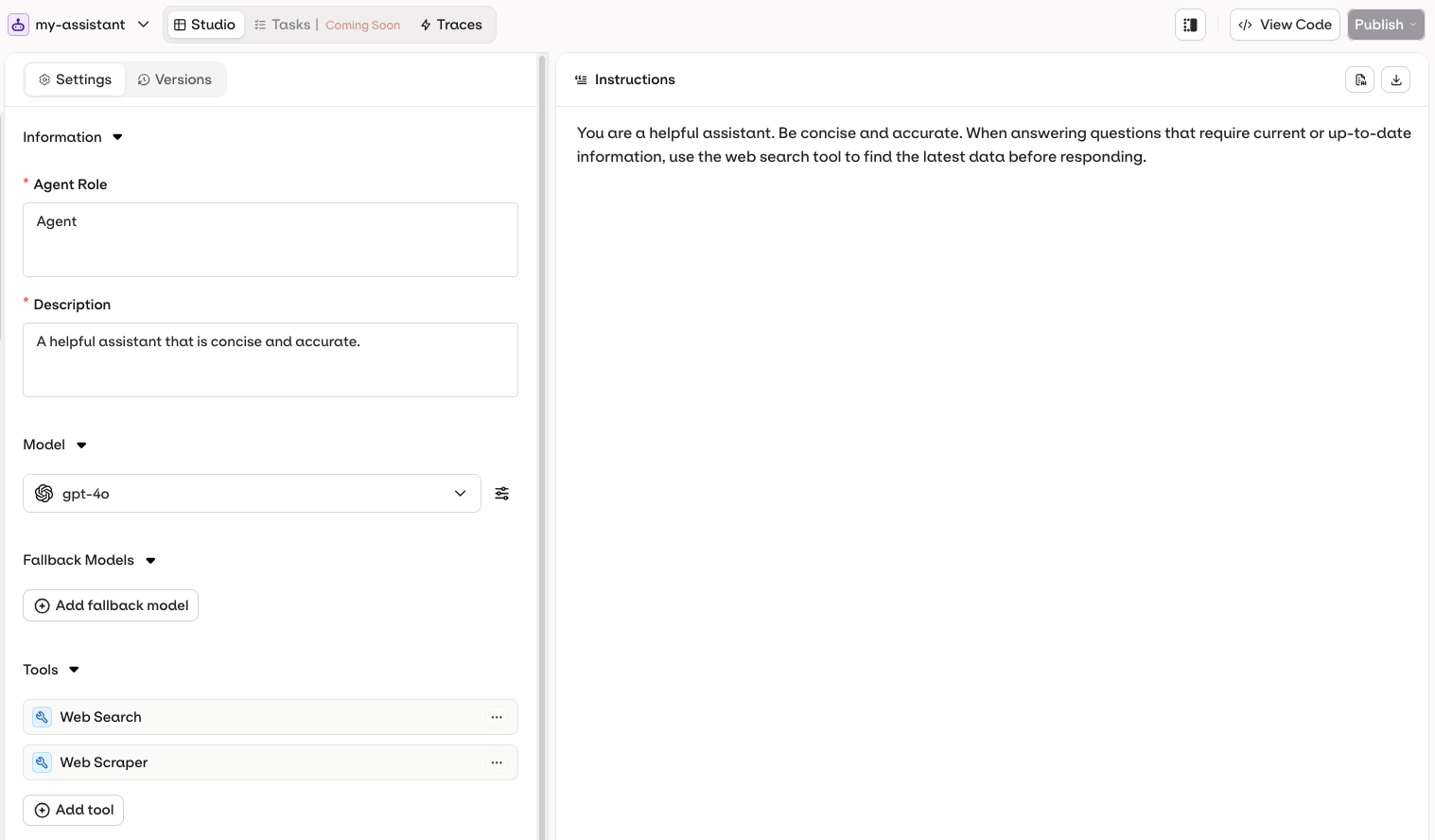 Use the [Create Agent API](/reference/agents/create-agent). The `key` is a unique identifier for invoking the agent later, and `path` is the **Project** folder it lives in. Tools are attached under `settings.tools` using their built-in `type`.
Install with `pip install orq-ai-sdk` (Python) or `npm install @orq-ai/node` (TypeScript).
```bash cURL theme={"theme":{"light":"github-light","dark":"github-dark"}}
curl -X POST https://my.orq.ai/v2/agents \
-H "Authorization: Bearer $ORQ_API_KEY" \
-H "Content-Type: application/json" \
-d '{
"key": "my-assistant",
"role": "Assistant",
"description": "A helpful assistant with web search",
"instructions": "You are a helpful assistant. Be concise and accurate. When answering questions that require current or up-to-date information, use the web search tool to find the latest data before responding.",
"path": "YOUR_PROJECT_NAME",
"model": { "id": "openai/gpt-5.6-sol", "parameters": { "temperature": 1 } },
"settings": {
"max_iterations": 5,
"max_execution_time": 300,
"tools": [
{ "type": "google_search" },
{ "type": "web_scraper" }
]
}
}'
```
```python Python theme={"theme":{"light":"github-light","dark":"github-dark"}}
import os
from orq_ai_sdk import Orq
with Orq(api_key=os.getenv("ORQ_API_KEY", "")) as orq:
agent = orq.agents.create(
key="my-assistant",
role="Assistant",
description="A helpful assistant with web search",
instructions=(
"You are a helpful assistant. Be concise and accurate. "
"When answering questions that require current or up-to-date "
"information, use the web search tool to find the latest data "
"before responding."
),
path="YOUR_PROJECT_NAME",
model={"id": "openai/gpt-5.6-sol", "parameters": {"temperature": 1}},
settings={
"max_iterations": 5,
"max_execution_time": 300,
"tools": [
{"type": "google_search"},
{"type": "web_scraper"},
],
},
)
print(f"Agent created: {agent.key}")
```
```typescript TypeScript theme={"theme":{"light":"github-light","dark":"github-dark"}}
import { Orq } from '@orq-ai/node';
const orq = new Orq({ apiKey: process.env.ORQ_API_KEY ?? '' });
const agent = await orq.agents.create({
key: 'my-assistant',
role: 'Assistant',
description: 'A helpful assistant with web search',
instructions:
'You are a helpful assistant. Be concise and accurate. When answering questions that require current or up-to-date information, use the web search tool to find the latest data before responding.',
path: 'YOUR_PROJECT_NAME',
model: { id: 'openai/gpt-5.6-sol', parameters: { temperature: 1 } },
settings: {
maxIterations: 5,
maxExecutionTime: 300,
tools: [
{ type: 'google_search' },
{ type: 'web_scraper' },
],
},
});
console.log(`Agent created: ${agent.key}`);
```
See [Build agents with the API](/ai-studio/ai-engineering/run-agents) for the full list of built-in tool types and how to attach custom HTTP, function, or MCP tools.
If the [**Orq MCP** server](/ai-studio/integrations/code-assistants/orq-mcp) is not connected yet, install it in the editor or AI assistant, then ask the coding assistant:
```prompt wrap theme={"theme":{"light":"github-light","dark":"github-dark"}}
Create an agent called "my-assistant" with the instructions "You are a helpful assistant. Be concise and accurate. When answering questions that require current or up-to-date information, use the web search tool to find the latest data before responding." using the openai/gpt-5.6-sol model with temperature 1. Add the google_search and web_scraper tools. Create it in the YOUR_PROJECT_NAME project.
```
The assistant calls `create_agent` and the new **Agent** appears in the **AI Studio**.
For a guided build, install [**Orq Skills**](/ai-studio/integrations/code-assistants/orq-skills) and let the **build-agent** skill handle agent design, tool selection, and configuration.
Send a message to `my-assistant` and read the response.
```bash theme={"theme":{"light":"github-light","dark":"github-dark"}}
orq responses create \
--model agent/my-assistant \
--input '"What is the capital of France?"'
```
See [CLI reference](/reference/cli) for the full command reference. Run `orq responses create --help` for the full flag reference.
Open the **Agent** in the [AI Studio](https://my.orq.ai) and use the built-in chat panel to send a message. Conversations and traces are saved automatically.
Invoke the **Agent** by passing `agent/my-assistant` as the model on the [unified router responses endpoint](/ai-studio/ai-engineering/run-agents#run-agents) (`POST /v3/router/responses`).
```bash cURL theme={"theme":{"light":"github-light","dark":"github-dark"}}
curl --request POST \
--url 'https://my.orq.ai/v3/router/responses' \
--header "Authorization: Bearer $ORQ_API_KEY" \
--header 'Content-Type: application/json' \
--data '{
"model": "agent/my-assistant",
"input": "What is the capital of France?"
}'
```
```python Python theme={"theme":{"light":"github-light","dark":"github-dark"}}
import os
from orq_ai_sdk import Orq
with Orq(api_key=os.getenv("ORQ_API_KEY", "")) as orq:
response = orq.responses.create(
model="agent/my-assistant",
input="What is the capital of France?",
)
print(response.output[0]["content"][0]["text"])
print(response.usage)
```
```typescript TypeScript theme={"theme":{"light":"github-light","dark":"github-dark"}}
import { Orq } from '@orq-ai/node';
const orq = new Orq({ apiKey: process.env.ORQ_API_KEY ?? '' });
const response = await orq.responses.create({
model: 'agent/my-assistant',
input: 'What is the capital of France?',
});
console.log(response.output[0].content[0].text);
console.log(response.usage);
```
Install with `pip install orq-ai-sdk` (Python) or `npm install @orq-ai/node` (TypeScript).
Self-hosted and on-premise deployments serve the API under their own hostname. Pass it as `server_url` or `serverURL` instead of `https://my.orq.ai`, as described in [Base URLs](/reference/base-urls).
For long-running agents or chat interfaces, use the streaming API to receive partial output as it is generated. See [Execute the Agent](/ai-studio/ai-engineering/run-agents#run-agents) for details.
Ask the assistant to invoke the **Agent** directly:
```prompt wrap theme={"theme":{"light":"github-light","dark":"github-dark"}}
Run my-assistant with the message "What is the capital of France?" and print the response.
```
The assistant uses `invoke_agent` and returns the **Agent**'s reply, including any tool calls it made along the way.
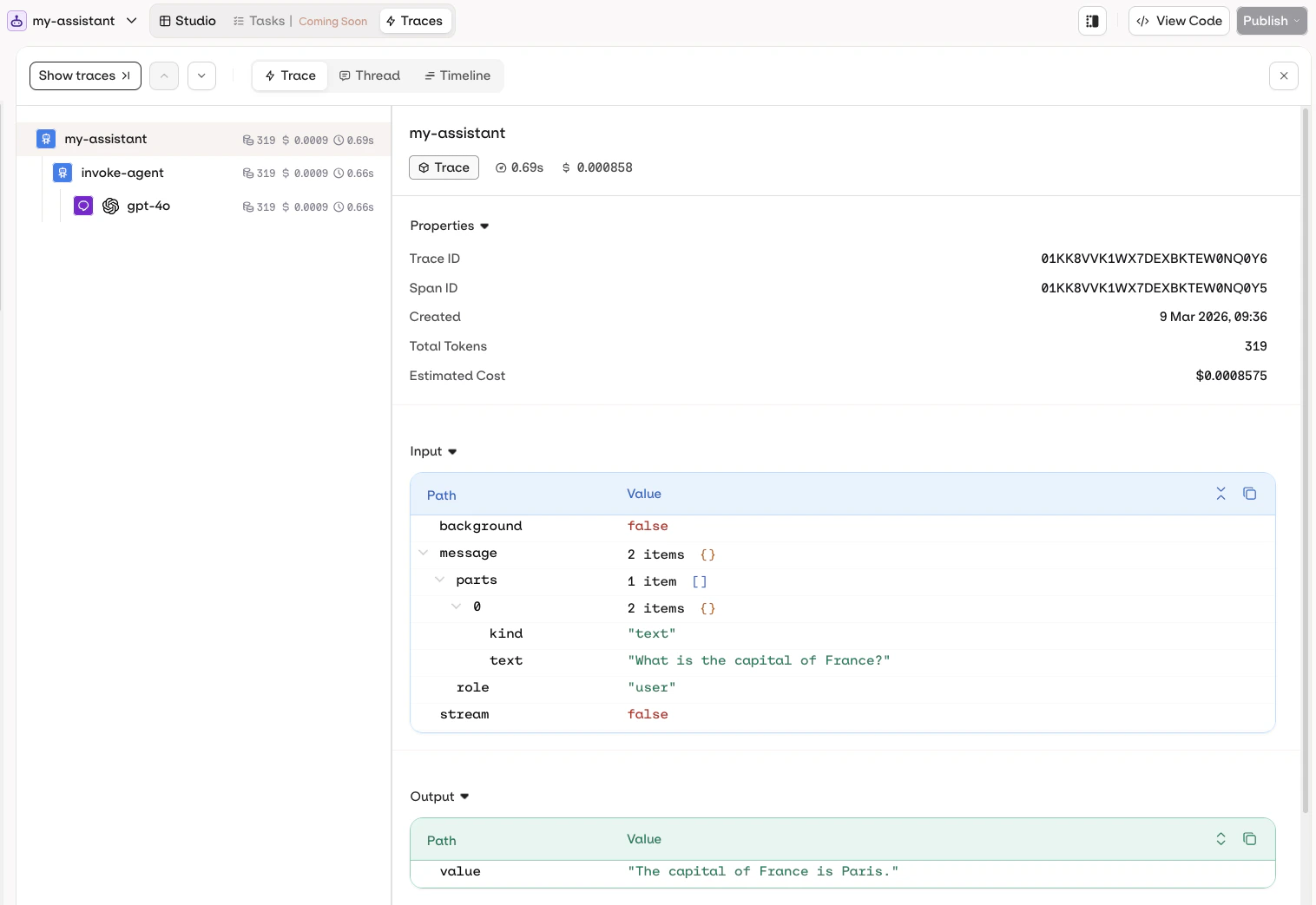
Every **Agent** call is automatically traced. Execution history, token counts, latency, and cost are visible in the **AI Studio**, from the **CLI**, or queryable through **MCP**.
```bash theme={"theme":{"light":"github-light","dark":"github-dark"}}
orq traces search
```
See the full execution history, including model calls, tool use, token counts, and latency.
Run `orq traces search --help` for the full flag reference.
Open `my-assistant` in the [AI Studio](https://my.orq.ai) and click the **Traces** tab to see the full execution history, including model calls, tool use, token counts, and latency.
Use the [Create Agent API](/reference/agents/create-agent). The `key` is a unique identifier for invoking the agent later, and `path` is the **Project** folder it lives in. Tools are attached under `settings.tools` using their built-in `type`.
Install with `pip install orq-ai-sdk` (Python) or `npm install @orq-ai/node` (TypeScript).
```bash cURL theme={"theme":{"light":"github-light","dark":"github-dark"}}
curl -X POST https://my.orq.ai/v2/agents \
-H "Authorization: Bearer $ORQ_API_KEY" \
-H "Content-Type: application/json" \
-d '{
"key": "my-assistant",
"role": "Assistant",
"description": "A helpful assistant with web search",
"instructions": "You are a helpful assistant. Be concise and accurate. When answering questions that require current or up-to-date information, use the web search tool to find the latest data before responding.",
"path": "YOUR_PROJECT_NAME",
"model": { "id": "openai/gpt-5.6-sol", "parameters": { "temperature": 1 } },
"settings": {
"max_iterations": 5,
"max_execution_time": 300,
"tools": [
{ "type": "google_search" },
{ "type": "web_scraper" }
]
}
}'
```
```python Python theme={"theme":{"light":"github-light","dark":"github-dark"}}
import os
from orq_ai_sdk import Orq
with Orq(api_key=os.getenv("ORQ_API_KEY", "")) as orq:
agent = orq.agents.create(
key="my-assistant",
role="Assistant",
description="A helpful assistant with web search",
instructions=(
"You are a helpful assistant. Be concise and accurate. "
"When answering questions that require current or up-to-date "
"information, use the web search tool to find the latest data "
"before responding."
),
path="YOUR_PROJECT_NAME",
model={"id": "openai/gpt-5.6-sol", "parameters": {"temperature": 1}},
settings={
"max_iterations": 5,
"max_execution_time": 300,
"tools": [
{"type": "google_search"},
{"type": "web_scraper"},
],
},
)
print(f"Agent created: {agent.key}")
```
```typescript TypeScript theme={"theme":{"light":"github-light","dark":"github-dark"}}
import { Orq } from '@orq-ai/node';
const orq = new Orq({ apiKey: process.env.ORQ_API_KEY ?? '' });
const agent = await orq.agents.create({
key: 'my-assistant',
role: 'Assistant',
description: 'A helpful assistant with web search',
instructions:
'You are a helpful assistant. Be concise and accurate. When answering questions that require current or up-to-date information, use the web search tool to find the latest data before responding.',
path: 'YOUR_PROJECT_NAME',
model: { id: 'openai/gpt-5.6-sol', parameters: { temperature: 1 } },
settings: {
maxIterations: 5,
maxExecutionTime: 300,
tools: [
{ type: 'google_search' },
{ type: 'web_scraper' },
],
},
});
console.log(`Agent created: ${agent.key}`);
```
See [Build agents with the API](/ai-studio/ai-engineering/run-agents) for the full list of built-in tool types and how to attach custom HTTP, function, or MCP tools.
If the [**Orq MCP** server](/ai-studio/integrations/code-assistants/orq-mcp) is not connected yet, install it in the editor or AI assistant, then ask the coding assistant:
```prompt wrap theme={"theme":{"light":"github-light","dark":"github-dark"}}
Create an agent called "my-assistant" with the instructions "You are a helpful assistant. Be concise and accurate. When answering questions that require current or up-to-date information, use the web search tool to find the latest data before responding." using the openai/gpt-5.6-sol model with temperature 1. Add the google_search and web_scraper tools. Create it in the YOUR_PROJECT_NAME project.
```
The assistant calls `create_agent` and the new **Agent** appears in the **AI Studio**.
For a guided build, install [**Orq Skills**](/ai-studio/integrations/code-assistants/orq-skills) and let the **build-agent** skill handle agent design, tool selection, and configuration.
Send a message to `my-assistant` and read the response.
```bash theme={"theme":{"light":"github-light","dark":"github-dark"}}
orq responses create \
--model agent/my-assistant \
--input '"What is the capital of France?"'
```
See [CLI reference](/reference/cli) for the full command reference. Run `orq responses create --help` for the full flag reference.
Open the **Agent** in the [AI Studio](https://my.orq.ai) and use the built-in chat panel to send a message. Conversations and traces are saved automatically.
Invoke the **Agent** by passing `agent/my-assistant` as the model on the [unified router responses endpoint](/ai-studio/ai-engineering/run-agents#run-agents) (`POST /v3/router/responses`).
```bash cURL theme={"theme":{"light":"github-light","dark":"github-dark"}}
curl --request POST \
--url 'https://my.orq.ai/v3/router/responses' \
--header "Authorization: Bearer $ORQ_API_KEY" \
--header 'Content-Type: application/json' \
--data '{
"model": "agent/my-assistant",
"input": "What is the capital of France?"
}'
```
```python Python theme={"theme":{"light":"github-light","dark":"github-dark"}}
import os
from orq_ai_sdk import Orq
with Orq(api_key=os.getenv("ORQ_API_KEY", "")) as orq:
response = orq.responses.create(
model="agent/my-assistant",
input="What is the capital of France?",
)
print(response.output[0]["content"][0]["text"])
print(response.usage)
```
```typescript TypeScript theme={"theme":{"light":"github-light","dark":"github-dark"}}
import { Orq } from '@orq-ai/node';
const orq = new Orq({ apiKey: process.env.ORQ_API_KEY ?? '' });
const response = await orq.responses.create({
model: 'agent/my-assistant',
input: 'What is the capital of France?',
});
console.log(response.output[0].content[0].text);
console.log(response.usage);
```
Install with `pip install orq-ai-sdk` (Python) or `npm install @orq-ai/node` (TypeScript).
Self-hosted and on-premise deployments serve the API under their own hostname. Pass it as `server_url` or `serverURL` instead of `https://my.orq.ai`, as described in [Base URLs](/reference/base-urls).
For long-running agents or chat interfaces, use the streaming API to receive partial output as it is generated. See [Execute the Agent](/ai-studio/ai-engineering/run-agents#run-agents) for details.
Ask the assistant to invoke the **Agent** directly:
```prompt wrap theme={"theme":{"light":"github-light","dark":"github-dark"}}
Run my-assistant with the message "What is the capital of France?" and print the response.
```
The assistant uses `invoke_agent` and returns the **Agent**'s reply, including any tool calls it made along the way.
Every **Agent** call is automatically traced. Execution history, token counts, latency, and cost are visible in the **AI Studio**, from the **CLI**, or queryable through **MCP**.
```bash theme={"theme":{"light":"github-light","dark":"github-dark"}}
orq traces search
```
See the full execution history, including model calls, tool use, token counts, and latency.
Run `orq traces search --help` for the full flag reference.
Open `my-assistant` in the [AI Studio](https://my.orq.ai) and click the **Traces** tab to see the full execution history, including model calls, tool use, token counts, and latency.
 Ask the assistant to query analytics for the **Agent**:
```prompt theme={"theme":{"light":"github-light","dark":"github-dark"}}
How is my-assistant performing?
```
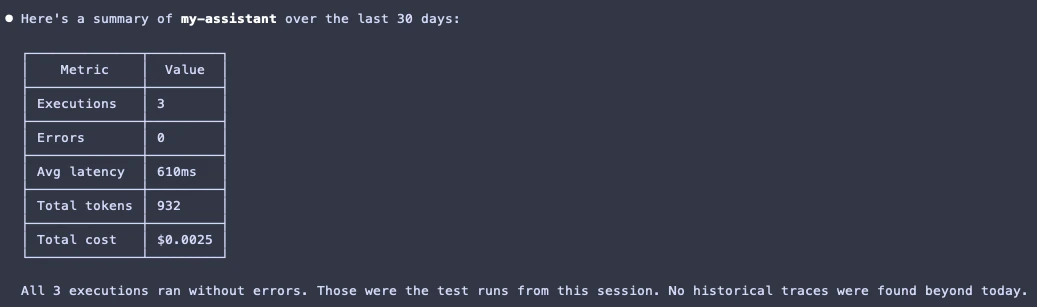
The assistant calls `query_analytics` and returns a summary:
Ask the assistant to query analytics for the **Agent**:
```prompt theme={"theme":{"light":"github-light","dark":"github-dark"}}
How is my-assistant performing?
```
The assistant calls `query_analytics` and returns a summary:
 ***
Compare prompts, models, and configurations side by side to find what performs best before shipping.
Score the **Agent**'s outputs automatically with LLM-based, code, or human **Evaluators**.
Give the **Agent** access to documents and data with built-in RAG.
Already running agents elsewhere? Connect via OpenTelemetry to get full trace visibility and cost tracking.
***
Compare prompts, models, and configurations side by side to find what performs best before shipping.
Score the **Agent**'s outputs automatically with LLM-based, code, or human **Evaluators**.
Give the **Agent** access to documents and data with built-in RAG.
Already running agents elsewhere? Connect via OpenTelemetry to get full trace visibility and cost tracking.