> ## Documentation Index
> Fetch the complete documentation index at: https://docs.orq.ai/llms.txt
> Use this file to discover all available pages before exploring further.
# Cursor
> Connect the Orq MCP server to the Cursor IDE to manage experiments and traces in chat, and route Cursor model calls through the Orq.ai AI Gateway.
Cursor is an AI-first code editor built for pair programming with AI. Connect the **Orq MCP** server to access the **Orq.ai** workspace from Cursor's chat interface, and route Cursor's chat model calls through the **AI Gateway**.
Access the **Orq.ai** workspace directly from Cursor. Manage experiments, query traces, and configure agents using natural language.
Route Cursor's chat model calls through the **AI Gateway** for unified tracing and cost tracking.
## MCP
With the **Orq MCP** integration, access the **Orq.ai** workspace directly from Cursor's chat interface and coding environment.
### Prerequisites
* [Cursor IDE](https://cursor.sh/) installed
* Active Orq.ai account
* [Orq.ai API key](/ai-studio/organization/api-keys)
### Installation
#### Add MCP Server
1. Open Cursor Settings by clicking **Cursor** → **Settings** in the top-left menu
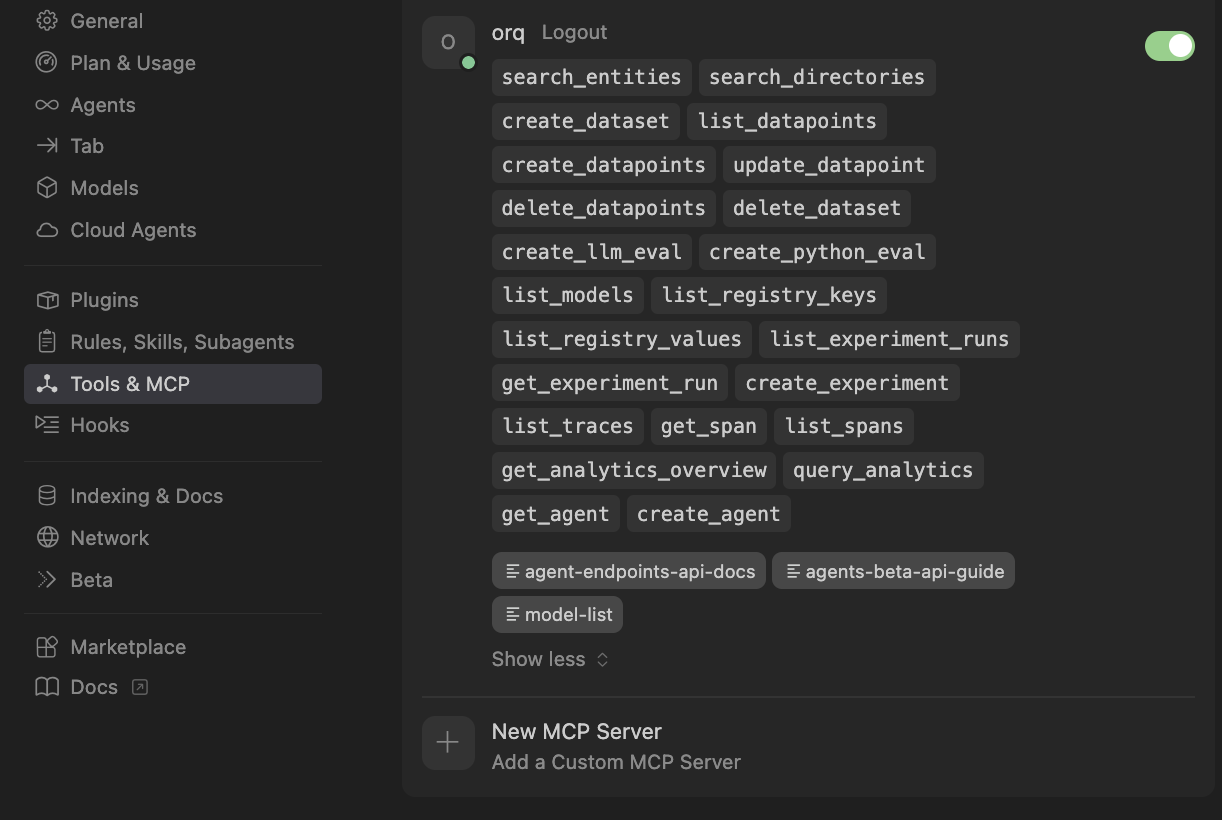
2. Click **Tools & MCP** in the sidebar
3. Click **New MCP Server** to open an empty mcp.json editor
4. Paste the following configuration:
```json wrap theme={"theme":{"light":"github-light","dark":"github-dark"}}
{
"mcpServers": {
"orq": {
"url": "https://my.orq.ai/v2/mcp",
"headers": {
"Authorization": "Bearer YOUR_ORQ_API_KEY"
}
}
}
}
```
5. Replace `YOUR_ORQ_API_KEY` with your actual API key from [Workspace Settings → API Keys](https://my.orq.ai/settings/api-keys)
6. Save the configuration
The **Orq MCP** server should automatically connect and show a green indicator. All Orq.ai tools will be available immediately.
### Verification
Open Cursor's chat panel and ask:
```prompt wrap theme={"theme":{"light":"github-light","dark":"github-dark"}}
Can you list the available models from Orq?
```
If the integration is working, a list of AI models from the **Orq.ai** workspace will appear.
 ### Available Commands
Use natural language to ask Cursor to perform these operations:
* `Create an agent with custom instructions and tools`
* `Get agent configuration for [agent-key]`
* `Update agent [agent-key] with new instructions or model`
* `Configure agent with evaluators and guardrails`
* `Invoke agent [agent-key] with input [message]`
* `Retrieve agent response [response-id]`
* `Create a deployment called [deployment-key]`
* `Get deployment configuration for [deployment-key]`
* `Create a skill called [skill-key]`
* `List all skills in my workspace`
* `Get skill [skill-key]`
* `Update skill [skill-key]`
* `Delete skill [skill-key]`
* `Get analytics overview for my workspace`
* `Show me workspace metrics for the last 7 days`
* `Query analytics filtered by deployment ID`
* `Create a dataset called "customer-queries"`
* `List all datapoints in dataset [dataset-key]`
* `Add datapoints to dataset [dataset-key]`
* `Update datapoint [datapoint-id]`
* `Delete specific datapoints in dataset [dataset-key]`
* `Delete dataset [dataset-key]`
* `Create an experiment from dataset [dataset-key]`
* `List all experiment runs`
* `Export experiment run [run-id] as CSV`
* `Run experiment and auto-evaluate results`
* `Get evaluator configuration for [evaluator-key]`
* `Create an LLM-as-a-Judge evaluator for tone`
* `Create a Python evaluator to check response length`
* `Add evaluator to experiment [experiment-key]`
* `Update evaluator [evaluator-key] with a new prompt`
* `Update Python evaluator [evaluator-key] with revised code`
* `List traces from the last 24 hours`
* `Show me traces with errors`
* `Get span details for trace [trace-id]`
* `Find the slowest traces from today`
* `Show all traces for thread [thread-id]`
* `List all available chat models`
* `List all available embedding models`
* `Invoke model [model-id] with prompt [message]`
* `Search for datasets named "customer"`
* `Find experiments in project [project-id]`
* `List directories in project [project-id]`
* `Search the Orq.ai docs for [topic]`
* `Delete agent [agent-key]`
* `Delete experiment [experiment-key]`
* `Delete evaluator [evaluator-key]`
* `Delete prompt [prompt-key]`
* `Delete knowledge base [knowledge-base-key]`
Use `delete_dataset` to delete a dataset along with all its datapoints.
See the [MCP Quickstart](/ai-studio/integrations/code-assistants/orq-mcp) for the full tool reference and examples.
### Troubleshooting
1. Check Cursor's **Orq MCP** status in Settings
2. Verify the API key is correct
3. Restart Cursor
4. Check the Developer Console (Help > Toggle Developer Tools)
1. Confirm the API key is valid
2. Ensure the API key has the necessary permissions
3. Try regenerating the API key
1. Verify the **Orq MCP** server is running in Settings
2. Check network connectivity
3. Review any error messages in the Developer Console
## Skills
**Orq Skills** add pre-built agentic workflows to Cursor for the full Build, Evaluate, Optimize lifecycle.
### Installation
```text Cursor Settings (recommended) theme={"theme":{"light":"github-light","dark":"github-dark"}}
# 1. Open Cursor Settings → Rules
# 2. In Project Rules, click Add Rule
# 3. Select Remote Rule (Github)
# 4. Enter: orq-ai/assistant-plugins
```
```bash CLI theme={"theme":{"light":"github-light","dark":"github-dark"}}
npx skills add orq-ai/assistant-plugins --agent cursor
```
Set an [API key and connect the Orq MCP server](/ai-studio/integrations/code-assistants/orq-skills#prerequisites) first. Skills are then triggered by describing what is needed.
The full catalogue of skills and slash commands.
Slash commands (`/orq:quickstart`, `/orq:traces`, and others) are only available in Claude Code.
## AI Gateway
Route Cursor's chat model calls through the [**Orq.ai AI Gateway**](/ai-gateway/get-started/introduction) by overriding the OpenAI base URL in Cursor Settings. Requests appear in [Traces](/ai-studio/observability/traces) automatically.
**Cursor Pro is required.** Since 2026, Cursor Free plans can only use Auto and block custom models, even with a custom API key or base URL override. Upgrade to Cursor Pro or higher to route through the **AI Gateway**.
Only the **chat panel** (+L / Ctrl+L) routes through the custom endpoint. Composer, inline edit, and tab completion remain on Cursor's backend. Setting a custom base URL also disables Cursor's default model list; add models manually using provider-prefixed IDs.
### Prerequisites
* Cursor Pro or higher
* Active **Orq.ai** account with **AI Gateway** access
* [Orq.ai API key](/ai-studio/organization/api-keys)
* Model enabled in [**AI Gateway** → **Supported Models**](/ai-gateway/supported-models)
### Setup
Open **Cursor Settings** (+, / Ctrl+,) and select the **Models** tab.
Enable the **OpenAI API Key** toggle and paste the **Orq.ai** API key in the field. Cursor sends this key to whatever base URL is configured below. It does not have to be an OpenAI key.
In **Override OpenAI Base URL**, enter:
```
https://my.orq.ai/v3/router
```
If the field is not visible, expand the advanced options under the OpenAI API Key toggle.
In the **Model Names** field, enter a provider-prefixed model ID (e.g. `openai/gpt-5.4` or `anthropic/claude-sonnet-5`), then click **Verify**. A green checkmark confirms the model is reachable. Click **Save**.
Repeat for each model to add.
### Verification
Send a message in the **chat panel** (+L / Ctrl+L). The response appears in Cursor and the trace appears in [**Orq.ai** Traces](/ai-studio/observability/traces) with the model identifier (e.g. `openai/gpt-5.4`).
### Troubleshooting
Confirm the API key is a valid **Orq.ai** API key and that the model ID is enabled in [**AI Gateway** → **Supported Models**](/ai-gateway/supported-models).
The model must use the provider-prefixed format (e.g. `openai/gpt-5.4`, not `gpt-5.6-sol`) and must be enabled in [**AI Gateway** → **Supported Models**](/ai-gateway/supported-models).
Confirm the base URL is set to `https://my.orq.ai/v3/router` and the request is sent from the **chat panel** (+L / Ctrl+L). Inline edit and tab completion bypass the custom endpoint.
Setting a custom base URL disables the default Cursor model list. Remove the base URL override in **Cursor Settings → Models** to restore default behavior, or add the required models manually using provider-prefixed IDs.
### Available Commands
Use natural language to ask Cursor to perform these operations:
* `Create an agent with custom instructions and tools`
* `Get agent configuration for [agent-key]`
* `Update agent [agent-key] with new instructions or model`
* `Configure agent with evaluators and guardrails`
* `Invoke agent [agent-key] with input [message]`
* `Retrieve agent response [response-id]`
* `Create a deployment called [deployment-key]`
* `Get deployment configuration for [deployment-key]`
* `Create a skill called [skill-key]`
* `List all skills in my workspace`
* `Get skill [skill-key]`
* `Update skill [skill-key]`
* `Delete skill [skill-key]`
* `Get analytics overview for my workspace`
* `Show me workspace metrics for the last 7 days`
* `Query analytics filtered by deployment ID`
* `Create a dataset called "customer-queries"`
* `List all datapoints in dataset [dataset-key]`
* `Add datapoints to dataset [dataset-key]`
* `Update datapoint [datapoint-id]`
* `Delete specific datapoints in dataset [dataset-key]`
* `Delete dataset [dataset-key]`
* `Create an experiment from dataset [dataset-key]`
* `List all experiment runs`
* `Export experiment run [run-id] as CSV`
* `Run experiment and auto-evaluate results`
* `Get evaluator configuration for [evaluator-key]`
* `Create an LLM-as-a-Judge evaluator for tone`
* `Create a Python evaluator to check response length`
* `Add evaluator to experiment [experiment-key]`
* `Update evaluator [evaluator-key] with a new prompt`
* `Update Python evaluator [evaluator-key] with revised code`
* `List traces from the last 24 hours`
* `Show me traces with errors`
* `Get span details for trace [trace-id]`
* `Find the slowest traces from today`
* `Show all traces for thread [thread-id]`
* `List all available chat models`
* `List all available embedding models`
* `Invoke model [model-id] with prompt [message]`
* `Search for datasets named "customer"`
* `Find experiments in project [project-id]`
* `List directories in project [project-id]`
* `Search the Orq.ai docs for [topic]`
* `Delete agent [agent-key]`
* `Delete experiment [experiment-key]`
* `Delete evaluator [evaluator-key]`
* `Delete prompt [prompt-key]`
* `Delete knowledge base [knowledge-base-key]`
Use `delete_dataset` to delete a dataset along with all its datapoints.
See the [MCP Quickstart](/ai-studio/integrations/code-assistants/orq-mcp) for the full tool reference and examples.
### Troubleshooting
1. Check Cursor's **Orq MCP** status in Settings
2. Verify the API key is correct
3. Restart Cursor
4. Check the Developer Console (Help > Toggle Developer Tools)
1. Confirm the API key is valid
2. Ensure the API key has the necessary permissions
3. Try regenerating the API key
1. Verify the **Orq MCP** server is running in Settings
2. Check network connectivity
3. Review any error messages in the Developer Console
## Skills
**Orq Skills** add pre-built agentic workflows to Cursor for the full Build, Evaluate, Optimize lifecycle.
### Installation
```text Cursor Settings (recommended) theme={"theme":{"light":"github-light","dark":"github-dark"}}
# 1. Open Cursor Settings → Rules
# 2. In Project Rules, click Add Rule
# 3. Select Remote Rule (Github)
# 4. Enter: orq-ai/assistant-plugins
```
```bash CLI theme={"theme":{"light":"github-light","dark":"github-dark"}}
npx skills add orq-ai/assistant-plugins --agent cursor
```
Set an [API key and connect the Orq MCP server](/ai-studio/integrations/code-assistants/orq-skills#prerequisites) first. Skills are then triggered by describing what is needed.
The full catalogue of skills and slash commands.
Slash commands (`/orq:quickstart`, `/orq:traces`, and others) are only available in Claude Code.
## AI Gateway
Route Cursor's chat model calls through the [**Orq.ai AI Gateway**](/ai-gateway/get-started/introduction) by overriding the OpenAI base URL in Cursor Settings. Requests appear in [Traces](/ai-studio/observability/traces) automatically.
**Cursor Pro is required.** Since 2026, Cursor Free plans can only use Auto and block custom models, even with a custom API key or base URL override. Upgrade to Cursor Pro or higher to route through the **AI Gateway**.
Only the **chat panel** (+L / Ctrl+L) routes through the custom endpoint. Composer, inline edit, and tab completion remain on Cursor's backend. Setting a custom base URL also disables Cursor's default model list; add models manually using provider-prefixed IDs.
### Prerequisites
* Cursor Pro or higher
* Active **Orq.ai** account with **AI Gateway** access
* [Orq.ai API key](/ai-studio/organization/api-keys)
* Model enabled in [**AI Gateway** → **Supported Models**](/ai-gateway/supported-models)
### Setup
Open **Cursor Settings** (+, / Ctrl+,) and select the **Models** tab.
Enable the **OpenAI API Key** toggle and paste the **Orq.ai** API key in the field. Cursor sends this key to whatever base URL is configured below. It does not have to be an OpenAI key.
In **Override OpenAI Base URL**, enter:
```
https://my.orq.ai/v3/router
```
If the field is not visible, expand the advanced options under the OpenAI API Key toggle.
In the **Model Names** field, enter a provider-prefixed model ID (e.g. `openai/gpt-5.4` or `anthropic/claude-sonnet-5`), then click **Verify**. A green checkmark confirms the model is reachable. Click **Save**.
Repeat for each model to add.
### Verification
Send a message in the **chat panel** (+L / Ctrl+L). The response appears in Cursor and the trace appears in [**Orq.ai** Traces](/ai-studio/observability/traces) with the model identifier (e.g. `openai/gpt-5.4`).
### Troubleshooting
Confirm the API key is a valid **Orq.ai** API key and that the model ID is enabled in [**AI Gateway** → **Supported Models**](/ai-gateway/supported-models).
The model must use the provider-prefixed format (e.g. `openai/gpt-5.4`, not `gpt-5.6-sol`) and must be enabled in [**AI Gateway** → **Supported Models**](/ai-gateway/supported-models).
Confirm the base URL is set to `https://my.orq.ai/v3/router` and the request is sent from the **chat panel** (+L / Ctrl+L). Inline edit and tab completion bypass the custom endpoint.
Setting a custom base URL disables the default Cursor model list. Remove the base URL override in **Cursor Settings → Models** to restore default behavior, or add the required models manually using provider-prefixed IDs.