> ## Documentation Index
> Fetch the complete documentation index at: https://docs.orq.ai/llms.txt
> Use this file to discover all available pages before exploring further.
# OpenCode Desktop
> Add the Orq.ai AI Gateway as a custom provider in the OpenCode Desktop app to route model calls with automatic tracing and observability.
Route every model call OpenCode Desktop makes through the [**Orq.ai AI Gateway**](/ai-gateway/get-started/introduction) by adding a custom provider in the app. Requests appear in [Traces](/ai-studio/observability/traces) automatically.
## Prerequisites
* OpenCode Desktop installed:
```bash Homebrew theme={"theme":{"light":"github-light","dark":"github-dark"}}
brew install --cask opencode-desktop
```
Or download the installer from [opencode.ai/download](https://opencode.ai/download).
* Active **Orq.ai** account with **AI Gateway** access
* [Orq.ai API key](/ai-studio/organization/api-keys)
## Setup
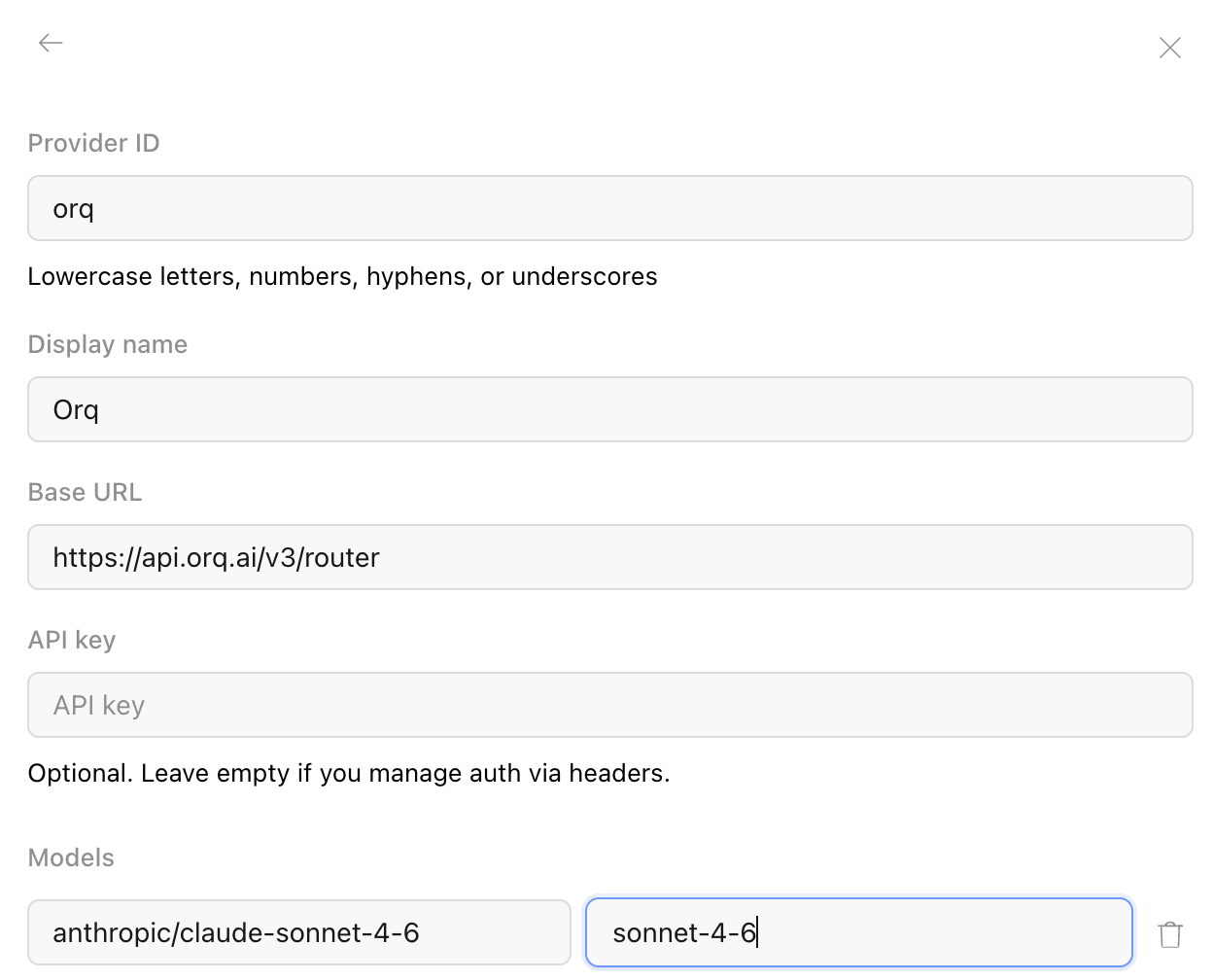
In OpenCode Desktop, open **Settings** > **Providers** > **Connect custom provider** and fill in:
* **ID**: `orq`
* **Display name**: `Orq`
* **Base URL**: `https://my.orq.ai/v3/router`
* **API key**: your [Orq.ai API key](/ai-studio/organization/api-keys)
* **Model ID**: any identifier from the **AI Gateway** catalog, for example `anthropic/claude-sonnet-5`, with a **display name**
Add more models by giving each its own **Model ID** and display name. Pick the model from the model selector in the chat input bar.
 ## Verification
Send a prompt in OpenCode Desktop. The response appears in the app and the trace appears in [**Orq.ai** Traces](/ai-studio/observability/traces) with the selected model identifier.
## Connect via MCP
OpenCode Desktop also acts as an MCP client, so the [**Orq MCP**](/ai-studio/integrations/code-assistants/orq-mcp) server can run alongside the gateway routing above. With both connected, OpenCode Desktop routes model calls through the **AI Gateway** and manages **Agents**, experiments, **Datasets**, and **Traces** through the **Orq MCP** tools.
Add the **Orq MCP** server to the OpenCode config (`~/.config/opencode/opencode.json`):
```json theme={"theme":{"light":"github-light","dark":"github-dark"}}
{
"$schema": "https://opencode.ai/config.json",
"mcp": {
"orq": {
"type": "remote",
"url": "https://my.orq.ai/v2/mcp",
"enabled": true,
"headers": {
"Authorization": "Bearer YOUR_ORQ_API_KEY"
}
}
}
}
```
Replace `YOUR_ORQ_API_KEY` with an [API key](/ai-studio/organization/api-keys). See the [MCP Quickstart](/ai-studio/integrations/code-assistants/orq-mcp) for the full tool reference.
**Orq.ai** API keys are scoped to a single project, so the **Orq MCP** server only exposes the **Agents**, experiments, **Datasets**, and **Traces** within that project. Use a key from the project whose entities OpenCode Desktop should manage.
## Verification
Send a prompt in OpenCode Desktop. The response appears in the app and the trace appears in [**Orq.ai** Traces](/ai-studio/observability/traces) with the selected model identifier.
## Connect via MCP
OpenCode Desktop also acts as an MCP client, so the [**Orq MCP**](/ai-studio/integrations/code-assistants/orq-mcp) server can run alongside the gateway routing above. With both connected, OpenCode Desktop routes model calls through the **AI Gateway** and manages **Agents**, experiments, **Datasets**, and **Traces** through the **Orq MCP** tools.
Add the **Orq MCP** server to the OpenCode config (`~/.config/opencode/opencode.json`):
```json theme={"theme":{"light":"github-light","dark":"github-dark"}}
{
"$schema": "https://opencode.ai/config.json",
"mcp": {
"orq": {
"type": "remote",
"url": "https://my.orq.ai/v2/mcp",
"enabled": true,
"headers": {
"Authorization": "Bearer YOUR_ORQ_API_KEY"
}
}
}
}
```
Replace `YOUR_ORQ_API_KEY` with an [API key](/ai-studio/organization/api-keys). See the [MCP Quickstart](/ai-studio/integrations/code-assistants/orq-mcp) for the full tool reference.
**Orq.ai** API keys are scoped to a single project, so the **Orq MCP** server only exposes the **Agents**, experiments, **Datasets**, and **Traces** within that project. Use a key from the project whose entities OpenCode Desktop should manage.