> ## Documentation Index
> Fetch the complete documentation index at: https://docs.orq.ai/llms.txt
> Use this file to discover all available pages before exploring further.
# Amazon Bedrock
> Connect Amazon Bedrock to Orq.ai's AI Gateway. Configure your AWS access key, secret, and region to route Bedrock model requests with observability.
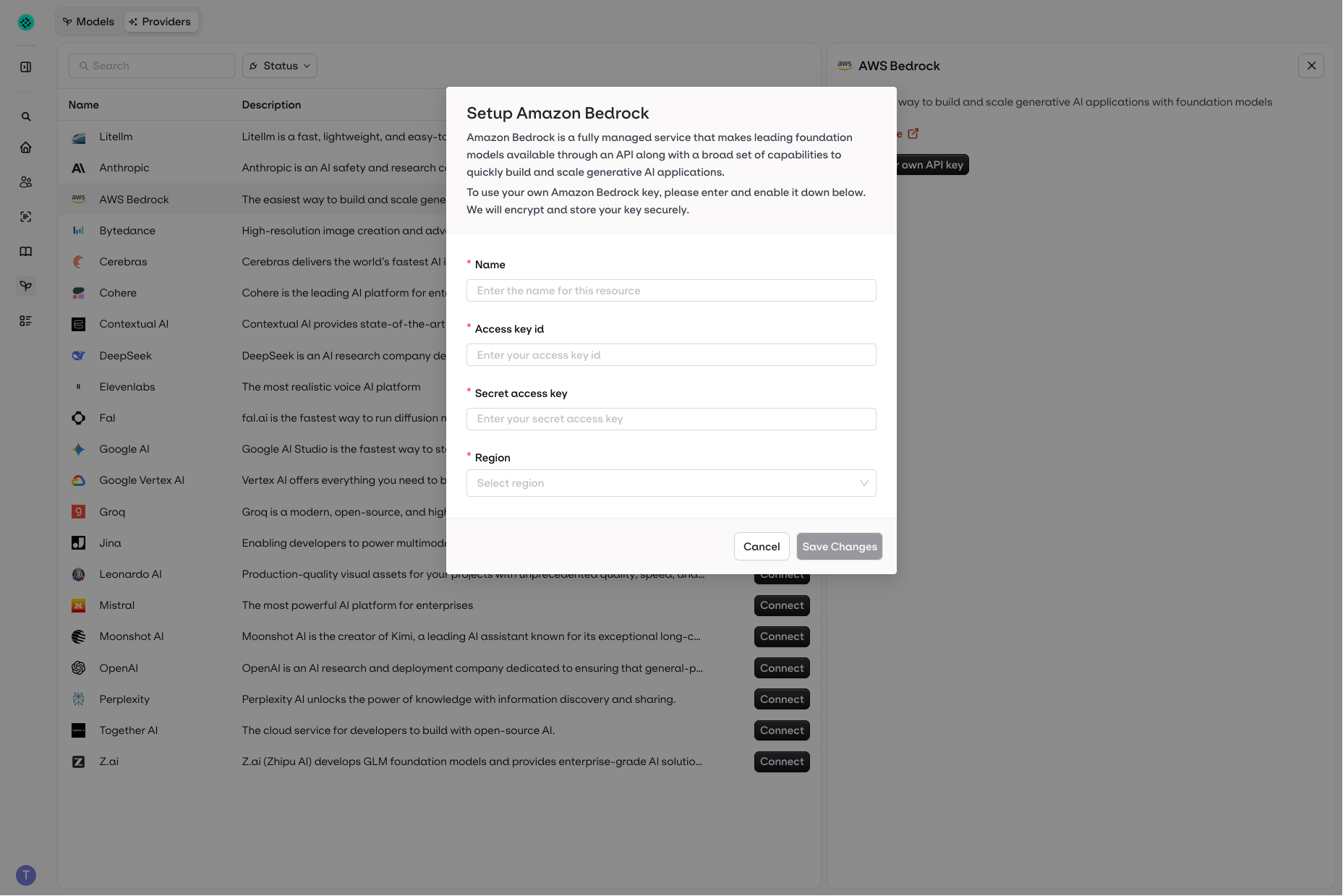
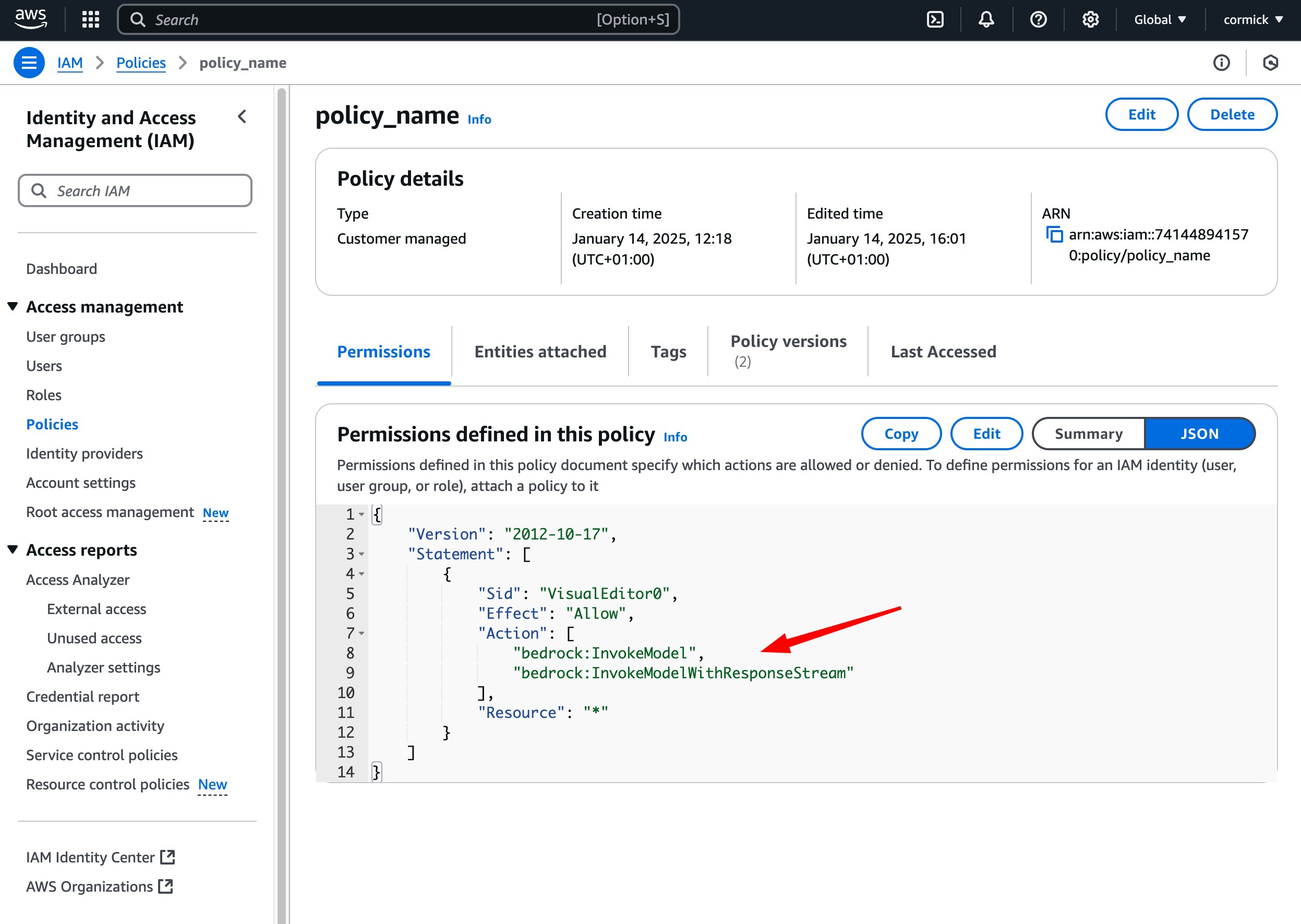
* **Name**: Can be anything. Example: `orq_bedrock`
* **Access key id**: Retrieve this from your IAM in AWS. See the image below as an example.
* **Secret access key**: Also retrieve this from your IAM in AWS. See the image below as an example.
* **Region**: Make sure that you select the right region. Example: us-east-1
 ## Retrieve access keys in AWS
 ## Policies / Permissions in AWS
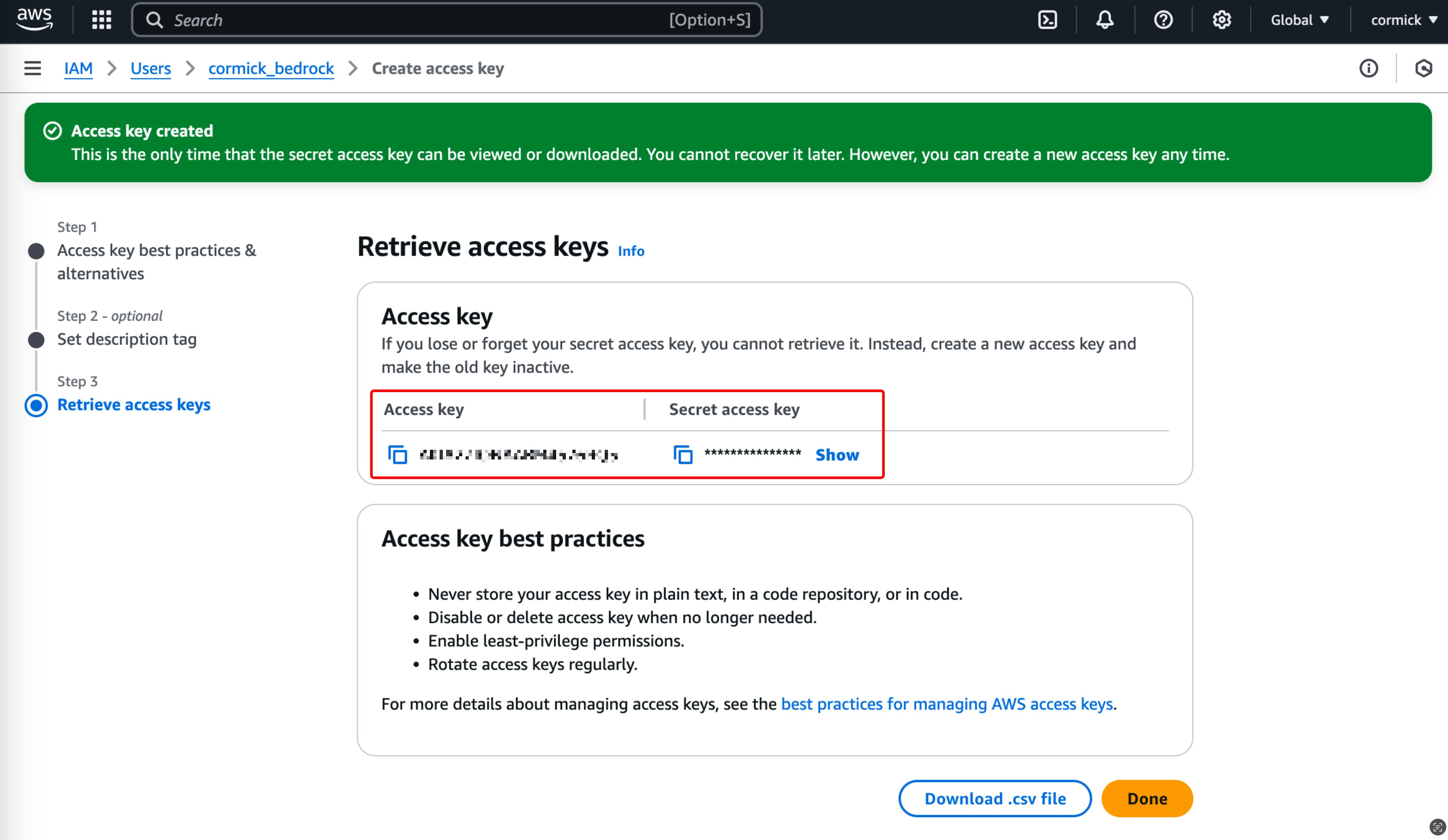
In order for the model to work, make sure that the following two permissions are included in the policy which is attached to the user in AWS.
1. Bedrock: InvokeModel
2. Bedrock: InvokeModelWithResponseStream
## Policies / Permissions in AWS
In order for the model to work, make sure that the following two permissions are included in the policy which is attached to the user in AWS.
1. Bedrock: InvokeModel
2. Bedrock: InvokeModelWithResponseStream
 ## IAM role
The **AI Studio** exposes the **Pod Identity (On-Premise)** auth mode on [on-premise deployments](/enterprise/deployment-options) only. A Bedrock model on such a deployment can authenticate with an IAM role instead of an access key and secret, so no long-lived AWS credentials are stored with the model.
In the **AI Gateway** sidebar, open **Models**, select **Model**, and choose **AWS Bedrock**. Set **Auth Mode** to **Pod Identity (On-Premise)**, which sends `auth_mode: "pod-identity"` in the API.
Credentials then come from the AWS default credential chain of the deployment: the role attached to the gateway through EKS Pod Identity or IAM Roles for Service Accounts (IRSA), or the instance metadata service.
### Assume a role in another account
Set **Assume Role ARN** to have **Orq.ai** assume a role in a different AWS account. The optional **External ID** acts as a shared secret that the target role's trust policy requires before it grants access.
| Field | Required | Description |
| ------------------------------------------- | -------- | ------------------------------------------------------------------------------------------------------------------------------------------------------------------------------------------- |
| **Auth Mode** (`auth_mode`) | Yes | `pod-identity`. Uses the deployment's own AWS identity instead of a stored AWS integration. |
| **Assume Role ARN** (`assume_role_arn`) | No | ARN of the IAM role to assume in the target account, such as `arn:aws:iam::123456789012:role/bedrock-access-role`. |
| **External ID** (`assume_role_external_id`) | No | Sent as the `ExternalId` of the `sts:AssumeRole` call, with no value added by **Orq.ai**. The target role's trust policy must require the same value. Shown once an Assume Role ARN is set. |
The assumed role needs the Bedrock permissions listed above. Without an Assume Role ARN, requests sign with the credentials the deployment resolves from its environment.
### Trust policy on the target role
The target role's trust policy must allow the identity the deployment runs as, and that identity needs `sts:AssumeRole` permission on the target role.
```json JSON theme={"theme":{"light":"github-light","dark":"github-dark"}}
{
"Version": "2012-10-17",
"Statement": [
{
"Effect": "Allow",
"Principal": {
"AWS": "arn:aws:iam:::role/"
},
"Action": "sts:AssumeRole"
}
]
}
```
Replace `` and `` with that identity, which `aws sts get-caller-identity` reports from inside the deployment. When an External ID is set, add `"Condition": { "StringEquals": { "sts:ExternalId": "" } }` to the statement.
***
## IAM role
The **AI Studio** exposes the **Pod Identity (On-Premise)** auth mode on [on-premise deployments](/enterprise/deployment-options) only. A Bedrock model on such a deployment can authenticate with an IAM role instead of an access key and secret, so no long-lived AWS credentials are stored with the model.
In the **AI Gateway** sidebar, open **Models**, select **Model**, and choose **AWS Bedrock**. Set **Auth Mode** to **Pod Identity (On-Premise)**, which sends `auth_mode: "pod-identity"` in the API.
Credentials then come from the AWS default credential chain of the deployment: the role attached to the gateway through EKS Pod Identity or IAM Roles for Service Accounts (IRSA), or the instance metadata service.
### Assume a role in another account
Set **Assume Role ARN** to have **Orq.ai** assume a role in a different AWS account. The optional **External ID** acts as a shared secret that the target role's trust policy requires before it grants access.
| Field | Required | Description |
| ------------------------------------------- | -------- | ------------------------------------------------------------------------------------------------------------------------------------------------------------------------------------------- |
| **Auth Mode** (`auth_mode`) | Yes | `pod-identity`. Uses the deployment's own AWS identity instead of a stored AWS integration. |
| **Assume Role ARN** (`assume_role_arn`) | No | ARN of the IAM role to assume in the target account, such as `arn:aws:iam::123456789012:role/bedrock-access-role`. |
| **External ID** (`assume_role_external_id`) | No | Sent as the `ExternalId` of the `sts:AssumeRole` call, with no value added by **Orq.ai**. The target role's trust policy must require the same value. Shown once an Assume Role ARN is set. |
The assumed role needs the Bedrock permissions listed above. Without an Assume Role ARN, requests sign with the credentials the deployment resolves from its environment.
### Trust policy on the target role
The target role's trust policy must allow the identity the deployment runs as, and that identity needs `sts:AssumeRole` permission on the target role.
```json JSON theme={"theme":{"light":"github-light","dark":"github-dark"}}
{
"Version": "2012-10-17",
"Statement": [
{
"Effect": "Allow",
"Principal": {
"AWS": "arn:aws:iam:::role/"
},
"Action": "sts:AssumeRole"
}
]
}
```
Replace `` and `` with that identity, which `aws sts get-caller-identity` reports from inside the deployment. When an External ID is set, add `"Condition": { "StringEquals": { "sts:ExternalId": "" } }` to the statement.
***