> ## Documentation Index
> Fetch the complete documentation index at: https://docs.orq.ai/llms.txt
> Use this file to discover all available pages before exploring further.
# Azure
> Set up Azure OpenAI and Azure AI Foundry as a model provider in the Orq.ai AI Gateway. Import deployments with a Base URL and API key for routing, caching, and observability.
## Setting up a Model in Azure AI Foundry
[Azure AI Foundry](https://ai.azure.com/) lets you build, configure, tune and deploy the model within their environments.
### Deployment Configuration
An Azure model is managed in Azure AI Foundry and therefore won't be controlled within the **AI Studio**. You can decide on which **strategy to use for your model** within Azure AI Foundry while building your model.
For instance, **the region** where your model will be available at is configured when creating your model.
To learn more about the model possibilities, please refer to the provider documentation, see [the Azure Deployment Documentation](https://learn.microsoft.com/en-us/azure/ai-foundry/concepts/deployments-overview).
### Content Filtering
With your model running on Azure Cloud, the model configuration won't be available within the **AI Studio**. However its configuration will **influence the behaviour** of your [Deployment](/ai-studio/ai-engineering/deployments) when called through **Orq.ai**.
Azure offers powerful customization for content filtering, letting you configure its parameters for *Violent, Hate, Sexual, and Self-Harm* content.
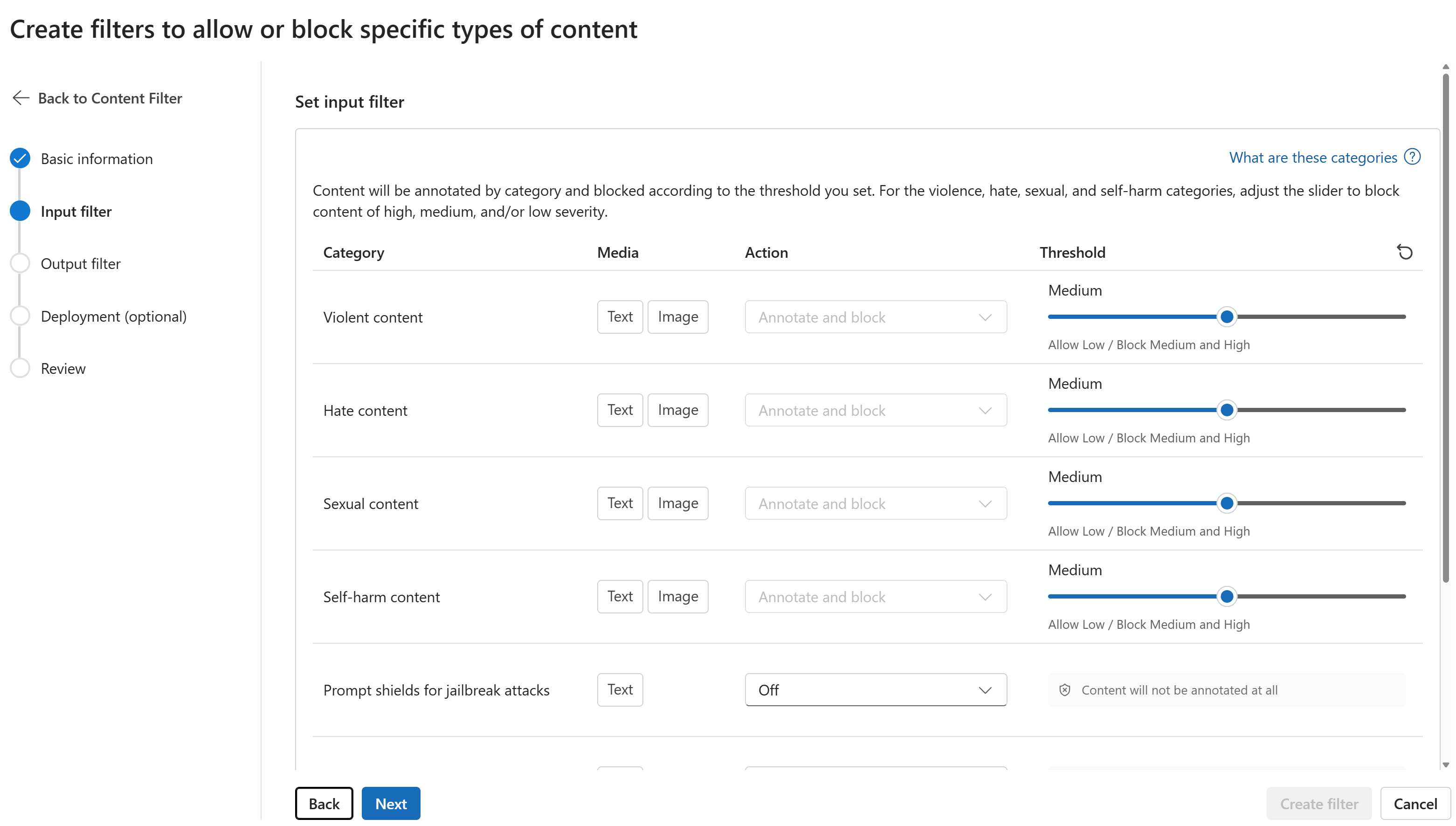 To learn more about Content filtering, see [the Azure AI Foundry Documentation](https://learn.microsoft.com/en-us/azure/ai-foundry/concepts/content-filtering).
## Onboarding Models to Orq.ai
Once your models are deployed and configured on Azure, you can import them into the **AI Studio**.
### Getting the Base URL and API Key from Azure AI Foundry
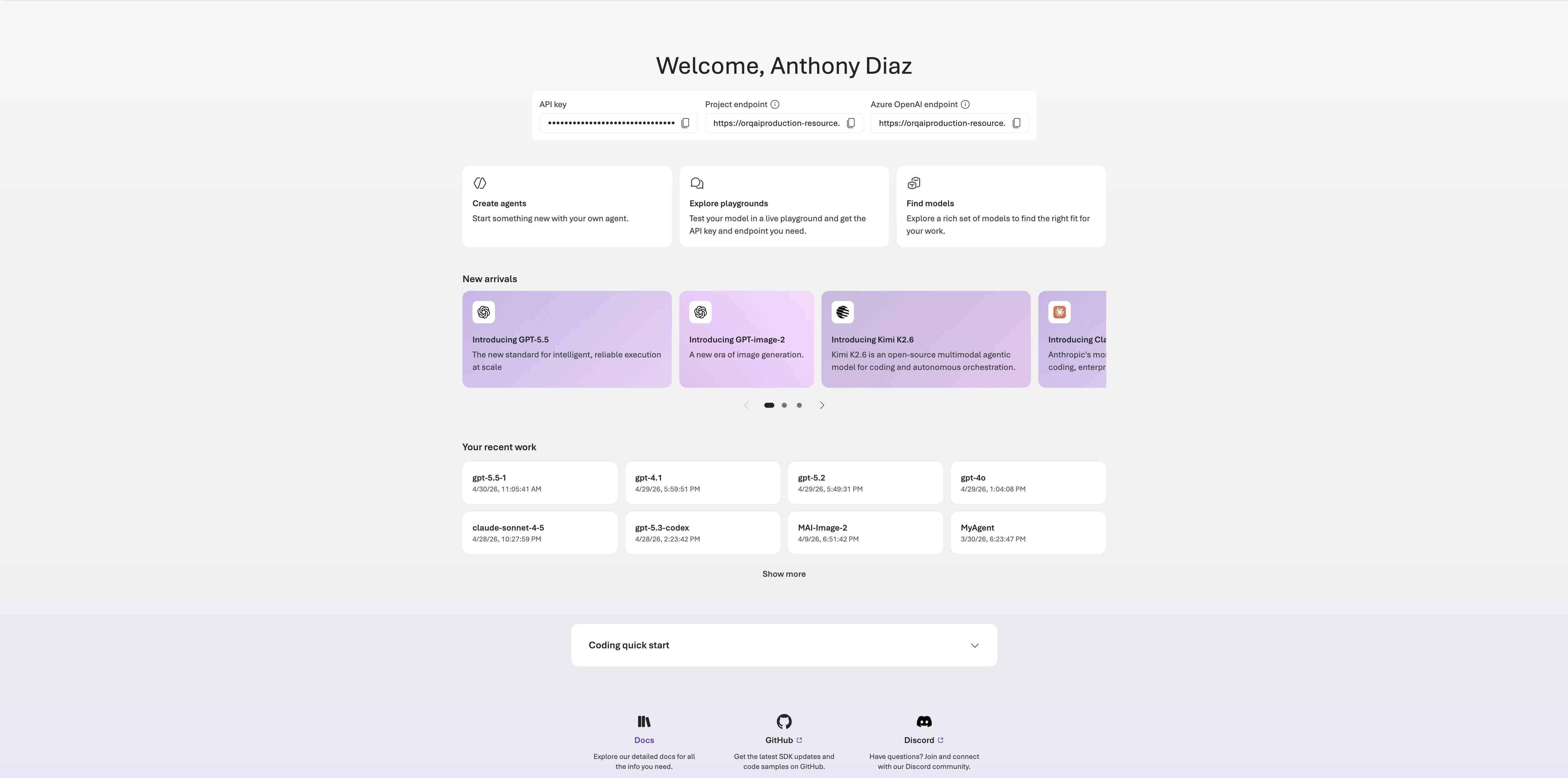
Your credentials are available directly on the [Azure AI Foundry](https://ai.azure.com/) homepage once you open your project. The **API key** and both the **Project endpoint** and **Azure OpenAI endpoint** are shown at the top of the page.
**Orq.ai** accepts either endpoint as the Base URL and detects the format automatically:
* **Azure OpenAI endpoint** (`https://.openai.azure.com/openai/v1`): imports the resource's OpenAI-compatible deployments.
* **Project endpoint** (`https://.services.ai.azure.com/api/projects/`): imports deployments from all publishers in the project, including Anthropic, Cohere, and xAI.
To learn more about Content filtering, see [the Azure AI Foundry Documentation](https://learn.microsoft.com/en-us/azure/ai-foundry/concepts/content-filtering).
## Onboarding Models to Orq.ai
Once your models are deployed and configured on Azure, you can import them into the **AI Studio**.
### Getting the Base URL and API Key from Azure AI Foundry
Your credentials are available directly on the [Azure AI Foundry](https://ai.azure.com/) homepage once you open your project. The **API key** and both the **Project endpoint** and **Azure OpenAI endpoint** are shown at the top of the page.
**Orq.ai** accepts either endpoint as the Base URL and detects the format automatically:
* **Azure OpenAI endpoint** (`https://.openai.azure.com/openai/v1`): imports the resource's OpenAI-compatible deployments.
* **Project endpoint** (`https://.services.ai.azure.com/api/projects/`): imports deployments from all publishers in the project, including Anthropic, Cohere, and xAI.
 ### Onboarding Models
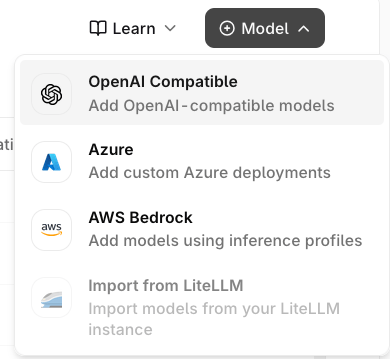
Head to the [AI Gateway](/ai-gateway/using-the-router) and choose the Model button at the top-right of the screen, then select **Azure**.
### Onboarding Models
Head to the [AI Gateway](/ai-gateway/using-the-router) and choose the Model button at the top-right of the screen, then select **Azure**.
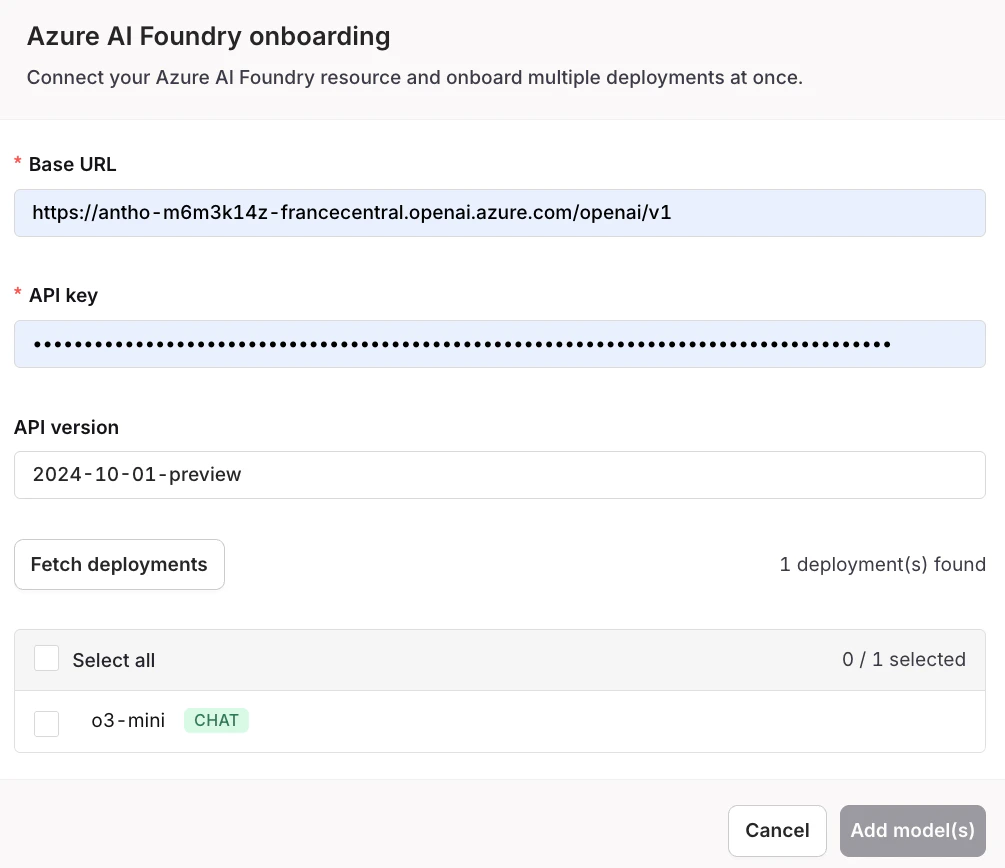
 Enter the **Base URL** and **API Key**, then click **Fetch deployments** to automatically import all available deployments from your Azure AI Foundry project.
 Once added, the model will be visible in the **AI Gateway**. Once the model is **Enabled** it will be available in [Playground](/ai-studio/prompts/playgrounds), [Experiment](/ai-studio/optimize/experiments), [Deployment](/ai-studio/ai-engineering/deployments), and [Agent](/ai-studio/ai-engineering/build-agents) to be used.
***
Once added, the model will be visible in the **AI Gateway**. Once the model is **Enabled** it will be available in [Playground](/ai-studio/prompts/playgrounds), [Experiment](/ai-studio/optimize/experiments), [Deployment](/ai-studio/ai-engineering/deployments), and [Agent](/ai-studio/ai-engineering/build-agents) to be used.
***