> ## Documentation Index
> Fetch the complete documentation index at: https://docs.orq.ai/llms.txt
> Use this file to discover all available pages before exploring further.
# Annotation Queues
> Organize production traces into annotation queues in AI Studio to review LLM outputs and apply human feedback annotations in bulk.
Annotation Queues organize Traces into review workflows so [Annotations](/ai-studio/observability/annotations) can be applied in bulk in **AI Studio**. To define annotations and apply them individually, through the API and SDK, or the CLI, see [Annotations](/ai-studio/observability/annotations).
## Create Annotation Queues
Annotation Queues help you organize and apply annotations effectively to relevant incoming Traces.
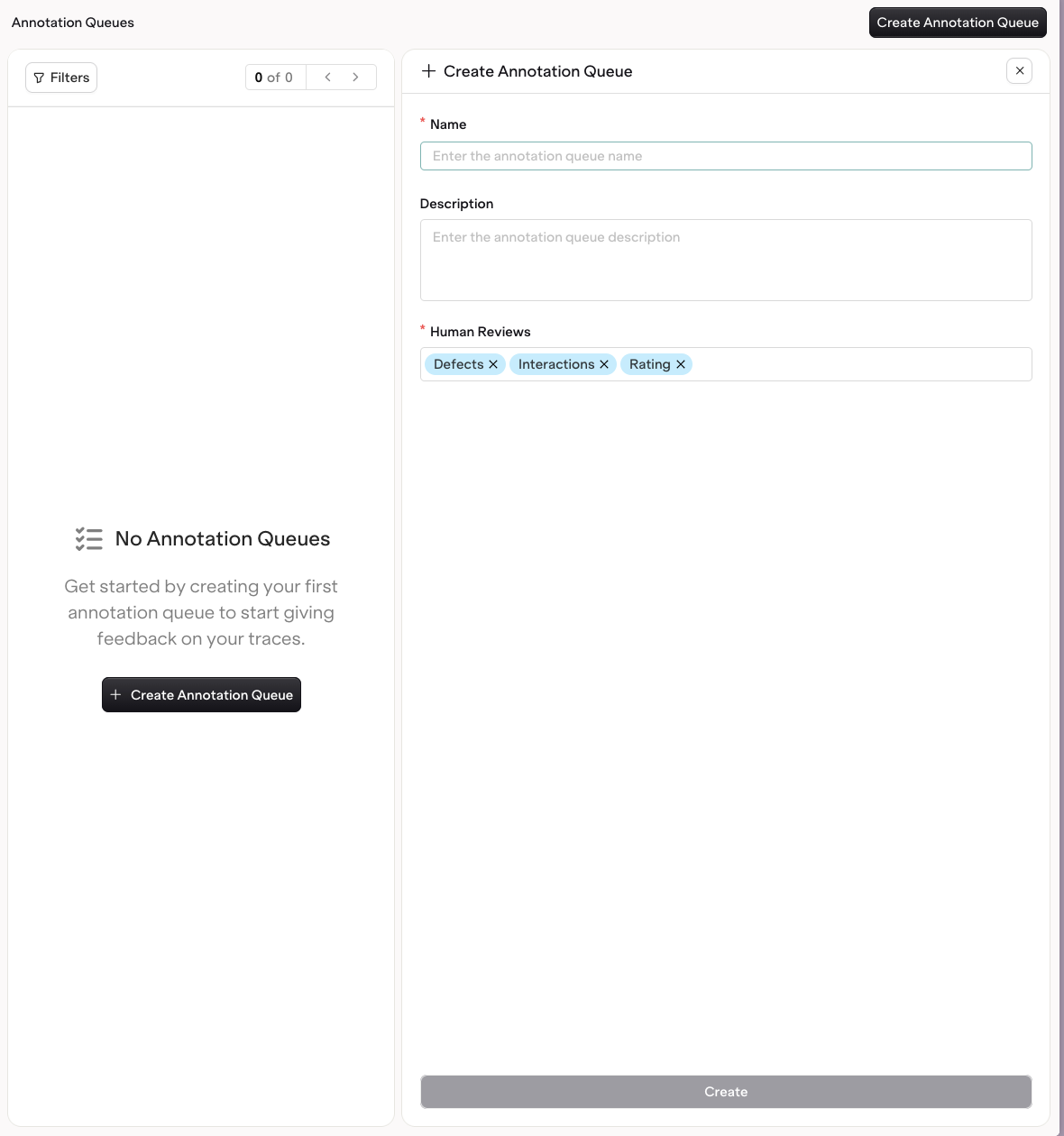
To create an Annotation Queue, head to **AI Studio > Annotation Queue**.
Choose **Create Annotation Queue**.
The following fields are configurable:
* The **Name** of the queue
* The **Description** of the Annotation Queue
* The [**Annotations**](/ai-studio/observability/annotations#create-annotations) that Traces will be reviewed by
 ## Fill Annotation Queues
Once a queue exists, fill it with the Traces to review. Traces can be added automatically or manually.
Use [Trace Automations](/ai-studio/observability/automations) to route Traces into a queue based on configured rules. Add an **Add to Annotation Queue** action to an automation and select the target queue. As matching Traces arrive, they are added to the queue without manual effort, which keeps a steady stream of relevant Traces ready for review.
## Fill Annotation Queues
Once a queue exists, fill it with the Traces to review. Traces can be added automatically or manually.
Use [Trace Automations](/ai-studio/observability/automations) to route Traces into a queue based on configured rules. Add an **Add to Annotation Queue** action to an automation and select the target queue. As matching Traces arrive, they are added to the queue without manual effort, which keeps a steady stream of relevant Traces ready for review.
 Open a Trace, select a span, and choose **Add to annotation queue** to send it to a queue one at a time. This is useful for ad hoc review of specific Traces that are worth a closer look.
 ## Use Annotation Queues
Open an Annotation Queue to step through its Traces one at a time in the review screen.
## Use Annotation Queues
Open an Annotation Queue to step through its Traces one at a time in the review screen.
 The screen is divided into three panels:
* **Left**: details for the selected Trace.
* **Inputs**: the variables mapped to inputs, when configured.
* **Metrics**: latency, cost, and token usage.
* **Task**: the model, provider, and other configuration parameters.
The header shows the current position, the total number of items in the queue, and how many have already been reviewed.
* **Center**: the full interaction for the selected Trace.
* **Right**: the **Annotations** panel with the [**Annotations**](/ai-studio/observability/annotations#create-annotations) configured for the queue, such as a rating with categorical buttons or an open comment field. Selecting a value saves immediately and marks the Trace as reviewed.
Navigate between items with **`K`** (previous) and **`J`** (next), or use the up and down buttons at the top left.
When a data point is worth reusing, select **Add to dataset** to send the Trace to a [Dataset](/ai-studio/optimize/datasets) for use in a future [Experiment](/ai-studio/optimize/experiments).
Adding a Trace to a Dataset does not copy its annotations for now. The annotation values stay on the originating Trace, where they remain queryable via the **Orq MCP**.
Evaluator results shown in the review screen can also be corrected, not just annotated.
The screen is divided into three panels:
* **Left**: details for the selected Trace.
* **Inputs**: the variables mapped to inputs, when configured.
* **Metrics**: latency, cost, and token usage.
* **Task**: the model, provider, and other configuration parameters.
The header shows the current position, the total number of items in the queue, and how many have already been reviewed.
* **Center**: the full interaction for the selected Trace.
* **Right**: the **Annotations** panel with the [**Annotations**](/ai-studio/observability/annotations#create-annotations) configured for the queue, such as a rating with categorical buttons or an open comment field. Selecting a value saves immediately and marks the Trace as reviewed.
Navigate between items with **`K`** (previous) and **`J`** (next), or use the up and down buttons at the top left.
When a data point is worth reusing, select **Add to dataset** to send the Trace to a [Dataset](/ai-studio/optimize/datasets) for use in a future [Experiment](/ai-studio/optimize/experiments).
Adding a Trace to a Dataset does not copy its annotations for now. The annotation values stay on the originating Trace, where they remain queryable via the **Orq MCP**.
Evaluator results shown in the review screen can also be corrected, not just annotated.
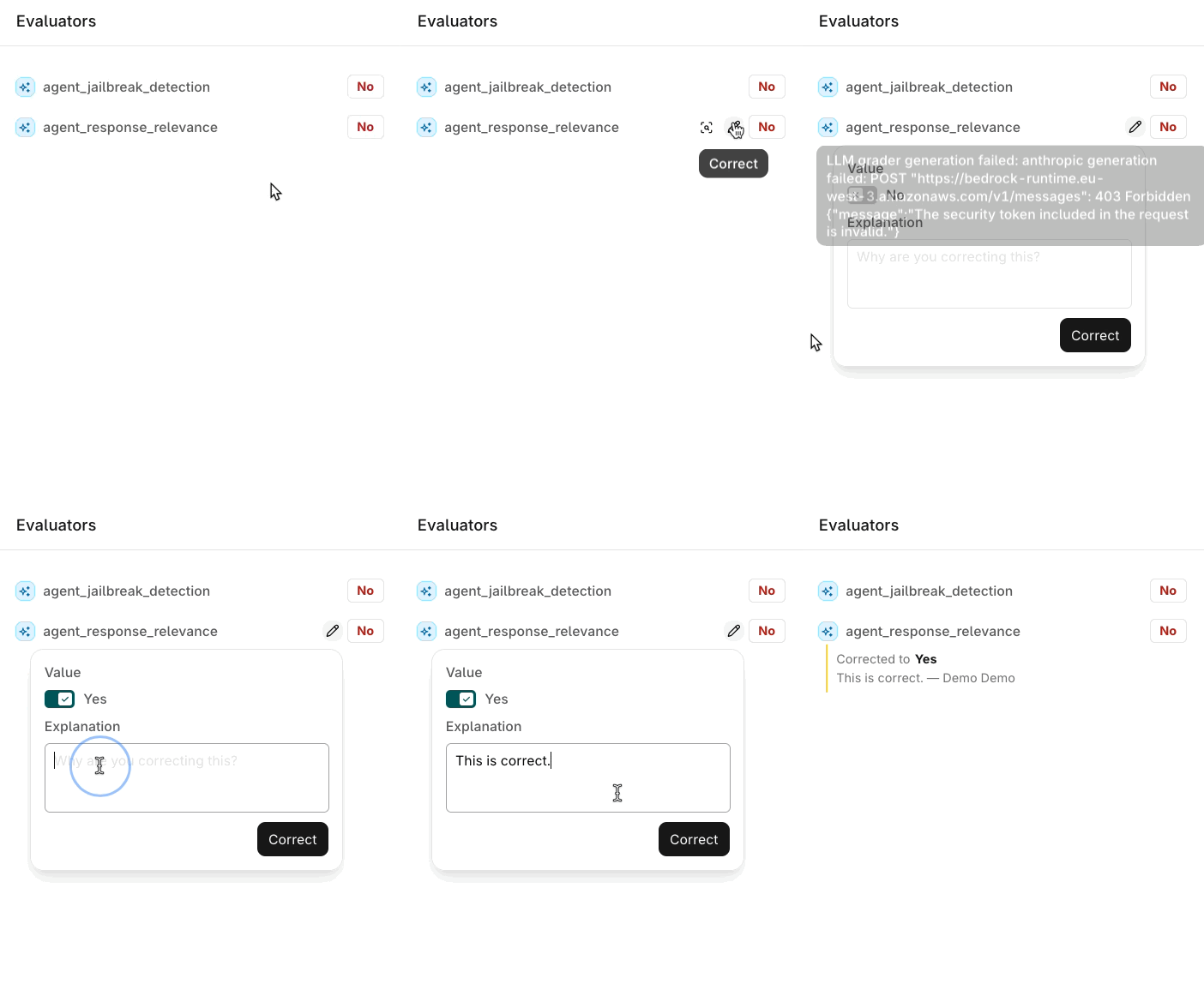 See [Correct an Evaluator Result](/ai-studio/observability/traces#correct-an-evaluator-result) on the Traces page for the full flow.