> ## Documentation Index
> Fetch the complete documentation index at: https://docs.orq.ai/llms.txt
> Use this file to discover all available pages before exploring further.
# Claude Desktop | AI Gateway
> Route Claude Cowork inference through the Orq.ai AI Gateway for fallbacks and EU residency.
Route **Claude Cowork** inference through the **Orq.ai AI Gateway** for fallbacks, EU residency, and cost control.
## Third-party inference (Cowork)
Claude Cowork's third-party inference mode routes all model inference through a configured gateway instead of Anthropic's first-party infrastructure. **Orq.ai**'s **AI Gateway** speaks the Anthropic Messages API and is fully compatible.
Pin traffic to EU-hosted models to meet data residency requirements.
Route across providers automatically to avoid rate limits and outages.
Route to cheaper models for routine tasks by configuring them in Cowork.
### Prerequisites
* Claude Desktop installed with a Pro, Max, Team, or Enterprise plan
* Active **Orq.ai** account with an [API key](/docs/ai-gateway/configuration/api-keys)
### Setup
1. Open **Claude Desktop**
2. Click **Help** in the menu bar
3. Hover over **Troubleshooting**
4. Select **Enable Developer Mode**
5. Restart Claude Desktop
A **Developer** menu appears in the menu bar after restart.
1. Click **Developer** in the menu bar
2. Select **Configure Third-party inference**
3. Select **Gateway** (Anthropic-compatible)
Fill in the three fields:
| Field | Value |
| ------------------- | --------------------------------- |
| Gateway base URL | `https://api.orq.ai/v3/anthropic` |
| Gateway API key | The **Orq.ai** API key |
| Gateway auth scheme | `bearer` |
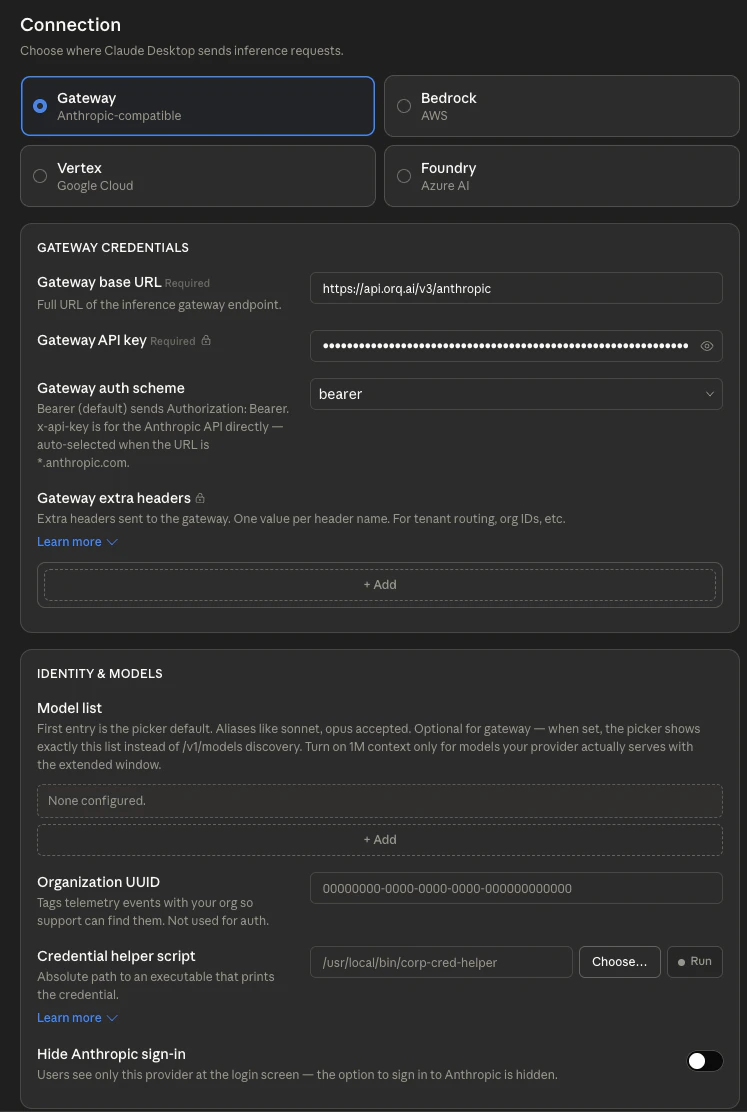 Click **Apply locally** to apply the configuration to this machine, or **Export as MDM profile** to deploy across an organization.
Get the API key from [**Orq.ai** Settings](https://my.orq.ai/settings/api-keys) under **API Keys**.
Cowork automatically fetches available models from **Orq.ai** via the `/v1/models` endpoint, so no manual configuration is required. To pin a specific subset, add model slugs using the `provider/model-name` format:
| Model slug | Description |
| ---------------------------------- | ---------------------------------- |
| `anthropic/claude-sonnet-4-6` | Claude Sonnet via Anthropic direct |
| `aws/anthropic/claude-sonnet-4-6` | Claude Sonnet via AWS Bedrock |
| `google/anthropic/claude-opus-4-7` | Claude Opus via Google Vertex AI |
| `openai/gpt-4o` | GPT-4o for routine tasks |
For the full catalog, see [Supported Models](/docs/ai-gateway/supported-models).
A successful connection shows **Cowork 3P | Gateway** in the Cowork status indicator. All inference now routes through **Orq.ai**.
### Troubleshooting
Developer Mode is not enabled. Open **Help → Troubleshooting → Enable Developer Mode**, then restart Claude Desktop. The **Developer** menu appears only after a restart.
The connection did not apply. Reopen **Developer → Configure Third-party inference**, confirm **Gateway** is selected, and verify the base URL is `https://api.orq.ai/v3/anthropic` and the auth scheme is `bearer`.
Cowork fetches the catalog from the `/v1/models` endpoint. Confirm the base URL is `https://api.orq.ai/v3/anthropic` and the API key is a valid **Orq.ai** key. To pin a subset manually, add model slugs in the `provider/model-name` format.
Confirm the Cowork status indicator reads **Cowork 3P | Gateway**. If it still shows first-party inference, re-apply the configuration with **Apply locally**.
### See Also
Create and manage **Orq.ai** API keys.
Full catalog of models available through the **AI Gateway**.
Get started with the **AI Gateway** for routing, fallbacks, and cost control.
Configure the Anthropic API key and explore Claude model options.
Click **Apply locally** to apply the configuration to this machine, or **Export as MDM profile** to deploy across an organization.
Get the API key from [**Orq.ai** Settings](https://my.orq.ai/settings/api-keys) under **API Keys**.
Cowork automatically fetches available models from **Orq.ai** via the `/v1/models` endpoint, so no manual configuration is required. To pin a specific subset, add model slugs using the `provider/model-name` format:
| Model slug | Description |
| ---------------------------------- | ---------------------------------- |
| `anthropic/claude-sonnet-4-6` | Claude Sonnet via Anthropic direct |
| `aws/anthropic/claude-sonnet-4-6` | Claude Sonnet via AWS Bedrock |
| `google/anthropic/claude-opus-4-7` | Claude Opus via Google Vertex AI |
| `openai/gpt-4o` | GPT-4o for routine tasks |
For the full catalog, see [Supported Models](/docs/ai-gateway/supported-models).
A successful connection shows **Cowork 3P | Gateway** in the Cowork status indicator. All inference now routes through **Orq.ai**.
### Troubleshooting
Developer Mode is not enabled. Open **Help → Troubleshooting → Enable Developer Mode**, then restart Claude Desktop. The **Developer** menu appears only after a restart.
The connection did not apply. Reopen **Developer → Configure Third-party inference**, confirm **Gateway** is selected, and verify the base URL is `https://api.orq.ai/v3/anthropic` and the auth scheme is `bearer`.
Cowork fetches the catalog from the `/v1/models` endpoint. Confirm the base URL is `https://api.orq.ai/v3/anthropic` and the API key is a valid **Orq.ai** key. To pin a subset manually, add model slugs in the `provider/model-name` format.
Confirm the Cowork status indicator reads **Cowork 3P | Gateway**. If it still shows first-party inference, re-apply the configuration with **Apply locally**.
### See Also
Create and manage **Orq.ai** API keys.
Full catalog of models available through the **AI Gateway**.
Get started with the **AI Gateway** for routing, fallbacks, and cost control.
Configure the Anthropic API key and explore Claude model options.