> ## Documentation Index
> Fetch the complete documentation index at: https://docs.orq.ai/llms.txt
> Use this file to discover all available pages before exploring further.
# Management Keys | AI Gateway
> Create workspace-scoped management keys to authenticate workspace administration operations such as creating API keys and managing budgets in the AI Gateway.
## Overview
Management Keys are only available to workspace admins. The **Management Keys** page is not visible to non-admin members.
**Management Keys** are workspace-scoped tokens for authenticating workspace administration operations. They can create, update, and revoke **API keys** and manage **Budgets**.
Management Keys cannot be used to query models. Use a standard [API Key](/docs/ai-gateway/api-keys) for inference.
### Use cases
* Automating workspace provisioning via the API.
* Delegating API key rotation to a deployment pipeline without granting full admin access.
* Letting a billing automation script read and update Budgets without exposing API key management.
## View Management Keys
Navigate to **Settings** → **Organization** → **Management Keys** to view all keys in the workspace.
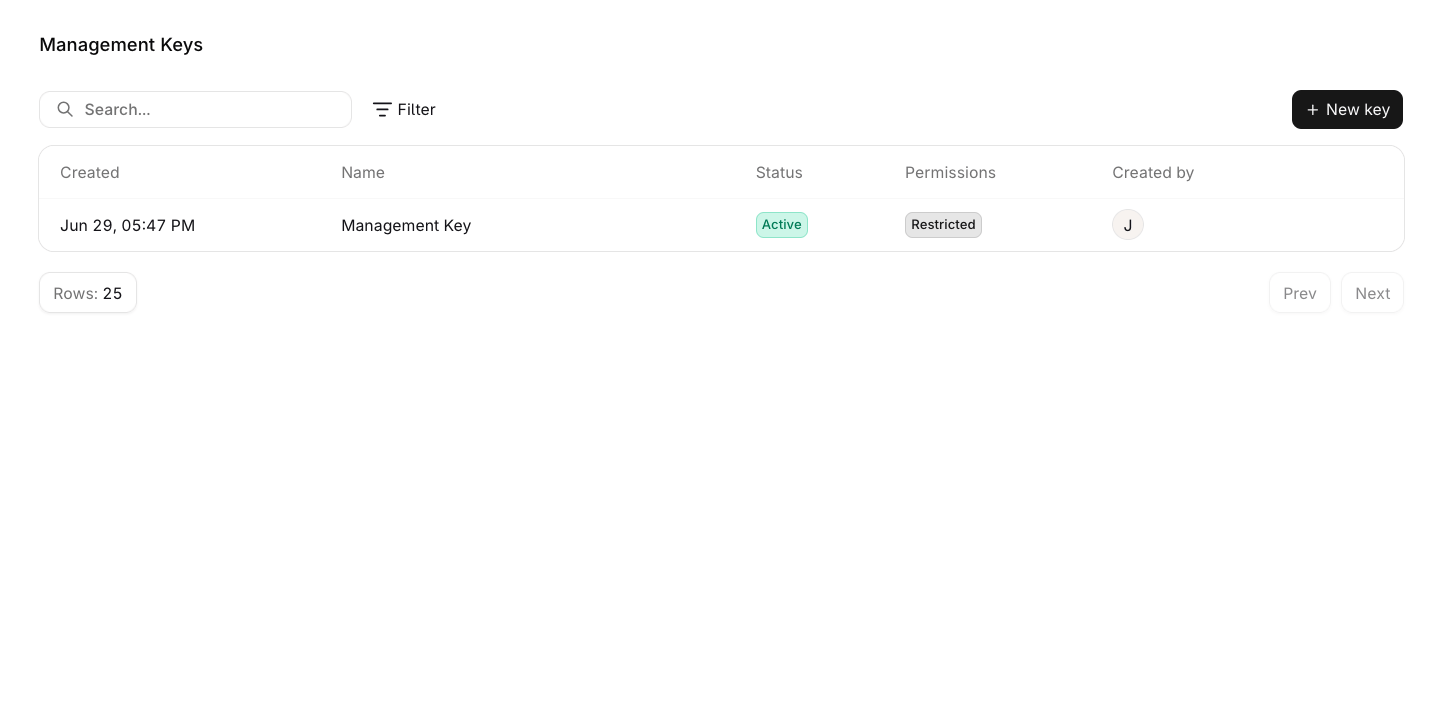 Click any row to open the edit panel and update the key's name, permissions, or expiration date. Hover a row and click for additional options:
* Edit: open the edit panel to update the key's name, permissions, or expiration date.
* Duplicate: create a new key with the same permissions.
* Delete: permanently remove the key from the workspace.
## Create a Management Key
Navigate to **Settings** → **Organization** → **Management Keys** and click New key.
Click any row to open the edit panel and update the key's name, permissions, or expiration date. Hover a row and click for additional options:
* Edit: open the edit panel to update the key's name, permissions, or expiration date.
* Duplicate: create a new key with the same permissions.
* Delete: permanently remove the key from the workspace.
## Create a Management Key
Navigate to **Settings** → **Organization** → **Management Keys** and click New key.
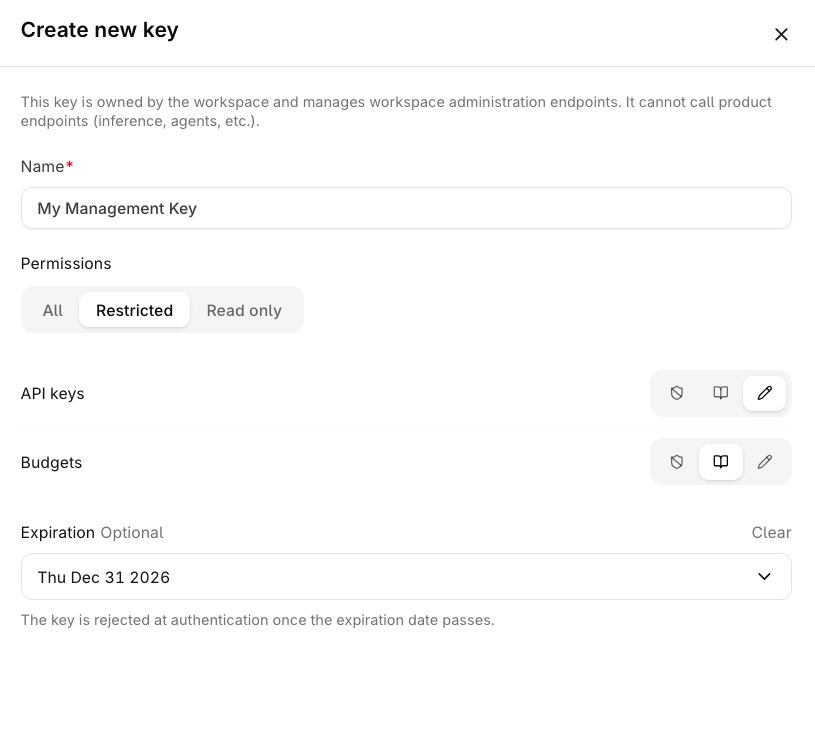 Enter a **Name** for the key (required, max 128 characters).
Select a **Permissions** mode, default is All. See [Permission modes](#permission-modes) below.
Set an **Expiration** date if the key should stop authenticating after a certain date.
Click Create key. A **Save your key** panel appears showing the token.
The token is only shown once. Store it securely before closing this panel. It cannot be retrieved afterwards.
### Permission modes
| Mode | Description |
| -------------- | -------------------------------------------------------------------------------------------------- |
| **All** | Full read and write access to all capabilities. |
| **Restricted** | Configure access per capability. Each capability can be set to None, Read, or Write independently. |
| **Read only** | Read access to all capabilities. |
### Capabilities
| Capability | None | Read | Write |
| ------------ | --------------------------------- | ------------------------------------- | -------------------------------------------------------------- |
| **API keys** | No access. | List and view workspace **API keys**. | List, view, create, update, and revoke workspace **API keys**. |
| **Budgets** | No access. | List and view workspace **Budgets**. | List, view, create, and update workspace **Budgets**. |
Management Keys are not available through MCP. Use the REST API to manage keys programmatically.
Enter a **Name** for the key (required, max 128 characters).
Select a **Permissions** mode, default is All. See [Permission modes](#permission-modes) below.
Set an **Expiration** date if the key should stop authenticating after a certain date.
Click Create key. A **Save your key** panel appears showing the token.
The token is only shown once. Store it securely before closing this panel. It cannot be retrieved afterwards.
### Permission modes
| Mode | Description |
| -------------- | -------------------------------------------------------------------------------------------------- |
| **All** | Full read and write access to all capabilities. |
| **Restricted** | Configure access per capability. Each capability can be set to None, Read, or Write independently. |
| **Read only** | Read access to all capabilities. |
### Capabilities
| Capability | None | Read | Write |
| ------------ | --------------------------------- | ------------------------------------- | -------------------------------------------------------------- |
| **API keys** | No access. | List and view workspace **API keys**. | List, view, create, update, and revoke workspace **API keys**. |
| **Budgets** | No access. | List and view workspace **Budgets**. | List, view, create, and update workspace **Budgets**. |
Management Keys are not available through MCP. Use the REST API to manage keys programmatically.