> ## Documentation Index
> Fetch the complete documentation index at: https://docs.orq.ai/llms.txt
> Use this file to discover all available pages before exploring further.
# MCP Gateways
> Bundle multiple MCP servers behind a single MCP Gateway endpoint with a unified tool surface for MCP-compatible clients.
Create a single client-facing MCP endpoint that bundles one or more **MCP Servers**. Clients connect to the MCP Gateway URL and get a unified tool surface without knowing individual server URLs or authentication details.
Navigate to **AI Gateway > MCP Portal** in the sidebar. The **MCP Gateways** tab lists every MCP Gateway in the workspace.
## Use Cases
* Exposing multiple MCP servers through a single endpoint for clients that cannot manage multiple connections.
* Aliasing server tools under consistent names so clients do not break when upstream tool names change.
* Governing tool access per team: admins build an MCP Gateway from a selected subset of tools across several **MCP Servers**, so the Marketing team and the Research team can share the same servers while reaching different tools.
## How It Works
An MCP Gateway links to one or more synced MCP Servers. Each link can override the server's tool exposure and assign an alias used for tool name prefixes. The MCP Gateway generates a unique public URL that clients use as their MCP server endpoint.
Tool naming strategies resolve conflicts when multiple servers expose tools with the same name.
## Set Up an MCP Gateway
1. Click Create MCP Gateway.
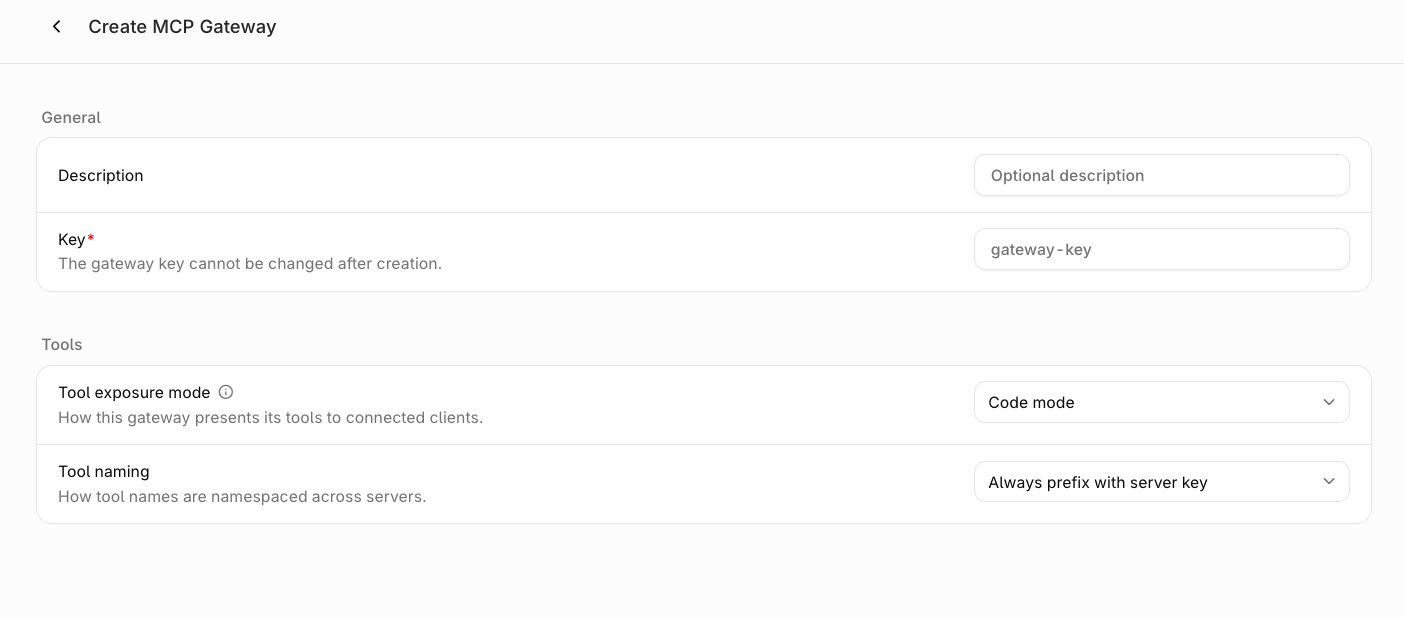 2. **Fill in the general details.**
* **Description** (optional): a note about what this MCP Gateway provides.
* **Key** (required): a unique identifier. Used in the MCP Gateway URL. Cannot be changed after creation.
3. **Configure tool settings.**
* **Tool exposure mode**: how the MCP Gateway presents tools to connected clients. **Code mode** (default) exposes a single tool provided by the MCP Gateway that handles discovery and execution internally. **Direct mode** exposes each upstream tool individually.
* **Tool naming**: how tool names are namespaced across servers. **Always prefix with server key** (default) prefixes all tools with the server's key, or its alias if one is set per-link. **Prefix on collision** only prefixes conflicting names.
4. Click Create.
## After Creation
**Orq.ai** redirects to the **MCP Servers** tab of the new MCP Gateway. Click + Add server to link any server already configured in [MCP Servers](/docs/ai-gateway/mcp-portal/mcp-servers). Only servers that have completed their initial sync can be linked.
Link only **MCP Servers** whose project access covers the **MCP Gateway** project access. An **MCP Gateway** on **All projects** therefore needs **MCP Servers** on **All projects**.
2. **Fill in the general details.**
* **Description** (optional): a note about what this MCP Gateway provides.
* **Key** (required): a unique identifier. Used in the MCP Gateway URL. Cannot be changed after creation.
3. **Configure tool settings.**
* **Tool exposure mode**: how the MCP Gateway presents tools to connected clients. **Code mode** (default) exposes a single tool provided by the MCP Gateway that handles discovery and execution internally. **Direct mode** exposes each upstream tool individually.
* **Tool naming**: how tool names are namespaced across servers. **Always prefix with server key** (default) prefixes all tools with the server's key, or its alias if one is set per-link. **Prefix on collision** only prefixes conflicting names.
4. Click Create.
## After Creation
**Orq.ai** redirects to the **MCP Servers** tab of the new MCP Gateway. Click + Add server to link any server already configured in [MCP Servers](/docs/ai-gateway/mcp-portal/mcp-servers). Only servers that have completed their initial sync can be linked.
Link only **MCP Servers** whose project access covers the **MCP Gateway** project access. An **MCP Gateway** on **All projects** therefore needs **MCP Servers** on **All projects**.
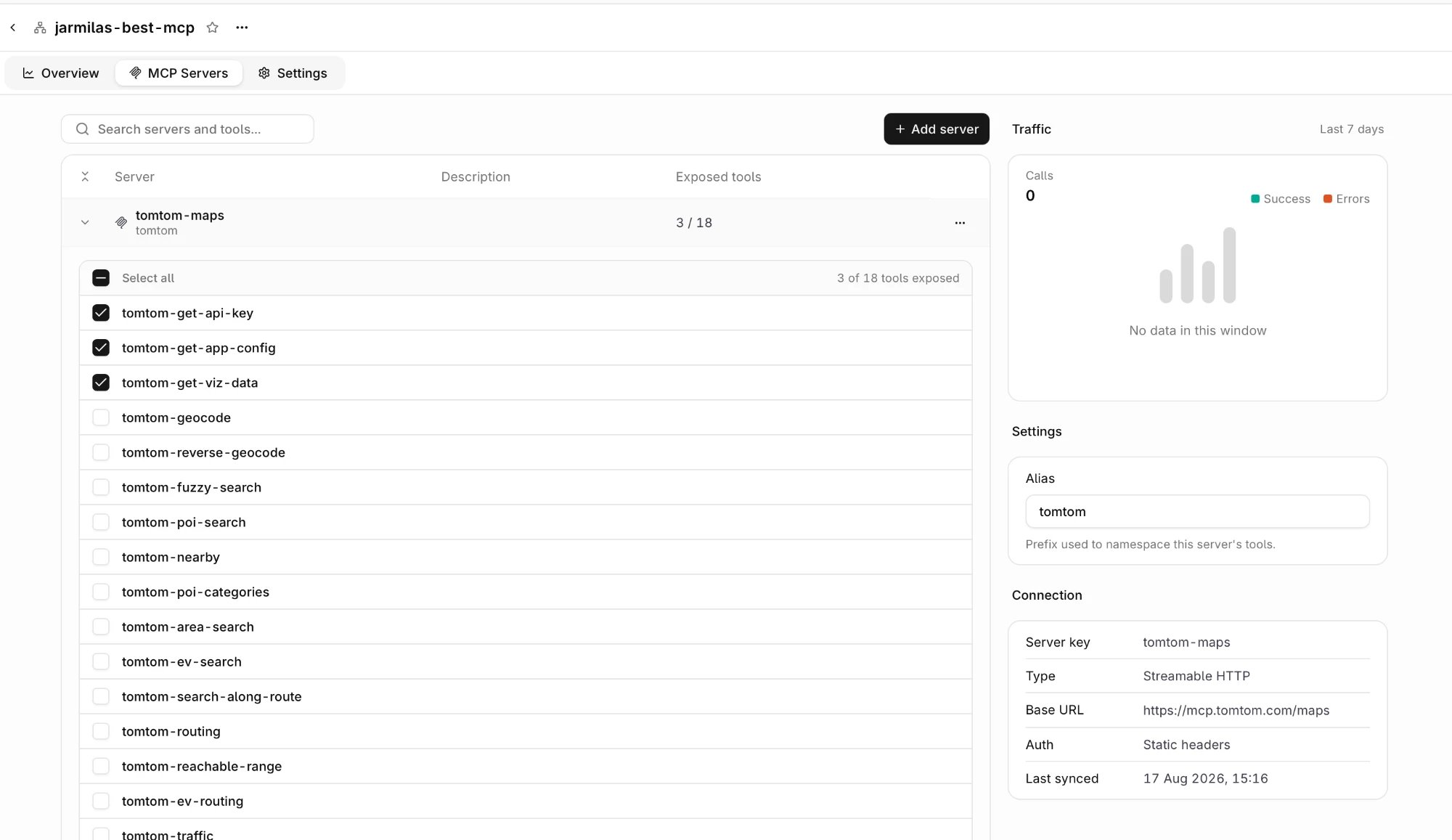 The MCP Gateway detail page has three tabs:
* **Overview**: traffic for the MCP Gateway and the **Connect** section with the command clients use to reach it.
* **MCP Servers**: linked servers and the tools each one exposes. Select a tool checkbox to expose it through the MCP Gateway, or clear it to stop exposing it. Both take effect immediately, with no save action. The side panel shows **Traffic** for the selected server, its **Alias** (the prefix that namespaces the server's tools), and its **Connection** details: server key, type, base URL, auth, and last sync time.
* **Settings**: the MCP Gateway description and tool settings, editable after creation.
## Toolsets
**Toolsets** are named collections of tools from one or more linked servers. Create a toolset from the MCP Gateway detail page by adding tools from linked servers. Attach a toolset to an [Agent](/docs/ai-studio/ai-engineering/build-agents) instead of listing individual tools. When the upstream server adds or removes tools, the toolset picks up the changes on the next sync.
| Field | Description |
| ---------------- | ----------------------------------------------------------------------------- |
| **Key** | Unique identifier within the project. |
| **Display name** | Human-readable label. |
| **Description** | What the toolset covers. |
| **Project** | The project the toolset belongs to. |
| **Tools** | List of server + tool name pairs. Servers must be linked to this MCP Gateway. |
## Connect a Client
Any MCP-compatible client can reach the MCP Gateway, most often a coding agent such as [Claude Code](/docs/ai-studio/integrations/code-assistants/claude-code), [Cursor](/docs/ai-studio/integrations/code-assistants/cursor), or [Codex](/docs/ai-studio/integrations/code-assistants/codex). See [Coding Agents](/docs/ai-studio/integrations/overview#assistants) for the full list.
The **Connect** section on the **Overview** tab holds the command that registers the MCP Gateway with the agent. Set `ORQ_API_KEY`, then run it.
The MCP Gateway detail page has three tabs:
* **Overview**: traffic for the MCP Gateway and the **Connect** section with the command clients use to reach it.
* **MCP Servers**: linked servers and the tools each one exposes. Select a tool checkbox to expose it through the MCP Gateway, or clear it to stop exposing it. Both take effect immediately, with no save action. The side panel shows **Traffic** for the selected server, its **Alias** (the prefix that namespaces the server's tools), and its **Connection** details: server key, type, base URL, auth, and last sync time.
* **Settings**: the MCP Gateway description and tool settings, editable after creation.
## Toolsets
**Toolsets** are named collections of tools from one or more linked servers. Create a toolset from the MCP Gateway detail page by adding tools from linked servers. Attach a toolset to an [Agent](/docs/ai-studio/ai-engineering/build-agents) instead of listing individual tools. When the upstream server adds or removes tools, the toolset picks up the changes on the next sync.
| Field | Description |
| ---------------- | ----------------------------------------------------------------------------- |
| **Key** | Unique identifier within the project. |
| **Display name** | Human-readable label. |
| **Description** | What the toolset covers. |
| **Project** | The project the toolset belongs to. |
| **Tools** | List of server + tool name pairs. Servers must be linked to this MCP Gateway. |
## Connect a Client
Any MCP-compatible client can reach the MCP Gateway, most often a coding agent such as [Claude Code](/docs/ai-studio/integrations/code-assistants/claude-code), [Cursor](/docs/ai-studio/integrations/code-assistants/cursor), or [Codex](/docs/ai-studio/integrations/code-assistants/codex). See [Coding Agents](/docs/ai-studio/integrations/overview#assistants) for the full list.
The **Connect** section on the **Overview** tab holds the command that registers the MCP Gateway with the agent. Set `ORQ_API_KEY`, then run it.
 ```bash theme={"theme":{"light":"github-light","dark":"github-dark"}}
npx add-mcp https://my.orq.ai/v3/mcp/ \
--name \
--header "Authorization: Bearer $ORQ_API_KEY"
```
The agent gets access to every exposed tool from every linked **MCP Server** through a single connection.
## Monitor Usage
The **Overview** tab reports how clients use the MCP Gateway. It opens on the last 7 days, and every card compares that window against the one before it. Change the window with the time range picker in the top right.
```bash theme={"theme":{"light":"github-light","dark":"github-dark"}}
npx add-mcp https://my.orq.ai/v3/mcp/ \
--name \
--header "Authorization: Bearer $ORQ_API_KEY"
```
The agent gets access to every exposed tool from every linked **MCP Server** through a single connection.
## Monitor Usage
The **Overview** tab reports how clients use the MCP Gateway. It opens on the last 7 days, and every card compares that window against the one before it. Change the window with the time range picker in the top right.
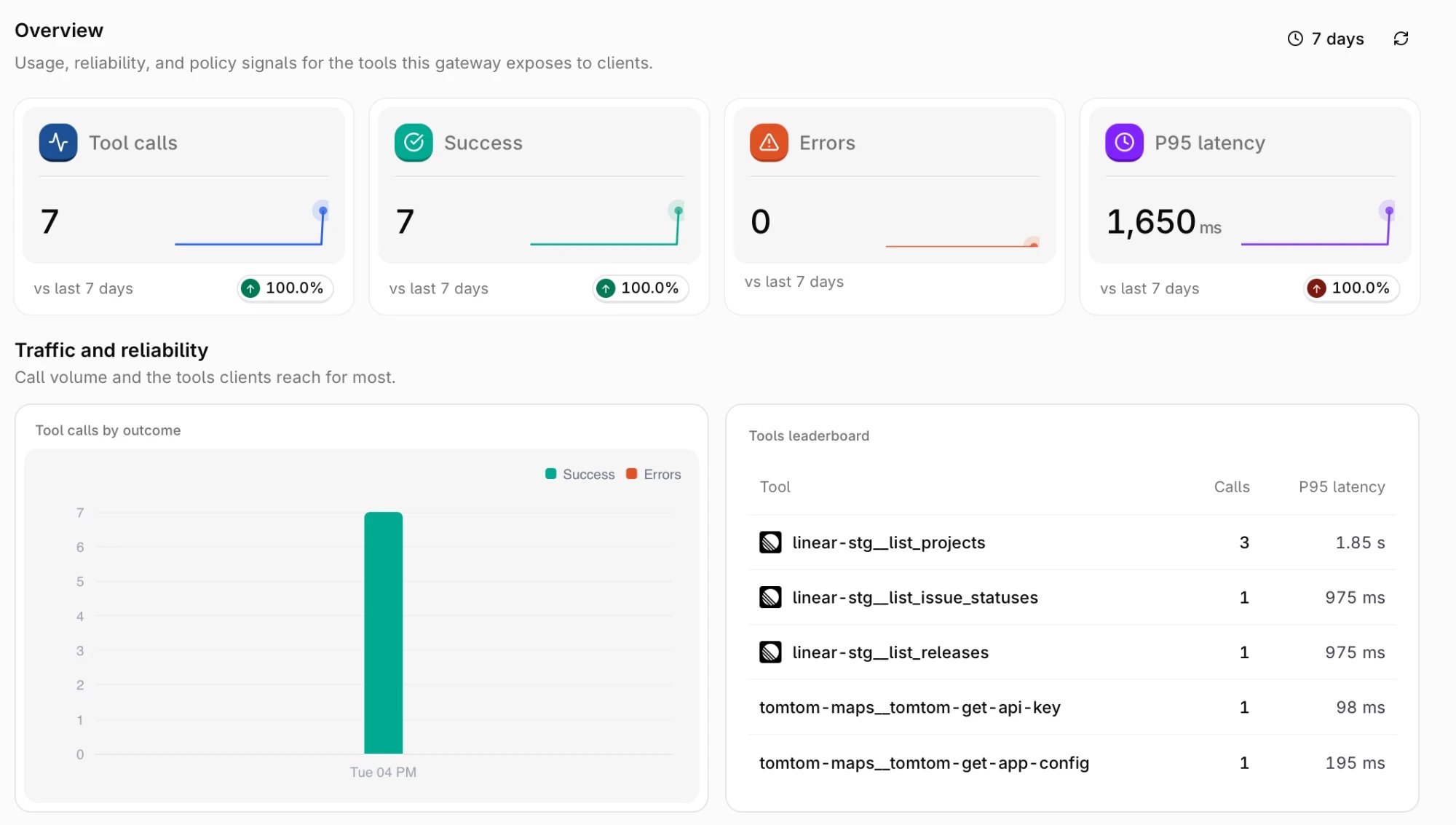 | Card | Description |
| --------------- | --------------------------------------------------- |
| **Tool calls** | Tool invocations routed through the MCP Gateway. |
| **Success** | Invocations that completed successfully. |
| **Errors** | Invocations that returned an error. |
| **P95 latency** | 95th percentile duration of successful invocations. |
**Traffic and reliability** breaks the same window down further:
* **Tool calls by outcome**: call volume over time, split into successes and errors.
* **Tools leaderboard**: the most called tools with their call count and P95 latency, listed under their namespaced names.
| Card | Description |
| --------------- | --------------------------------------------------- |
| **Tool calls** | Tool invocations routed through the MCP Gateway. |
| **Success** | Invocations that completed successfully. |
| **Errors** | Invocations that returned an error. |
| **P95 latency** | 95th percentile duration of successful invocations. |
**Traffic and reliability** breaks the same window down further:
* **Tool calls by outcome**: call volume over time, split into successes and errors.
* **Tools leaderboard**: the most called tools with their call count and P95 latency, listed under their namespaced names.