> ## Documentation Index
> Fetch the complete documentation index at: https://docs.orq.ai/llms.txt
> Use this file to discover all available pages before exploring further.
# Smart Router
> Automatically route each request to the optimal model in a pool based on task complexity and the chosen mode. Reduce costs without sacrificing quality.
Not every request needs the most capable model. The **Smart Router** routes each request to the optimal model from a configured pool, based on the complexity of the task and the chosen mode.
Instead of pinning an application to a single model, configure a pool of 2 to 50 models and let the router decide per request. Simple requests go to economical models; complex requests escalate to stronger ones. The application calls one stable model reference; the routing happens behind it.
## Use Cases
* Reducing spend on high-volume workloads where most requests do not need the strongest model.
* Customer support assistants: simple FAQs and acknowledgements stay on fast, economical models while nuanced complaints or policy questions escalate automatically.
* Code assistants: autocomplete and boilerplate generation stay cheap; debugging and architecture questions escalate.
* Content generation at scale: templated, high-volume copy uses economical models; long-form or brand-sensitive copy uses stronger ones.
* Getting the best available output for every request without manually picking a model per call.
## How It Works
Every eligible model carries an **Intelligence Index** sourced from [Artificial Analysis](https://artificialanalysis.ai). The **Smart Router** ranks the pool by this index and groups the models into complexity bands: **Easy**, **Medium**, and **Hard**. Each incoming request is analyzed for task complexity and routed to a model in the matching band, so the bands adapt automatically to whichever models are in the pool.
The selected mode (**Cost**, **Balanced**, or **Quality**) tunes how aggressively the router prefers economical models over stronger ones. If routing is unavailable, the request falls back to the strongest model in the pool, so requests always complete.
## Set Up the Smart Router
1. Navigate to **Smart Router** in the **AI Gateway** sidebar.
2. Click + Smart Router.
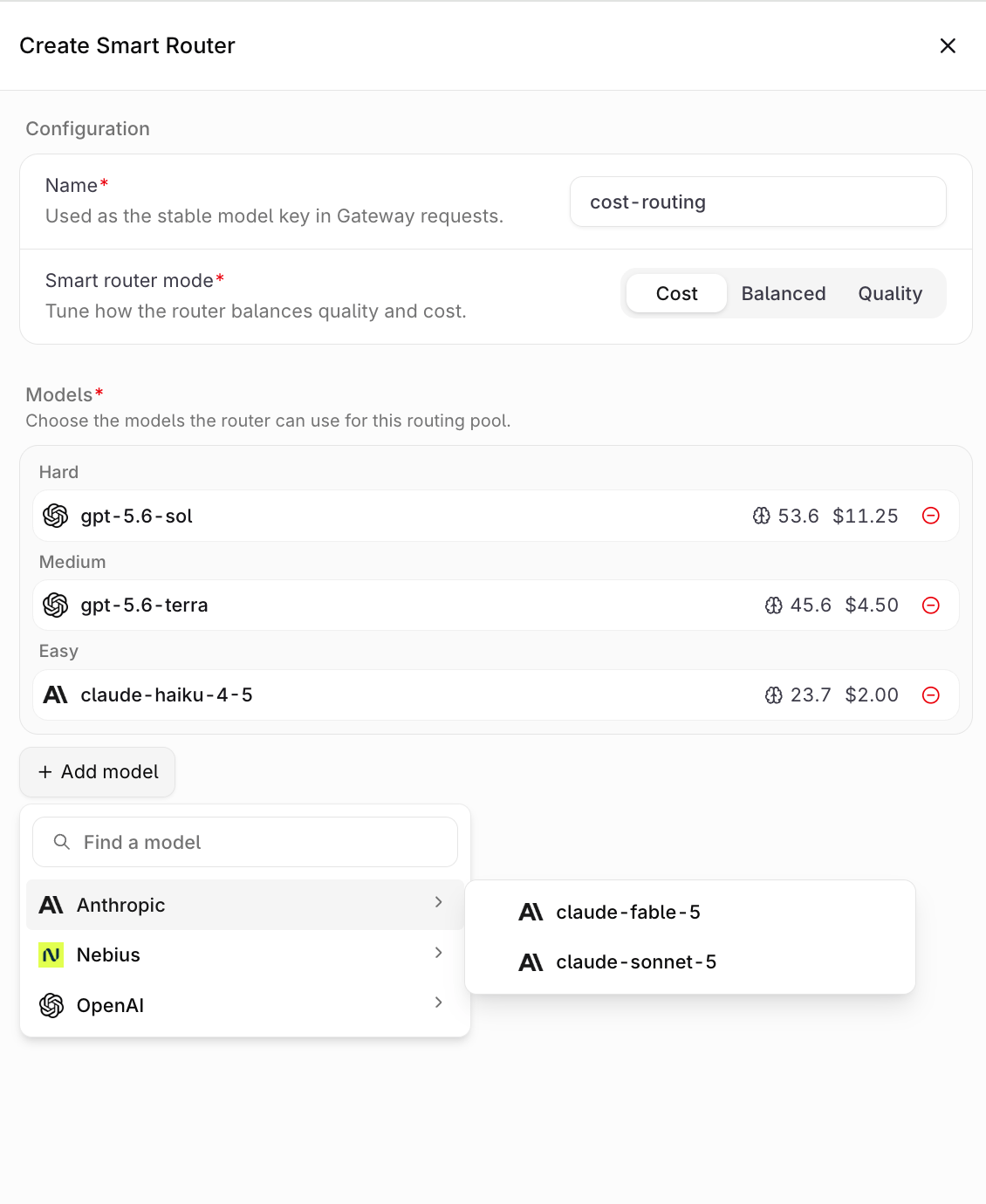
3. Fill in the configuration:
* **Name**: a unique identifier, used as the stable model key in **Gateway** requests (lowercase letters, numbers, and hyphens only). The name cannot be changed after creation.
* **Smart router mode**: choose **Cost**, **Balanced**, or **Quality**.
* **Models**: click Add model and select at least 2 models (up to 50); keeping the pool below 10 models is recommended. Each entry shows the model's Intelligence Index and price, and the list groups the selection into the **Easy**, **Medium**, and **Hard** bands as models are added.
4. Click **Create**.
 ## Modes
| Mode | Behavior |
| ------------ | ------------------------------------------------------------------------- |
| **Cost** | Prefers the economical models in the pool more aggressively to save money |
| **Balanced** | Balances cost and quality across simple and complex requests |
| **Quality** | Routes more requests to the stronger models in the pool |
New **Smart Routers** default to **Cost**.
## Eligible Models
Any enabled model in the **AI Gateway** that carries Artificial Analysis intelligence data can join the pool, and models from different providers can be mixed freely in a single pool. See [Supported Models](/docs/ai-gateway/supported-models) for the catalog. Models without an Intelligence Index and other **Smart Routers** cannot be added.
Ensure the models intended for the pool are enabled in the Model list first. Disabled models do not appear in the model picker.
## Use the Smart Router
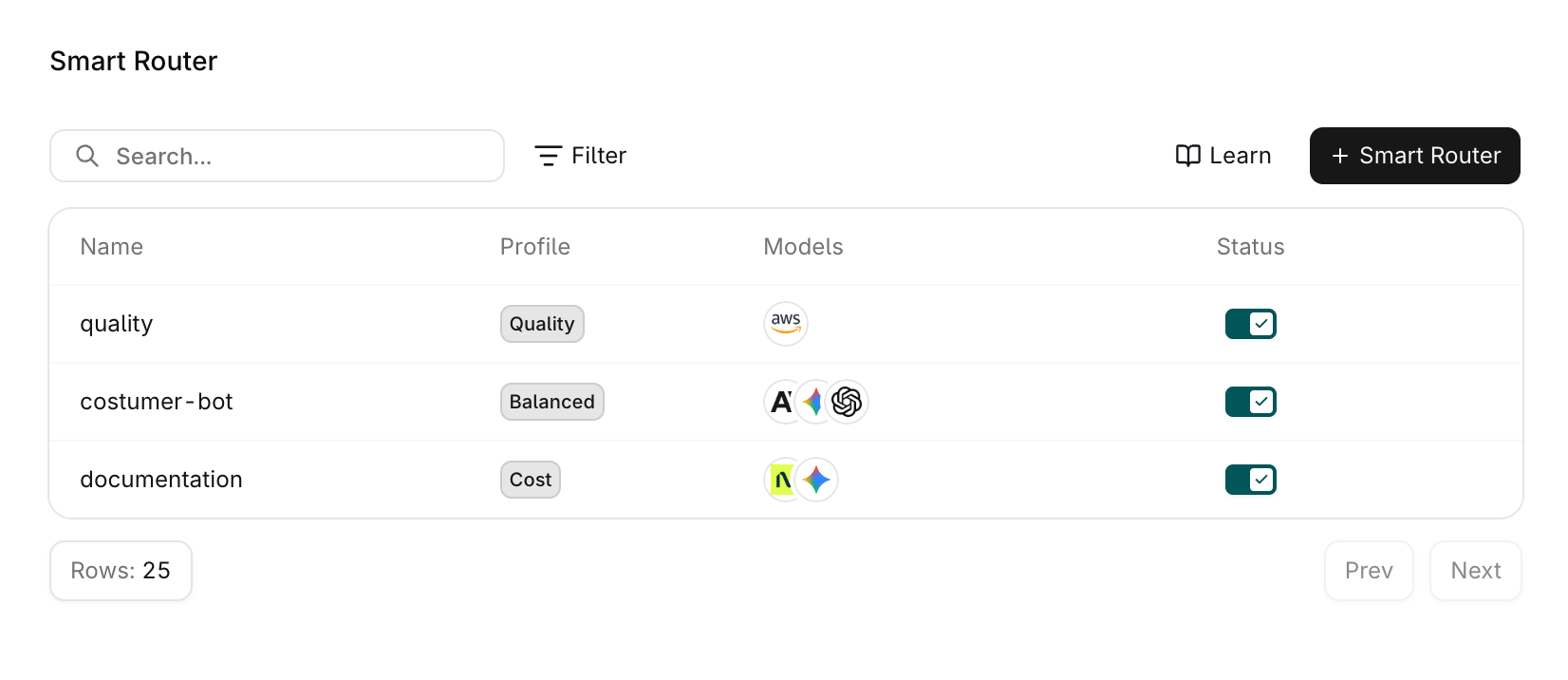
Once created, the **Smart Router** appears in **AI Gateway** and can be referenced anywhere a model is accepted via the API or SDKs.
**Smart Routers** are not yet available for **Agents**: routing happens per request, so it cannot yet be guaranteed that an entire conversation is served by the same model. Support for **Agents** will be added soon.
## Modes
| Mode | Behavior |
| ------------ | ------------------------------------------------------------------------- |
| **Cost** | Prefers the economical models in the pool more aggressively to save money |
| **Balanced** | Balances cost and quality across simple and complex requests |
| **Quality** | Routes more requests to the stronger models in the pool |
New **Smart Routers** default to **Cost**.
## Eligible Models
Any enabled model in the **AI Gateway** that carries Artificial Analysis intelligence data can join the pool, and models from different providers can be mixed freely in a single pool. See [Supported Models](/docs/ai-gateway/supported-models) for the catalog. Models without an Intelligence Index and other **Smart Routers** cannot be added.
Ensure the models intended for the pool are enabled in the Model list first. Disabled models do not appear in the model picker.
## Use the Smart Router
Once created, the **Smart Router** appears in **AI Gateway** and can be referenced anywhere a model is accepted via the API or SDKs.
**Smart Routers** are not yet available for **Agents**: routing happens per request, so it cannot yet be guaranteed that an entire conversation is served by the same model. Support for **Agents** will be added soon.
 ### Reference in code
When using a **Smart Router** through the SDKs, API, or [Supported Libraries](/docs/ai-studio/integrations/frameworks/overview), reference it by the string `@orq/`.
> Example: `acme@orq/my-smart-router`
### Run the Smart Router
Call the **Smart Router** like any other model. The router picks a model from the pool per request; no code changes are needed when the pool or mode changes. Both the Responses endpoint and the Chat Completions endpoint accept a **Smart Router** reference.
```bash cURL theme={"theme":{"light":"github-light","dark":"github-dark"}}
curl -X POST https://api.orq.ai/v3/router/responses \
-H "Authorization: Bearer $ORQ_API_KEY" \
-H "Content-Type: application/json" \
-d '{
"model": "workspace_name@orq/my-smart-router",
"input": "Summarize this support ticket in two sentences."
}'
```
```typescript TypeScript theme={"theme":{"light":"github-light","dark":"github-dark"}}
import OpenAI from "openai";
const client = new OpenAI({
apiKey: process.env.ORQ_API_KEY,
baseURL: "https://api.orq.ai/v3/router",
});
const response = await client.responses.create({
model: "workspace_name@orq/my-smart-router",
input: "Summarize this support ticket in two sentences.",
});
console.log(response.output_text);
```
```python Python theme={"theme":{"light":"github-light","dark":"github-dark"}}
from openai import OpenAI
import os
client = OpenAI(
api_key=os.environ.get("ORQ_API_KEY"),
base_url="https://api.orq.ai/v3/router",
)
response = client.responses.create(
model="workspace_name@orq/my-smart-router",
input="Summarize this support ticket in two sentences.",
)
print(response.output_text)
```
Disabling a **Smart Router** makes it unavailable to the **Gateway**; requests referencing it no longer resolve until it is enabled again.
## Track Usage
Requests served by a **Smart Router** appear in the observability [Logs](/docs/ai-studio/observability/logs) like any other **Gateway** request. Use [App Tracking](/docs/ai-gateway/app-tracking) to attribute cost and latency per application.
### Reference in code
When using a **Smart Router** through the SDKs, API, or [Supported Libraries](/docs/ai-studio/integrations/frameworks/overview), reference it by the string `@orq/`.
> Example: `acme@orq/my-smart-router`
### Run the Smart Router
Call the **Smart Router** like any other model. The router picks a model from the pool per request; no code changes are needed when the pool or mode changes. Both the Responses endpoint and the Chat Completions endpoint accept a **Smart Router** reference.
```bash cURL theme={"theme":{"light":"github-light","dark":"github-dark"}}
curl -X POST https://api.orq.ai/v3/router/responses \
-H "Authorization: Bearer $ORQ_API_KEY" \
-H "Content-Type: application/json" \
-d '{
"model": "workspace_name@orq/my-smart-router",
"input": "Summarize this support ticket in two sentences."
}'
```
```typescript TypeScript theme={"theme":{"light":"github-light","dark":"github-dark"}}
import OpenAI from "openai";
const client = new OpenAI({
apiKey: process.env.ORQ_API_KEY,
baseURL: "https://api.orq.ai/v3/router",
});
const response = await client.responses.create({
model: "workspace_name@orq/my-smart-router",
input: "Summarize this support ticket in two sentences.",
});
console.log(response.output_text);
```
```python Python theme={"theme":{"light":"github-light","dark":"github-dark"}}
from openai import OpenAI
import os
client = OpenAI(
api_key=os.environ.get("ORQ_API_KEY"),
base_url="https://api.orq.ai/v3/router",
)
response = client.responses.create(
model="workspace_name@orq/my-smart-router",
input="Summarize this support ticket in two sentences.",
)
print(response.output_text)
```
Disabling a **Smart Router** makes it unavailable to the **Gateway**; requests referencing it no longer resolve until it is enabled again.
## Track Usage
Requests served by a **Smart Router** appear in the observability [Logs](/docs/ai-studio/observability/logs) like any other **Gateway** request. Use [App Tracking](/docs/ai-gateway/app-tracking) to attribute cost and latency per application.