> ## Documentation Index
> Fetch the complete documentation index at: https://docs.orq.ai/llms.txt
> Use this file to discover all available pages before exploring further.
# Playground
> Chat and test AI models in real time directly in Orq.ai, with full conversation history, file attachments, and access to configured agents.
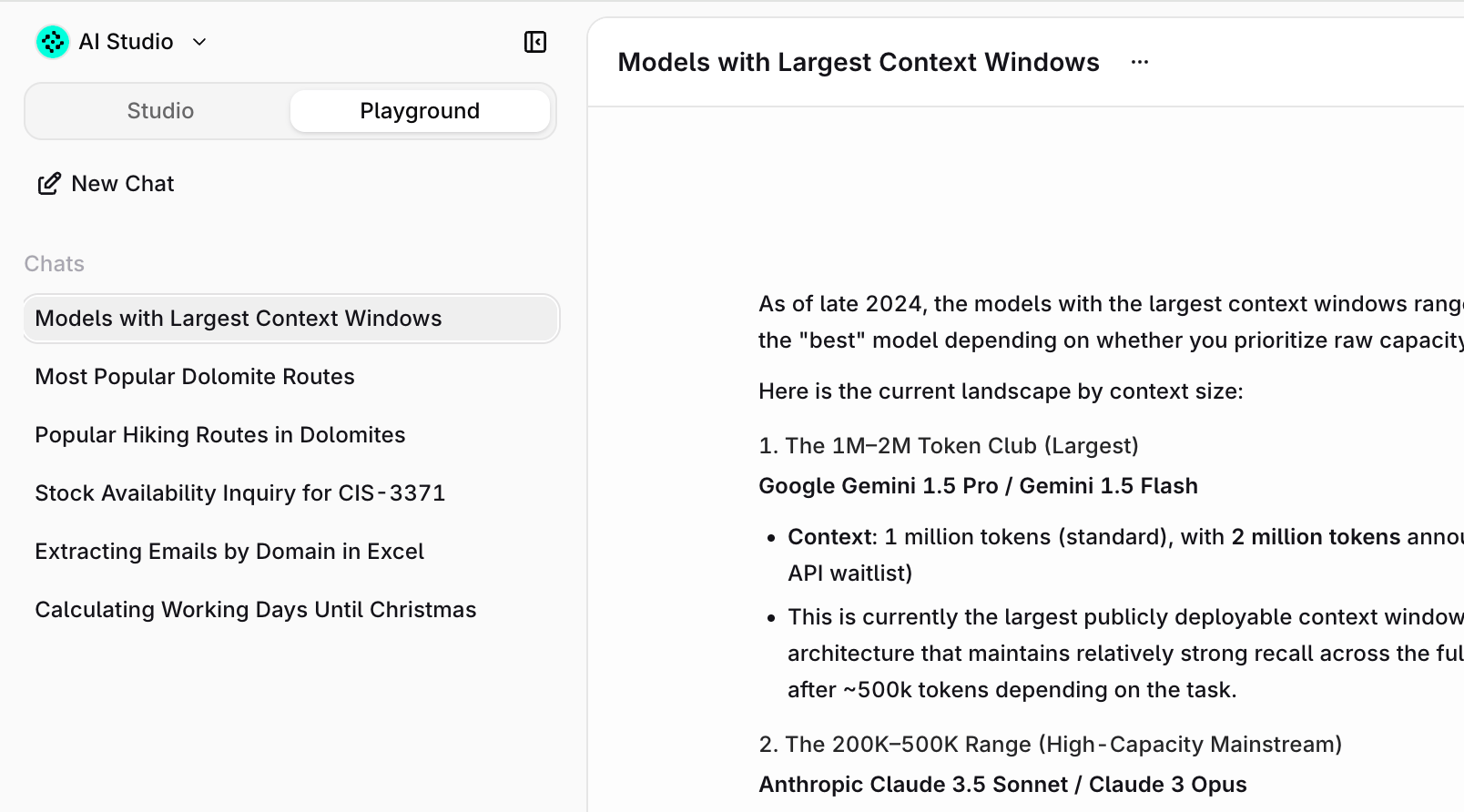 **Playground** gives teams one interface to chat with every model and agent in a workspace. No separate subscriptions or accounts needed.
* **Every provider, one place**: OpenAI, Anthropic, Google, Mistral, custom models, all in a single chat.
* **Switch models mid-conversation**: compare outputs across providers without leaving the thread.
* **Chat with agents**: deploy agents built in Orq.ai directly into Playground for the whole team. See [Build Agents](/docs/ai-studio/ai-engineering/build-agents) to learn how to enable agents for Playground.
* **Admin-controlled access**: scope available models and agents per workspace.
* **Files built in**: upload images, PDFs, and documents directly into the conversation.
## Starting a Chat
1. Click the **Playground** toggle at the top of the sidebar.
2. Click New Chat in the sidebar to start a fresh conversation.
3. Select a model or agent using the selector in the input bar.
4. Type a message in the input box at the bottom.
5. Press **Send** or hit `Enter` to submit.
Past conversations appear in the left sidebar, named automatically based on the content of the exchange.
Hover over any chat name and click to rename or delete it.
## Models and Agents
The input bar includes a selector that lists all models and agents enabled by the workspace admin. Select the desired model or agent before sending a message. Models can be switched mid-conversation.
* **Models** are sourced from the [AI Gateway](/docs/ai-gateway/using-the-router), giving access to models across all configured providers.
* **Agents** are built in [AI Studio](/docs/ai-studio/ai-engineering/build-agents) around specific use cases and can use tools, knowledge bases, and multi-step reasoning. **Playground** is a great way to test and validate agents before rolling them out to the team.
## Input Options
Click in the input bar to open the options menu. Three options are available depending on the selected model or agent:
Agents are pre-configured with their own model, tools, and settings. Thinking and Web Search cannot be toggled from the chat.
### Upload Photos & Files
Attach images, PDFs, and documents directly to a message. Maximum file size is 20 MB. Available for any model with vision or document capabilities.
### Web Search
Only available for models that support Web Search.
Toggle web search on or off. When on, the model retrieves up-to-date information from the web to ground its responses.
### Thinking
Only available for models that support Thinking.
When Thinking is enabled, the model reasons through the problem before writing its response. This improves accuracy on complex or multi-step tasks at the cost of additional tokens and latency. Selecting **Thinking** opens a submenu with two modes:
* **Standard**: the model applies a moderate level of reasoning.
* **Extended**: the model reasons more deeply, best suited for difficult problems that benefit from more thorough analysis.
**Playground** gives teams one interface to chat with every model and agent in a workspace. No separate subscriptions or accounts needed.
* **Every provider, one place**: OpenAI, Anthropic, Google, Mistral, custom models, all in a single chat.
* **Switch models mid-conversation**: compare outputs across providers without leaving the thread.
* **Chat with agents**: deploy agents built in Orq.ai directly into Playground for the whole team. See [Build Agents](/docs/ai-studio/ai-engineering/build-agents) to learn how to enable agents for Playground.
* **Admin-controlled access**: scope available models and agents per workspace.
* **Files built in**: upload images, PDFs, and documents directly into the conversation.
## Starting a Chat
1. Click the **Playground** toggle at the top of the sidebar.
2. Click New Chat in the sidebar to start a fresh conversation.
3. Select a model or agent using the selector in the input bar.
4. Type a message in the input box at the bottom.
5. Press **Send** or hit `Enter` to submit.
Past conversations appear in the left sidebar, named automatically based on the content of the exchange.
Hover over any chat name and click to rename or delete it.
## Models and Agents
The input bar includes a selector that lists all models and agents enabled by the workspace admin. Select the desired model or agent before sending a message. Models can be switched mid-conversation.
* **Models** are sourced from the [AI Gateway](/docs/ai-gateway/using-the-router), giving access to models across all configured providers.
* **Agents** are built in [AI Studio](/docs/ai-studio/ai-engineering/build-agents) around specific use cases and can use tools, knowledge bases, and multi-step reasoning. **Playground** is a great way to test and validate agents before rolling them out to the team.
## Input Options
Click in the input bar to open the options menu. Three options are available depending on the selected model or agent:
Agents are pre-configured with their own model, tools, and settings. Thinking and Web Search cannot be toggled from the chat.
### Upload Photos & Files
Attach images, PDFs, and documents directly to a message. Maximum file size is 20 MB. Available for any model with vision or document capabilities.
### Web Search
Only available for models that support Web Search.
Toggle web search on or off. When on, the model retrieves up-to-date information from the web to ground its responses.
### Thinking
Only available for models that support Thinking.
When Thinking is enabled, the model reasons through the problem before writing its response. This improves accuracy on complex or multi-step tasks at the cost of additional tokens and latency. Selecting **Thinking** opens a submenu with two modes:
* **Standard**: the model applies a moderate level of reasoning.
* **Extended**: the model reasons more deeply, best suited for difficult problems that benefit from more thorough analysis.