> ## Documentation Index
> Fetch the complete documentation index at: https://docs.orq.ai/llms.txt
> Use this file to discover all available pages before exploring further.
# Models | AI Gateway
> Browse available LLM models and enable them in your AI Gateway workspace. Filter by provider, capability, and pricing to find the right model.
## Enabling new Models
To see available Models and enable them for use, head to the **AI Gateway** section in **AI Studio** and open the **Models** page.
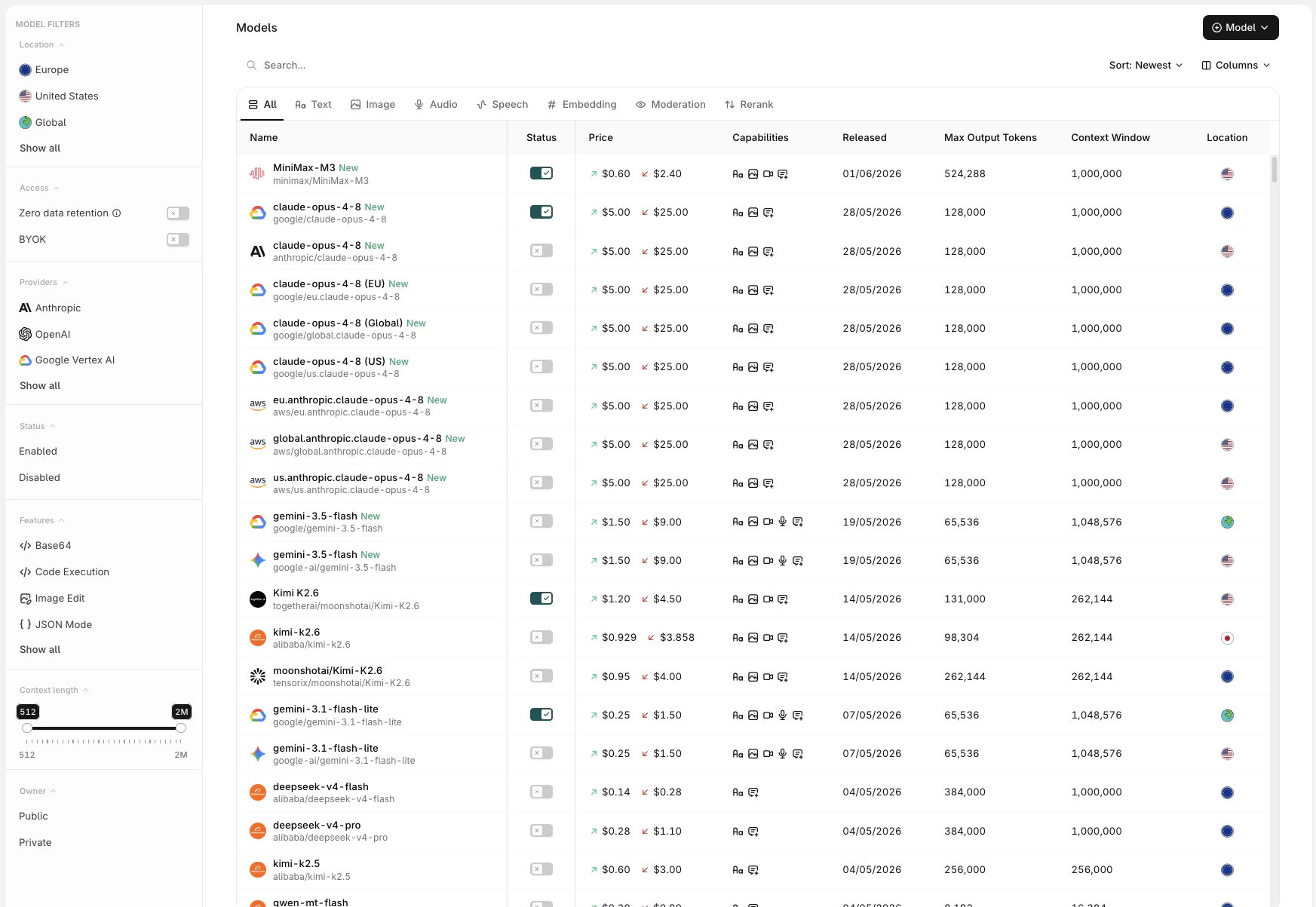 Each model displays its full name alongside a set of sortable columns:
* **Name**: full model name and provider
* **Input / Output pricing**: per-token cost for input and output
* **Features**: capability badges indicating support for ZDR, BYOK, and other model-specific features
* **Released**: the model's release date
* **Max Output Tokens**: maximum tokens the model can generate per response
* **Context Length**: total token window (input + output)
* **Location**: the region where the model is served
Use Sort: Newest to reorder by **Newest**, **Pricing** (low to high or high to low), **Context** (low to high or high to low), or **Max Output Tokens**. Use Columns to show or hide individual columns.
Use the **Status Toggle** to **Enable** a model for use with the **AI Gateway**.
### Filters
Use the modality tabs at the top of the list to scope models by type:
All Text Image Audio Speech Embedding Moderation Rerank
The sidebar provides additional filters:
| Filter | Description |
| ------------------ | -------------------------------------------------------------------------------------------------------------------------------------------------------------------------------------------------------------------------- |
| **Location** | Filter by region: Europe, United States, Global, APAC, Australia, Singapore |
| **Access** | Toggle [**Zero data retention**](/docs/enterprise/sovereign-ai#zero-data-retention) for ZDR-compliant providers, or [**BYOK**](/docs/ai-studio/ai-gateway/connect-providers) for providers where an API key has been added |
| **Providers** | Filter by LLM provider. See [Providers](/docs/ai-studio/ai-gateway/connect-providers) to configure API keys |
| **Status** | Show Enabled or Disabled models |
| **Features** | Filter by capability: Base64, Code Execution, Image Edit, JSON Mode, PDF, Reasoning, Streaming, Tool Calling, URL, Vision, Web Search |
| **Context length** | Drag the range slider to filter by context window size (512 to 2M tokens) |
| **Owner** | Filter between Public (**Orq.ai**-provided) and Private (onboarded) models |
To enable a model, toggle it on. It will immediately be available to call with the **AI Gateway**.
## Onboarding Private Models
Onboard private models by choosing Model at the top-right of the screen. This is useful when hosting a fine-tuned model or any model deployed on a private provider such as **Azure AI Foundry** or **Vertex AI**.
### Private Models Providers
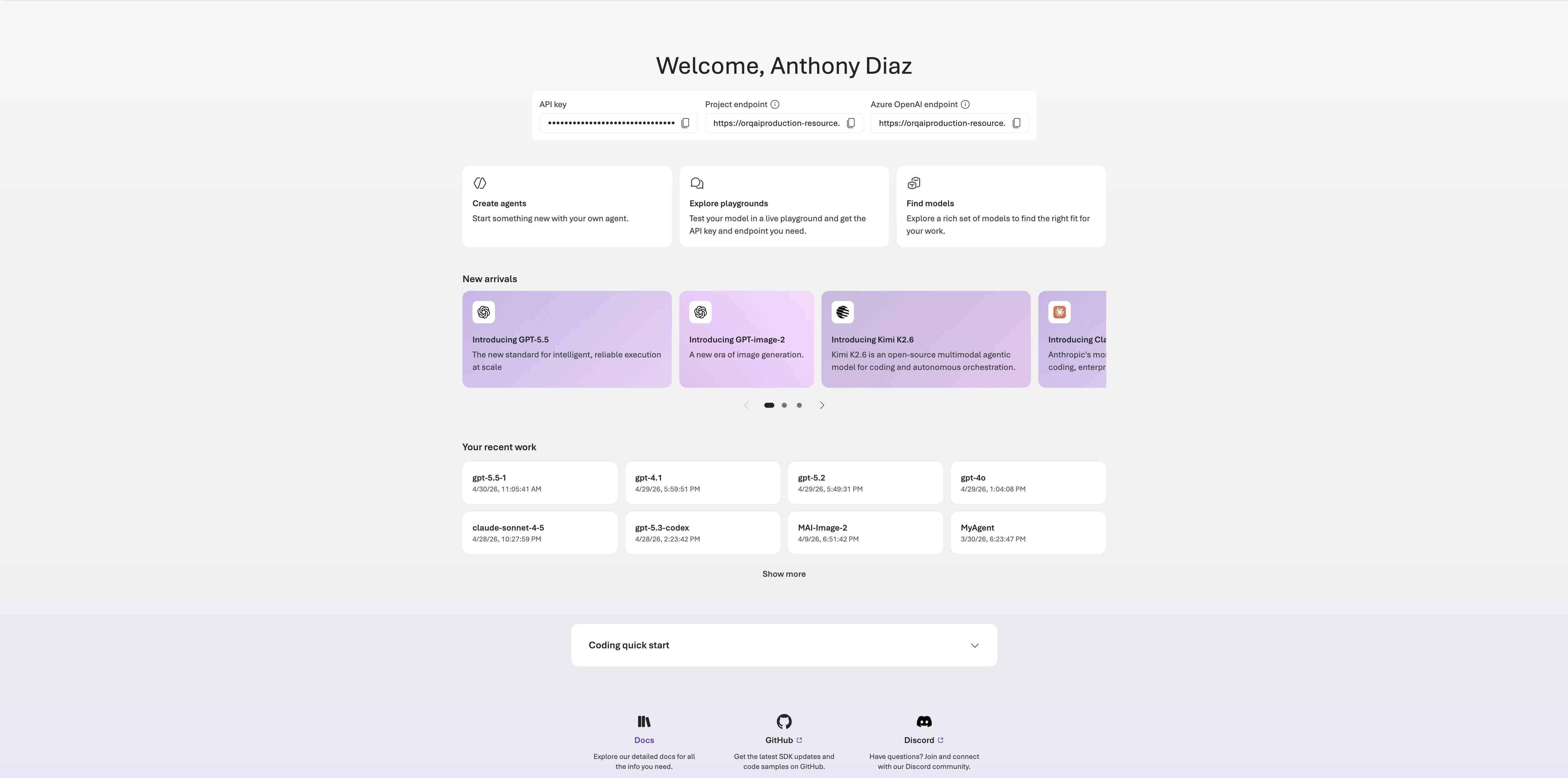
From the [**Azure AI Foundry**](https://ai.azure.com/) project homepage, copy the **API key** and one of the two endpoints shown at the top. **Orq.ai** accepts the following endpoints:
| Endpoint type | Format | What it imports |
| --------------------- | ----------------------------------------------------------------- | --------------------------------------------------------------------------- |
| Azure OpenAI endpoint | `https://.openai.azure.com/openai/v1` | OpenAI-compatible deployments |
| Project endpoint | `https://.services.ai.azure.com/api/projects/` | All deployments from publishers in the project (Anthropic, Cohere, and xAI) |
Paste the endpoint URL exactly as shown in **Azure AI Foundry**. **Orq.ai** does not append any path suffix.
To learn more about the Azure AI Foundry deployment, see our [Provider Documentation](/docs/ai-studio/integrations/providers/azure).
In the **AI Gateway** sidebar, go to **Models**, then click Model at the top-right and select **Azure**.
Enter the **Base URL** and **API Key**.
Each model displays its full name alongside a set of sortable columns:
* **Name**: full model name and provider
* **Input / Output pricing**: per-token cost for input and output
* **Features**: capability badges indicating support for ZDR, BYOK, and other model-specific features
* **Released**: the model's release date
* **Max Output Tokens**: maximum tokens the model can generate per response
* **Context Length**: total token window (input + output)
* **Location**: the region where the model is served
Use Sort: Newest to reorder by **Newest**, **Pricing** (low to high or high to low), **Context** (low to high or high to low), or **Max Output Tokens**. Use Columns to show or hide individual columns.
Use the **Status Toggle** to **Enable** a model for use with the **AI Gateway**.
### Filters
Use the modality tabs at the top of the list to scope models by type:
All Text Image Audio Speech Embedding Moderation Rerank
The sidebar provides additional filters:
| Filter | Description |
| ------------------ | -------------------------------------------------------------------------------------------------------------------------------------------------------------------------------------------------------------------------- |
| **Location** | Filter by region: Europe, United States, Global, APAC, Australia, Singapore |
| **Access** | Toggle [**Zero data retention**](/docs/enterprise/sovereign-ai#zero-data-retention) for ZDR-compliant providers, or [**BYOK**](/docs/ai-studio/ai-gateway/connect-providers) for providers where an API key has been added |
| **Providers** | Filter by LLM provider. See [Providers](/docs/ai-studio/ai-gateway/connect-providers) to configure API keys |
| **Status** | Show Enabled or Disabled models |
| **Features** | Filter by capability: Base64, Code Execution, Image Edit, JSON Mode, PDF, Reasoning, Streaming, Tool Calling, URL, Vision, Web Search |
| **Context length** | Drag the range slider to filter by context window size (512 to 2M tokens) |
| **Owner** | Filter between Public (**Orq.ai**-provided) and Private (onboarded) models |
To enable a model, toggle it on. It will immediately be available to call with the **AI Gateway**.
## Onboarding Private Models
Onboard private models by choosing Model at the top-right of the screen. This is useful when hosting a fine-tuned model or any model deployed on a private provider such as **Azure AI Foundry** or **Vertex AI**.
### Private Models Providers
From the [**Azure AI Foundry**](https://ai.azure.com/) project homepage, copy the **API key** and one of the two endpoints shown at the top. **Orq.ai** accepts the following endpoints:
| Endpoint type | Format | What it imports |
| --------------------- | ----------------------------------------------------------------- | --------------------------------------------------------------------------- |
| Azure OpenAI endpoint | `https://.openai.azure.com/openai/v1` | OpenAI-compatible deployments |
| Project endpoint | `https://.services.ai.azure.com/api/projects/` | All deployments from publishers in the project (Anthropic, Cohere, and xAI) |
Paste the endpoint URL exactly as shown in **Azure AI Foundry**. **Orq.ai** does not append any path suffix.
To learn more about the Azure AI Foundry deployment, see our [Provider Documentation](/docs/ai-studio/integrations/providers/azure).
In the **AI Gateway** sidebar, go to **Models**, then click Model at the top-right and select **Azure**.
Enter the **Base URL** and **API Key**.
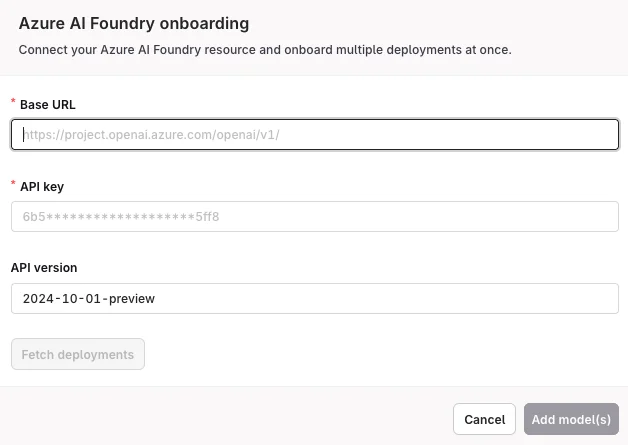 Click **Fetch deployments** to automatically import all available deployments. The imported models appear in the **Models** list. Toggle each model **Enabled** before use. Enabled models are available in [Deployments](/docs/deployments/overview), [Agents](/docs/ai-studio/ai-engineering/build-agents), [Playground](/docs/playground/overview), and [Experiments](/docs/experiments/overview).
Reference imported models in code using `@azure/` (see [Referencing Private Models in Code](#referencing-private-models-in-code)).
In the **AI Gateway** sidebar, go to **Models**, then click Model at the top-right and select **Vertex AI**. Enter the JSON configuration from your Google Cloud project to make the model available on the platform.
Click **Fetch deployments** to automatically import all available deployments. The imported models appear in the **Models** list. Toggle each model **Enabled** before use. Enabled models are available in [Deployments](/docs/deployments/overview), [Agents](/docs/ai-studio/ai-engineering/build-agents), [Playground](/docs/playground/overview), and [Experiments](/docs/experiments/overview).
Reference imported models in code using `@azure/` (see [Referencing Private Models in Code](#referencing-private-models-in-code)).
In the **AI Gateway** sidebar, go to **Models**, then click Model at the top-right and select **Vertex AI**. Enter the JSON configuration from your Google Cloud project to make the model available on the platform.
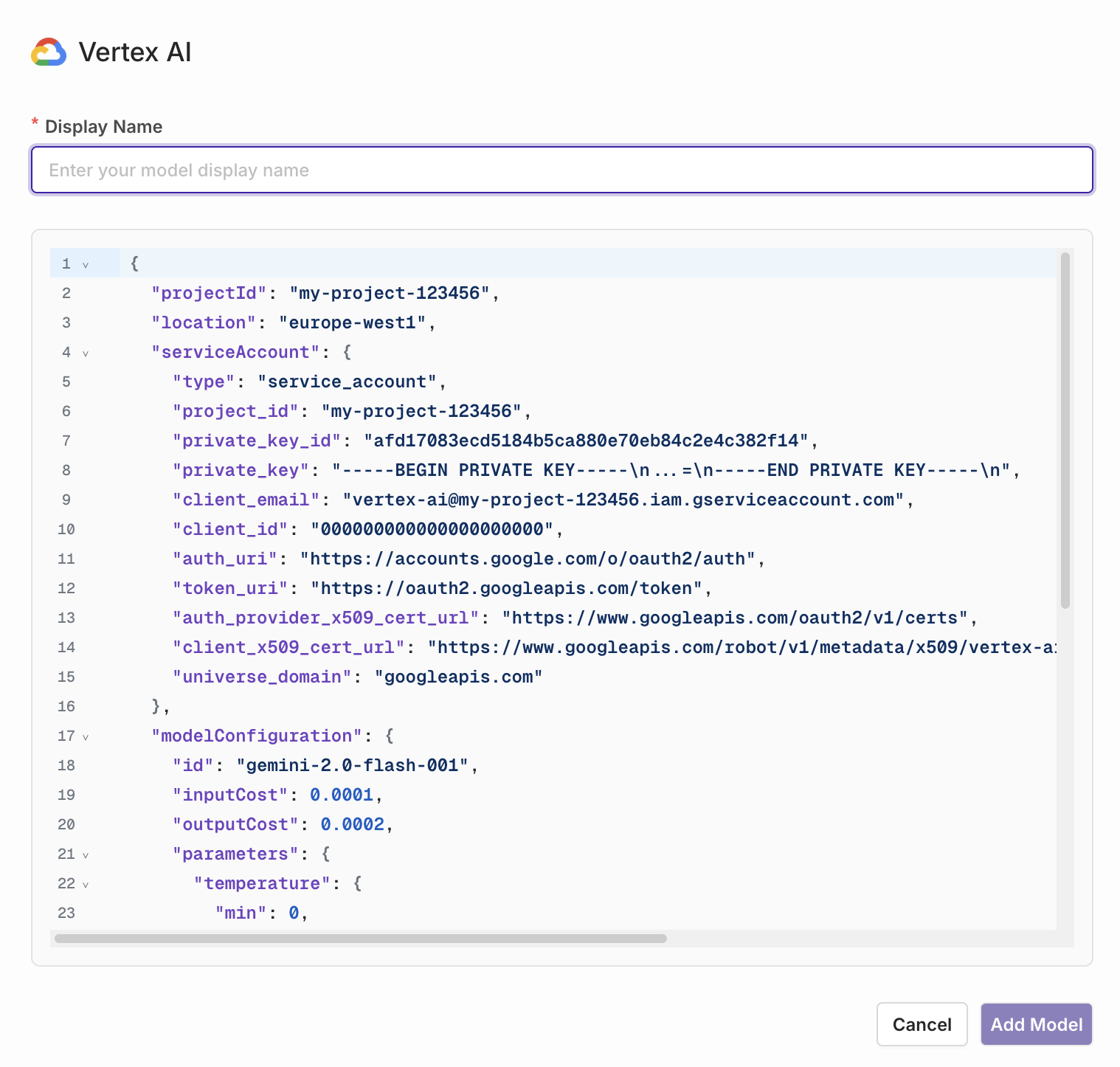 For full Vertex AI setup instructions, see [Google Vertex AI](/docs/ai-studio/integrations/providers/vertex-ai).
### Referencing Private Models in Code
When referencing private models through the SDKs, API, or [Supported Libraries](/docs/ai-studio/integrations/frameworks/overview), the model is referenced by the following string: `@/`.
> Example: `corp@azure/gpt-4o-2024-05-13`
## Bring Your Own Key (BYOK)
To start using models, connect your provider API keys via [**BYOK**](/docs/ai-studio/ai-gateway/connect-providers) in the **AI Gateway** sidebar.
For full Vertex AI setup instructions, see [Google Vertex AI](/docs/ai-studio/integrations/providers/vertex-ai).
### Referencing Private Models in Code
When referencing private models through the SDKs, API, or [Supported Libraries](/docs/ai-studio/integrations/frameworks/overview), the model is referenced by the following string: `@/`.
> Example: `corp@azure/gpt-4o-2024-05-13`
## Bring Your Own Key (BYOK)
To start using models, connect your provider API keys via [**BYOK**](/docs/ai-studio/ai-gateway/connect-providers) in the **AI Gateway** sidebar.