> ## Documentation Index
> Fetch the complete documentation index at: https://docs.orq.ai/llms.txt
> Use this file to discover all available pages before exploring further.
# API Keys | AI Studio
> Create and manage AI Gateway API keys with optional cost, token, and rate limits for production, staging, and development environments.
## What are API Keys
API Keys are secure tokens **required to authenticate and make requests to the AI Gateway**. Multiple keys can be provisioned for different environments (production, staging, development), purposes, or team members, providing granular control and auditing of access.
API Keys support:
* Authenticating requests to the **AI Gateway**
* Controlling access by environment or team
* Setting optional budget limits to prevent unexpected costs
* Tracking usage and consumption per key
The Project scoped granular keys will be available for **AI Gateway** use cases from release 4.11.
## Creating an API Key
To create an API key:
1. Navigate to the **API Keys** page in the **AI Gateway**
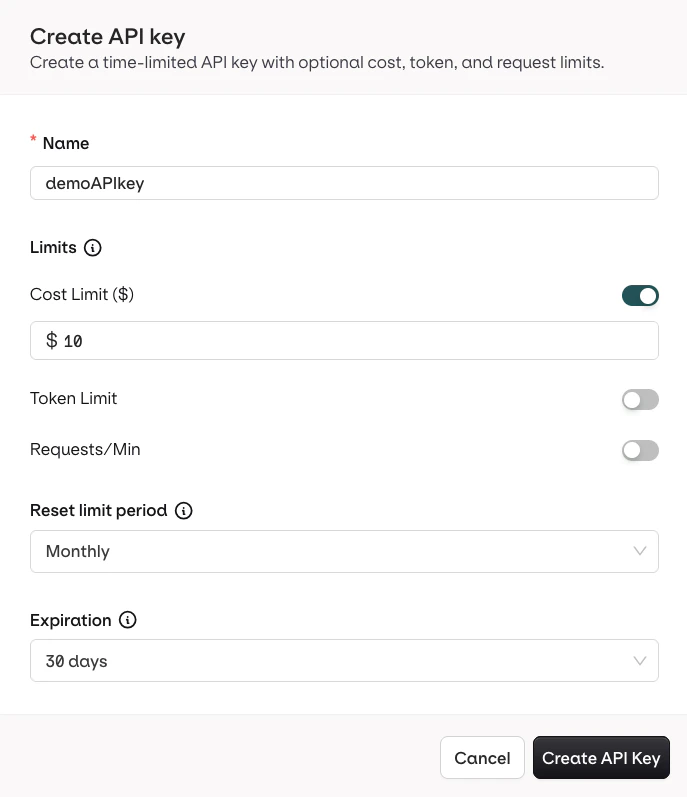
2. Choose Create API Key, the following modal opens:
The following fields are configurable:
* **Name**: a unique label for the key
* **Cost Limit** (in USD): caps the total spend for requests made with this key. Optional toggle.
* **Token Limit**: caps the total number of tokens consumed. Optional toggle.
* **Requests/Min**: caps the number of requests within a rolling 60-second window. Optional toggle.
* **Reset limit period**: defines when the Cost and Token counters reset, allowing recurring budget allocations. Does not apply to Requests/Min, which always uses a 60-second window.
* **Expiration**: set a date after which the key becomes inactive. Defaults to no expiration.
When any configured limit is reached, further requests using this key are rejected with a `429 Too Many Requests` error.
## Managing API Keys
API Keys can be created, viewed, and managed from the dedicated **AI Gateway** page to ensure secure access.
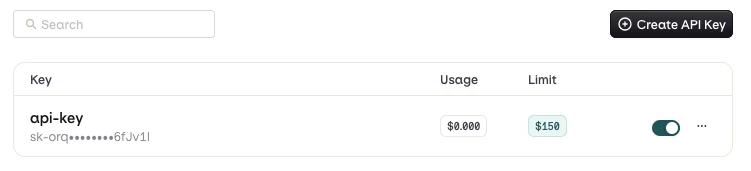 * To disable an API Key, use the **Toggle**, it can be re-enabled at any time.
* To delete an API Key, use the button and choose **Delete**.
* To view consumption details, use the button and choose **Overview** to see current usage and limits.
Deleting an API key is permanent and cannot be undone. Make sure the key is not in use before deleting it.
## Legacy API Keys
Workspaces created before **AI Gateway** API keys were introduced may have legacy keys. Legacy keys continue to work but do not support the cost, token, and rate limits available on new keys.
* To disable an API Key, use the **Toggle**, it can be re-enabled at any time.
* To delete an API Key, use the button and choose **Delete**.
* To view consumption details, use the button and choose **Overview** to see current usage and limits.
Deleting an API key is permanent and cannot be undone. Make sure the key is not in use before deleting it.
## Legacy API Keys
Workspaces created before **AI Gateway** API keys were introduced may have legacy keys. Legacy keys continue to work but do not support the cost, token, and rate limits available on new keys.
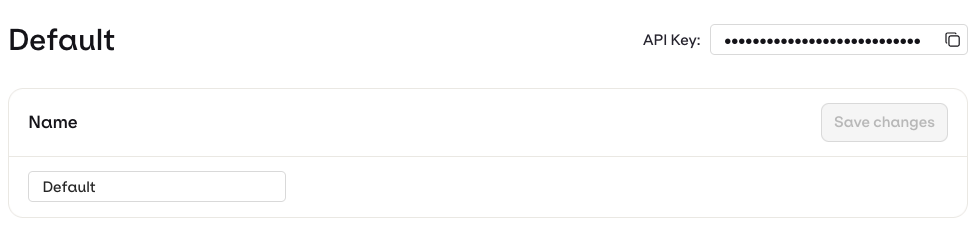 To get granular access controls, create a new API key and replace the legacy one:
1. Go to **API Keys** in the **AI Gateway** sidebar.
2. Click **Create API Key** and configure the required limits.
3. Update any integrations or environment variables to use the new key.
4. Disable or delete the legacy key once all consumers have switched.
To get granular access controls, create a new API key and replace the legacy one:
1. Go to **API Keys** in the **AI Gateway** sidebar.
2. Click **Create API Key** and configure the required limits.
3. Update any integrations or environment variables to use the new key.
4. Disable or delete the legacy key once all consumers have switched.