> ## Documentation Index
> Fetch the complete documentation index at: https://docs.orq.ai/llms.txt
> Use this file to discover all available pages before exploring further.
# Favorites
> Pin frequently used entities to the sidebar for quick access. Favorites are personal, can be organized into folders, and follow the active project.
**Favorites** provide a personal quick-access list in the **Orq.ai** sidebar. Mark any entity with a star to pin it under the **Favorites** section, and open the Favorites page for a searchable overview of everything pinned.
Favorites are part of **Project Navigation** and need no setup. Workspaces still on the [legacy project view](/docs/ai-studio/get-started/projects) do not have a **Favorites** section.
## Adding a Favorite
Mark an entity as a favorite from any of these places:
* **Entity lists**: hover over a row and click the star next to the entity name.
* **Row menu**: open the menu on a row and select **Add to favorites**.
* **Detail pages**: click the star next to the entity name in the breadcrumb at the top of the page.
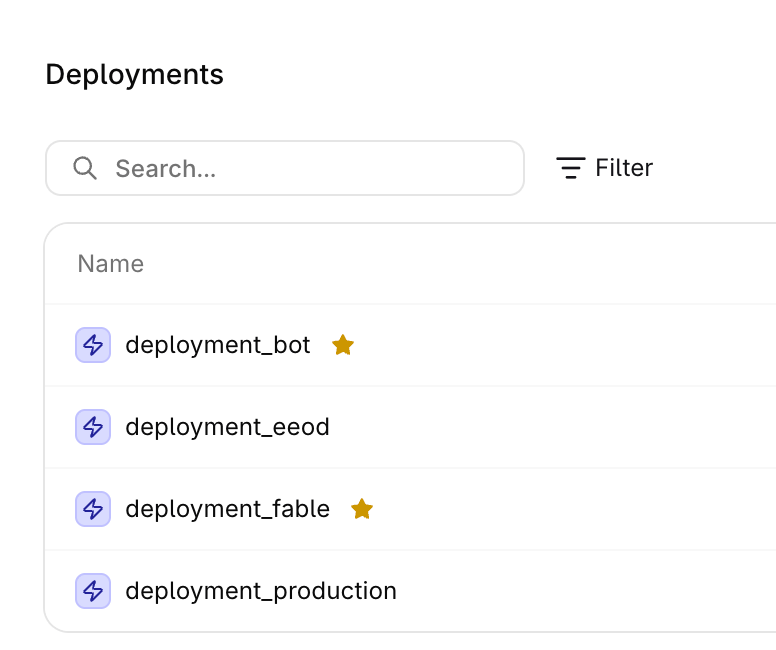 Every entity created in a project can be added to Favorites, whether an **Agent**, a **Prompt**, a **Dataset**, or anything else built in the workspace. Directories are the exception: they organize entities and cannot be favorited themselves.
To remove a favorite, click the filled star again, or select **Remove from favorites** from the entity's menu.
## Where Favorites appear
Favorited entities show up in two places:
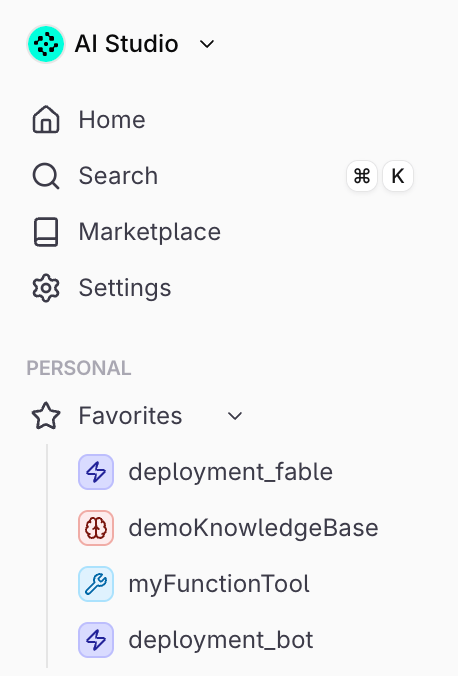
* **The sidebar**: the **Favorites** section sits in the **Personal** group. Entities of every type appear in one list, the most recently added first, and there is no limit on how many entities can be pinned.
* **The Favorites page**: click the **Favorites** section header to open a full-page list with search.
Every entity created in a project can be added to Favorites, whether an **Agent**, a **Prompt**, a **Dataset**, or anything else built in the workspace. Directories are the exception: they organize entities and cannot be favorited themselves.
To remove a favorite, click the filled star again, or select **Remove from favorites** from the entity's menu.
## Where Favorites appear
Favorited entities show up in two places:
* **The sidebar**: the **Favorites** section sits in the **Personal** group. Entities of every type appear in one list, the most recently added first, and there is no limit on how many entities can be pinned.
* **The Favorites page**: click the **Favorites** section header to open a full-page list with search.
 ## Organizing with folders
Group favorites into folders to keep the list tidy:
* **Create a folder**: hover over the **Favorites** section header, click , and type a name.
* **Move a favorite into a folder**: open the favorite's menu and select **Move to folder**. Select **Remove from folder** to move it back to the top level.
* **Rename or delete a folder**: open the folder's menu. A folder can only be deleted once it is empty.
Folders hold favorites only; nesting folders inside folders is not supported.
Folder names are shared within the project, while the favorites inside them remain personal to each member.
## Scope and persistence
Favorites are personal: each workspace member keeps an individual list that other members cannot see. The list is saved to the account and persists across sessions, browsers, and devices.
Favorites follow the active project. The sidebar and the Favorites page only show favorites that belong to the currently selected project. Switching projects hides favorites from other projects without removing them; they reappear when switching back.
The **All Projects** view is available to legacy **Orq.ai** workspaces only. When it is active, favorites from every project are shown together.
## Organizing with folders
Group favorites into folders to keep the list tidy:
* **Create a folder**: hover over the **Favorites** section header, click , and type a name.
* **Move a favorite into a folder**: open the favorite's menu and select **Move to folder**. Select **Remove from folder** to move it back to the top level.
* **Rename or delete a folder**: open the folder's menu. A folder can only be deleted once it is empty.
Folders hold favorites only; nesting folders inside folders is not supported.
Folder names are shared within the project, while the favorites inside them remain personal to each member.
## Scope and persistence
Favorites are personal: each workspace member keeps an individual list that other members cannot see. The list is saved to the account and persists across sessions, browsers, and devices.
Favorites follow the active project. The sidebar and the Favorites page only show favorites that belong to the currently selected project. Switching projects hides favorites from other projects without removing them; they reappear when switching back.
The **All Projects** view is available to legacy **Orq.ai** workspaces only. When it is active, favorites from every project are shown together.