> ## Documentation Index
> Fetch the complete documentation index at: https://docs.orq.ai/llms.txt
> Use this file to discover all available pages before exploring further.
# Projects in Orq.ai
> Organize AI resources with projects. Group prompts, deployments, agents, and knowledge bases. Manage team access and permissions for isolated environments.
Projects are the top-level organizational unit in **orq.ai**. Each project is a workspace-level container that holds **Deployments**, **Prompts**, **Agents**, **Knowledge Bases**, and **Datasets**. Create separate projects to isolate environments, control team access independently, and keep observability data scoped per use case. For example, separate production and staging into distinct projects to scope API keys, permissions, and trace data independently.
If the top bar shows a project name dropdown, **Sidebar V2** is active: use the **New navigation** tab. If the sidebar shows a **Projects** section with a button, use the **Default navigation** tab.
## Using Projects
Create a new **Project** by clicking the button next to **Projects** in the **AI Studio** sidebar.
Within a project, add entities (including [Playgrounds](/docs/ai-studio/prompts/playgrounds), [Experiments](/docs/experiments/overview), [Deployments](/docs/deployments/overview), [Agents](/docs/ai-studio/ai-engineering/build-agents), and more) using the button inside the project.
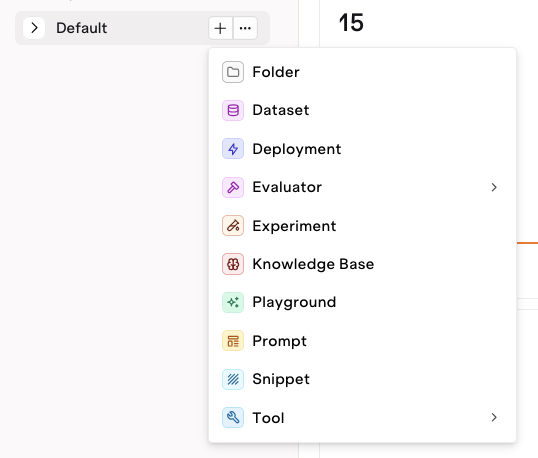 Projects use **Directories** to organize entities into a folder structure. Add a new directory using the button and selecting Directory. Add any number of sub-directories to fit the project structure.
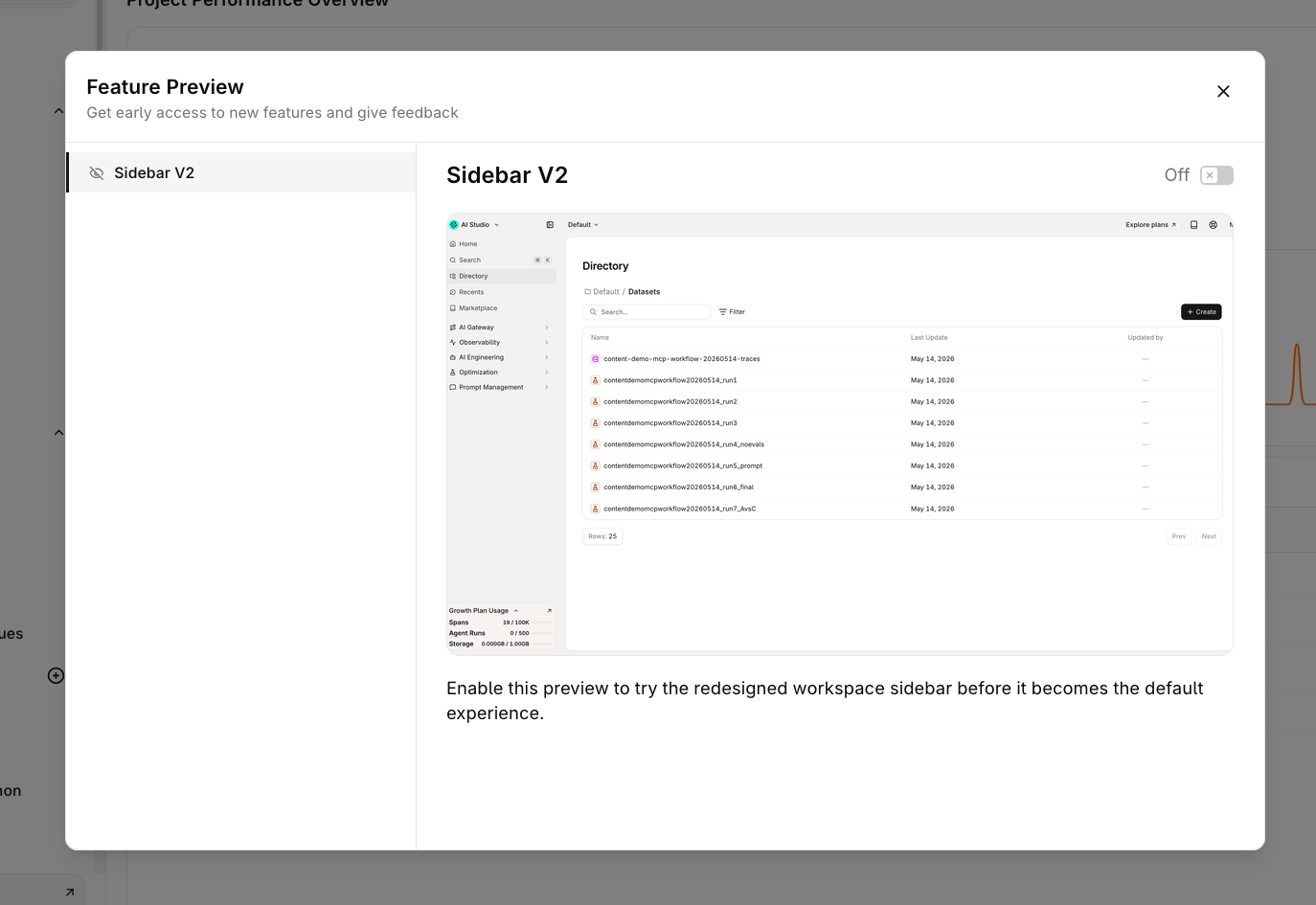
If the top bar shows a project name dropdown (for example, **Default Project**), Sidebar V2 is already active. If not, follow the enable instructions below.
**Enable Sidebar V2**
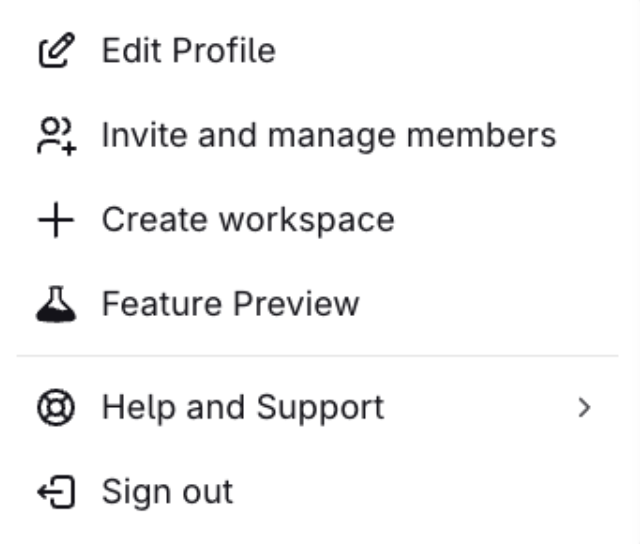
Open the workspace menu at the bottom left, select **Feature Preview**, and toggle **Sidebar V2** on.
Projects use **Directories** to organize entities into a folder structure. Add a new directory using the button and selecting Directory. Add any number of sub-directories to fit the project structure.
If the top bar shows a project name dropdown (for example, **Default Project**), Sidebar V2 is already active. If not, follow the enable instructions below.
**Enable Sidebar V2**
Open the workspace menu at the bottom left, select **Feature Preview**, and toggle **Sidebar V2** on.
 **Switching projects**
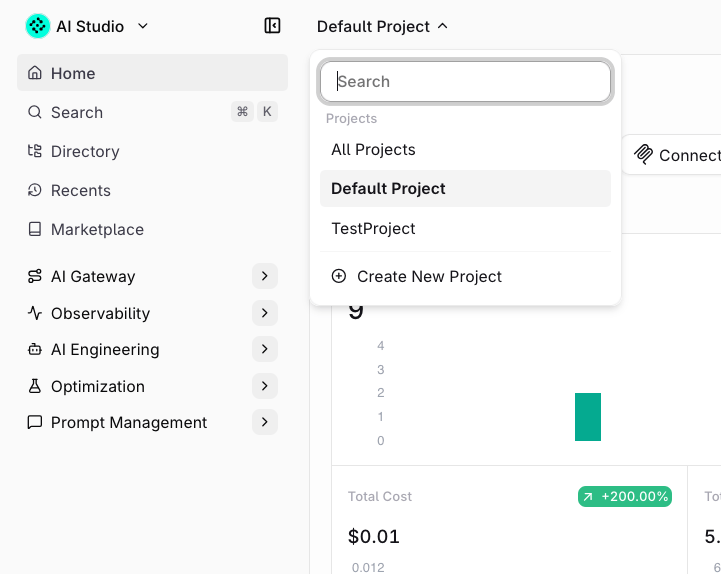
Click the project name in the top bar to open the project dropdown. Search for a project, select one from the list, or click **Create New Project**.
**Switching projects**
Click the project name in the top bar to open the project dropdown. Search for a project, select one from the list, or click **Create New Project**.
 **Editing or deleting a project**
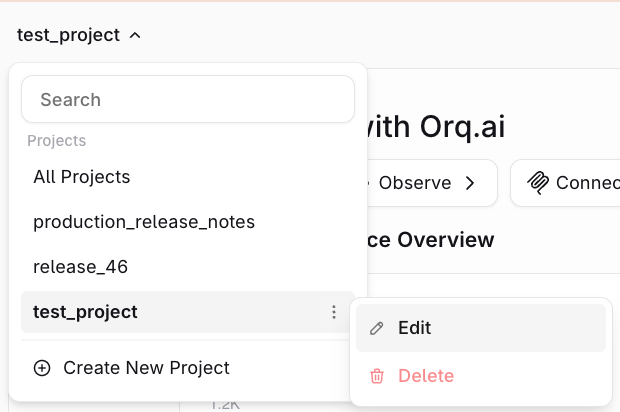
Click the menu next to a project name in the dropdown to **Edit** the project name or **Delete** the project.
**Editing or deleting a project**
Click the menu next to a project name in the dropdown to **Edit** the project name or **Delete** the project.
 A project can only be deleted if it's empty. Remove all entities from the project first.
## Browsing Projects
Click a Project Name to view all sub-folders and entities within the project, including when they were last modified and by which **Team Member**.
A project can only be deleted if it's empty. Remove all entities from the project first.
## Browsing Projects
Click a Project Name to view all sub-folders and entities within the project, including when they were last modified and by which **Team Member**.
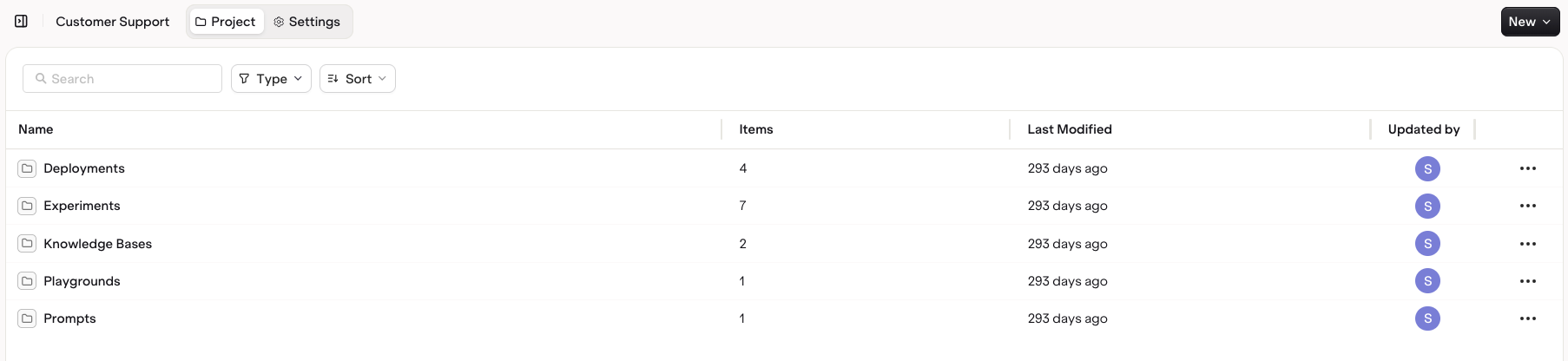 Use filters to find a specific Entity Type. Use sorting to order by Name or Modified Date.
Use the menu to:
* **Move** an entity to a different folder.
* **Delete** an entity.
In the **Settings** tab:
* **Update** the Project Name.
* **Configure Human Reviews** on the Project (see [Human Review](/docs/ai-studio/observability/annotation-queues#create-human-review)).
**Moving Entities and Folders**
Reorganize projects at any time by moving entities and folders.
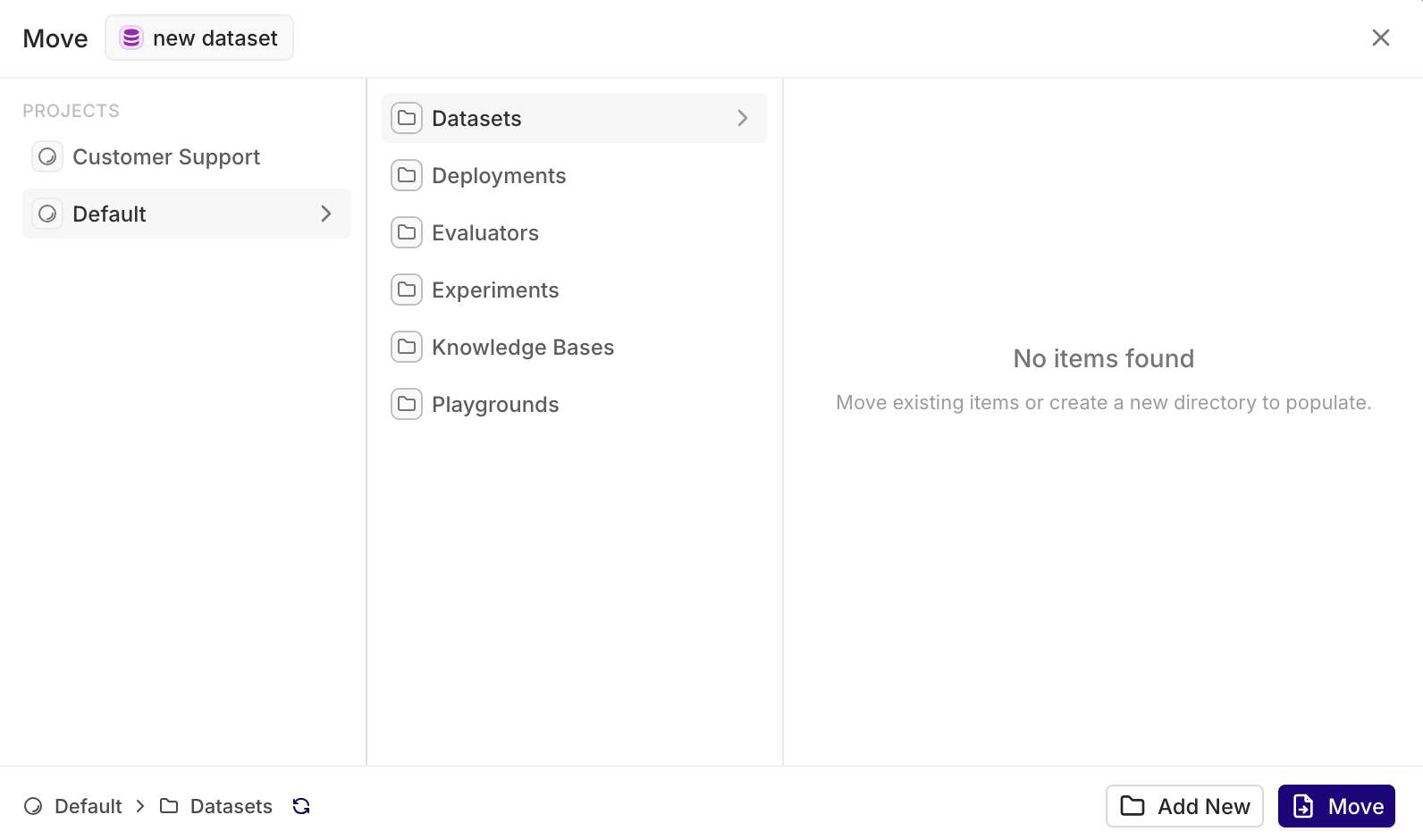
Select the desired entity and choose Move. The following modal opens.
Use filters to find a specific Entity Type. Use sorting to order by Name or Modified Date.
Use the menu to:
* **Move** an entity to a different folder.
* **Delete** an entity.
In the **Settings** tab:
* **Update** the Project Name.
* **Configure Human Reviews** on the Project (see [Human Review](/docs/ai-studio/observability/annotation-queues#create-human-review)).
**Moving Entities and Folders**
Reorganize projects at any time by moving entities and folders.
Select the desired entity and choose Move. The following modal opens.
 Use **Directory** in the sidebar to view all entities in the current project. The breadcrumb shows which project is active.
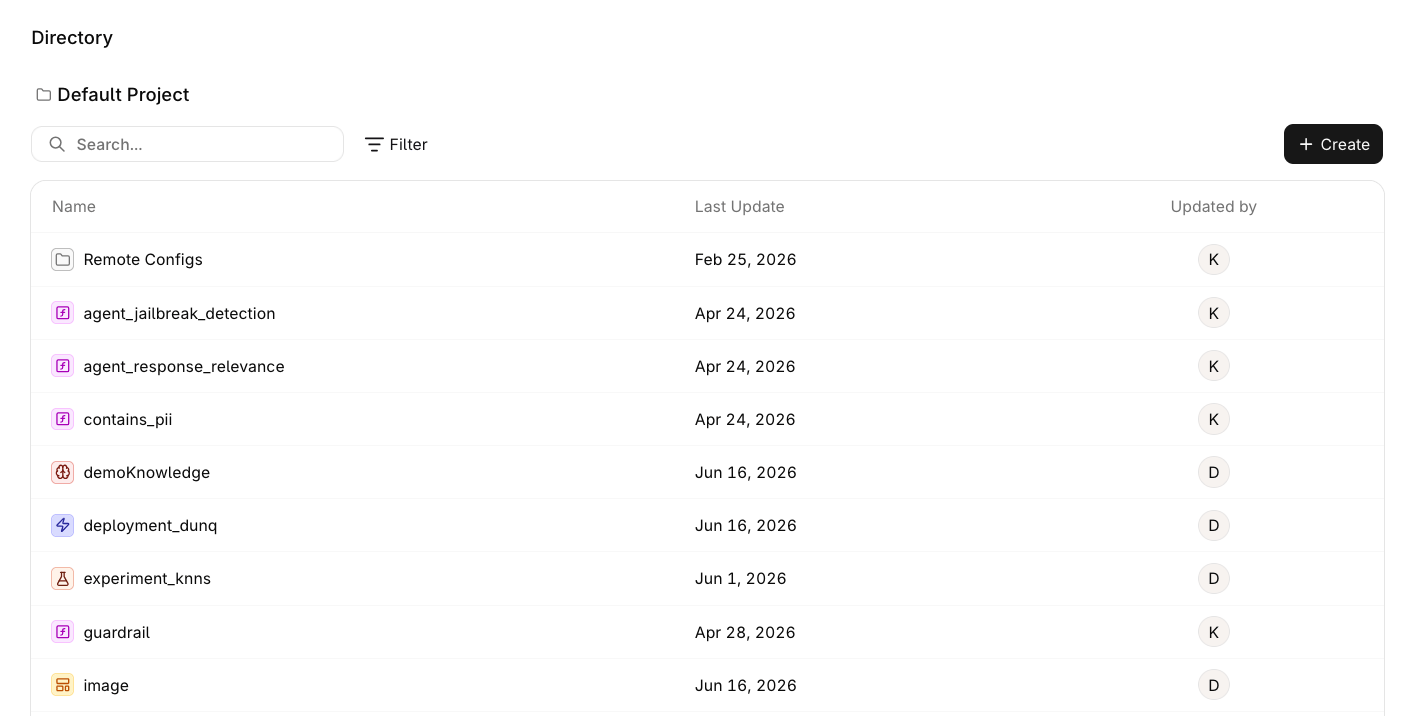 The directory lists all entity types in a single flat view: **Evaluators**, **Deployments**, **Knowledge Bases**, **Experiments**, **Agents**, **Playgrounds**, and more. Use **Search** and **Filter** to narrow the list, or click + Create to add a new entity directly from the directory.
## Permissions
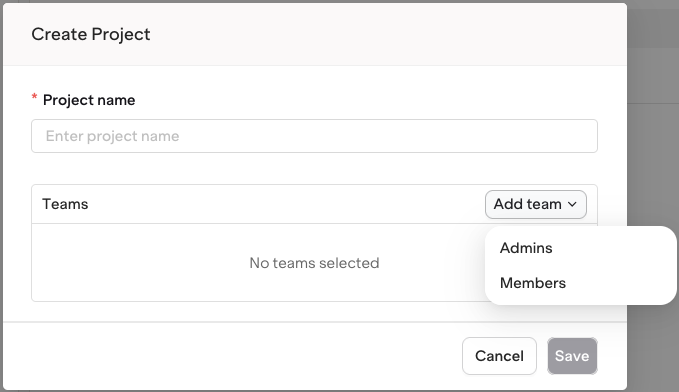
When creating a project, assign which **Teams** have access. Each team has members with different access levels across the project entities.
The directory lists all entity types in a single flat view: **Evaluators**, **Deployments**, **Knowledge Bases**, **Experiments**, **Agents**, **Playgrounds**, and more. Use **Search** and **Filter** to narrow the list, or click + Create to add a new entity directly from the directory.
## Permissions
When creating a project, assign which **Teams** have access. Each team has members with different access levels across the project entities.