> ## Documentation Index
> Fetch the complete documentation index at: https://docs.orq.ai/llms.txt
> Use this file to discover all available pages before exploring further.
# Claude Desktop | MCP, Skills & Cowork
> Connect Claude Desktop to Orq.ai with MCP, install agentic Skills, or route Cowork inference through the AI Gateway for fallbacks and EU residency.
**Claude Desktop** integrates with **Orq.ai** in three ways: connect the MCP server for workspace access, install Skills for agentic workflows, or route Cowork inference through the **AI Gateway**.
Manage agents, experiments, and traces from Claude Desktop using natural language.
Pre-built agentic workflows for the Build, Evaluate, Optimize lifecycle.
Route Cowork inference through the **AI Gateway** for fallbacks, EU residency, and cost control.
## MCP
**Claude Desktop** is Anthropic's desktop application that supports Model Context Protocol (MCP) integrations. By configuring the **Orq MCP** server, access all **Orq.ai** features directly in Claude Desktop conversations.
### Prerequisites
* [Claude Desktop app](https://claude.com/download) installed
* Active Orq.ai account
* [Orq.ai API key](/docs/ai-studio/organization/api-keys)
* [Node.js](https://nodejs.org/) installed (required for `npx mcp-remote`)
### Installation
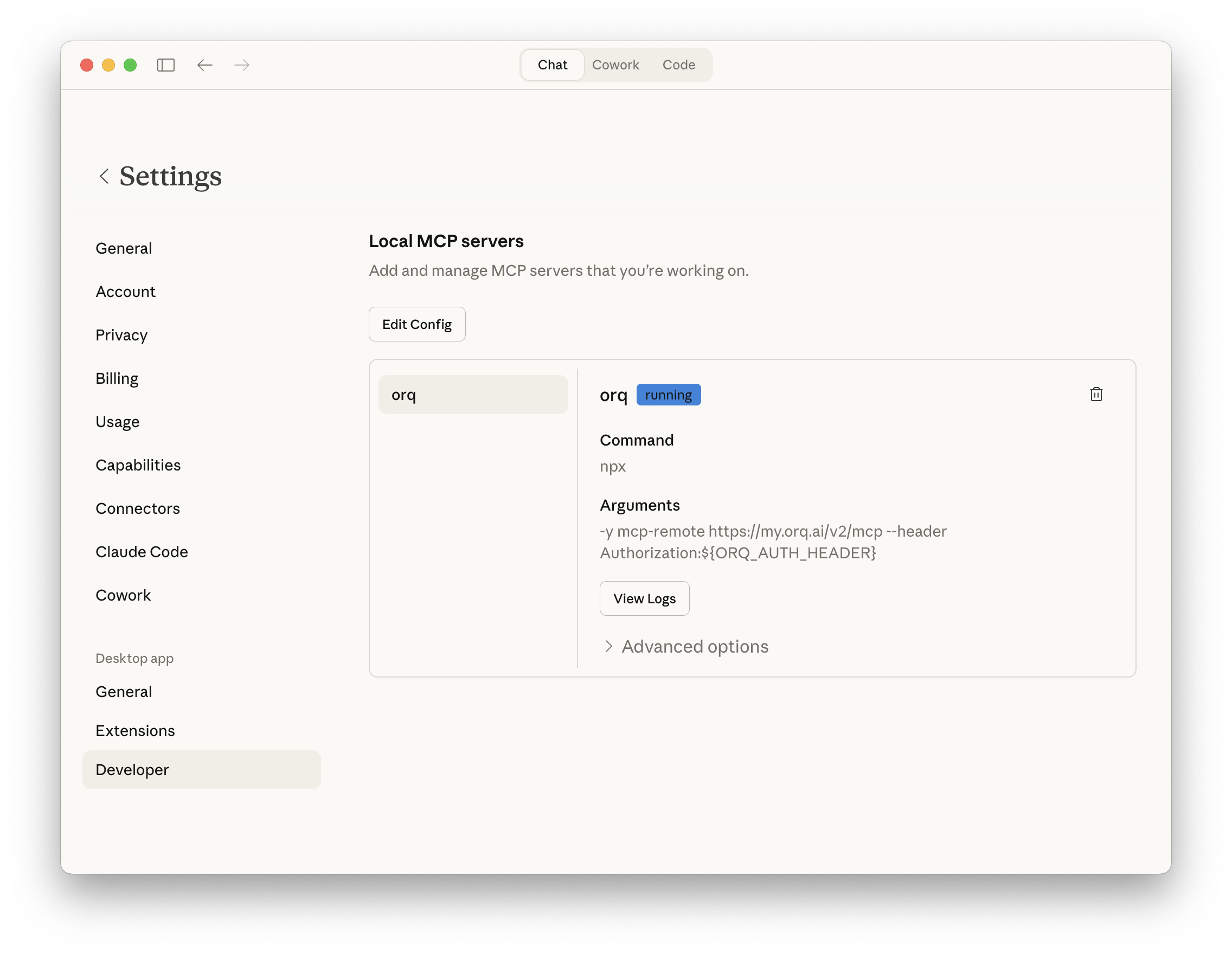
You can configure the Orq MCP server through Claude Desktop Settings or using the Terminal.
1. Open Claude Desktop Settings by clicking **Claude** in the top-left menu, then select **Settings**
2. Click **Developer** in the sidebar
3. Click **Edit Config** to open the `claude_desktop_config.json` file
4. Paste the following configuration into the file:
```json theme={"theme":{"light":"github-light","dark":"github-dark"}}
{
"preferences": {
"sidebarMode": "chat",
"coworkScheduledTasksEnabled": false
},
"mcpServers": {
"orq": {
"command": "npx",
"args": [
"-y",
"mcp-remote",
"https://my.orq.ai/v2/mcp",
"--header",
"Authorization:${ORQ_AUTH_HEADER}"
],
"env": {
"ORQ_AUTH_HEADER": "Bearer "
}
}
}
}
```
5. Replace `` with your actual API key from [Workspace Settings → API Keys](https://my.orq.ai/settings/api-keys)
6. Save the file and restart Claude Desktop
If the config file is empty, paste the entire JSON structure above. If it already has content, add only the `orq` entry to the existing `mcpServers` object. Do not overwrite the `preferences` block or any other existing keys.
If you prefer using the terminal, you can directly edit the config file:
**macOS:**
Run these commands in the terminal:
```bash theme={"theme":{"light":"github-light","dark":"github-dark"}}
# Open the config file in the default text editor
open ~/Library/Application\ Support/Claude/claude_desktop_config.json
```
**Windows:**
Run this command in Command Prompt or PowerShell:
```bash theme={"theme":{"light":"github-light","dark":"github-dark"}}
# Open the config file in Notepad
notepad %APPDATA%\Claude\claude_desktop_config.json
```
**Linux:**
Run this command in the terminal:
```bash theme={"theme":{"light":"github-light","dark":"github-dark"}}
# Open the config file in nano (or any preferred editor)
nano ~/.config/Claude/claude_desktop_config.json
```
Then paste the following configuration:
```json theme={"theme":{"light":"github-light","dark":"github-dark"}}
{
"preferences": {
"sidebarMode": "chat",
"coworkScheduledTasksEnabled": false
},
"mcpServers": {
"orq": {
"command": "npx",
"args": [
"-y",
"mcp-remote",
"https://my.orq.ai/v2/mcp",
"--header",
"Authorization:${ORQ_AUTH_HEADER}"
],
"env": {
"ORQ_AUTH_HEADER": "Bearer "
}
}
}
}
```
Replace `` with your actual API key, save the file, and restart Claude Desktop.
If the file doesn't exist, the command will create it. Make sure to use valid JSON formatting.
### Verify Installation
After restarting Claude Desktop, start a new conversation and ask:
```prompt wrap theme={"theme":{"light":"github-light","dark":"github-dark"}}
Can you list the available models from Orq?
```
Claude will use the **Orq MCP** integration to fetch and display available AI models.
 ### What You Can Do
Once connected, you can use natural language in Claude Desktop to perform these operations:
* `Create an agent with custom instructions and tools`
* `Get agent configuration for [agent-key]`
* `Update agent [agent-key] with new instructions or model`
* `Configure agent with evaluators and guardrails`
* `Invoke agent [agent-key] with input [message]`
* `Retrieve agent response [response-id]`
* `Create a deployment called [deployment-key]`
* `Get deployment configuration for [deployment-key]`
* `Create a skill called [skill-key]`
* `List all skills in my workspace`
* `Get skill [skill-key]`
* `Update skill [skill-key]`
* `Delete skill [skill-key]`
* `Get analytics overview for my workspace`
* `Show me workspace metrics for the last 7 days`
* `Query analytics filtered by deployment ID`
* `Create a dataset called "customer-queries"`
* `List all datapoints in dataset [dataset-key]`
* `Add datapoints to dataset [dataset-key]`
* `Update datapoint [datapoint-id]`
* `Delete specific datapoints in dataset [dataset-key]`
* `Delete dataset [dataset-key]`
* `Create an experiment from dataset [dataset-key]`
* `List all experiment runs`
* `Export experiment run [run-id] as CSV`
* `Run experiment and auto-evaluate results`
* `Get evaluator configuration for [evaluator-key]`
* `Create an LLM-as-a-Judge evaluator for tone`
* `Create a Python evaluator to check response length`
* `Add evaluator to experiment [experiment-key]`
* `Update evaluator [evaluator-key] with a new prompt`
* `Update Python evaluator [evaluator-key] with revised code`
* `List traces from the last 24 hours`
* `Show me traces with errors`
* `Get span details for trace [trace-id]`
* `Find the slowest traces from today`
* `Show all traces for thread [thread-id]`
* `List all available chat models`
* `List all available embedding models`
* `Invoke model [model-id] with prompt [message]`
* `Search for datasets named "customer"`
* `Find experiments in project [project-id]`
* `List directories in project [project-id]`
* `Search the Orq.ai docs for [topic]`
* `Delete agent [agent-key]`
* `Delete experiment [experiment-key]`
* `Delete evaluator [evaluator-key]`
* `Delete prompt [prompt-key]`
* `Delete knowledge base [knowledge-base-key]`
Use `delete_dataset` to delete a dataset along with all its datapoints.
### Usage Examples
#### Create Experiments
```prompt wrap theme={"theme":{"light":"github-light","dark":"github-dark"}}
Create an experiment called "Model Comparison Test" using my "customer-queries" dataset.
Configure it with GPT-5.2 and Claude Sonnet 4.6, then run it.
```
Claude will:
1. Use `search_entities` to find the "customer-queries" dataset
2. Use `create_experiment` with the name "Model Comparison Test" and auto-run enabled
3. Configure two task columns (one for GPT-5.2, one for Claude Sonnet 4.6)
4. Execute both models against the dataset automatically via the auto-run option
5. Provide a summary of the results with evaluation metrics
#### Analyze Traces
```prompt wrap theme={"theme":{"light":"github-light","dark":"github-dark"}}
Show me all errors from my Orq traces in the last 24 hours
```
Claude will:
1. Calculate the time range for the last 24 hours
2. Use `list_traces` with error status filter
3. Analyze the trace data
4. Provide error count and types, affected deployments, time distribution, and suggested fixes based on error patterns
#### Generate Synthetic Datasets
```prompt wrap theme={"theme":{"light":"github-light","dark":"github-dark"}}
Generate 100 realistic customer support conversations about a SaaS product
and create a dataset called "Support Training" in Orq
```
Claude will:
1. Generate 100 realistic customer support conversation examples (questions and expected responses)
2. Use `create_dataset` to create a new dataset named "Support Training"
3. Use `create_datapoints` to add all 100 conversations to the dataset
4. Confirm creation with the dataset ID and sample of generated data
#### Performance Analysis
```prompt wrap theme={"theme":{"light":"github-light","dark":"github-dark"}}
Has my system's performance improved over the last week?
Show latency trends and cost metrics from Orq analytics.
```
Claude will:
1. Use `query_analytics` with a 7-day time range
2. Analyze average latency changes over the week
3. Review token usage patterns and cost trends
4. Examine error rate fluctuations
5. Compare performance across different models
6. Provide a summary report with insights on whether performance has improved or decreased
### Troubleshooting
1. Verify the config file path is correct for the OS in use
2. Check the JSON syntax is valid (no trailing commas, proper quotes)
3. Ensure the API key is valid and has the required permissions
4. Restart Claude Desktop after making config changes
5. Check the Claude Desktop logs for error messages
1. Confirm the API key is active in [Orq.ai Settings](https://my.orq.ai/settings/api-keys)
2. Make sure the API key has workspace access permissions
3. Verify the `Authorization` header format: `Bearer YOUR_KEY`
4. Try generating a new API key if the current one is expired
MCP operations over HTTP can take a few seconds:
* Be patient with large dataset operations
* Break complex workflows into smaller steps
* Check Orq.ai service status at [status.orq.ai](https://status.orq.ai)
1. Verify the **Orq MCP** server is properly configured in the config file
2. Restart Claude Desktop to reload the **Orq MCP** configuration
3. Try rephrasing the request
4. Check the [MCP tools list](/docs/ai-studio/integrations/code-assistants/orq-mcp#available-tools)
### Additional Configuration
#### Multiple Workspaces
If you work with multiple Orq.ai workspaces, you can configure multiple MCP servers:
```json theme={"theme":{"light":"github-light","dark":"github-dark"}}
{
"mcpServers": {
"orq-production": {
"command": "npx",
"args": [
"-y",
"mcp-remote",
"https://my.orq.ai/v2/mcp",
"--header",
"Authorization:${ORQ_PROD_AUTH_HEADER}"
],
"env": {
"ORQ_PROD_AUTH_HEADER": "Bearer "
}
},
"orq-staging": {
"command": "npx",
"args": [
"-y",
"mcp-remote",
"https://my.orq.ai/v2/mcp",
"--header",
"Authorization:${ORQ_STAGING_AUTH_HEADER}"
],
"env": {
"ORQ_STAGING_AUTH_HEADER": "Bearer "
}
}
}
}
```
## Skills
**Skills** add pre-built agentic workflows to Claude for the full Build, Evaluate, Optimize lifecycle. See the [Skills](/docs/ai-studio/integrations/code-assistants/orq-skills) page for the full reference.
### Installation
Skills for Claude Desktop are managed through the **Claude.ai web interface** and automatically apply across all Claude clients, including the desktop app.
Custom Skills require a Pro, Max, Team, or Enterprise plan. To install, open [Claude.ai](https://claude.ai), go to **Settings → Features → Skills**, and upload the [orq-skills zip](https://github.com/orq-ai/assistant-plugins/archive/refs/heads/main.zip).
### Available Skills
Once installed, Claude picks the right skill automatically based on what you describe.
| Skill | Description |
| ------------------------------ | ---------------------------------------------------------------------------------------------------------------------------- |
| **build-agent** | Design, create, and configure an **Orq.ai** agent |
| **build-evaluator** | Create validated LLM-as-a-Judge evaluators |
| **analyze-trace-failures** | Read production traces and categorize failures |
| **run-experiment** | Create and run experiments with evaluation |
| **generate-synthetic-dataset** | Generate and curate evaluation datasets |
| **optimize-prompt** | Analyze and optimize system prompts |
| **setup-observability** | Instrument LLM applications with orq.ai tracing: AI Gateway for zero-code traces, or OpenTelemetry for framework-level spans |
| **compare-agents** | Run cross-framework agent comparisons using evaluatorq |
Slash commands (`/orq:quickstart`, `/orq:traces`, etc.) are only available in Claude Code. See [Skills](/docs/ai-studio/integrations/code-assistants/orq-skills) for details.
## Third-party inference (Cowork)
Claude Cowork's third-party inference mode routes all model inference through a configured gateway instead of Anthropic's first-party infrastructure. **Orq.ai**'s **AI Gateway** speaks the Anthropic Messages API and is fully compatible.
Pin traffic to EU-hosted models to meet data residency requirements.
Route across providers automatically to avoid rate limits and outages.
Route to cheaper models for routine tasks by configuring them in Cowork.
### Prerequisites
* Claude Desktop installed with a Pro, Max, Team, or Enterprise plan
* Active **Orq.ai** account with an [API key](/docs/ai-studio/organization/api-keys)
### Setup
1. Open **Claude Desktop**
2. Click **Help** in the menu bar
3. Hover over **Troubleshooting**
4. Select **Enable Developer Mode**
5. Restart Claude Desktop
A **Developer** menu appears in the menu bar after restart.
1. Click **Developer** in the menu bar
2. Select **Configure Third-party inference**
3. Select **Gateway** (Anthropic-compatible)
Fill in the three fields:
| Field | Value |
| ------------------- | --------------------------------- |
| Gateway base URL | `https://api.orq.ai/v3/anthropic` |
| Gateway API key | The **Orq.ai** API key |
| Gateway auth scheme | `bearer` |
### What You Can Do
Once connected, you can use natural language in Claude Desktop to perform these operations:
* `Create an agent with custom instructions and tools`
* `Get agent configuration for [agent-key]`
* `Update agent [agent-key] with new instructions or model`
* `Configure agent with evaluators and guardrails`
* `Invoke agent [agent-key] with input [message]`
* `Retrieve agent response [response-id]`
* `Create a deployment called [deployment-key]`
* `Get deployment configuration for [deployment-key]`
* `Create a skill called [skill-key]`
* `List all skills in my workspace`
* `Get skill [skill-key]`
* `Update skill [skill-key]`
* `Delete skill [skill-key]`
* `Get analytics overview for my workspace`
* `Show me workspace metrics for the last 7 days`
* `Query analytics filtered by deployment ID`
* `Create a dataset called "customer-queries"`
* `List all datapoints in dataset [dataset-key]`
* `Add datapoints to dataset [dataset-key]`
* `Update datapoint [datapoint-id]`
* `Delete specific datapoints in dataset [dataset-key]`
* `Delete dataset [dataset-key]`
* `Create an experiment from dataset [dataset-key]`
* `List all experiment runs`
* `Export experiment run [run-id] as CSV`
* `Run experiment and auto-evaluate results`
* `Get evaluator configuration for [evaluator-key]`
* `Create an LLM-as-a-Judge evaluator for tone`
* `Create a Python evaluator to check response length`
* `Add evaluator to experiment [experiment-key]`
* `Update evaluator [evaluator-key] with a new prompt`
* `Update Python evaluator [evaluator-key] with revised code`
* `List traces from the last 24 hours`
* `Show me traces with errors`
* `Get span details for trace [trace-id]`
* `Find the slowest traces from today`
* `Show all traces for thread [thread-id]`
* `List all available chat models`
* `List all available embedding models`
* `Invoke model [model-id] with prompt [message]`
* `Search for datasets named "customer"`
* `Find experiments in project [project-id]`
* `List directories in project [project-id]`
* `Search the Orq.ai docs for [topic]`
* `Delete agent [agent-key]`
* `Delete experiment [experiment-key]`
* `Delete evaluator [evaluator-key]`
* `Delete prompt [prompt-key]`
* `Delete knowledge base [knowledge-base-key]`
Use `delete_dataset` to delete a dataset along with all its datapoints.
### Usage Examples
#### Create Experiments
```prompt wrap theme={"theme":{"light":"github-light","dark":"github-dark"}}
Create an experiment called "Model Comparison Test" using my "customer-queries" dataset.
Configure it with GPT-5.2 and Claude Sonnet 4.6, then run it.
```
Claude will:
1. Use `search_entities` to find the "customer-queries" dataset
2. Use `create_experiment` with the name "Model Comparison Test" and auto-run enabled
3. Configure two task columns (one for GPT-5.2, one for Claude Sonnet 4.6)
4. Execute both models against the dataset automatically via the auto-run option
5. Provide a summary of the results with evaluation metrics
#### Analyze Traces
```prompt wrap theme={"theme":{"light":"github-light","dark":"github-dark"}}
Show me all errors from my Orq traces in the last 24 hours
```
Claude will:
1. Calculate the time range for the last 24 hours
2. Use `list_traces` with error status filter
3. Analyze the trace data
4. Provide error count and types, affected deployments, time distribution, and suggested fixes based on error patterns
#### Generate Synthetic Datasets
```prompt wrap theme={"theme":{"light":"github-light","dark":"github-dark"}}
Generate 100 realistic customer support conversations about a SaaS product
and create a dataset called "Support Training" in Orq
```
Claude will:
1. Generate 100 realistic customer support conversation examples (questions and expected responses)
2. Use `create_dataset` to create a new dataset named "Support Training"
3. Use `create_datapoints` to add all 100 conversations to the dataset
4. Confirm creation with the dataset ID and sample of generated data
#### Performance Analysis
```prompt wrap theme={"theme":{"light":"github-light","dark":"github-dark"}}
Has my system's performance improved over the last week?
Show latency trends and cost metrics from Orq analytics.
```
Claude will:
1. Use `query_analytics` with a 7-day time range
2. Analyze average latency changes over the week
3. Review token usage patterns and cost trends
4. Examine error rate fluctuations
5. Compare performance across different models
6. Provide a summary report with insights on whether performance has improved or decreased
### Troubleshooting
1. Verify the config file path is correct for the OS in use
2. Check the JSON syntax is valid (no trailing commas, proper quotes)
3. Ensure the API key is valid and has the required permissions
4. Restart Claude Desktop after making config changes
5. Check the Claude Desktop logs for error messages
1. Confirm the API key is active in [Orq.ai Settings](https://my.orq.ai/settings/api-keys)
2. Make sure the API key has workspace access permissions
3. Verify the `Authorization` header format: `Bearer YOUR_KEY`
4. Try generating a new API key if the current one is expired
MCP operations over HTTP can take a few seconds:
* Be patient with large dataset operations
* Break complex workflows into smaller steps
* Check Orq.ai service status at [status.orq.ai](https://status.orq.ai)
1. Verify the **Orq MCP** server is properly configured in the config file
2. Restart Claude Desktop to reload the **Orq MCP** configuration
3. Try rephrasing the request
4. Check the [MCP tools list](/docs/ai-studio/integrations/code-assistants/orq-mcp#available-tools)
### Additional Configuration
#### Multiple Workspaces
If you work with multiple Orq.ai workspaces, you can configure multiple MCP servers:
```json theme={"theme":{"light":"github-light","dark":"github-dark"}}
{
"mcpServers": {
"orq-production": {
"command": "npx",
"args": [
"-y",
"mcp-remote",
"https://my.orq.ai/v2/mcp",
"--header",
"Authorization:${ORQ_PROD_AUTH_HEADER}"
],
"env": {
"ORQ_PROD_AUTH_HEADER": "Bearer "
}
},
"orq-staging": {
"command": "npx",
"args": [
"-y",
"mcp-remote",
"https://my.orq.ai/v2/mcp",
"--header",
"Authorization:${ORQ_STAGING_AUTH_HEADER}"
],
"env": {
"ORQ_STAGING_AUTH_HEADER": "Bearer "
}
}
}
}
```
## Skills
**Skills** add pre-built agentic workflows to Claude for the full Build, Evaluate, Optimize lifecycle. See the [Skills](/docs/ai-studio/integrations/code-assistants/orq-skills) page for the full reference.
### Installation
Skills for Claude Desktop are managed through the **Claude.ai web interface** and automatically apply across all Claude clients, including the desktop app.
Custom Skills require a Pro, Max, Team, or Enterprise plan. To install, open [Claude.ai](https://claude.ai), go to **Settings → Features → Skills**, and upload the [orq-skills zip](https://github.com/orq-ai/assistant-plugins/archive/refs/heads/main.zip).
### Available Skills
Once installed, Claude picks the right skill automatically based on what you describe.
| Skill | Description |
| ------------------------------ | ---------------------------------------------------------------------------------------------------------------------------- |
| **build-agent** | Design, create, and configure an **Orq.ai** agent |
| **build-evaluator** | Create validated LLM-as-a-Judge evaluators |
| **analyze-trace-failures** | Read production traces and categorize failures |
| **run-experiment** | Create and run experiments with evaluation |
| **generate-synthetic-dataset** | Generate and curate evaluation datasets |
| **optimize-prompt** | Analyze and optimize system prompts |
| **setup-observability** | Instrument LLM applications with orq.ai tracing: AI Gateway for zero-code traces, or OpenTelemetry for framework-level spans |
| **compare-agents** | Run cross-framework agent comparisons using evaluatorq |
Slash commands (`/orq:quickstart`, `/orq:traces`, etc.) are only available in Claude Code. See [Skills](/docs/ai-studio/integrations/code-assistants/orq-skills) for details.
## Third-party inference (Cowork)
Claude Cowork's third-party inference mode routes all model inference through a configured gateway instead of Anthropic's first-party infrastructure. **Orq.ai**'s **AI Gateway** speaks the Anthropic Messages API and is fully compatible.
Pin traffic to EU-hosted models to meet data residency requirements.
Route across providers automatically to avoid rate limits and outages.
Route to cheaper models for routine tasks by configuring them in Cowork.
### Prerequisites
* Claude Desktop installed with a Pro, Max, Team, or Enterprise plan
* Active **Orq.ai** account with an [API key](/docs/ai-studio/organization/api-keys)
### Setup
1. Open **Claude Desktop**
2. Click **Help** in the menu bar
3. Hover over **Troubleshooting**
4. Select **Enable Developer Mode**
5. Restart Claude Desktop
A **Developer** menu appears in the menu bar after restart.
1. Click **Developer** in the menu bar
2. Select **Configure Third-party inference**
3. Select **Gateway** (Anthropic-compatible)
Fill in the three fields:
| Field | Value |
| ------------------- | --------------------------------- |
| Gateway base URL | `https://api.orq.ai/v3/anthropic` |
| Gateway API key | The **Orq.ai** API key |
| Gateway auth scheme | `bearer` |
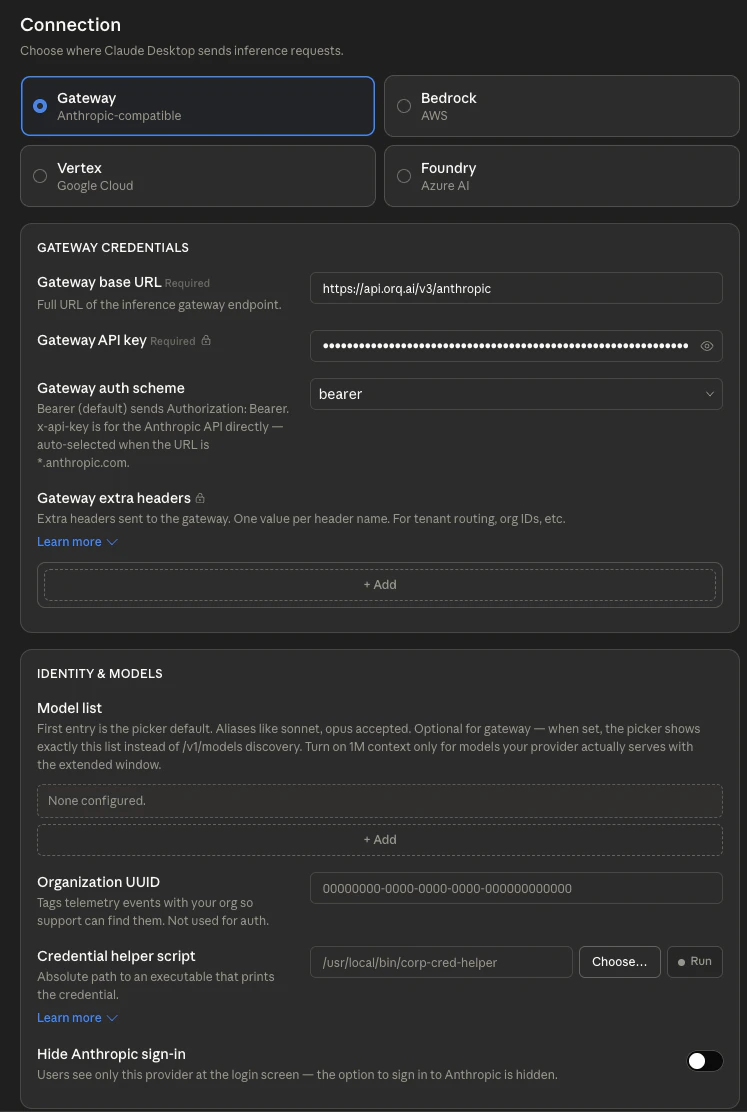 Click **Apply locally** to apply the configuration to this machine, or **Export as MDM profile** to deploy across an organization.
Get the API key from [**Orq.ai** Settings](https://my.orq.ai/settings/api-keys) under **API Keys**.
Cowork automatically fetches available models from **Orq.ai** via the `/v1/models` endpoint, so no manual configuration is required. To pin a specific subset, add model slugs using the `provider/model-name` format:
| Model slug | Description |
| ---------------------------------- | ---------------------------------- |
| `anthropic/claude-sonnet-4-6` | Claude Sonnet via Anthropic direct |
| `aws/anthropic/claude-sonnet-4-6` | Claude Sonnet via AWS Bedrock |
| `google/anthropic/claude-opus-4-7` | Claude Opus via Google Vertex AI |
| `openai/gpt-4o` | GPT-4o for routine tasks |
For the full catalog, see [Supported Models](/docs/ai-studio/ai-gateway/supported-models).
A successful connection shows **Cowork 3P | Gateway** in the Cowork status indicator. All inference now routes through **Orq.ai**.
### See Also
Create and manage **Orq.ai** API keys.
Full catalog of models available through the **AI Gateway**.
Get started with the **AI Gateway** for routing, fallbacks, and cost control.
Configure the Anthropic API key and explore Claude model options.
Click **Apply locally** to apply the configuration to this machine, or **Export as MDM profile** to deploy across an organization.
Get the API key from [**Orq.ai** Settings](https://my.orq.ai/settings/api-keys) under **API Keys**.
Cowork automatically fetches available models from **Orq.ai** via the `/v1/models` endpoint, so no manual configuration is required. To pin a specific subset, add model slugs using the `provider/model-name` format:
| Model slug | Description |
| ---------------------------------- | ---------------------------------- |
| `anthropic/claude-sonnet-4-6` | Claude Sonnet via Anthropic direct |
| `aws/anthropic/claude-sonnet-4-6` | Claude Sonnet via AWS Bedrock |
| `google/anthropic/claude-opus-4-7` | Claude Opus via Google Vertex AI |
| `openai/gpt-4o` | GPT-4o for routine tasks |
For the full catalog, see [Supported Models](/docs/ai-studio/ai-gateway/supported-models).
A successful connection shows **Cowork 3P | Gateway** in the Cowork status indicator. All inference now routes through **Orq.ai**.
### See Also
Create and manage **Orq.ai** API keys.
Full catalog of models available through the **AI Gateway**.
Get started with the **AI Gateway** for routing, fallbacks, and cost control.
Configure the Anthropic API key and explore Claude model options.