> ## Documentation Index
> Fetch the complete documentation index at: https://docs.orq.ai/llms.txt
> Use this file to discover all available pages before exploring further.
# Hermes
> Route Hermes Agent model calls through the Orq.ai AI Gateway and connect the Orq MCP server, from the desktop app or the CLI.
[Hermes Agent](https://hermes-agent.nousresearch.com) is a self-improving agent from Nous Research with a built-in MCP client. Route its model calls through the **AI Gateway**, then connect it to the **Orq MCP** server for agentic access to the workspace.
## Prerequisites
* [Hermes](https://hermes-agent.nousresearch.com) installed (desktop app or CLI)
* Active **Orq.ai** account
* An [**Orq.ai** API key](/docs/ai-studio/organization/api-keys)
## AI Gateway
Hermes is OpenAI-compatible, so it routes through the **AI Gateway** by pointing the OpenAI provider at the router. Configure it in the desktop app or the CLI. Changes made in the desktop app apply to the CLI as well, since both share the same configuration.
Open the **Hermes** desktop app. On first launch, skip provider selection to set it later. Open **Settings** in the top right, then go to **Providers** > **API keys**.
Scroll to **OpenAI API** and expand it. Paste the **Orq.ai** API key into the **OpenAI API key** field and click **Save**. Then paste the router URL into the **OpenAI API base URL override** field and click **Save**:
```
https://api.orq.ai/v3/router
```
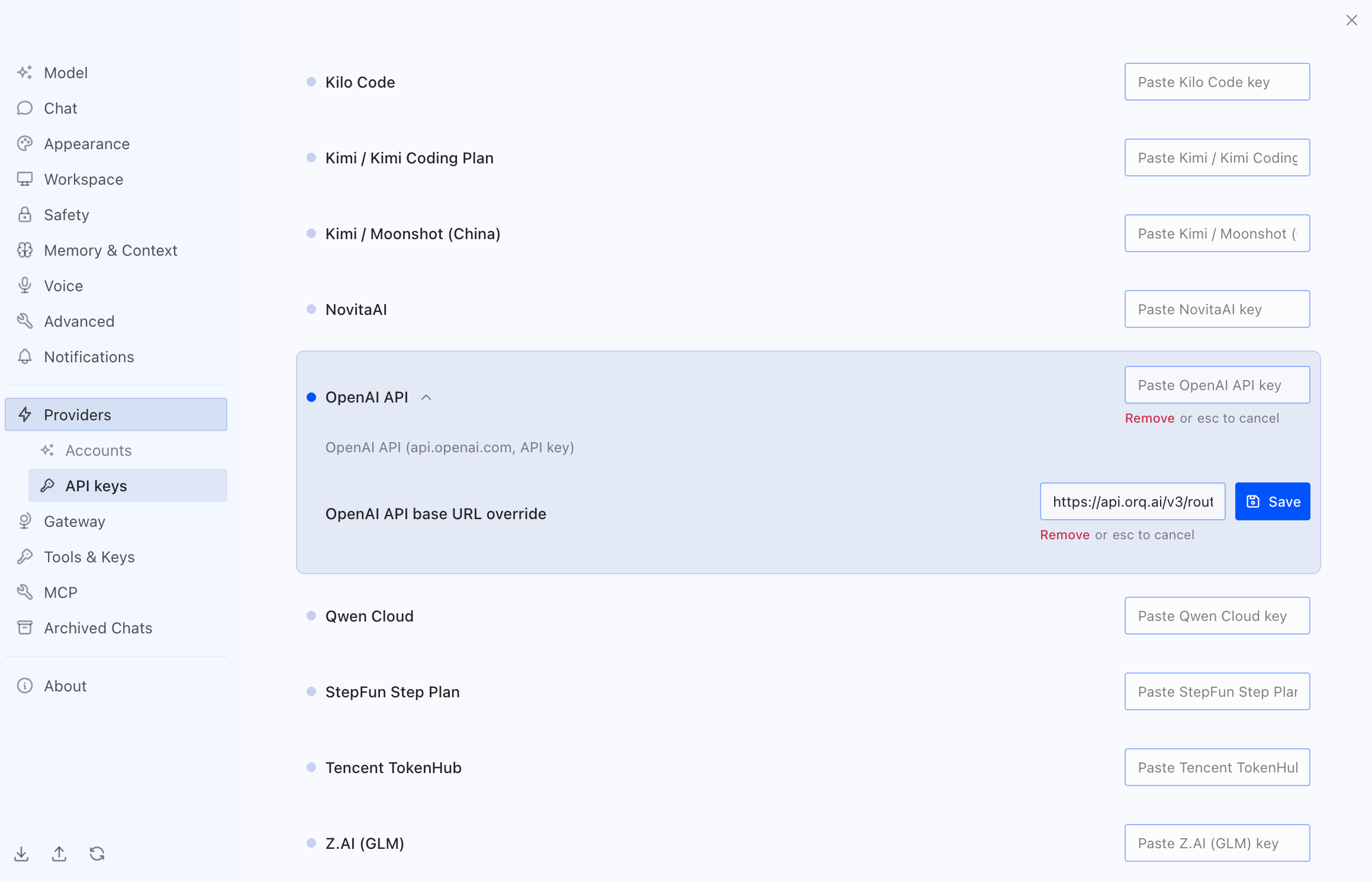 Hermes now routes through the **AI Gateway**. Pick a model from the recommended list, or search by name for any other model from the [**AI Gateway** catalog](/docs/ai-studio/ai-gateway/supported-models) that is not shown.
Open the config with `hermes config edit` and set the `model` block to a `custom` provider pointed at the router, with the **Orq.ai** key inline:
```yaml theme={"theme":{"light":"github-light","dark":"github-dark"}}
model:
provider: custom
default: "anthropic/claude-sonnet-4-6"
base_url: "https://api.orq.ai/v3/router"
api_key: ""
```
Set `default` to any provider-prefixed model from the [**AI Gateway** catalog](/docs/ai-studio/ai-gateway/supported-models). Override the model for a single session with `hermes chat --model openai/gpt-5.4`.
The default config already contains a `model` block. Edit its existing keys; the block must end up with a single `provider` and a single `base_url`.
## Verification
Send a prompt in Hermes. The response appears in Hermes and the request appears in [**Orq.ai** Traces](/docs/ai-studio/observability/traces) with the selected model identifier.
## MCP
The **Orq MCP** server exposes the **Orq.ai** platform as MCP tools. Hermes's built-in MCP client connects to it and uses those tools to manage **Agents**, run experiments, and query **Traces** from natural language.
In **Settings**, go to **MCP** and click **New server** in the top right.
Set the **Name** to `orq` and paste the following into the **Server JSON** field, then click **Save server**:
```json theme={"theme":{"light":"github-light","dark":"github-dark"}}
{
"url": "https://my.orq.ai/v2/mcp",
"headers": {
"Authorization": "Bearer YOUR_ORQ_API_KEY"
}
}
```
Replace `YOUR_ORQ_API_KEY` with an [**Orq.ai** API key](/docs/ai-studio/organization/api-keys).
Hermes now routes through the **AI Gateway**. Pick a model from the recommended list, or search by name for any other model from the [**AI Gateway** catalog](/docs/ai-studio/ai-gateway/supported-models) that is not shown.
Open the config with `hermes config edit` and set the `model` block to a `custom` provider pointed at the router, with the **Orq.ai** key inline:
```yaml theme={"theme":{"light":"github-light","dark":"github-dark"}}
model:
provider: custom
default: "anthropic/claude-sonnet-4-6"
base_url: "https://api.orq.ai/v3/router"
api_key: ""
```
Set `default` to any provider-prefixed model from the [**AI Gateway** catalog](/docs/ai-studio/ai-gateway/supported-models). Override the model for a single session with `hermes chat --model openai/gpt-5.4`.
The default config already contains a `model` block. Edit its existing keys; the block must end up with a single `provider` and a single `base_url`.
## Verification
Send a prompt in Hermes. The response appears in Hermes and the request appears in [**Orq.ai** Traces](/docs/ai-studio/observability/traces) with the selected model identifier.
## MCP
The **Orq MCP** server exposes the **Orq.ai** platform as MCP tools. Hermes's built-in MCP client connects to it and uses those tools to manage **Agents**, run experiments, and query **Traces** from natural language.
In **Settings**, go to **MCP** and click **New server** in the top right.
Set the **Name** to `orq` and paste the following into the **Server JSON** field, then click **Save server**:
```json theme={"theme":{"light":"github-light","dark":"github-dark"}}
{
"url": "https://my.orq.ai/v2/mcp",
"headers": {
"Authorization": "Bearer YOUR_ORQ_API_KEY"
}
}
```
Replace `YOUR_ORQ_API_KEY` with an [**Orq.ai** API key](/docs/ai-studio/organization/api-keys).
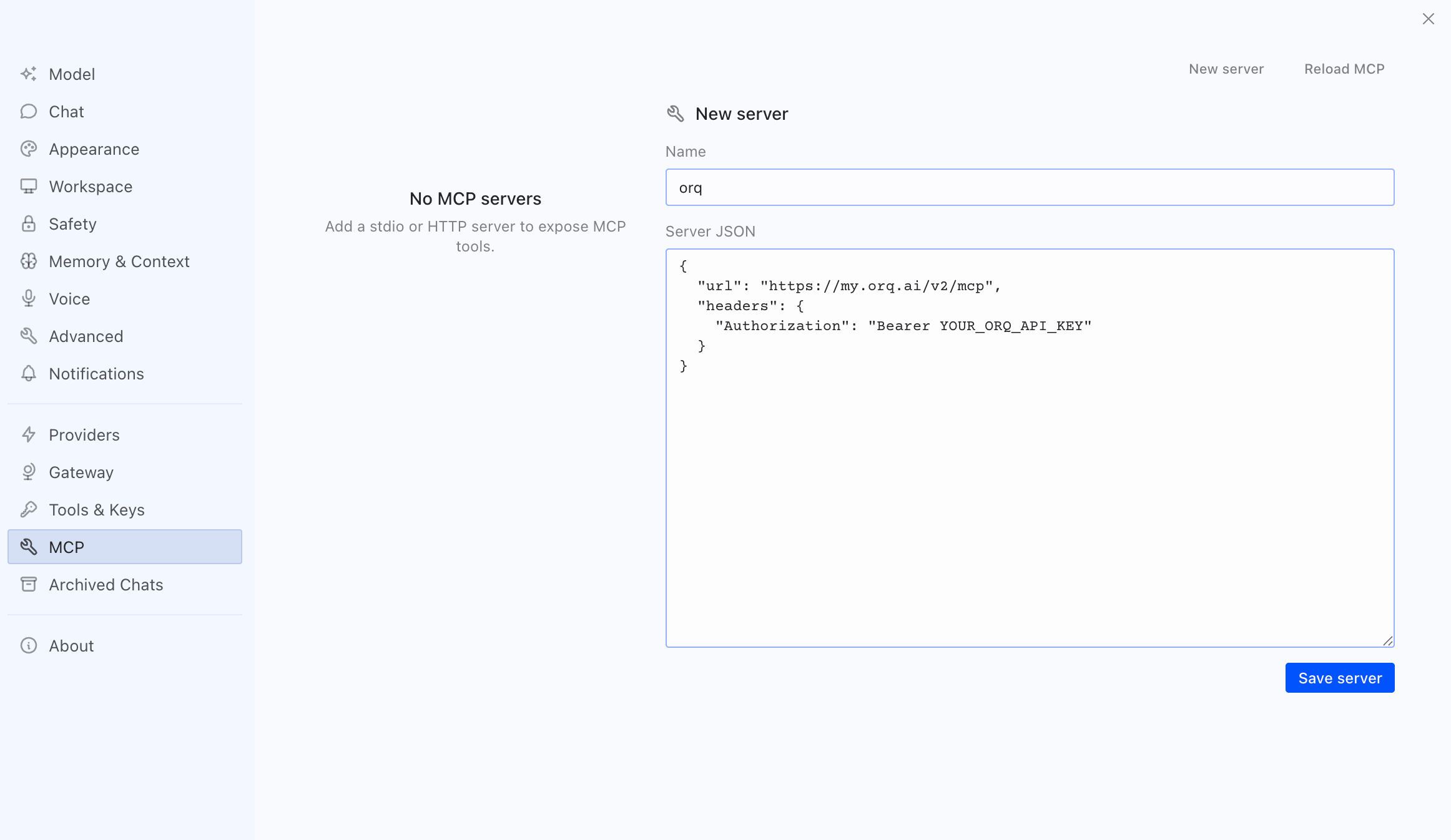 Click **Reload MCP** in the top right. Hermes connects to the **Orq MCP** server and its tools become available.
Add the **Orq MCP** server to `~/.hermes/config.yaml` under `mcp_servers`:
```yaml theme={"theme":{"light":"github-light","dark":"github-dark"}}
mcp_servers:
orq:
url: "https://my.orq.ai/v2/mcp"
headers:
Authorization: "Bearer "
```
Reload MCP servers without restarting by running `/reload-mcp` inside Hermes, then confirm the connection:
```bash theme={"theme":{"light":"github-light","dark":"github-dark"}}
hermes mcp test orq
```
### Available Commands
Once connected, ask Hermes to perform operations across the workspace:
* `Create an agent with custom instructions and tools`
* `Get agent configuration for [agent-key]`
* `Invoke agent [agent-key] with input [message]`
* `Create an experiment from dataset [dataset-key]`
* `Run experiment and auto-evaluate results`
* `Export experiment run [run-id] as CSV`
* `Create a dataset called "customer-queries"`
* `Add datapoints to dataset [dataset-key]`
* `List all datapoints in dataset [dataset-key]`
* `List traces from the last 24 hours`
* `Show me traces with errors`
* `Get span details for trace [trace-id]`
* `Get analytics overview for my workspace`
* `Show me workspace metrics for the last 7 days`
## See Also
The full **Orq MCP** tool reference.
Create and manage **Orq.ai** API keys.
Click **Reload MCP** in the top right. Hermes connects to the **Orq MCP** server and its tools become available.
Add the **Orq MCP** server to `~/.hermes/config.yaml` under `mcp_servers`:
```yaml theme={"theme":{"light":"github-light","dark":"github-dark"}}
mcp_servers:
orq:
url: "https://my.orq.ai/v2/mcp"
headers:
Authorization: "Bearer "
```
Reload MCP servers without restarting by running `/reload-mcp` inside Hermes, then confirm the connection:
```bash theme={"theme":{"light":"github-light","dark":"github-dark"}}
hermes mcp test orq
```
### Available Commands
Once connected, ask Hermes to perform operations across the workspace:
* `Create an agent with custom instructions and tools`
* `Get agent configuration for [agent-key]`
* `Invoke agent [agent-key] with input [message]`
* `Create an experiment from dataset [dataset-key]`
* `Run experiment and auto-evaluate results`
* `Export experiment run [run-id] as CSV`
* `Create a dataset called "customer-queries"`
* `Add datapoints to dataset [dataset-key]`
* `List all datapoints in dataset [dataset-key]`
* `List traces from the last 24 hours`
* `Show me traces with errors`
* `Get span details for trace [trace-id]`
* `Get analytics overview for my workspace`
* `Show me workspace metrics for the last 7 days`
## See Also
The full **Orq MCP** tool reference.
Create and manage **Orq.ai** API keys.