> ## Documentation Index
> Fetch the complete documentation index at: https://docs.orq.ai/llms.txt
> Use this file to discover all available pages before exploring further.
# OpenCode Desktop
> Route OpenCode Desktop model calls through the Orq.ai AI Gateway and connect the Orq MCP server for unified observability, cost tracking, and model governance.
Route every model call OpenCode Desktop makes through the [**Orq.ai AI Gateway**](/docs/ai-studio/ai-gateway/quickstart) by adding a custom provider in the app. Requests appear in [Traces](/docs/ai-studio/observability/traces) automatically.
## Prerequisites
* OpenCode Desktop installed:
```bash Homebrew theme={"theme":{"light":"github-light","dark":"github-dark"}}
brew install --cask opencode-desktop
```
Or download the installer from [opencode.ai/download](https://opencode.ai/download).
* Active **Orq.ai** account with **AI Gateway** access
* [Orq.ai API key](/docs/ai-studio/organization/api-keys)
## Setup
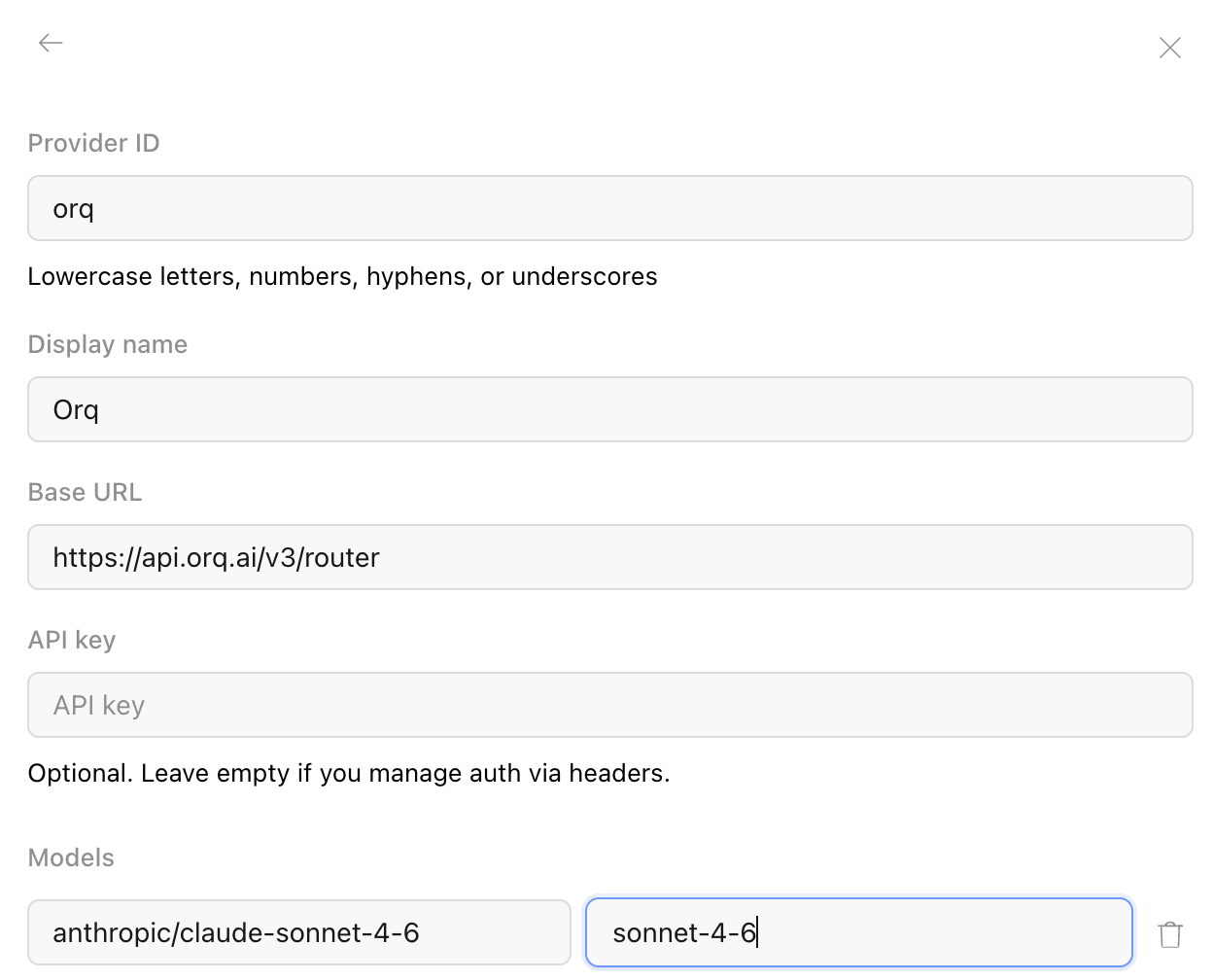
In OpenCode Desktop, open **Settings** > **Providers** > **Connect custom provider** and fill in:
* **ID**: `orq`
* **Display name**: `Orq`
* **Base URL**: `https://api.orq.ai/v3/router`
* **API key**: your [Orq.ai API key](/docs/ai-studio/organization/api-keys)
* **Model ID**: any identifier from the **AI Gateway** catalog, for example `anthropic/claude-sonnet-4-6`, with a **display name**
Add more models by giving each its own **Model ID** and display name. Pick the model from the model selector in the chat input bar.
 ## Verification
Send a prompt in OpenCode Desktop. The response appears in the app and the trace appears in [**Orq.ai** Traces](/docs/ai-studio/observability/traces) with the selected model identifier.
## Connect via MCP
OpenCode Desktop also acts as an MCP client, so the [**Orq MCP**](/docs/ai-studio/integrations/code-assistants/orq-mcp) server can run alongside the gateway routing above. With both connected, OpenCode Desktop routes model calls through the **AI Gateway** and manages **Agents**, experiments, **Datasets**, and **Traces** through the **Orq MCP** tools.
Add the **Orq MCP** server to the OpenCode config (`~/.config/opencode/opencode.json`):
```json theme={"theme":{"light":"github-light","dark":"github-dark"}}
{
"$schema": "https://opencode.ai/config.json",
"mcp": {
"orq": {
"type": "remote",
"url": "https://my.orq.ai/v2/mcp",
"enabled": true,
"headers": {
"Authorization": "Bearer YOUR_ORQ_API_KEY"
}
}
}
}
```
Replace `YOUR_ORQ_API_KEY` with an [API key](/docs/ai-studio/organization/api-keys). See the [MCP Quickstart](/docs/ai-studio/integrations/code-assistants/orq-mcp) for the full tool reference.
**Orq.ai** API keys are scoped to a single project, so the **Orq MCP** server only exposes the **Agents**, experiments, **Datasets**, and **Traces** within that project. Use a key from the project whose entities OpenCode Desktop should manage.
## Verification
Send a prompt in OpenCode Desktop. The response appears in the app and the trace appears in [**Orq.ai** Traces](/docs/ai-studio/observability/traces) with the selected model identifier.
## Connect via MCP
OpenCode Desktop also acts as an MCP client, so the [**Orq MCP**](/docs/ai-studio/integrations/code-assistants/orq-mcp) server can run alongside the gateway routing above. With both connected, OpenCode Desktop routes model calls through the **AI Gateway** and manages **Agents**, experiments, **Datasets**, and **Traces** through the **Orq MCP** tools.
Add the **Orq MCP** server to the OpenCode config (`~/.config/opencode/opencode.json`):
```json theme={"theme":{"light":"github-light","dark":"github-dark"}}
{
"$schema": "https://opencode.ai/config.json",
"mcp": {
"orq": {
"type": "remote",
"url": "https://my.orq.ai/v2/mcp",
"enabled": true,
"headers": {
"Authorization": "Bearer YOUR_ORQ_API_KEY"
}
}
}
}
```
Replace `YOUR_ORQ_API_KEY` with an [API key](/docs/ai-studio/organization/api-keys). See the [MCP Quickstart](/docs/ai-studio/integrations/code-assistants/orq-mcp) for the full tool reference.
**Orq.ai** API keys are scoped to a single project, so the **Orq MCP** server only exposes the **Agents**, experiments, **Datasets**, and **Traces** within that project. Use a key from the project whose entities OpenCode Desktop should manage.