> ## Documentation Index
> Fetch the complete documentation index at: https://docs.orq.ai/llms.txt
> Use this file to discover all available pages before exploring further.
# Open WebUI | AI Gateway
> Route every Open WebUI chat through the Orq.ai AI Gateway. Add one OpenAI connection to reach the full model catalog with unified tracing.
## Overview
[Open WebUI](https://openwebui.com/) is an open-source, self-hosted chat interface. It supports OpenAI-compatible endpoints directly in the UI, so adding the **AI Gateway** as a connection routes every chat through **Orq.ai** with the full model catalog, unified tracing, and cost tracking. This page covers model routing and tracing only.
## Prerequisites
* [Docker](https://docs.docker.com/get-started/get-docker/) installed
* Active **Orq.ai** account
* [Orq.ai API key](/docs/ai-studio/organization/api-keys)
## Setup
Run the container, then open [http://localhost:3000](http://localhost:3000) and create the admin account (the first user to sign up becomes the admin):
```bash theme={"theme":{"light":"github-light","dark":"github-dark"}}
docker run -d -p 3000:8080 -v open-webui:/app/backend/data --name open-webui ghcr.io/open-webui/open-webui:main
```
For other install methods, see the [Open WebUI quick start](https://docs.openwebui.com/getting-started/quick-start).
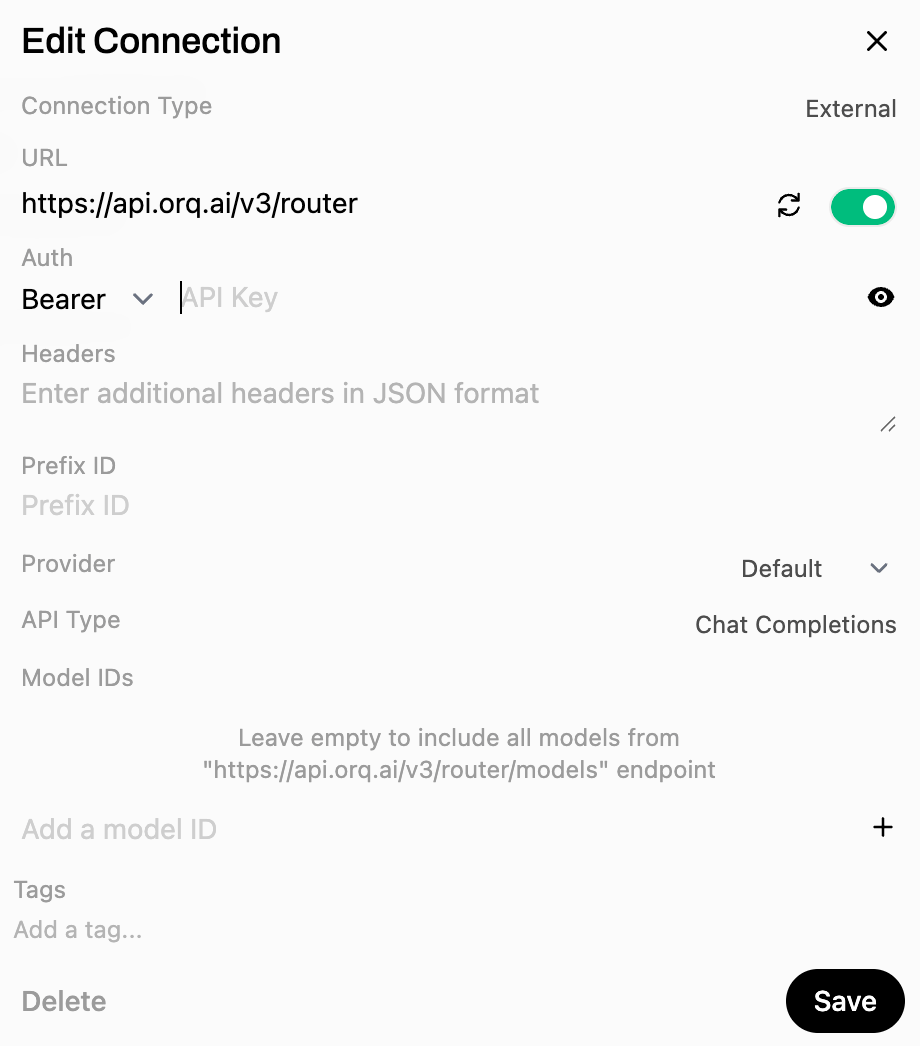
Go to **Settings** → **Admin Settings** → **Connections**, then add a connection under **OpenAI API**:
* **URL:** `https://api.orq.ai/v3/router` exactly, with no trailing path
* **Auth:** `Bearer`
* **API Key:** the **Orq.ai** [API key](/docs/ai-studio/organization/api-keys)
Leave **Model IDs** empty to include every enabled model from the **AI Gateway**, then **Save**.
 Enabled **Orq.ai** models appear in the selector at the top of a new chat. To curate the list, go to **Admin Settings → Models** and add provider-prefixed IDs (for example `openai/gpt-4o`, `anthropic/claude-sonnet-4-6`) from [Workspace Settings → Models](https://my.orq.ai/settings/models).
## Troubleshooting
The connection URL has an extra or trailing path, or the model fetch did not run. Confirm the URL is exactly `https://api.orq.ai/v3/router`, or add models manually under **Admin Settings → Models**.
A different connection is handling the request. Make sure the **AI Gateway** connection is selected, and disable any direct OpenAI connection to route exclusively through **Orq.ai**.
Confirm the **API Key** is a valid **Orq.ai** [API key](/docs/ai-studio/organization/api-keys), not an OpenAI key.
## Verification
Start a new chat, choose an **Orq.ai** model, and send a message. The response appears in the chat, and the request appears in [**Orq.ai** Traces](/docs/ai-studio/observability/traces) with the selected model identifier.
Enabled **Orq.ai** models appear in the selector at the top of a new chat. To curate the list, go to **Admin Settings → Models** and add provider-prefixed IDs (for example `openai/gpt-4o`, `anthropic/claude-sonnet-4-6`) from [Workspace Settings → Models](https://my.orq.ai/settings/models).
## Troubleshooting
The connection URL has an extra or trailing path, or the model fetch did not run. Confirm the URL is exactly `https://api.orq.ai/v3/router`, or add models manually under **Admin Settings → Models**.
A different connection is handling the request. Make sure the **AI Gateway** connection is selected, and disable any direct OpenAI connection to route exclusively through **Orq.ai**.
Confirm the **API Key** is a valid **Orq.ai** [API key](/docs/ai-studio/organization/api-keys), not an OpenAI key.
## Verification
Start a new chat, choose an **Orq.ai** model, and send a message. The response appears in the chat, and the request appears in [**Orq.ai** Traces](/docs/ai-studio/observability/traces) with the selected model identifier.