> ## Documentation Index
> Fetch the complete documentation index at: https://docs.orq.ai/llms.txt
> Use this file to discover all available pages before exploring further.
# Warp MCP Integration
> Integrate Orq.ai with Warp terminal using the Model Context Protocol. Manage experiments, datasets, and analytics directly from your AI-powered terminal.
## Overview
Warp is a modern terminal with AI capabilities and native MCP support. With the **Orq MCP** integration, access the **Orq.ai** workspace directly from Warp's AI features.
## Prerequisites
* [Warp terminal](https://www.warp.dev/) installed
* Active Orq.ai account
* [Orq.ai API key](/docs/ai-studio/organization/api-keys)
## Installation
### Add MCP Server
1. Open Warp Settings by clicking **Warp** in the top-left menu, then select **Settings**
2. Click **MCP Server** in the sidebar
3. Click the **Add** button
4. Paste the following configuration:
```json wrap theme={"theme":{"light":"github-light","dark":"github-dark"}}
{
"mcpServers": {
"orq": {
"url": "https://my.orq.ai/v2/mcp",
"headers": {
"Authorization": "Bearer YOUR_ORQ_API_KEY"
}
}
}
}
```
5. Replace `YOUR_ORQ_API_KEY` with your actual API key from [Workspace Settings → API Keys](https://my.orq.ai/settings/api-keys)
6. Save the configuration
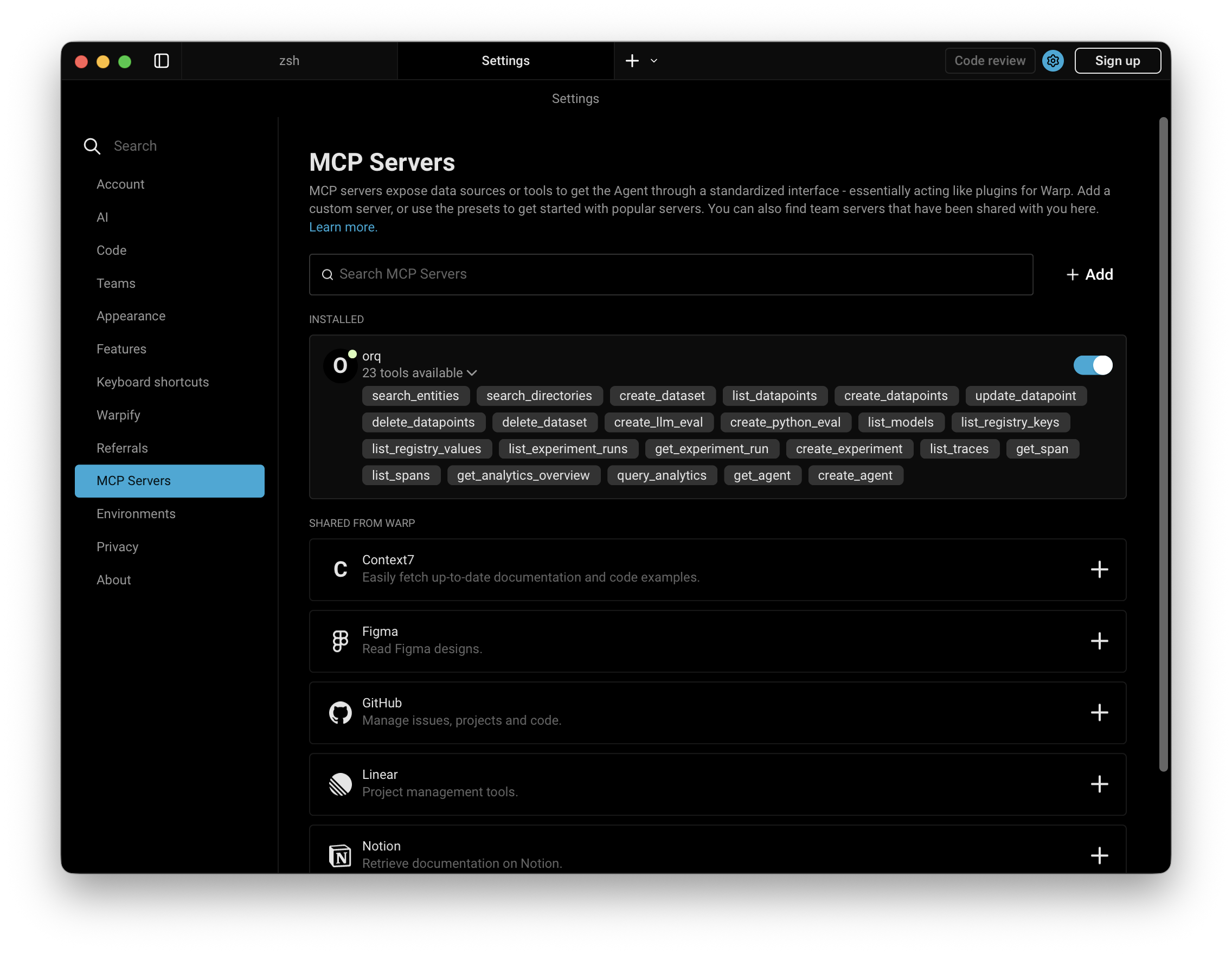
The **Orq MCP** server should automatically connect. All Orq.ai tools will be available immediately.
### Verify Installation
In Warp's AI features, ask:
```prompt wrap theme={"theme":{"light":"github-light","dark":"github-dark"}}
Can you list the available models from Orq?
```
If the integration is working, a list of AI models from the **Orq.ai** workspace will appear.
 ## Available Commands
Use natural language in Warp to perform these operations:
* `create an agent with custom instructions and tools`
* `get agent configuration for [agent-key]`
* `update agent [agent-key] with new instructions or model`
* `configure agent with evaluators and guardrails`
* `invoke agent [agent-key] with input [message]`
* `retrieve agent response [response-id]`
* `create a deployment called [deployment-key]`
* `get deployment configuration for [deployment-key]`
* `create a skill called [skill-key]`
* `list all skills in my workspace`
* `get skill [skill-key]`
* `update skill [skill-key]`
* `delete skill [skill-key]`
* `get analytics overview for my workspace`
* `show me workspace metrics for the last 7 days`
* `query analytics filtered by deployment ID`
* `create a dataset called "customer-queries"`
* `list all datapoints in dataset [dataset-key]`
* `add datapoints to dataset [dataset-key]`
* `update datapoint [datapoint-id]`
* `delete specific datapoints in dataset [dataset-key]`
* `delete dataset [dataset-key]`
* `create an experiment from dataset [dataset-key]`
* `list all experiment runs`
* `export experiment run [run-id] as CSV`
* `run experiment and auto-evaluate results`
* `get evaluator configuration for [evaluator-key]`
* `create an LLM-as-a-Judge evaluator for tone`
* `create a Python evaluator to check response length`
* `add evaluator to experiment [experiment-key]`
* `update evaluator [evaluator-key] with a new prompt`
* `update Python evaluator [evaluator-key] with revised code`
* `list traces from the last 24 hours`
* `show me traces with errors`
* `get span details for trace [trace-id]`
* `find the slowest traces from today`
* `show all traces for thread [thread-id]`
* `list all available chat models`
* `list all available embedding models`
* `invoke model [model-id] with prompt [message]`
* `search for datasets named "customer"`
* `find experiments in project [project-id]`
* `list directories in project [project-id]`
* `search the Orq.ai docs for [topic]`
* `delete agent [agent-key]`
* `delete experiment [experiment-key]`
* `delete evaluator [evaluator-key]`
* `delete prompt [prompt-key]`
* `delete knowledge base [knowledge-base-key]`
Use `delete_dataset` to delete a dataset along with all its datapoints.
## Usage Examples
### Chat Panel Commands
Use natural language in Warp's chat panel:
```prompt wrap theme={"theme":{"light":"github-light","dark":"github-dark"}}
create a dataset called "API Tests" with 20 synthetic API request examples
```
The assistant will:
1. Generate 20 synthetic API request examples
2. Use `create_dataset` to create a new dataset named "API Tests"
3. Use `create_datapoints` to add all examples to the dataset
4. Confirm creation with the dataset ID
```prompt wrap theme={"theme":{"light":"github-light","dark":"github-dark"}}
show me errors from the last 24 hours
```
The assistant will:
1. Calculate the time range for the last 24 hours
2. Use `list_traces` with error status filter
3. Display trace IDs, error messages, and timestamps
4. Provide a summary of error types and frequency
```prompt wrap theme={"theme":{"light":"github-light","dark":"github-dark"}}
create an experiment comparing GPT-5.2 and Claude Sonnet 4.6 using the "user-queries" dataset
```
The assistant will:
1. Search for the "user-queries" dataset using `search_entities`
2. Use `create_experiment` with two configurations (one for GPT-5.2, one for Claude Sonnet 4.6)
3. Run the experiment against all datapoints in the dataset
4. Display the experiment ID and status
### Inline Code Integration
Warp can use the **Orq MCP** context while you're working in the terminal:
1. Open Warp AI (⌘ I)
2. Reference the deployment key and ask about traces or analytics
Example:
```prompt wrap theme={"theme":{"light":"github-light","dark":"github-dark"}}
how has the process_user_query deployment performed over the last week?
```
The assistant will:
1. Resolve the deployment key using `search_entities`
2. Use `query_analytics` with the deployment filter
3. Set time range to the last 7 days
4. Analyze performance metrics (requests, errors, latency, tokens)
5. Provide insights and recommendations based on the data
### Dataset Creation from Code
```json wrap theme={"theme":{"light":"github-light","dark":"github-dark"}}
[
{"input": "What is AI?", "expected_output": "Artificial Intelligence..."},
{"input": "Explain ML", "expected_output": "Machine Learning..."}
]
```
```prompt wrap theme={"theme":{"light":"github-light","dark":"github-dark"}}
create a dataset from the JSON array above and add it to my workspace
```
The assistant will:
1. Parse the JSON array from the terminal context
2. Use `create_dataset` to create a new dataset with an auto-generated name
3. Use `create_datapoints` to add each entry as a datapoint
4. Confirm the dataset ID and number of datapoints added
### Experiment Analysis
```prompt wrap theme={"theme":{"light":"github-light","dark":"github-dark"}}
create an experiment using "customer-feedback" dataset, configure it with two prompts: one focused on empathy and one focused on brevity, then run it and summarize the results
```
The assistant will:
1. Search for the "customer-feedback" dataset using `search_entities`
2. Use `create_experiment` with two prompt variants (empathy-focused and brevity-focused) and auto-run enabled
3. Execute both variants against all datapoints automatically via the auto-run option
4. Use `get_experiment_run` to retrieve evaluation metrics
5. Compare the two variants and provide a summary of which performed better
### Performance Investigation
```prompt wrap theme={"theme":{"light":"github-light","dark":"github-dark"}}
find the 5 slowest traces from today and show me their span details
```
The assistant will:
1. Use `list_traces` with today's date filter
2. Sort traces by duration (descending)
3. Retrieve the top 5 slowest traces
4. Use `list_spans` to fetch span information for each trace
5. Display latency breakdowns, bottlenecks, and performance insights
### Synthetic Data Generation
```prompt wrap theme={"theme":{"light":"github-light","dark":"github-dark"}}
generate 50 realistic customer support questions about a SaaS product and create a dataset called "Support Training Data"
```
The assistant will:
1. Generate 50 synthetic customer support questions and expected responses
2. Use `create_dataset` to create a dataset named "Support Training Data"
3. Use `create_datapoints` to add all 50 examples to the dataset
4. Confirm creation with the dataset ID and sample of generated questions
## Skills
**Skills** add pre-built agentic workflows to Warp for the full Build, Evaluate, Optimize lifecycle. See the [Skills](/docs/ai-studio/integrations/code-assistants/orq-skills) page for the full reference.
### Installation
```bash theme={"theme":{"light":"github-light","dark":"github-dark"}}
npx skills add orq-ai/assistant-plugins
```
### Available Skills
Triggered by describing what you need. Warp picks the right skill automatically.
| Skill | Description |
| ------------------------------ | ---------------------------------------------------------------------------------------------------------------------------- |
| **build-agent** | Design, create, and configure an **Orq.ai** agent |
| **build-evaluator** | Create validated LLM-as-a-Judge evaluators |
| **analyze-trace-failures** | Read production traces and categorize failures |
| **run-experiment** | Create and run experiments with evaluation |
| **generate-synthetic-dataset** | Generate and curate evaluation datasets |
| **optimize-prompt** | Analyze and optimize system prompts |
| **setup-observability** | Instrument LLM applications with orq.ai tracing: AI Gateway for zero-code traces, or OpenTelemetry for framework-level spans |
| **compare-agents** | Run cross-framework agent comparisons using evaluatorq |
Slash commands (`/orq:quickstart`, `/orq:traces`, etc.) are only available in Claude Code. See [Skills](/docs/ai-studio/integrations/code-assistants/orq-skills) for details.
## Troubleshooting
1. Check Warp's **Orq MCP** status in Settings
2. Verify the API key is correct
3. Restart Warp
1. Confirm the API key is valid
2. Ensure the API key has the necessary permissions
3. Try regenerating the API key
1. Verify the **Orq MCP** server is running in Settings
2. Check network connectivity
3. Review Warp's own diagnostic output or [submit a bug report](https://docs.warp.dev/support-and-community/troubleshooting-and-support/sending-us-feedback/)
## Available Commands
Use natural language in Warp to perform these operations:
* `create an agent with custom instructions and tools`
* `get agent configuration for [agent-key]`
* `update agent [agent-key] with new instructions or model`
* `configure agent with evaluators and guardrails`
* `invoke agent [agent-key] with input [message]`
* `retrieve agent response [response-id]`
* `create a deployment called [deployment-key]`
* `get deployment configuration for [deployment-key]`
* `create a skill called [skill-key]`
* `list all skills in my workspace`
* `get skill [skill-key]`
* `update skill [skill-key]`
* `delete skill [skill-key]`
* `get analytics overview for my workspace`
* `show me workspace metrics for the last 7 days`
* `query analytics filtered by deployment ID`
* `create a dataset called "customer-queries"`
* `list all datapoints in dataset [dataset-key]`
* `add datapoints to dataset [dataset-key]`
* `update datapoint [datapoint-id]`
* `delete specific datapoints in dataset [dataset-key]`
* `delete dataset [dataset-key]`
* `create an experiment from dataset [dataset-key]`
* `list all experiment runs`
* `export experiment run [run-id] as CSV`
* `run experiment and auto-evaluate results`
* `get evaluator configuration for [evaluator-key]`
* `create an LLM-as-a-Judge evaluator for tone`
* `create a Python evaluator to check response length`
* `add evaluator to experiment [experiment-key]`
* `update evaluator [evaluator-key] with a new prompt`
* `update Python evaluator [evaluator-key] with revised code`
* `list traces from the last 24 hours`
* `show me traces with errors`
* `get span details for trace [trace-id]`
* `find the slowest traces from today`
* `show all traces for thread [thread-id]`
* `list all available chat models`
* `list all available embedding models`
* `invoke model [model-id] with prompt [message]`
* `search for datasets named "customer"`
* `find experiments in project [project-id]`
* `list directories in project [project-id]`
* `search the Orq.ai docs for [topic]`
* `delete agent [agent-key]`
* `delete experiment [experiment-key]`
* `delete evaluator [evaluator-key]`
* `delete prompt [prompt-key]`
* `delete knowledge base [knowledge-base-key]`
Use `delete_dataset` to delete a dataset along with all its datapoints.
## Usage Examples
### Chat Panel Commands
Use natural language in Warp's chat panel:
```prompt wrap theme={"theme":{"light":"github-light","dark":"github-dark"}}
create a dataset called "API Tests" with 20 synthetic API request examples
```
The assistant will:
1. Generate 20 synthetic API request examples
2. Use `create_dataset` to create a new dataset named "API Tests"
3. Use `create_datapoints` to add all examples to the dataset
4. Confirm creation with the dataset ID
```prompt wrap theme={"theme":{"light":"github-light","dark":"github-dark"}}
show me errors from the last 24 hours
```
The assistant will:
1. Calculate the time range for the last 24 hours
2. Use `list_traces` with error status filter
3. Display trace IDs, error messages, and timestamps
4. Provide a summary of error types and frequency
```prompt wrap theme={"theme":{"light":"github-light","dark":"github-dark"}}
create an experiment comparing GPT-5.2 and Claude Sonnet 4.6 using the "user-queries" dataset
```
The assistant will:
1. Search for the "user-queries" dataset using `search_entities`
2. Use `create_experiment` with two configurations (one for GPT-5.2, one for Claude Sonnet 4.6)
3. Run the experiment against all datapoints in the dataset
4. Display the experiment ID and status
### Inline Code Integration
Warp can use the **Orq MCP** context while you're working in the terminal:
1. Open Warp AI (⌘ I)
2. Reference the deployment key and ask about traces or analytics
Example:
```prompt wrap theme={"theme":{"light":"github-light","dark":"github-dark"}}
how has the process_user_query deployment performed over the last week?
```
The assistant will:
1. Resolve the deployment key using `search_entities`
2. Use `query_analytics` with the deployment filter
3. Set time range to the last 7 days
4. Analyze performance metrics (requests, errors, latency, tokens)
5. Provide insights and recommendations based on the data
### Dataset Creation from Code
```json wrap theme={"theme":{"light":"github-light","dark":"github-dark"}}
[
{"input": "What is AI?", "expected_output": "Artificial Intelligence..."},
{"input": "Explain ML", "expected_output": "Machine Learning..."}
]
```
```prompt wrap theme={"theme":{"light":"github-light","dark":"github-dark"}}
create a dataset from the JSON array above and add it to my workspace
```
The assistant will:
1. Parse the JSON array from the terminal context
2. Use `create_dataset` to create a new dataset with an auto-generated name
3. Use `create_datapoints` to add each entry as a datapoint
4. Confirm the dataset ID and number of datapoints added
### Experiment Analysis
```prompt wrap theme={"theme":{"light":"github-light","dark":"github-dark"}}
create an experiment using "customer-feedback" dataset, configure it with two prompts: one focused on empathy and one focused on brevity, then run it and summarize the results
```
The assistant will:
1. Search for the "customer-feedback" dataset using `search_entities`
2. Use `create_experiment` with two prompt variants (empathy-focused and brevity-focused) and auto-run enabled
3. Execute both variants against all datapoints automatically via the auto-run option
4. Use `get_experiment_run` to retrieve evaluation metrics
5. Compare the two variants and provide a summary of which performed better
### Performance Investigation
```prompt wrap theme={"theme":{"light":"github-light","dark":"github-dark"}}
find the 5 slowest traces from today and show me their span details
```
The assistant will:
1. Use `list_traces` with today's date filter
2. Sort traces by duration (descending)
3. Retrieve the top 5 slowest traces
4. Use `list_spans` to fetch span information for each trace
5. Display latency breakdowns, bottlenecks, and performance insights
### Synthetic Data Generation
```prompt wrap theme={"theme":{"light":"github-light","dark":"github-dark"}}
generate 50 realistic customer support questions about a SaaS product and create a dataset called "Support Training Data"
```
The assistant will:
1. Generate 50 synthetic customer support questions and expected responses
2. Use `create_dataset` to create a dataset named "Support Training Data"
3. Use `create_datapoints` to add all 50 examples to the dataset
4. Confirm creation with the dataset ID and sample of generated questions
## Skills
**Skills** add pre-built agentic workflows to Warp for the full Build, Evaluate, Optimize lifecycle. See the [Skills](/docs/ai-studio/integrations/code-assistants/orq-skills) page for the full reference.
### Installation
```bash theme={"theme":{"light":"github-light","dark":"github-dark"}}
npx skills add orq-ai/assistant-plugins
```
### Available Skills
Triggered by describing what you need. Warp picks the right skill automatically.
| Skill | Description |
| ------------------------------ | ---------------------------------------------------------------------------------------------------------------------------- |
| **build-agent** | Design, create, and configure an **Orq.ai** agent |
| **build-evaluator** | Create validated LLM-as-a-Judge evaluators |
| **analyze-trace-failures** | Read production traces and categorize failures |
| **run-experiment** | Create and run experiments with evaluation |
| **generate-synthetic-dataset** | Generate and curate evaluation datasets |
| **optimize-prompt** | Analyze and optimize system prompts |
| **setup-observability** | Instrument LLM applications with orq.ai tracing: AI Gateway for zero-code traces, or OpenTelemetry for framework-level spans |
| **compare-agents** | Run cross-framework agent comparisons using evaluatorq |
Slash commands (`/orq:quickstart`, `/orq:traces`, etc.) are only available in Claude Code. See [Skills](/docs/ai-studio/integrations/code-assistants/orq-skills) for details.
## Troubleshooting
1. Check Warp's **Orq MCP** status in Settings
2. Verify the API key is correct
3. Restart Warp
1. Confirm the API key is valid
2. Ensure the API key has the necessary permissions
3. Try regenerating the API key
1. Verify the **Orq MCP** server is running in Settings
2. Check network connectivity
3. Review Warp's own diagnostic output or [submit a bug report](https://docs.warp.dev/support-and-community/troubleshooting-and-support/sending-us-feedback/)