> ## Documentation Index
> Fetch the complete documentation index at: https://docs.orq.ai/llms.txt
> Use this file to discover all available pages before exploring further.
# Build Experiments
> Test prompts and models at scale. Compare performance metrics, evaluate outputs, and iterate on configurations via the AI Studio, API, or Orq MCP.
**Experiments** run model generations across a [Dataset](/docs/ai-studio/optimize/datasets) and record **Latency**, **Cost**, and **Time to First Token** for each generation. Results can be reviewed manually or scored automatically with [Evaluators](/docs/ai-studio/optimize/evaluators) and Human Reviews. For code-driven experiments, **Orq.ai** provides the **evaluatorq** framework — available as separate packages for [Python](https://github.com/orq-ai/evaluatorq) and [TypeScript](https://github.com/orq-ai/orqkit/tree/main/packages/evaluatorq) — to define jobs, evaluators, and data sources programmatically and sync results back to the AI Studio.
## Use Cases
Run the same dataset through multiple models to compare output quality, cost, and latency. Works for newly released models, fine-tuned models, and private models added to the [AI Gateway](/docs/ai-studio/ai-gateway/add-models).
Test multiple prompt variants on the same dataset. Use evaluators like Cosine Similarity to quantitatively assess which version produces the best results.
Run experiments against your current prompt configuration before shipping changes. Use historical datasets to verify that updates haven't degraded performance in any area.
Test how your model responds to jailbreak attempts and adversarial inputs in a controlled environment before putting it into production.
## Prerequisites
A Dataset with Inputs, Messages, and/or Expected Outputs
Models added to the AI Gateway
An API Key (API and MCP only)
## Create an Experiment
In the AI Studio, choose a [Project](/docs/ai-studio/get-started/projects) and folder, click the button, and select **Experiment**.
Select a [Dataset](/docs/ai-studio/optimize/datasets) and one or more models, then click Create. Use the search field to find datasets quickly.
You are taken to the Experiment Studio where you configure data entries and tasks before running.
Use the **evaluatorq framework** to run experiments from code — available as separate packages for [Python](https://github.com/orq-ai/evaluatorq) and [TypeScript](https://github.com/orq-ai/orqkit/tree/main/packages/evaluatorq).
**Install:**
```bash Python theme={"theme":{"light":"github-light","dark":"github-dark"}}
pip install orq-ai-sdk
pip install evaluatorq
```
```bash Node.js theme={"theme":{"light":"github-light","dark":"github-dark"}}
npm install @orq-ai/evaluatorq
npm install @orq-ai/node
```
**Configure environment:**
```bash theme={"theme":{"light":"github-light","dark":"github-dark"}}
export ORQ_API_KEY="your-api-key"
export ORQ_ENV="production"
export ORQ_EVALUATOR_ID="your-evaluator-ulid" # optional
```
`ORQ_API_KEY` is required to invoke Deployments and Agents, run Evaluators, and sync results to the **Orq.ai** UI. Without it, experiments run locally only.
**Define your data.** Choose one of three approaches:
```python Python theme={"theme":{"light":"github-light","dark":"github-dark"}}
from evaluatorq import DatasetIdInput
dataset_id = "01ARZ3NDEKTSV4RRFFQ69G5FAV"
# Pass DatasetIdInput directly to evaluatorq in the Run step
```
```typescript TypeScript theme={"theme":{"light":"github-light","dark":"github-dark"}}
import { DatasetIdInput } from "@orq-ai/evaluatorq";
const datasetId = "01ARZ3NDEKTSV4RRFFQ69G5FAV";
// Pass DatasetIdInput directly to evaluatorq in the Run step
```
```python Python theme={"theme":{"light":"github-light","dark":"github-dark"}}
import csv, json
from evaluatorq import DataPoint
with open("test_data.csv", "r") as f:
test_data = [DataPoint(inputs=row) for row in csv.DictReader(f)]
# or from JSON
with open("test_data.json", "r") as f:
test_data = [DataPoint(inputs=item) for item in json.load(f)]
```
```typescript TypeScript theme={"theme":{"light":"github-light","dark":"github-dark"}}
import { DataPoint } from "@orq-ai/evaluatorq";
import * as fs from "fs";
import csv from "csv-parser";
const data = JSON.parse(fs.readFileSync("test_data.json", "utf-8"));
const testData = data.map((item: any) => ({ inputs: item }));
```
```python Python theme={"theme":{"light":"github-light","dark":"github-dark"}}
from evaluatorq import DataPoint
test_data = [
DataPoint(inputs={"text": "Cinderella tells the story of a kind young woman..."}),
DataPoint(inputs={"text": "Little Red Riding Hood follows a girl traveling..."}),
]
```
```typescript TypeScript theme={"theme":{"light":"github-light","dark":"github-dark"}}
import { DataPoint } from "@orq-ai/evaluatorq";
const testData: DataPoint[] = [
{ inputs: { text: "Cinderella tells the story of a kind young woman..." } },
{ inputs: { text: "Little Red Riding Hood follows a girl traveling..." } },
];
```
See the [evaluatorq Tutorial](/docs/tutorials/evaluator-q) for advanced patterns including third-party framework integration and CI/CD setup.
**Create an experiment from an existing dataset:**
```prompt wrap theme={"theme":{"light":"github-light","dark":"github-dark"}}
Create an experiment comparing GPT-5.2 and Claude Sonnet 4.6 using the "user-queries" dataset
```
The assistant uses `search_entities` to find the dataset, then `create_experiment` with two model configurations and `auto_run` enabled.
***
**Compare two prompt strategies:**
```prompt wrap theme={"theme":{"light":"github-light","dark":"github-dark"}}
Create an experiment using the "customer-feedback" dataset with two prompts: one focused on empathy and one on brevity. Run it and summarize the results.
```
The assistant uses `create_experiment` with two prompt variants and `auto_run` enabled, then `get_experiment_run` to retrieve and summarise the evaluation metrics.
### Configure Tasks
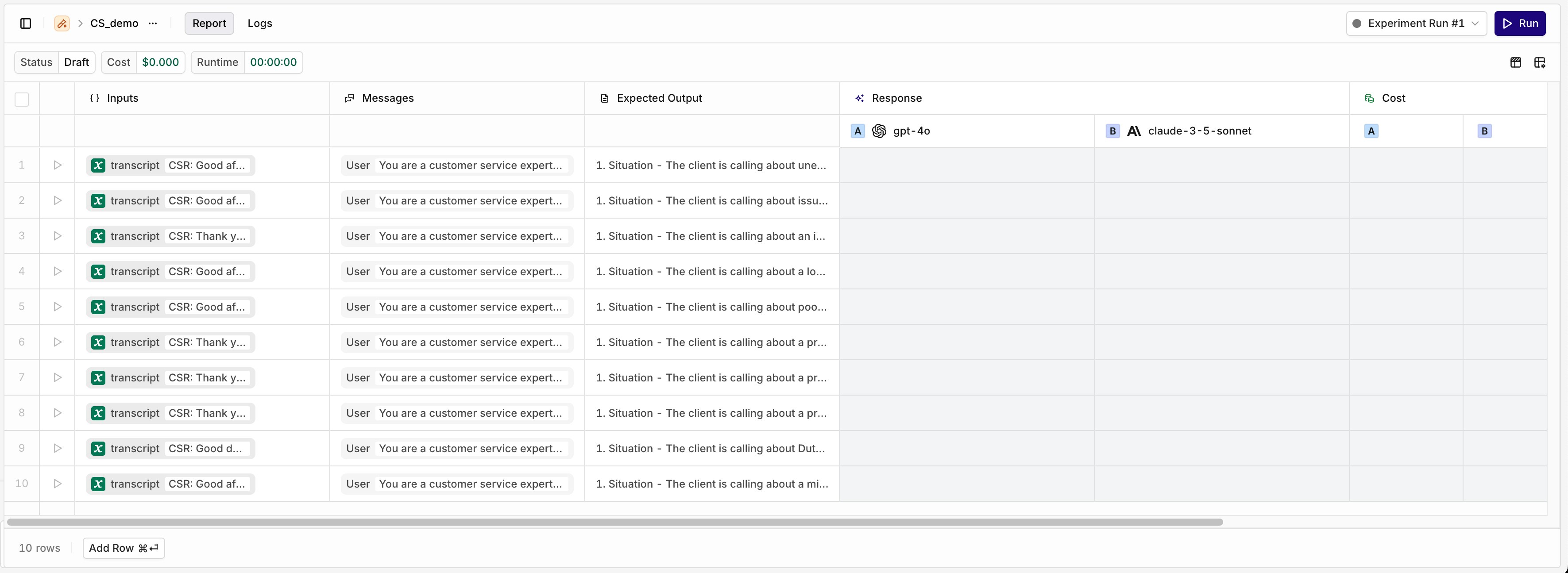
The left side of the Experiment table shows the loaded Dataset entries. Each row runs separately against each configured task.
Add new test rows with the **Add Row** button. Edit Inputs, Messages, and Expected Outputs by selecting any cell.
Columns can be reorganised and hidden using the menu.
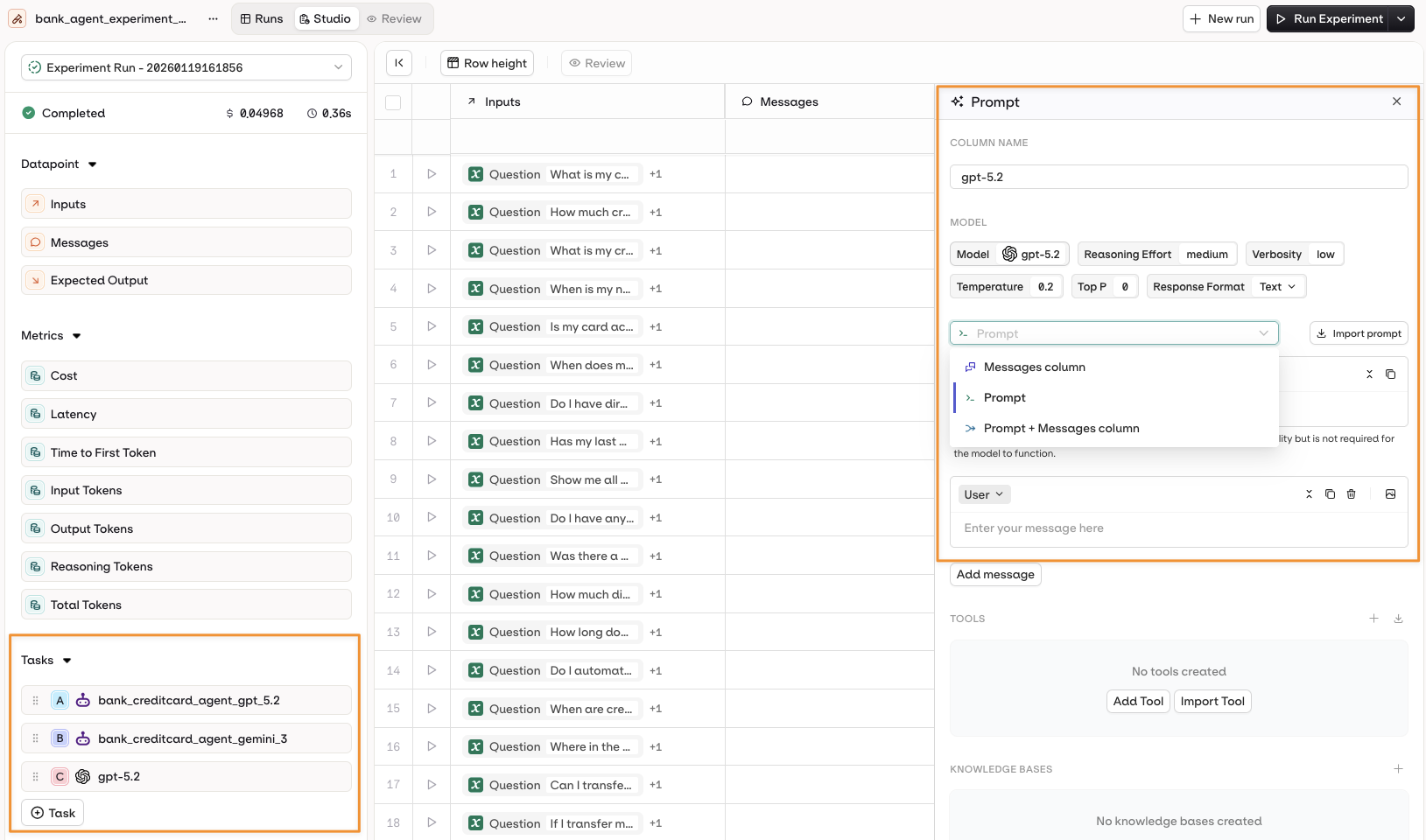
To add a task, open the sidebar and select **+Task**:
Select a model to open the Prompt panel. Configure the prompt template using:
* The **Messages** column from the dataset.
* A configured **Prompt**.
* A combination of both.
To learn more about Prompt Template configuration, see [Creating a Prompt](/docs/ai-studio/prompts/prompts).
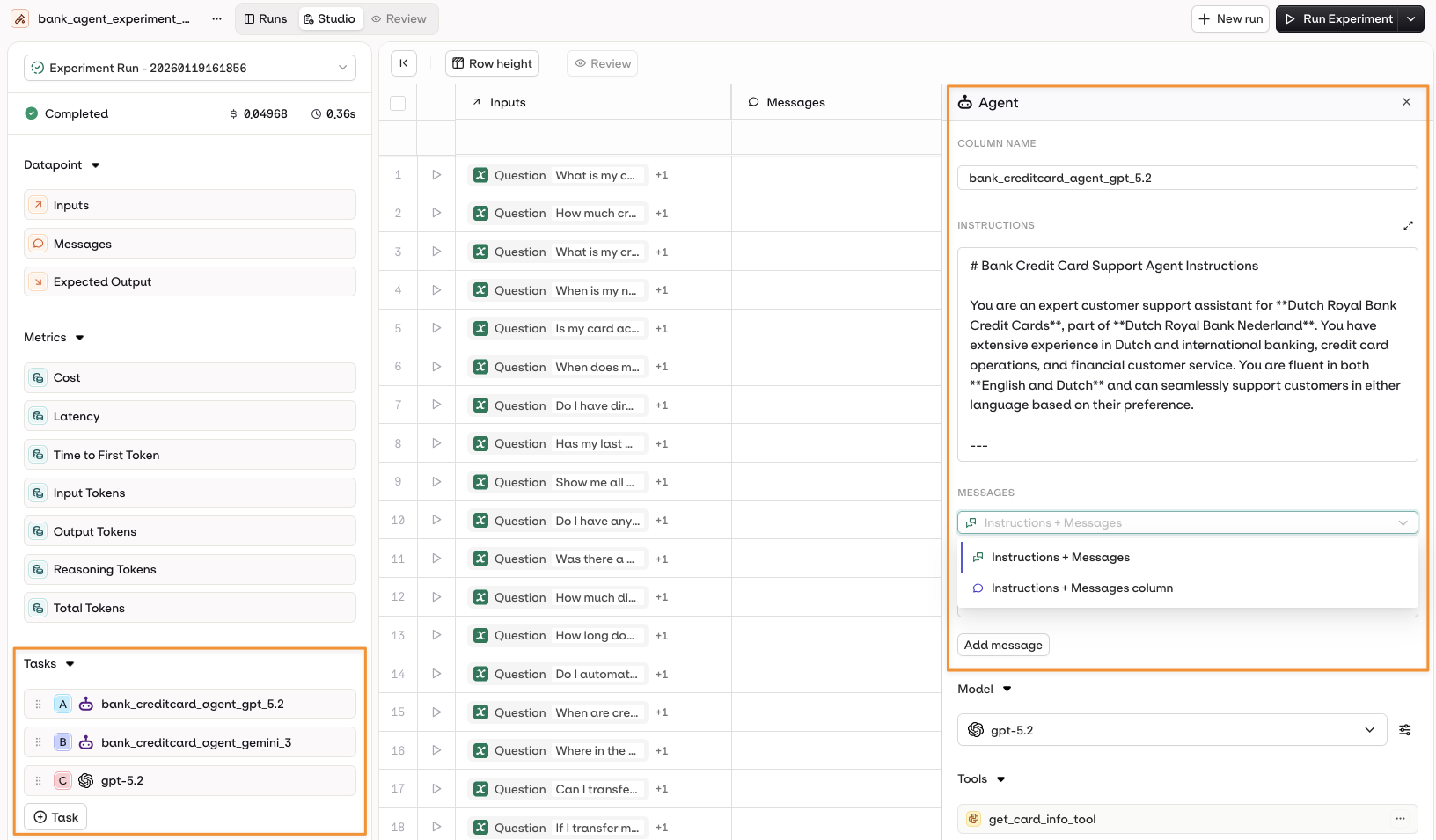
Choose an Agent from the **+Task** menu. Its configuration is automatically loaded as a new column.
The agent prompt can use:
* **Instructions + Messages** only.
* **Instructions + Dataset Messages** column.
To learn more about Agent configuration, see [Build Agents](/docs/ai-studio/ai-engineering/build-agents).
Define jobs using the `@job` decorator (Python) or `job()` function (TypeScript). Each job defines one variant to test.
```python Python theme={"theme":{"light":"github-light","dark":"github-dark"}}
import asyncio, os
from evaluatorq import job, DataPoint
from orq_ai_sdk import Orq
orq_client = Orq(
api_key=os.getenv("ORQ_API_KEY"),
server_url=os.getenv("ORQ_SERVER_URL", "https://my.orq.ai")
)
def extract_response_text(response):
if hasattr(response, "output") and response.output:
if isinstance(response.output, list) and len(response.output) > 0:
part = response.output[0]
if hasattr(part, "parts") and part.parts:
return part.parts[0].text if hasattr(part.parts[0], "text") else str(part.parts[0])
if hasattr(response, "content"):
if isinstance(response.content, list):
return " ".join(part.text if hasattr(part, "text") else str(part) for part in response.content)
return str(response.content)
return str(response)
@job("summarize-variant-a")
async def summarize_variant_a(data: DataPoint, row: int):
response = await asyncio.to_thread(
orq_client.deployments.invoke,
key="summarization_v2",
context={"environments": [], "reasoning": ["minimal"]},
inputs={"text": data.inputs["text"]},
)
return {"variant": "variant-a", "input": data.inputs["text"], "summary": extract_response_text(response)}
@job("summarize-variant-b")
async def summarize_variant_b(data: DataPoint, row: int):
response = await asyncio.to_thread(
orq_client.deployments.invoke,
key="summarization_v2",
context={"environments": [], "reasoning": ["medium"]},
inputs={"text": data.inputs["text"]},
)
return {"variant": "variant-b", "input": data.inputs["text"], "summary": extract_response_text(response)}
```
```typescript TypeScript theme={"theme":{"light":"github-light","dark":"github-dark"}}
import { job, DataPoint } from "@orq-ai/evaluatorq";
import { Orq } from "@orq-ai/node";
const orqClient = new Orq({
apiKey: process.env.ORQ_API_KEY,
serverUrl: process.env.ORQ_SERVER_URL || "https://my.orq.ai",
});
function extractResponseText(response: any): string {
if (response?.output?.[0]?.parts?.[0]?.text) return response.output[0].parts[0].text;
if (Array.isArray(response?.content)) return response.content.map((p: any) => p.text || String(p)).join(" ");
if (response?.content) return String(response.content);
return String(response);
}
const summarizeVariantA = job("summarize-variant-a", async (data: DataPoint) => {
const response = await orqClient.deployments.invoke({
key: "summarization_v2",
context: { environments: [], reasoning: ["minimal"] },
inputs: { text: data.inputs.text as string },
});
return { variant: "variant-a", input: data.inputs.text, summary: extractResponseText(response) };
});
const summarizeVariantB = job("summarize-variant-b", async (data: DataPoint) => {
const response = await orqClient.deployments.invoke({
key: "summarization_v2",
context: { environments: [], reasoning: ["medium"] },
inputs: { text: data.inputs.text as string },
});
return { variant: "variant-b", input: data.inputs.text, summary: extractResponseText(response) };
});
```
Jobs can invoke [Deployments](/docs/deployments/overview), [Agents](/docs/ai-studio/ai-engineering/build-agents), or [Prompts](/docs/ai-studio/prompts/prompts). Third-party frameworks (LangGraph, CrewAI, LlamaIndex, AutoGen) can be integrated to compare against Orq features side-by-side.
#### Variables and Prompt Templating
Reference dataset inputs in your prompt using `{{variable_name}}`. Values come from the **Inputs** column and are substituted per row when the experiment runs.
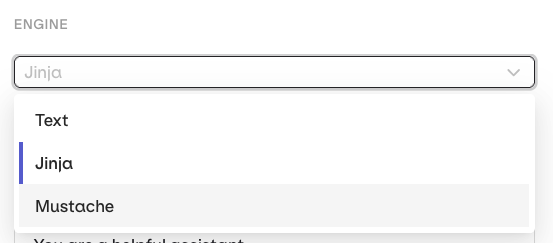
Select the **Template Engine** from the Prompt Settings panel:
* **Text** (default): `{{double_braces}}` syntax.
* **Jinja**: conditionals, loops, filters, and more.
* **Mustache**: logic-less templating with sections.
```jinja theme={"theme":{"light":"github-light","dark":"github-dark"}}
You are a support assistant for {{company_name}}.
{% if user_tier == "premium" %}
{{customer_name}} is a premium customer. Greet them by name with priority support and a 2-hour SLA.
{% else %}
{{customer_name}} is on the free plan. Standard response time is 24 hours.
{% endif %}
```
```json theme={"theme":{"light":"github-light","dark":"github-dark"}}
{ "company_name": "Acme", "customer_name": "Sarah", "user_tier": "premium" }
```
```text wrap theme={"theme":{"light":"github-light","dark":"github-dark"}}
You are a support assistant for Acme.
Sarah is a premium customer. Greet them by name with priority support and a 2-hour SLA.
```
```handlebars theme={"theme":{"light":"github-light","dark":"github-dark"}}
You are a support assistant for {{company_name}}.
{{# is_premium}}
{{customer_name}} is a premium customer. Priority support with a 2-hour SLA.
{{/ is_premium}}
{{^ is_premium}}
{{customer_name}} is on the free plan. Standard response time is 24 hours.
{{/ is_premium}}
```
```json theme={"theme":{"light":"github-light","dark":"github-dark"}}
{ "company_name": "Acme", "customer_name": "Sarah", "is_premium": true }
```
```text wrap theme={"theme":{"light":"github-light","dark":"github-dark"}}
You are a support assistant for Acme.
Sarah is a premium customer. Priority support with a 2-hour SLA.
```
For a complete reference of template features, see [Prompt Templating](/docs/ai-studio/prompts/prompt-templating).
#### Tool Calls for Agents
When using agents, attach **executable tools** that run in real-time during the experiment. These perform actual operations (HTTP requests, Python code, MCP calls).
1. Open the agent configuration panel.
2. Select **Add Tool** in the **Tools** section.
3. Choose from available tools in your project.
See [Build Agents](/docs/ai-studio/ai-engineering/build-agents) for full tool configuration options.
#### Tool Calls for Prompts (Historical Testing)
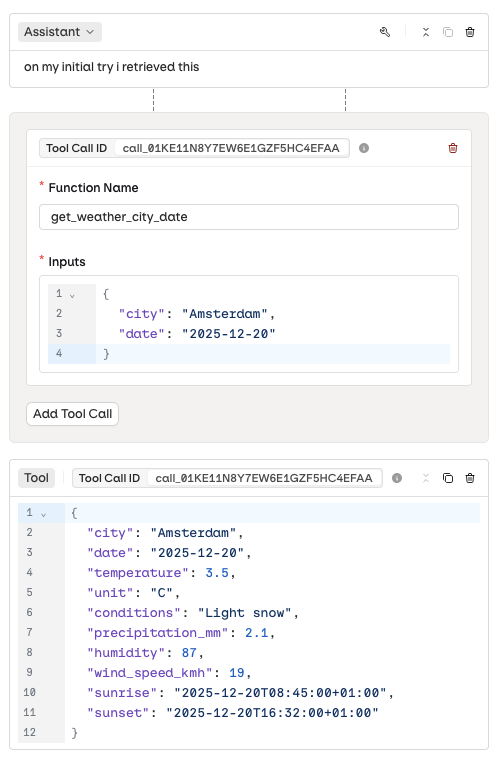
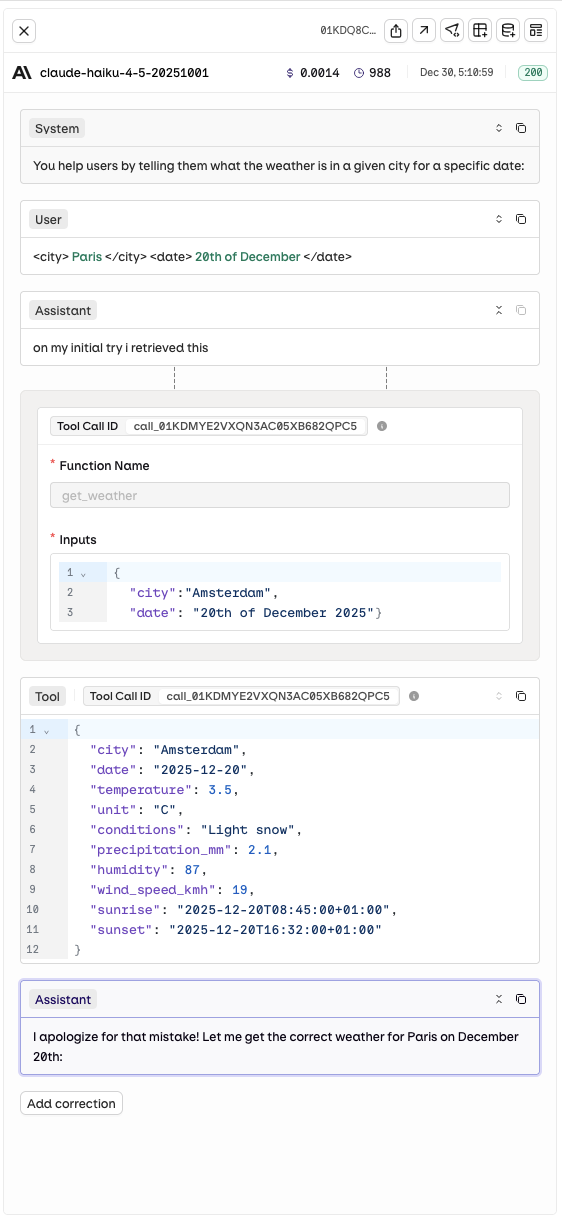
Add a **historical Tool Call** chain to a model's execution to test how it handles specific tool payloads or error scenarios.
These tool calls are **simulated and do not execute**. They provide historical context to test function calling behaviour. For real executable tools, use [Tool Calls for Agents](#tool-calls-for-agents) above.
Use the button to add a tool call to any message. Configure:
* **Function Name**: which tool was called.
* **Input**: the payload sent to the tool.
* **Output**: the response the tool returned.
### Configure Evaluators
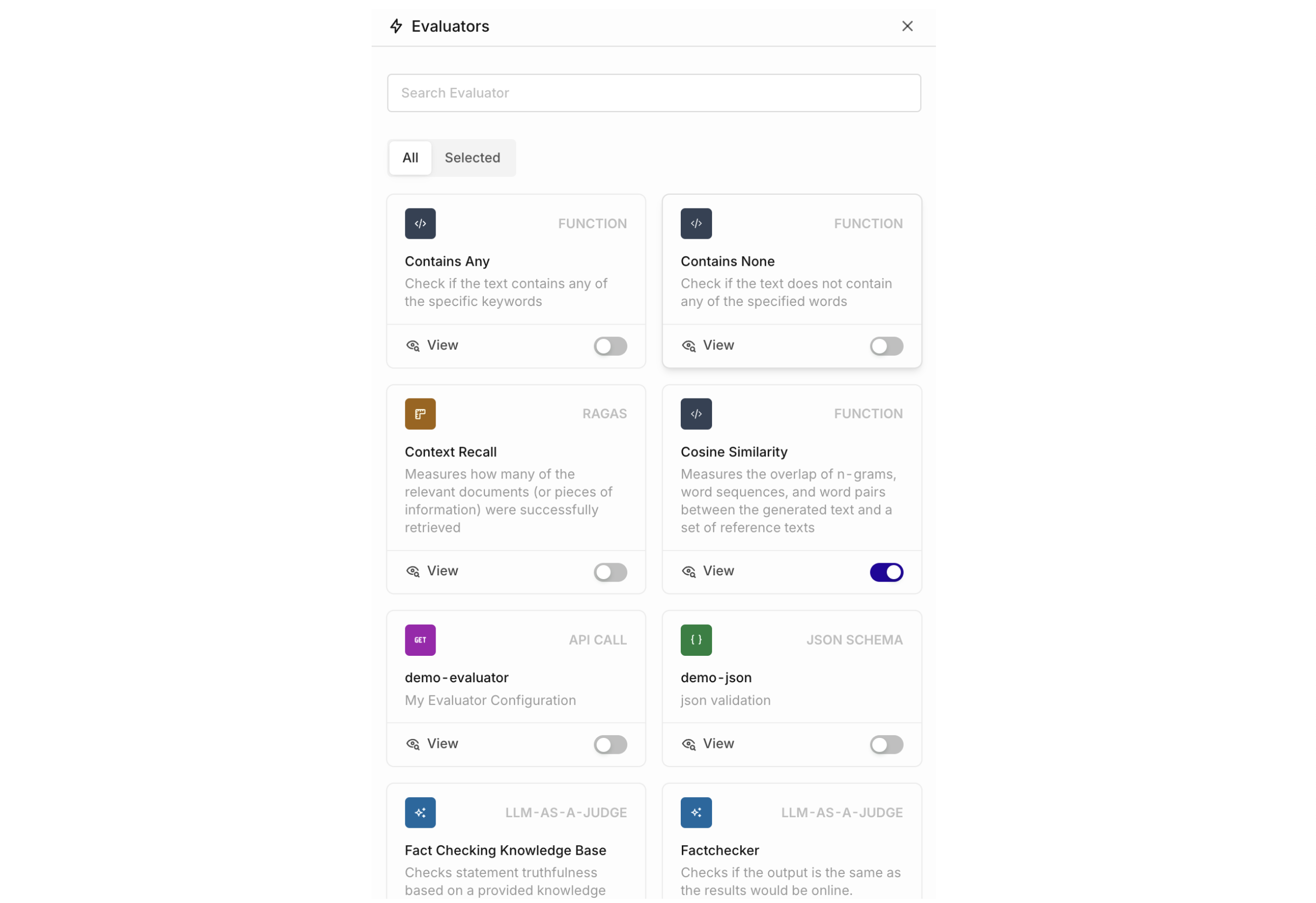
To add an Evaluator, go to the right of the Experiment table and select **Add new Column > Evaluator**.
The panel shows all Evaluators available in the current [Project](/docs/ai-studio/get-started/projects). Enable the toggle to add an Evaluator as a new column.
To add Evaluators to your project, see [Evaluators](/docs/ai-studio/optimize/evaluators). Import from the [Hub](/docs/ai-studio/optimize/hub#evaluators) or create a custom [LLM Evaluator](/docs/ai-studio/optimize/evaluators#llm-evaluator).
Define evaluators as async functions that return an `EvaluationResult` with a score (0.0 to 1.0) and an explanation.
```python Python theme={"theme":{"light":"github-light","dark":"github-dark"}}
from evaluatorq import EvaluationResult
async def word_count_scorer(params):
word_count = len(params["output"].get("summary", "").split())
if word_count >= 10:
return EvaluationResult(value=1.0, explanation=f"Sufficient ({word_count} words)")
elif word_count >= 5:
return EvaluationResult(value=0.5, explanation=f"Partial ({word_count} words)")
else:
return EvaluationResult(value=0.0, explanation=f"Too short ({word_count} words)")
```
```typescript TypeScript theme={"theme":{"light":"github-light","dark":"github-dark"}}
const wordCountScorer = async (params: any) => {
const wordCount = (params?.output?.summary || "").split(" ").filter((w: string) => w.length > 0).length;
return {
value: wordCount >= 10 ? 1.0 : wordCount >= 5 ? 0.5 : 0.0,
explanation: `Word count: ${wordCount}`,
};
};
```
```python Python theme={"theme":{"light":"github-light","dark":"github-dark"}}
import asyncio, os
from evaluatorq import EvaluationResult
EVAL_ID = os.environ.get("ORQ_EVALUATOR_ID", "your-evaluator-id")
async def summarization_quality_scorer(params):
data, output = params["data"], params["output"]
source_text = (data.inputs.get("text") or "").strip()
summary = (output.get("summary") or "").strip()
if not summary or not source_text:
return EvaluationResult(value=0.0, explanation="Missing source or summary")
evaluation = await asyncio.to_thread(
orq_client.evals.invoke,
id=EVAL_ID, query=source_text, output=summary,
reference=None, messages=[], retrievals=[],
)
return EvaluationResult(value=float(evaluation.value.value), explanation=str(evaluation.value.explanation or ""))
```
```typescript TypeScript theme={"theme":{"light":"github-light","dark":"github-dark"}}
const EVAL_ID = process.env.ORQ_EVALUATOR_ID || "your-evaluator-id";
const summarizationQualityScorer = async (params: any) => {
const sourceText = (params.data?.inputs?.text || "").trim();
const summary = (params.output?.summary || "").trim();
if (!summary || !sourceText) return { value: 0.0, explanation: "Missing source or summary" };
const evaluation = await orqClient.evals.invoke({
id: EVAL_ID, query: sourceText, output: summary,
reference: undefined, messages: [], retrievals: [],
});
return { value: parseFloat(evaluation.value.value), explanation: evaluation.value.explanation || "" };
};
```
```python Python theme={"theme":{"light":"github-light","dark":"github-dark"}}
from evaluatorq import EvaluationResult
async def deepeval_relevancy_scorer(params):
from deepeval.metrics import AnswerRelevancyMetric
from deepeval.test_case import LLMTestCase
source_text = (params["data"].inputs.get("text") or "").strip()
summary = (params["output"].get("summary") or "").strip()
if not summary or not source_text:
return EvaluationResult(value=0.0, explanation="Missing source or summary")
metric = AnswerRelevancyMetric(threshold=0.5)
test_case = LLMTestCase(input=source_text, actual_output=summary)
result = await asyncio.to_thread(metric.measure, test_case)
return EvaluationResult(value=float(result.score), explanation=f"DeepEval relevancy: {result.score:.2f}")
```
See the [evaluatorq Tutorial](/docs/tutorials/evaluator-q) for more evaluator patterns including Ragas and other frameworks.
**Create an experiment with an evaluator:**
```prompt wrap theme={"theme":{"light":"github-light","dark":"github-dark"}}
Create an experiment from the "qa-dataset" dataset with the "tone-scorer" evaluator attached
```
The assistant uses `search_entities` to find the dataset and evaluator, then `create_experiment` with both the dataset ID and evaluator ID, with `auto_run` enabled.
***
**Create an evaluator first, then run an experiment:**
```prompt wrap theme={"theme":{"light":"github-light","dark":"github-dark"}}
Create an LLM-as-a-Judge evaluator that scores responses on tone, then run an experiment on the "customer-feedback" dataset using that evaluator
```
The assistant uses `create_llm_eval` to create the evaluator, then `create_experiment` with the returned evaluator key.
#### Human Reviews
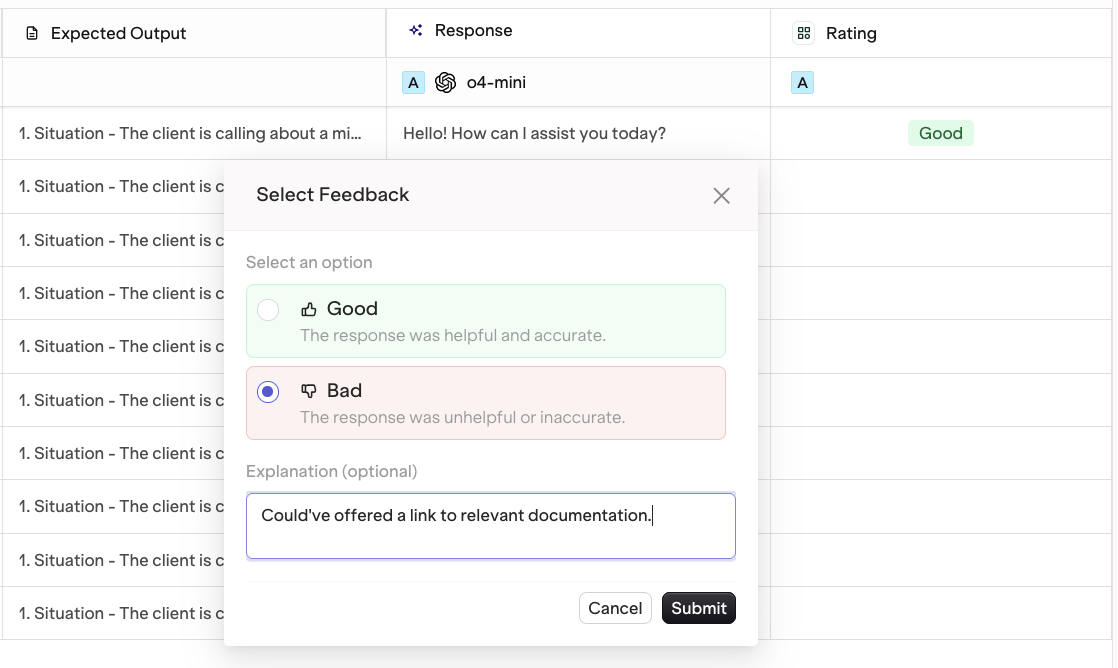
To add a Human Review column, find the **Human Review** panel and select **Add Human Review**.
To learn more, see [Human Reviews](/docs/ai-studio/observability/annotation-queues).
## Run an Experiment
Click the **Run** button to start the experiment. Depending on the dataset size, all generations may take a few minutes to complete. The status changes to **Completed** when done.
To start a new iteration with different prompts or data, use the **New Run** button. A new Experiment Run is created in **Draft** state.
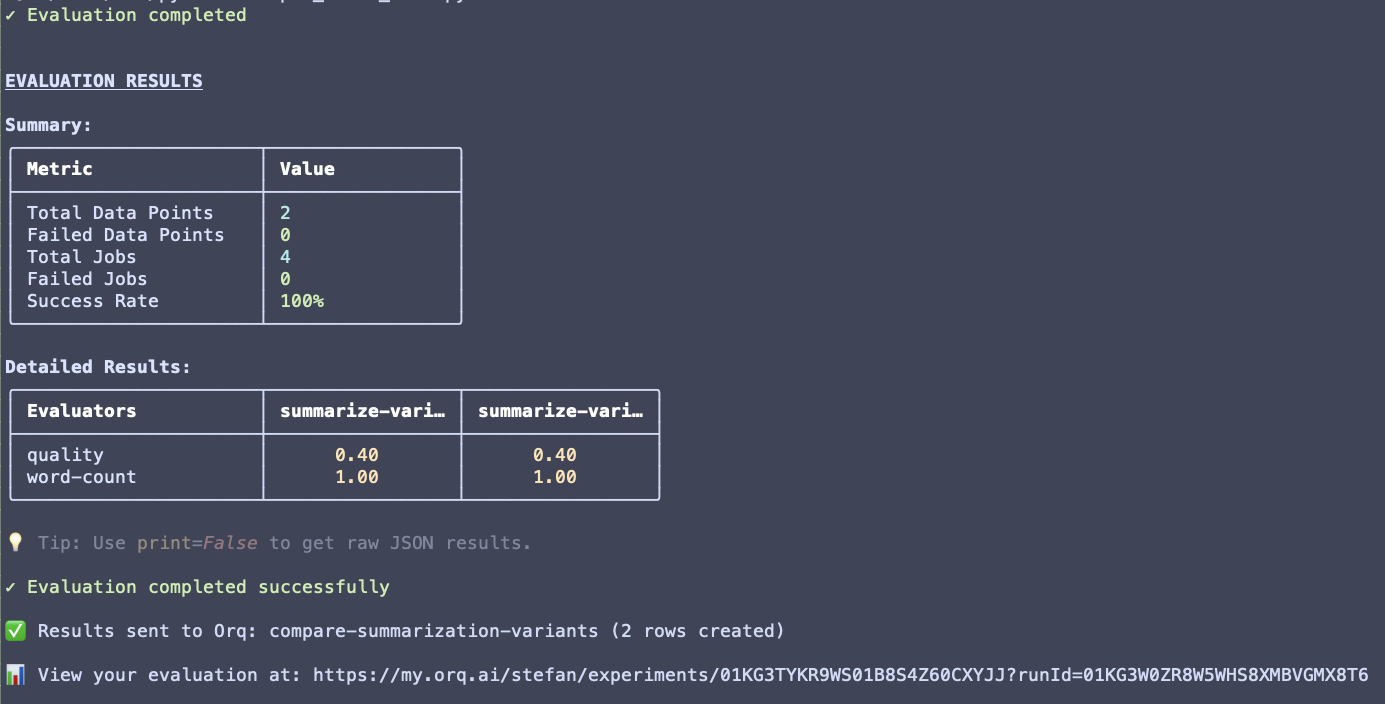
Pass your data, jobs, and evaluators to `evaluatorq()`:
```python Python theme={"theme":{"light":"github-light","dark":"github-dark"}}
import asyncio
from evaluatorq import evaluatorq, DatasetIdInput
async def main():
await evaluatorq(
"compare-summarization-variants",
data=DatasetIdInput(dataset_id="01ARZ3NDEKTSV4RRFFQ69G5FAV"),
jobs=[summarize_variant_a, summarize_variant_b],
evaluators=[
{"name": "word-count", "scorer": word_count_scorer},
{"name": "quality", "scorer": summarization_quality_scorer},
],
)
if __name__ == "__main__":
asyncio.run(main())
```
```typescript TypeScript theme={"theme":{"light":"github-light","dark":"github-dark"}}
import { evaluatorq } from "@orq-ai/evaluatorq";
await evaluatorq("compare-summarization-variants", {
data: { datasetId: "01ARZ3NDEKTSV4RRFFQ69G5FAV" },
jobs: [summarizeVariantA, summarizeVariantB],
evaluators: [
{ name: "word-count", scorer: wordCountScorer },
{ name: "quality", scorer: summarizationQualityScorer },
],
});
```
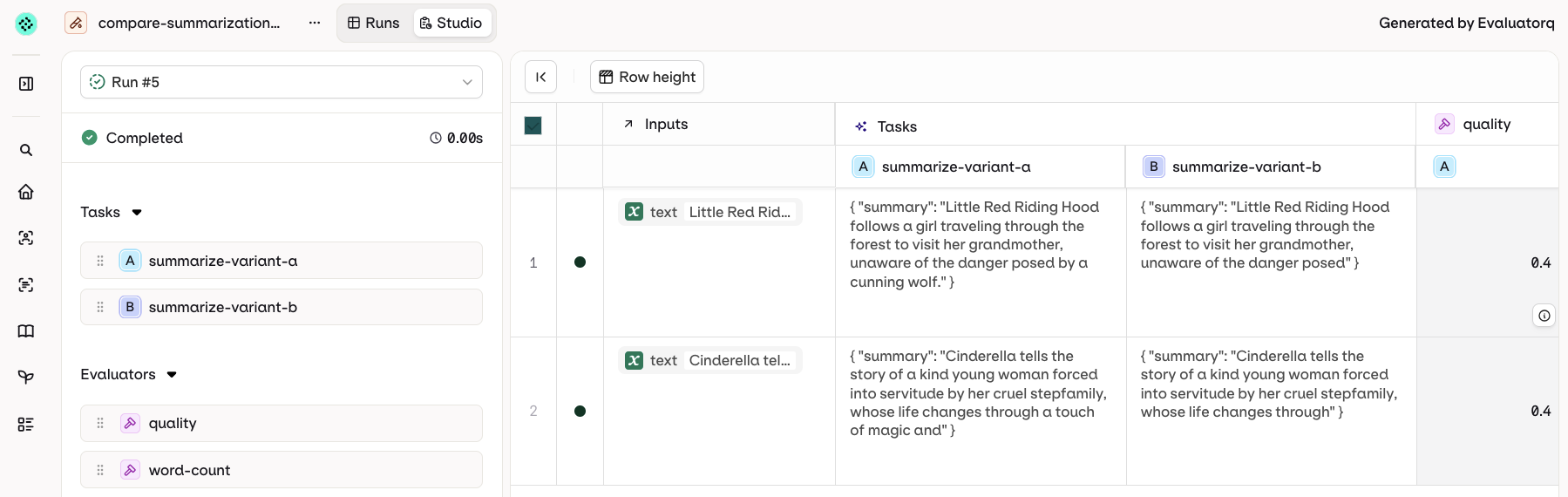
Once complete, `evaluatorq` prints a summary table in the terminal and a URL to the results in the **Orq.ai** AI Studio.
**Add evaluators from the UI after a code run:**
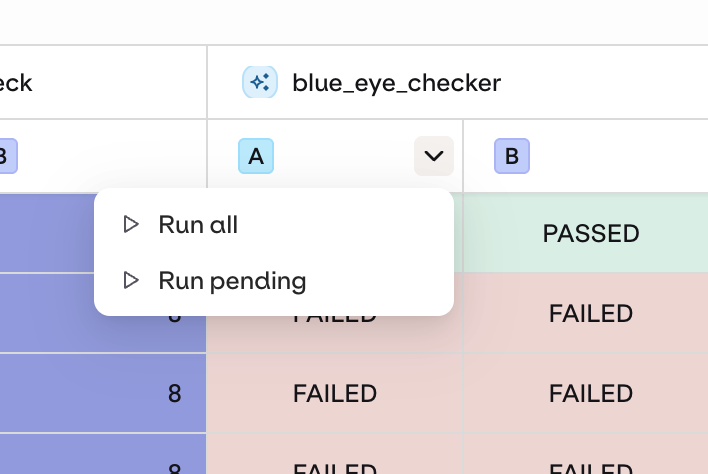
Once the experiment completes, attach evaluators and re-run evaluations directly in the AI Studio without touching code. Use the Evaluator button to attach any evaluator and trigger a new evaluation pass.
Advanced patterns: comparing Deployments and Agents, third-party framework integration, multi-job workflows, CI/CD integration.
Probing LLM deployments and agents for security vulnerabilities using the evaluatorq red teaming CLI.
**Run an experiment with auto-run enabled:**
```prompt wrap theme={"theme":{"light":"github-light","dark":"github-dark"}}
Create an experiment comparing GPT-5.2 and Claude Sonnet 4.6 on the "user-queries" dataset and run it automatically
```
The assistant uses `create_experiment` with `auto_run: true` and returns the experiment ID once both configurations have run.
***
**List recent runs:**
```prompt wrap theme={"theme":{"light":"github-light","dark":"github-dark"}}
Show me the latest experiment runs in my workspace
```
The assistant uses `list_experiment_runs` with cursor pagination to retrieve recent runs.
### Evaluation-Only Mode
To score existing responses in your dataset without generating new outputs:
1. Set up the experiment with a dataset that already contains responses in the **Messages** column.
2. Do not select a prompt during setup.
3. Add your evaluators.
4. Run the experiment.
### Run a Single Prompt
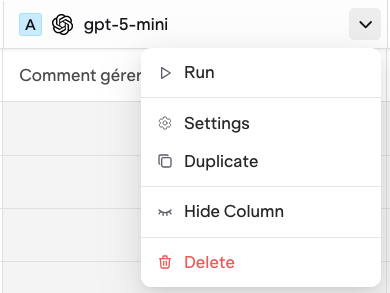
To run one task against the existing dataset without re-running everything, click next to the task and choose **Run**.
### Partial Runs
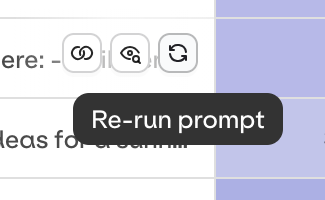
Hover on a single cell and click to re-run that row only.
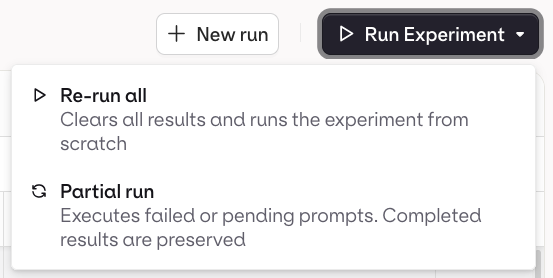
Select **Partial Run** from the Run menu to re-run all cells that are in Error or have not been run yet.
### Add Evaluators After Running
Add extra Evaluators or Human Reviews to an already-completed run. Use the drop-down on the Evaluator column to run only the newly added evaluations without re-running model generations.
## View Results
Once the experiment status changes to **Completed**, open the **Review** tab.
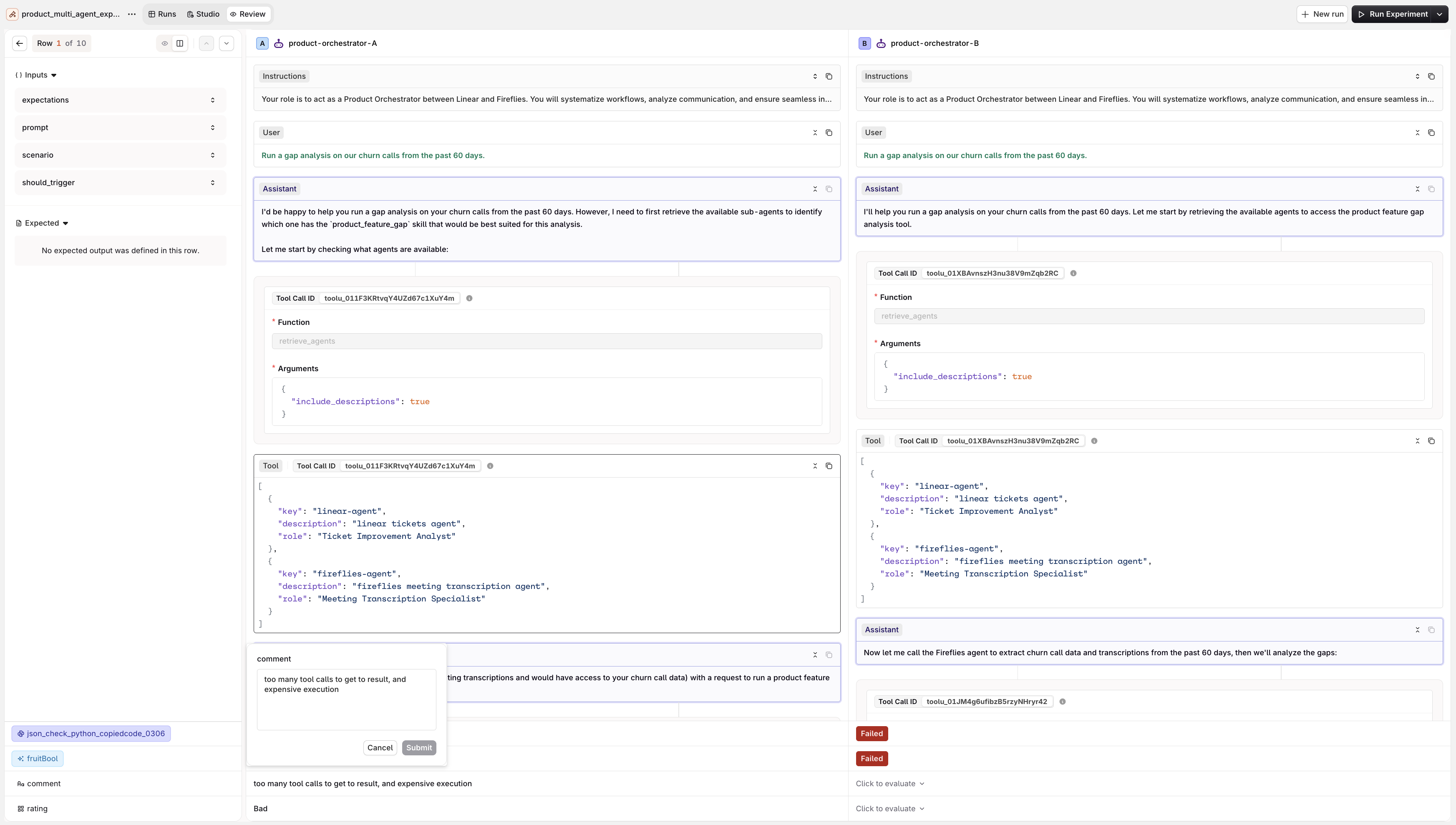
The Review tab has two views:
* Review: inspect each model output individually.
* Compare: view multiple model outputs side by side.
Results sync to the **Orq.ai** AI Studio automatically when `ORQ_API_KEY` is set. The framework prints the experiment URL at the end of the run.
[LangGraph](/docs/ai-studio/integrations/frameworks/langgraph) and [Vercel AI SDK](/docs/ai-studio/integrations/frameworks/vercel-ai) agent executions are fully visualised in the UI, including individual steps and tool invocations.
**Export results:**
```prompt wrap theme={"theme":{"light":"github-light","dark":"github-dark"}}
Export the latest experiment run as CSV
```
The assistant uses `list_experiment_runs` to find the most recent run, then `get_experiment_run` with CSV export format and returns a signed download URL.
***
**Get results for a specific run:**
```prompt wrap theme={"theme":{"light":"github-light","dark":"github-dark"}}
Show me the results for experiment run ID "01ARZ3NDEKTSV4RRFFQ69G5FAV"
```
The assistant uses `get_experiment_run` to retrieve the full run including all evaluation scores.
### Column Result Overview
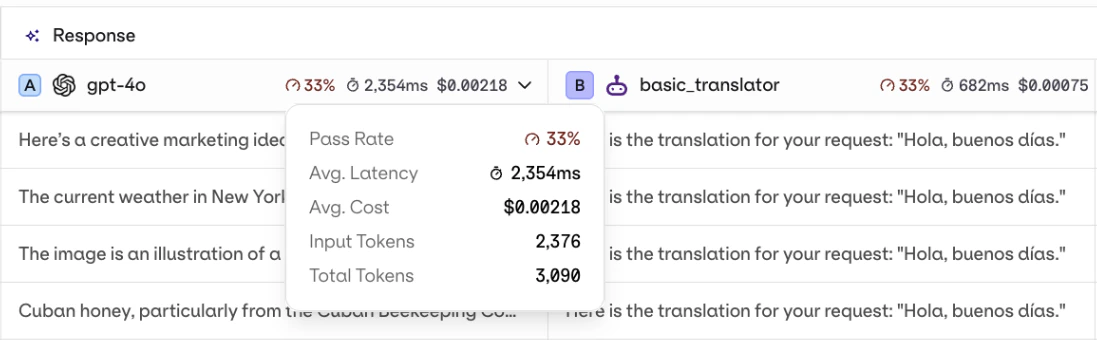
Each response column shows an aggregated summary at the top: average evaluator score, latency, and cost across all rows.
### Compare Mode
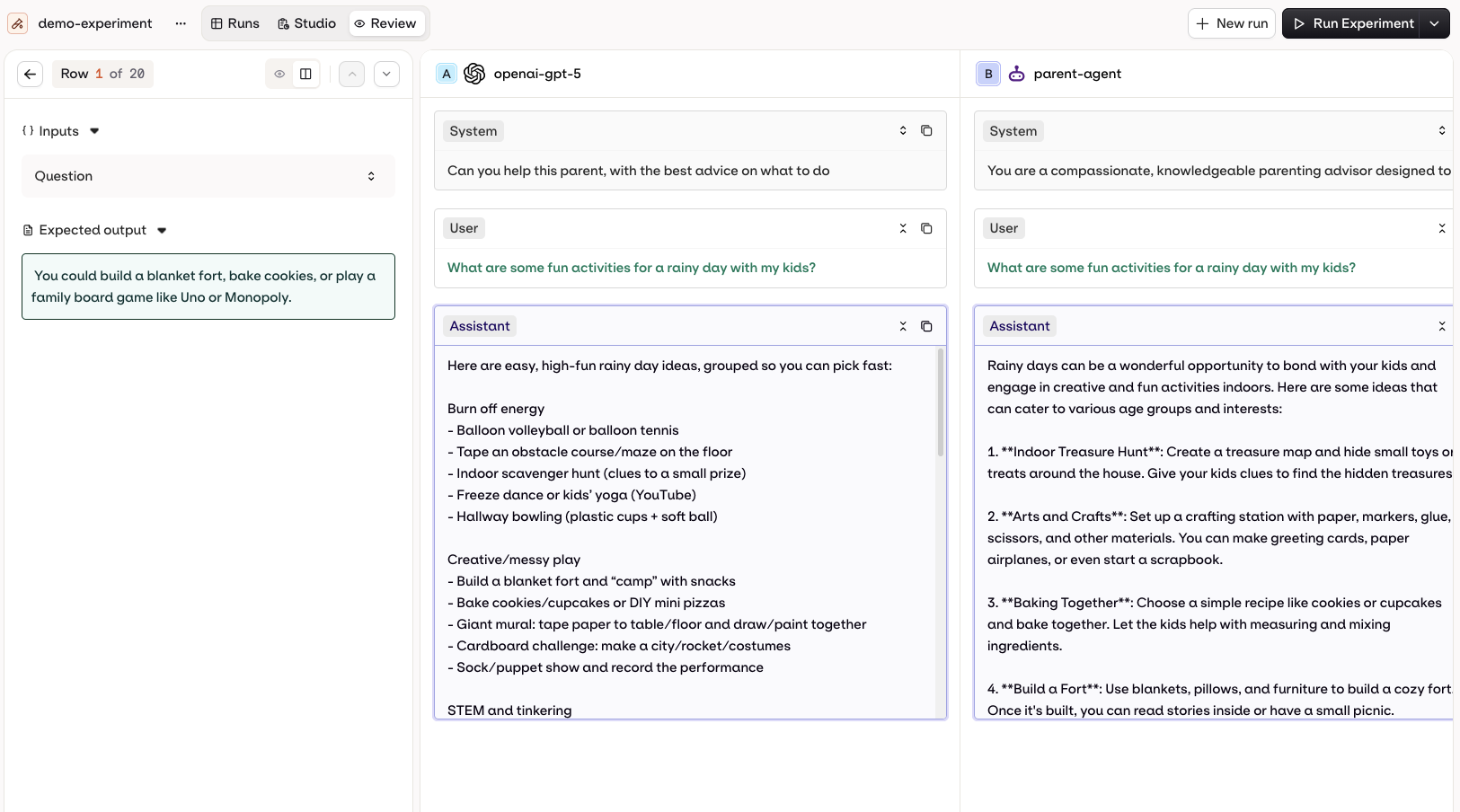
Visualise multiple model executions side by side. Variables and Expected Outputs are shown on the left. Evaluator scores appear at the bottom. Human Reviews can be applied here too, from the controls at the bottom of the screen.
### Tool Call History
When reviewing a model execution, see the step-by-step tool call history including payloads sent and responses received.
### Multiple Runs
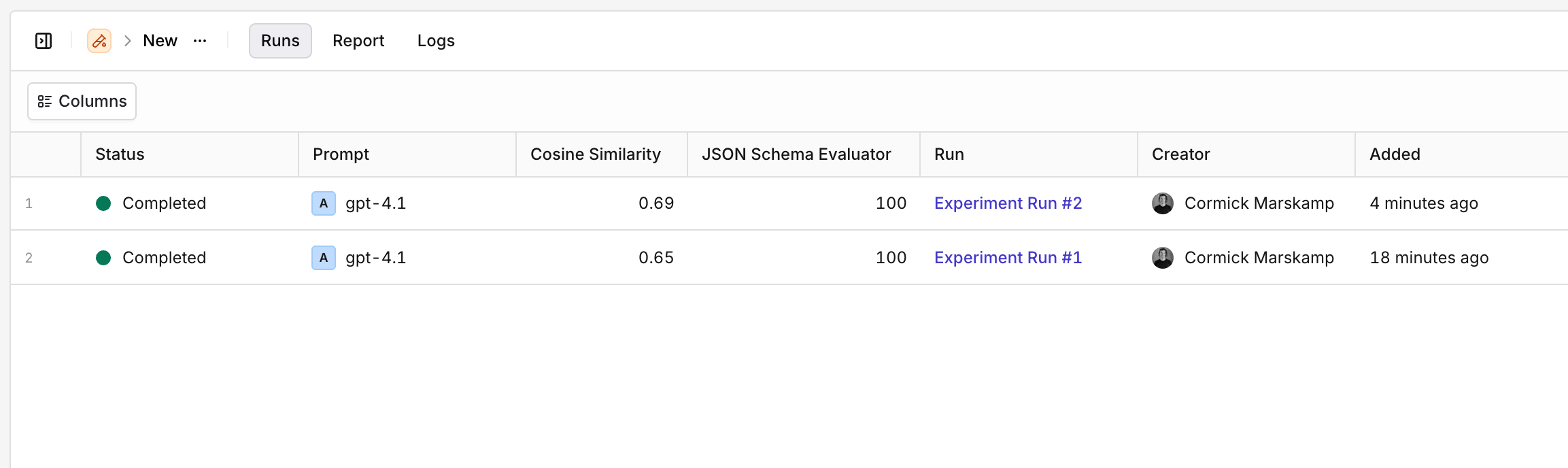
Use the **Runs** tab to see all previous runs for an experiment and compare Evaluator results across runs at a glance.
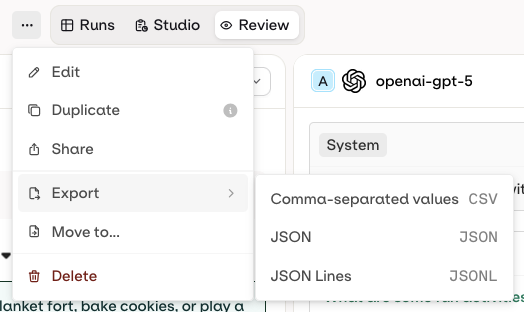
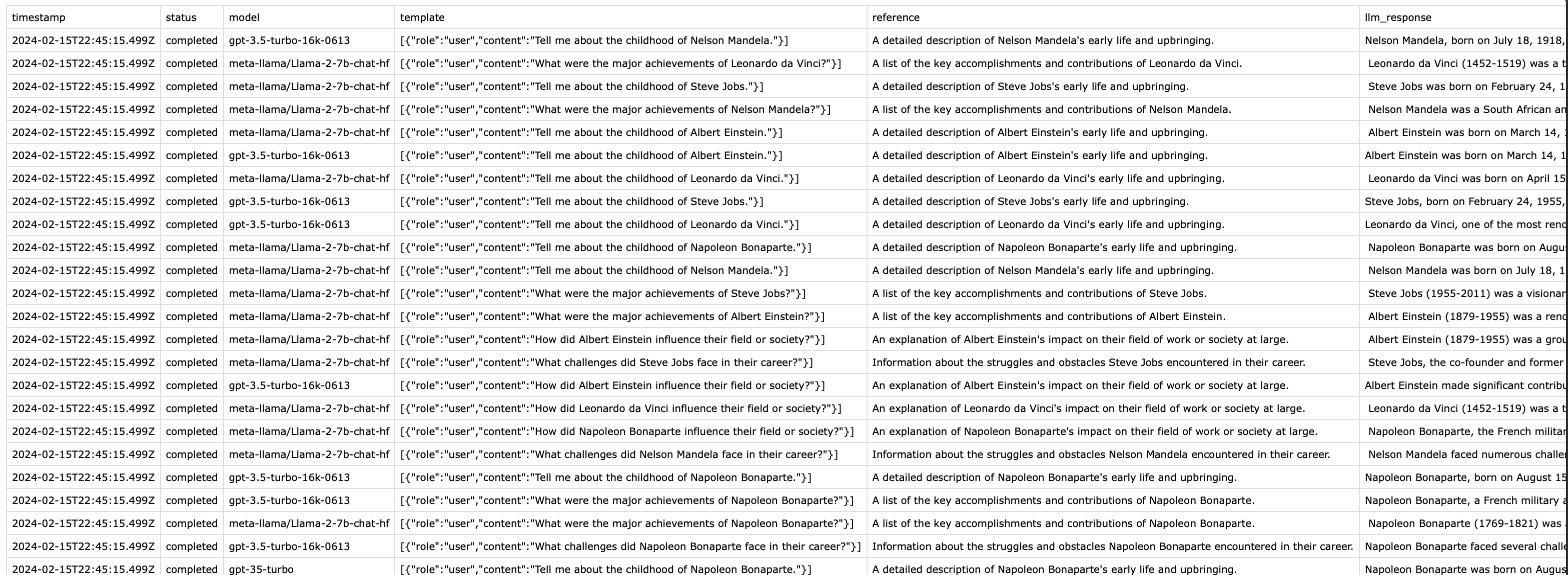
### Export Results
The exported file contains: datasets, model configuration, responses, metrics (including Time to First Token), and Human Reviews.
## Review Results
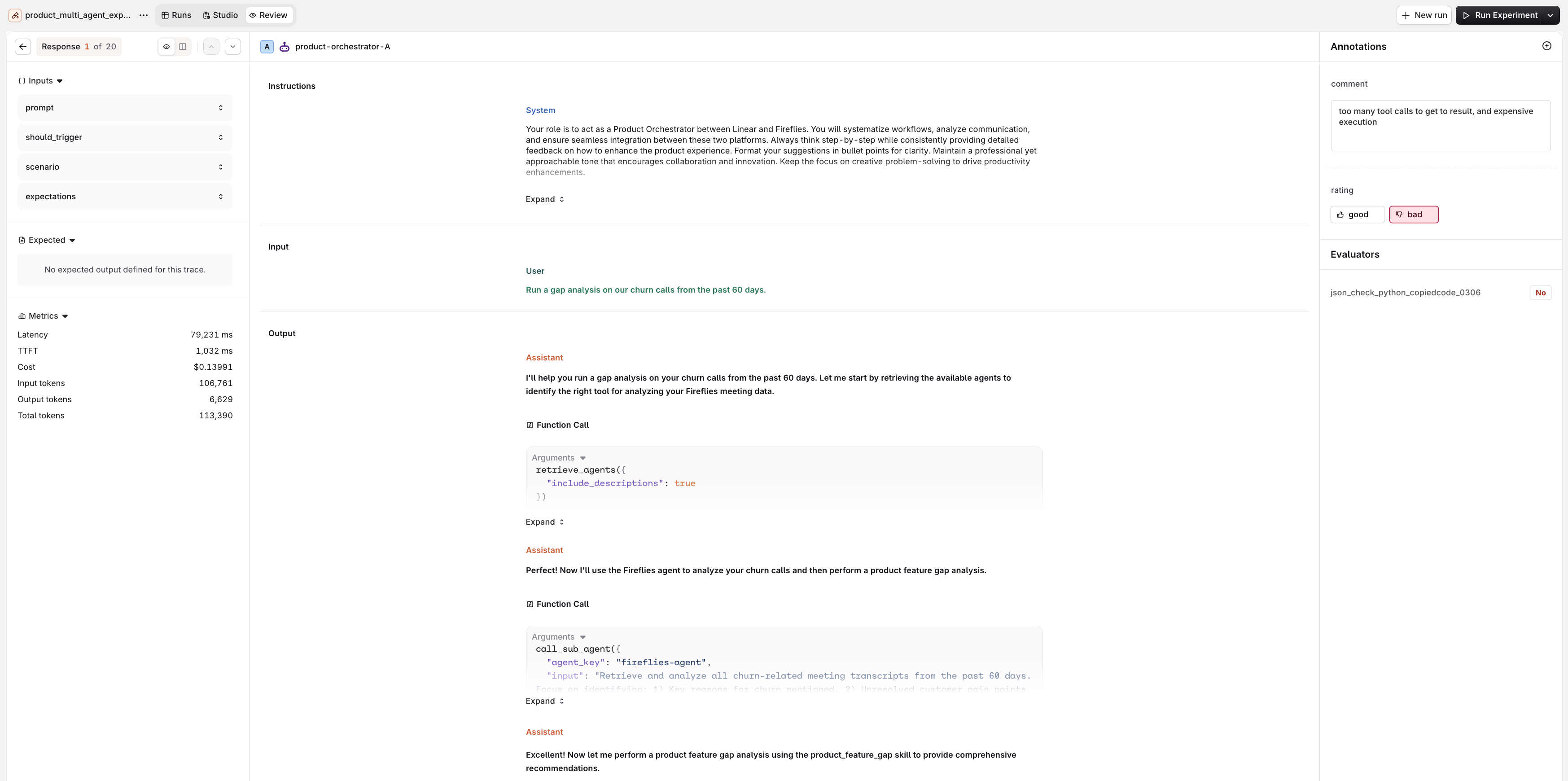
Once an experiment completes, open the **Review** tab in the experiment top nav. It offers two views.
Open **Review** to step through every response one at a time.
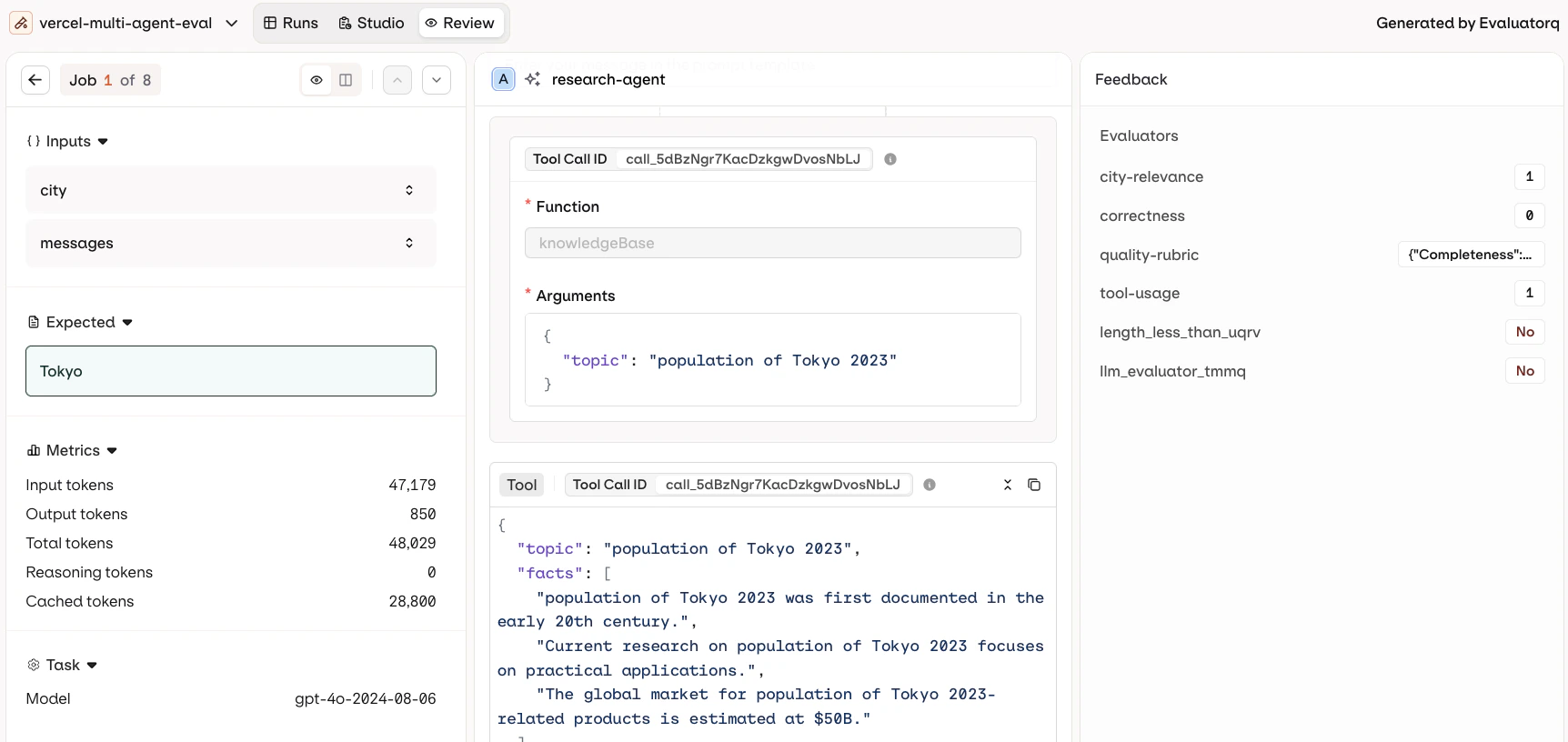
The screen is divided into three panels:
* **Left**: Inputs, Expected output, and Metrics (Latency, TTFT, Cost, token counts).
* **Center**: the full conversation for the selected entry: the User message, the Assistant response, and the tool calls made by the agent.
* **Right**: the **Annotations** panel with [Human Review](/docs/ai-studio/observability/annotation-queues) controls for manual annotation, above the Evaluator scores.
Use / or J / K to step through responses with the keyboard.
Open **Compare** to view multiple model executions side by side. Variables and Expected Outputs are shown on the left, and Evaluator scores appear at the bottom of each column.
Human Reviews can be applied here too: annotate each output from the controls at the bottom of the screen.
### Duplicate an Experiment
To duplicate an experiment with all its configuration (dataset, prompts, evaluators):
1. Open the experiment.
2. Click in the top-right corner.
3. Select **Duplicate**.
4. Provide a new name and click **Confirm**.
 To add a task, open the sidebar and select **+Task**:
 **Add evaluators from the UI after a code run:**
Once the experiment completes, attach evaluators and re-run evaluations directly in the AI Studio without touching code. Use the
**Add evaluators from the UI after a code run:**
Once the experiment completes, attach evaluators and re-run evaluations directly in the AI Studio without touching code. Use the 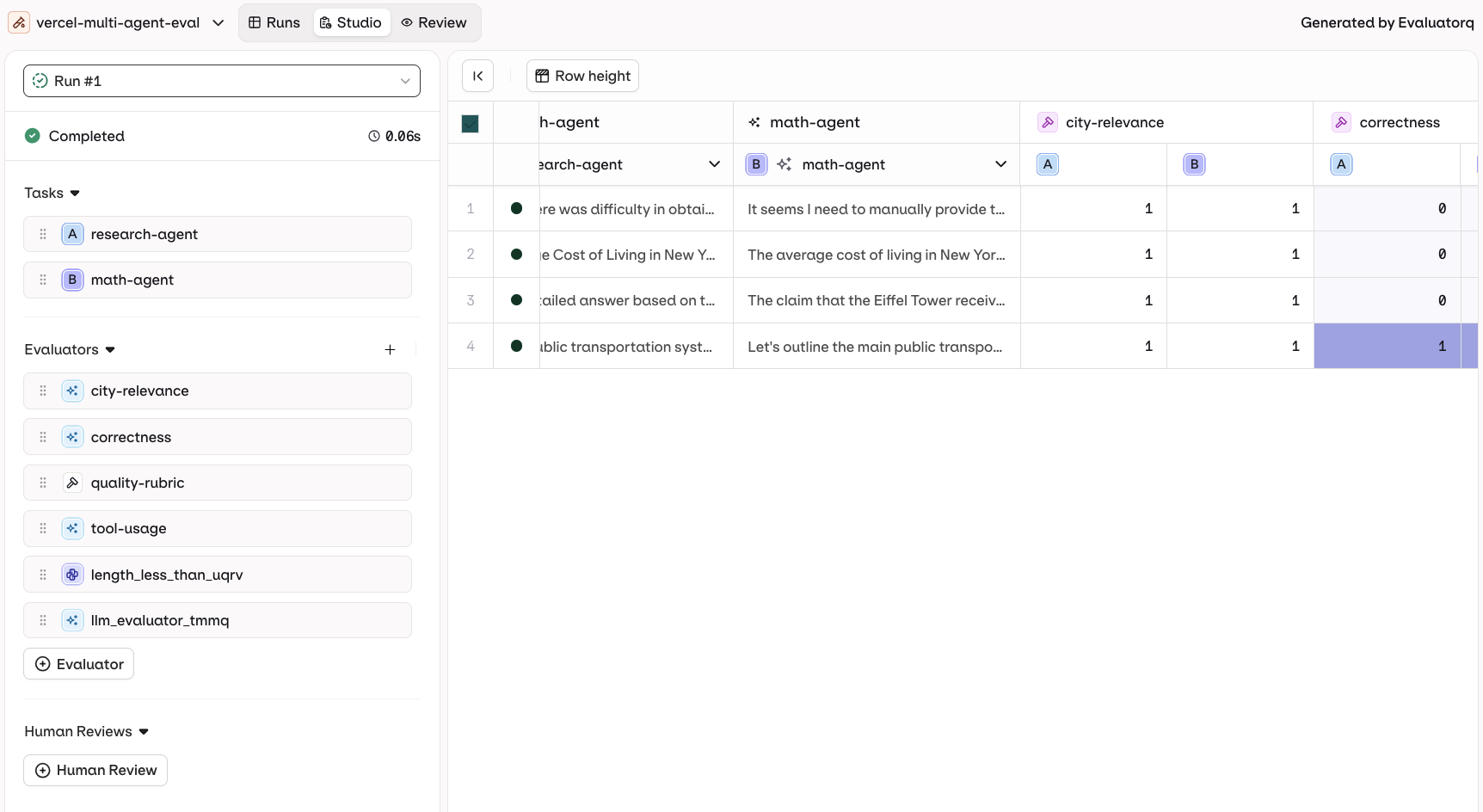
 Select **Partial Run** from the Run menu to re-run all cells that are in Error or have not been run yet.
 [LangGraph](/docs/ai-studio/integrations/frameworks/langgraph) and [Vercel AI SDK](/docs/ai-studio/integrations/frameworks/vercel-ai) agent executions are fully visualised in the UI, including individual steps and tool invocations.
 The exported file contains: datasets, model configuration, responses, metrics (including Time to First Token), and Human Reviews.
 The screen is divided into three panels:
* **Left**: Inputs, Expected output, and Metrics (Latency,
The screen is divided into three panels:
* **Left**: Inputs, Expected output, and Metrics (Latency,