> ## Documentation Index
> Fetch the complete documentation index at: https://docs.orq.ai/llms.txt
> Use this file to discover all available pages before exploring further.
# Environments for dev, staging, and production
> Manage environments in Orq.ai workspaces to tag Agent and Evaluator versions and route invocations by environment instead of pinning a version number.
Environments are named tags assigned to published **Agent** and **Evaluator** versions. Instead of pinning a fixed version number, invoke a resource with `@environment-name` and always reach whichever version currently carries that tag. Typical environments are `develop`, `staging`, and `production`.
## Where environments live
Every environment in the workspace is managed centrally from the **Organization** tab, under **Environments**.
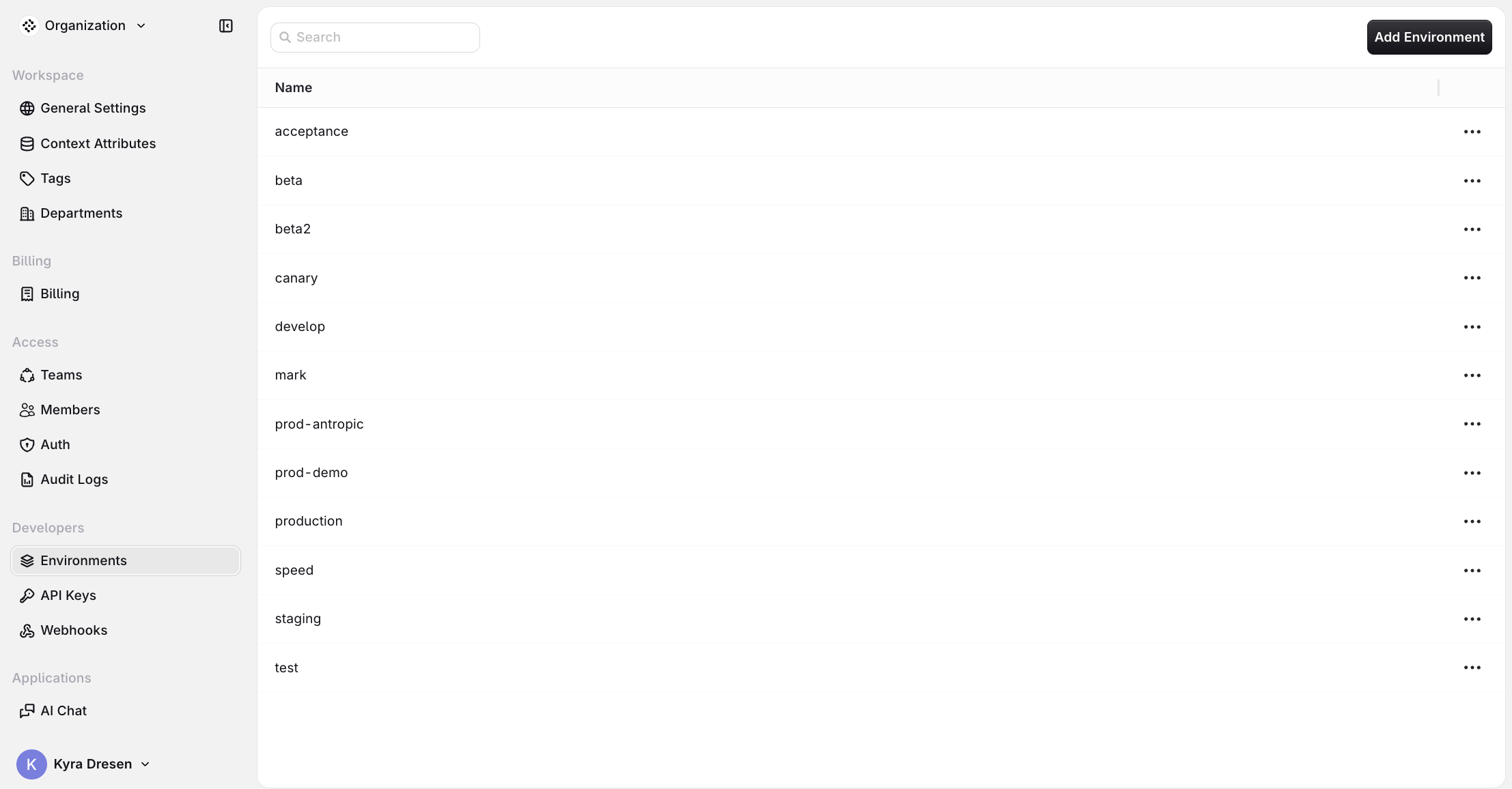 From this page:
* Add Environment: create a new environment.
* Use the per-row menu to rename or delete an existing environment.
## Assigning a version to an environment
Assign an environment from the **Versions** tab of an Agent or Evaluator. Open a published version's environment menu to tag it with any existing environment. The same menu can also **Create environment** inline, without leaving the version, and **Manage environments** to jump to the central page.
From this page:
* Add Environment: create a new environment.
* Use the per-row menu to rename or delete an existing environment.
## Assigning a version to an environment
Assign an environment from the **Versions** tab of an Agent or Evaluator. Open a published version's environment menu to tag it with any existing environment. The same menu can also **Create environment** inline, without leaving the version, and **Manage environments** to jump to the central page.
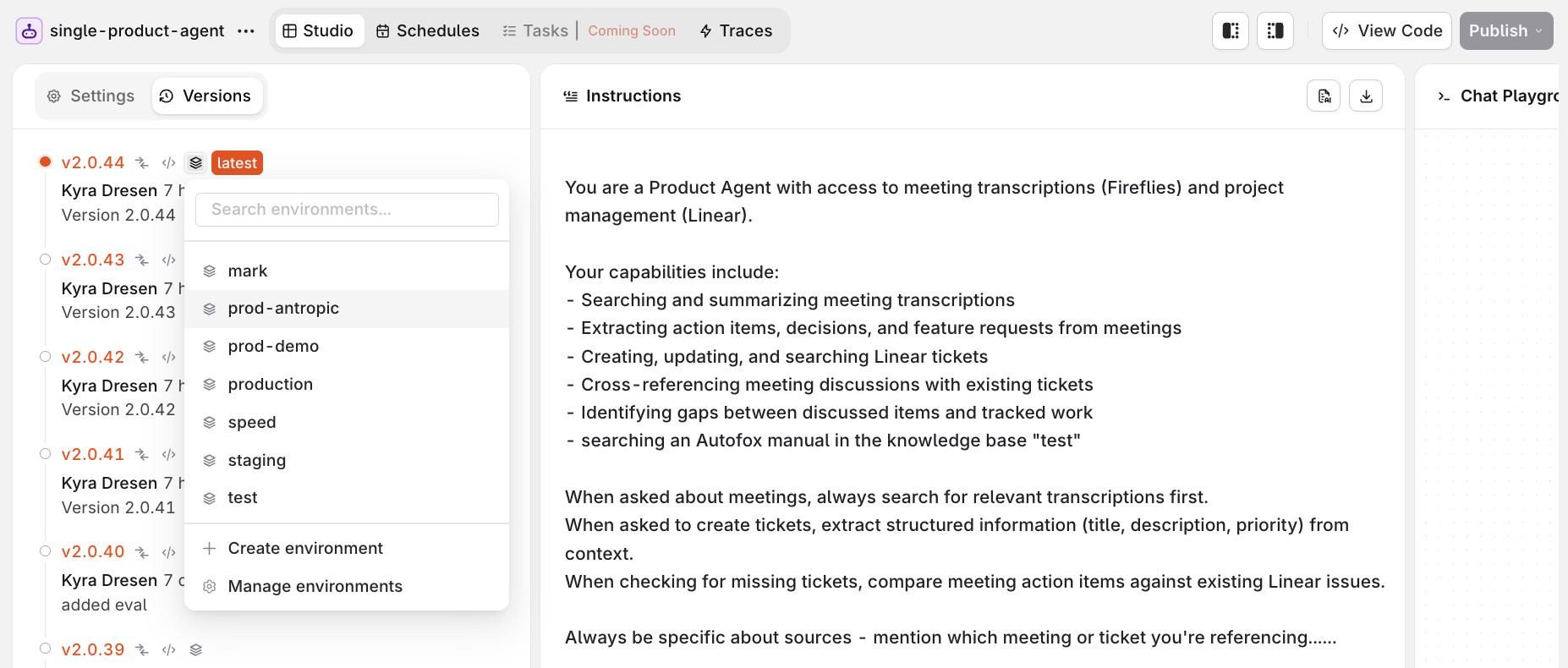 A version can be assigned to multiple environments, and the assigned badges appear on the version row. For the full per-resource steps, see [Assigning Environments](/docs/ai-studio/ai-engineering/build-agents#assigning-environments) for Agents and the [Versions tab](/docs/ai-studio/optimize/evaluators#versions) for Evaluators.
## Routing by environment
Append `@environment-name` to a resource key to route to whichever version is currently assigned to that environment:
```bash cURL theme={"theme":{"light":"github-light","dark":"github-dark"}}
curl -X POST https://api.orq.ai/v3/router/responses \
-H "Authorization: Bearer $ORQ_API_KEY" \
-H "Content-Type: application/json" \
-d '{ "model": "agent/my-agent@production", "input": "..." }'
```
Reference an environment the same way for Evaluators (e.g. `my-evaluator@production`). Without a suffix, the latest published version is used.
A version can be assigned to multiple environments, and the assigned badges appear on the version row. For the full per-resource steps, see [Assigning Environments](/docs/ai-studio/ai-engineering/build-agents#assigning-environments) for Agents and the [Versions tab](/docs/ai-studio/optimize/evaluators#versions) for Evaluators.
## Routing by environment
Append `@environment-name` to a resource key to route to whichever version is currently assigned to that environment:
```bash cURL theme={"theme":{"light":"github-light","dark":"github-dark"}}
curl -X POST https://api.orq.ai/v3/router/responses \
-H "Authorization: Bearer $ORQ_API_KEY" \
-H "Content-Type: application/json" \
-d '{ "model": "agent/my-agent@production", "input": "..." }'
```
Reference an environment the same way for Evaluators (e.g. `my-evaluator@production`). Without a suffix, the latest published version is used.