> ## Documentation Index
> Fetch the complete documentation index at: https://docs.orq.ai/llms.txt
> Use this file to discover all available pages before exploring further.
# Customer support chatbot pattern
> Build customer support chatbots with Orq.ai. Create conversational AI with memory, context awareness, and intelligent escalation to human agents.
## Objective
A Chatbot provides a conversational AI solution for handling customer inquiries through natural language interactions. This document demonstrates how to build an intelligent support system using orq.ai, enabling automated responses to common questions while maintaining the ability to escalate complex issues to human agents.
## Use Case
Customer Support Chatbot is ideal for applications that need:
* **Automated Customer Service**: Handle common inquiries about orders, products, policies, and troubleshooting.
* **24/7 Availability**: Provide instant responses to customers outside business hours.
* **Conversation Memory**: Maintain context throughout multi-turn conversations for a better user experience.
* **Escalation Handling**: Intelligent routing to human agents when automated responses are insufficient.
* **Multi-Channel Support**: Deploy across web chat, mobile apps, or messaging platforms.
## Prerequisite
Before configuring a Chatbot, ensure you have:
* **orq.ai Account**: Active workspace in the AI Studio.
* **API Access**: Valid API key from [Workspace Settings > API Keys](/docs/ai-studio/organization/api-keys).
* **Model Access**: At least one conversational model enabled in the [AI Gateway](/docs/ai-studio/ai-gateway/add-models), such as `gpt-4`, `claude-sonnet-4-6`, or `gpt-5-mini`. See [Using the AI Gateway](/docs/ai-studio/ai-gateway/add-models).
## Configuring a Deployment
To create a [Prompt](/docs/ai-studio/prompts/prompts) for your chatbot, head to the AI Studio:
* Choose a [Project](/docs/ai-studio/get-started/projects) and Folder and select the button.
* Choose **Deployment**.
* Enter name **myChatbot**.
* Choose a primary **Model**.
Then configure your prompt messages. Click **Add Message** and select **System** role:
```
You are a helpful customer support assistant for TechShop, an online electronics retailer.
Your responsibilities:
- Answer questions about orders, products, returns, and company policies
- Be friendly, professional, and empathetic
- If you cannot help with a specific issue, politely escalate to a human agent
- Always ask for order numbers when discussing specific orders
- Keep responses concise but informative
Company Information:
- Business hours: Monday-Friday 9AM-6PM EST
- Return policy: 30 days with receipt
- Free shipping on orders over $50
- Phone support: 1-800-TECHSHOP
When you cannot provide a specific answer, say: "Let me connect you with one of our specialists who can help you further."
```
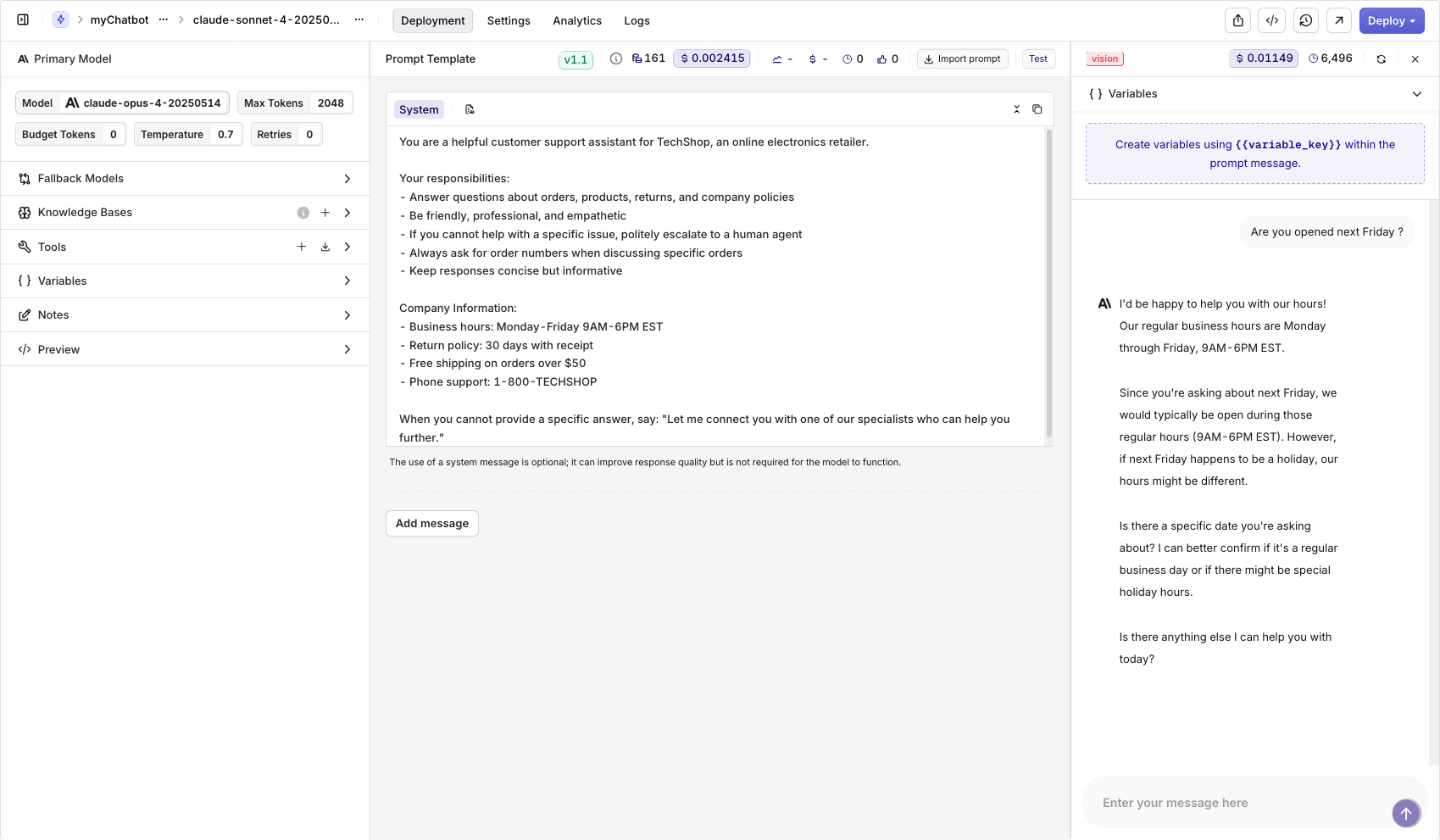
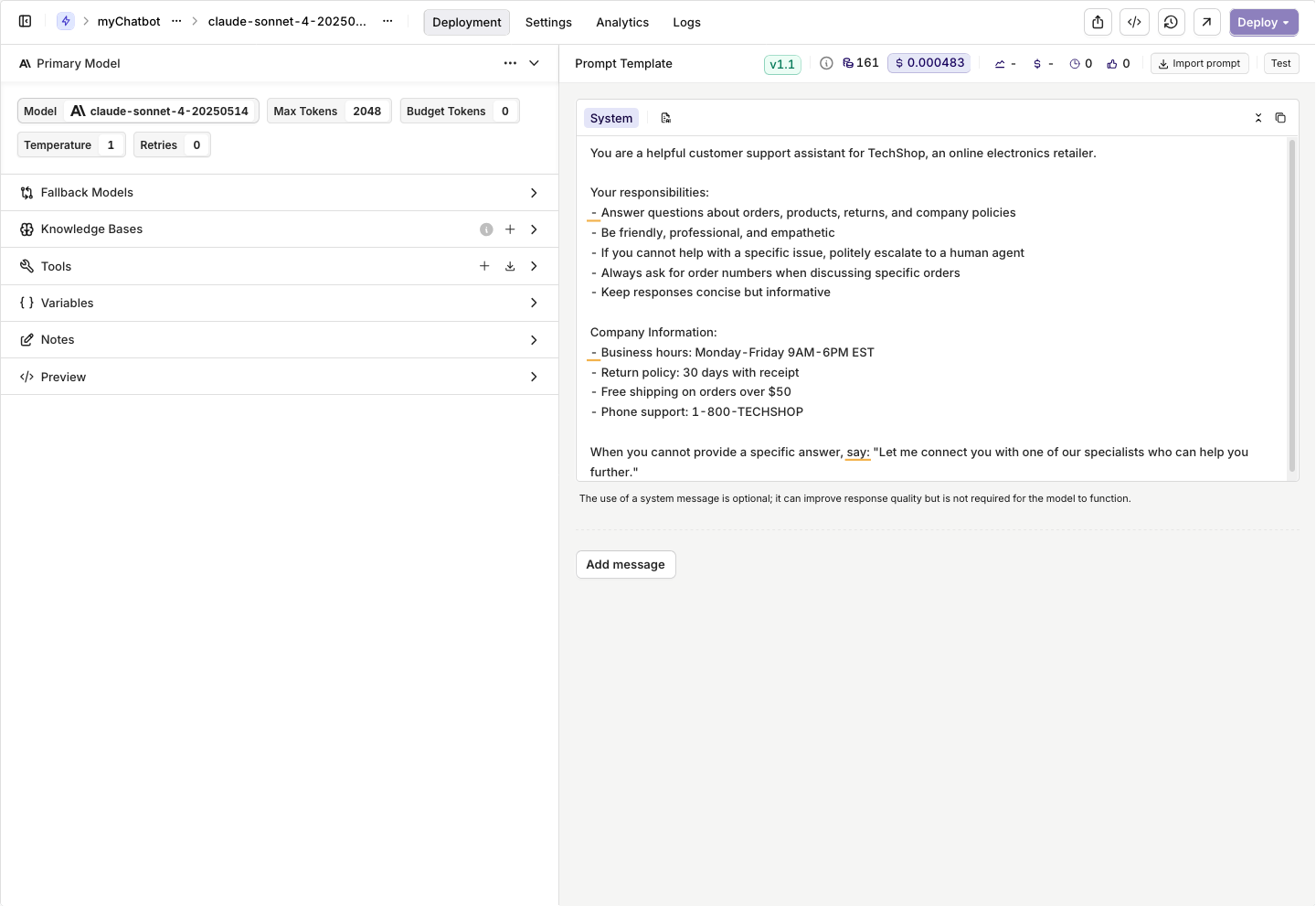 Open the **Test** tab to test responses for your chatbot.
 Learn more about the possibilities of Prompts in Orq.ai, see [Creating a Prompt](/docs/ai-studio/prompts/prompts).
When ready with your Deployment choose **Deploy**, learn more about [Deployment Versioning](/docs/ai-studio/ai-engineering/deployments#versioning).
## Integrating with the SDK
Choose your preferred programming language and install the corresponding SDK:
```bash Bash theme={"theme":{"light":"github-light","dark":"github-dark"}}
pip install orq-ai-sdk
```
```bash Bash theme={"theme":{"light":"github-light","dark":"github-dark"}}
npm install @orq-ai/node
```
Get your integration ready by initializing the SDK as follows:
```python Python theme={"theme":{"light":"github-light","dark":"github-dark"}}
import os
from orq_ai_sdk import Orq
client = Orq(
api_key=os.environ.get("ORQ_API_KEY", "__API_KEY__"),
)
```
```typescript TypeScript theme={"theme":{"light":"github-light","dark":"github-dark"}}
import { Orq } from "@orq-ai/node";
const client = new Orq({
apiKey: process.env.ORQ_API_KEY || "__API_KEY__",
});
```
To create a conversational Chatbot that maintains context, implement conversation memory:
```python Python theme={"theme":{"light":"github-light","dark":"github-dark"}}
class CustomerSupportBot:
def __init__(self, client, deployment_key):
self.client = client
self.deployment_key = deployment_key
self.conversation_memory = []
def chat(self, user_message):
"""Send a message to the chatbot and get response"""
# Add user message to conversation history
self.conversation_memory.append({
"role": "user",
"content": user_message
})
try:
# Invoke the deployment with conversation history
generation = self.client.deployments.invoke(
key=self.deployment_key,
messages=self.conversation_memory,
metadata={
"session_id": "unique_session_id",
"user_type": "customer"
}
)
# Extract the assistant's response
assistant_message = generation.choices[0].message.content
# Add assistant response to conversation history
self.conversation_memory.append({
"role": "assistant",
"content": assistant_message
})
return assistant_message
except Exception as e:
return "I'm sorry, I'm having technical difficulties. Please contact support at 1-800-TECHSHOP."
def reset_conversation(self):
"""Reset conversation for a new customer"""
self.conversation_memory = []
# Initialize and use the chatbot
bot = CustomerSupportBot(client, "myChatbot")
response = bot.chat("Hi, are you opened next Friday?")
print(response)
```
```typescript TypeScript theme={"theme":{"light":"github-light","dark":"github-dark"}}
class CustomerSupportBot {
constructor(client, deploymentKey) {
this.client = client;
this.deploymentKey = deploymentKey;
this.conversationMemory = [];
}
async chat(userMessage) {
// Add user message to conversation
this.conversationMemory.push({
role: "user",
content: userMessage
});
try {
const response = await this.client.deployments.invoke({
key: this.deploymentKey,
messages: this.conversationMemory,
metadata: {
session_id: "unique_session_id",
user_type: "customer"
}
});
const assistantMessage = response.choices[0].message.content;
// Add assistant response to conversation
this.conversationMemory.push({
role: "assistant",
content: assistantMessage
});
return assistantMessage;
} catch (error) {
return "I'm sorry, I'm having technical difficulties. Please contact support.";
}
}
resetConversation() {
this.conversationMemory = [];
}
}
// Initialize and use the chatbot
const bot = new CustomerSupportBot(client, "myChatbot");
const response = await bot.chat("Hi, are you opened next friday ?");
console.log(response);
```
Here is what the output looks like:
```python Python theme={"theme":{"light":"github-light","dark":"github-dark"}}
❯ python3 chatbot.py
Yes, we're open on Fridays! Our business hours are Monday through Friday, 9AM to 6PM EST.
Is there anything I can help you with regarding your order or our products today?
```
## Viewing Logs
Going back to the [Deployment](/docs/deployments/overview) page, you can view the calls made through your chatbot application. You can view details for a single log by clicking on a log line. This opens a panel containing all the details for the log, including context, requests, and parameters sent to your [Deployment](/docs/deployments/overview).
Learn more about the possibilities of Prompts in Orq.ai, see [Creating a Prompt](/docs/ai-studio/prompts/prompts).
When ready with your Deployment choose **Deploy**, learn more about [Deployment Versioning](/docs/ai-studio/ai-engineering/deployments#versioning).
## Integrating with the SDK
Choose your preferred programming language and install the corresponding SDK:
```bash Bash theme={"theme":{"light":"github-light","dark":"github-dark"}}
pip install orq-ai-sdk
```
```bash Bash theme={"theme":{"light":"github-light","dark":"github-dark"}}
npm install @orq-ai/node
```
Get your integration ready by initializing the SDK as follows:
```python Python theme={"theme":{"light":"github-light","dark":"github-dark"}}
import os
from orq_ai_sdk import Orq
client = Orq(
api_key=os.environ.get("ORQ_API_KEY", "__API_KEY__"),
)
```
```typescript TypeScript theme={"theme":{"light":"github-light","dark":"github-dark"}}
import { Orq } from "@orq-ai/node";
const client = new Orq({
apiKey: process.env.ORQ_API_KEY || "__API_KEY__",
});
```
To create a conversational Chatbot that maintains context, implement conversation memory:
```python Python theme={"theme":{"light":"github-light","dark":"github-dark"}}
class CustomerSupportBot:
def __init__(self, client, deployment_key):
self.client = client
self.deployment_key = deployment_key
self.conversation_memory = []
def chat(self, user_message):
"""Send a message to the chatbot and get response"""
# Add user message to conversation history
self.conversation_memory.append({
"role": "user",
"content": user_message
})
try:
# Invoke the deployment with conversation history
generation = self.client.deployments.invoke(
key=self.deployment_key,
messages=self.conversation_memory,
metadata={
"session_id": "unique_session_id",
"user_type": "customer"
}
)
# Extract the assistant's response
assistant_message = generation.choices[0].message.content
# Add assistant response to conversation history
self.conversation_memory.append({
"role": "assistant",
"content": assistant_message
})
return assistant_message
except Exception as e:
return "I'm sorry, I'm having technical difficulties. Please contact support at 1-800-TECHSHOP."
def reset_conversation(self):
"""Reset conversation for a new customer"""
self.conversation_memory = []
# Initialize and use the chatbot
bot = CustomerSupportBot(client, "myChatbot")
response = bot.chat("Hi, are you opened next Friday?")
print(response)
```
```typescript TypeScript theme={"theme":{"light":"github-light","dark":"github-dark"}}
class CustomerSupportBot {
constructor(client, deploymentKey) {
this.client = client;
this.deploymentKey = deploymentKey;
this.conversationMemory = [];
}
async chat(userMessage) {
// Add user message to conversation
this.conversationMemory.push({
role: "user",
content: userMessage
});
try {
const response = await this.client.deployments.invoke({
key: this.deploymentKey,
messages: this.conversationMemory,
metadata: {
session_id: "unique_session_id",
user_type: "customer"
}
});
const assistantMessage = response.choices[0].message.content;
// Add assistant response to conversation
this.conversationMemory.push({
role: "assistant",
content: assistantMessage
});
return assistantMessage;
} catch (error) {
return "I'm sorry, I'm having technical difficulties. Please contact support.";
}
}
resetConversation() {
this.conversationMemory = [];
}
}
// Initialize and use the chatbot
const bot = new CustomerSupportBot(client, "myChatbot");
const response = await bot.chat("Hi, are you opened next friday ?");
console.log(response);
```
Here is what the output looks like:
```python Python theme={"theme":{"light":"github-light","dark":"github-dark"}}
❯ python3 chatbot.py
Yes, we're open on Fridays! Our business hours are Monday through Friday, 9AM to 6PM EST.
Is there anything I can help you with regarding your order or our products today?
```
## Viewing Logs
Going back to the [Deployment](/docs/deployments/overview) page, you can view the calls made through your chatbot application. You can view details for a single log by clicking on a log line. This opens a panel containing all the details for the log, including context, requests, and parameters sent to your [Deployment](/docs/deployments/overview).
 Monitor your chatbot's performance by tracking:
* Response times and success rates
* Common customer questions and patterns
* Escalation frequency to human agents
* User satisfaction and conversation completion rates
To learn more about logs see [Logs](/docs/ai-studio/observability/logs).
Monitor your chatbot's performance by tracking:
* Response times and success rates
* Common customer questions and patterns
* Escalation frequency to human agents
* User satisfaction and conversation completion rates
To learn more about logs see [Logs](/docs/ai-studio/observability/logs).