> ## Documentation Index
> Fetch the complete documentation index at: https://docs.orq.ai/llms.txt
> Use this file to discover all available pages before exploring further.
# Quick Start | Route
> Send your first request through the AI Gateway. Connect a provider, hit one unified endpoint, and route across OpenAI, Anthropic, Google, and more.
Already running LLM calls? Point them at the **AI Gateway** to route across providers, add fallbacks, and centralize cost and latency tracking, with a single base URL.
### Create your orq.ai account
[Sign up](https://my.orq.ai/auth/signup) for a free **orq.ai** account and set up your workspace.
### Connect a provider
The **AI Gateway** routes requests through provider credentials configured in the workspace, keeping spend and data fully under control.
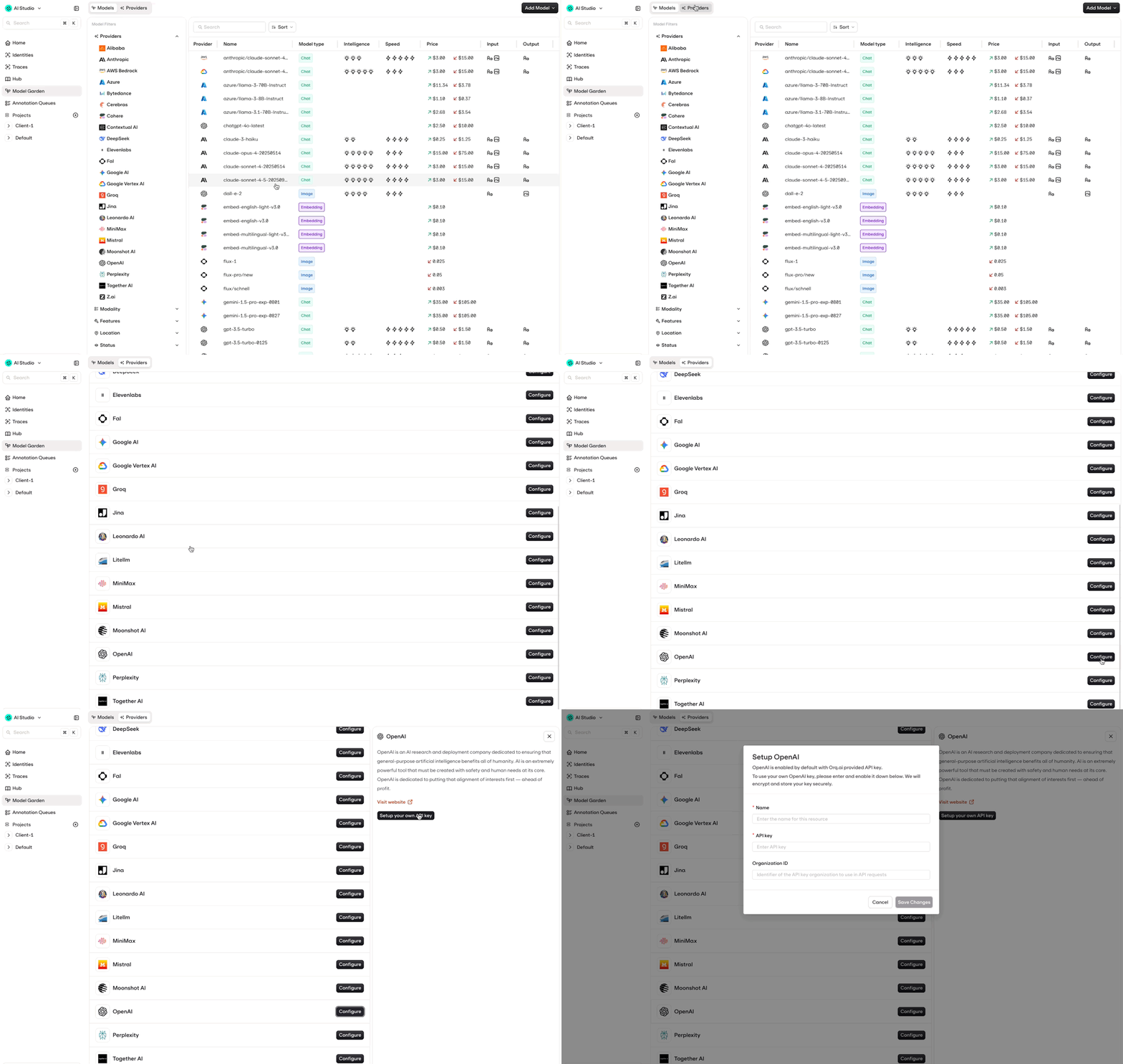
1. Open the [AI Studio](https://my.orq.ai) and go to **AI Gateway > BYOK**.
2. Pick a provider (this quickstart uses [OpenAI](/docs/integrations/providers/openai)) and click Connect.
3. Choose Setup your own API key and paste the provider key.
No OpenAI key yet? Create one at [platform.openai.com/api-keys](https://platform.openai.com/api-keys). For other providers, see the [providers overview](/docs/integrations/providers/overview).
 See the full list of supported model providers and how to connect them.
### Get your orq.ai API key
Open **Organization > [API Keys](/docs/ai-studio/organization/api-keys)** in the left sidebar. Click Create API Key, give it a name, and copy it.
Then open a terminal and run the command below, replacing `your-api-key-here` with the key you just copied. The code samples in the next step read it from this environment variable.
```bash macOS / Linux theme={"theme":{"light":"github-light","dark":"github-dark"}}
export ORQ_API_KEY="your-api-key-here"
```
```powershell Windows theme={"theme":{"light":"github-light","dark":"github-dark"}}
$env:ORQ_API_KEY = "your-api-key-here"
```
### Make your first request
Send a request to the unified `/v3/router/chat/completions` endpoint. Use the provider-prefixed model id (e.g. `openai/gpt-5.4`).
```bash cURL theme={"theme":{"light":"github-light","dark":"github-dark"}}
curl -X POST https://api.orq.ai/v3/router/chat/completions \
-H "Authorization: Bearer $ORQ_API_KEY" \
-H "Content-Type: application/json" \
-d '{
"model": "openai/gpt-5.4",
"messages": [{"role": "user", "content": "Hello, world!"}]
}'
```
```typescript TypeScript theme={"theme":{"light":"github-light","dark":"github-dark"}}
import OpenAI from "openai";
const openai = new OpenAI({
baseURL: "https://api.orq.ai/v3/router",
apiKey: process.env.ORQ_API_KEY,
});
const completion = await openai.chat.completions.create({
model: "openai/gpt-5.4",
messages: [{ role: "user", content: "Hello, world!" }],
});
console.log(completion.choices[0].message.content);
```
```python Python theme={"theme":{"light":"github-light","dark":"github-dark"}}
import os
from openai import OpenAI
client = OpenAI(
base_url="https://api.orq.ai/v3/router",
api_key=os.environ["ORQ_API_KEY"],
)
completion = client.chat.completions.create(
model="openai/gpt-5.4",
messages=[{"role": "user", "content": "Hello, world!"}],
)
print(completion.choices[0].message.content)
```
A successful response looks like:
```json JSON theme={"theme":{"light":"github-light","dark":"github-dark"}}
{
"id": "01K7M0YTJ6X90VHPRDMM5GEC4R",
"object": "chat.completion",
"model": "gpt-4o-2024-08-06",
"choices": [
{
"index": 0,
"message": {
"role": "assistant",
"content": "Hello! This is a response. How can I assist you today?"
},
"finish_reason": "stop"
}
],
"usage": { "prompt_tokens": 14, "completion_tokens": 14, "total_tokens": 28 }
}
```
Already using an agent or LLM framework? Point its base URL at the **AI Gateway** and route every call through **orq.ai** with no other code changes.
Stateful, multi-step graphs with full **AI Gateway** access and OpenTelemetry tracing.
Stream responses to React Server Components and edge runtime apps.
Multi-agent handoffs and tool calls routed through your **orq.ai** workspace.
Production Python agents with structured workflows and tool integration.
Model-driven agents routed through the **AI Gateway** with automatic OpenTelemetry tracing.
See every supported framework, including LangChain, CrewAI, LlamaIndex, Mastra, Pydantic AI, Semantic Kernel, and more.
Install the [**Orq MCP** server](/docs/ai-studio/get-started/orq-mcp) in any MCP-compatible coding agent, then ask it:
```prompt wrap theme={"theme":{"light":"github-light","dark":"github-dark"}}
Send "Hello, world!" to openai/gpt-5.4 through the AI Gateway and print the response.
```
The agent uses `invoke_model` to call the unified router endpoint and returns the completion.
The following coding agents support MCP and can run **Orq MCP** tools natively.
Agentic coding in the terminal with full MCP tool support.
AI-powered editor with built-in MCP server configuration.
Terminal-based coding agent with MCP support.
OpenAI's cloud coding agent with MCP tool calling.
See every supported coding agent and assistant.
### Review the request
Open the [AI Studio](https://my.orq.ai) and head to **AI Gateway > [Activity](/docs/router/activity)** to see the request, model, latency, token counts, and cost. Each call is also available as a full trace under **Traces**.
## Troubleshooting
1. Confirm `echo $ORQ_API_KEY` returns the value you expect.
2. Verify the key under **Organization > [API Keys](/docs/ai-studio/organization/api-keys)** is active.
3. Make sure the `Authorization: Bearer` header is set, not a query parameter.
```json theme={"theme":{"light":"github-light","dark":"github-dark"}}
{"code":401,"error":"API key for openai is not configured in your workspace."}
```
Go to **AI Gateway > BYOK**, open the matching provider, and click Setup your own API key.
Some models require an explicit toggle in the **AI Gateway**. Search for the model id and enable it before invoking it.
## Capabilities
Pair your first request with built-in **AI Gateway** features.
Send text, images, audio, and PDFs through the same unified endpoint.
Stream tokens as they generate for real-time responses in your UI.
Automatically retry on a backup model when the primary fails or times out.
Attribute usage and cost to a specific end user or tenant.
Persist conversation history across requests with automatic thread storage.
Browse supported models from **OpenAI**, **Anthropic**, **Google**, **AWS**, and more.
See the full list of supported model providers and how to connect them.
### Get your orq.ai API key
Open **Organization > [API Keys](/docs/ai-studio/organization/api-keys)** in the left sidebar. Click Create API Key, give it a name, and copy it.
Then open a terminal and run the command below, replacing `your-api-key-here` with the key you just copied. The code samples in the next step read it from this environment variable.
```bash macOS / Linux theme={"theme":{"light":"github-light","dark":"github-dark"}}
export ORQ_API_KEY="your-api-key-here"
```
```powershell Windows theme={"theme":{"light":"github-light","dark":"github-dark"}}
$env:ORQ_API_KEY = "your-api-key-here"
```
### Make your first request
Send a request to the unified `/v3/router/chat/completions` endpoint. Use the provider-prefixed model id (e.g. `openai/gpt-5.4`).
```bash cURL theme={"theme":{"light":"github-light","dark":"github-dark"}}
curl -X POST https://api.orq.ai/v3/router/chat/completions \
-H "Authorization: Bearer $ORQ_API_KEY" \
-H "Content-Type: application/json" \
-d '{
"model": "openai/gpt-5.4",
"messages": [{"role": "user", "content": "Hello, world!"}]
}'
```
```typescript TypeScript theme={"theme":{"light":"github-light","dark":"github-dark"}}
import OpenAI from "openai";
const openai = new OpenAI({
baseURL: "https://api.orq.ai/v3/router",
apiKey: process.env.ORQ_API_KEY,
});
const completion = await openai.chat.completions.create({
model: "openai/gpt-5.4",
messages: [{ role: "user", content: "Hello, world!" }],
});
console.log(completion.choices[0].message.content);
```
```python Python theme={"theme":{"light":"github-light","dark":"github-dark"}}
import os
from openai import OpenAI
client = OpenAI(
base_url="https://api.orq.ai/v3/router",
api_key=os.environ["ORQ_API_KEY"],
)
completion = client.chat.completions.create(
model="openai/gpt-5.4",
messages=[{"role": "user", "content": "Hello, world!"}],
)
print(completion.choices[0].message.content)
```
A successful response looks like:
```json JSON theme={"theme":{"light":"github-light","dark":"github-dark"}}
{
"id": "01K7M0YTJ6X90VHPRDMM5GEC4R",
"object": "chat.completion",
"model": "gpt-4o-2024-08-06",
"choices": [
{
"index": 0,
"message": {
"role": "assistant",
"content": "Hello! This is a response. How can I assist you today?"
},
"finish_reason": "stop"
}
],
"usage": { "prompt_tokens": 14, "completion_tokens": 14, "total_tokens": 28 }
}
```
Already using an agent or LLM framework? Point its base URL at the **AI Gateway** and route every call through **orq.ai** with no other code changes.
Stateful, multi-step graphs with full **AI Gateway** access and OpenTelemetry tracing.
Stream responses to React Server Components and edge runtime apps.
Multi-agent handoffs and tool calls routed through your **orq.ai** workspace.
Production Python agents with structured workflows and tool integration.
Model-driven agents routed through the **AI Gateway** with automatic OpenTelemetry tracing.
See every supported framework, including LangChain, CrewAI, LlamaIndex, Mastra, Pydantic AI, Semantic Kernel, and more.
Install the [**Orq MCP** server](/docs/ai-studio/get-started/orq-mcp) in any MCP-compatible coding agent, then ask it:
```prompt wrap theme={"theme":{"light":"github-light","dark":"github-dark"}}
Send "Hello, world!" to openai/gpt-5.4 through the AI Gateway and print the response.
```
The agent uses `invoke_model` to call the unified router endpoint and returns the completion.
The following coding agents support MCP and can run **Orq MCP** tools natively.
Agentic coding in the terminal with full MCP tool support.
AI-powered editor with built-in MCP server configuration.
Terminal-based coding agent with MCP support.
OpenAI's cloud coding agent with MCP tool calling.
See every supported coding agent and assistant.
### Review the request
Open the [AI Studio](https://my.orq.ai) and head to **AI Gateway > [Activity](/docs/router/activity)** to see the request, model, latency, token counts, and cost. Each call is also available as a full trace under **Traces**.
## Troubleshooting
1. Confirm `echo $ORQ_API_KEY` returns the value you expect.
2. Verify the key under **Organization > [API Keys](/docs/ai-studio/organization/api-keys)** is active.
3. Make sure the `Authorization: Bearer` header is set, not a query parameter.
```json theme={"theme":{"light":"github-light","dark":"github-dark"}}
{"code":401,"error":"API key for openai is not configured in your workspace."}
```
Go to **AI Gateway > BYOK**, open the matching provider, and click Setup your own API key.
Some models require an explicit toggle in the **AI Gateway**. Search for the model id and enable it before invoking it.
## Capabilities
Pair your first request with built-in **AI Gateway** features.
Send text, images, audio, and PDFs through the same unified endpoint.
Stream tokens as they generate for real-time responses in your UI.
Automatically retry on a backup model when the primary fails or times out.
Attribute usage and cost to a specific end user or tenant.
Persist conversation history across requests with automatic thread storage.
Browse supported models from **OpenAI**, **Anthropic**, **Google**, **AWS**, and more.