Orq MCP is live: Use natural language to interrogate traces, spot regressions, and experiment your way to optimal AI configurations. Available in Claude Desktop, Claude Code, Cursor, and more. Start now →
Configure enterprise Single Sign-On for Orq.ai using any standards-compliant OIDC or SAML identity provider.
Feature available with the Enterprise PlanConnect an identity provider to Orq.ai to allow the team to sign in using their existing credentials. Any identity provider that supports OIDC or SAML 2.0 is compatible.
Click Add SSO Connection, select the protocol, and follow the guide for the identity provider:
Okta
OIDC
SAML
Create an OIDC app in Okta
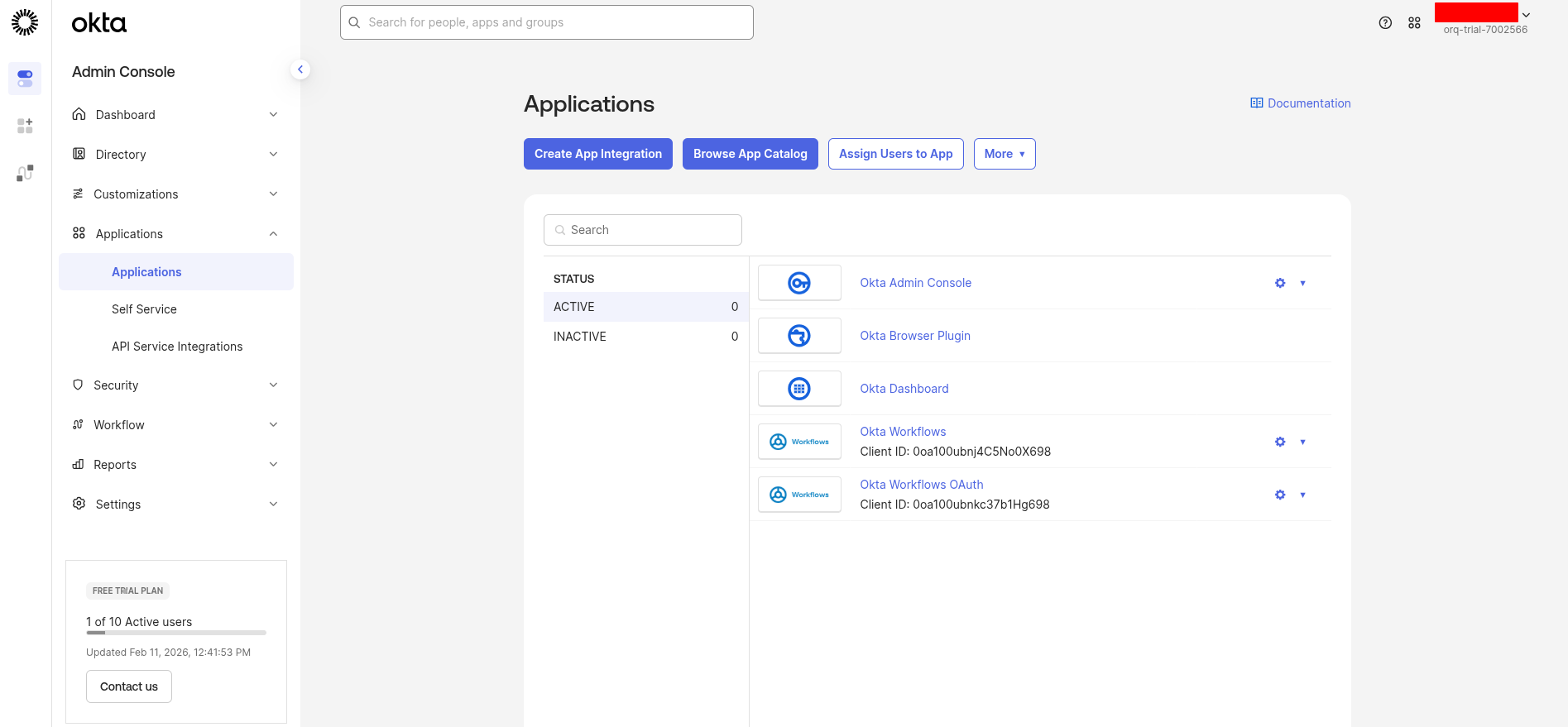
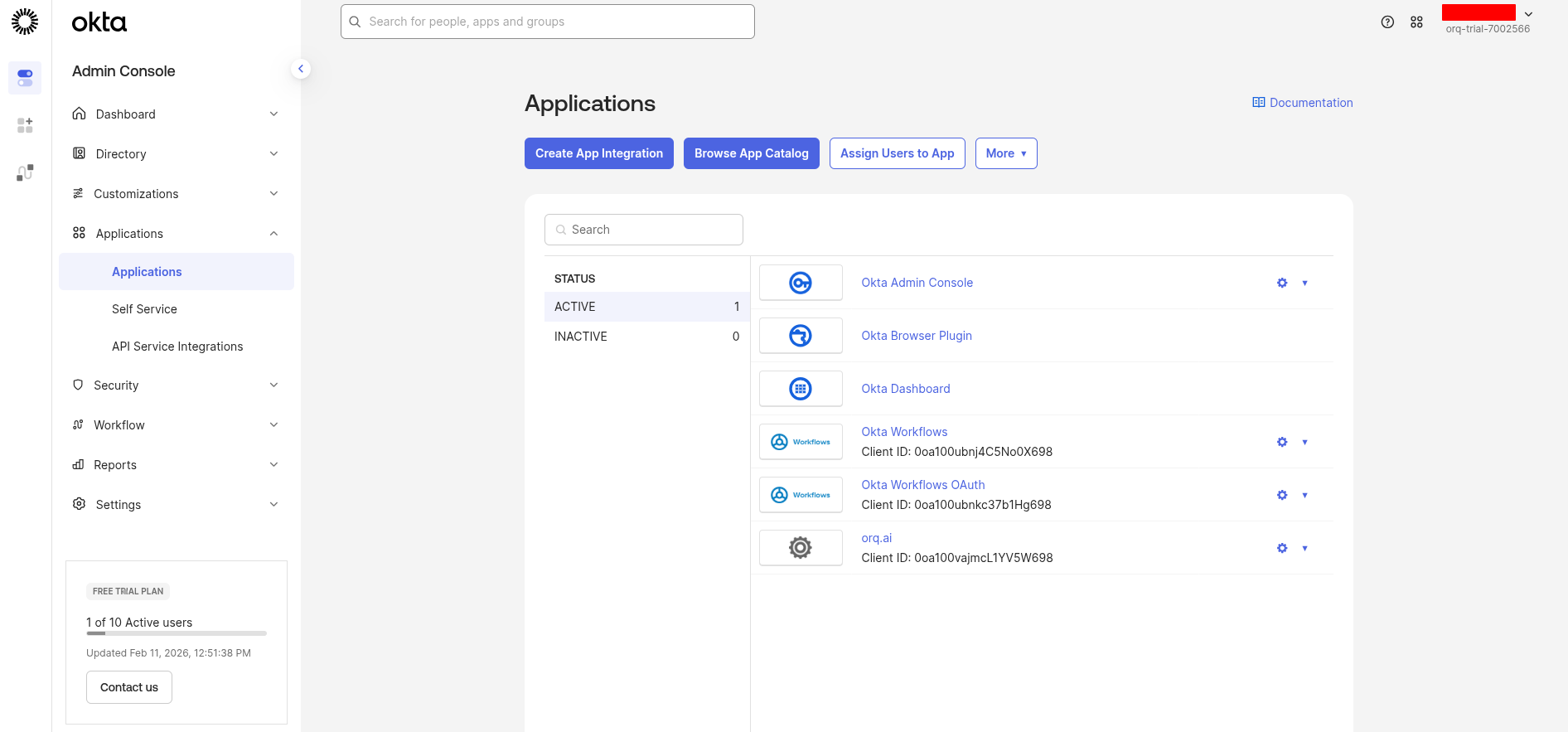
Sign in to the Okta Admin Console and navigate to Applications → Applications.
Okta Applications page
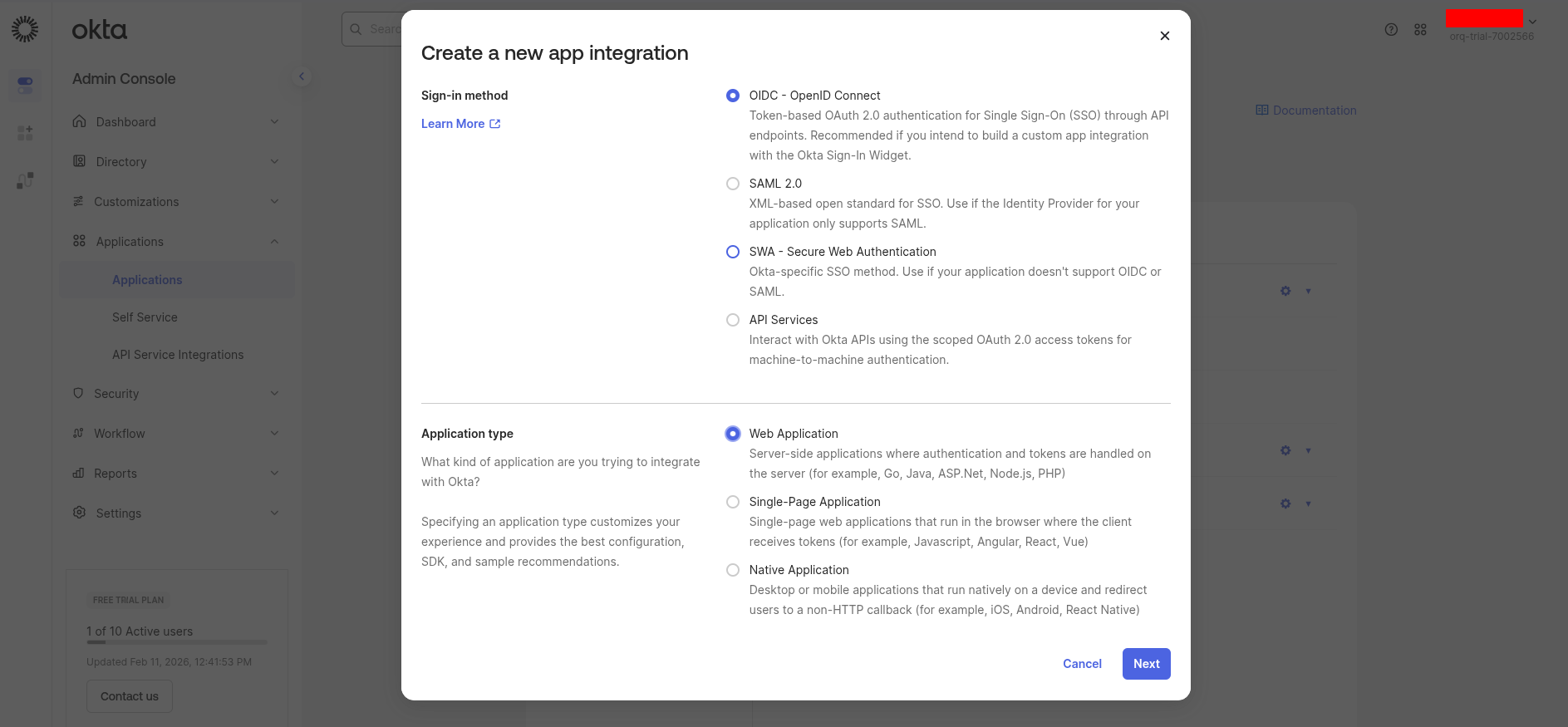
Click Create App Integration, then select OIDC - OpenID Connect and Web Application, and click Next.
Select sign-in method
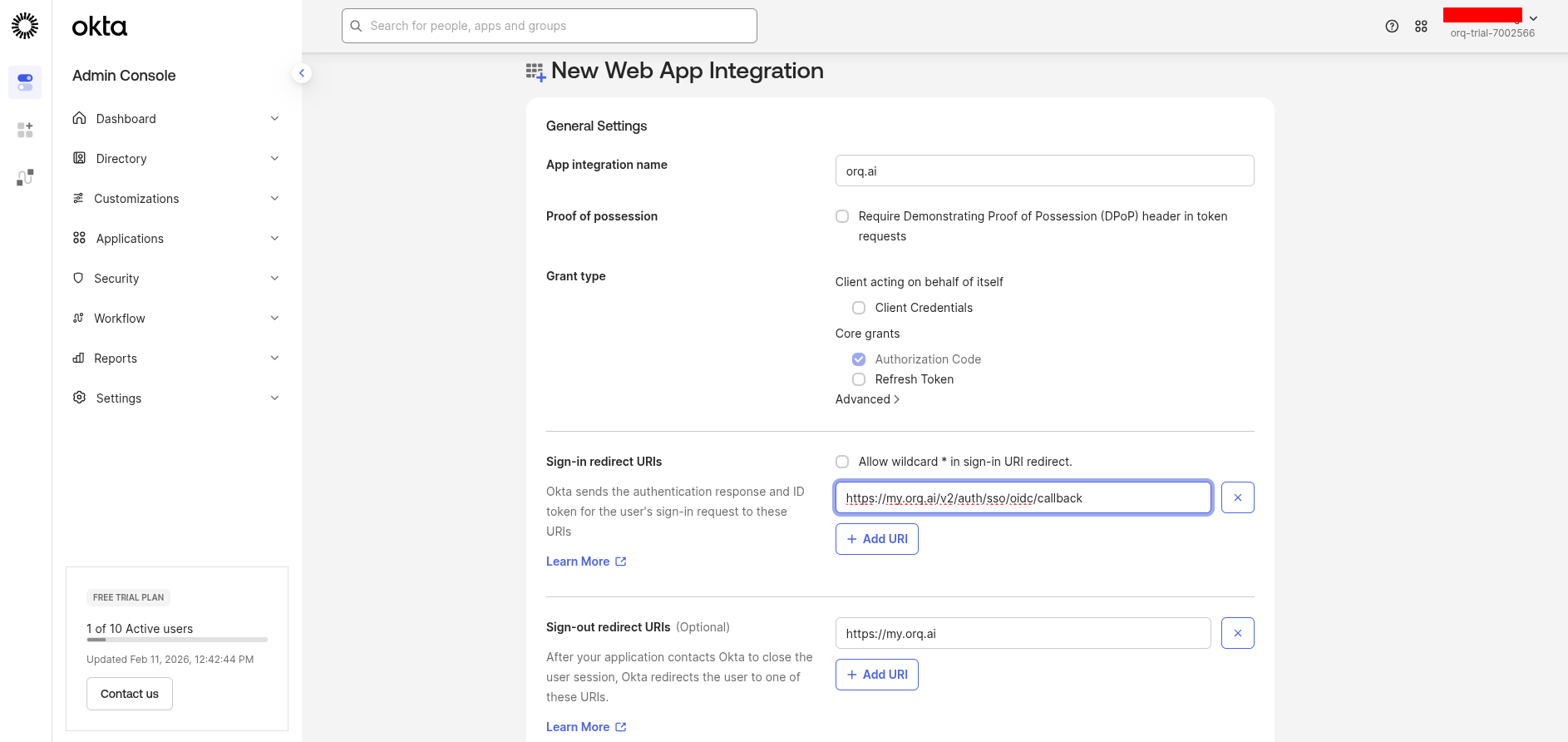
Configure the application:
App integration name: Orq.ai (or preferred name)
Grant type: Ensure Authorization Code is selected
Sign-in redirect URIs:
https://my.orq.ai/v2/auth/sso/oidc/callback
Sign-out redirect URIs (optional):
https://my.orq.ai
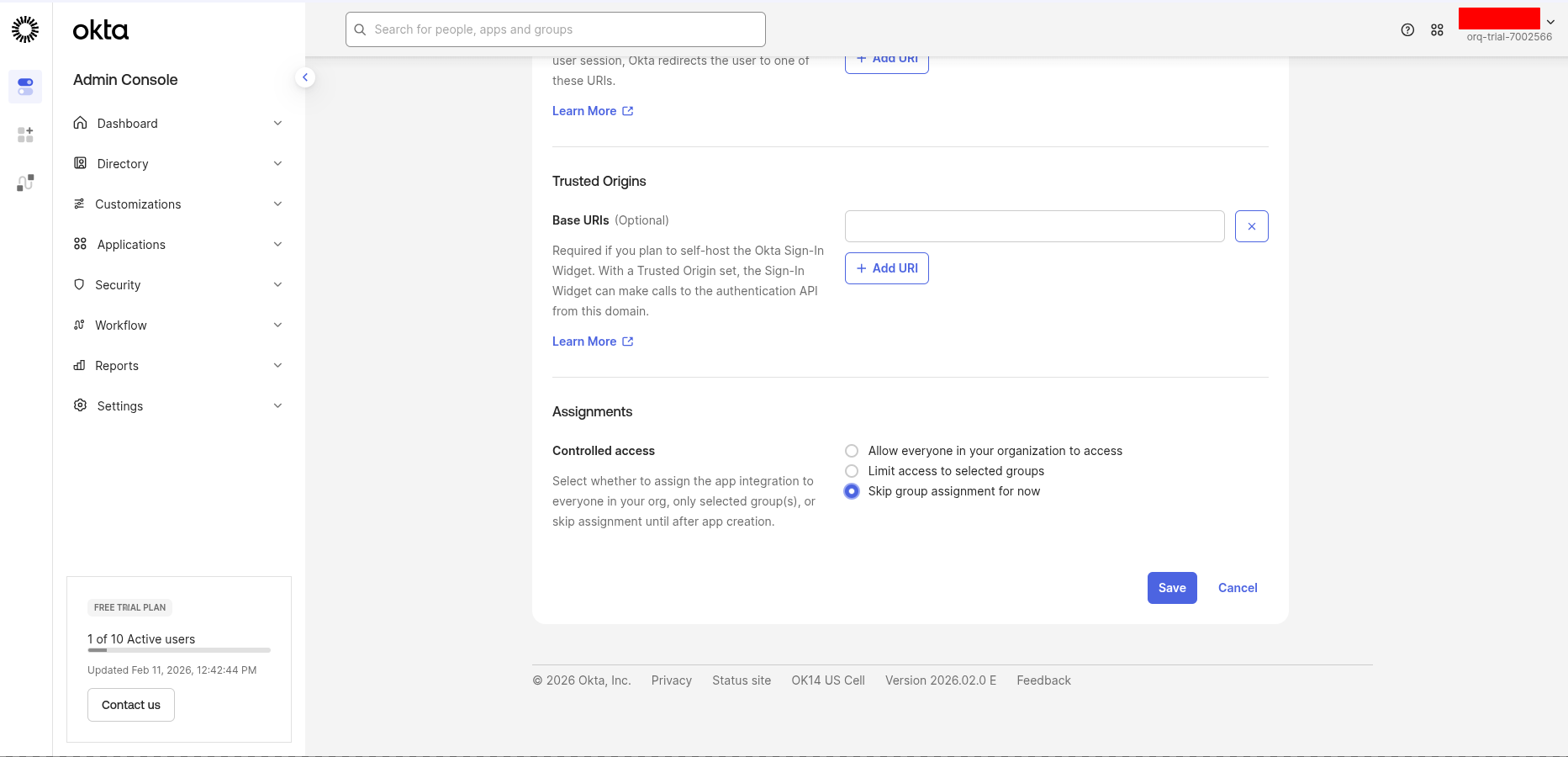
App integration settings
Controlled access settings
Assign users
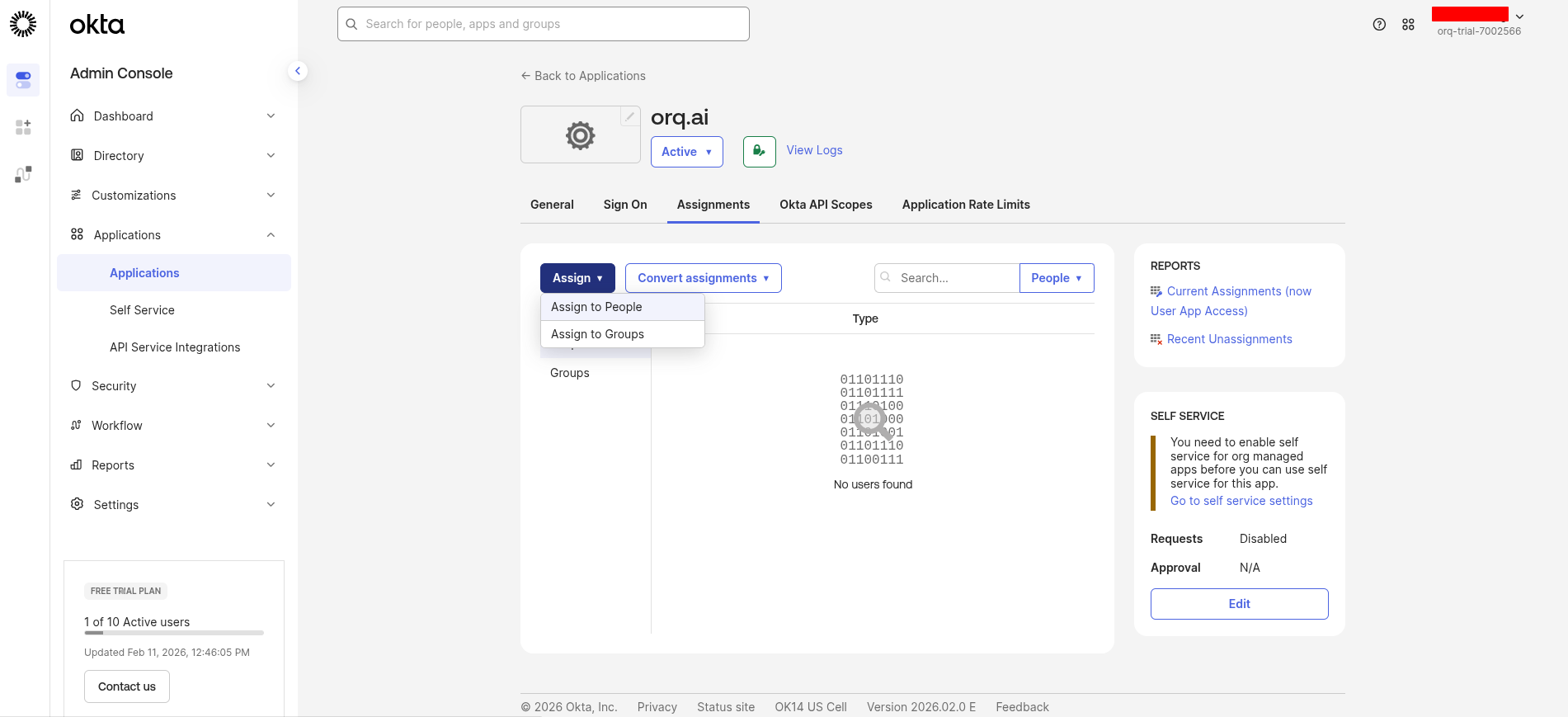
Go to the Assignments tab and click Assign → Assign to People or Assign to Groups.Select the users or groups that should have access to Orq.ai, then click Done.
Assign users to the application
By default, no users are assigned to a new Okta app.
Gather credentials
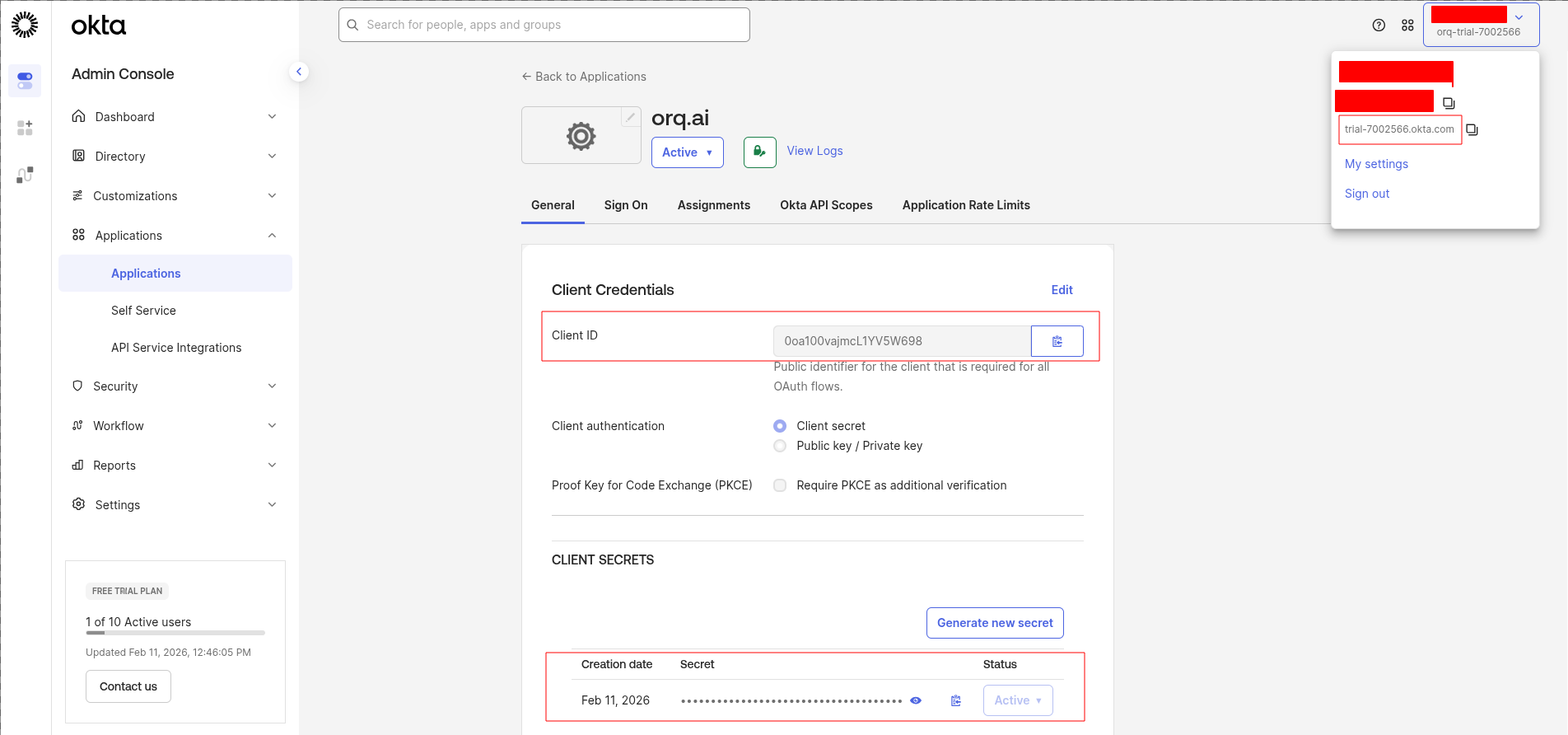
From the application’s General tab, scroll down to the Client Credentials section.Copy these values:
Client ID: use as the Client ID in Orq.ai
Client secret: click Copy to clipboard and use as the Client Secret in Orq.ai
Client credentials
Get the Provider URL
The Provider URL is the Okta domain’s authorization server issuer URL:
https://{yourOktaDomain}/oauth2/default
Find the Okta domain in the top-right corner of the Okta Admin Console (e.g. acme.okta.com).
Configure in Orq.ai
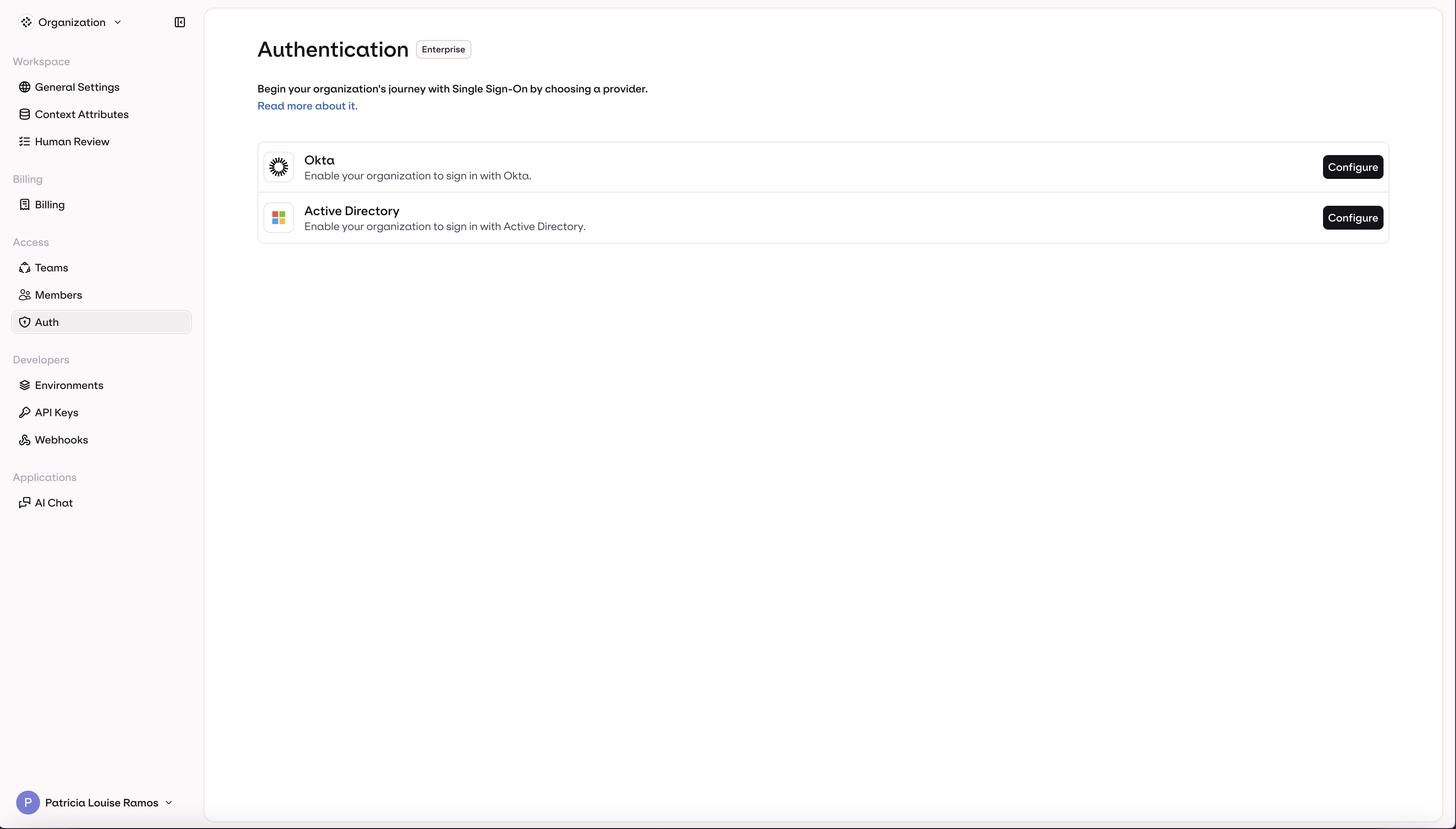
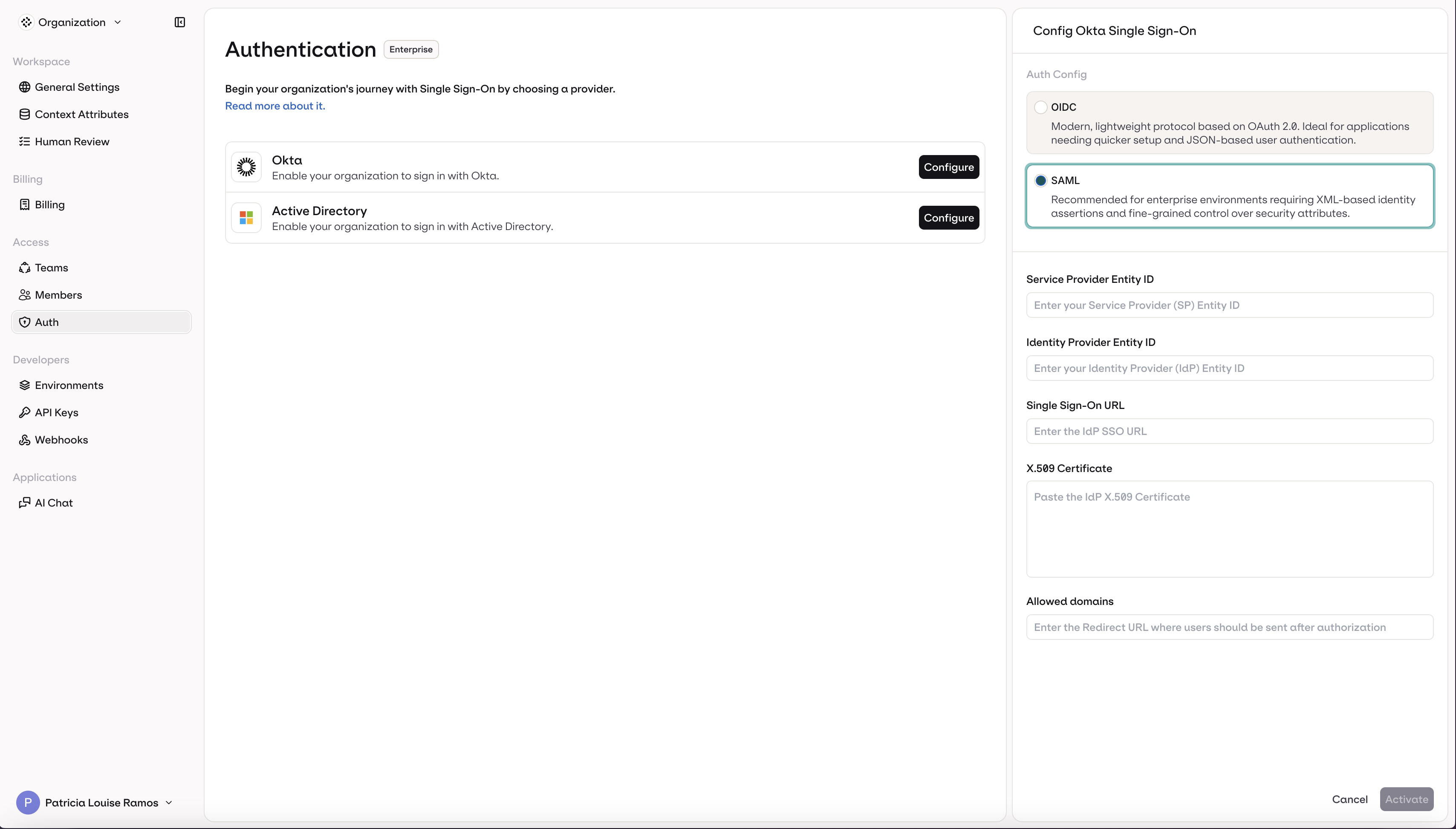
Navigate to AI Studio → Settings → Organization → Auth.
SSO Authentication page
Enter the credentials collected from Okta:
Select OIDC (selected by default)
Enter the Client ID
Enter the Client Secret
Enter the Provider URL
Enter the organization’s email domain(s) in Allowed domains (e.g., orq.ai)
Click Activate
OIDC configuration form
Test the login
SSO is now configured. Users can sign in at:
https://my.orq.ai/{your-workspace-key}/login
SSO login
Define the SP Entity ID
Choose a unique identifier for the Service Provider Entity ID. We recommend:
urn:orq.ai:{your-workspace-key}
For example, if the workspace key is acme-corp, use urn:orq.ai:acme-corp.
The SP Entity ID must match exactly in both Okta and Orq.ai. Write it down; it is needed in multiple steps.
Create a SAML app in Okta
In the Okta Admin Console, go to Applications → Applications.
Okta Applications page
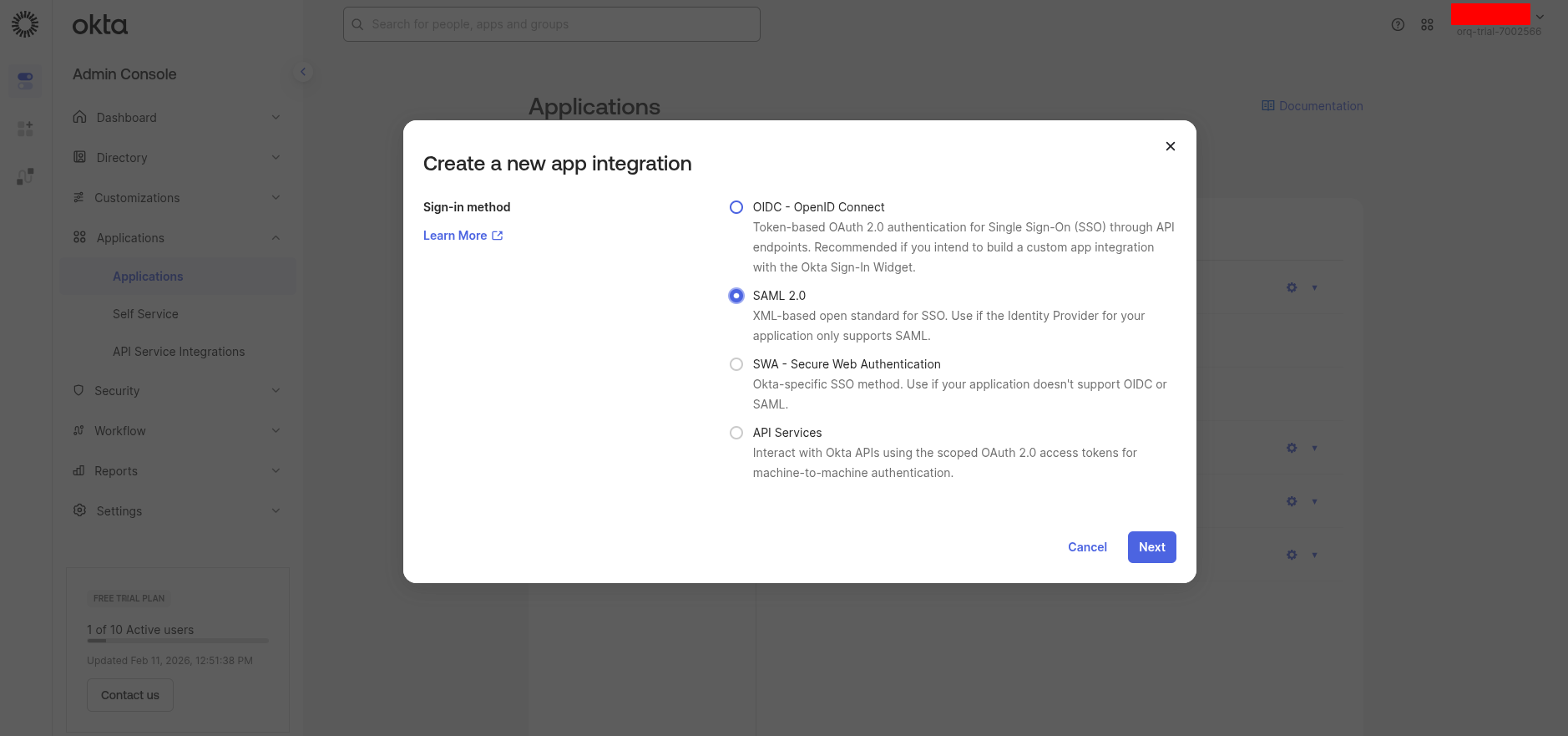
Click Create App Integration, select SAML 2.0, and click Next.
Select sign-in method
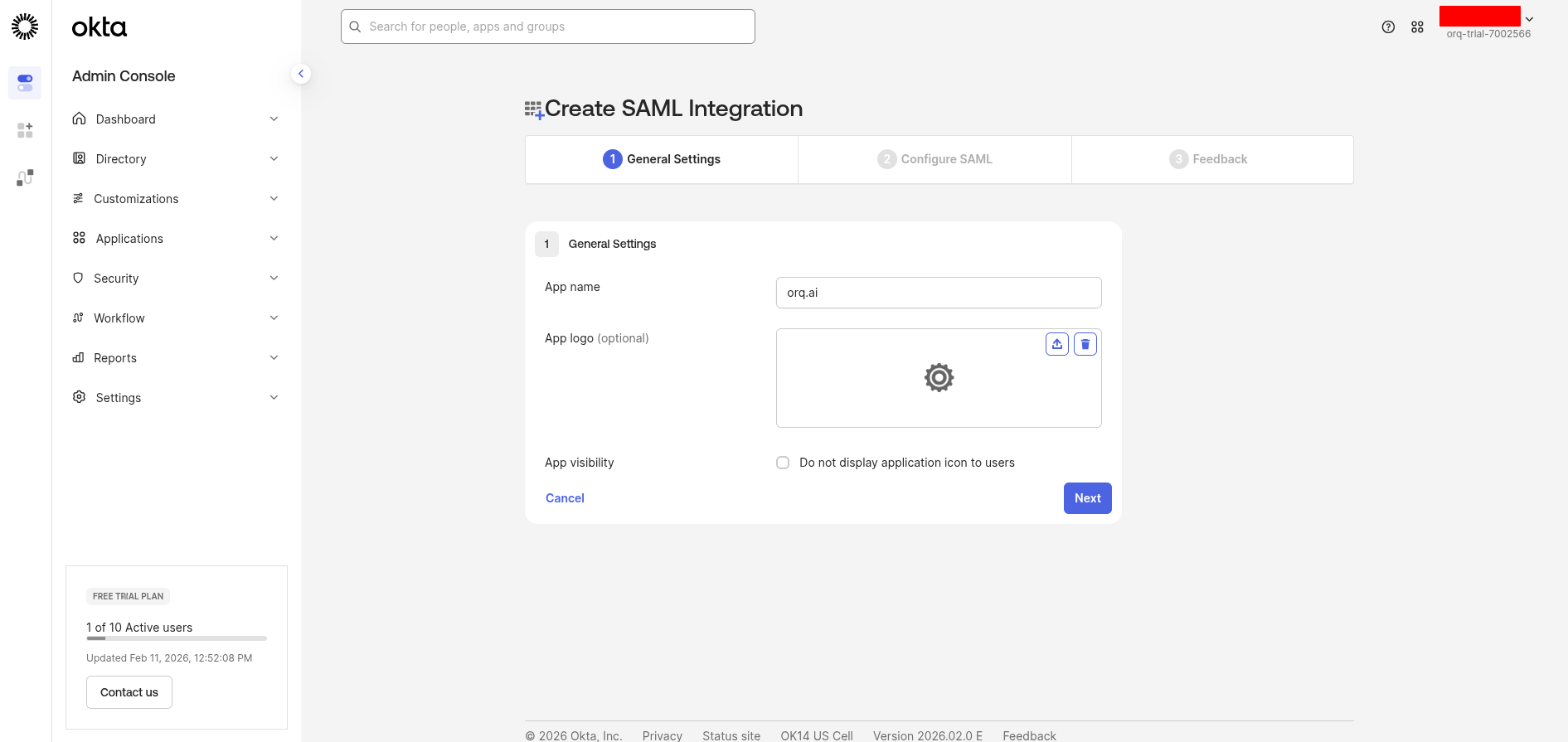
Enter a name (e.g. Orq.ai SSO) and click Next.
General settings
Configure SAML settings
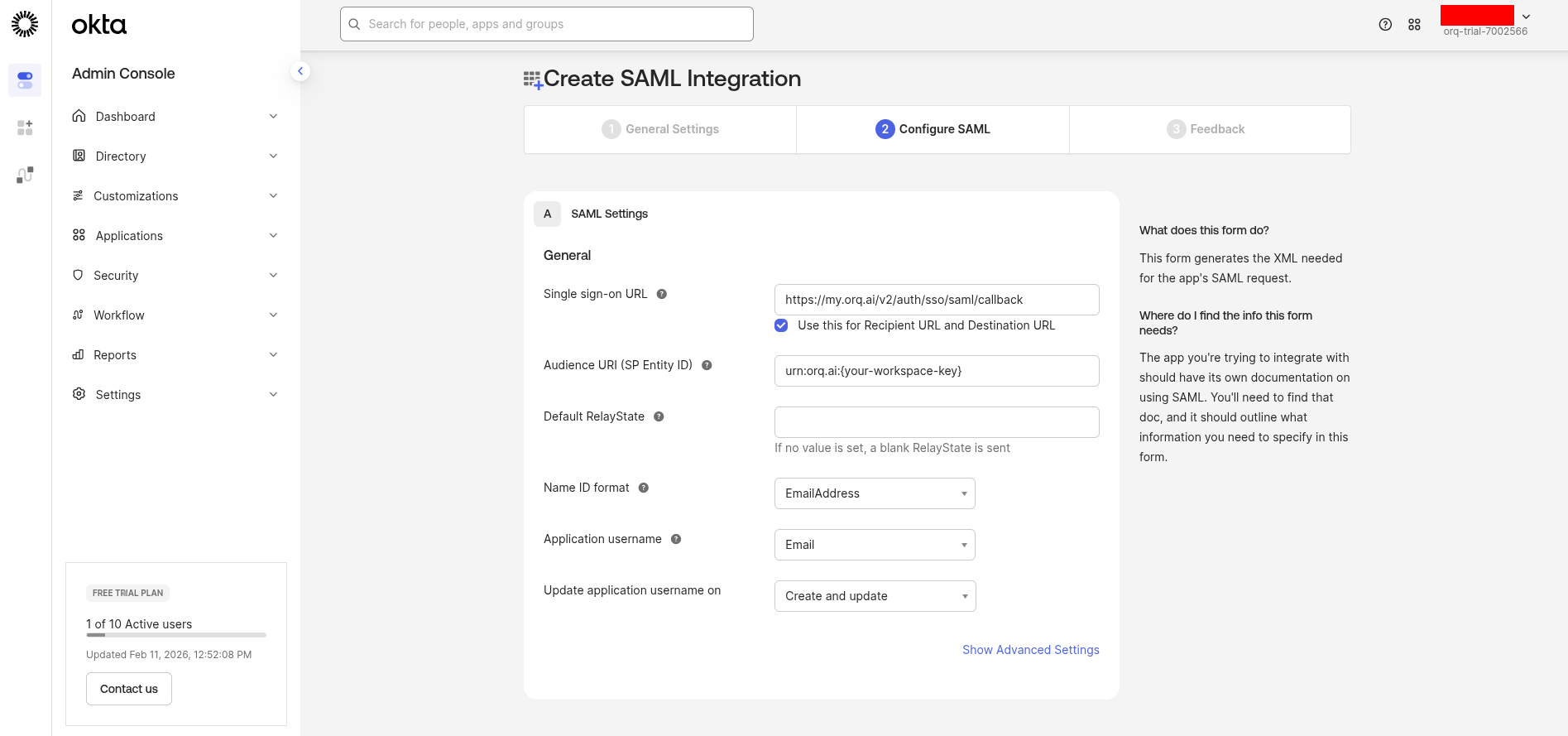
Under SAML Settings, enter:
Single sign-on URL:
https://my.orq.ai/v2/auth/sso/saml/callback
Audience URI (SP Entity ID): the SP Entity ID defined in Step 1
Name ID format: EmailAddress
Application username: Email
SAML configuration
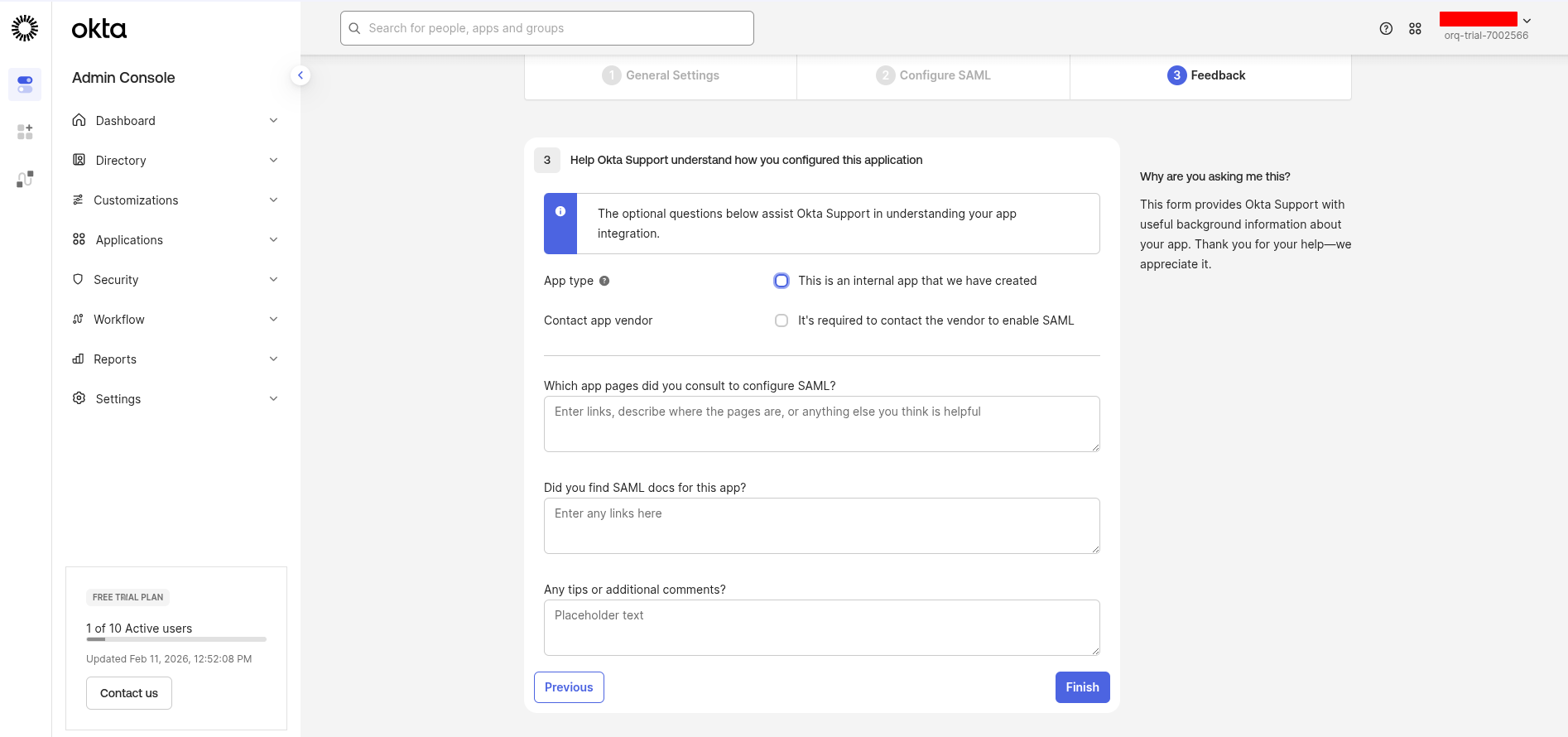
Click Next, then Finish.
Feedback step
Configure attribute statements
Go to the Sign On tab and click Edit in the Settings section.
Sign On settings
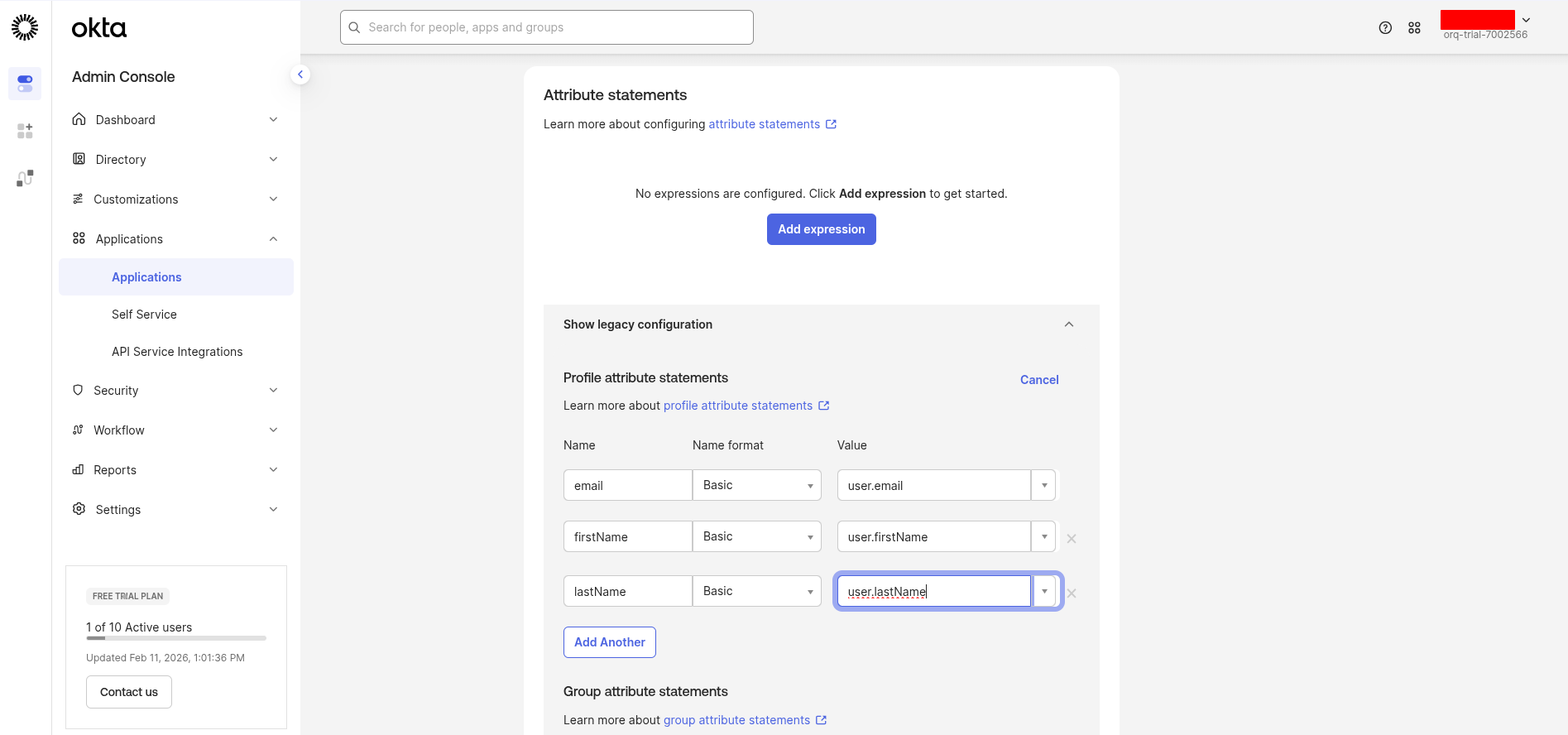
Under Attribute Statements, add these mappings:
Name
Expression
email
user.email
firstName
user.firstName
lastName
user.lastName
If a Show legacy configuration link appears, click it and use the classic format with Name, Name format (Basic), and Value columns.
Legacy attribute configuration
Click Save.
These attribute mappings are required for SAML to work correctly with Orq.ai.
Gather credentials
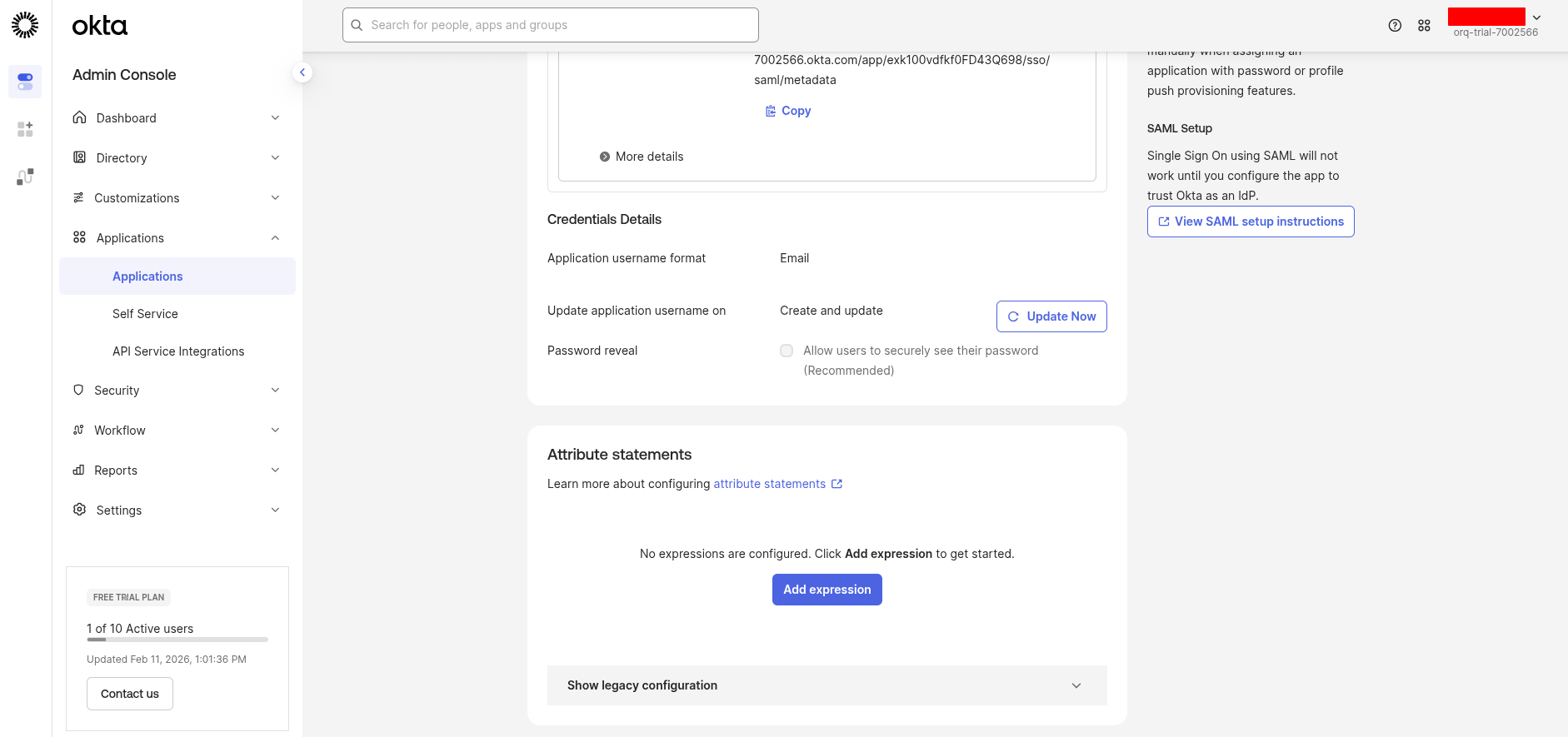
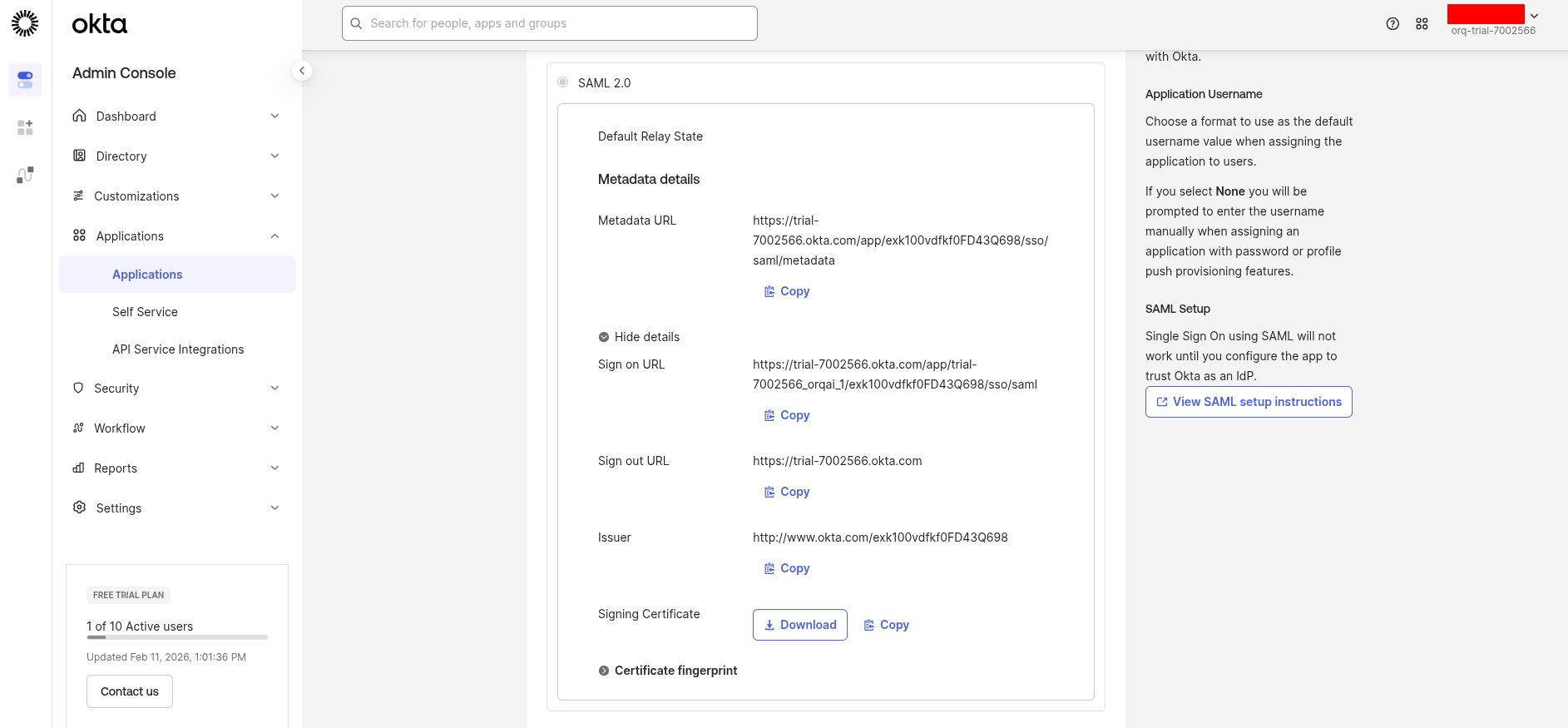
In the Sign On tab, under Settings, click Edit to reveal the Metadata details.Collect these values:
Okta Field
Use in Orq.ai as
Sign on URL
Single Sign-On URL
Issuer
Identity Provider Entity ID
Signing Certificate (X.509)
X.509 Certificate (download)
SAML metadata details
Assign users
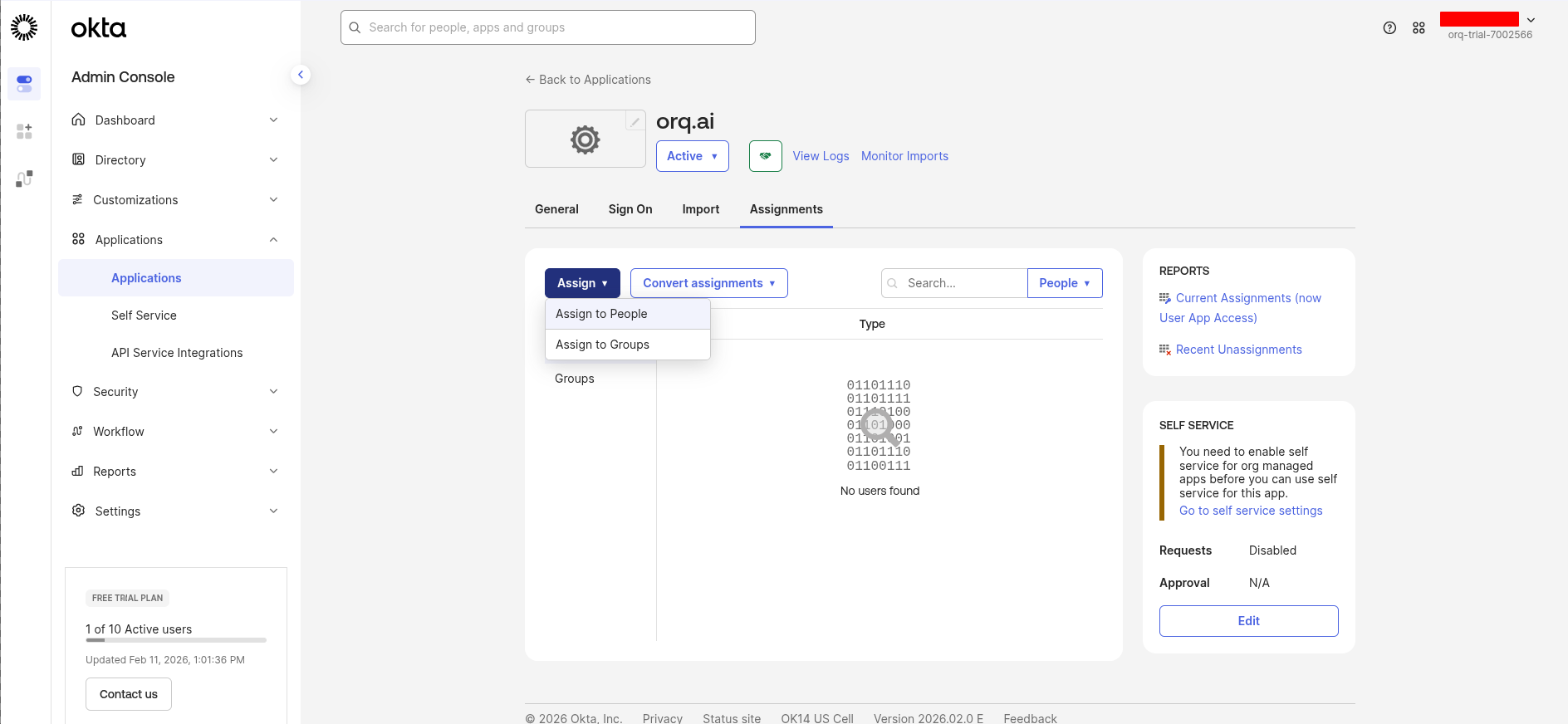
Go to the Assignments tab and click Assign → Assign to People or Assign to Groups.Select the users or groups that should have access, then click Done.
Assign users to the application
By default, no users are assigned to a new Okta app.
Configure in Orq.ai
Navigate to AI Studio → Settings → Organization → Auth.Enter the credentials collected from Okta:
Select SAML
Enter the Service Provider Entity ID (from Step 1)
Enter the Identity Provider Entity ID (Issuer from Okta)
Enter the Single Sign-On URL (Sign on URL from Okta)
For X.509 Certificate: open the downloaded certificate file in a text editor, copy all content including the -----BEGIN CERTIFICATE----- and -----END CERTIFICATE----- lines, and paste it here
Enter the organization’s email domain(s) in Allowed domains (e.g., orq.ai)
Click Activate
SAML configuration form
Test the login
SSO is now configured. Users can sign in at:
https://my.orq.ai/{your-workspace-key}/login
SSO login
Microsoft Entra ID - Active Directory
OIDC
SAML
Register an application in Azure
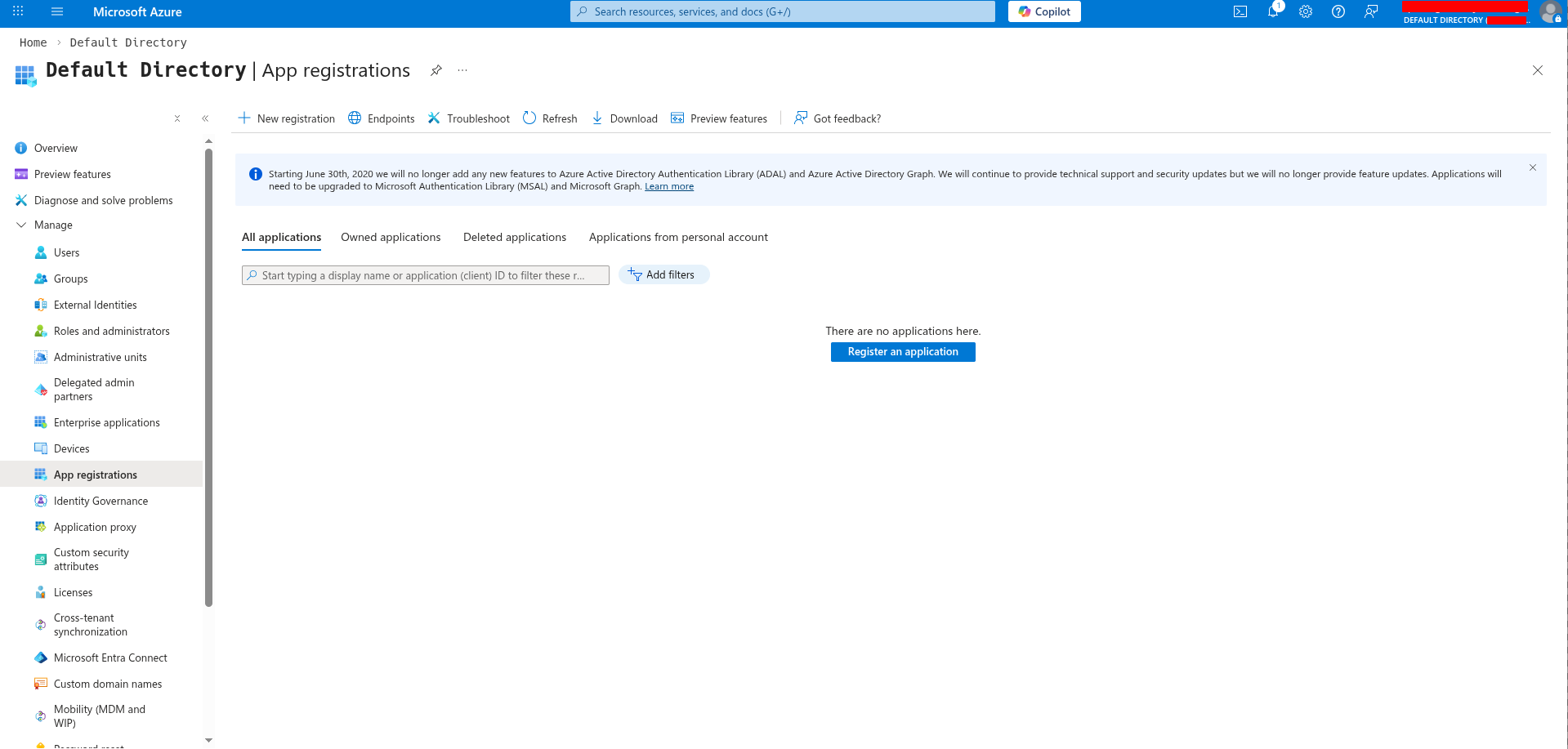
Sign in to the Azure portal and navigate to Microsoft Entra ID → App registrations.
App registrations page
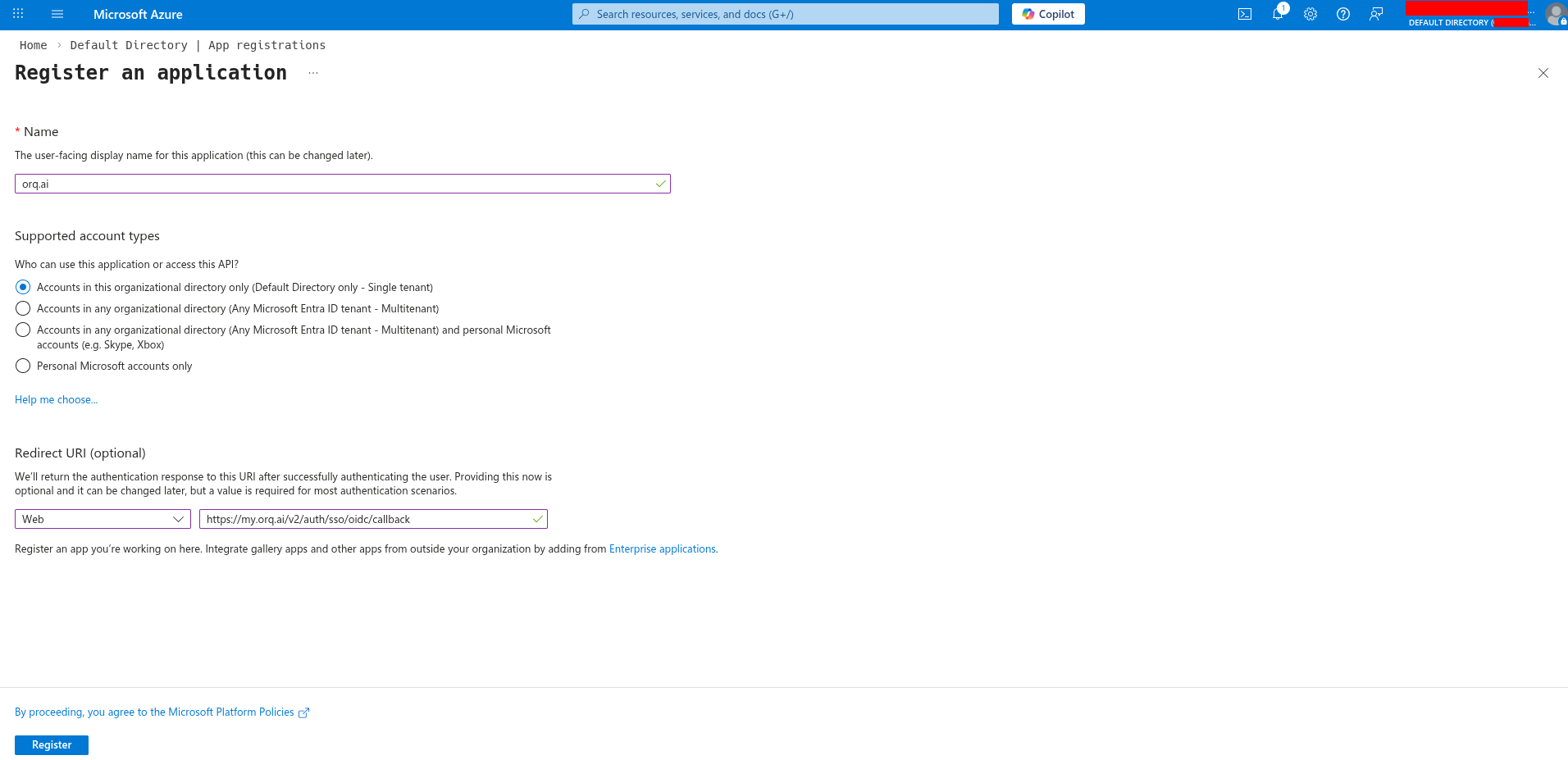
Configure the registration:
Name: Orq.ai (or preferred name)
Supported account types: select based on the organization’s needs
Redirect URI: select Web and enter:
https://my.orq.ai/v2/auth/sso/oidc/callback
Click Register.
Register an application
Gather credentials
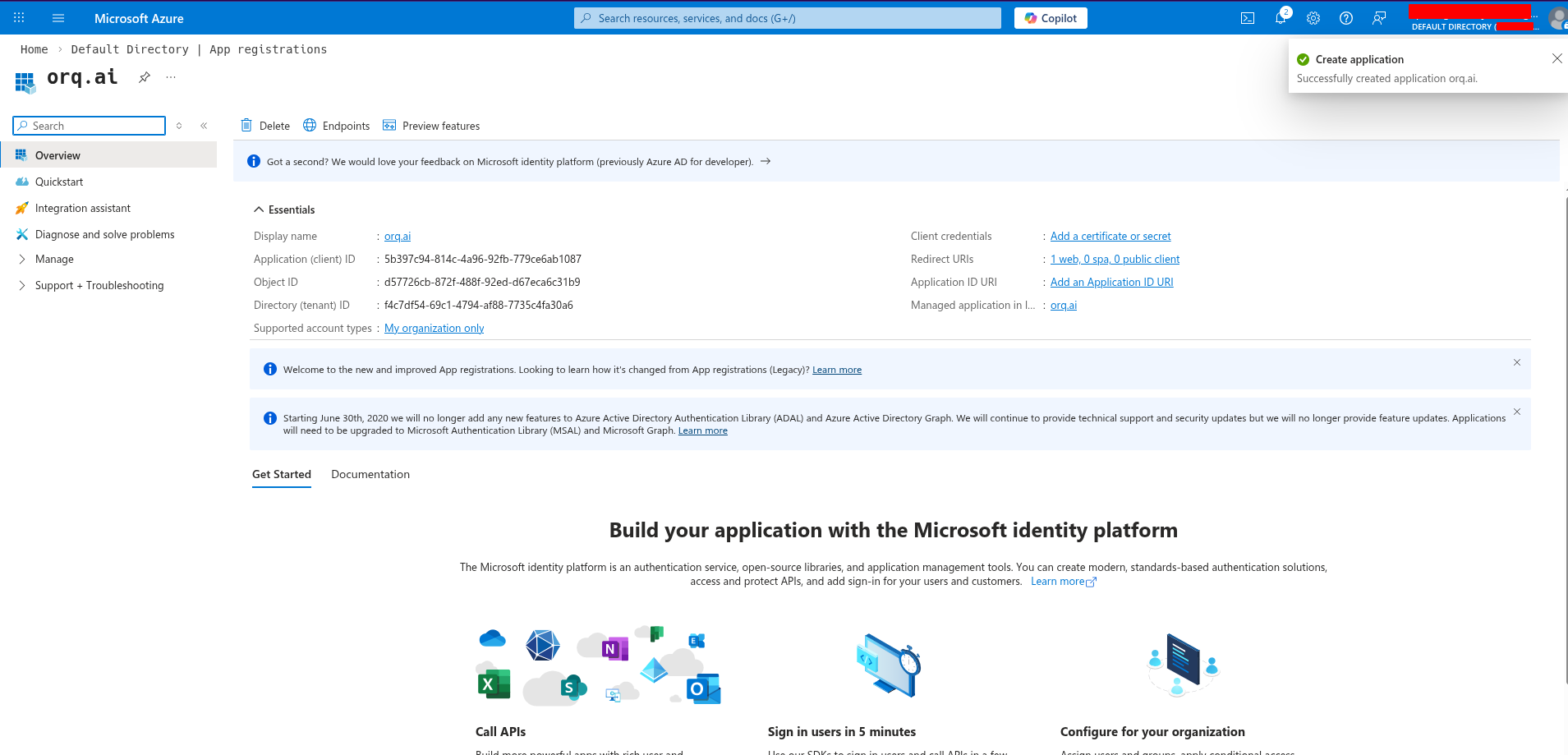
Get the Client ID:From the app registration Overview page, copy the Application (client) ID: this is the Client ID for Orq.ai.
Application overview with Client ID
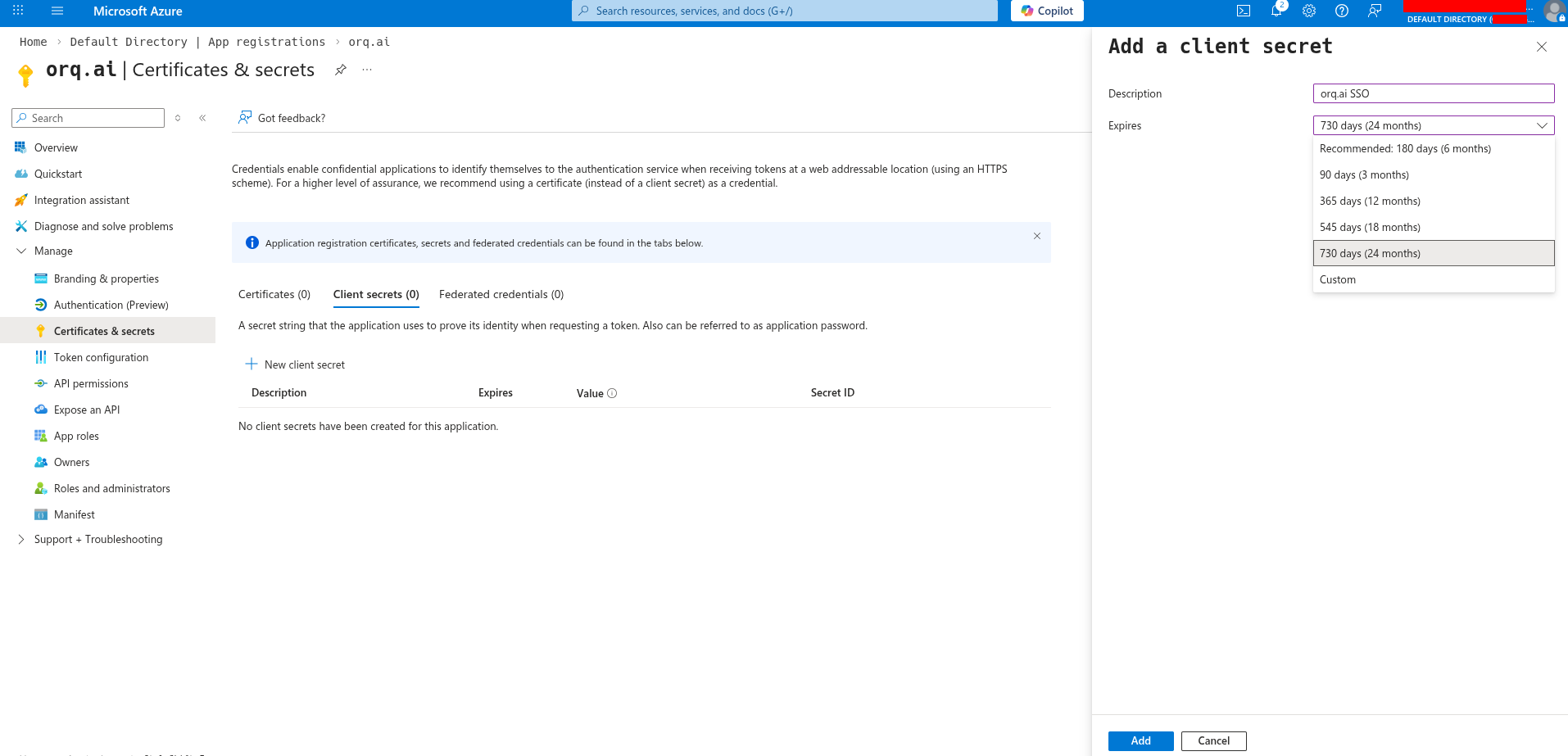
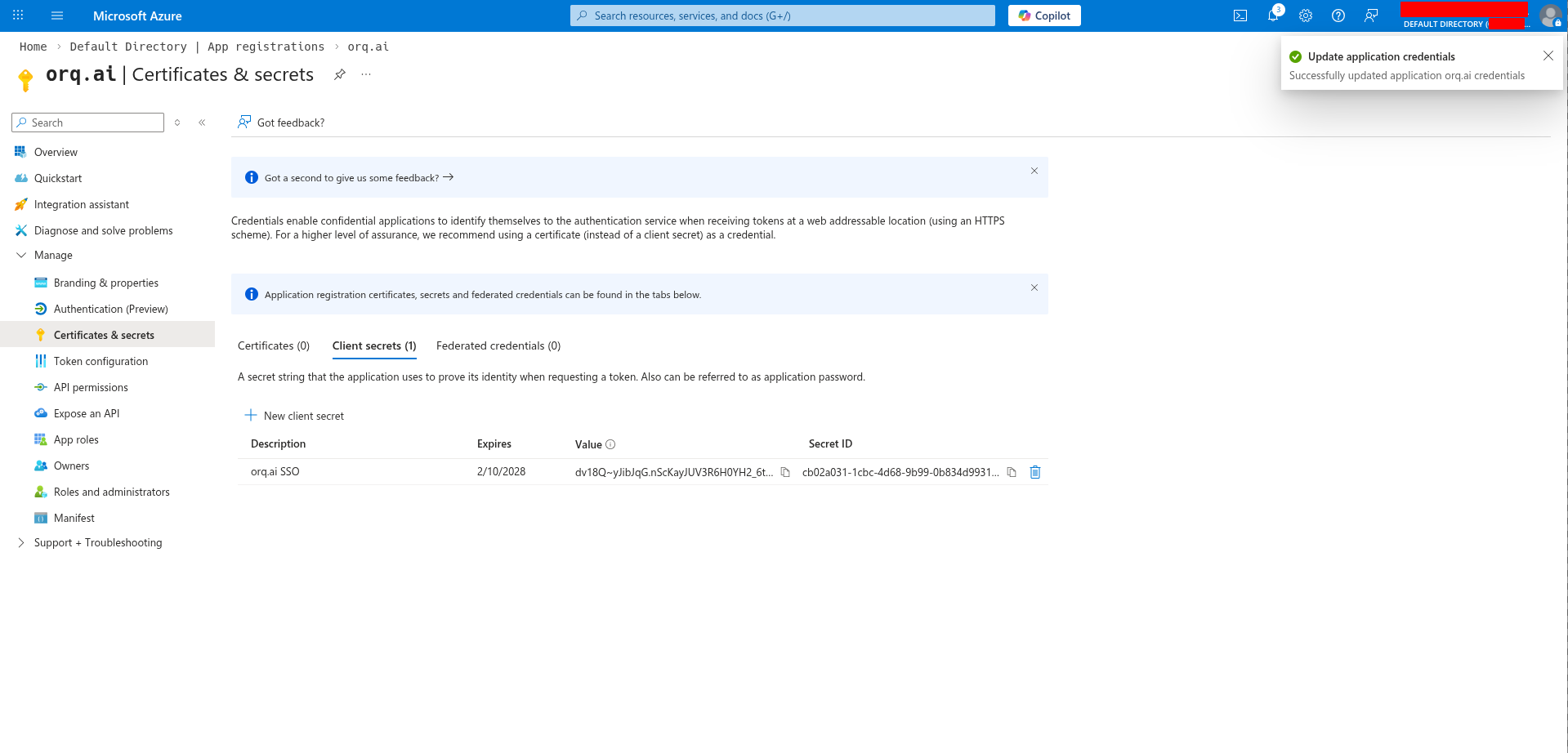
Create a Client Secret:Go to Certificates & secrets → Client secrets → New client secret.Add a description (e.g., Orq.ai SSO), select an expiration period, and click Add.
Add a client secret
Copy the secret value immediately. Azure only displays it once. If lost, generate a new secret.
Copy the Value field: this is the Client Secret for Orq.ai.
Replace {tenant-id} with the Directory (tenant) ID, found on the app registration overview page.
Application overview
Configure API permissions
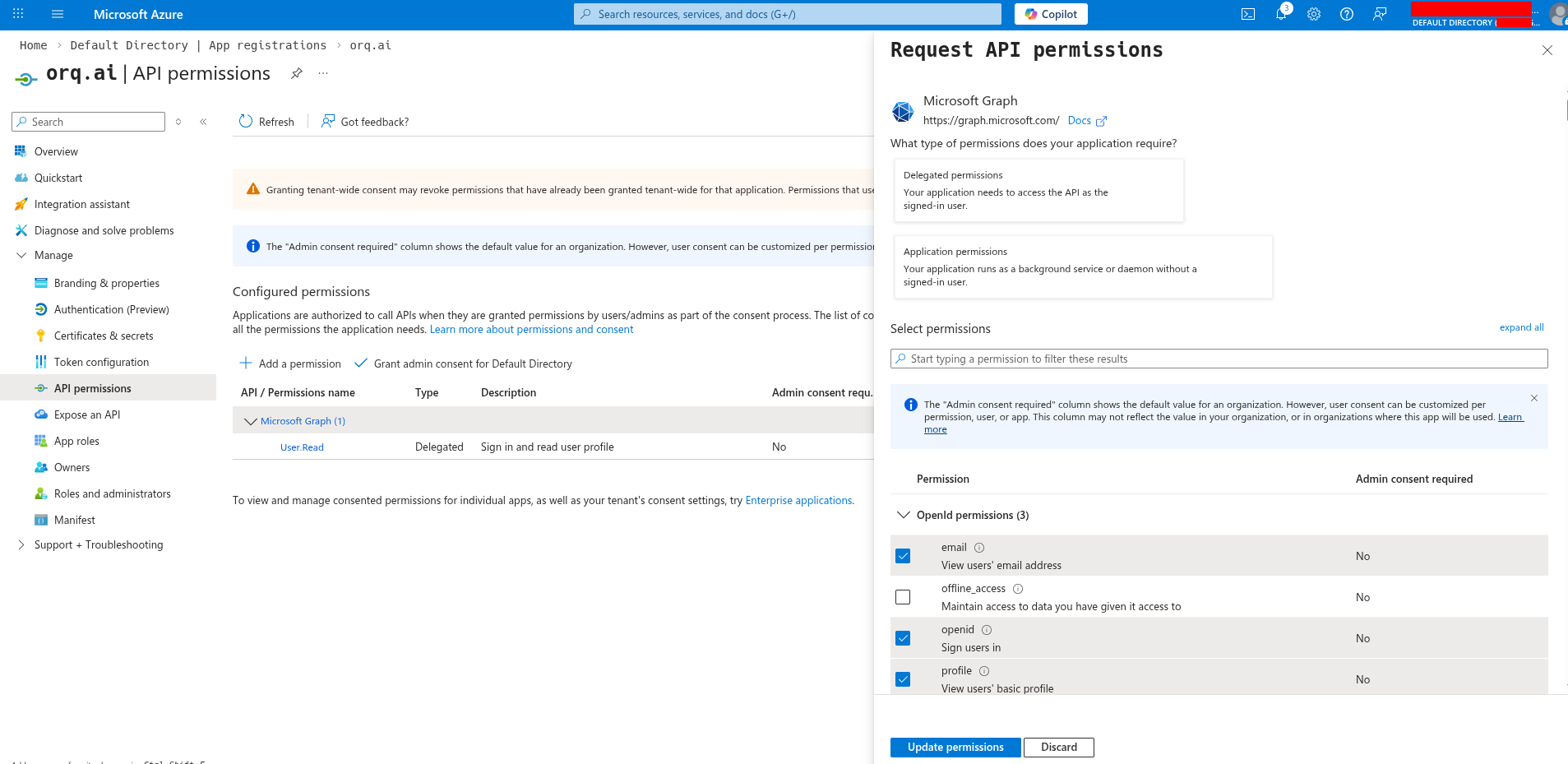
Go to API permissions and ensure these Microsoft Graph permissions are granted:
openid
email
profile
Request API permissions
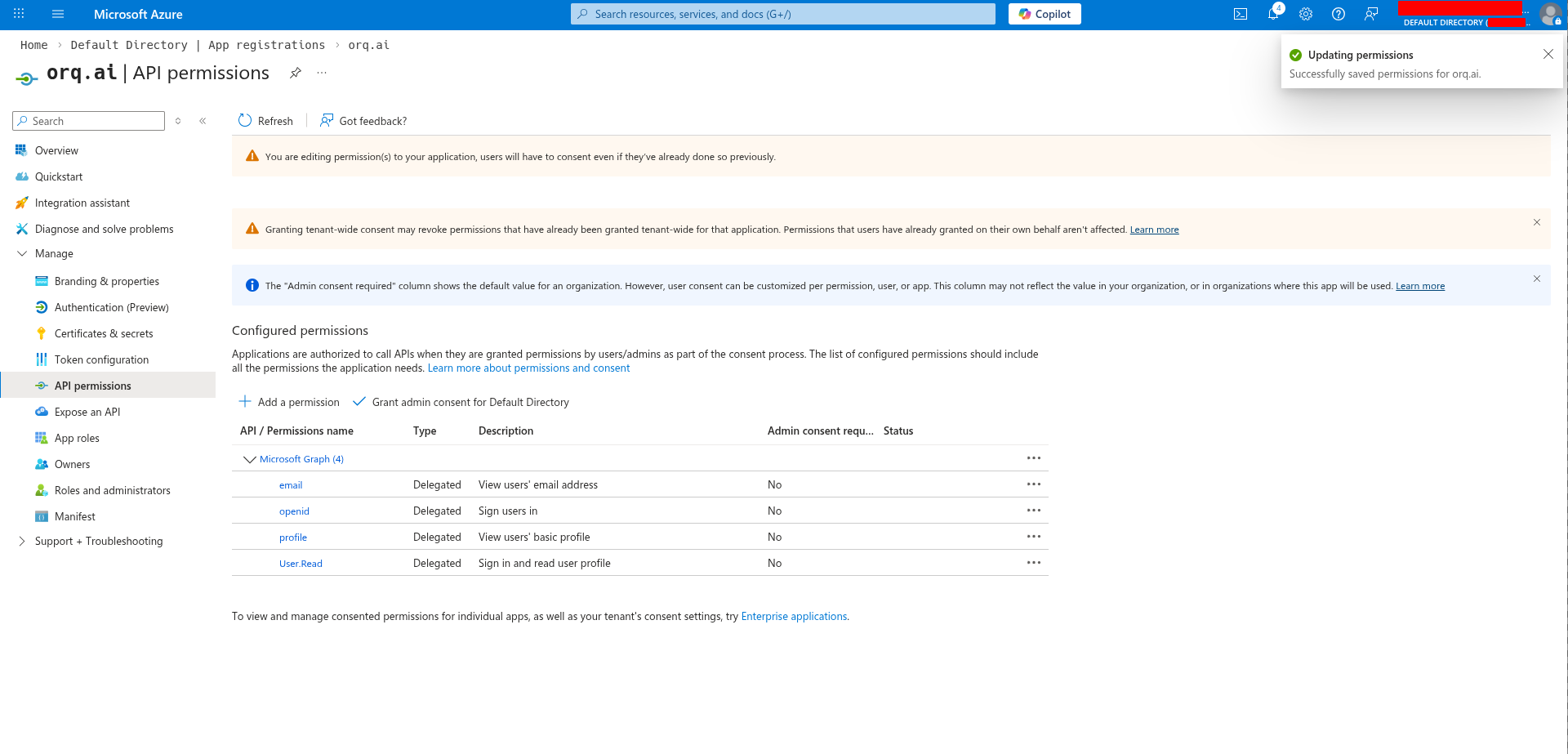
Click Grant admin consent if required by the organization.
Configured API permissions
Orq.ai automatically requests the User.Read scope to retrieve user email addresses when the standard OIDC email claim is not available.
Configure in Orq.ai
Navigate to AI Studio → Settings → Organization → Auth.Enter the credentials collected from Azure:
Select OIDC (selected by default)
Enter the Client ID
Enter the Client Secret
Enter the Provider URL
Enter the organization’s email domain(s) in Allowed domains (e.g., acme.com)
Click Activate
OIDC configuration form
Test the login
SSO is now configured. Users can sign in at:
https://my.orq.ai/{your-workspace-key}/login
SSO login
Define the SP Entity ID
Choose a unique identifier for the Service Provider Entity ID. We recommend:
urn:orq.ai:{your-workspace-key}
For example, if the workspace key is acme-corp, use urn:orq.ai:acme-corp.
The SP Entity ID must match exactly in both Azure and Orq.ai. Write it down; it is needed in multiple steps.
Create an enterprise application in Azure
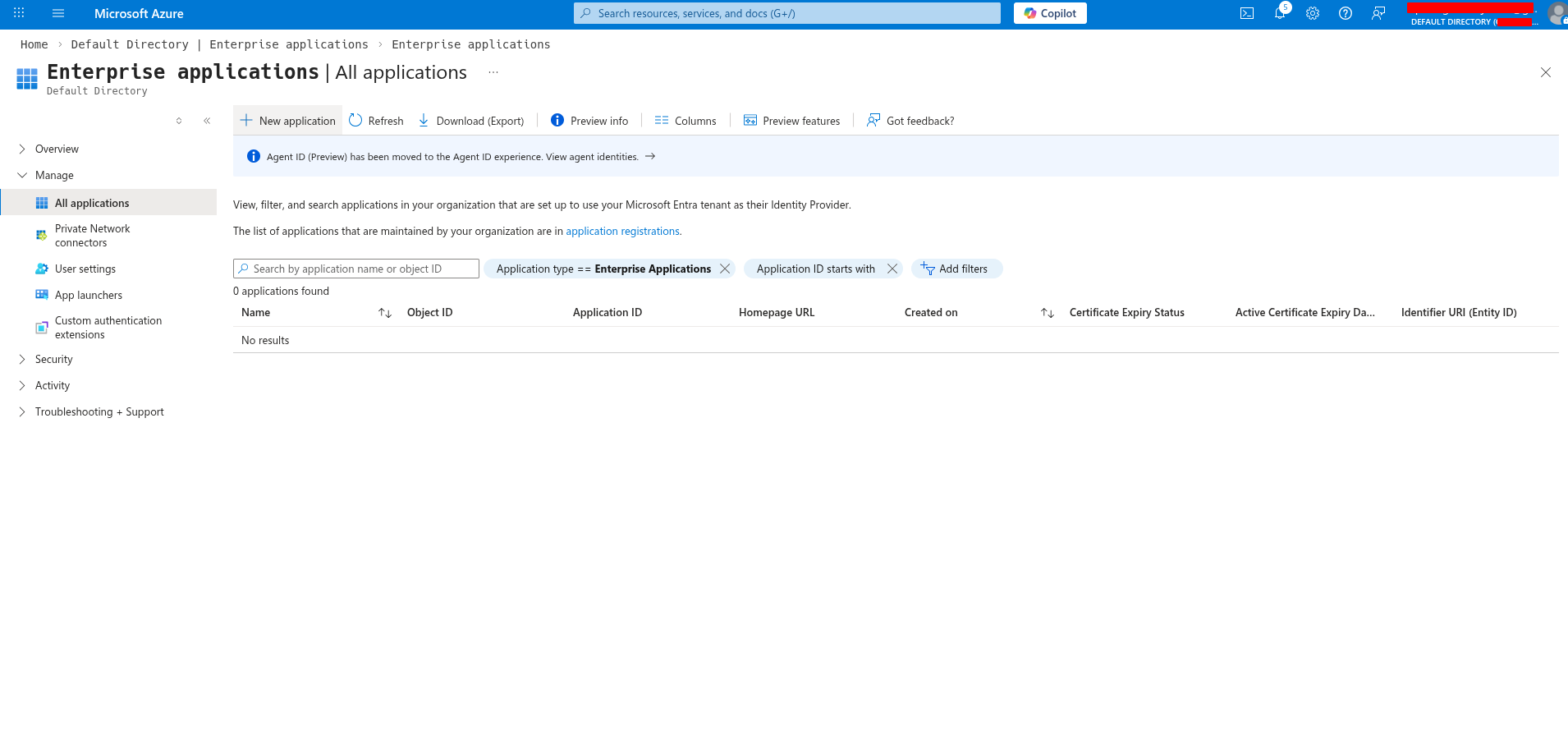
In the Azure portal, go to Microsoft Entra ID → Enterprise applications → New application.
Enterprise applications page
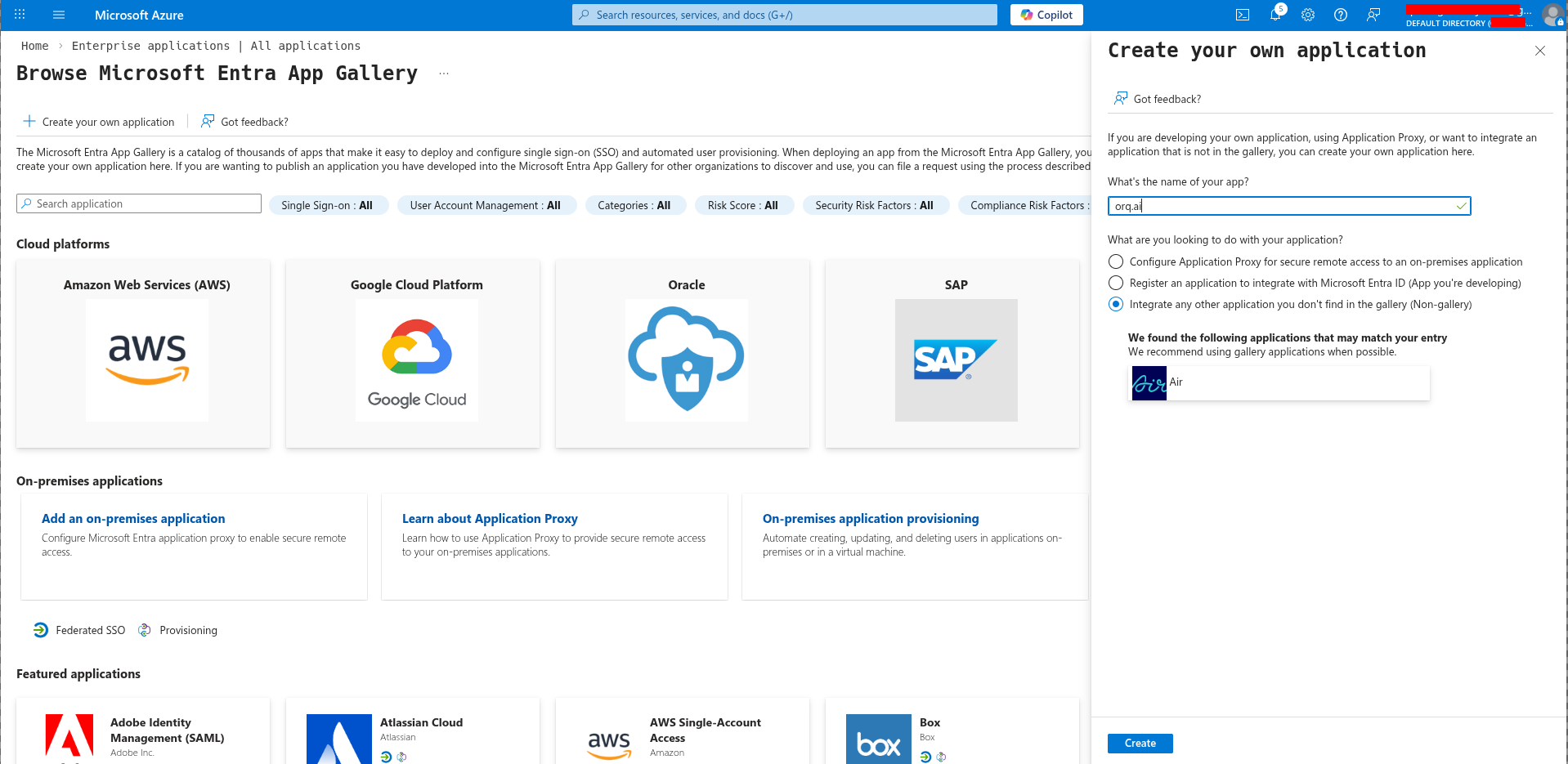
Click Create your own application, name it (e.g. Orq.ai SSO), select Integrate any other application you don’t find in the gallery (Non-gallery), and click Create.
Create your own application
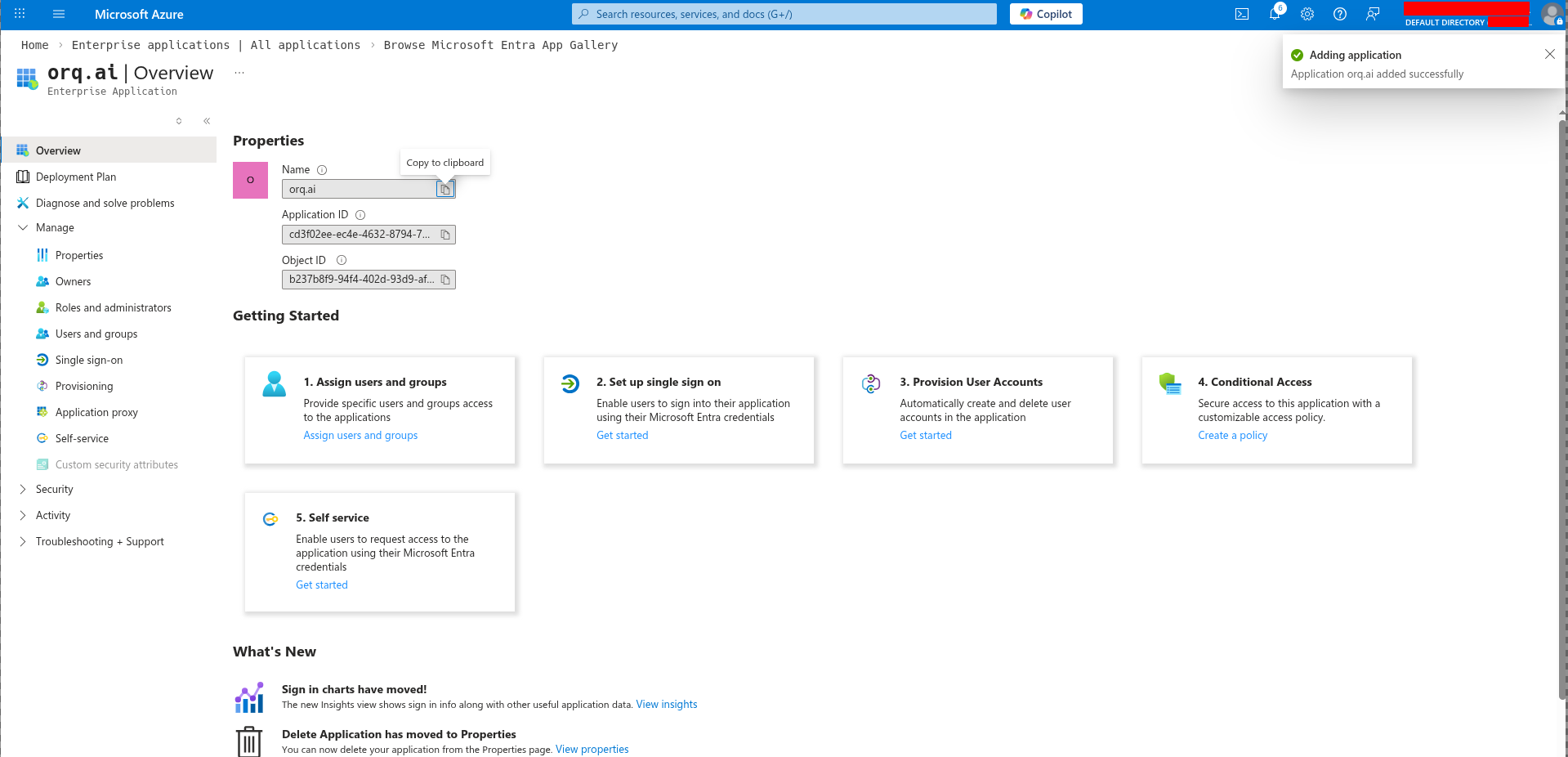
Application overview
Configure SAML
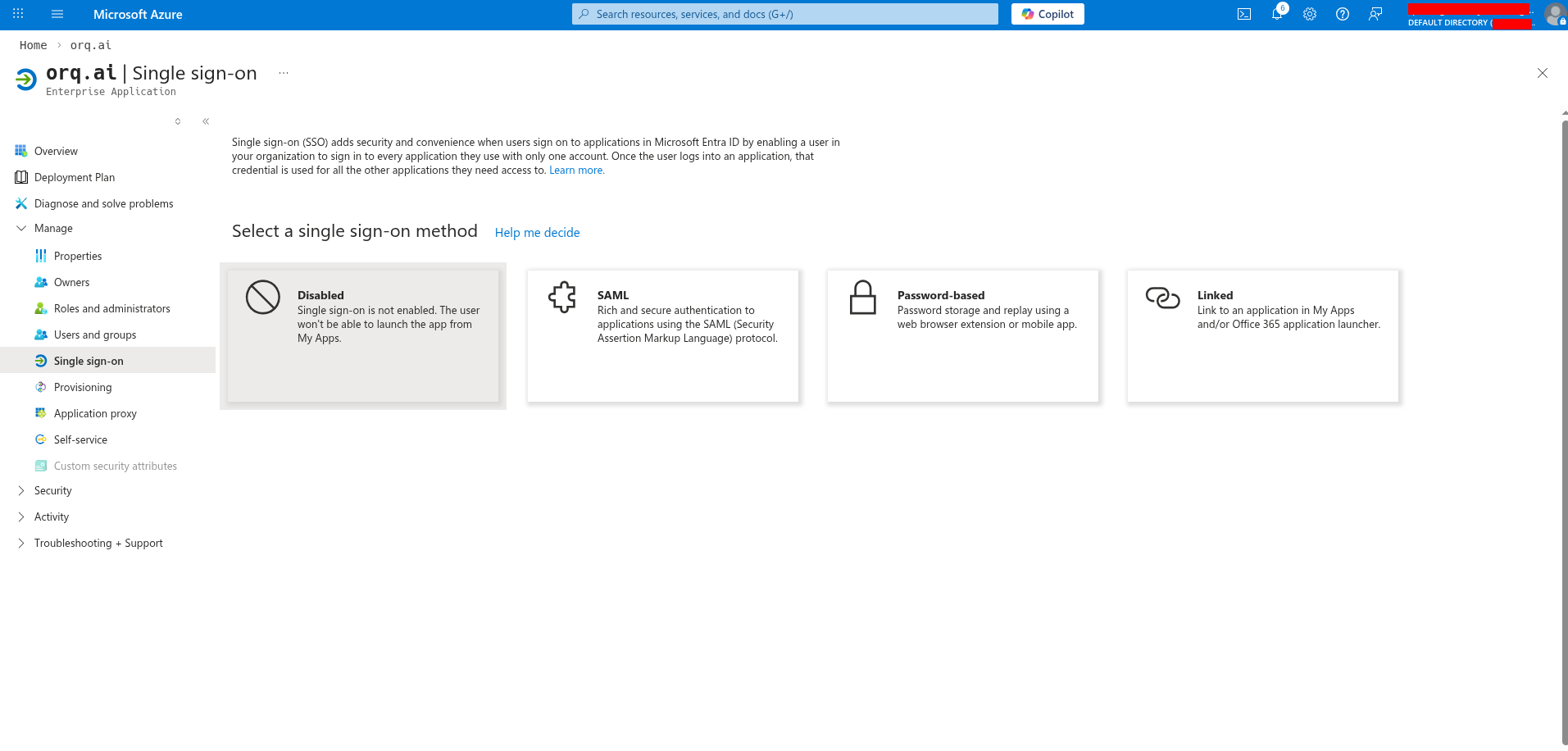
In the application, go to Single sign-on and select SAML.
Select single sign-on method
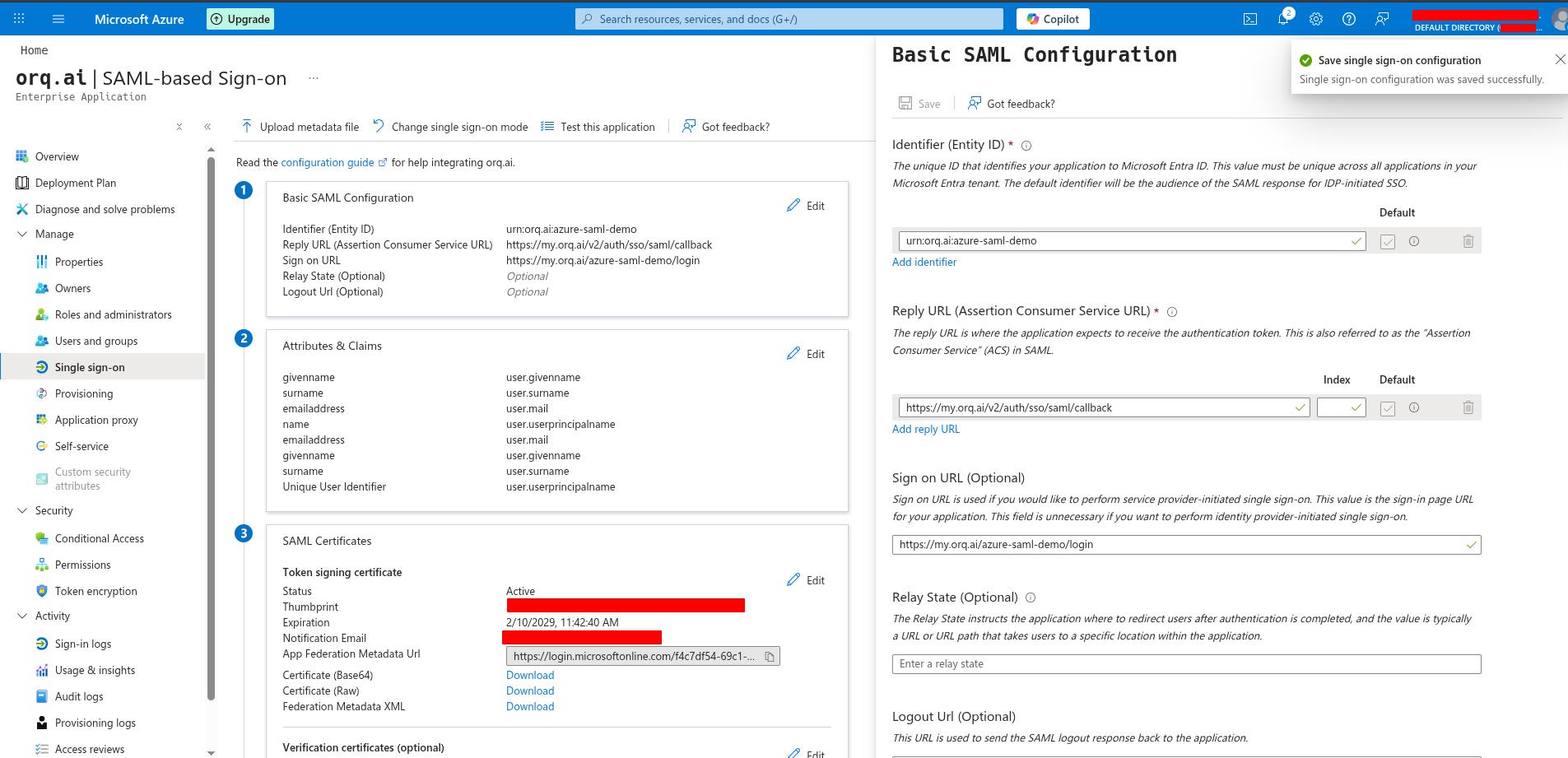
Under Basic SAML Configuration, click Edit and set:
Identifier (Entity ID): the SP Entity ID defined in Step 1
Reply URL (ACS URL):
https://my.orq.ai/v2/auth/sso/saml/callback
Sign on URL:
https://my.orq.ai/{your-workspace-key}/login
Click Save.
Basic SAML Configuration
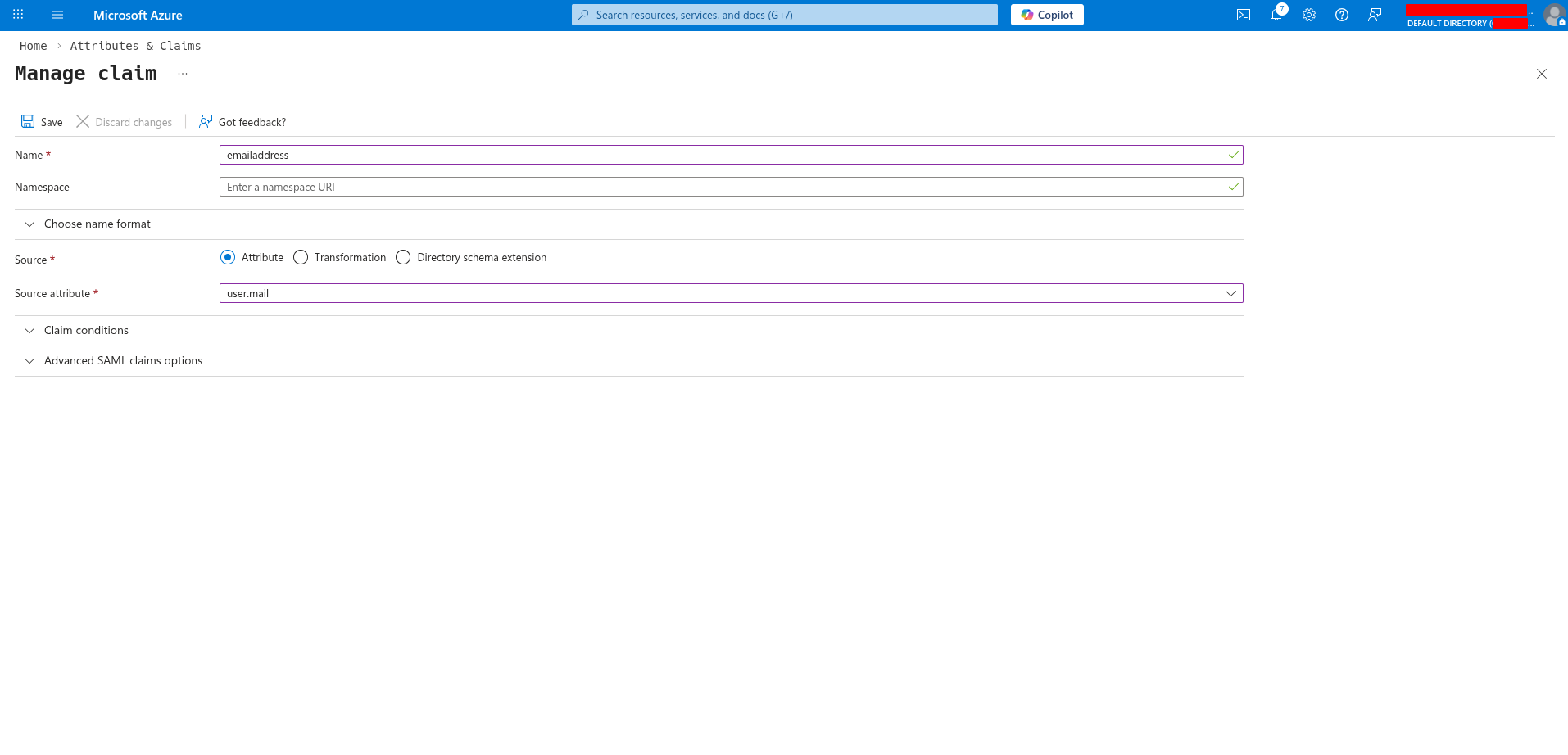
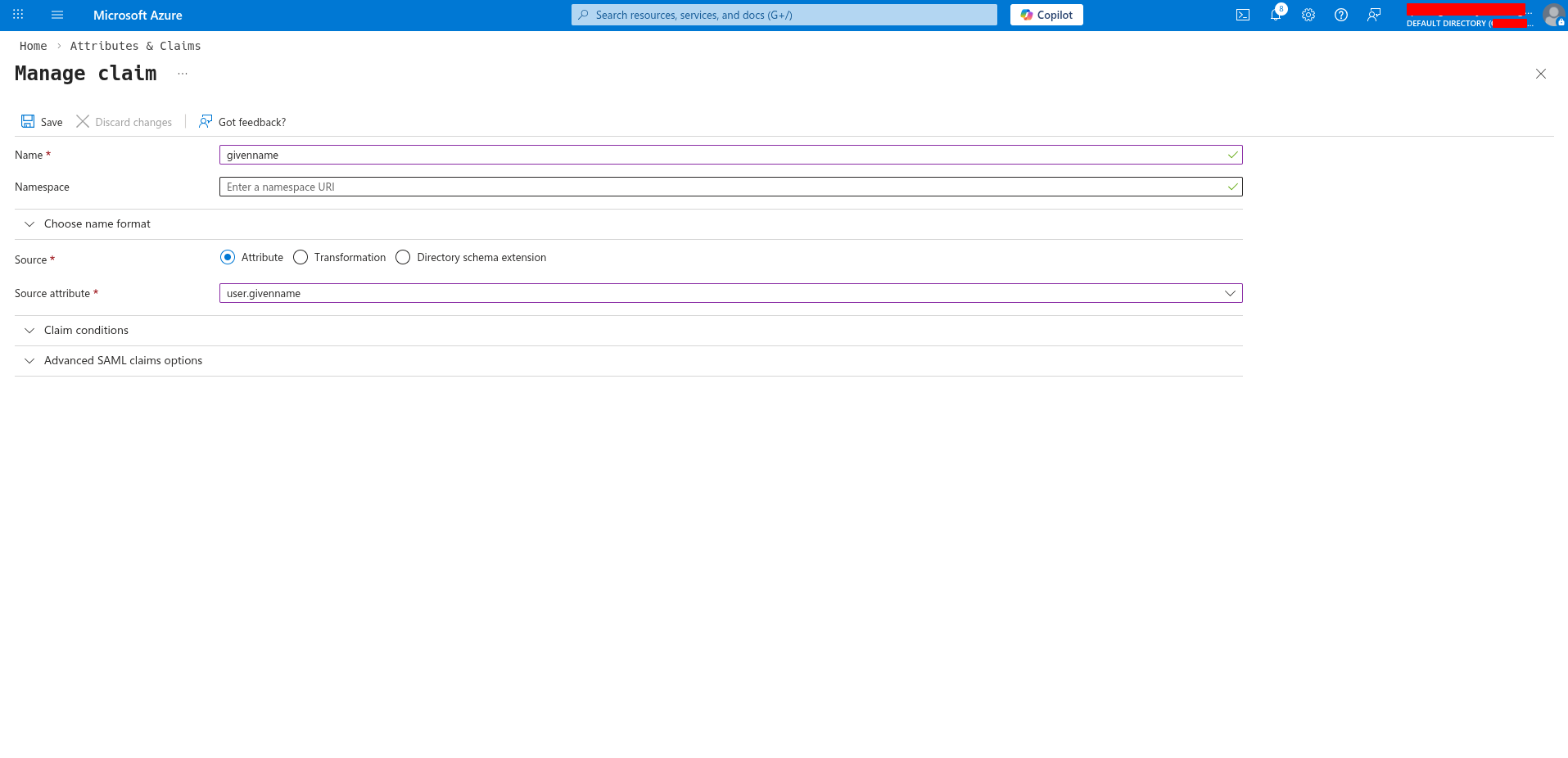
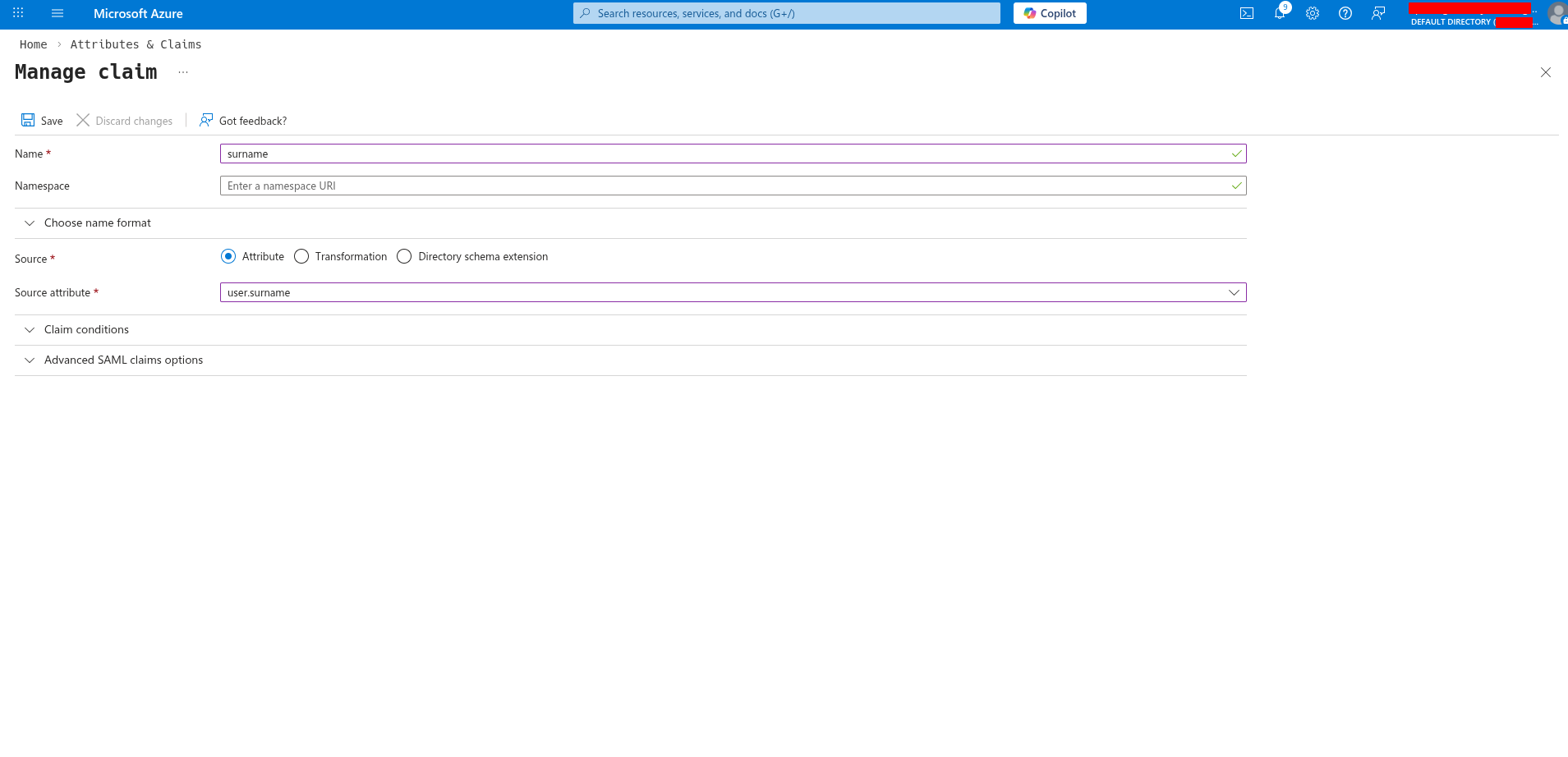
Configure attributes and claims
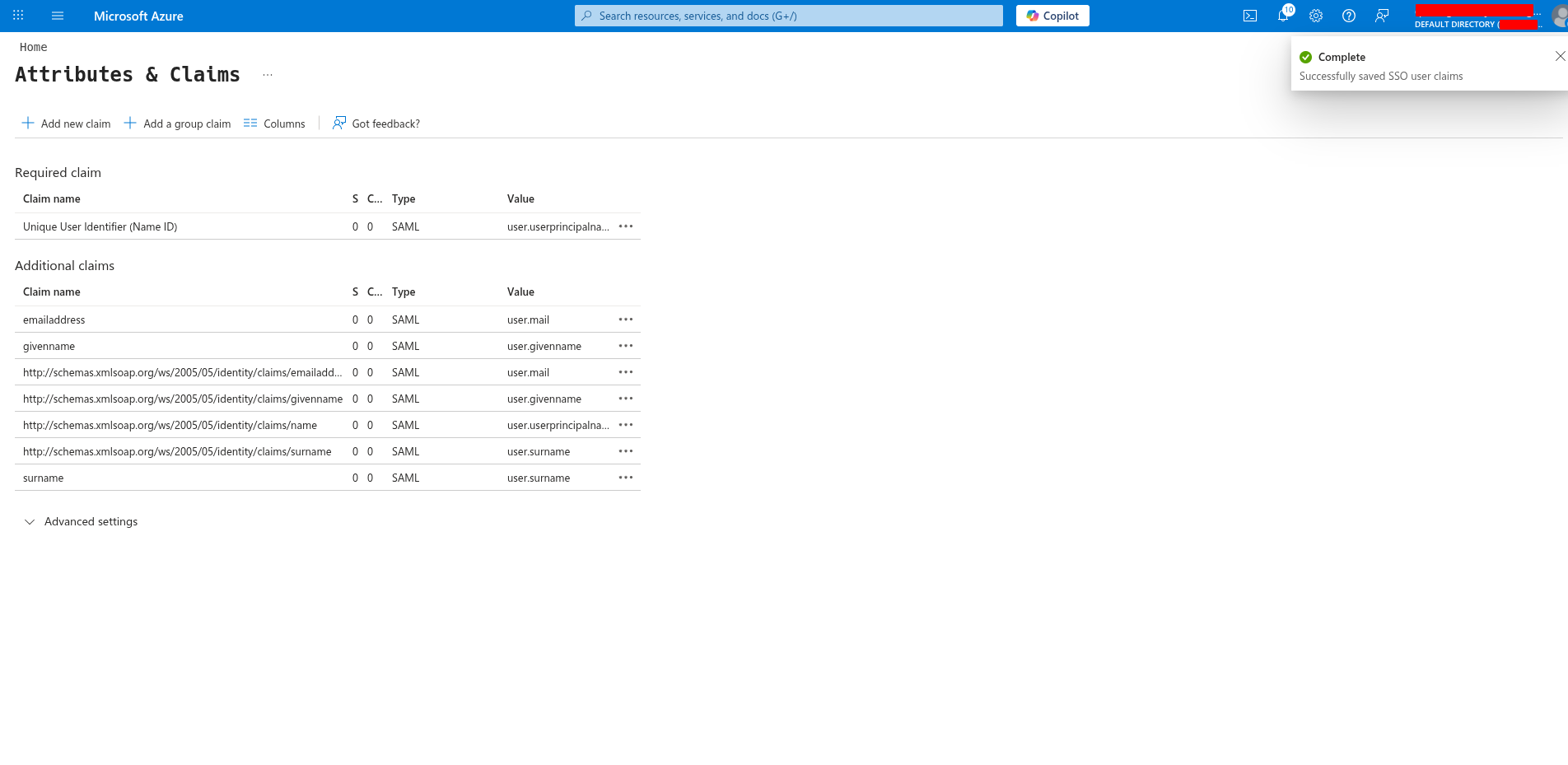
Click Edit on Attributes & Claims.Verify or add these claim mappings:
Orq.ai supports both standard attribute names and full Microsoft Entra ID claim URIs (e.g., http://schemas.xmlsoap.org/ws/2005/05/identity/claims/emailaddress). The default Entra ID claim mappings work out of the box.
Gather credentials
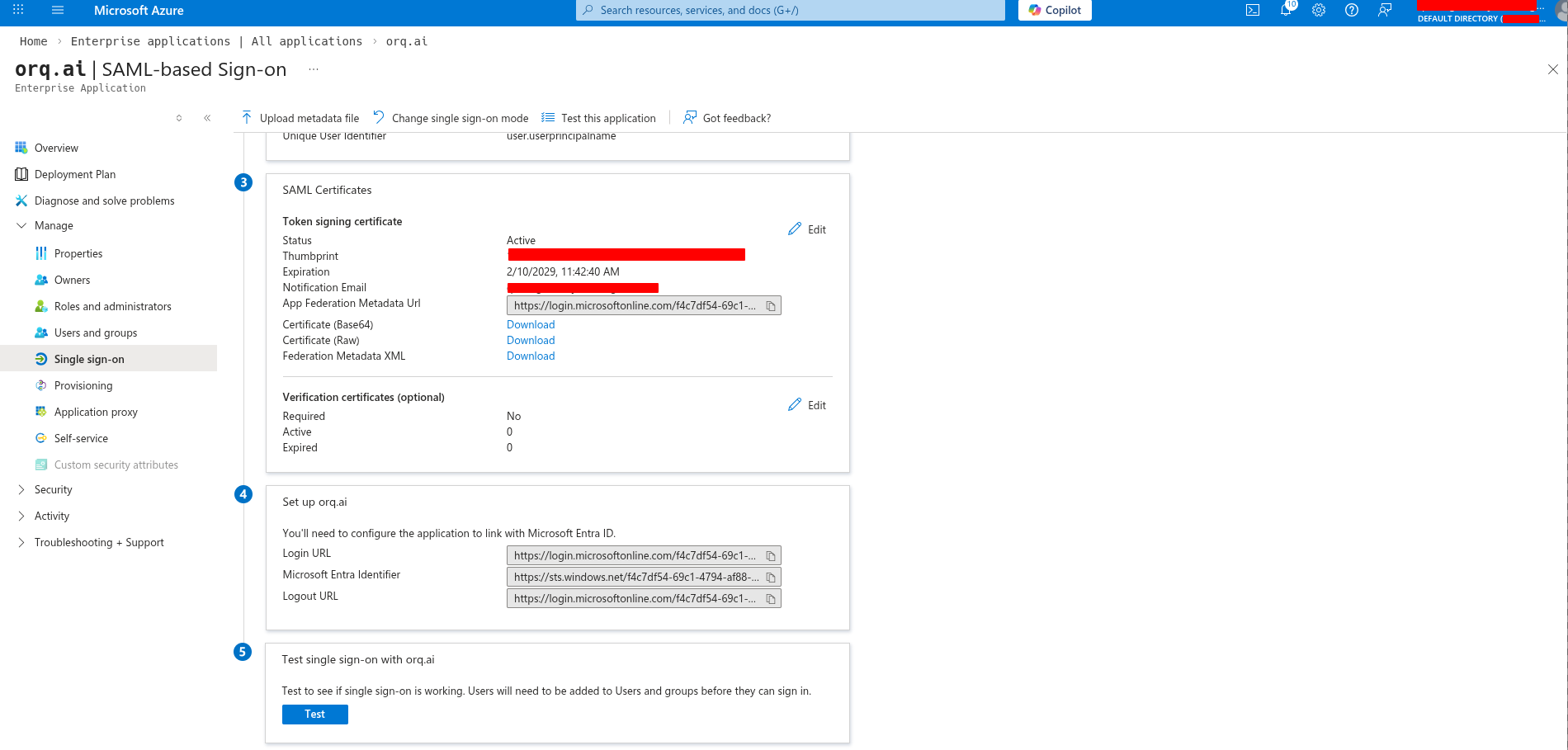
On the SAML configuration page, collect these values:From the “Set up” section:
Login URL: use as the Single Sign-On URL in Orq.ai
Microsoft Entra Identifier: use as the Identity Provider Entity ID in Orq.ai
From the “SAML Certificates” section:
Click Download next to Certificate (Base64) and save the file
SAML credentials
Assign users and groups
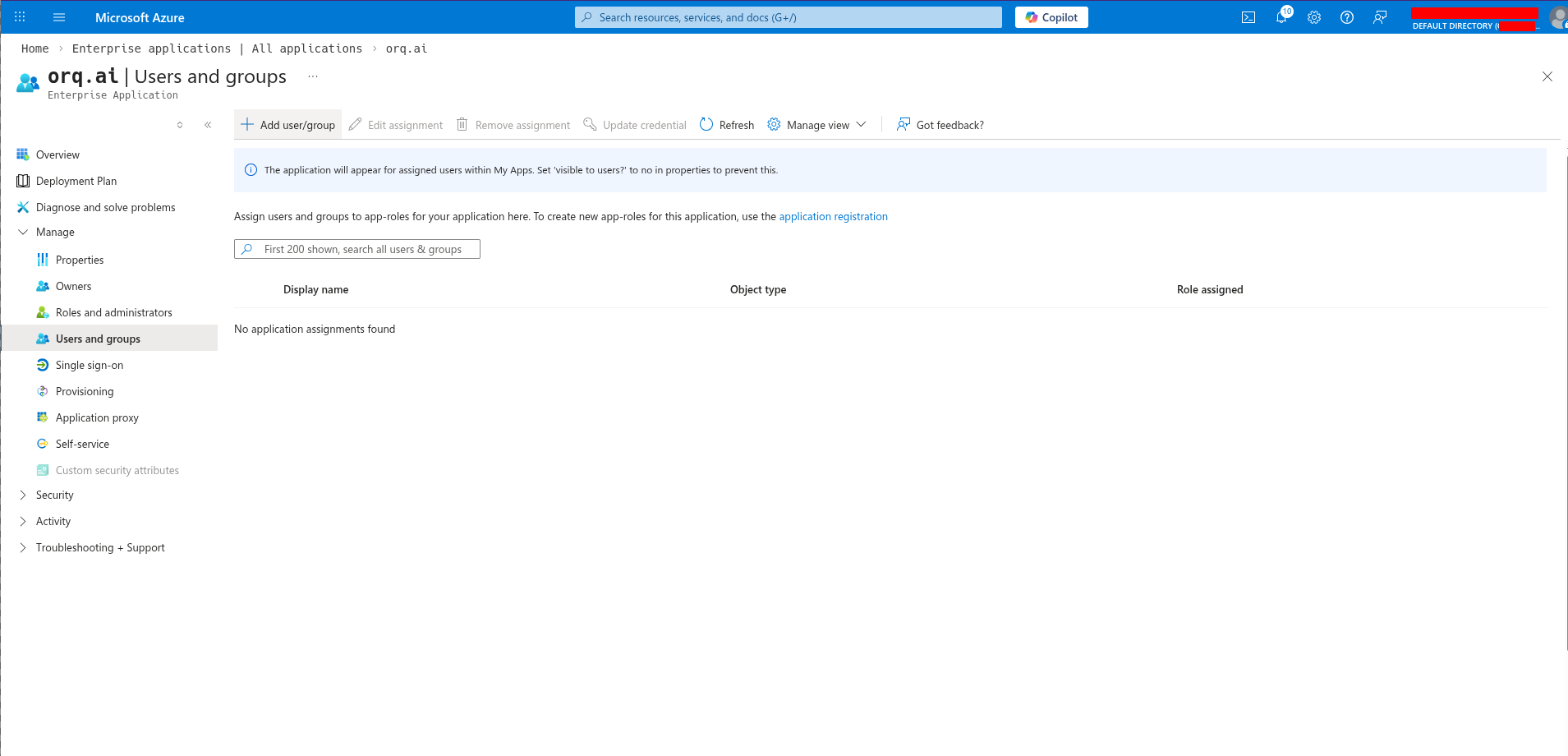
Go to Users and groups (left menu) and click Add user/group.Select the users or groups that should have access to Orq.ai, then click Assign.
Assign users and groups
By default, any user in the directory can authenticate. Assigning specific users or groups restricts access.
Configure in Orq.ai
Navigate to AI Studio → Settings → Organization → Auth.Enter the credentials collected from Azure:
Select SAML
Enter the Service Provider Entity ID (from Step 1)
Enter the Identity Provider Entity ID (Microsoft Entra Identifier from Azure)
Enter the Single Sign-On URL (Login URL from Azure)
For X.509 Certificate: open the downloaded certificate file in a text editor, copy all content including the -----BEGIN CERTIFICATE----- and -----END CERTIFICATE----- lines, and paste it here
Enter the organization’s email domain(s) in Allowed domains (e.g., orq.ai)
Click Activate
SAML configuration form
Test the login
SSO is now configured. Users can sign in at:
https://my.orq.ai/{your-workspace-key}/login
SSO login
Keycloak
OIDC
SAML
Choose or create a realm
Log in to the Keycloak admin console. From the realm dropdown (top-left), select an existing realm or click Create realm. Note the realm name; it is needed for the Provider URL.
In the chosen realm, navigate to Clients and click Create client.
Keycloak Clients page
Configure the General Settings:
Field
Value
Client type
SAML
Client ID
The SP Entity ID from Step 1 (e.g., urn:orq.ai:example-corp)
Name
orq.ai (optional display name)
Click Next.
General settings
Configure login settings
Enter the following:
Field
Value
Valid redirect URIs
https://my.orq.ai/v2/auth/sso/saml/callback
Master SAML Processing URL
https://my.orq.ai/v2/auth/sso/saml/callback
Click Save.
Login settings
Configure SAML signing
Open the client → Settings tab. Scroll to SAML capabilities and Signature and Encryption sections.Set the following:
Field
Value
Sign assertions
On
Sign documents
On
Name ID format
email
Click Save.
SAML signing settings
SAML signing settings continued
Disable client signature requirement
Open the client → Keys tab.Under Signing keys config, set:
Field
Value
Client signature required
Off
Under Encryption keys config, confirm:
Field
Value
Encrypt assertions
Off
Keys tab configuration
Client signature required defaults to On in Keycloak: turn it Off. Orq.ai does not sign outbound SAML AuthnRequests, so leaving this on causes Keycloak to reject every login attempt.Encrypt assertions must remain Off. Orq.ai does not decrypt assertions.
Configure SAML attribute mappers
A new Keycloak SAML client only sends the NameID and role list by default, not email, first name, or last name. Add mappers so Orq.ai can populate the user profile.
Open the client → Client scopes tab
Click the dedicated scope row (named {client-id}-dedicated)
Open the Mappers tab inside that scope
Option A (recommended): Add predefined X500 mappers
Click Add predefined mapper
Select these three rows:
X500 email
X500 givenName
X500 surname
Click Add
Predefined X500 mappers added to the dedicated scope
Mapper detail view
Option B: Configure custom mappers with simple namesClick Configure a new mapper, select User Property, and create three mappers:
Mapper
Property
SAML Attribute Name
NameFormat
email
email
email
Basic
firstName
firstName
firstName
Basic
lastName
lastName
lastName
Basic
Download the realm signing certificate
In the left navigation, click Realm settings
Open the Keys tab → Keys list sub-tab
Find the row where Algorithm = RS256, Type = RSA, Use = SIG
In the Public keys column, click Certificate
Copy the entire base64 value from the modal
Realm settings Keys tab, Certificate modal
Orq.ai accepts the certificate as raw base64 or PEM-wrapped with -----BEGIN CERTIFICATE----- / -----END CERTIFICATE----- markers. Pasting raw base64 directly works.
For example, with Authentik at https://auth.example.com and slug orq-ai:
https://auth.example.com/application/o/orq-ai/
The trailing slash on the Issuer URL is required. Authentik’s discovery endpoint fails without it.
Assign users
Open the application, go to the Policy / Group / User Bindings tab, and add a binding for the users or groups that should have access.
User bindings
If no bindings are configured, every authenticated Authentik user can access the application. If a binding excludes the user, Authentik shows Request has been denied. Unknown error on sign-in.
Configure in Orq.ai
Navigate to AI Studio → Settings → Organization → Auth.
Select OIDC
Enter the Client ID (copied in Step 2)
Enter the Client Secret (copied in Step 2)
Enter the Provider URL (the Issuer URL from Authentik, with trailing slash)
Enter the organization’s email domain(s) in Allowed domains
Click Activate
OIDC configuration form
Test the login
SSO is now configured. Users can sign in at:
https://my.orq.ai/{your-workspace-key}/login
SSO login
Define the SP Entity ID
Choose a unique identifier for the SP Entity ID. It must match exactly in both Authentik and Orq.ai. Recommended format:
urn:orq.ai:{your-workspace-key}
For example: urn:orq.ai:example-corp.
Write it down; it is needed in multiple steps.
Create a new SAML provider
Log in to the Authentik admin interface and navigate to Applications → Providers.
Authentik Providers page
Click Create, select SAML Provider, and click Next.
The SP Entity ID from Step 1 (e.g., urn:orq.ai:example-corp)
Expand Advanced protocol settings and configure:
Field
Value
Signing Certificate
authentik Self-signed Certificate
Sign assertions
On
Sign responses
On
Verification Certificate
Leave empty
Encryption Certificate
Leave empty
Sign assertions must be On. Even with the Signing Certificate pre-populated, Authentik will not sign assertions (and omits <md:KeyDescriptor> from metadata) unless this toggle is enabled. Orq.ai rejects unsigned assertions.
Configure SAML provider settings
Click Finish.
Create an application
Navigate to Applications → Applications and click Create.
Authentik Applications page
Enter the following:
Field
Value
Name
orq.ai
Slug
orq-ai-saml (becomes part of the SSO URL)
Provider
The SAML provider created in Step 2
Click Create.
Create application
Collect the SSO URL and certificate
Open Applications → Providers and click the SAML provider. In the SAML Configuration section:
Copy the EntityID/Issuer: this is the Identity Provider Entity ID
Copy the SSO URL (Redirect): use the Redirect binding URL, not the Post one
Orq.ai issues the SAML AuthnRequest via HTTP-Redirect binding. Using the /binding/post/ endpoint results in Bad Request: The SAML request payload is missing. Always use the Redirect URL.
In the Related objects section, click Download signing certificate to save the PEM file.
SAML provider overview
The Download signing certificate button only appears after selecting a Signing Certificate and enabling Sign assertions in Step 3. If not visible, edit the provider and complete the Advanced protocol settings first.
Assign users
Open the application, go to the Policy / Group / User Bindings tab, and add a binding for the users or groups that should have access.
User bindings
Configure in Orq.ai
Navigate to AI Studio → Settings → Organization → Auth.
Select SAML
Enter the Service Provider Entity ID (from Step 1)
Enter the Identity Provider Entity ID (the Issuer value from Authentik)
Enter the Single Sign-On URL (the Redirect-binding SSO URL)
Paste the certificate downloaded from Authentik
Enter the organization’s email domain(s) in Allowed domains
Click Activate
SAML configuration form
Test the login
SSO is now configured. Users can sign in at:
https://my.orq.ai/{your-workspace-key}/login
SSO login
Other providers
OIDC
SAML
Orq.ai works with any standards-compliant OIDC 1.0 identity provider (Auth0, Google Workspace, JumpCloud, OneLogin, Ping Identity, Duo, Rippling, Authelia, Zitadel, and others).What Orq.ai requires from the IdPOrq.ai acts as an OIDC Relying Party using the Authorization Code flow:
Requirement
Value
Flow
Authorization Code (with or without PKCE)
Application type
Web application / Confidential client
Grant type
authorization_code
Token endpoint auth method
client_secret_post or client_secret_basic
Discovery
{issuer}/.well-known/openid-configuration must be reachable
Register Orq.ai as an application
In the IdP’s admin interface, register a new web application with:
Field
Value
Application type
Web application (confidential client)
Grant type / Flow
Authorization Code
Redirect URI
https://my.orq.ai/v2/auth/sso/oidc/callback
Post-logout redirect URI (optional)
https://my.orq.ai
Allowed scopes
openid, email, profile
Grant the IdP’s equivalent of admin consent if required.
Configure required claims
Orq.ai expects the ID token or /userinfo endpoint to return:
Claim
Required?
Description
sub
Required
Stable user identifier
email
Required
User’s email address
email_verified
Recommended
Marks the email as verified
given_name
Recommended
First name
family_name
Recommended
Last name
name
Recommended
Full display name
Most IdPs return these automatically when the profile and email scopes are granted. If the IdP requires manual claim mapping, map user-directory fields to the names above.
Collect configuration values
Field
Where to Find
Client ID
Provided by the IdP after registration
Client Secret
Generated by the IdP; copy immediately
Provider URL
Base URL whose /.well-known/openid-configuration returns the discovery document
Verify the Provider URL by visiting {issuer-url}/.well-known/openid-configuration in a browser. It must return a JSON document containing authorization_endpoint, token_endpoint, jwks_uri, and issuer. The issuer field in that JSON must match exactly the URL entered in Orq.ai.
Assign users
Use the IdP’s standard user/group assignment to grant access to the Orq.ai application.
Configure in Orq.ai
Navigate to AI Studio → Settings → Organization → Auth:
Select OIDC
Enter the Client ID
Enter the Client Secret
Enter the Provider URL (the Issuer URL from the IdP)
Enter the organization’s email domain(s) in Allowed domains
Click Activate
OIDC configuration form
Test the login
Open a private browser window and navigate to https://my.orq.ai. The SSO login button will appear automatically.
SSO login page
Orq.ai works with any standards-compliant SAML 2.0 identity provider.What Orq.ai requires from the IdP
Many IdPs do not send name and email attributes by default. After registering the application, explicitly add attribute mappers / claim rules / attribute statements in the IdP before the assertion will contain anything Orq.ai can read.
Collect configuration values
orq.ai Field
Common IdP Label(s)
Identity Provider Entity ID
Issuer, IdP Entity ID, Microsoft Entra Identifier, entityID
If the IdP provides a SAML metadata XML file or URL, the IdP Entity ID, SSO URL, and certificate are all embedded inside. Use the HTTP-Redirect binding URL for the SSO URL.
Configure in Orq.ai
Navigate to AI Studio → Settings → Organization → Auth:
Select SAML
Enter the Service Provider Entity ID
Enter the Identity Provider Entity ID
Enter the Single Sign-On URL (HTTP-Redirect endpoint)
Paste the X.509 Certificate
Enter the organization’s email domain(s) in Allowed domains
Click Activate
SAML configuration form
Test the login
Open a private browser window and navigate to https://my.orq.ai. The SSO login button will appear automatically.
To switch protocols (OIDC to SAML or vice versa), Orq.ai confirms the switch and presents an empty form; the two configurations differ entirely. The active connection remains unchanged until Save Changes is clicked. Cancel to preserve the current configuration.
Edit configuration: switch protocol
The Certificate and Client Secret fields are blank in the edit form; they update only when a new value is provided and Save Changes is clicked.
Error: “redirect_uri_mismatch” or “Invalid redirect URI”Solution: Verify the callback URL in the IdP exactly matches:
OIDC:https://my.orq.ai/v2/auth/sso/oidc/callback
SAML:https://my.orq.ai/v2/auth/sso/saml/callback
Common mistakes: extra slash at end, http:// instead of https://, typo in URL.
Entity ID mismatch (SAML)
Error: “Audience restriction” or “Invalid audience”Solution: Verify the SP Entity ID matches exactly in both the IdP and Orq.ai configuration. It is case-sensitive.
Invalid client secret (OIDC)
Error: “invalid_client” or “unauthorized_client”Solution: Regenerate the client secret in the IdP and update it in Orq.ai. Copy the secret immediately after creation.
User not assigned
Symptom: User cannot see the app or gets “access denied”Solution:
Okta: Go to application → Assignments and assign the user or their group
Azure: Go to Enterprise application → Users and groups → Add user/group
Keycloak: Open the client → Roles tab, create roles, and assign them to the user under Role mappings
Authentik: Open the application → Policy / Group / User Bindings and add a binding
Update the certificate in Orq.ai (AI Studio → Settings → Organization → Auth → Edit)
Click Save Changes
Email domain not allowed
Error: “Email domain not allowed”Solution: Add the user’s email domain to Allowed domains in the Orq.ai SSO configuration. Separate multiple domains with commas (e.g., acme.com, acme.io).
Missing email claim (Azure OIDC)
Symptom: Authentication succeeds but user has no emailSolution:Orq.ai automatically requests the User.Read Microsoft Graph scope. Verify this permission is granted:
Go to API permissions in the app registration
Verify User.Read is present
Click “Grant admin consent” if needed
Invalid signature or login bounces back (Keycloak SAML)
Error: “Invalid signature on document” or login redirects back to KeycloakSolution: The SAML client’s Client signature required (Keys tab) is On. Turn it Off; Orq.ai does not sign outbound AuthnRequests.
Missing name or email in Orq.ai profile (Keycloak/Authentik SAML)
Symptom: User signs in but first name, last name, or email are missing in Orq.aiSolution: The SAML client has no attribute mappers. For Keycloak, add X500 predefined mappers to the dedicated client scope. For Authentik, ensure Sign assertions is On in the provider’s Advanced protocol settings.
SAML request payload missing (Authentik)
Error: “Bad Request: The SAML request payload is missing”Solution: The SSO URL points at /binding/post/. Switch to the /binding/redirect/ URL; Orq.ai sends AuthnRequests via HTTP-Redirect.
HTTP issuer rejected
Error: Issuer URL rejectedSolution:Orq.ai rejects http:// issuers in production. The identity provider must be served over HTTPS.