

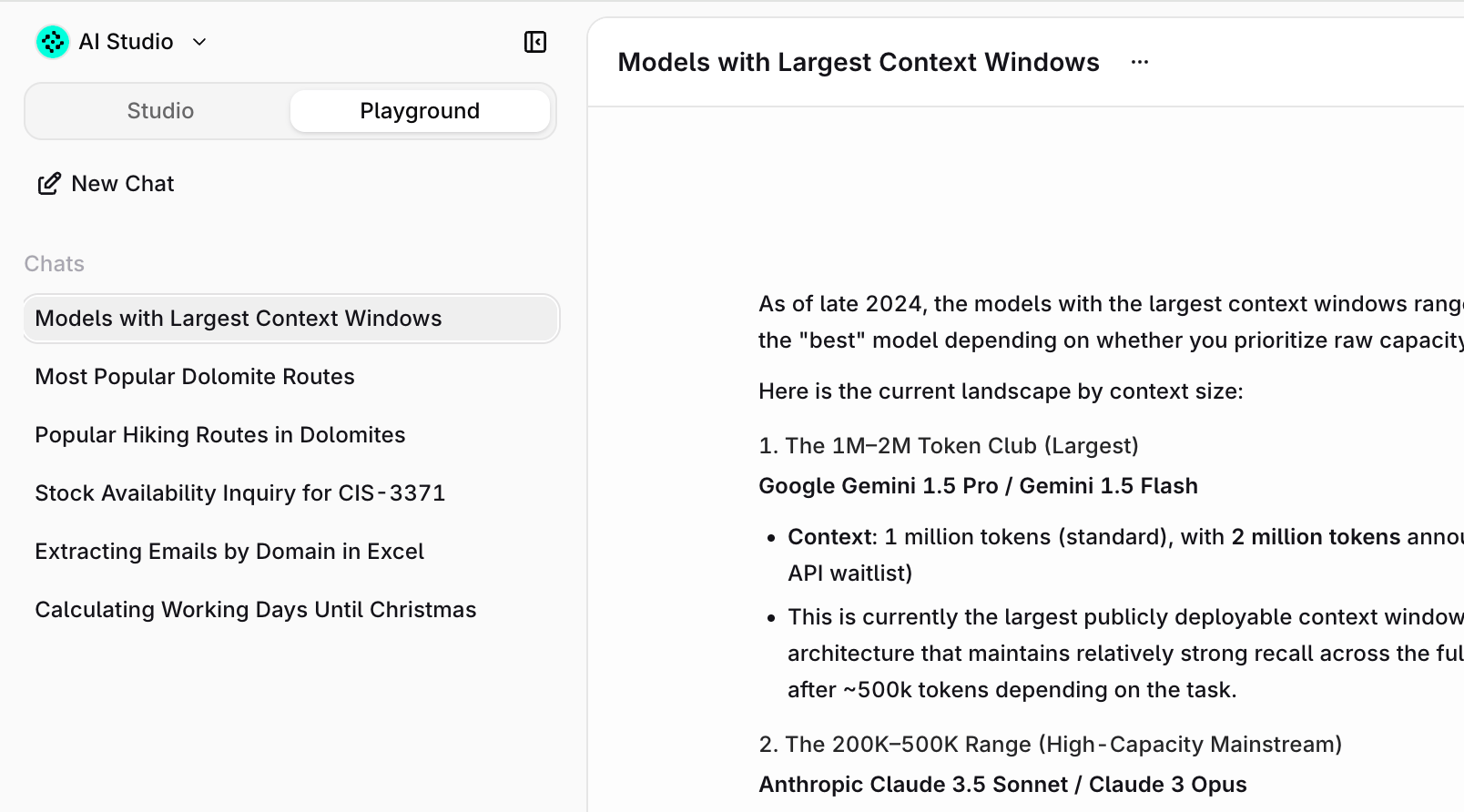
Using Chat
- Every provider, one place: OpenAI, Anthropic, Google, Mistral, custom models, all in a single chat.
- Switch models mid-conversation: compare outputs across providers without leaving the thread.
- Chat with agents: deploy agents built in Orq.ai directly into Chat for the whole team. See Build Agents to learn how to enable agents for Chat.
- Admin-controlled access: scope available models and agents per workspace.
- Files built in: upload images, PDFs, and documents directly into the conversation.
Starting a Chat
- Open Chat from the product switcher at the top of the sidebar.
- Click New Chat in the sidebar to start a fresh conversation.
- Select a model or agent using the selector in the input bar.
- Type a message in the input box at the bottom.
- Press Send or hit
Enterto submit.
Models and Agents
The input bar includes a selector that lists all models and agents enabled by the workspace admin. Select the desired model or agent before sending a message. Models can be switched mid-conversation.- Models are sourced from the AI Gateway, giving access to models across all configured providers.
- Agents are built in AI Studio around specific use cases and can use tools, knowledge bases, and multi-step reasoning. Chat is a great way to test and validate agents before rolling them out to the team.
Input Options
Click in the input bar to open the options menu. Three options are available depending on the selected model or agent:Upload Photos & Files
Attach images, PDFs, and documents directly to a message. Maximum file size is 20 MB. Available for any model with vision or document capabilities.Web Search
Only available for models that support Web Search.
Thinking
Only available for models that support Thinking.
- Standard: the model applies a moderate level of reasoning.
- Extended: the model reasons more deeply, best suited for difficult problems that benefit from more thorough analysis.