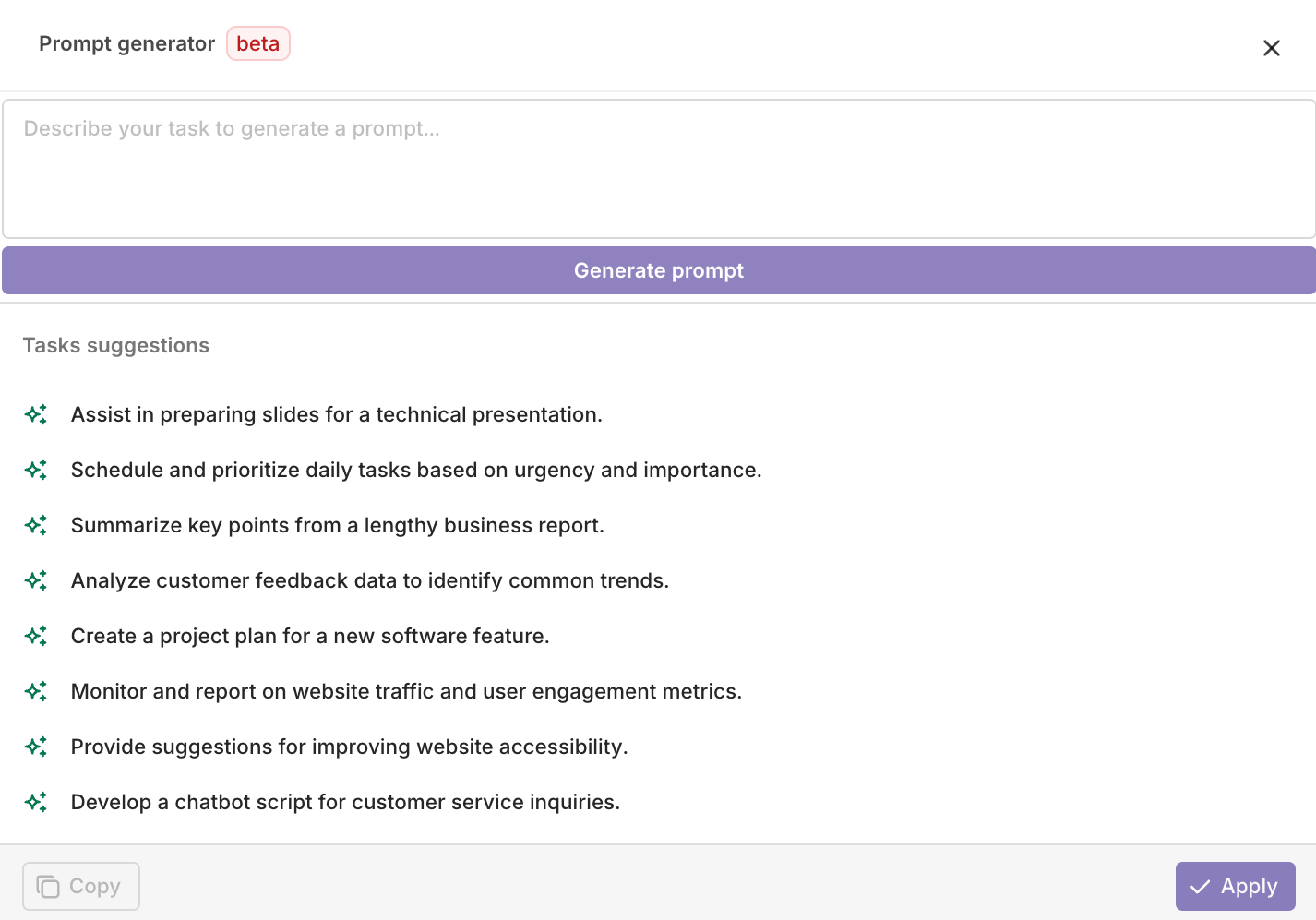
Build, version, and manage prompts for LLM applications. Configure models, variables, and structured outputs through AI Studio or the API.
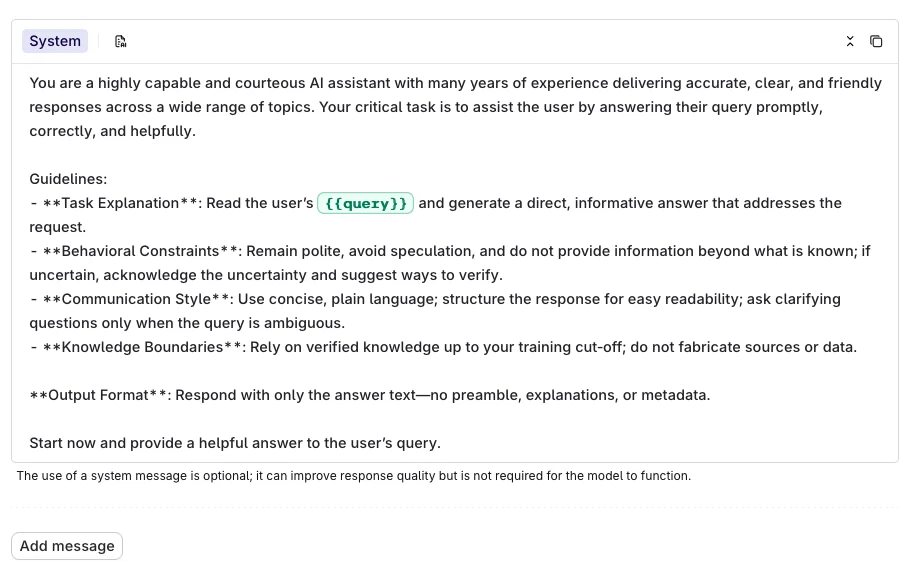
Prompts store all configuration for interacting with a model: system instructions, messages, model selection, and parameters. A Prompt can be reused across Playgrounds, Experiments, Deployments, and Agents.
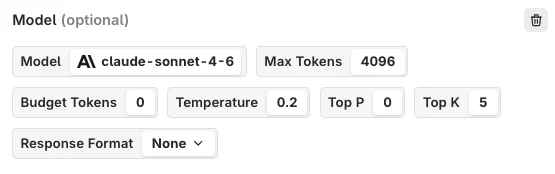
Controls creativity and predictability. Higher values produce more diverse, surprising responses. Lower values produce more predictable output that sticks closely to learned patterns.
Max Tokens
Sets the upper limit on tokens the model can produce in a single output. Prevents excessively long responses while ensuring enough room for a complete answer.
Top K
Narrows the model’s choices to the k most likely tokens at each generation step. Helps refine output to follow particular patterns or meet specific criteria.
Top P
Nucleus sampling. Selects a pool of likely words based on a probability threshold, balancing creativity with coherence.
Frequency Penalty
Discourages the model from reusing the same words or phrases, encouraging richer and more varied language.
Presence Penalty
Discourages repeated topics or ideas rather than specific words. Higher values lead to more creative and diverse responses.
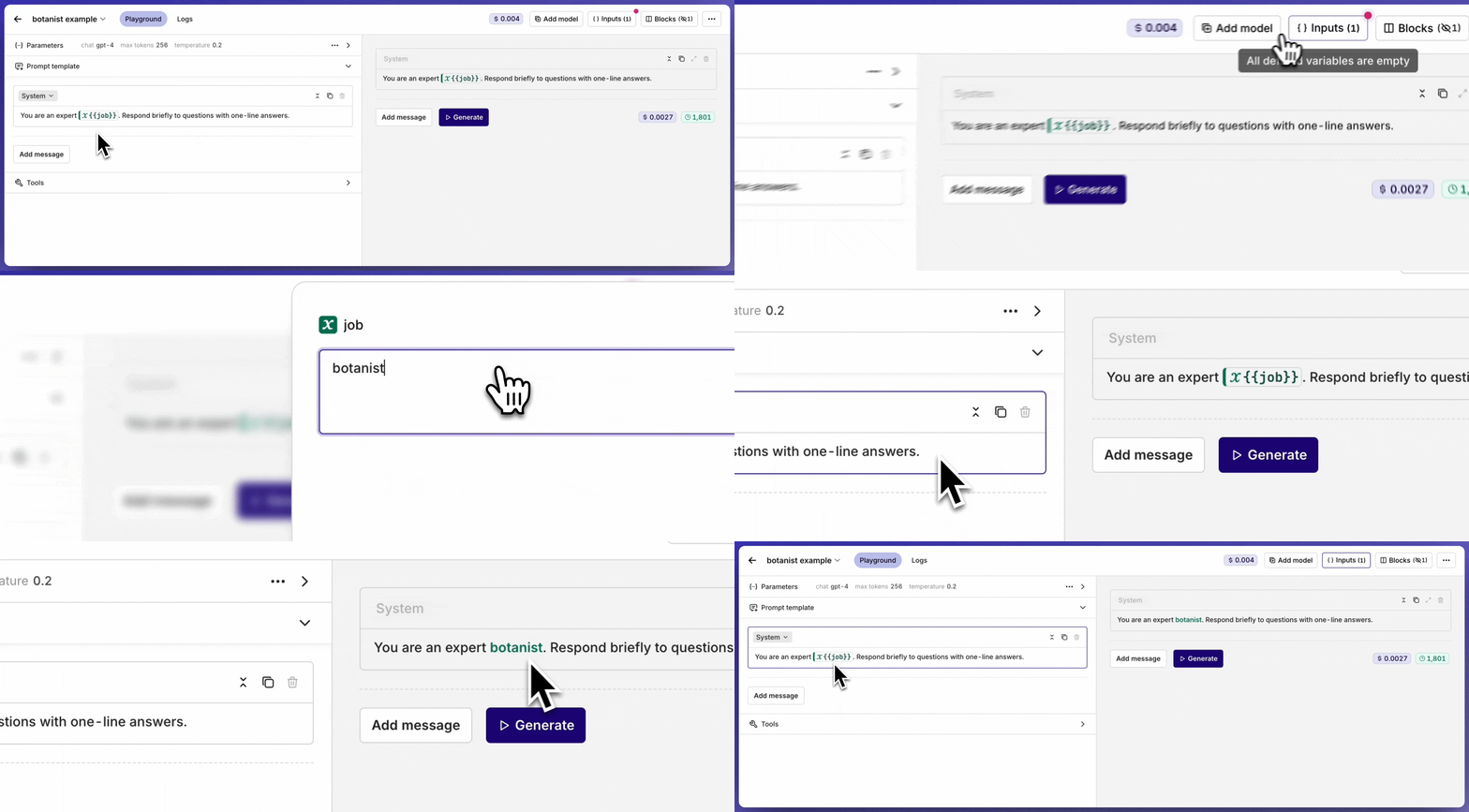
Use {{variable_name}} syntax inside a message to declare a dynamic input. All declared inputs appear in the Inputs block at the top-right of the page, where default values can be set for testing.The example below shows the inputs being set while running the prompt in the Playground.
Inputs being set and overridden while running a prompt in the Playground.
Every change saves a version: the creation call stores version 1, and each later save appends the next. Versions are immutable, and the Prompt always serves its newest one.
AI Studio
API & SDK
1
Open the history view
Open the Prompt in AI Studio and select the history icon beside Save Changes. It stays disabled until the Prompt has two versions.
2
Pick the versions to compare
Each side of the dialog selects a version by its version string, with the newest marked latest.
3
Restore
Select Restore on the side holding the version to bring back. Its configuration returns to the editor, and Save Changes stores it as a new version, so the versions in between stay in the history.
import { Orq } from "@orq-ai/node";const orq = new Orq({ apiKey: process.env["ORQ_API_KEY"] ?? "",});const version = await orq.prompts.getVersion({ promptId: "<id>", versionId: "<version-id>",});console.log(version.prompt);
from orq_ai_sdk import Orqimport oswith Orq( api_key=os.getenv("ORQ_API_KEY", ""),) as orq: version = orq.prompts.get_version(prompt_id="<id>", version_id="<version-id>") print(version.prompt)
Restore by sending the version’s prompt object in an update, which stores it as a new version:
from orq_ai_sdk import Orqimport oswith Orq( api_key=os.getenv("ORQ_API_KEY", ""),) as orq: version = orq.prompts.get_version(prompt_id="<id>", version_id="<version-id>") # The version response and the update request use different message # models, so pass the messages as plain dicts. messages = [ message.model_dump(exclude_none=True) for message in version.prompt.messages ] orq.prompts.update( id="<id>", prompt={"model": version.prompt.model, "messages": messages}, )
Versions come back 10 per page by default and up to 200 with limit; page through them with starting_after or ending_before and the id of a version at a page edge.
A gateway prompt reference always uses the newest version: the version field accepts only "latest". To serve a fixed configuration, restore it as a new version first. See Using prompts.
Was this page helpful?
Assistant
Responses are generated using AI and may contain mistakes.


 AI Studio