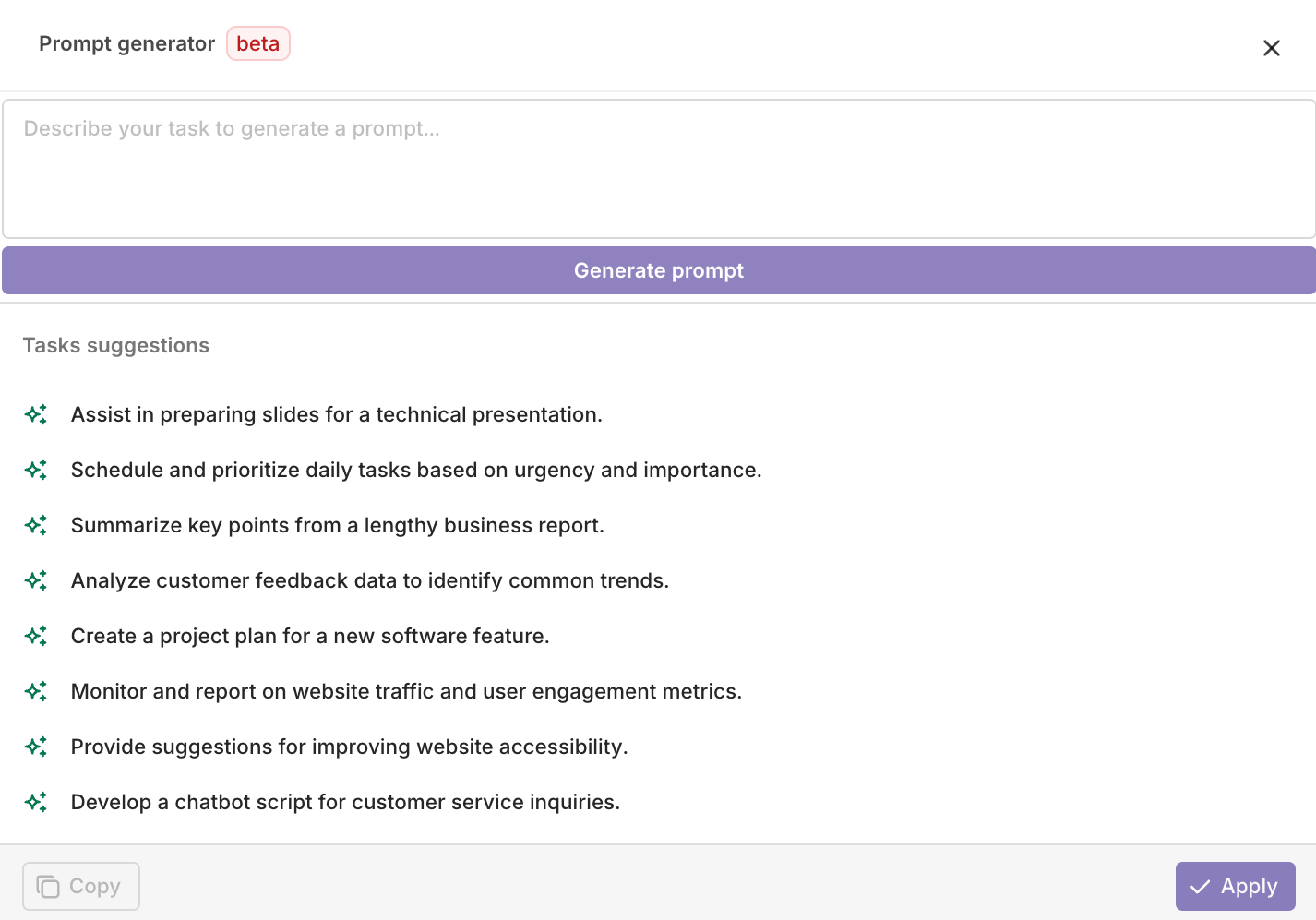
Build, version, and manage prompts for LLM applications. Configure models, variables, and structured outputs through AI Studio or the API.
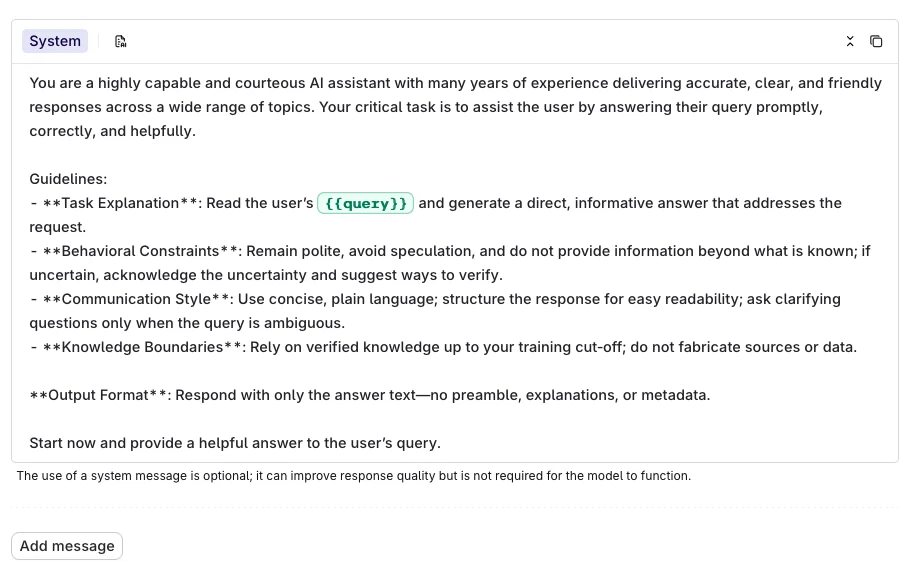
Prompts store all configuration for interacting with a model: system instructions, messages, model selection, and parameters. A Prompt can be reused across Playgrounds, Experiments, Deployments, and Agents.
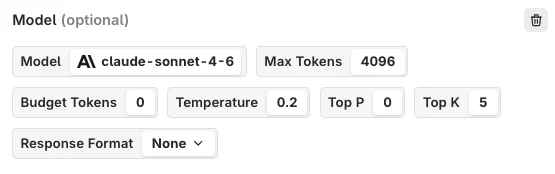
Controls creativity and predictability. Higher values produce more diverse, surprising responses. Lower values produce more predictable output that sticks closely to learned patterns.
Max Tokens
Sets the upper limit on tokens the model can produce in a single output. Prevents excessively long responses while ensuring enough room for a complete answer.
Top K
Narrows the model’s choices to the k most likely tokens at each generation step. Helps refine output to follow particular patterns or meet specific criteria.
Top P
Nucleus sampling. Selects a pool of likely words based on a probability threshold, balancing creativity with coherence.
Frequency Penalty
Discourages the model from reusing the same words or phrases, encouraging richer and more varied language.
Presence Penalty
Discourages repeated topics or ideas rather than specific words. Higher values lead to more creative and diverse responses.
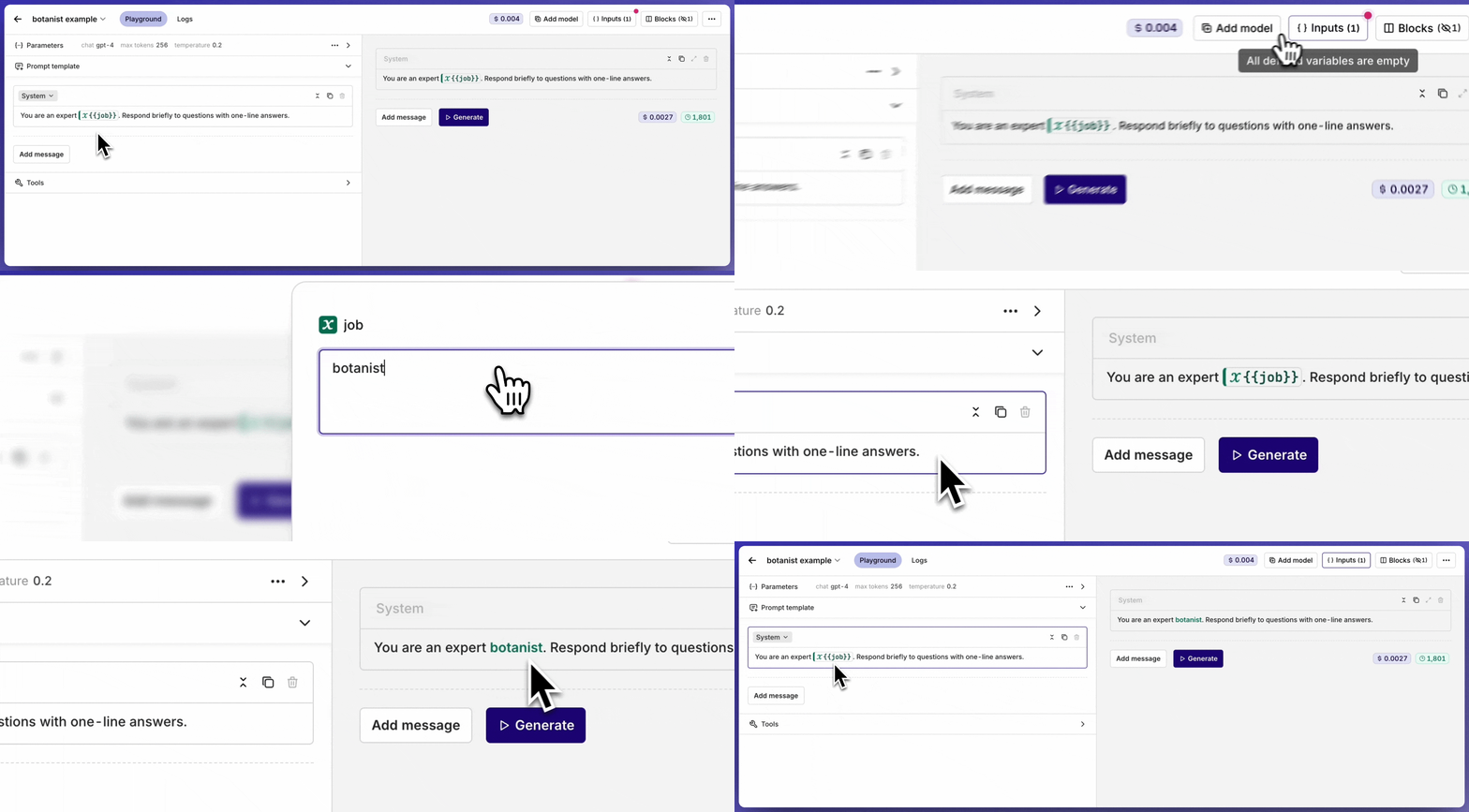
Use {{variable_name}} syntax inside a message to declare a dynamic input. All declared inputs appear in the Inputs block at the top-right of the page, where default values can be set for testing.The example below shows the inputs being set while running the prompt in the Playground.
Inputs being set and overridden while running a prompt in the Playground.


 AI Studio