

MCP Integration
Access the Orq.ai workspace directly from Cursor. Manage experiments, query traces, and configure agents using natural language.
AI Gateway
Route Cursor’s chat model calls through the AI Gateway for unified tracing and cost tracking.
MCP
With the Orq MCP integration, access the Orq.ai workspace directly from Cursor’s chat interface and coding environment.Prerequisites
- Cursor IDE installed
- Active Orq.ai account
- Orq.ai API key
Installation
Add MCP Server
- Open Cursor Settings by clicking Cursor → Settings in the top-left menu
- Click Tools & MCP in the sidebar
- Click New MCP Server to open an empty mcp.json editor
- Paste the following configuration:
- Replace
YOUR_ORQ_API_KEYwith your actual API key from Workspace Settings → API Keys - Save the configuration
Verification
Open Cursor’s chat panel and ask: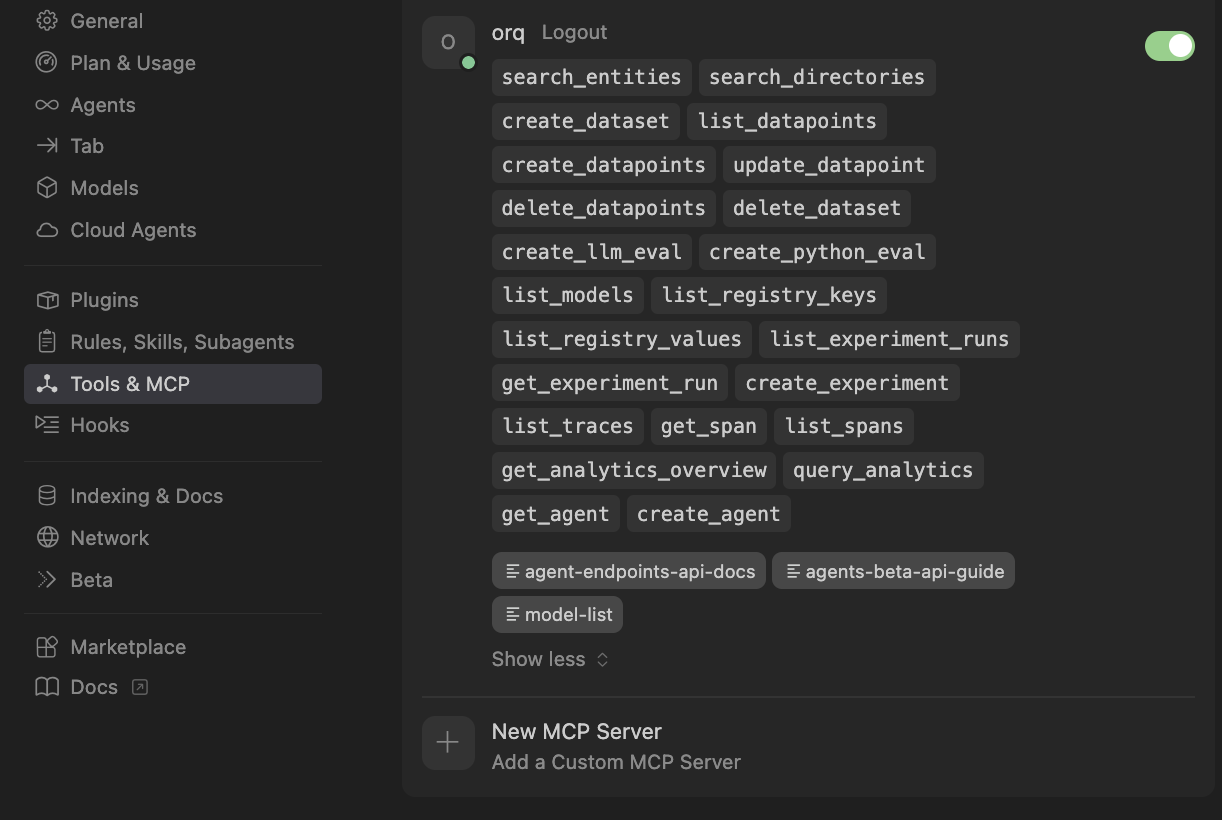
Successfully connected Orq MCP in Cursor
Available Commands
Use natural language to ask Cursor to perform these operations:Agents
Agents
Create an agent with custom instructions and toolsGet agent configuration for [agent-key]Update agent [agent-key] with new instructions or modelConfigure agent with evaluators and guardrailsInvoke agent [agent-key] with input [message]Retrieve agent response [response-id]
Deployments
Deployments
Create a deployment called [deployment-key]Get deployment configuration for [deployment-key]
Skills
Skills
Create a skill called [skill-key]List all skills in my workspaceGet skill [skill-key]Update skill [skill-key]Delete skill [skill-key]
Analytics
Analytics
Get analytics overview for my workspaceShow me workspace metrics for the last 7 daysQuery analytics filtered by deployment ID
Datasets
Datasets
Create a dataset called "customer-queries"List all datapoints in dataset [dataset-key]Add datapoints to dataset [dataset-key]Update datapoint [datapoint-id]Delete specific datapoints in dataset [dataset-key]Delete dataset [dataset-key]
Experiments
Experiments
Create an experiment from dataset [dataset-key]List all experiment runsExport experiment run [run-id] as CSVRun experiment and auto-evaluate results
Evaluators
Evaluators
Get evaluator configuration for [evaluator-key]Create an LLM-as-a-Judge evaluator for toneCreate a Python evaluator to check response lengthAdd evaluator to experiment [experiment-key]Update evaluator [evaluator-key] with a new promptUpdate Python evaluator [evaluator-key] with revised code
Traces
Traces
List traces from the last 24 hoursShow me traces with errorsGet span details for trace [trace-id]Find the slowest traces from todayShow all traces for thread [thread-id]
Models
Models
List all available chat modelsList all available embedding modelsInvoke model [model-id] with prompt [message]
Search
Search
Search for datasets named "customer"Find experiments in project [project-id]List directories in project [project-id]
Documentation
Documentation
Search the Orq.ai docs for [topic]
Managing Entities
Managing Entities
Delete agent [agent-key]Delete experiment [experiment-key]Delete evaluator [evaluator-key]Delete prompt [prompt-key]Delete knowledge base [knowledge-base-key]
delete_dataset to delete a dataset along with all its datapoints.Troubleshooting
Orq MCP Not Responding
Orq MCP Not Responding
- Check Cursor’s Orq MCP status in Settings
- Verify the API key is correct
- Restart Cursor
- Check the Developer Console (Help > Toggle Developer Tools)
Authentication Errors
Authentication Errors
- Confirm the API key is valid
- Ensure the API key has the necessary permissions
- Try regenerating the API key
Tools Not Available
Tools Not Available
- Verify the Orq MCP server is running in Settings
- Check network connectivity
- Review any error messages in the Developer Console
Skills
Orq Skills add pre-built agentic workflows to Cursor for the full Build, Evaluate, Optimize lifecycle.Installation
Orq Skills
The full catalogue of skills and slash commands.
Slash commands (
/orq:quickstart, /orq:traces, and others) are only available in Claude Code.AI Gateway
Route Cursor’s chat model calls through the Orq.ai AI Gateway by overriding the OpenAI base URL in Cursor Settings. Requests appear in Traces automatically.Only the chat panel (+L / Ctrl+L) routes through the custom endpoint. Composer, inline edit, and tab completion remain on Cursor’s backend. Setting a custom base URL also disables Cursor’s default model list; add models manually using provider-prefixed IDs.
Prerequisites
- Cursor Pro or higher
- Active Orq.ai account with AI Gateway access
- Orq.ai API key
- Model enabled in AI Gateway → Supported Models
Setup
1
Open Cursor Settings and navigate to Models
Open Cursor Settings (+, / Ctrl+,) and select the Models tab.
2
Enter the API key
Enable the OpenAI API Key toggle and paste the Orq.ai API key in the field. Cursor sends this key to whatever base URL is configured below. It does not have to be an OpenAI key.
3
Set the base URL
In Override OpenAI Base URL, enter:If the field is not visible, expand the advanced options under the OpenAI API Key toggle.
4
Add a model
In the Model Names field, enter a provider-prefixed model ID (e.g.
openai/gpt-5.4 or anthropic/claude-sonnet-5), then click Verify. A green checkmark confirms the model is reachable. Click Save.Repeat for each model to add.Verification
Send a message in the chat panel (+L / Ctrl+L). The response appears in Cursor and the trace appears in Orq.ai Traces with the model identifier (e.g.openai/gpt-5.4).
Troubleshooting
Verify fails with authentication error
Verify fails with authentication error
Confirm the API key is a valid Orq.ai API key and that the model ID is enabled in AI Gateway → Supported Models.
Model not found or 404 error
Model not found or 404 error
The model must use the provider-prefixed format (e.g.
openai/gpt-5.4, not gpt-5.6-sol) and must be enabled in AI Gateway → Supported Models.No Traces appearing in Orq.ai
No Traces appearing in Orq.ai
Confirm the base URL is set to
https://my.orq.ai/v3/router and the request is sent from the chat panel (+L / Ctrl+L). Inline edit and tab completion bypass the custom endpoint.Default Cursor models stopped working
Default Cursor models stopped working
Setting a custom base URL disables the default Cursor model list. Remove the base URL override in Cursor Settings → Models to restore default behavior, or add the required models manually using provider-prefixed IDs.