Route every Open WebUI chat through the Orq.ai AI Gateway. Add one OpenAI connection to reach the full model catalog with unified tracing.
Overview
Open WebUI is an open-source, self-hosted chat interface. It supports OpenAI-compatible endpoints directly in the UI, so adding the AI Gateway as a connection routes every chat through Orq.ai with the full model catalog, unified tracing, and cost tracking. This page covers model routing, tracing and MCP tool servers.
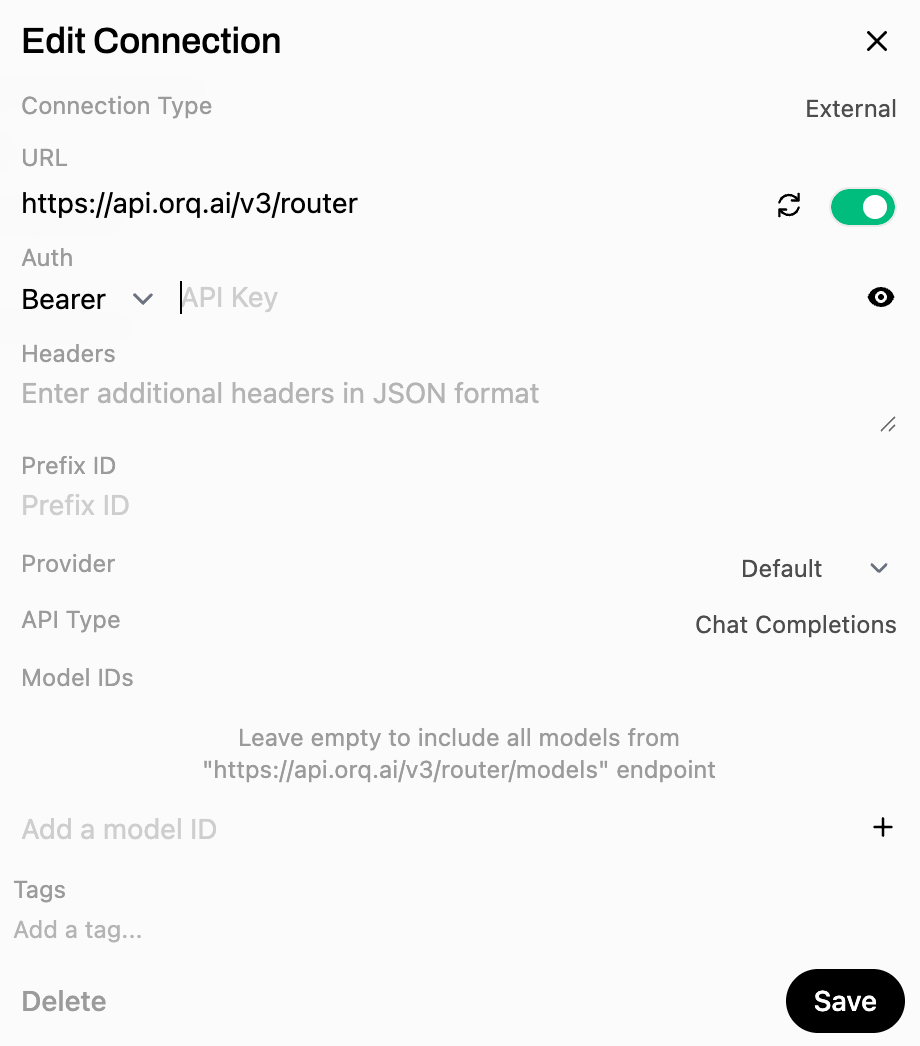
Leave Model IDs empty to include every enabled model from the AI Gateway, then Save.
Adding the AI Gateway as an OpenAI connection in Open WebUI
3
Select a model
Enabled Orq.ai models appear in the selector at the top of a new chat. To curate the list, go to Admin Settings → Models and add provider-prefixed IDs (for example openai/gpt-5.6-sol, anthropic/claude-sonnet-5) from Workspace Settings → Models.
MCP Gateway
The MCP Gateway serves the tools, resources and prompts of the MCP Servers linked to it. Open WebUI registers external tool servers in the admin panel, with no configuration file:
Open Settings → Integrations → External Tool Servers and select + Add Connection.
Set the type to MCP (Streamable HTTP) and the URL to https://my.orq.ai/v3/mcp/<gateway-key>.
Choose OAuth 2.1, register the client, then have each user authorize it from the chat + menu.
To authenticate with an API key instead, choose Bearer and add an Authorization header with the key. Keep WEBUI_SECRET_KEY stable, or stored OAuth tokens fail to decrypt after a restart.
Troubleshooting
The model picker is empty
The connection URL has an extra or trailing path, or the model fetch did not run. Confirm the URL is exactly https://my.orq.ai/v3/router, or add models manually under Admin Settings → Models.
Requests do not appear in Orq.ai Traces
A different connection is handling the request. Make sure the AI Gateway connection is selected, and disable any direct OpenAI connection to route exclusively through Orq.ai.
Authentication errors
Confirm the API Key is a valid Orq.aiAPI key, not an OpenAI key.
Verification
Start a new chat, choose an Orq.ai model, and send a message. The response appears in the chat, and the request appears in Orq.ai Traces with the selected model identifier.
Was this page helpful?
{"docsConfig":{"theme":"aspen","$schema":"https://mintlify.com/docs.json","name":"Orq.ai Documentation","description":"Documentation for Orq.ai, the EU-built control plane for enterprise AI: govern every LLM and MCP call with the AI Gateway, and ship backlog work with the Software Factory.","colors":{"primary":"#027f6b","light":"#00d2b5","dark":"#027f6b"},"logo":{"light":"https://mintcdn.com/orqai/OG_14djpK9Yasgfk/images/Orq_ai_Symbol_Dark.svg?fit=max\u0026auto=format\u0026n=OG_14djpK9Yasgfk\u0026q=85\u0026s=d01651850182afdbc6309808b688d470","dark":"https://mintcdn.com/orqai/BYq_L5I_ZDBWL_Pf/images/Orq_ai_Symbol_Light.svg?fit=max\u0026auto=format\u0026n=BYq_L5I_ZDBWL_Pf\u0026q=85\u0026s=3e372f93174202f20c31d2c045af92b9","href":"/ai-gateway/get-started/introduction"},"favicon":"https://mintcdn.com/orqai/rmwcfFw4PPljHRCz/favicon.svg?fit=max\u0026auto=format\u0026n=rmwcfFw4PPljHRCz\u0026q=85\u0026s=1827beca4e1fb46e074d8bda067f3fb1","api":{"openapi":"openapi.json","examples":{"languages":["curl","typescript","python"]}},"background":{"color":{"light":"#f7f6f5","dark":"#171717"}},"navbar":{"links":[],"primary":{"type":"button","label":"Get Started","href":"https://my.orq.ai/auth/signup"}},"footer":{"socials":{"github":"https://github.com/orq-ai","x":"https://x.com/orq_ai","linkedin":"https://www.linkedin.com/company/orqai","website":"https://orq.ai"}},"seo":{"metatags":{"author":"Orq.ai","og:type":"website","og:site_name":"Orq.ai Documentation","og:locale":"en_US","twitter:card":"summary_large_image","twitter:site":"@orq_ai","twitter:creator":"@orq_ai","viewport":"width=device-width, initial-scale=1.0","robots":"index, follow","language":"English"},"organization":{"id":"https://docs.orq.ai/#organization","name":"Orq.ai","legalName":"Orq.AI Holding B.V.","url":"https://orq.ai","logo":"https://docs.orq.ai/images/Orq_ai_Symbol_Dark.svg","sameAs":["https://github.com/orq-ai","https://x.com/orq_ai","https://www.linkedin.com/company/orqai/"]},"indexing":"all"},"fonts":{"heading":{"family":"ES Klarheit Kurrent Semibold","weight":600,"source":"https://framerusercontent.com/assets/HiovZWjG27S5NQhE8dyeECDMc.woff2","format":"woff2"},"body":{"family":"Inter","weight":400,"source":"fonts/inter-latin-400-normal.woff2","format":"woff2"}},"styling":{"codeblocks":{"theme":{"light":"github-light","dark":"github-dark"}},"latex":true},"contextual":{"options":["copy","download-spec","chatgpt","claude","view"],"display":"header"},"interaction":{"drilldown":true},"markdown":{"instructions":"Orq.ai is the control plane for model and MCP traffic: one key reaches the workspace's enabled models, MCP servers, and resources. The setup depends on where the agent runs.\nHosted assistant (ChatGPT, claude.ai, a hosted sandbox): install nothing. Tell the human to add https://my.orq.ai/v2/mcp as a remote MCP connector and finish the Orq.ai sign-in. With OAuth, send no Authorization header; otherwise send an API key as a bearer token.\nLocal coding agent (Claude Code, Codex, Cursor, OpenCode): run `curl -fsSL https://cli.orq.ai/install.sh | sh`. It installs the CLI and runs `orq setup`, which signs in, writes a project-scoped key to `~/.orq/env`, and wires the detected agents through the AI Gateway. It can also add the Orq MCP server and Orq Skills, the workflows for agents, evaluations, and traces: https://docs.orq.ai/ai-studio/integrations/code-assistants/orq-skills.md. Verify with `orq status`.\nHeadless or CI: read `ORQ_API_KEY` from the environment; a human creates the key at https://docs.orq.ai/ai-studio/organization/api-keys.md.\nSend model traffic to https://my.orq.ai/v3/router with `Authorization: Bearer $ORQ_API_KEY`; the Anthropic SDK uses https://my.orq.ai/v3/anthropic. New integrations go on `/v3/router`: `/v2/router` stays published for backward compatibility, and `orq.prompt` works only on `/v2/router/chat/completions`.\nEnable a model for the workspace and use its exact `provider/model` id. `POST /v2/workspace-models` enables a model, and a call fails while the workspace has neither credits nor a provider key.\nOn `/chat/completions`, a reasoning model rejects `tools` with a `reasoning_effort` other than `none`; `/responses` keeps reasoning.\nOn a failure, branch on `error.code` and follow `error.doc_url`; a budget rejection answers 429."},"navigation":{"pages":[]}},"deployment":{"deploymentMetadataValue":{"subdomain":"orqai","hasAudioNarration":false,"actualSubdomain":"orqai","customDomains":["docs.orq.ai"],"gitSource":{"type":"github","owner":"orq-ai","repo":"orquesta-web","deployBranch":"main","contentDirectory":"documentation/mintlify","isPrivate":true,"mountPath":"","label":""},"feedback":{"thumbs":true,"agentFeedback":true},"entitlements":{"AI_CHAT":{"status":"ENABLED"},"WEB_MCP":{"status":"ENABLED"},"NARRATION":{"status":"ENABLED"}},"buildId":"6b082a09a8963623700fabe7","clientVersion":"0.0.4336","searchFilterCounts":[{"language":"default","tag":"API Reference","count":478},{"language":"default","tag":"Platform APIs","count":295},{"language":"default","tag":"Integrations","count":93},{"language":"default","tag":"Management APIs","count":93},{"language":"default","tag":"Orq SDK","count":82},{"language":"default","tag":"SDK Reference","count":79},{"language":"default","tag":"AI Gateway","count":71},{"language":"default","tag":"Cookbooks","count":34},{"language":"default","tag":"Administration","count":32},{"language":"default","tag":"Model Providers","count":31}],"searchSettings":{"maxResults":15}},"assistantConfig":{"enableStarterQuestions":true,"enableContextualStarterQuestions":true,"deflection":{"enabled":true,"email":"support@orq.ai","showHelpButton":true}},"basePath":"","hasChatPermissions":true,"hasWebMcpPermissions":true,"toggles":[{"name":"kill-isr","enabled":true,"variant":{"name":"disabled","enabled":false,"feature_enabled":true},"impressionData":false},{"name":"custom-rbac-roles","enabled":true,"variant":{"name":"disabled","enabled":false,"feature_enabled":true},"impressionData":false},{"name":"agent-mintlify-slack","enabled":true,"variant":{"name":"disabled","enabled":false,"feature_enabled":true},"impressionData":false},{"name":"agent-integrations-settings","enabled":true,"variant":{"name":"disabled","enabled":false,"feature_enabled":true},"impressionData":false},{"name":"rbac-expansion","enabled":true,"variant":{"name":"disabled","enabled":false,"feature_enabled":true},"impressionData":false},{"name":"automations-pr-grouping","enabled":true,"variant":{"name":"disabled","enabled":false,"feature_enabled":true},"impressionData":false},{"name":"custom-prefix","enabled":true,"variant":{"name":"disabled","enabled":false,"feature_enabled":true},"impressionData":false},{"name":"analytics-v7","enabled":true,"variant":{"name":"disabled","enabled":false,"feature_enabled":true},"impressionData":false},{"name":"user-flows-analytics","enabled":true,"variant":{"name":"disabled","enabled":false,"feature_enabled":true},"impressionData":false},{"name":"no-publish-flow","enabled":true,"variant":{"name":"disabled","enabled":false,"feature_enabled":true},"impressionData":false},{"name":"snapshot-serving-live","enabled":true,"variant":{"name":"disabled","enabled":false,"feature_enabled":true},"impressionData":false},{"name":"stripTemperatureMiddleware","enabled":true,"variant":{"name":"disabled","enabled":false,"feature_enabled":true},"impressionData":false},{"name":"support-platform-pylon-zendesk","enabled":true,"variant":{"name":"disabled","enabled":false,"feature_enabled":true},"impressionData":false},{"name":"snapshot-serving","enabled":true,"variant":{"name":"disabled","enabled":false,"feature_enabled":true},"impressionData":false},{"name":"instant-rollback","enabled":true,"variant":{"name":"disabled","enabled":false,"feature_enabled":true},"impressionData":false},{"name":"granular-notifications-server","enabled":true,"variant":{"name":"disabled","enabled":false,"feature_enabled":true},"impressionData":false},{"name":"granular-notifications","enabled":true,"variant":{"name":"disabled","enabled":false,"feature_enabled":true},"impressionData":false},{"name":"automations-fable","enabled":true,"variant":{"name":"disabled","enabled":false,"feature_enabled":true},"impressionData":false},{"name":"fixed-ai-action-pricing","enabled":true,"variant":{"name":"disabled","enabled":false,"feature_enabled":true},"impressionData":false},{"name":"site-roles","enabled":true,"variant":{"name":"disabled","enabled":false,"feature_enabled":true},"impressionData":false},{"name":"automation-resolve-merge-conflict","enabled":true,"variant":{"name":"disabled","enabled":false,"feature_enabled":true},"impressionData":false},{"name":"scoped-publishing","enabled":true,"variant":{"name":"disabled","enabled":false,"feature_enabled":true},"impressionData":false},{"name":"mintql","enabled":true,"variant":{"name":"disabled","enabled":false,"feature_enabled":true},"impressionData":false},{"name":"page-level-analytics","enabled":true,"variant":{"name":"disabled","enabled":false,"feature_enabled":true},"impressionData":false},{"name":"editor-version-history-v2","enabled":true,"variant":{"name":"disabled","enabled":false,"feature_enabled":true},"impressionData":false},{"name":"billing-page-v2","enabled":true,"variant":{"name":"disabled","enabled":false,"feature_enabled":true},"impressionData":false},{"name":"full-page-search","enabled":true,"variant":{"name":"disabled","enabled":false,"feature_enabled":true},"impressionData":false},{"name":"workspace-projects","enabled":true,"variant":{"name":"disabled","enabled":false,"feature_enabled":true},"impressionData":false},{"name":"fork-pr-previews","enabled":true,"variant":{"name":"disabled","enabled":false,"feature_enabled":true},"impressionData":false},{"name":"revalidation-jwt","enabled":true,"variant":{"name":"disabled","enabled":false,"feature_enabled":true},"impressionData":false},{"name":"hobby-abuse-scan","enabled":true,"variant":{"name":"disabled","enabled":false,"feature_enabled":true},"impressionData":false},{"name":"dashboard-inbox","enabled":true,"variant":{"name":"disabled","enabled":false,"feature_enabled":true},"impressionData":false},{"name":"turbopuffer-dual-write","enabled":true,"variant":{"name":"disabled","enabled":false,"feature_enabled":true},"impressionData":false},{"name":"approve-review-flow","enabled":true,"variant":{"name":"disabled","enabled":false,"feature_enabled":true},"impressionData":false},{"name":"editor-metadata","enabled":true,"variant":{"name":"disabled","enabled":false,"feature_enabled":true},"impressionData":false},{"name":"turbopuffer-serve","enabled":true,"variant":{"name":"disabled","enabled":false,"feature_enabled":true},"impressionData":false},{"name":"live-agents","enabled":true,"variant":{"name":"disabled","enabled":false,"feature_enabled":true},"impressionData":false},{"name":"starter-pricing","enabled":true,"variant":{"name":"treatment","enabled":true,"payload":{"type":"string","value":"treatment"},"feature_enabled":true},"impressionData":false},{"name":"llms-txt-v2","enabled":true,"variant":{"name":"disabled","enabled":false,"feature_enabled":true},"impressionData":false},{"name":"wildcard-email-auth","enabled":true,"variant":{"name":"disabled","enabled":false,"feature_enabled":true},"impressionData":false}],"starterQuestions":[],"googleFontsInlined":false},"customCss":[{"filePath":"custom.css","content":".nav-anchor img{border-radius:50%}.ig-root{scroll-margin-top:6rem}.ig-search{width:100%;padding:10px 14px 10px 38px;border-radius:8px;border:1px solid rgba(0, 0, 0, 0.15);font-size:14px;outline:none;margin-bottom:20px;background:transparent;box-sizing:border-box;background-image:url(\"data:image/svg+xml,%3Csvg xmlns='http://www.w3.org/2000/svg' width='16' height='16' fill='none' viewBox='0 0 24 24'%3E%3Cpath stroke='%23999' stroke-linecap='round' stroke-linejoin='round' stroke-width='2' d='m21 21-4.35-4.35M17 11A6 6 0 1 1 5 11a6 6 0 0 1 12 0Z'/%3E%3C/svg%3E\");background-repeat:no-repeat;background-position:12px center}.dark .ig-search{border-color:rgba(255, 255, 255, 0.15)}.ig-search:focus{border-color:#027f6b}.ig-tabs{display:flex;border-bottom:1px solid rgba(0, 0, 0, 0.1);margin-bottom:20px;gap:0}.dark .ig-tabs{border-bottom-color:rgba(255, 255, 255, 0.1)}.ig-tab{padding:8px 16px;background:none;border:none;border-bottom:2px solid transparent;margin-bottom:-1px;cursor:pointer;font-size:14px;font-weight:500;color:#888;white-space:nowrap}.ig-tab:hover{color:#027f6b}.dark .ig-tab:hover{color:#677F78}.ig-tab-active{border-bottom-color:#027f6b!important;color:#027f6b!important}.dark .ig-tab-active{border-bottom-color:#677F78!important;color:#677F78!important}.ig-grid{display:grid;grid-template-columns:repeat(4, 1fr);gap:6px}@media (max-width: 768px){.ig-grid{grid-template-columns:repeat(3, 1fr)}}@media (max-width: 480px){.ig-grid{grid-template-columns:repeat(2, 1fr)}}.ig-card{display:flex;align-items:center;gap:8px;padding:10px 14px;border:1px solid rgba(0, 0, 0, 0.1);border-radius:6px;text-decoration:none!important;color:inherit!important;font-size:14px;font-weight:500;transition:background 0.12s, border-color 0.12s}.ig-card:hover{background:rgba(2, 127, 107, 0.05);border-color:rgba(2, 127, 107, 0.25)}.dark .ig-card{border-color:rgba(255, 255, 255, 0.1)}.dark .ig-card:hover{background:rgba(103, 127, 120, 0.1);border-color:rgba(103, 127, 120, 0.3)}.ig-card-icon{width:20px;height:20px;object-fit:contain;flex-shrink:0}.ig-tab-count{display:inline-flex;align-items:center;justify-content:center;margin-left:6px;padding:0 5px;min-width:18px;height:18px;border-radius:9px;font-size:11px;font-weight:600;background:rgba(0, 0, 0, 0.08);color:inherit}.dark .ig-tab-count{background:rgba(255, 255, 255, 0.12)}.ig-tab-active .ig-tab-count{background:rgba(2, 127, 107, 0.15)}.dark .ig-tab-active .ig-tab-count{background:rgba(103, 127, 120, 0.25)}.ig-empty{text-align:center;padding:48px 24px;color:#999;font-size:14px;grid-column:1 / -1}kbd.key,kbd.key *{color:#fff!important}kbd.key{background:#242424;border-radius:5px;padding:2px 8px;font-size:0.85em;display:inline-flex;align-items:center;gap:6px;border:1px solid #3a3a3a;font-family:inherit;white-space:nowrap}#sidebar-content .flex-1:has(>svg.flex-shrink-0){flex:none!important}#sidebar-content{width:16rem!important;min-width:16rem!important}@media (min-width: 1024px){.lg\\:pl-56{padding-left:16rem!important}}.topbar-right-container nav[aria-label=\"Main\"] .navbar-link a,.topbar-right-container nav[aria-label=\"Main\"] .navbar-link a:hover{background-color:transparent!important}@media (min-width: 1024px){.topbar-right-container nav[aria-label=\"Main\"] ul{gap:1rem!important}.topbar-right-container nav[aria-label=\"Main\"] .navbar-link a{padding-left:0!important;padding-right:0!important}#page-title{font-size:2rem!important;line-height:1.2!important}}.nav-tabs-item:has(a[href^=\"/reference\"]){display:none!important}#navbar .nav-tabs-item[href=\"/ai-studio/integrations/overview\"]{position:relative}#navbar .nav-tabs-item[href=\"/ai-studio/integrations/overview\"]::before{content:'';position:absolute;top:50%;left:-12px;transform:translateY(-50%);height:55%;width:1px;background:rgba(0, 0, 0, 0.15)}.dark #navbar .nav-tabs-item[href=\"/ai-studio/integrations/overview\"]::before{background:rgba(255, 255, 255, 0.15)}@media (min-width: 1280px){#content-container{padding-left:3rem!important;padding-right:2rem!important}#content-side-layout{max-width:20rem!important}#content-area{width:calc(100% - 20rem)!important}}.md-export-list{display:none}@font-face{font-family:'Inter';src:url('/fonts/inter-latin-400-normal.woff2') format('woff2');font-style:normal;font-weight:400;font-display:optional}"}]}
{"page":{"pagePath":"ai-studio/integrations/chat-interfaces/openwebui","slug":"/ai-studio/integrations/chat-interfaces/openwebui","pageMetadata":{"title":"Open WebUI","sidebarTitle":"Open WebUI","description":"Route every Open WebUI chat through the Orq.ai AI Gateway. Add one OpenAI connection to reach the full model catalog with unified tracing.","href":"/ai-studio/integrations/chat-interfaces/openwebui"},"description":{"compiledSource":"\"use strict\";\nconst {jsx: _jsx} = arguments[0];\nconst {useMDXComponents: _provideComponents} = arguments[0];\nfunction _createMdxContent(props) {\n const _components = {\n p: \"p\",\n ..._provideComponents(),\n ...props.components\n };\n return _jsx(_components.p, {\n children: \"Route every Open WebUI chat through the Orq.ai AI Gateway. Add one OpenAI connection to reach the full model catalog with unified tracing.\"\n });\n}\nfunction MDXContent(props = {}) {\n const {wrapper: MDXLayout} = {\n ..._provideComponents(),\n ...props.components\n };\n return MDXLayout ? _jsx(MDXLayout, {\n ...props,\n children: _jsx(_createMdxContent, {\n ...props\n })\n }) : _createMdxContent(props);\n}\nreturn {\n default: MDXContent\n};\n","frontmatter":{},"scope":{}},"pageType":"default","mdx":{"mdxSource":{"compiledSource":"\"use strict\";const{Fragment:_Fragment,jsx:_jsx,jsxs:_jsxs}=arguments[0];const{useMDXComponents:_provideComponents}=arguments[0];function _createMdxContent(props){const _components={a:`a`,code:`code`,li:`li`,ol:`ol`,p:`p`,pre:`pre`,span:`span`,strong:`strong`,ul:`ul`,..._provideComponents(),...props.components},{Accordion,AccordionGroup,CodeBlock,Frame,Heading,OptimizedImage,Step,Steps}=_components;if(!Accordion)_missingMdxReference(`Accordion`,true);if(!AccordionGroup)_missingMdxReference(`AccordionGroup`,true);if(!CodeBlock)_missingMdxReference(`CodeBlock`,true);if(!Frame)_missingMdxReference(`Frame`,true);if(!Heading)_missingMdxReference(`Heading`,true);if(!OptimizedImage)_missingMdxReference(`OptimizedImage`,true);if(!Step)_missingMdxReference(`Step`,true);if(!Steps)_missingMdxReference(`Steps`,true);return _jsxs(_Fragment,{children:[_jsx(Heading,{level:`2`,id:`overview`,children:`Overview`}),`\n`,_jsxs(_components.p,{children:[_jsx(_components.a,{href:`https://openwebui.com/`,children:`Open WebUI`}),` is an open-source, self-hosted chat interface. It supports OpenAI-compatible endpoints directly in the UI, so adding the `,_jsx(_components.strong,{children:`AI Gateway`}),` as a connection routes every chat through `,_jsx(_components.strong,{children:`Orq.ai`}),` with the full model catalog, unified tracing, and cost tracking. This page covers model routing, tracing and MCP tool servers.`]}),`\n`,_jsx(Heading,{level:`2`,id:`prerequisites`,children:`Prerequisites`}),`\n`,_jsxs(_components.ul,{children:[`\n`,_jsxs(_components.li,{children:[_jsx(_components.a,{href:`https://docs.docker.com/get-started/get-docker/`,children:`Docker`}),` installed`]}),`\n`,_jsxs(_components.li,{children:[`Active `,_jsx(_components.strong,{children:`Orq.ai`}),` account`]}),`\n`,_jsx(_components.li,{children:_jsx(_components.a,{href:`/ai-studio/organization/api-keys`,children:`Orq.ai API key`})}),`\n`]}),`\n`,_jsx(Heading,{level:`2`,id:`setup`,children:`Setup`}),`\n`,_jsxs(Steps,{children:[_jsxs(Step,{title:`Start Open WebUI`,children:[_jsxs(_components.p,{children:[`Run the container, then open `,_jsx(_components.a,{href:`http://localhost:3000`,children:`http://localhost:3000`}),` and create the admin account (the first user to sign up becomes the admin):`]}),_jsx(CodeBlock,{filename:``,numberOfLines:`1`,language:`shellscript`,children:_jsx(_components.pre,{className:`shiki shiki-themes github-light github-dark`,style:{backgroundColor:`#fff`,\"--shiki-dark-bg\":`#24292e`,color:`#24292e`,\"--shiki-dark\":`#e1e4e8`},language:`shellscript`,children:_jsxs(_components.code,{language:`shellscript`,numberOfLines:`1`,children:[_jsxs(_components.span,{className:`line`,children:[_jsx(_components.span,{style:{color:`#6F42C1`,\"--shiki-dark\":`#B392F0`},children:`docker`}),_jsx(_components.span,{style:{color:`#032F62`,\"--shiki-dark\":`#9ECBFF`},children:` run`}),_jsx(_components.span,{style:{color:`#005CC5`,\"--shiki-dark\":`#79B8FF`},children:` -d`}),_jsx(_components.span,{style:{color:`#005CC5`,\"--shiki-dark\":`#79B8FF`},children:` -p`}),_jsx(_components.span,{style:{color:`#032F62`,\"--shiki-dark\":`#9ECBFF`},children:` 3000:8080`}),_jsx(_components.span,{style:{color:`#005CC5`,\"--shiki-dark\":`#79B8FF`},children:` -v`}),_jsx(_components.span,{style:{color:`#032F62`,\"--shiki-dark\":`#9ECBFF`},children:` open-webui:/app/backend/data`}),_jsx(_components.span,{style:{color:`#005CC5`,\"--shiki-dark\":`#79B8FF`},children:` --name`}),_jsx(_components.span,{style:{color:`#032F62`,\"--shiki-dark\":`#9ECBFF`},children:` open-webui`}),_jsx(_components.span,{style:{color:`#032F62`,\"--shiki-dark\":`#9ECBFF`},children:` ghcr.io/open-webui/open-webui:main`})]}),`\n`]})})}),_jsxs(_components.p,{children:[`For other install methods, see the `,_jsx(_components.a,{href:`https://docs.openwebui.com/getting-started/quick-start`,children:`Open WebUI quick start`}),`.`]})]}),_jsxs(Step,{title:`Add the AI Gateway as an OpenAI connection`,children:[_jsxs(_components.p,{children:[`Go to `,_jsx(_components.strong,{children:`Settings`}),` → `,_jsx(_components.strong,{children:`Admin Settings`}),` → `,_jsx(_components.strong,{children:`Connections`}),`, then add a connection under `,_jsx(_components.strong,{children:`OpenAI API`}),`:`]}),_jsxs(_components.ul,{children:[`\n`,_jsxs(_components.li,{children:[_jsx(_components.strong,{children:`URL:`}),` `,_jsx(_components.code,{children:`https://my.orq.ai/v3/router`}),` exactly, with no trailing path`]}),`\n`,_jsxs(_components.li,{children:[_jsx(_components.strong,{children:`Auth:`}),` `,_jsx(_components.code,{children:`Bearer`})]}),`\n`,_jsxs(_components.li,{children:[_jsx(_components.strong,{children:`API Key:`}),` the `,_jsx(_components.strong,{children:`Orq.ai`}),` `,_jsx(_components.a,{href:`/ai-studio/organization/api-keys`,children:`API key`})]}),`\n`]}),_jsxs(_components.p,{children:[`Leave `,_jsx(_components.strong,{children:`Model IDs`}),` empty to include every enabled model from the `,_jsx(_components.strong,{children:`AI Gateway`}),`, then `,_jsx(_components.strong,{children:`Save`}),`.`]}),_jsx(Frame,{caption:`Adding the AI Gateway as an OpenAI connection in Open WebUI`,children:_jsx(OptimizedImage,{src:`https://mintcdn.com/orqai/sgkwRbLxAA5IEayI/images/openwebui-route.png?fit=max\u0026auto=format\u0026n=sgkwRbLxAA5IEayI\u0026q=85\u0026s=f7d03abba0ab29ffe64eb82219d54a3f`,alt:`Open WebUI Edit Connection panel with the URL set to the Orq.ai v3 router endpoint and Auth set to Bearer with an API Key field`,\"data-og-width\":`920`,width:`920`,\"data-og-height\":`1046`,height:`1046`,\"data-path\":`images/openwebui-route.png`,\"data-optimize\":`true`,\"data-opv\":`3`,srcset:`https://mintcdn.com/orqai/sgkwRbLxAA5IEayI/images/openwebui-route.png?w=280\u0026fit=max\u0026auto=format\u0026n=sgkwRbLxAA5IEayI\u0026q=85\u0026s=7114dd7c0a423e3b16656bf5b360e230 280w, https://mintcdn.com/orqai/sgkwRbLxAA5IEayI/images/openwebui-route.png?w=560\u0026fit=max\u0026auto=format\u0026n=sgkwRbLxAA5IEayI\u0026q=85\u0026s=9b64d634c8011f01871e39b8a1ea2425 560w, https://mintcdn.com/orqai/sgkwRbLxAA5IEayI/images/openwebui-route.png?w=840\u0026fit=max\u0026auto=format\u0026n=sgkwRbLxAA5IEayI\u0026q=85\u0026s=bdb09af711acc85e2ec94c552d2db54d 840w, https://mintcdn.com/orqai/sgkwRbLxAA5IEayI/images/openwebui-route.png?w=1100\u0026fit=max\u0026auto=format\u0026n=sgkwRbLxAA5IEayI\u0026q=85\u0026s=0de1bb476af1f0cecdb9d1190338b5a2 1100w, https://mintcdn.com/orqai/sgkwRbLxAA5IEayI/images/openwebui-route.png?w=1650\u0026fit=max\u0026auto=format\u0026n=sgkwRbLxAA5IEayI\u0026q=85\u0026s=2c768a3493ebe2b788129e10b4b39f6e 1650w, https://mintcdn.com/orqai/sgkwRbLxAA5IEayI/images/openwebui-route.png?w=2500\u0026fit=max\u0026auto=format\u0026n=sgkwRbLxAA5IEayI\u0026q=85\u0026s=c27c13913e328c61dcd3a3ae81e51b35 2500w`})})]}),_jsx(Step,{title:`Select a model`,children:_jsxs(_components.p,{children:[`Enabled `,_jsx(_components.strong,{children:`Orq.ai`}),` models appear in the selector at the top of a new chat. To curate the list, go to `,_jsx(_components.strong,{children:`Admin Settings → Models`}),` and add provider-prefixed IDs (for example `,_jsx(_components.code,{children:`openai/gpt-5.6-sol`}),`, `,_jsx(_components.code,{children:`anthropic/claude-sonnet-5`}),`) from `,_jsx(_components.a,{href:`https://my.orq.ai/settings/models`,children:`Workspace Settings → Models`}),`.`]})})]}),`\n`,_jsx(Heading,{level:`2`,id:`mcp-gateway`,children:`MCP Gateway`}),`\n`,_jsxs(_components.p,{children:[`The `,_jsx(_components.a,{href:`/ai-gateway/mcp-portal/mcp-gateways`,children:_jsx(_components.strong,{children:`MCP Gateway`})}),` serves the tools, resources and prompts of the `,_jsx(_components.strong,{children:`MCP Servers`}),` linked to it. Open WebUI registers external tool servers in the admin panel, with no configuration file:`]}),`\n`,_jsxs(_components.ol,{children:[`\n`,_jsxs(_components.li,{children:[`Open `,_jsx(_components.strong,{children:`Settings → Integrations → External Tool Servers`}),` and select `,_jsx(_components.strong,{children:`+ Add Connection`}),`.`]}),`\n`,_jsxs(_components.li,{children:[`Set the type to `,_jsx(_components.strong,{children:`MCP (Streamable HTTP)`}),` and the URL to `,_jsx(_components.code,{children:`https://my.orq.ai/v3/mcp/\u003cgateway-key>`}),`.`]}),`\n`,_jsxs(_components.li,{children:[`Choose `,_jsx(_components.strong,{children:`OAuth 2.1`}),`, register the client, then have each user authorize it from the chat `,_jsx(_components.strong,{children:`+`}),` menu.`]}),`\n`]}),`\n`,_jsxs(_components.p,{children:[`To authenticate with an `,_jsx(_components.a,{href:`/ai-studio/organization/api-keys`,children:`API key`}),` instead, choose `,_jsx(_components.strong,{children:`Bearer`}),` and add an `,_jsx(_components.code,{children:`Authorization`}),` header with the key. Keep `,_jsx(_components.code,{children:`WEBUI_SECRET_KEY`}),` stable, or stored OAuth tokens fail to decrypt after a restart.`]}),`\n`,_jsx(Heading,{level:`2`,id:`troubleshooting`,children:`Troubleshooting`}),`\n`,_jsxs(AccordionGroup,{children:[_jsx(Accordion,{title:`The model picker is empty`,id:`the-model-picker-is-empty`,children:_jsxs(_components.p,{children:[`The connection URL has an extra or trailing path, or the model fetch did not run. Confirm the URL is exactly `,_jsx(_components.code,{children:`https://my.orq.ai/v3/router`}),`, or add models manually under `,_jsx(_components.strong,{children:`Admin Settings → Models`}),`.`]})}),_jsx(Accordion,{title:`Requests do not appear in Orq.ai Traces`,id:`requests-do-not-appear-in-orq-ai-traces`,children:_jsxs(_components.p,{children:[`A different connection is handling the request. Make sure the `,_jsx(_components.strong,{children:`AI Gateway`}),` connection is selected, and disable any direct OpenAI connection to route exclusively through `,_jsx(_components.strong,{children:`Orq.ai`}),`.`]})}),_jsx(Accordion,{title:`Authentication errors`,id:`authentication-errors`,children:_jsxs(_components.p,{children:[`Confirm the `,_jsx(_components.strong,{children:`API Key`}),` is a valid `,_jsx(_components.strong,{children:`Orq.ai`}),` `,_jsx(_components.a,{href:`/ai-studio/organization/api-keys`,children:`API key`}),`, not an OpenAI key.`]})})]}),`\n`,_jsx(Heading,{level:`2`,id:`verification`,children:`Verification`}),`\n`,_jsxs(_components.p,{children:[`Start a new chat, choose an `,_jsx(_components.strong,{children:`Orq.ai`}),` model, and send a message. The response appears in the chat, and the request appears in `,_jsxs(_components.a,{href:`/ai-studio/observability/traces`,children:[_jsx(_components.strong,{children:`Orq.ai`}),` Traces`]}),` with the selected model identifier.`]})]})}function MDXContent(props={}){const{wrapper:MDXLayout}={..._provideComponents(),...props.components};return MDXLayout?_jsx(MDXLayout,{...props,children:_jsx(_createMdxContent,{...props})}):_createMdxContent(props)}return{default:MDXContent};function _missingMdxReference(id,component){throw new Error(`Expected `+(component?`component`:`object`)+\" `\"+id+\"` to be defined: you likely forgot to import, pass, or provide it.\")}","frontmatter":{},"scope":{"codeStyling":{"theme":{"light":"github-light","dark":"github-dark"}},"config":{},"pageMetadata":{"title":"Open WebUI","sidebarTitle":"Open WebUI","description":"Route every Open WebUI chat through the Orq.ai AI Gateway. Add one OpenAI connection to reach the full model catalog with unified tracing.","href":"/ai-studio/integrations/chat-interfaces/openwebui"}}},"mdxSourceWithNoJs":null},"mdxExtracts":{"tableOfContents":[{"title":"Overview","slug":"overview","depth":2,"children":[]},{"title":"Prerequisites","slug":"prerequisites","depth":2,"children":[]},{"title":"Setup","slug":"setup","depth":2,"children":[]},{"title":"MCP Gateway","slug":"mcp-gateway","depth":2,"children":[]},{"title":"Troubleshooting","slug":"troubleshooting","depth":2,"children":[]},{"title":"Verification","slug":"verification","depth":2,"children":[]}],"codeExamples":{}},"jsLinks":["/_mintlify/custom/orqai/41867e13ebfaa3ff/gtm.js","/_mintlify/custom/orqai/1f1a49b99957b631/commonroom-signals.js"],"subdomain":"orqai","siteName":"Orq.ai Documentation","title":"Open WebUI - Orq.ai Documentation","contextualStarterQuestions":[{"_id":"6b06a082005a68c8939cbef7","deploymentId":"68c9bcd7a1b07562da8b036b","questionText":"How do I add the AI Gateway?","status":"active","generatedBy":"contextual","path":"ai-studio/integrations/chat-interfaces/openwebui","createdAt":"2026-11-25T08:46:58.126Z","updatedAt":"2026-11-25T08:46:58.126Z","__v":0},{"_id":"6b06a082005a68c8939cbef6","deploymentId":"68c9bcd7a1b07562da8b036b","questionText":"What URL do I use for Orq.ai?","status":"active","generatedBy":"contextual","path":"ai-studio/integrations/chat-interfaces/openwebui","createdAt":"2026-11-25T08:46:58.126Z","updatedAt":"2026-11-25T08:46:58.126Z","__v":0},{"_id":"6b06a082005a68c8939cbef5","deploymentId":"68c9bcd7a1b07562da8b036b","questionText":"How do I set up Open WebUI?","status":"active","generatedBy":"contextual","path":"ai-studio/integrations/chat-interfaces/openwebui","createdAt":"2026-11-25T08:46:58.126Z","updatedAt":"2026-11-25T08:46:58.126Z","__v":0}],"navMaps":{"firstHrefInVersion":{},"firstHrefInLanguage":{}},"lastModified":"2026-11-25T08:46:51.263Z","originalFileLocation":"ai-studio/integrations/chat-interfaces/openwebui.mdx"},"headHtml":"\u003cscript data-mint-head>(function(){var d=document.documentElement,p=null;if(!p){try{p=localStorage.getItem(\"isDarkMode\")}catch(e){}if(p==='true')p='dark';else if(p==='false')p='light';if(p!=='light'\u0026\u0026p!=='dark'\u0026\u0026p!=='system')p=\"system\"}var r=p==='system'?(matchMedia(\"(prefers-color-scheme: dark)\").matches?'dark':'light'):p;d.classList.remove(r==='dark'?'light':'dark');d.classList.add(r);d.setAttribute(\"data-theme-preference\",p)})();\u003c/script>\u003cmeta data-mint-head name=\"description\" content=\"Route every Open WebUI chat through the Orq.ai AI Gateway. Add one OpenAI connection to reach the full model catalog with unified tracing.\">\u003cmeta data-mint-head name=\"application-name\" content=\"Orq.ai Documentation\">\u003cmeta data-mint-head name=\"generator\" content=\"Mintlify\">\u003cmeta data-mint-head name=\"robots\" content=\"index, follow\">\u003clink data-mint-head rel=\"icon\" type=\"image/png\" sizes=\"192x192\" href=\"/mintlify-assets/_mintlify/favicons/orqai/5zquLIiRlftT1q7X/_generated/favicon/android-chrome-192x192.png\" media=\"(prefers-color-scheme: light)\">\u003clink data-mint-head rel=\"apple-touch-icon\" type=\"image/png\" sizes=\"180x180\" href=\"/mintlify-assets/_mintlify/favicons/orqai/5zquLIiRlftT1q7X/_generated/favicon/apple-touch-icon.png\">\u003clink data-mint-head rel=\"icon\" type=\"image/png\" sizes=\"16x16\" href=\"/mintlify-assets/_mintlify/favicons/orqai/5zquLIiRlftT1q7X/_generated/favicon/favicon-16x16.png\" media=\"(prefers-color-scheme: light)\">\u003clink data-mint-head rel=\"icon\" type=\"image/png\" sizes=\"32x32\" href=\"/mintlify-assets/_mintlify/favicons/orqai/5zquLIiRlftT1q7X/_generated/favicon/favicon-32x32.png\" media=\"(prefers-color-scheme: light)\">\u003clink data-mint-head rel=\"shortcut icon\" type=\"image/x-icon\" href=\"/mintlify-assets/_mintlify/favicons/orqai/5zquLIiRlftT1q7X/_generated/favicon/favicon.ico\" media=\"(prefers-color-scheme: light)\">\u003clink data-mint-head rel=\"icon\" type=\"image/png\" sizes=\"192x192\" href=\"/mintlify-assets/_mintlify/favicons/orqai/5zquLIiRlftT1q7X/_generated/favicon-dark/android-chrome-192x192.png\" media=\"(prefers-color-scheme: dark)\">\u003clink data-mint-head rel=\"icon\" type=\"image/png\" sizes=\"16x16\" href=\"/mintlify-assets/_mintlify/favicons/orqai/5zquLIiRlftT1q7X/_generated/favicon-dark/favicon-16x16.png\" media=\"(prefers-color-scheme: dark)\">\u003clink data-mint-head rel=\"icon\" type=\"image/png\" sizes=\"32x32\" href=\"/mintlify-assets/_mintlify/favicons/orqai/5zquLIiRlftT1q7X/_generated/favicon-dark/favicon-32x32.png\" media=\"(prefers-color-scheme: dark)\">\u003clink data-mint-head rel=\"shortcut icon\" type=\"image/x-icon\" href=\"/mintlify-assets/_mintlify/favicons/orqai/5zquLIiRlftT1q7X/_generated/favicon-dark/favicon.ico\" media=\"(prefers-color-scheme: dark)\">\u003cmeta data-mint-head property=\"og:title\" content=\"Open WebUI - Orq.ai Documentation\">\u003cmeta data-mint-head property=\"og:description\" content=\"Route every Open WebUI chat through the Orq.ai AI Gateway. Add one OpenAI connection to reach the full model catalog with unified tracing.\">\u003cmeta data-mint-head property=\"og:site_name\" content=\"Orq.ai Documentation\">\u003cmeta data-mint-head property=\"og:url\" content=\"https://docs.orq.ai/ai-studio/integrations/chat-interfaces/openwebui\">\u003cmeta data-mint-head property=\"og:type\" content=\"website\">\u003cmeta data-mint-head property=\"og:image\" content=\"https://orqai.mintlify.site/_mintlify/api/og/v2?division=Chat+Interfaces\u0026amp;title=Open+WebUI\u0026amp;description=Route+every+Open+WebUI+chat+through+the+Orq.ai+AI+Gateway.+Add+one+OpenAI+connection+to+reach+the+full+model+catalog+with+unified+tracing.\u0026amp;theme=3624f44f3669d4325dc81433\u0026amp;signature=e24b3665a0ea06c812c84276a4b35eab4509a990d474d6fc7d35072b3bc70df5\">\u003cmeta data-mint-head property=\"og:image:width\" content=\"1200\">\u003cmeta data-mint-head property=\"og:image:height\" content=\"630\">\u003cmeta data-mint-head name=\"twitter:card\" content=\"summary_large_image\">\u003cmeta data-mint-head name=\"twitter:title\" content=\"Open WebUI - Orq.ai Documentation\">\u003cmeta data-mint-head name=\"twitter:description\" content=\"Route every Open WebUI chat through the Orq.ai AI Gateway. Add one OpenAI connection to reach the full model catalog with unified tracing.\">\u003cmeta data-mint-head name=\"twitter:image\" content=\"https://orqai.mintlify.site/_mintlify/api/og/v2?division=Chat+Interfaces\u0026amp;title=Open+WebUI\u0026amp;description=Route+every+Open+WebUI+chat+through+the+Orq.ai+AI+Gateway.+Add+one+OpenAI+connection+to+reach+the+full+model+catalog+with+unified+tracing.\u0026amp;theme=3624f44f3669d4325dc81433\u0026amp;signature=e24b3665a0ea06c812c84276a4b35eab4509a990d474d6fc7d35072b3bc70df5\">\u003cmeta data-mint-head name=\"twitter:image:width\" content=\"1200\">\u003cmeta data-mint-head name=\"twitter:image:height\" content=\"630\">\u003cmeta data-mint-head name=\"msapplication-config\" content=\"/mintlify-assets/_mintlify/favicons/orqai/5zquLIiRlftT1q7X/_generated/favicon/browserconfig.xml\">\u003cmeta data-mint-head name=\"apple-mobile-web-app-title\" content=\"Orq.ai Documentation\">\u003cmeta data-mint-head name=\"msapplication-TileColor\" content=\"#027f6b\">\u003cmeta data-mint-head name=\"og:locale\" content=\"en_US\">\u003cmeta data-mint-head name=\"author\" content=\"Orq.ai\">\u003cmeta data-mint-head name=\"twitter:creator\" content=\"@orq_ai\">\u003cmeta data-mint-head name=\"viewport\" content=\"width=device-width, initial-scale=1.0\">\u003cmeta data-mint-head name=\"language\" content=\"English\">\u003clink data-mint-head rel=\"canonical\" href=\"https://docs.orq.ai/ai-studio/integrations/chat-interfaces/openwebui\">\u003clink data-mint-head rel=\"alternate\" type=\"application/xml\" href=\"/sitemap.xml\">\u003clink data-mint-head rel=\"alternate\" type=\"text/markdown\" href=\"/ai-studio/integrations/chat-interfaces/openwebui.md\">\u003cscript data-mint-head type=\"application/ld+json\">{\"@context\":\"https://schema.org\",\"@graph\":[{\"@type\":\"Organization\",\"@id\":\"https://docs.orq.ai/#organization\",\"name\":\"Orq.ai\",\"legalName\":\"Orq.AI Holding B.V.\",\"url\":\"https://orq.ai\",\"logo\":{\"@type\":\"ImageObject\",\"url\":\"https://docs.orq.ai/images/Orq_ai_Symbol_Dark.svg\"},\"sameAs\":[\"https://github.com/orq-ai\",\"https://x.com/orq_ai\",\"https://www.linkedin.com/company/orqai/\"]},{\"@type\":\"WebSite\",\"@id\":\"https://docs.orq.ai#website\",\"name\":\"Orq.ai Documentation\",\"url\":\"https://docs.orq.ai\",\"publisher\":{\"@id\":\"https://docs.orq.ai/#organization\"}},{\"@type\":\"WebPage\",\"@id\":\"https://docs.orq.ai/ai-studio/integrations/chat-interfaces/openwebui#webpage\",\"url\":\"https://docs.orq.ai/ai-studio/integrations/chat-interfaces/openwebui\",\"name\":\"Open WebUI\",\"description\":\"Route every Open WebUI chat through the Orq.ai AI Gateway. Add one OpenAI connection to reach the full model catalog with unified tracing.\",\"dateModified\":\"2026-11-25T08:46:51.263Z\",\"isPartOf\":{\"@id\":\"https://docs.orq.ai#website\"},\"breadcrumb\":{\"@id\":\"https://docs.orq.ai/ai-studio/integrations/chat-interfaces/openwebui#breadcrumb\"}},{\"@type\":\"BreadcrumbList\",\"@id\":\"https://docs.orq.ai/ai-studio/integrations/chat-interfaces/openwebui#breadcrumb\",\"itemListElement\":[{\"@type\":\"ListItem\",\"position\":1,\"name\":\"Chat Interfaces\",\"item\":\"https://docs.orq.ai/ai-studio/integrations/chat-interfaces/overview\"},{\"@type\":\"ListItem\",\"position\":2,\"name\":\"Open WebUI\",\"item\":\"https://docs.orq.ai/ai-studio/integrations/chat-interfaces/openwebui\"}]},{\"@type\":[\"Article\",\"TechArticle\"],\"@id\":\"https://docs.orq.ai/ai-studio/integrations/chat-interfaces/openwebui#article\",\"headline\":\"Open WebUI\",\"name\":\"Open WebUI\",\"description\":\"Route every Open WebUI chat through the Orq.ai AI Gateway. Add one OpenAI connection to reach the full model catalog with unified tracing.\",\"url\":\"https://docs.orq.ai/ai-studio/integrations/chat-interfaces/openwebui\",\"mainEntityOfPage\":{\"@id\":\"https://docs.orq.ai/ai-studio/integrations/chat-interfaces/openwebui#webpage\"},\"dateModified\":\"2026-11-25T08:46:51.263Z\",\"publisher\":{\"@id\":\"https://docs.orq.ai/#organization\"},\"isPartOf\":{\"@id\":\"https://docs.orq.ai#website\"}}]}\u003c/script>\u003cscript data-mint-head type=\"application/ld+json\">{\"@context\":\"https://schema.org\",\"@type\":\"WebSite\",\"name\":\"Orq.ai Documentation\",\"publisher\":{\"@type\":\"Organization\",\"name\":\"Orq.ai\"},\"provider\":{\"@type\":\"Organization\",\"name\":\"Mintlify\",\"url\":\"https://mintlify.com\"}}\u003c/script>","agentPointerHref":"/ai-studio/integrations/chat-interfaces/openwebui.md","siteName":"Orq.ai Documentation","nav":{"global":null,"tabs":[{"tab":"AI Gateway","pages":[{"title":"AI Gateway","href":"/ai-gateway/get-started/introduction"}]},{"tab":"AI Observability","pages":[{"title":"AI Observability","href":"/ai-studio/observability/quickstart"}]},{"tab":"Managed agents","pages":[{"title":"Managed agents","href":"/ai-studio/ai-engineering/quickstart"}]},{"tab":"Administration","pages":[{"title":"Administration","href":"/ai-studio/organization/workspace-settings"}]},{"tab":"Integrations","groups":[{"group":" ","pages":[{"title":"Integrations","sidebarTitle":"Overview","mode":"wide","href":"/ai-studio/integrations/overview"}]},{"group":"Model Providers","pages":[{"title":"Model provider integrations","sidebarTitle":"Model Providers","mode":"wide","href":"/ai-studio/integrations/providers/overview"},{"group":"Direct Providers","pages":[{"title":"Alibaba","sidebarTitle":"Alibaba","href":"/ai-studio/integrations/providers/alibaba"},{"title":"Anthropic Claude integration","sidebarTitle":"Anthropic","href":"/ai-studio/integrations/providers/anthropic"},{"title":"ByteDance","sidebarTitle":"ByteDance","href":"/ai-studio/integrations/providers/bytedance"},{"title":"Cerebras","sidebarTitle":"Cerebras","href":"/ai-studio/integrations/providers/cerebras"},{"title":"Cohere","sidebarTitle":"Cohere","href":"/ai-studio/integrations/providers/cohere"},{"title":"DeepSeek","sidebarTitle":"DeepSeek","href":"/ai-studio/integrations/providers/deepseek"},{"title":"ElevenLabs","sidebarTitle":"ElevenLabs","href":"/ai-studio/integrations/providers/elevenlabs"},{"title":"Fal","sidebarTitle":"Fal","href":"/ai-studio/integrations/providers/fal"},{"title":"Google AI","sidebarTitle":"Google AI","href":"/ai-studio/integrations/providers/google-ai"},{"title":"Groq","sidebarTitle":"Groq","href":"/ai-studio/integrations/providers/groq"},{"title":"H Company","sidebarTitle":"H Company","href":"/ai-studio/integrations/providers/h-company"},{"title":"Inceptron","sidebarTitle":"Inceptron","href":"/ai-studio/integrations/providers/inceptron"},{"title":"Jina","sidebarTitle":"Jina","href":"/ai-studio/integrations/providers/jina"},{"title":"Leonardo AI","sidebarTitle":"Leonardo AI","href":"/ai-studio/integrations/providers/leonardo-ai"},{"title":"LiteLLM custom model provider","sidebarTitle":"LiteLLM","href":"/ai-studio/integrations/providers/litellm"},{"title":"Mistral","sidebarTitle":"Mistral","href":"/ai-studio/integrations/providers/mistral"},{"title":"Moonshot AI","sidebarTitle":"Moonshot AI","href":"/ai-studio/integrations/providers/moonshot-ai"},{"title":"Nebius","sidebarTitle":"Nebius","href":"/ai-studio/integrations/providers/nebius"},{"title":"OpenAI","sidebarTitle":"OpenAI","href":"/ai-studio/integrations/providers/openai"},{"title":"OpenAI-compatible models","sidebarTitle":"OpenAI-Like","href":"/ai-studio/integrations/providers/open-ai-like"},{"title":"Perplexity","sidebarTitle":"Perplexity","href":"/ai-studio/integrations/providers/perplexity"},{"title":"Scaleway","sidebarTitle":"Scaleway","href":"/ai-studio/integrations/providers/scaleway"},{"title":"TensorX","sidebarTitle":"TensorX","href":"/ai-studio/integrations/providers/tensorix"},{"title":"Together AI","sidebarTitle":"Together AI","href":"/ai-studio/integrations/providers/together-ai"},{"title":"Wafer","sidebarTitle":"Wafer","href":"/ai-studio/integrations/providers/wafer"},{"title":"xAI","sidebarTitle":"xAI","href":"/ai-studio/integrations/providers/xai"},{"title":"Z.ai","sidebarTitle":"Z.ai","href":"/ai-studio/integrations/providers/z-ai"}]},{"group":"Cloud Providers","pages":[{"title":"Amazon Bedrock","sidebarTitle":"AWS Bedrock","href":"/ai-studio/integrations/providers/aws-bedrock"},{"title":"Azure","sidebarTitle":"Azure","href":"/ai-studio/integrations/providers/azure"},{"title":"Google Vertex AI","sidebarTitle":"Vertex AI","href":"/ai-studio/integrations/providers/vertex-ai"}]}]},{"group":"Coding Agents","pages":[{"title":"Coding agent integrations","sidebarTitle":"Coding Agents","href":"/ai-studio/integrations/code-assistants/overview"},{"title":"Orq for coding agents","sidebarTitle":"Orq for Coding Agents","href":"/ai-studio/integrations/code-assistants/orq-for-coding-agents"},{"title":"Orq MCP Server tools and quickstart","sidebarTitle":"Orq MCP","href":"/ai-studio/integrations/code-assistants/orq-mcp"},{"title":"Orq Skills for code assistants","sidebarTitle":"Orq Skills","href":"/ai-studio/integrations/code-assistants/orq-skills"},{"title":"Claude Code","sidebarTitle":"Claude Code","href":"/ai-studio/integrations/code-assistants/claude-code"},{"title":"Cursor","sidebarTitle":"Cursor","href":"/ai-studio/integrations/code-assistants/cursor"},{"title":"OpenCode","sidebarTitle":"OpenCode","href":"/ai-studio/integrations/code-assistants/opencode"},{"group":"More Agents","pages":[{"title":"Cline","sidebarTitle":"Cline","href":"/ai-studio/integrations/code-assistants/cline"},{"title":"Codex","sidebarTitle":"Codex","href":"/ai-studio/integrations/code-assistants/codex"},{"title":"Continue","sidebarTitle":"Continue","href":"/ai-gateway/integrations/code-assistants/continue"},{"title":"Droid","sidebarTitle":"Droid","href":"/ai-studio/integrations/code-assistants/droid"},{"title":"GitHub Copilot","sidebarTitle":"GitHub Copilot","href":"/ai-studio/integrations/code-assistants/github-copilot"},{"title":"GitHub Copilot CLI","sidebarTitle":"GitHub Copilot CLI","href":"/ai-studio/integrations/code-assistants/copilot-cli"},{"title":"Gemini CLI","sidebarTitle":"Gemini CLI","href":"/ai-studio/integrations/code-assistants/gemini-cli"},{"title":"Grok Build","sidebarTitle":"Grok Build","href":"/ai-studio/integrations/code-assistants/grok-build"},{"title":"Hermes","sidebarTitle":"Hermes","href":"/ai-studio/integrations/code-assistants/hermes"},{"title":"Junie","sidebarTitle":"Junie","href":"/ai-studio/integrations/code-assistants/junie"},{"title":"Kilo Code","sidebarTitle":"Kilo Code","href":"/ai-studio/integrations/code-assistants/kilo-code"},{"title":"Kimi Code","sidebarTitle":"Kimi Code","href":"/ai-studio/integrations/code-assistants/kimi-code"},{"title":"MiMo Code","sidebarTitle":"MiMo Code","href":"/ai-studio/integrations/code-assistants/mimo-code"},{"title":"OpenCode Desktop","sidebarTitle":"OpenCode Desktop","href":"/ai-studio/integrations/code-assistants/opencode-desktop"},{"title":"Pi","sidebarTitle":"Pi","href":"/ai-studio/integrations/code-assistants/pi"},{"title":"Roo Code","sidebarTitle":"Roo Code","href":"/ai-studio/integrations/code-assistants/roo-code"},{"title":"TRAE","sidebarTitle":"TRAE","href":"/ai-studio/integrations/code-assistants/trae"},{"title":"VS Code","sidebarTitle":"VS Code","href":"/ai-studio/integrations/code-assistants/vs-code"},{"title":"Warp","sidebarTitle":"Warp","href":"/ai-studio/integrations/code-assistants/warp"},{"title":"Zed","sidebarTitle":"Zed","href":"/ai-studio/integrations/code-assistants/zed"}]}]},{"group":"Chat Interfaces","pages":[{"title":"Chat interface integrations","sidebarTitle":"Chat Interfaces","href":"/ai-studio/integrations/chat-interfaces/overview"},{"title":"Claude Desktop","sidebarTitle":"Claude Desktop","href":"/ai-studio/integrations/chat-interfaces/claude-desktop"},{"title":"LibreChat","sidebarTitle":"LibreChat","description":"Route every LibreChat conversation through the Orq.ai AI Gateway. Add one librechat.yaml endpoint to reach the full model catalog with unified tracing.","href":"/ai-studio/integrations/chat-interfaces/librechat"},{"title":"Open WebUI","sidebarTitle":"Open WebUI","href":"/ai-studio/integrations/chat-interfaces/openwebui"}]},{"group":"Frameworks \u0026 SDKs","pages":[{"title":"Framework and SDK integrations","sidebarTitle":"Frameworks \u0026 SDKs","description":"Integrate the AI Gateway with popular LLM frameworks and SDKs. Connect Langchain, Vercel AI, DSPy, Instructor, and more for enhanced AI application development.","mode":"wide","href":"/ai-studio/integrations/frameworks/overview"},{"title":"LangGraph framework integration","sidebarTitle":"LangGraph","href":"/ai-studio/integrations/frameworks/langgraph"},{"title":"LangChain framework integration","sidebarTitle":"Langchain","href":"/ai-studio/integrations/frameworks/langchain"},{"title":"OpenAI Agents SDK integration","sidebarTitle":"OpenAI Agents","href":"/ai-studio/integrations/frameworks/openai-agents"},{"group":"More Frameworks","pages":[{"title":"Agno framework integration","sidebarTitle":"Agno","href":"/ai-studio/integrations/frameworks/agno"},{"title":"Anthropic SDK drop-in integration","sidebarTitle":"Anthropic","href":"/ai-studio/integrations/frameworks/anthropic"},{"title":"AutoGen multi-agent integration","sidebarTitle":"Autogen","href":"/ai-studio/integrations/frameworks/autogen"},{"title":"AWS Strands Agents integration","sidebarTitle":"AWS Strands","href":"/ai-studio/integrations/frameworks/aws-strands"},{"title":"Azure AI Agents integration","sidebarTitle":"Azure AI Agents","href":"/ai-studio/integrations/frameworks/azure-ai-agents"},{"title":"AWS Bedrock AgentCore integration","sidebarTitle":"AWS Bedrock AgentCore","href":"/ai-studio/integrations/frameworks/aws-bedrock-agentcore"},{"title":"BeeAI framework integration","sidebarTitle":"BeeAI","href":"/ai-studio/integrations/frameworks/beeai"},{"title":"Claude Agent SDK","sidebarTitle":"Claude Agent SDK","href":"/ai-studio/integrations/frameworks/claude-agent-sdk"},{"title":"Cloudflare Agents integration","sidebarTitle":"Cloudflare Agents","href":"/ai-studio/integrations/frameworks/cloudflare-agents"},{"title":"CrewAI framework integration","sidebarTitle":"CrewAI","href":"/ai-studio/integrations/frameworks/crewai"},{"title":"Databricks integration","sidebarTitle":"Databricks","href":"/ai-studio/integrations/frameworks/databricks"},{"title":"DSPy framework integration","sidebarTitle":"DSPy","href":"/ai-studio/integrations/frameworks/dspy"},{"title":"Google ADK","href":"/ai-studio/integrations/frameworks/google-ai"},{"title":"Haystack","href":"/ai-studio/integrations/frameworks/haystack"},{"title":"Instructor structured output integration","sidebarTitle":"Instructor","href":"/ai-studio/integrations/frameworks/instructor"},{"title":"LiteLLM","sidebarTitle":"LiteLLM","href":"/ai-gateway/integrations/frameworks/litellm"},{"title":"LiveKit Agents integration","sidebarTitle":"LiveKit","href":"/ai-studio/integrations/frameworks/livekit"},{"title":"LlamaIndex Agents integration","sidebarTitle":"LlamaIndex Agents","href":"/ai-studio/integrations/frameworks/llamaindex-agents"},{"title":"LlamaIndex framework integration","sidebarTitle":"LlamaIndex","href":"/ai-studio/integrations/frameworks/llamaindex"},{"title":"Mastra framework integration","sidebarTitle":"Mastra","href":"/ai-studio/integrations/frameworks/mastra"},{"title":"OpenAI SDK drop-in integration","sidebarTitle":"OpenAI","href":"/ai-studio/integrations/frameworks/openai"},{"title":"OpenClaw","href":"/ai-studio/integrations/frameworks/openclaw"},{"title":"Pydantic AI integration","sidebarTitle":"Pydantic AI","href":"/ai-studio/integrations/frameworks/pydantic-ai"},{"title":"Microsoft Semantic Kernel integration","sidebarTitle":"Semantic Kernel","href":"/ai-studio/integrations/frameworks/semantic-kernel"},{"title":"SmolAgents integration","sidebarTitle":"SmolAgents","href":"/ai-studio/integrations/frameworks/smolagents"},{"title":"Vercel AI SDK integration","sidebarTitle":"Vercel AI","href":"/ai-studio/integrations/frameworks/vercel-ai"}]}]},{"group":"Automations","pages":[{"title":"Automation platform integrations","sidebarTitle":"Automations","href":"/ai-studio/integrations/automation/overview"},{"group":"Automation Platforms","pages":[{"title":"n8n","sidebarTitle":"n8n","href":"/ai-studio/integrations/automation/n8n"}]}]}]},{"tab":"API Reference","pages":[{"title":"API Reference","href":"/reference/client-libraries"}]},{"tab":"Cookbooks","hidden":true,"pages":[{"title":"Cookbooks","href":"/ai-studio/cookbooks/cookbooks"}]},{"tab":"Changelog","pages":[{"title":"Changelog","href":"/changelog/release-4-19"}]}]},"basePath":"","title":"Open WebUI - Orq.ai Documentation","deploymentId":"dpl_9bQLTw9nc2h9csDGYcKwWenPcQWn","buildId":"dpl_9bQLTw9nc2h9csDGYcKwWenPcQWn","dynamics":["07c022d89b","a74be98ba7"],"chunks":["Frame-D6LgX1ys.js","DynamicMarkdown-CZT_WAnN.js","zoom-image-lightbox-CIIGaZaE.js","lightbox-handle-r17bVUz3.js"]}