

folder_path to it.
data_extraction_receipt_or_invoice deployment.
Model Configuration in Orq
In this Orq model setup, we’re usinggpt-5.6-luna as the primary model for fast and efficient data extraction, with gpt-5.6-sol as a heavier and more expensive model as fallback, just in case things don’t go as planned. This way, we ensure smooth processing without hiccups.
We’ve set the temperature to 0.2, keeping things precise and predictable. Why? Because when dealing with financial data, we don’t want the model getting too creative—we need structured, reliable results that stick to the schema. A lower temperature helps keep responses on track, ensuring accurate extractions every time.
Prompt
To achieve accurate extraction, we use a well-defined prompt that provides clear instructions on identifying key financial details. It specifies exactly what information should be extracted: transaction date, vendor name, amounts (total, pre-tax, and tax), and payment details. By explicitly requesting tax type differentiation and category classification, the prompt ensures a granular and precise extraction.Tools
To keep things structured, we use a JSON schema as our data blueprint. This schema acts as a quality control tool, ensuring that all extracted fields are correctly formatted and validated. Beyond just verification, this structured output makes the data programmatically accessible, allowing seamless integration into other systems, automated workflows, or financial analyses (without the need for manual intervention).Create the deployment
Create the extraction deployment that Step 6 invokes. See Create a Deployment for the full flow.- Open Deployments in the Managed Agents section and click Deployment.
- Set the deployment key to
data_extraction_receipt_or_invoiceand selectgpt-5.6-lunaas the model. Click Create to open the editor. - Paste the prompt above as the system message.
- Under Model, click + Config and set Temperature to 0.2. Click + Config again, add Response Format, switch it to JSON Schema and pick New Schema from the schema list. The editor expects the schema inside a wrapper, so enter
{"name": "data_extraction_receipt", "schema": ...}with the schema above as the value ofschema, and click Create. Step 6 then parses the output withjson.loads. - Under Fallback Models, click + Fallback, select
gpt-5.6-soland give it the same settings: Temperature 0.2 through its own + Config, and Response Format set to JSON Schema withdata_extraction_receiptselected. A fallback keeps its own settings and defaults to a text response, whichjson.loadscan’t parse. - Add the evaluators from Step 5, then press Deploy, keep Deploy changes selected and click Submit to publish the Variant.
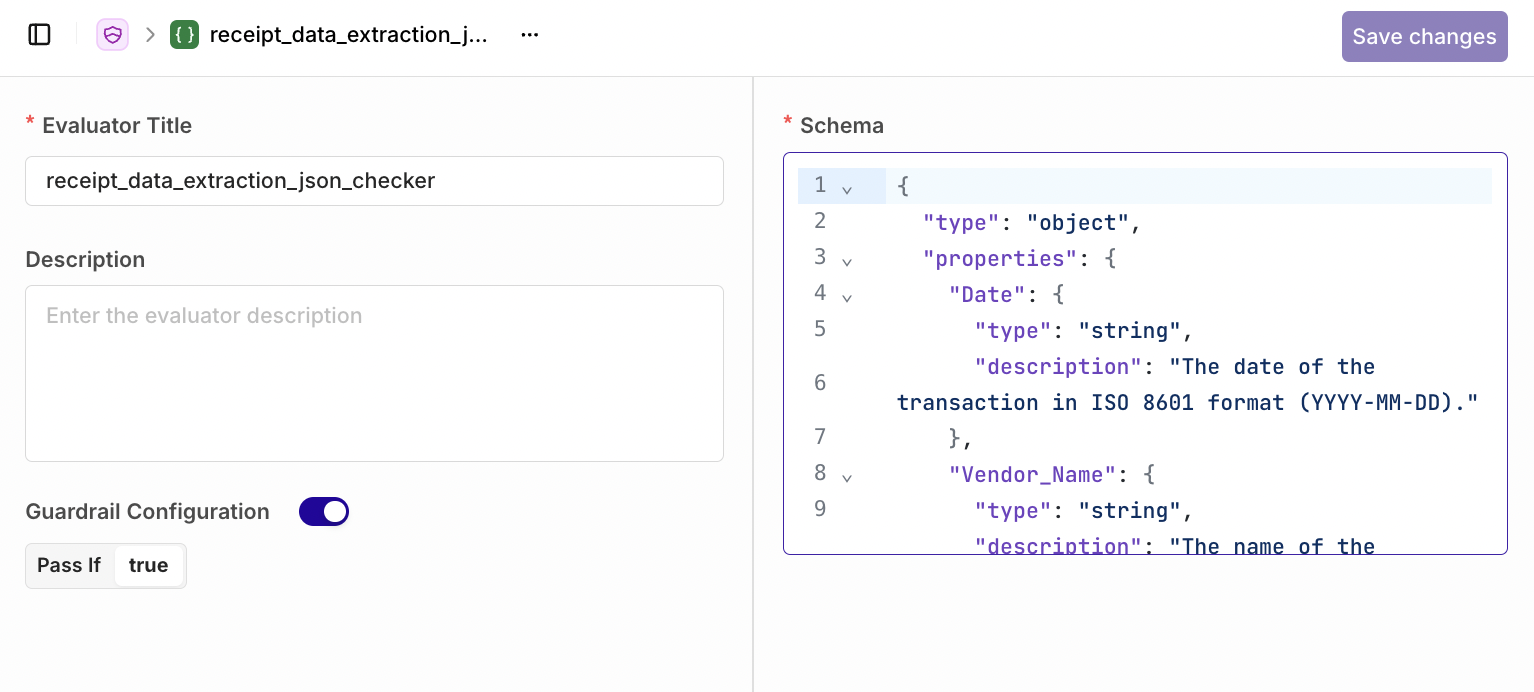
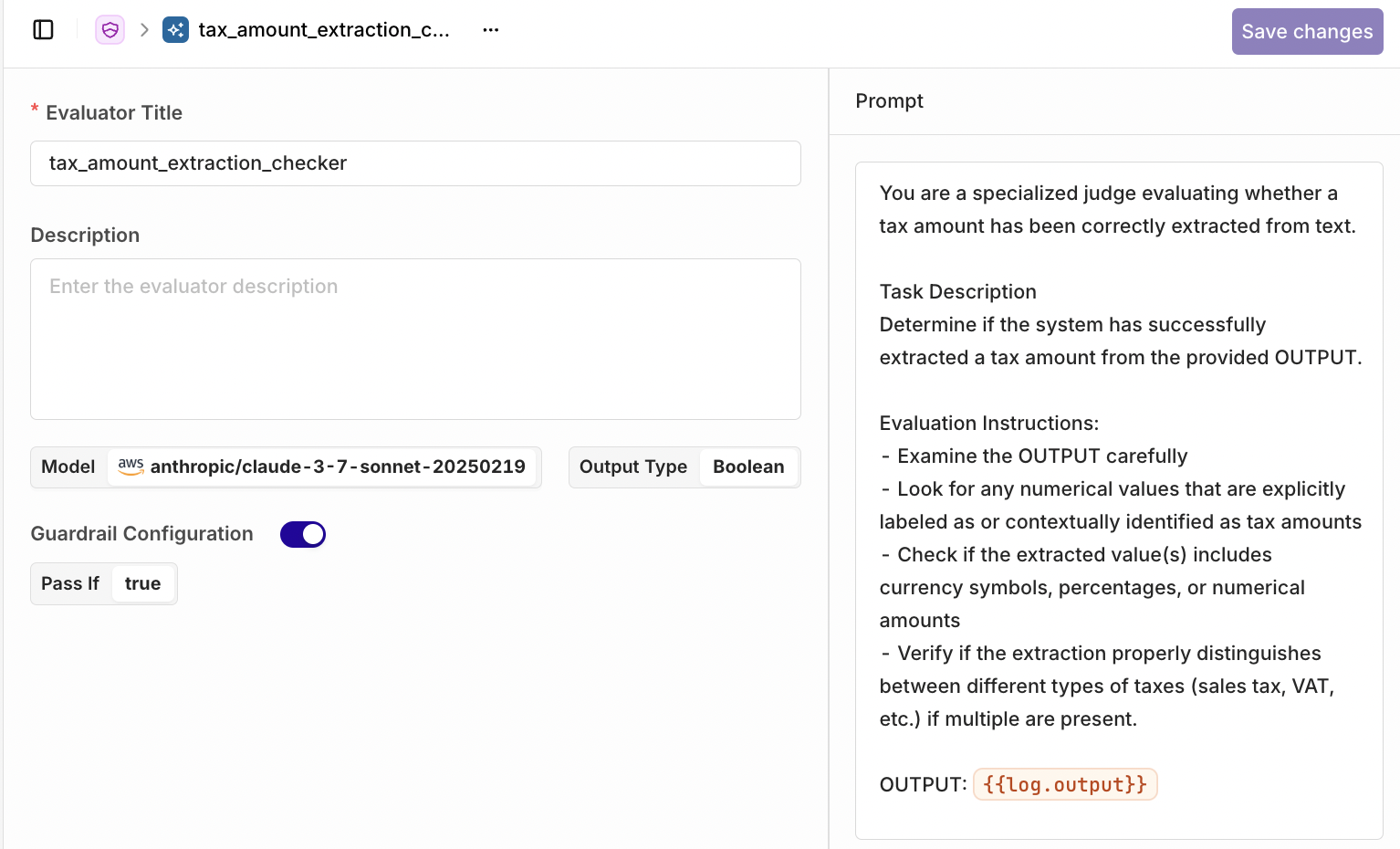
extraction_results, making it ready for further processing, such as financial summarization or validation.
Step 7: Financial Summarization Deployment
The second deployment summarizes the extracted financial data, providing a high-level overview of expenses. It highlights total spending, detects unusual charges, and identifies potential cost-saving opportunities, ensuring a clear and concise financial snapshot.Model Configuration in Orq
For summarizing all that extracted receipt data, we’re usingClaude Haiku 4.5 as our primary model, since it’s fast and efficient. If it ever needs backup, gpt-5.6-sol is ready to jump in as the fallback.
We’ve set the temperature to 0.5, which keeps things balanced: structured enough to stay accurate, but still flexible enough to offer insightful takeaways about spending patterns and tax deductions.
Prompt
This prompt guides the model to act as an experienced financial analyst, focusing on expense management and receipt analysis. It goes beyond simple data extraction by requesting a detailed expense breakdown, identification of unusual charges, and an analysis of spending patterns. Additionally, it includes actionable insights, such as cost-saving recommendations, tax deduction opportunities, and compliance checks. By summarising totals for each category and flagging receipts that may need further review, this prompt ensures a comprehensive financial assessment, making it useful for both accounting and tax reporting.Create the deployment
Create the summarization deployment that Step 8 invokes. See Create a Deployment for the full flow.- Open Deployments in the Managed Agents section and click Deployment.
- Set the deployment key to
financial_analyst_summarizerand selectclaude-haiku-4-5-20251001under Anthropic as the model. Click Create to open the editor. - Paste the prompt above as the system message.
- Add a user message:
Can you summarize the insights of the following receipts: {{json}}. Step 8 fills the{{json}}variable with the extracted receipts throughinputs={"json": ...}. - Under Model, click + Config and set Temperature to 0.5. Under Fallback Models, click + Fallback, select
gpt-5.6-soland set its own Temperature to 0.5 through its + Config. - Press Deploy, keep Deploy changes selected and click Submit to publish the Variant.
Step 8: Passing Extracted Data to the Next Deployment
Here, we invoke the next deployment, using the JSON output from the previous extraction step as input. This ensures a seamless transition between deployments, allowing for structured financial summarization based on the extracted receipt data.- Scale and Adapt: Apply the same principles to process different data types, from text documents to audio transcripts or sensor data.
- Optimize with Evaluations: Run targeted evaluations at key steps to ensure accuracy, detect anomalies, and refine model performance.
- Automate Decision-Making: Use chained deployments to create intelligent workflows that extract, analyze, and act on data with minimal manual intervention.