

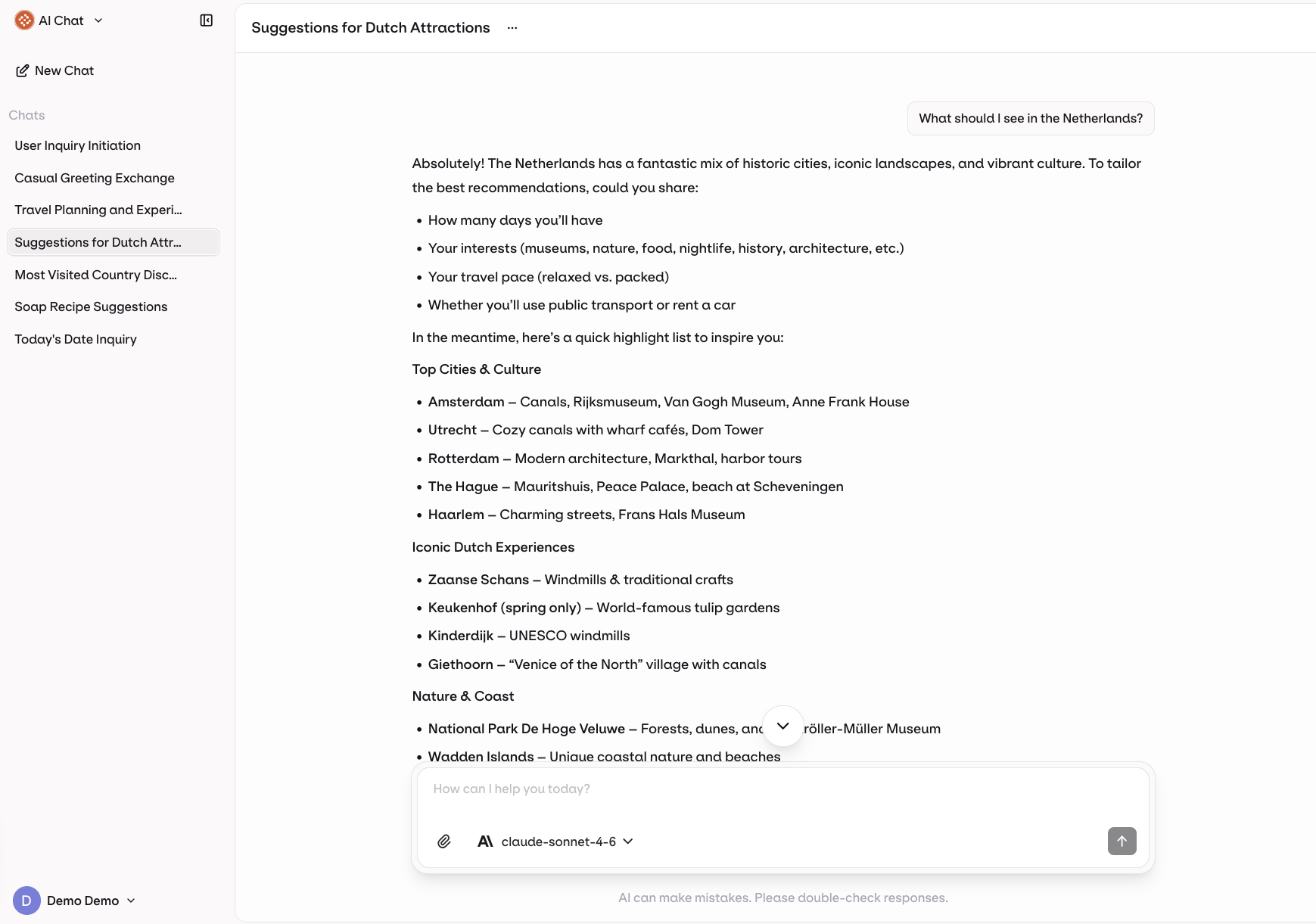
- Every provider, one place: OpenAI, Anthropic, Google, Mistral, custom models, all in a single chat.
- Switch models mid-conversation: compare outputs across providers without leaving the thread.
- Chat with your agents: deploy agents built in Orq.ai directly into AI Chat for your whole team.
- Files built in: upload images, PDFs, and documents directly into the conversation.
- Admin-controlled access: scope available models and agents per workspace.
Configure models and agents
Before your team can use AI Chat, a workspace admin must configure which models and agents are available. Start here.
Starting a Chat
- Open AI Chat from the top-left product switcher.
- Click New Chat in the sidebar to start a fresh conversation.
- Select a model or agent using the selector in the input bar.
- Type your message in the input box at the bottom.
- Press Send or hit
Enterto submit.
Models and Agents
The input bar includes a selector that lists all models and agents enabled by your workspace admin. Select the one you want before sending your message. You can switch mid-conversation.- Models are sourced from your AI Gateway, giving access to models across all configured providers.
- Agents are built in AI Studio around specific use cases and can use tools, knowledge bases, and multi-step reasoning. AI Chat is a great way to test and validate agents before rolling them out to your team.
Input Options
Click in the input bar to open the options menu. Three options are available depending on the selected model or agent:Upload Photos & Files
Attach images, PDFs, and documents directly to your message. Maximum file size is 20 MB. Available for any model with vision or document capabilities.Web Search
Only available for models that support Web Search.
Thinking
Only available for models that support Thinking.
- Standard: the model applies a moderate level of reasoning.
- Extended: the model reasons more deeply, best suited for difficult problems that benefit from more thorough analysis.