

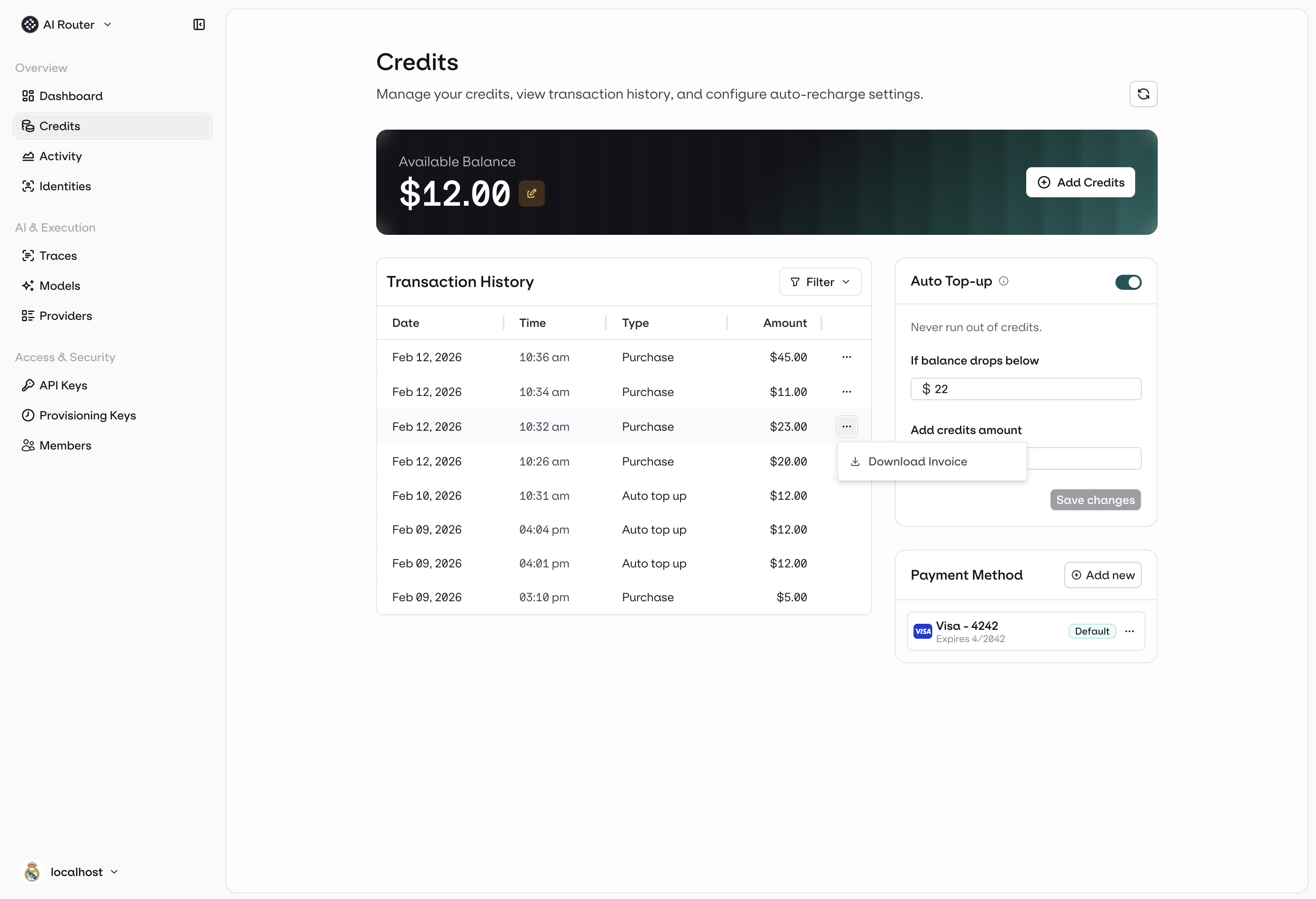
The Credits page in AI Gateway, showing your balance, payment method, auto top-up settings, and transaction history.
Available Balance
Your current credit balance is displayed at the top of the page. Credits are consumed as you make requests through the AI Gateway. Each model call deducts from your balance based on token usage and model pricing.When you exceed the traces included in your package, tracing costs are also deducted from your credits. Credit purchases have a minimum amount of $5. See AI Gateway pricing for model and tracing cost details.
Add Credits
Click Add Credits to purchase additional credits and top up your balance.1
Click Add Credits
Click the Add Credits button in the Available Balance panel.
2
Enter an amount
Enter the dollar amount you want to add to your balance.
3
Add a Tax ID (optional)
Expand the Edit Tax ID section to add your tax identifier. Tax IDs are supported globally. Select your country and the applicable tax ID type, then enter your number. This is optional but recommended for businesses that need it reflected on invoices.
4
Select a payment method
Choose an existing payment method or add a new card.
5
Enter your name and billing address
Provide your name and billing address. This is required for payment processing with Stripe.
6
Confirm purchase
Confirm the transaction. Credits are added to your balance immediately.
Payment Method
Add a credit card to enable credit purchases and auto top-up. Click Add new in the Payment Method panel to register a card.At least one payment method is required to enable auto top-up.
Auto Top-up
Auto top-up ensures your balance never runs out by automatically purchasing credits when it drops below a threshold. To configure auto top-up:- Enable the Auto Top-up toggle.
- Set the If balance drops below threshold (e.g. $50). A top-up is triggered when your balance falls below this amount.
- Set the Add credits amount (e.g. $200). This is the amount automatically added each time.
- Click Save changes.
Transaction History
The Transaction History table shows a log of credit purchases only. Usage deductions from individual API calls are not listed here. Refer to the Observability quickstart for usage details.Filtering Transactions
Use the Filter button to narrow down the transaction history by type:- Purchase: manual credit top-ups
- Auto Top-up: automatic top-ups triggered by the auto top-up threshold