

AI Gateway
Route the Warp Agent’s model calls through the AI Gateway for unified tracing and cost tracking.
MCP
Manage experiments, query traces, and configure agents using natural language.
Skills
Pre-built agentic workflows for the Build, Evaluate, Optimize lifecycle.
Prerequisites
- Warp terminal installed
- Active Orq.ai account
- Orq.ai API key
AI Gateway
The AI Gateway exposes an OpenAI-compatible endpoint, so the Warp Agent can use it through Warp’s custom inference support. Every request routed this way appears in Traces.- Open Warp Settings, then go to Agents → Warp Agent.
- Under Custom inference, click + Add custom model.
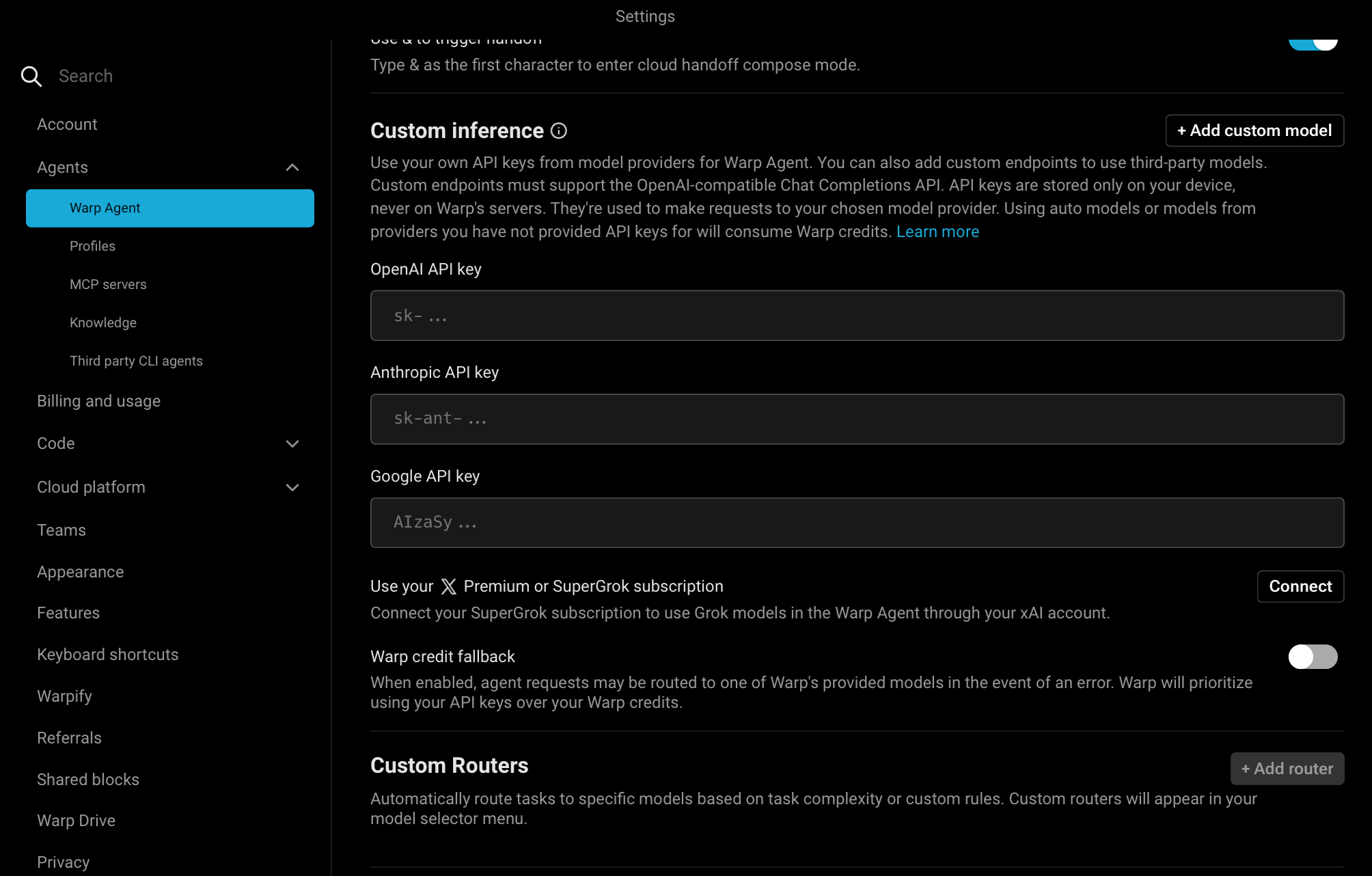
Custom inference settings in the Warp Agent panel
- In the Edit custom endpoint dialog, fill in:
- Under Model name, add models in
provider/model_idformat (for exampleanthropic/claude-sonnet-5oropenai/gpt-5.6-sol). Set an optional Model alias for the picker, and click + Add model for each additional model. - Click Save.
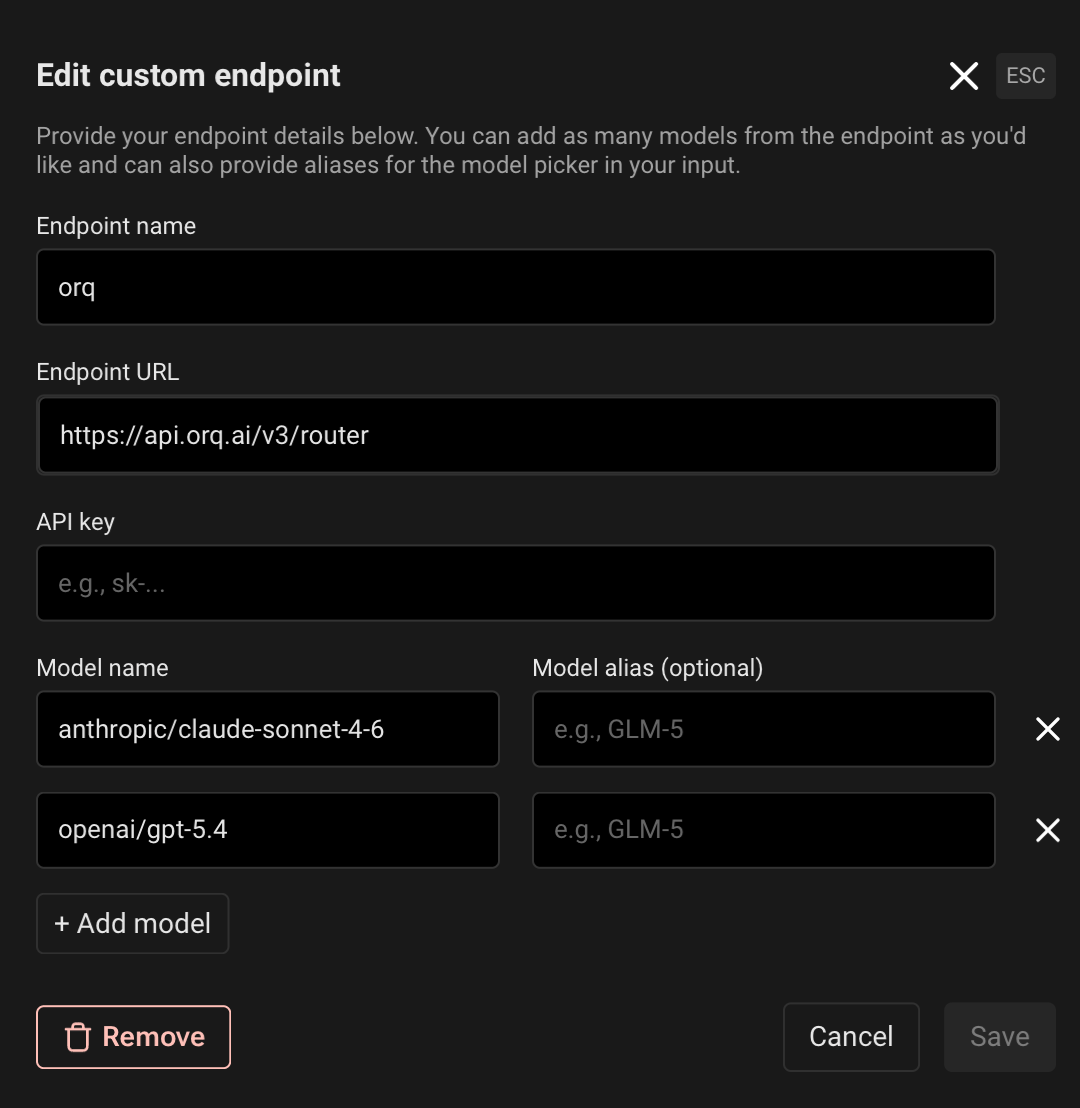
Adding the Orq.ai AI Gateway as a custom endpoint in Warp
Troubleshooting
400 invalid model format
400 invalid model format
The model name is missing the provider prefix. Change
claude-sonnet-5 to anthropic/claude-sonnet-5, gpt-5.6-sol to openai/gpt-5.6-sol, and so on.Requests not appearing in Orq.ai Traces
Requests not appearing in Orq.ai Traces
Verify the Endpoint URL is set to
https://my.orq.ai/v3/router. Requests sent to a provider’s own endpoint bypass the AI Gateway and produce no Traces.MCP
With the Orq MCP integration, access the Orq.ai workspace directly from Warp’s AI features.Installation
- Open Warp Settings by clicking Warp in the top-left menu, then select Settings
- Click MCP Server in the sidebar
- Click the Add button
- Paste the following configuration:
- Replace
YOUR_ORQ_API_KEYwith your actual API key from Workspace Settings → API Keys - Save the configuration
Verification
In Warp’s AI features, ask: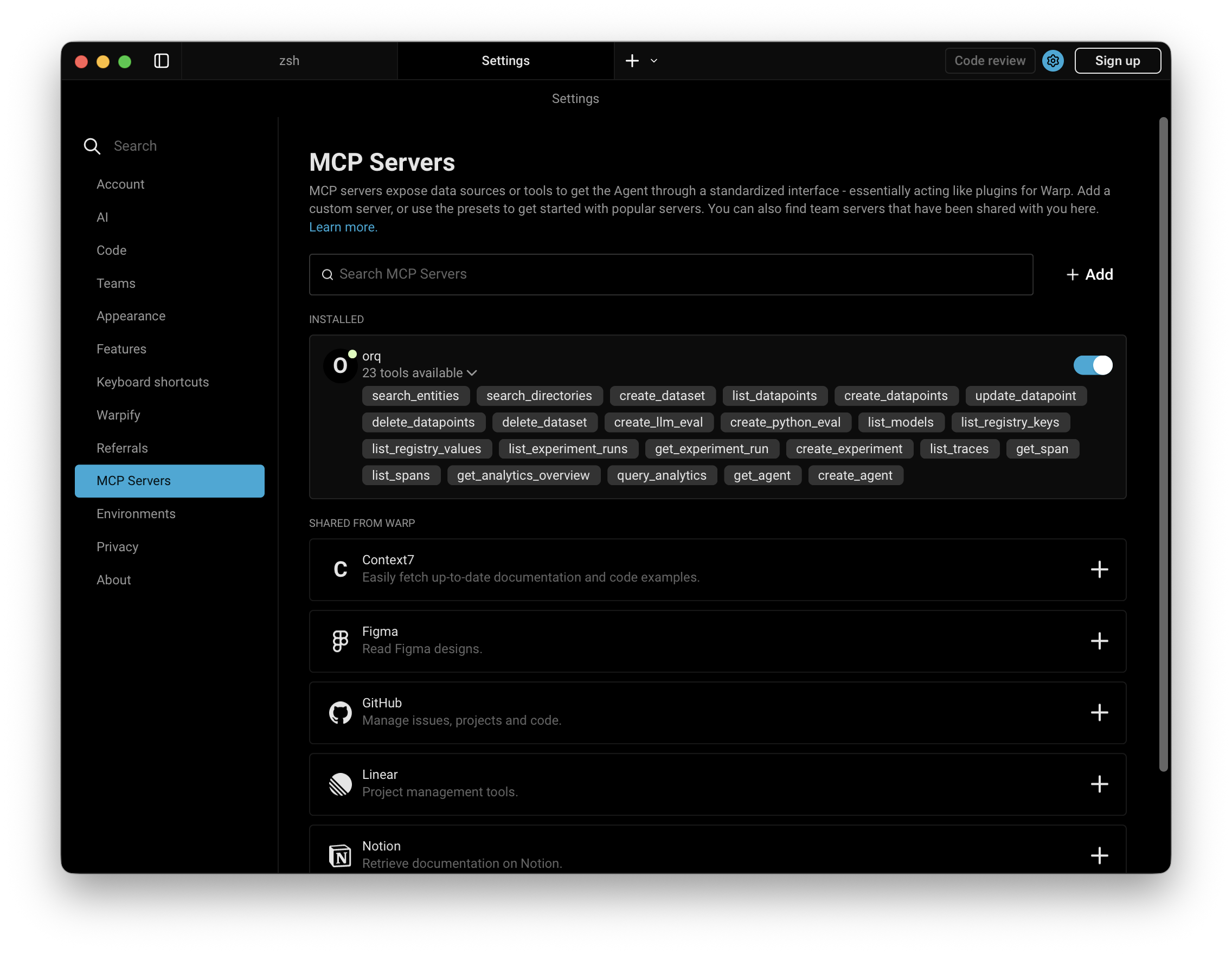
Successfully connected Orq MCP in Warp
Available Commands
Use natural language in Warp to perform these operations:Agents
Agents
Create an agent with custom instructions and toolsGet agent configuration for [agent-key]Update agent [agent-key] with new instructions or modelConfigure agent with evaluators and guardrailsInvoke agent [agent-key] with input [message]Retrieve agent response [response-id]
Deployments
Deployments
Create a deployment called [deployment-key]Get deployment configuration for [deployment-key]
Skills
Skills
Create a skill called [skill-key]List all skills in my workspaceGet skill [skill-key]Update skill [skill-key]Delete skill [skill-key]
Analytics
Analytics
Get analytics overview for my workspaceShow me workspace metrics for the last 7 daysQuery analytics filtered by deployment ID
Datasets
Datasets
Create a dataset called "customer-queries"List all datapoints in dataset [dataset-key]Add datapoints to dataset [dataset-key]Update datapoint [datapoint-id]Delete specific datapoints in dataset [dataset-key]Delete dataset [dataset-key]
Experiments
Experiments
Create an experiment from dataset [dataset-key]List all experiment runsExport experiment run [run-id] as CSVRun experiment and auto-evaluate results
Evaluators
Evaluators
Get evaluator configuration for [evaluator-key]Create an LLM-as-a-Judge evaluator for toneCreate a Python evaluator to check response lengthAdd evaluator to experiment [experiment-key]Update evaluator [evaluator-key] with a new promptUpdate Python evaluator [evaluator-key] with revised code
Traces
Traces
List traces from the last 24 hoursShow me traces with errorsGet span details for trace [trace-id]Find the slowest traces from todayShow all traces for thread [thread-id]
Models
Models
List all available chat modelsList all available embedding modelsInvoke model [model-id] with prompt [message]
Search
Search
Search for datasets named "customer"Find experiments in project [project-id]List directories in project [project-id]
Documentation
Documentation
Search the Orq.ai docs for [topic]
Managing Entities
Managing Entities
Delete agent [agent-key]Delete experiment [experiment-key]Delete evaluator [evaluator-key]Delete prompt [prompt-key]Delete knowledge base [knowledge-base-key]
delete_dataset to delete a dataset along with all its datapoints.Troubleshooting
Orq MCP Not Responding
Orq MCP Not Responding
- Check Warp’s Orq MCP status in Settings
- Verify the API key is correct
- Restart Warp
Authentication Errors
Authentication Errors
- Confirm the API key is valid
- Ensure the API key has the necessary permissions
- Try regenerating the API key
Tools Not Available
Tools Not Available
- Verify the Orq MCP server is running in Settings
- Check network connectivity
- Review Warp’s own diagnostic output or submit a bug report
Skills
Orq Skills add pre-built agentic workflows to Warp for the full Build, Evaluate, Optimize lifecycle.Installation
Orq Skills
The full catalogue of skills and slash commands.
Slash commands (
/orq:quickstart, /orq:traces, and others) are only available in Claude Code.