

Prerequisites
- OpenCode Desktop installed:
Homebrew
- Active Orq.ai account with AI Gateway access
- Orq.ai API key
Setup
In OpenCode Desktop, open Settings > Providers > Connect custom provider and fill in:- ID:
orq - Display name:
Orq - Base URL:
https://my.orq.ai/v3/router - API key: your Orq.ai API key
- Model ID: any identifier from the AI Gateway catalog, for example
anthropic/claude-sonnet-5, with a display name
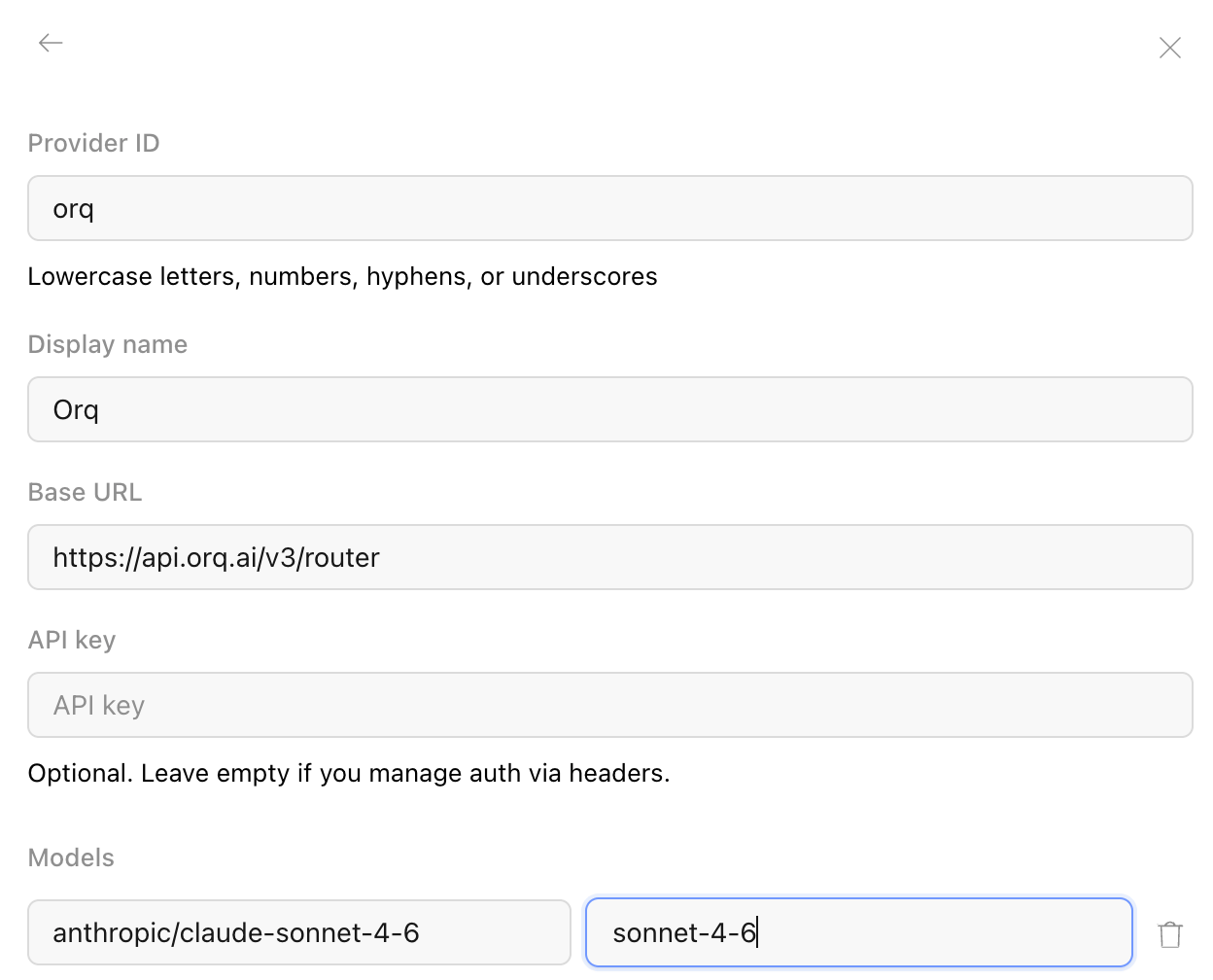
Connecting Orq.ai as a custom provider in OpenCode Desktop
Connect via MCP
OpenCode Desktop is an MCP client, so it can reach the Orq MCP server and the MCP Gateway alongside the gateway routing above. The Orq MCP server manages Agents, experiments, Datasets, and Traces; the MCP Gateway serves the tools, resources and prompts of the MCP Servers linked to it. Register the MCP Gateway with the OpenCode CLI, which writes the same config:- OAuth
- API key
mcp object in ~/.config/opencode/opencode.json:
YOUR_ORQ_API_KEY with an API key. See the MCP Quickstart for the full tool reference.
Orq.ai API keys are scoped to a single project, so the Orq MCP server only exposes the Agents, experiments, Datasets, and Traces within that project. Use a key from the project whose entities OpenCode Desktop should manage.