

AI Gateway
Route your LLM calls through the AI Gateway with a single base URL change. Zero vendor lock-in: always run on the best model at the lowest cost for your use case.
Observability
Instrument your code with OpenTelemetry to capture traces, logs, and metrics for every LLM call, agent step, and tool use.
AI Gateway
Overview
LangGraph is a framework for building stateful, multi-actor AI applications with LLMs. It extends LangChain with graph-based agent orchestration, cycles, and controllability. By connecting LangGraph to Orq.ai’s AI Gateway, you get production-ready agentic workflows with access to 500+ models.Key Benefits
Orq.ai’s AI Gateway enhances your LangGraph applications with:Complete Observability
Track every agent step, tool use, and graph transition with detailed traces
Built-in Reliability
Automatic fallbacks, retries, and load balancing for production resilience
Cost Optimization
Real-time cost tracking and spend management across all your AI operations
Multi-Provider Access
Access 500+ LLMs and 30+ providers through a single, unified integration
Prerequisites
Before integrating LangGraph with Orq.ai, ensure you have:- An Orq.ai account and API Key
- Python 3.8 or higher
To setup your API key, see API keys & Endpoints.
Installation
Configuration
Configure LangGraph to use Orq.ai’s AI Gateway by passing aChatOpenAI instance with a custom base_url:
Python
base_url: https://my.orq.ai/v3/router
Basic Agent Example
Here’s a complete example usingcreate_agent with a tool:
Python
Agent with Multiple Tools
Python
Streaming
Stream agent steps as they happen:Python
Model Selection
With Orq.ai, you can use any supported model from 30+ providers:Python
Observability
orq_ai_sdk.langchain provides a global setup() function that automatically instruments all LangGraph components. Call it once at the top of your application and every LLM call, graph node, tool execution, and retrieval is traced automatically, no callback wiring needed.
Zero configuration
One
setup() call and tracing is live, no callbacks, no OpenTelemetry exporters, no extra wiring.Full graph visibility
Traces preserve the parent-child structure of your graph so you see exactly which node triggered each LLM call or tool use.
Token usage and costs
Input and output token counts are captured on every LLM call and synced to Orq.ai for cost tracking.
Asset Capture
Agents, tools, and models are automatically registered in Control Tower from your traces.
Installation
orq-ai-sdk is the Orq.ai Python SDK. @orq-ai/node is the Orq.ai Node.js SDK.Environment Variables
Examples
Call
setup() at the top of your entry point, before invoking any graphs or chains.agent/weather_agent, tool/get_weather, model/gpt-5.4-mini
agent/assistant_agent, tool/calculator, tool/get_time, model/gpt-5.4-mini
Viewing Traces
Traces appear in the Orq.ai Studio under the Traces tab. Each run is captured as a tree reflecting your graph structure: top-level chain spans for each node, with LLM calls, tool executions, and retrievals nested underneath. The graph panel shows your node topology; clicking a span reveals token counts, cost, input, and output.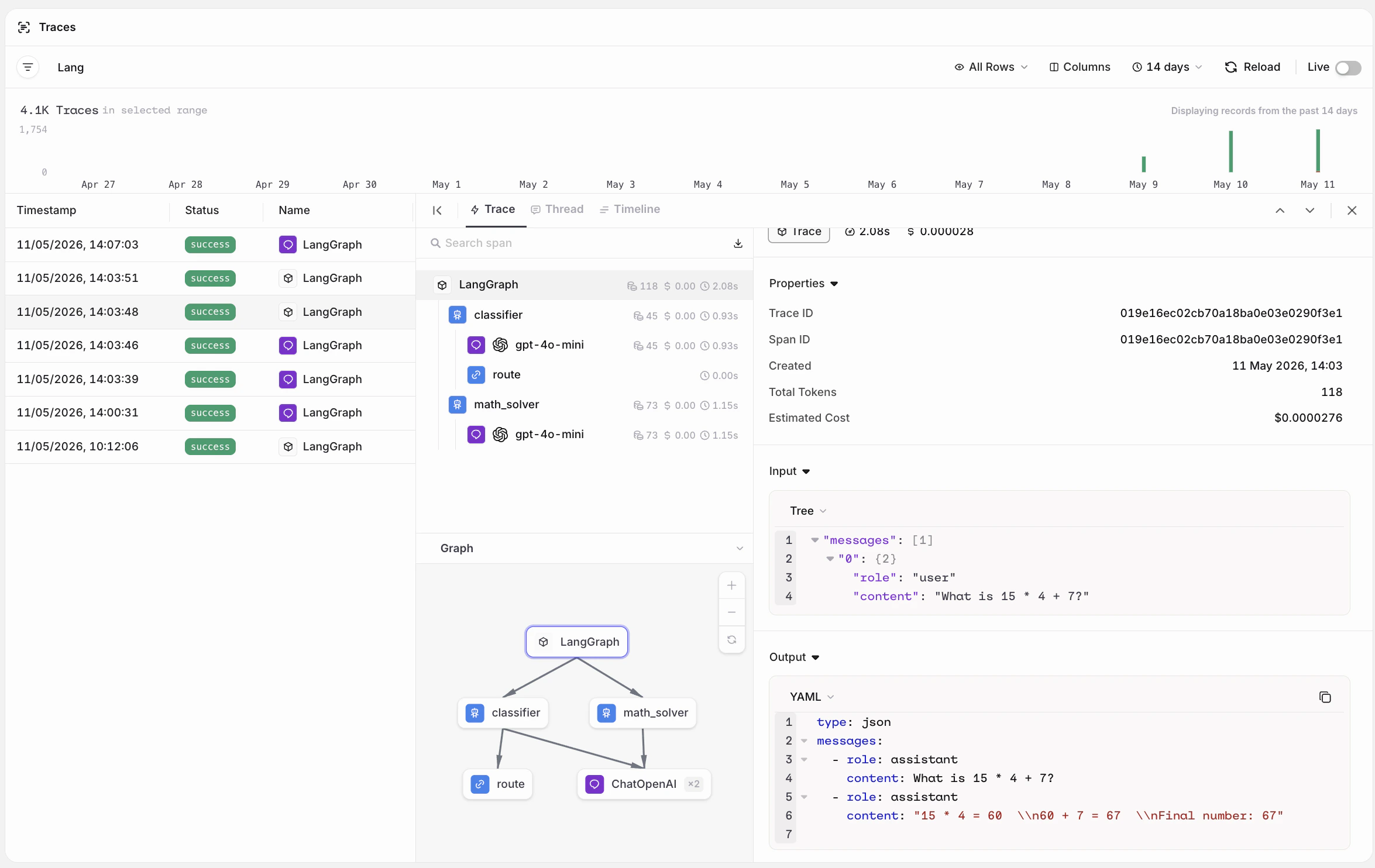
LangGraph branching classifier trace in AI Studio.
See the code that produced this trace
See the code that produced this trace
A
classifier node labels each request as weather, math, or chat and conditional edges dispatch it to a specialized agent. Uses OrqLangchainCallback: an alternative to setup() for explicit per-graph instrumentation.OrqLangchainCallback attaches tracing to a specific compiled graph via .with_config. Use it when you want to instrument only certain graphs, or when you prefer not to use global auto-instrumentation.Evaluations & Experiments
Once your agents are running, use Evaluatorq to score outputs across a dataset and Experiments to compare configurations side-by-side.Run Evaluations with Evaluatorq
Run parallel evaluations across your agents and compare results.
Run Experiments via the API
Compare agent configurations and view results in the AI Studio.