

AI Gateway
Route your LLM calls through the AI Gateway with a single base URL change. Zero vendor lock-in: always run on the best model at the lowest cost for your use case.
Observability
Instrument your code with OpenTelemetry to capture traces, logs, and metrics for every LLM call, agent step, and tool use.
AI Gateway
Overview
OpenAI Agents SDK enables powerful AI-driven automation through structured conversations and tool calling. By connecting the Agents SDK to Orq.ai’s AI Gateway, you transform experimental agents into production-ready systems with enterprise-grade capabilities.Key Benefits
Orq.ai’s AI Gateway enhances your OpenAI Agents with:Complete Observability
Track every agent step, tool use, and interaction with detailed traces and analytics
Built-in Reliability
Automatic fallbacks, retries, and load balancing for production resilience
Cost Optimization
Real-time cost tracking and spend management across all your AI operations
Multi-Provider Access
Access 500+ LLMs and 30+ providers through a single, unified integration
Prerequisites
Before integrating OpenAI Agents SDK with Orq.ai, ensure you have:- An Orq.ai account and API Key
- Python 3.8 or higher
- OpenAI Agents SDK installed
To setup your API key, see API keys & Endpoints.
Installation
Install the OpenAI Agents SDK:Configuration
Configure OpenAI Agents SDK to use Orq.ai’s AI Gateway by setting a custom AsyncOpenAI client:Python
base_url: https://my.orq.ai/v3/router
Built-in OpenAI Tracing
Do not setOPENAI_API_KEY only to silence this warning. That sends SDK traces to OpenAI’s dashboard instead of Orq.ai. Choose one of these paths:
Option A: disable the SDK’s built-in OpenAI tracing. Use this for router-only examples when you do not need agent traces in Orq.ai.
TypeScript
Python
Python
Basic Agent Example
Here’s a complete example of creating and running an OpenAI agent through Orq.ai:Python
Agent with Tools
OpenAI Agents can use tools while routing through Orq.ai:Python
Model Selection
With Orq.ai, you can use any supported model from 30+ providers:Python
The same
OpenAIResponsesModel wrapper works for every provider. Pass the full provider/model string and the AI Gateway routes the request to the matching provider.Observability
Getting Started
Integrate OpenAI Agents with Orq.ai’s observability to gain complete insights into agent performance, token usage, tool utilization, and conversation flows using OpenTelemetry.Prerequisites
Before you begin, ensure you have:- An Orq.ai account and API Key
- OpenAI API key
- Python 3.8+
Install Dependencies
Configure Orq.ai
Set up your environment variables to connect to Orq.ai’s OpenTelemetry collector: Unix/Linux/macOS:Common Pitfalls
- Do not set a custom
base_urlwhen using OTEL. Pointing the OpenAI client at the AI Gateway while also exporting spans results in duplicate traces: one from the router, one from the OTEL exporter. Use the router when you need multi-provider routing or fallbacks. Use yourOPENAI_API_KEYdirectly when you only need observability. - Only disable SDK tracing for router-only runs.
OPENAI_AGENTS_DISABLE_TRACING=1andset_tracing_disabled(True)are correct when you want to silence the OpenAI exporter warning without exporting agent traces. Do not use them with the Observability examples because they prevent agent-level spans from reaching Orq.ai. - Wrap runs in
agent_trace(workflow_name=...). Without it the root span is named"Agent workflow"for every run, making traces impossible to distinguish. - Call
provider.shutdown()before exit in short scripts.BatchSpanProcessorbuffers on a timer and may not flush before the process exits.
Basic Example
Python
Advanced Example with Function Calling
Python
Custom Spans for Agent Operations
Python
View Traces
View your traces in the AI Studio in the Traces tab.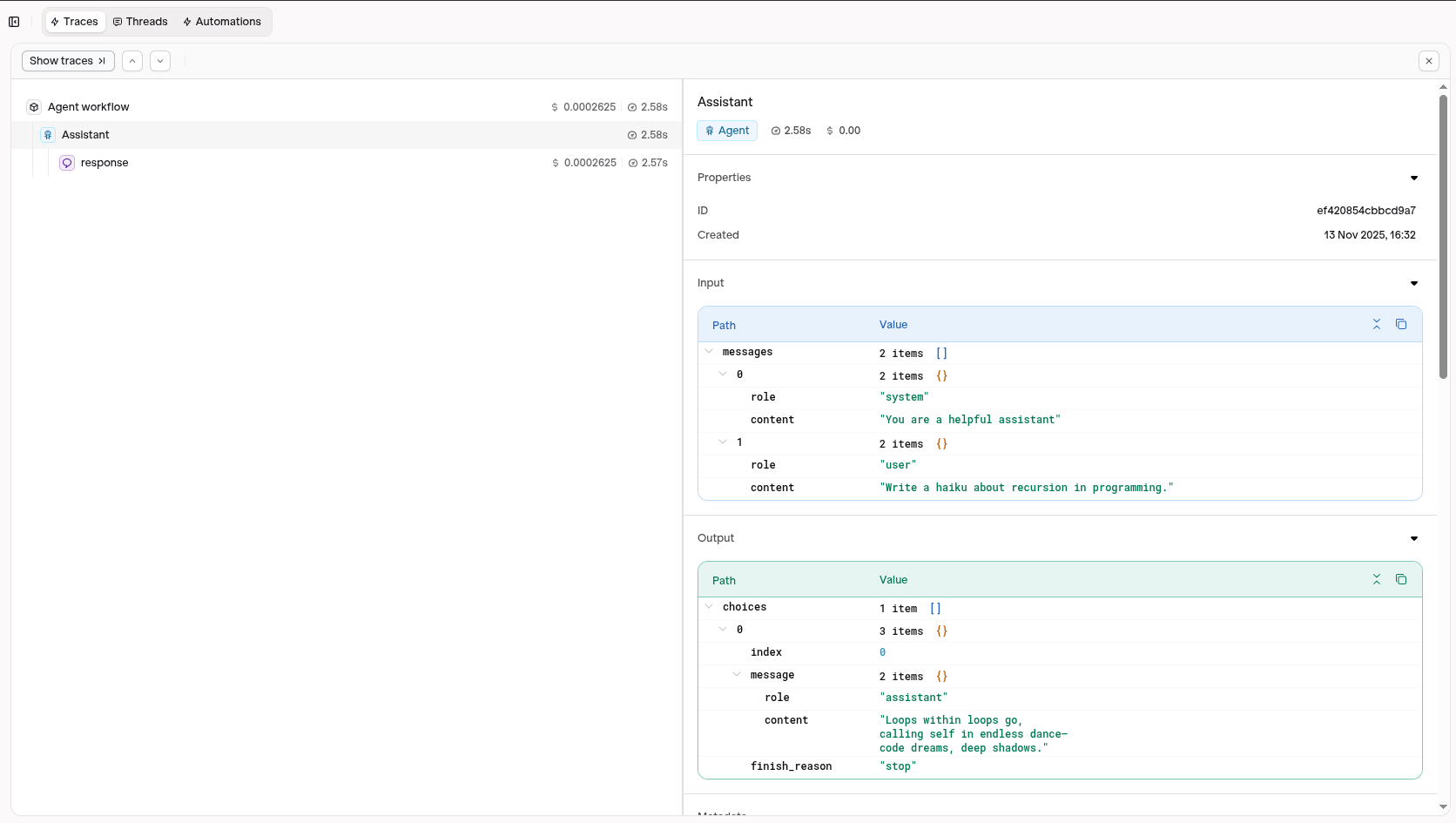
Traces will also display the custom spans created through the observability sdk
Visit your AI Studio to view real-time analytics and traces.
Asset Capture in the Control Tower
When you instrument OpenAI Agents with OpenTelemetry and send traces to Orq.ai, agents, tools, and models are automatically extracted from the spans and registered in Control Tower.Installation
Configuration
Set the OTLP environment variables and initialise the tracer provider with theOpenAIAgentsInstrumentor before running any agents:
Python
Examples
Agent with no tools: capturesagent/Assistant, model/gpt-5.6-sol
Python
agent/Weather Assistant, tool/get_weather, model/gpt-5.6-sol
Python
agent/Assistant, agent/Spanish Assistant, tool/random_number_tool, model/gpt-5.6-sol
Python
Evaluations & Experiments
Once your agents are running, use Evaluatorq to score outputs across a dataset and Experiments to compare configurations side-by-side.Run Evaluations with Evaluatorq
Run parallel evaluations across your agents and compare results.
Run Experiments via the API
Compare agent configurations and view results in the AI Studio.