

Quickly test prompts
Quickly test prompts
Compare models side-by-side
Compare models side-by-side
Test with new models
Test with new models
Experiment with parameters
Experiment with parameters
Build fine-tuning datasets
Build fine-tuning datasets
Create a Playground
+ button to select Playground.
The following modal opens:
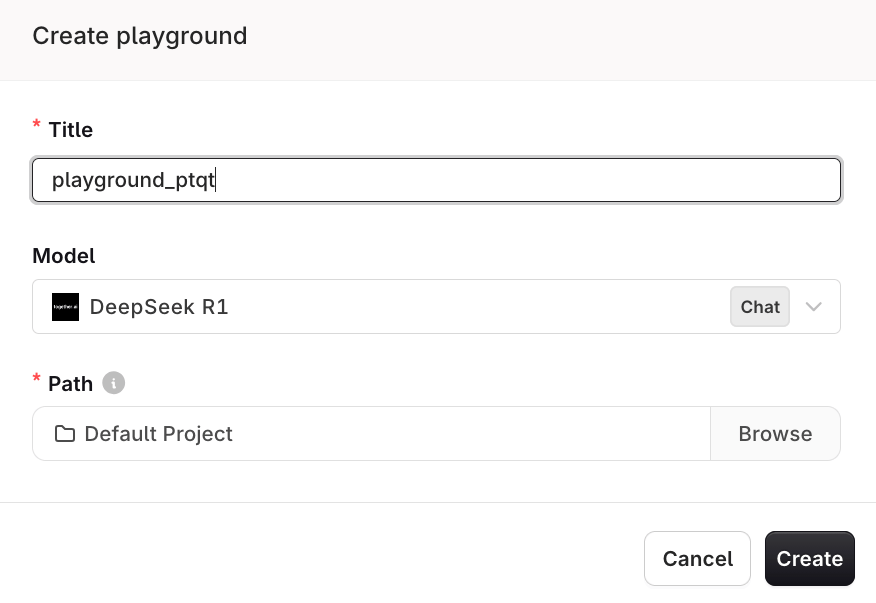
Give the Playground a title, set a Path, and select a model. Everything can be modified later.
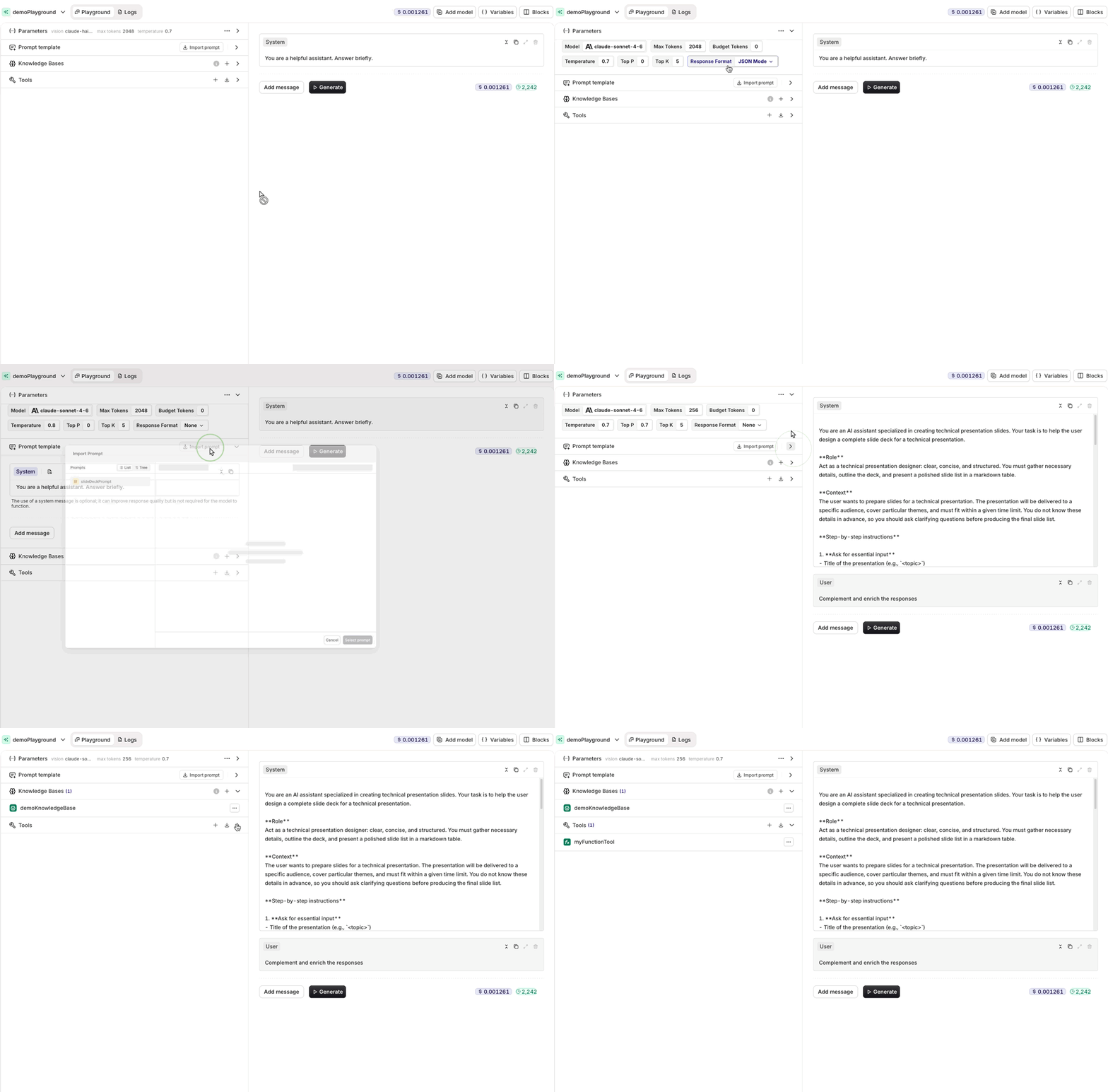
Configure model, parameters, and prompt template in the Playground.
Layout
The Playground is split into two panels:- Left panel: Parameters, Prompt template, Knowledge Bases, and Tools configuration.
- Right panel: Chat and generation area where responses appear.
Parameters
The Parameters block at the top of the left panel controls the model and its settings. Click the chevron to collapse or expand it. Available parameters include: Model, Max Tokens, Temperature, Top P, Top K, and Response Format. To change the model, click the model name to open the list of available models.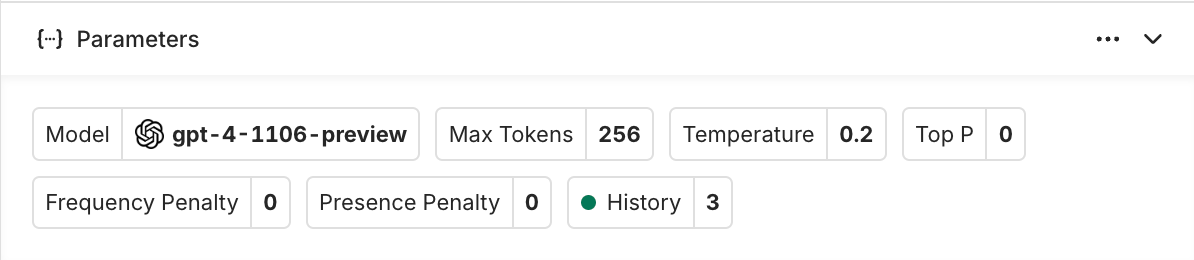
When selecting a model, the block automatically updates with all corresponding parameters for that model.
Prompt Template
Define the prompt in the Prompt template block. Use the Import prompt button to load an existing prompt from your project. Use{{variable_key}} syntax in the prompt message to define variables. The Variables button in the top toolbar lists all variables defined in the current prompt and lets you set their values before generating.
Knowledge Bases
Attach a Knowledge Base to the Playground using the Add Knowledge Base button in the Knowledge Bases section. The Knowledge Base content is included in the prompt context when generating.Tools
Add tools to the Playground using the Add Tool or Import Tool buttons in the Tools section. Tools extend what the model can do during generation.Generation
Once the prompt template is ready, click Generate to produce a response. Use Add message to append messages before generating. Use Clear chat to reset the conversation while keeping the prompt template.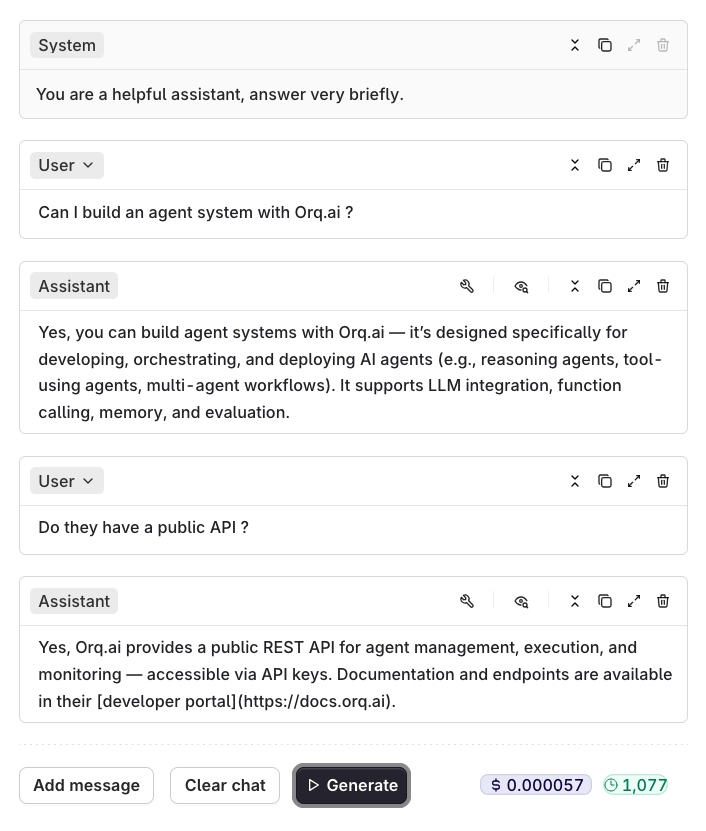
Responses stream in real time. Continue the conversation by adding messages and generating new answers.
Image Generation
Image generation models create images from text descriptions. Select a model with animage tag in the model picker.
Selecting an Image Generation Model
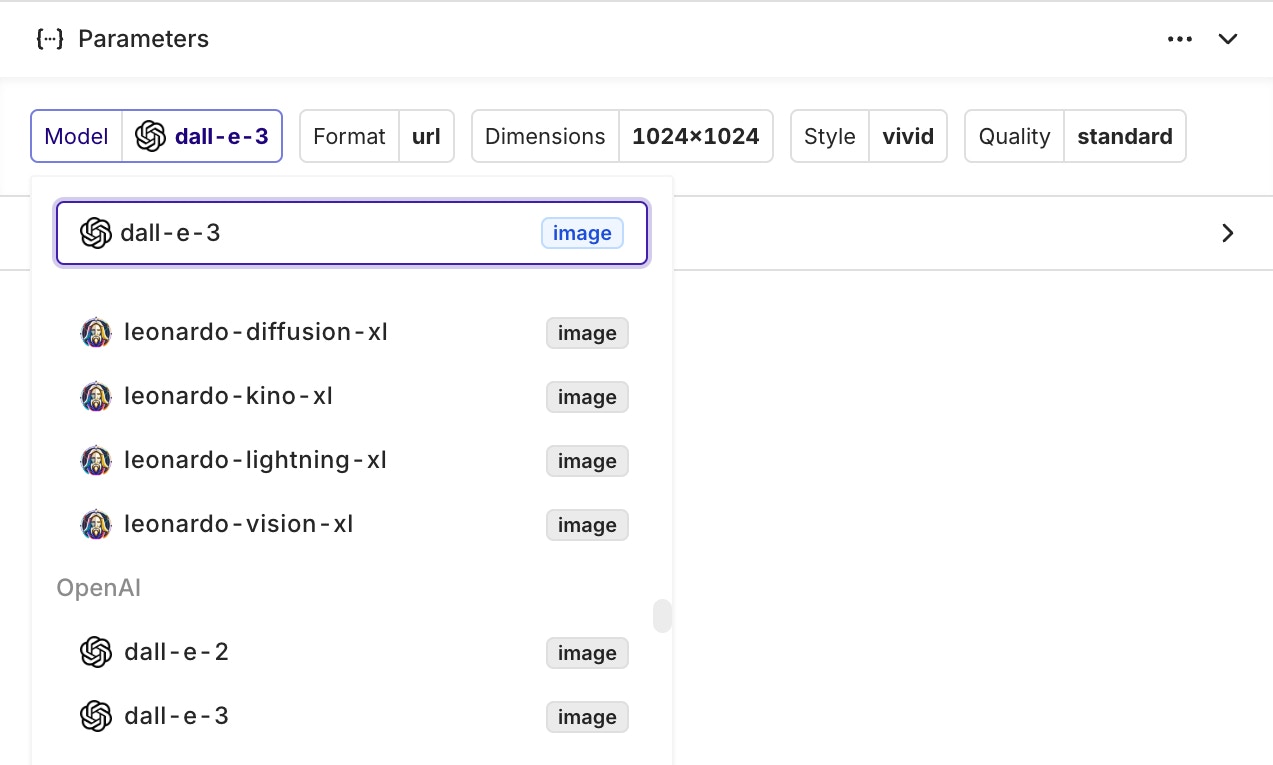
The image tag identifies models capable of generating images.
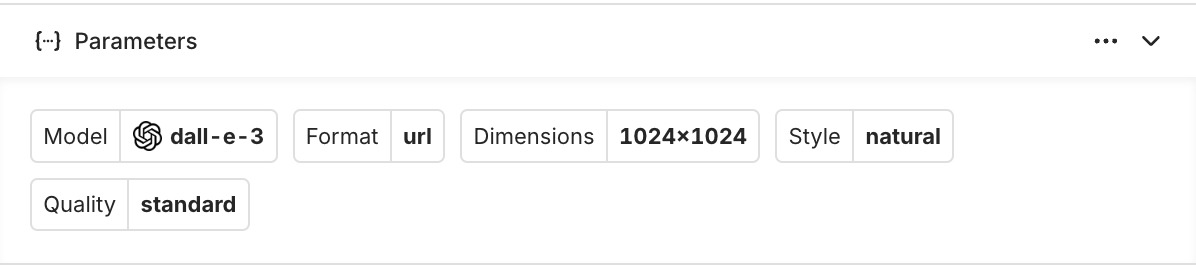
Example parameters for the DALL-E 3 model.
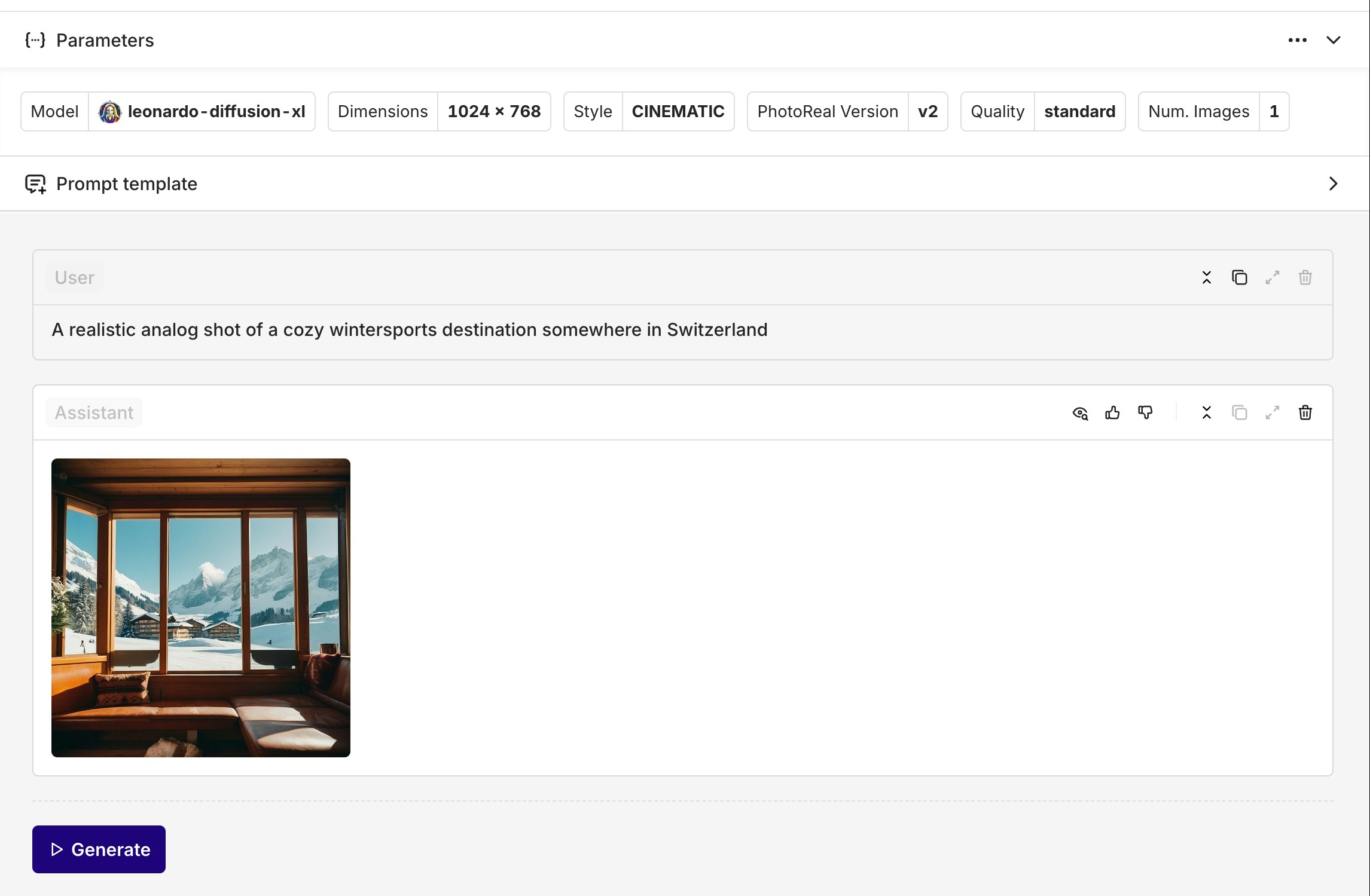
Example of image generation using Leonardo AI.
- Creative Content: Generate artwork, illustrations, and visual content for marketing materials
- Product Design: Create mockups and visual prototypes based on descriptions
- Content Creation: Generate images for blogs, social media, and presentations
- Concept Visualization: Turn abstract ideas into visual representations
- Be Specific: Provide detailed descriptions for better results
- Style Guidelines: Include artistic style, mood, and visual elements in the prompt
- Parameter Tuning: Experiment with model-specific parameters to achieve desired output quality
- Iterative Refinement: Use generated images as starting points for further refinement
Vision
Vision models analyze and interpret images. Select a model with avision tag in the model picker.
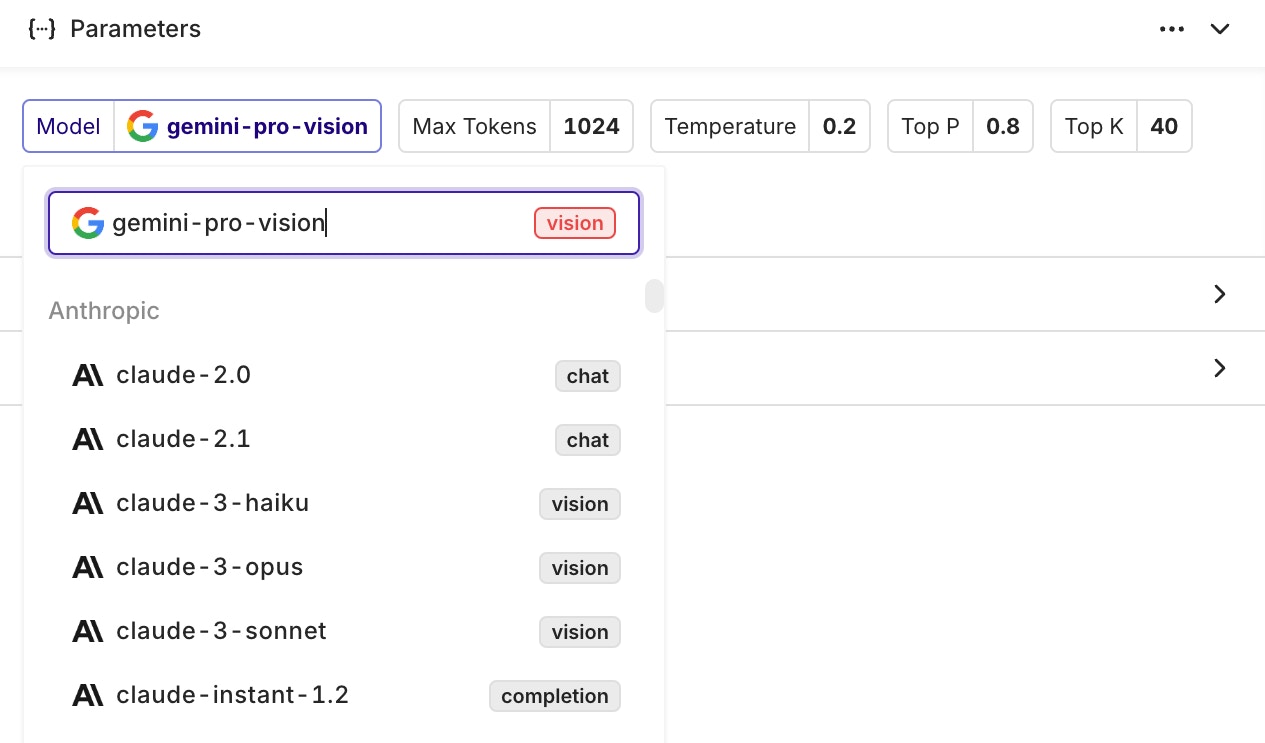
The vision label identifies models that can interpret images.
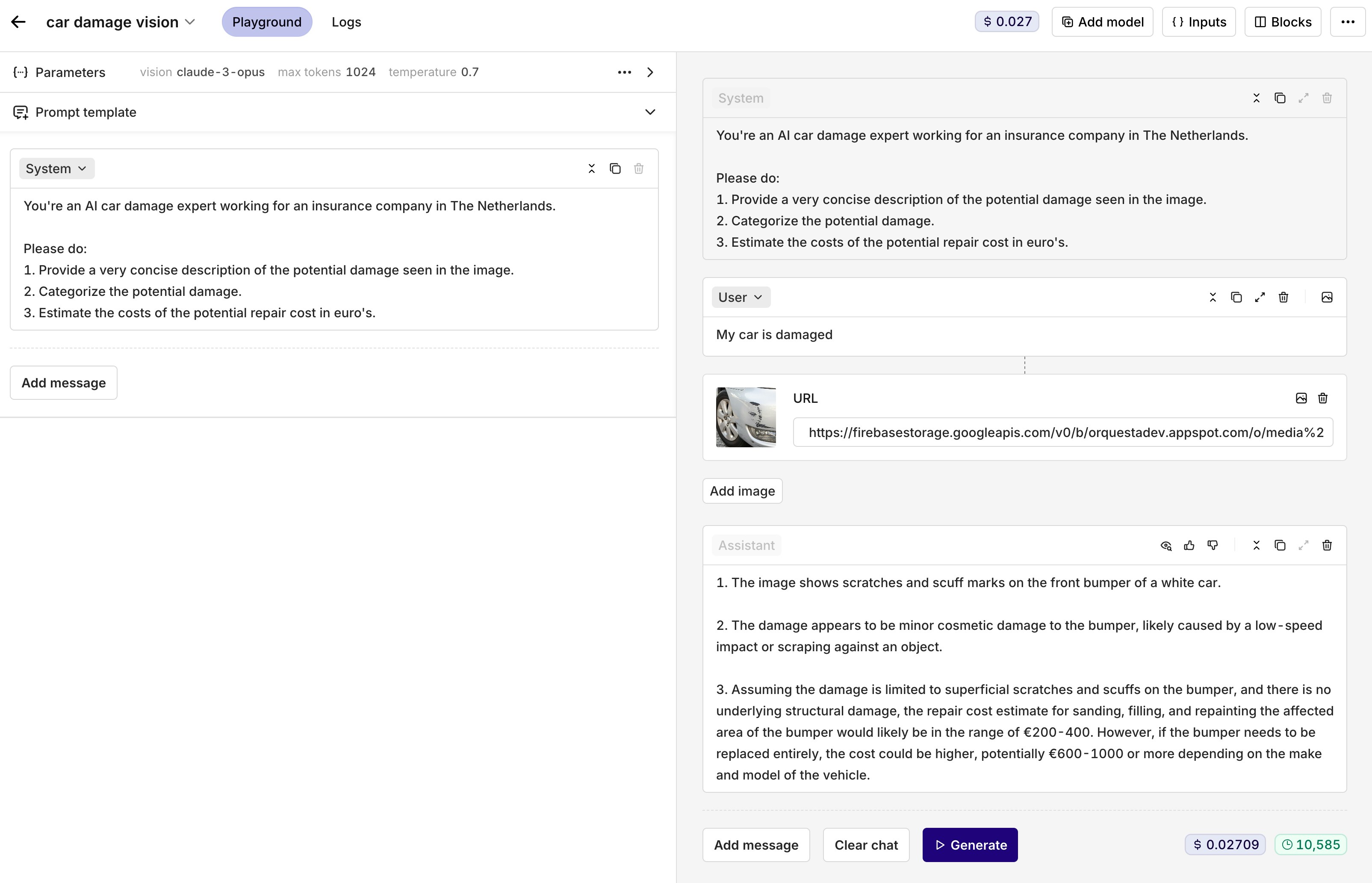
An example use case using a vision model.
- Document Processing: Extract text and information from scanned documents and forms
- Visual Quality Control: Analyze product images for defects or compliance
- Content Moderation: Automatically review images for inappropriate content
- Medical Imaging: Analyze medical scans and diagnostic images (with appropriate models)
- Insurance Claims: Process damage assessment photos and documentation
- Image Quality: Ensure images are clear and well-lit for best analysis results
- Specific Questions: Ask focused questions about the information to extract or understand
- Context Provision: Provide context about what the image represents for better interpretation
- Multiple Angles: For complex analysis, consider providing multiple views of the same subject
Comparing Multiple Models
Click Add model in the top toolbar to add a second model block. Each model gets its own block, allowing side-by-side comparison with the same prompt.Copying and Duplicating Models
Use the menu at the top-right of any model block to:- Copy Prompt Template: copy the template to one or all other model blocks.
- Duplicate Block: create a copy of the block including its configuration.
Blocks
Use the Blocks button in the top toolbar to toggle which model blocks are visible or delete blocks you no longer need.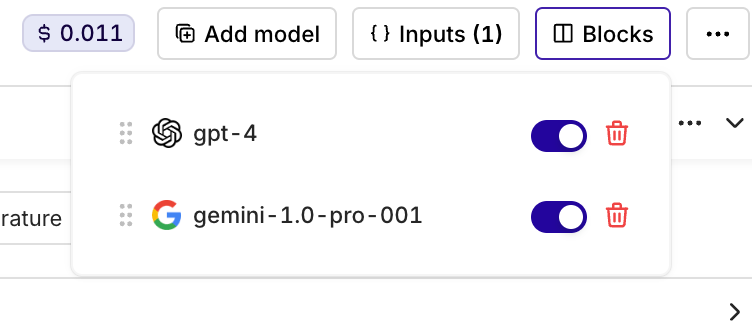
Use the Blocks menu to view all models in your Playground, toggle visibility, and delete blocks.