

These are third-party MCP Servers that Orq connects to. This is a different feature from Orq’s own MCP server, which coding assistants connect to for workspace administration.
MCP connections were previously created as an MCP Tool under Create Tools. That tool type is retired, and existing MCP Tools now appear here in the MCP Portal.
Use Cases
- Connecting third-party SaaS tools (Slack, Linear, Figma, etc.) to agents without writing custom integrations.
- Exposing internal APIs as callable tools for agents.
- Centralizing MCP server management instead of configuring connections per tool or per agent.
- Sharing a single MCP server across multiple agents and gateways with controlled tool exposure.
How It Works
Each MCP Server registers an upstream endpoint. Orq.ai connects to it, discovers the available tools, and tracks the sync state. Tools can be exposed to all agents, filtered by an allow-list, or hidden entirely. When a server is linked to a gateway, the gateway handles tool routing and authentication so clients only need the gateway URL.Set Up an MCP Server
- Click Create MCP Server.
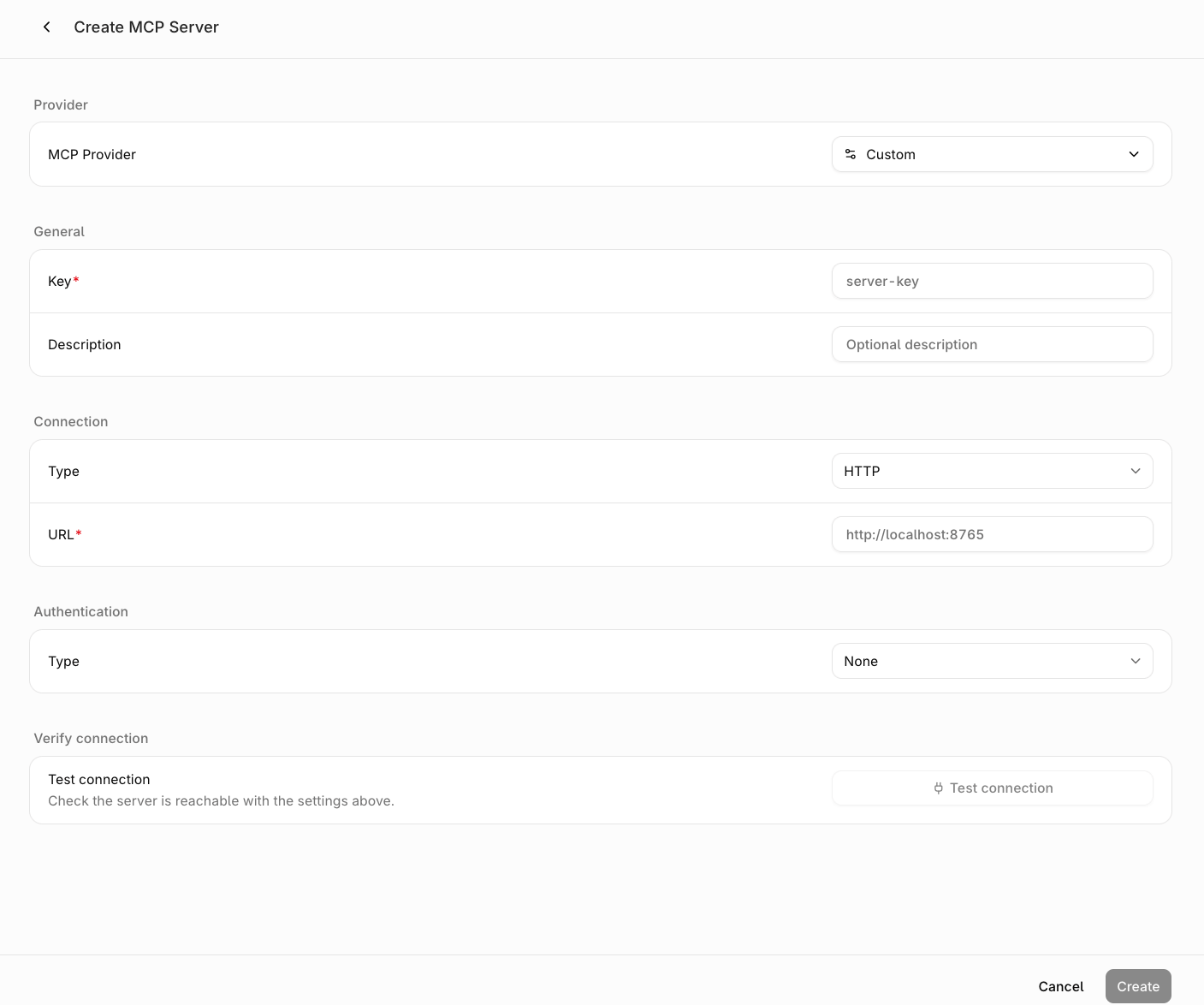
Create MCP Server form
- Pick a provider or enter a custom URL. The MCP Provider dropdown lists pre-configured providers (Airtable, Slack, Linear, and more). Selecting one pre-fills the connection details and authentication headers. Choose Custom to enter a server URL manually.
-
Fill in the general details.
- Key (required): a unique identifier for this server. Used in tool name prefixes when linked to a gateway.
- Description (optional): a note about what this server provides.
-
Set the connection.
- Type: HTTP (default) or SSE for streaming-capable servers.
- URL (required): the endpoint of the upstream MCP server.
-
Configure authentication.
- None (default): for public servers that require no credentials.
- Static Headers: send fixed headers with every request. Use
{{variable}}syntax for sensitive values like API keys. The actual values are stored securely and used at runtime when executing tools through agents or gateways. - OAuth Client Credentials: authenticate with an upstream OAuth 2.0 authorization server using the client credentials grant. The gateway exchanges the credentials for an access token, caches it, and attaches it to every upstream request. Fill in the Client ID, Client Secret, and Token URL (the endpoint that issues tokens, for example
https://accounts.example.com/oauth/token). The client secret is stored securely and never returned in API responses.
- Test the connection. Click Test connection to probe the server before saving. This validates the URL and authentication, and returns the list of discovered tools.
- Click Create.
After Creation
Once saved, Orq.ai syncs with the upstream server and discovers its tools. The server detail page shows discovered tools on the left and tool details on the right.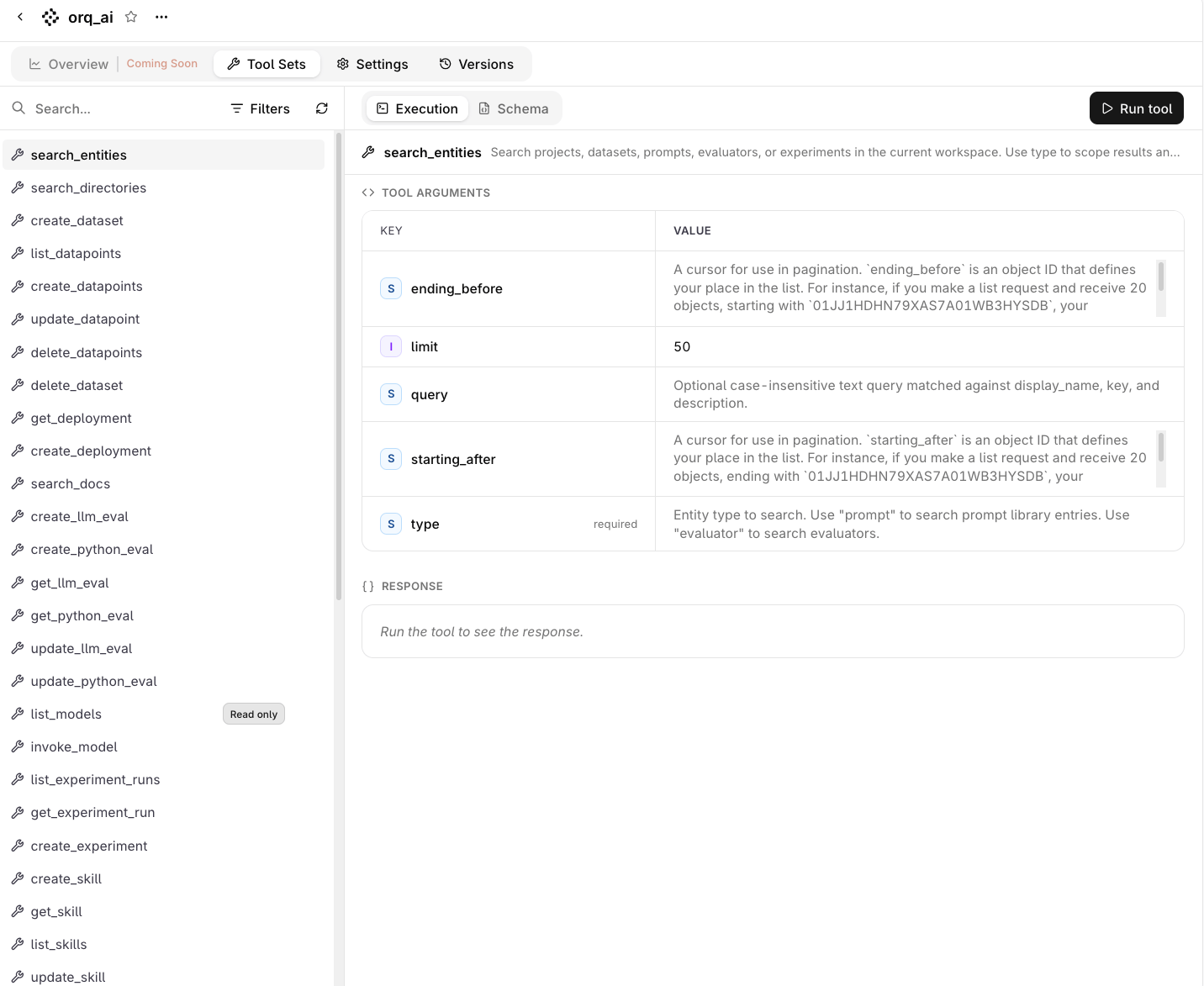
MCP Server detail page with discovered tools and execution panel
- View discovered tools in the Tool Sets tab. Select a tool to see its description, arguments, and input schema. The sync state shows the total tool count, tools added and removed since the last sync, the last synced timestamp, and any sync errors. This tab is the browser for the tools this server exposes, not a Toolset, which groups tools across servers.
- Control tool exposure in the Settings tab. Set the mode to All (expose every discovered tool), Selected (expose only tools in an allow-list), or None (hide all tools). Mark individual tools as read-only to prevent write operations.
- Test a tool by filling in the arguments and clicking Run tool. The test invokes the tool on the upstream server and shows the response.
- Re-sync to pick up changes from the upstream server. New tools are added, removed tools are dropped.
- Configure project access in the Settings tab. Under Access control, pick All projects to share the server with the whole workspace, or Custom and set each project to Enabled or Disabled. A gateway can only link servers whose project access covers it.
- Duplicate a server to create a copy with the same connection and tool settings under a new key.
Delete a Server
- AI Studio
- API & SDK
 AI Studio
Delete a server from the Delete item in the server list row menu, the Delete item in the detail page overflow menu, or the Delete Server button in the Settings form footer. Each asks for confirmation.
Monitor Usage
The Overview tab reports tool usage for the server, aggregated across every gateway that exposes it. It opens on the last 7 days, and the badge next to the heading carries the sync state, the discovered tool count, and the time of the last sync.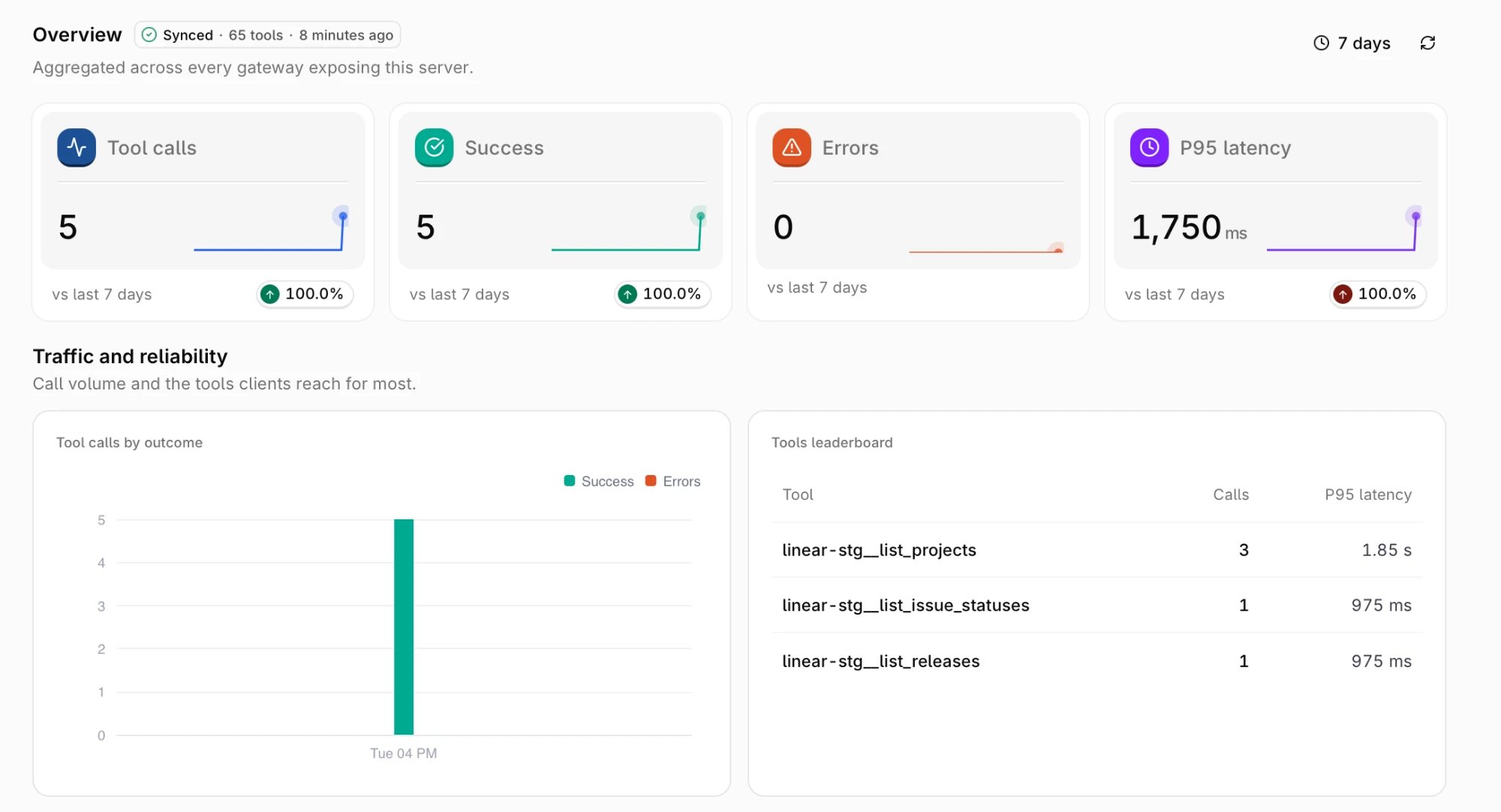
MCP Server Overview tab over the last 7 days