

Use Cases
- Reducing spend on high-volume workloads where most requests do not need the strongest model.
- Customer support assistants: simple FAQs and acknowledgements stay on fast, economical models while nuanced complaints or policy questions escalate automatically.
- Code assistants: autocomplete and boilerplate generation stay cheap; debugging and architecture questions escalate.
- Content generation at scale: templated, high-volume copy uses economical models; long-form or brand-sensitive copy uses stronger ones.
- Getting the best available output for every request without manually picking a model per call.
How It Works
Every eligible model carries an Intelligence Index sourced from Artificial Analysis. The Smart Router ranks the pool by this index and groups the models into complexity bands: Easy, Medium, and Hard. Each incoming request is analyzed for task complexity and routed to a model in the matching band, so the bands adapt automatically to whichever models are in the pool. The selected mode (Cost, Balanced, or Quality) tunes how aggressively the router prefers economical models over stronger ones. If routing is unavailable, the request falls back to the strongest model in the pool, so requests always complete.Set Up the Smart Router
- AI Studio
- API & SDK
 AI Studio
- Navigate to Smart Router in the AI Gateway sidebar.
- Click Smart Router.
- Fill in the configuration:
- Name: the stable model key used in Gateway requests; lowercase letters, numbers, and hyphens only, immutable after creation.
- Smart router mode: Cost, Balanced, or Quality.
- Models: click Add model and select 2 to 50 models; a pool below 10 models is recommended. See Understanding the Model Price.
- Session affinity: pin each thread to the model chosen on its first turn. See Session Affinity.
- Click Create.
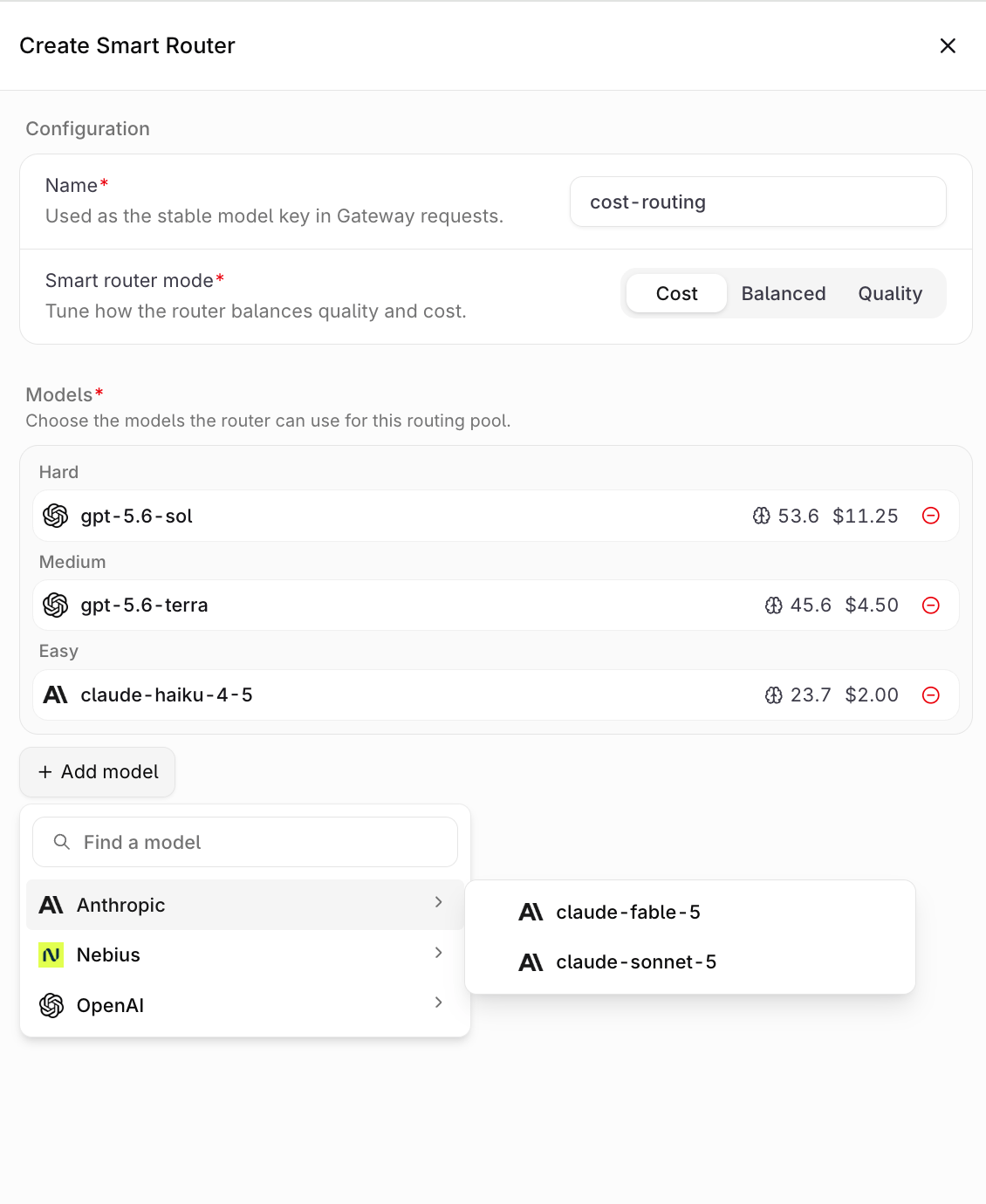
The Create Smart Router form.
Understanding the Model Price
Each model row in the Smart Router form shows an Intelligence Index and a price. The price is a static catalog figure for comparing models in the pool:- Basis: a blended input and output rate in USD per 1M tokens, weighted 3:1 toward input (
(3 × input price + output price) ÷ 4) - Source: Artificial Analysis pricing data
- Included: the list price of input and output tokens only
- Excluded: prompt cache reads and writes, separately billed reasoning or thinking tokens, web search fees, extended-context and service-tier pricing, batch rates, provider discounts, and costs added by Orq.ai
- Precision: displayed in USD with two decimal places
orq.billing.* attributes, in Billing & Usage, and in the Reporting API.
Modes
New Smart Routers default to Cost.
Session Affinity
By default the Smart Router picks a model per request, so consecutive turns of one conversation can land on different models. Session affinity pins a thread to the model chosen on its first turn, so later turns reuse the same model and the provider prompt cache survives. It is off by default and configured per router. See Session Affinity for how pins are seeded, decided, escalated, and observed.Eligible Models
Any enabled model in the AI Gateway that carries Artificial Analysis intelligence data can join the pool, and models from different providers can be mixed freely in a single pool. See Supported Models for the catalog. Models without an Intelligence Index and other Smart Routers cannot be added. Add model is disabled when no Smart-Router-eligible models are left to add, and a pool of fewer than 2 is rejected on save. Enable at least 2 eligible models in the Model List.Use the Smart Router
Once created, the Smart Router appears in AI Gateway and can be referenced anywhere a model is accepted via the API or SDKs.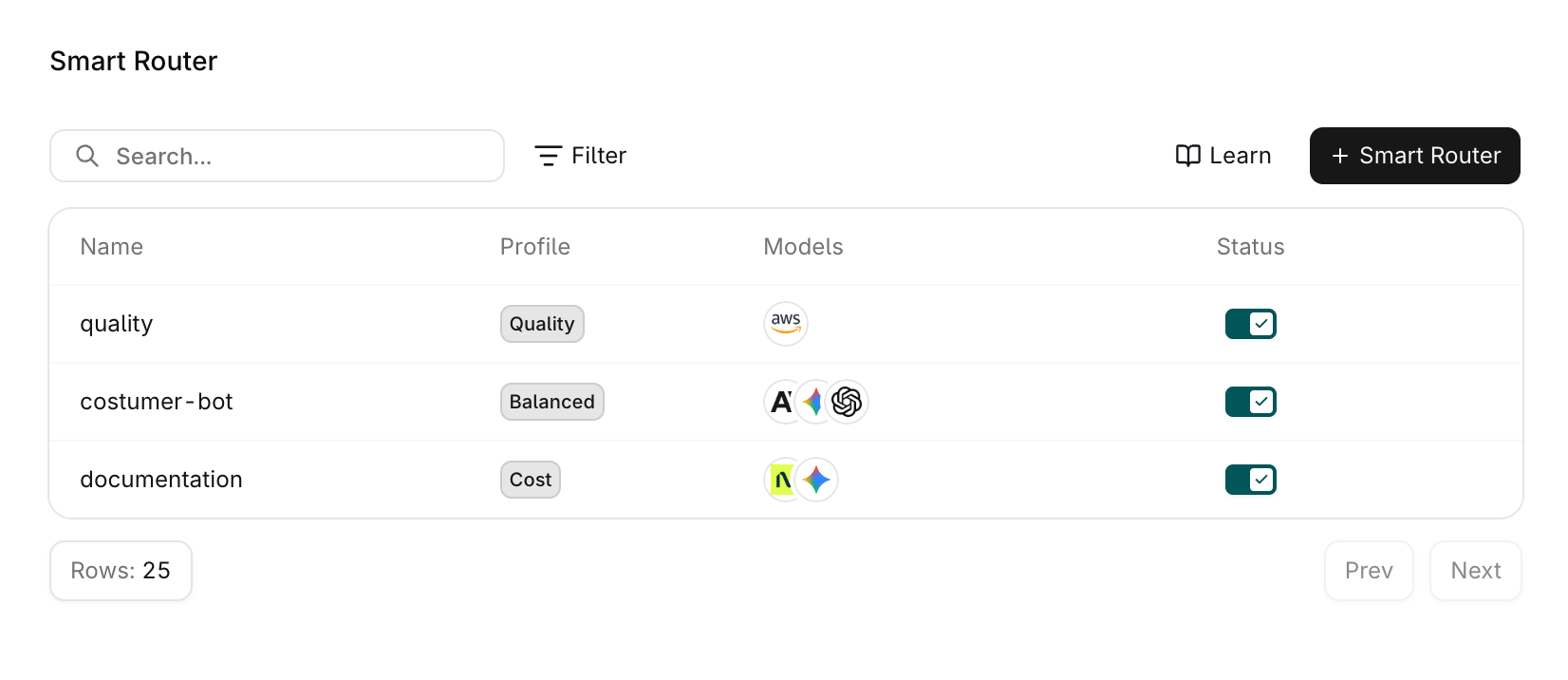
The Smart Router page with the configured routers.
Reference in code
When using a Smart Router through the SDKs, API, or Supported Libraries, reference it by the string<workspacename>@orq/<name>.
Example: acme@orq/my-smart-router
Run the Smart Router
Call the Smart Router like any other model. The router picks a model from the pool per request; no code changes are needed when the pool or mode changes. A Smart Router reference is accepted on/v3/router/chat/completions, /v3/router/responses, /v3/anthropic/v1/messages, /v2/deployments/invoke, and Agents.
Disabling a Smart Router makes it unavailable to the Gateway; requests referencing it no longer resolve until it is enabled again.