Orq MCP is live: Use natural language to interrogate traces, spot regressions, and experiment your way to optimal AI configurations. Available in Claude Desktop, Claude Code, Cursor, and more. Start now →
Curate production traces into high-quality evaluation datasets. Apply human feedback, labels, and corrections to build the test cases that power systematic improvement.
After observing an application in production, the next step is annotating and curating that data to build evaluation datasets. This process turns raw production logs into high-quality test cases that drive systematic improvement.Use Cases
Collecting quality feedback
Capture thumbs up/down ratings, custom scores, or categorical labels on AI responses. Build a feedback loop that surfaces low-quality generations for review.
Compliance and QA review
Flag responses with specific defects (hallucination, off-topic, inappropriate content) using structured annotation keys shared across the team.
Dataset curation
Annotate Traces with corrections and quality labels, then export curated subsets as training datasets for future experiments.
Human-in-the-loop workflows
Route Traces to Annotation Queues for systematic expert review. Combine with Trace Automations to automatically surface Traces that meet specific criteria.
ConceptsThree concepts work together to form the annotations system:
Annotations: the feedback categories configured for a project, such as a quality rating or a defect tag
Annotation Queues: organized workflows for reviewing Traces in bulk via AI Studio
Annotations API: the API and SDK for applying feedback values to a Trace or span programmatically
Annotations
Define annotation schemas: keys, value types, and validation rules. Available on chat completion and responses spans once created.
Annotation Queues
Organize human review workflows. Filter and present relevant Traces for review in bulk.
Annotations API
Apply structured human feedback to Traces and spans programmatically via the API and SDK.
Each annotation must be defined in the project before it can be used. The definition sets the key, title, and value type; applying an annotation to a Trace requires matching one of these definitions.
AI Studio
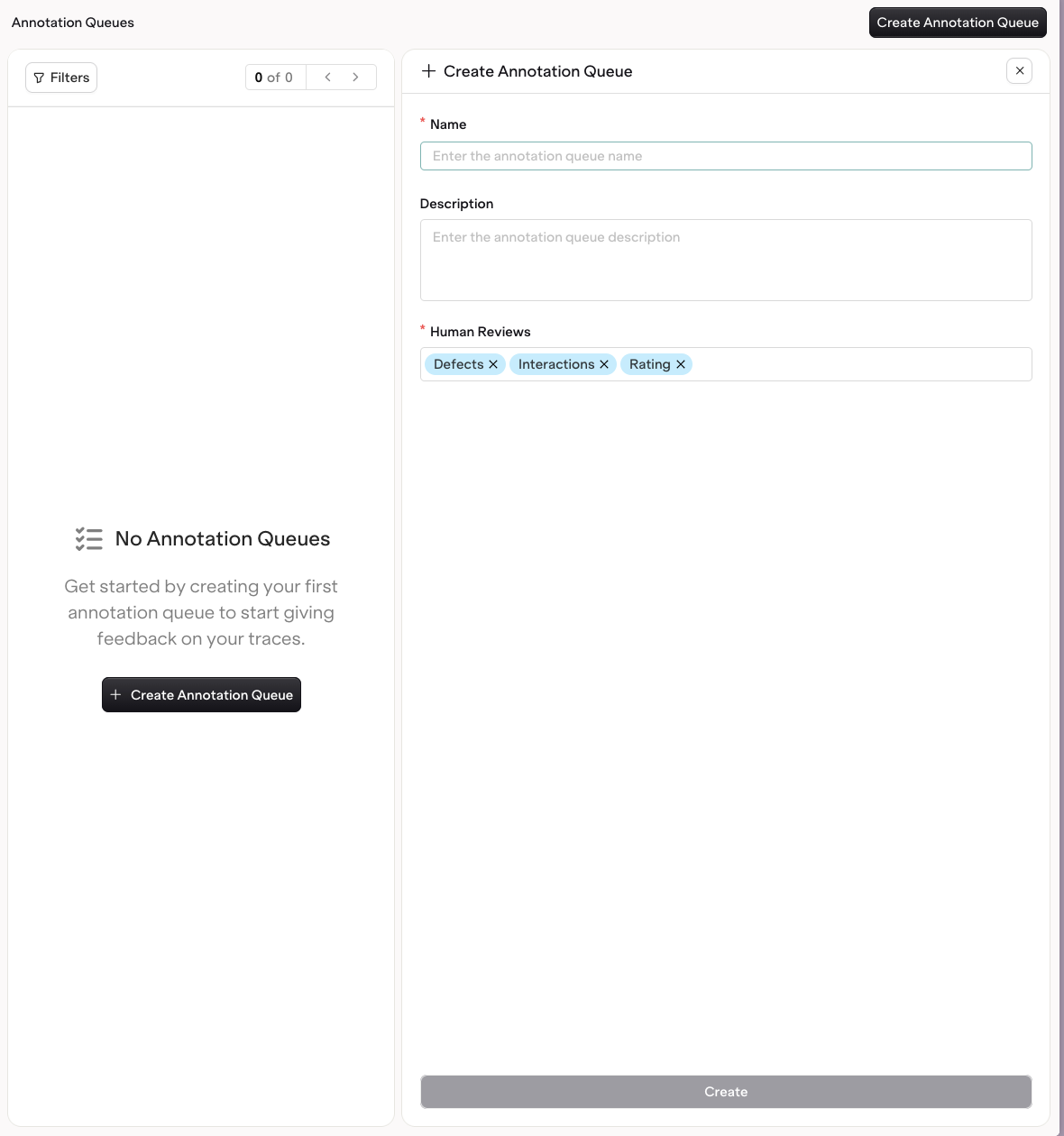
To create an annotation, head to Optimization > Annotations and press the button. Annotations can also be created directly from an Annotation Queue.
Customizing a Human Review.
Each annotation uses one of three value types:
Categorical: button options with custom labels, such as good/bad or saved/deleted
Range: a custom scoring slider, for example a scale from 0 to 100
Open field: free-form text input for detailed comments
Once created, an annotation is available on all chat completion spans and responses spans in the project. No additional configuration or filtering required.
Deleting an annotation removes it from any Annotation Queues and Experiments that use it, so it no longer appears as a review option there. Annotations already recorded on a Trace are preserved: every annotated data point remains stored and queryable.
Annotations can be applied wherever a Trace or span is reviewed:
Directly on a Trace or Log: open a single Trace or Log in the Traces or Logs view and use the Annotations panel.
In an Annotation Queue: review a curated set of Traces in bulk. Fill a queue with Trace Automations or by manually adding individual Traces or Logs.
Programmatically: apply feedback through the API and SDK using the API & SDK tab below.
In an Experiment: apply annotations while reviewing experiment outputs.
Every annotation applied in an Annotation Queue is written back to its originating Trace. Because the values live on the Trace, they can be queried with the Orq MCP and used to run analysis across reviewed data.
AI Studio
API & SDK
CLI
The annotation capabilities differ between Logs and Traces. Logs support human feedback and text corrections to the AI response. Traces support human feedback and correcting an evaluator result.
Traces
Logs
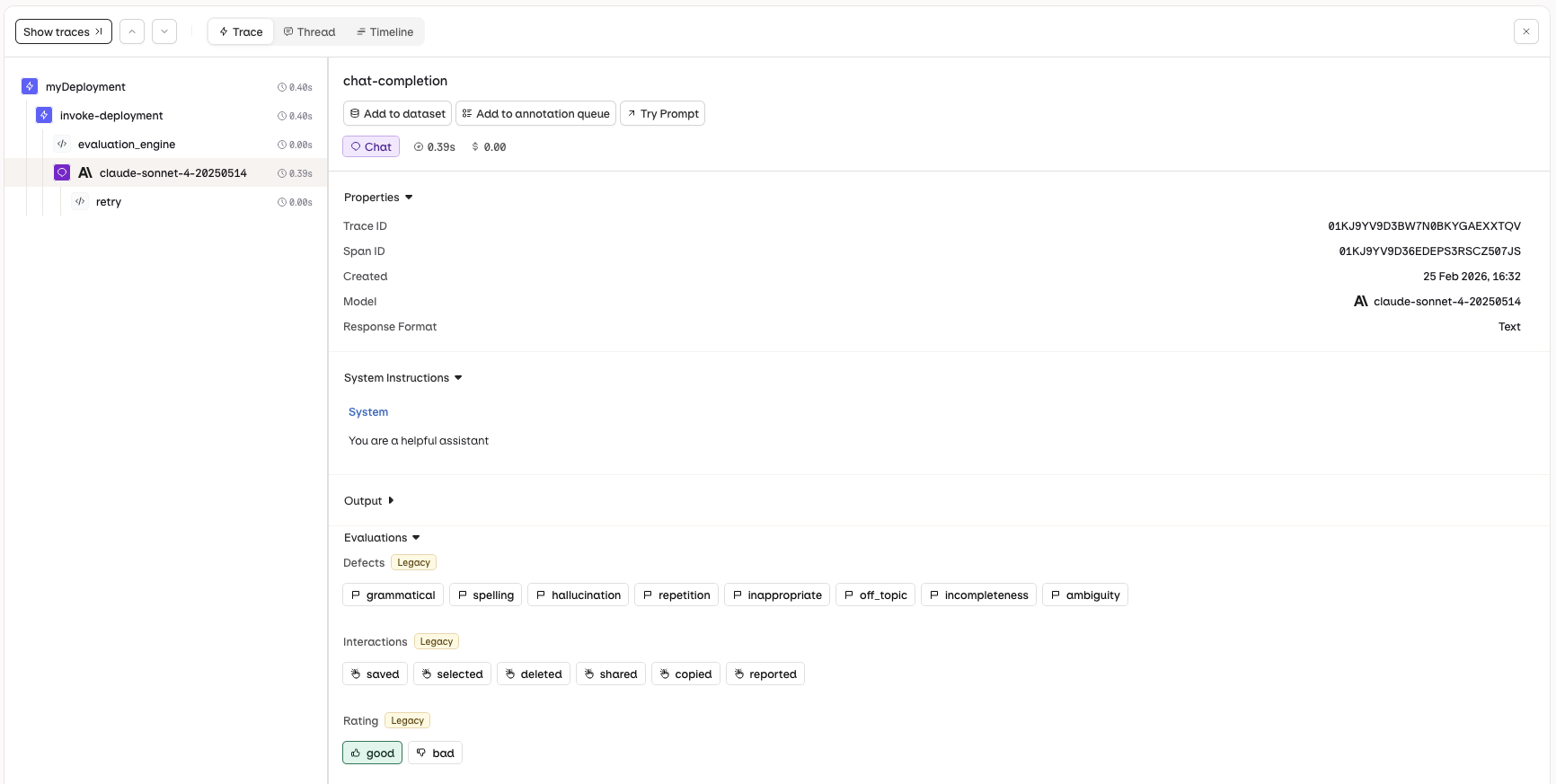
Navigate to the Traces view and select a single trace. The Annotations panel will be displayed, allowing you to apply human feedback to the AI response.
The Annotations panel in Traces lets you apply human feedback.
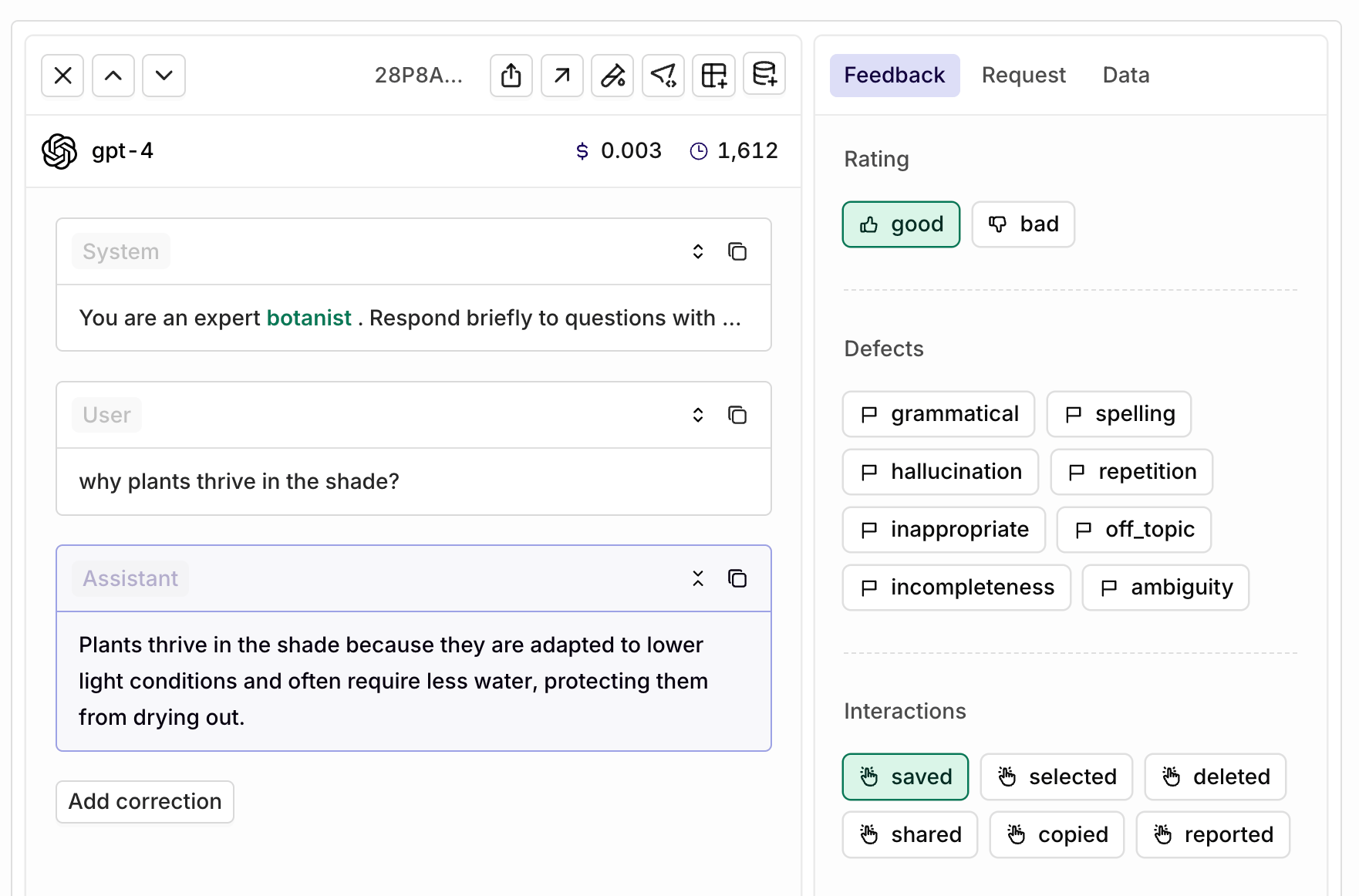
Navigate to the Logs view and select a single log. The Annotations panel will be displayed, allowing you to apply human feedback and provide corrections to the AI response.
The Annotations panel in Logs lets you apply human feedback and corrections.
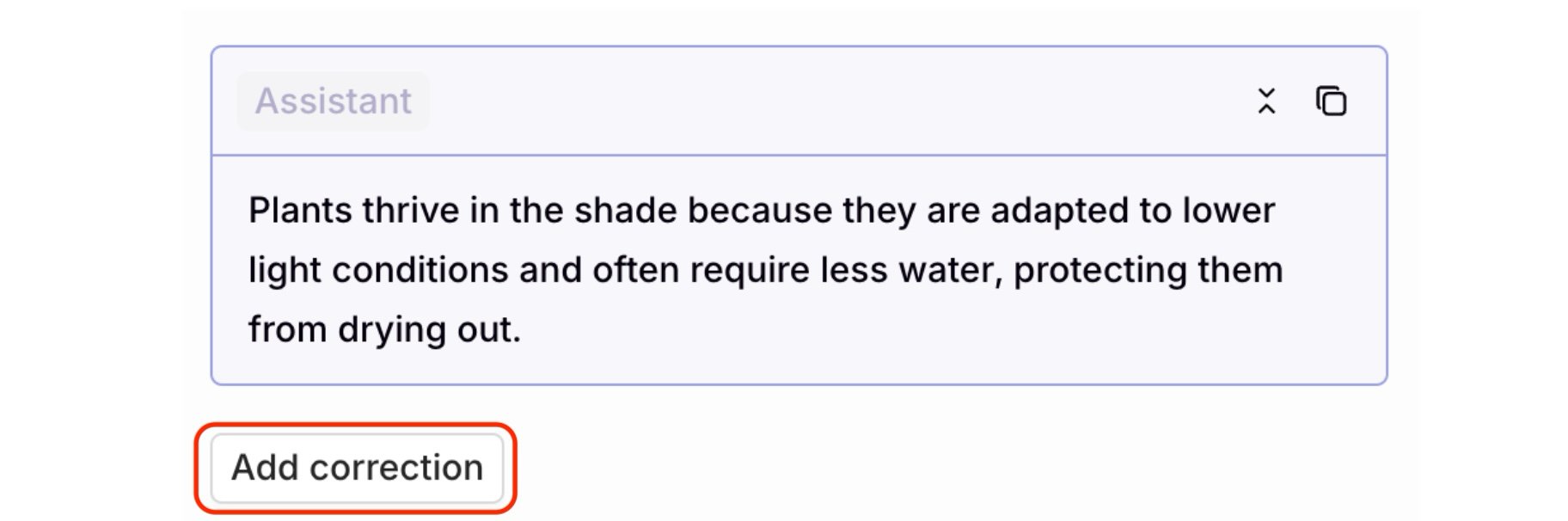
To make a correction, use the Add correction button below the AI-generated response:
The Add correction button is below the Assistant response.
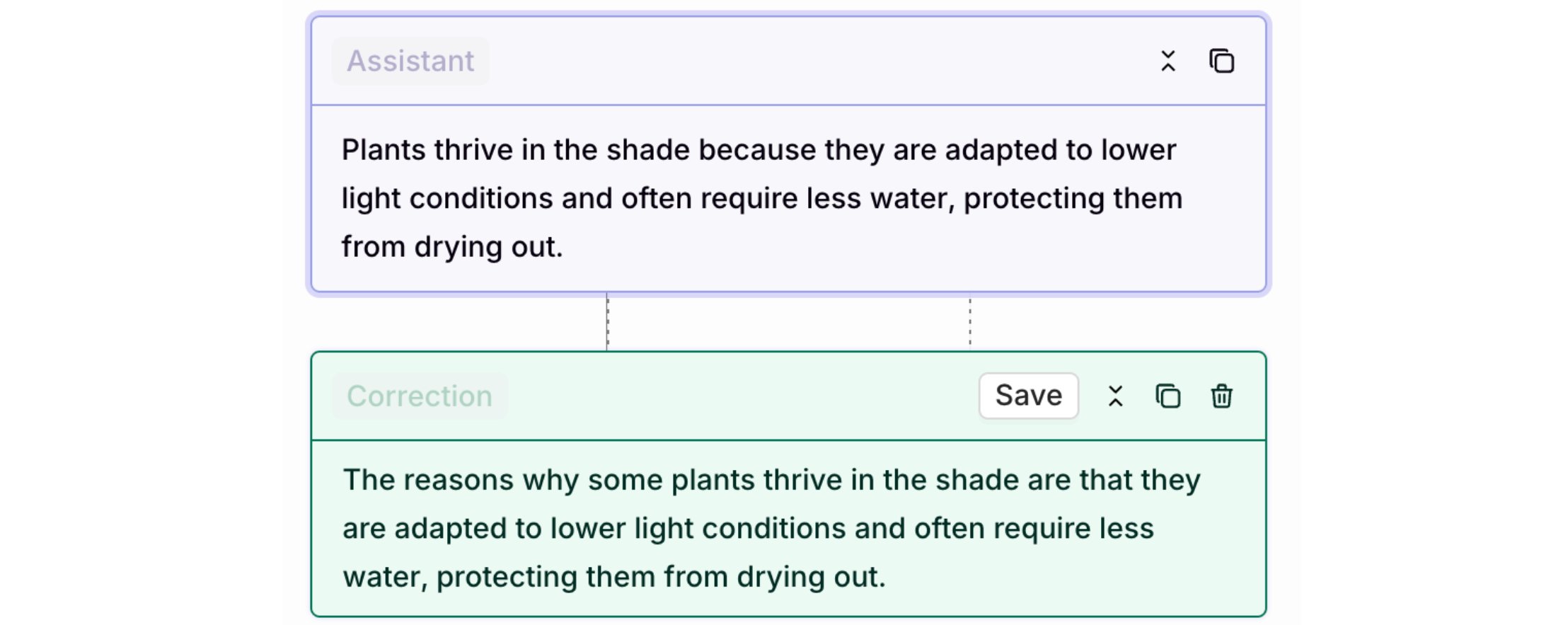
Click to add a correction, which opens an editor for manually revising the model’s response. Select Save to store the correction.
The corrected text and correction will appear side by side, with the correction displayed in green.
from orq_ai_sdk import Orqimport osorq = Orq(api_key=os.getenv("ORQ_API_KEY"))result = orq.annotations.create( trace_id="<trace_id>", span_id="<span_id>", annotations=[ { "parent_annotation_id": "<evaluator_annotation_id>", "value": False, "explanation": "The response omitted a required disclaimer." } ])print(result)
import { Orq } from "@orq-ai/node";const orq = new Orq({ apiKey: process.env.ORQ_API_KEY,});const result = await orq.annotations.create({ traceId: "<trace_id>", spanId: "<span_id>", annotations: [ { parentAnnotationId: "<evaluator_annotation_id>", value: false, explanation: "The response omitted a required disclaimer." } ]});console.log(result);
A correction uses parent_annotation_id in place of key: it’s the id of the Evaluator annotation being corrected. The corrected value must match that Evaluator’s own output type. See Correct an Evaluator Result on the Traces page for the UI equivalent.
Ensure the value matches the options defined in the Human Review.
400
Value Out of Range
Value 15 is out of range [0, 10].
Provide a number within the defined min/max range for the Human Review.
400
String Too Long
String value exceeds maximum length of 200 characters.
Shorten the string annotation to 200 characters or less.
See a complete feedback loop implemented from scratch. Read our cookbook Capturing User Feedback.
Constraints
Batch Limits: up to 10 annotations per create request, up to 10 keys per delete request
String Length: string values are limited to 200 characters maximum
Deployment Span Propagation: when annotating a deployment span, the associated log is automatically annotated with the same values
Metadata Fields: optional metadata object supports identityId, source, and reviewerId for tracking and attribution
Annotate and remove annotations from a span using orq traces create and orq traces delete. The orq traces group manages annotations on existing traces and spans; there is no separate orq annotations group.
Once a queue exists, fill it with the Traces to review. Traces can be added automatically or manually.
Automatically
Manually
Use Trace Automations to route Traces into a queue based on configured rules. Add an Add to Annotation Queue action to an automation and select the target queue. As matching Traces arrive, they are added to the queue without manual effort, which keeps a steady stream of relevant Traces ready for review.
An automation with an Add to Annotation Queue action routing matching Traces into a queue.
Open a Trace, select a span, and choose Add to annotation queue to send it to a queue one at a time. This is useful for ad hoc review of specific Traces that are worth a closer look.
The Add to annotation queue button on a selected span in the Traces view.
Open an Annotation Queue to step through its Traces one at a time in the review screen.
Annotation Queue review screen. Left: Inputs, Metrics, and Task. Center: the full interaction. Right: the Annotations panel.
The screen is divided into three panels:
Left: details for the selected Trace.
Inputs: the variables mapped to inputs, when configured.
Metrics: latency, cost, and token usage.
Task: the model, provider, and other configuration parameters.
The header shows the current position, the total number of items in the queue, and how many have already been reviewed.
Center: the full interaction for the selected Trace.
Right: the Annotations panel with the Annotations configured for the queue, such as a rating with categorical buttons or an open comment field. Selecting a value saves immediately and marks the Trace as reviewed.
Navigate between items with K (previous) and J (next), or use the up and down buttons at the top left.When a data point is worth reusing, select Add to dataset to send the Trace to a Dataset for use in a future Experiment.
Adding a Trace to a Dataset does not copy its annotations for now. As noted above, the annotation values stay on the originating Trace, where they remain queryable via the Orq MCP.
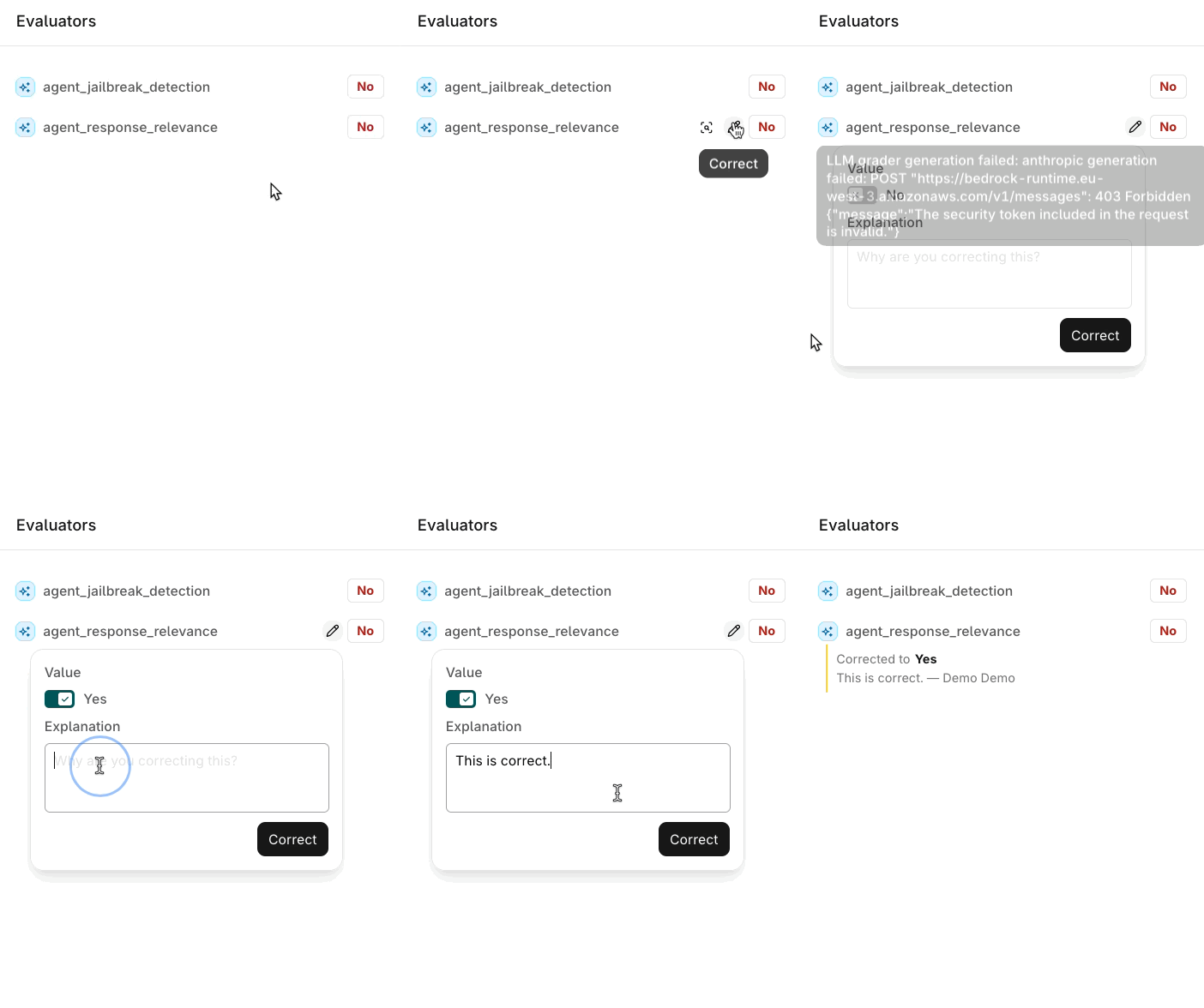
Evaluator results shown in the review screen can also be corrected, not just annotated.
Correcting an Evaluator result in the review screen.
Annotations can also be applied outside of Annotation Queues, while reviewing the outputs of an Experiment. In the experiment review screen, the annotations defined for the project appear alongside Evaluator scores, so outputs can be annotated manually as part of an evaluation run.
The Annotations panel in the experiment review screen, with annotations shown above the Evaluator scores.
Correcting an Evaluator result is not available in the experiment review screen. Human Reviews and Evaluator scores still display as described above.


 AI Studio