Create datasets to test LLM models at scale. Define inputs, messages, and expected outputs for experiments. Manage datasets via the AI Studio, API, or Orq MCP.
Datasets hold the test data that powers Experiments. Each dataset row contains up to three fields:
Inputs: Variables injected into the prompt at runtime, e.g. {{firstname}}.
Messages: The prompt template, structured with system, user, and assistant roles.
Expected Output: Reference responses evaluators compare against model outputs.
You don’t need all three fields in every dataset. A dataset with only inputs, or only messages, is valid.
Run the same dataset through your prompts before and after a change to verify that updates haven’t degraded performance in any area.
Compare models and prompt variants
Use the same dataset across multiple models or prompt configurations in an Experiment to find the best combination of quality, cost, and latency.
Curated datasets for fine-tuning
Have domain experts review and correct model outputs, then save those verified input/output pairs as a curated dataset to use as fine-tuning reference data.
Synthetic data generation at scale
Use the Orq MCP to generate hundreds of realistic test cases programmatically and add them directly to a dataset without leaving your IDE.
Vision and image datasets
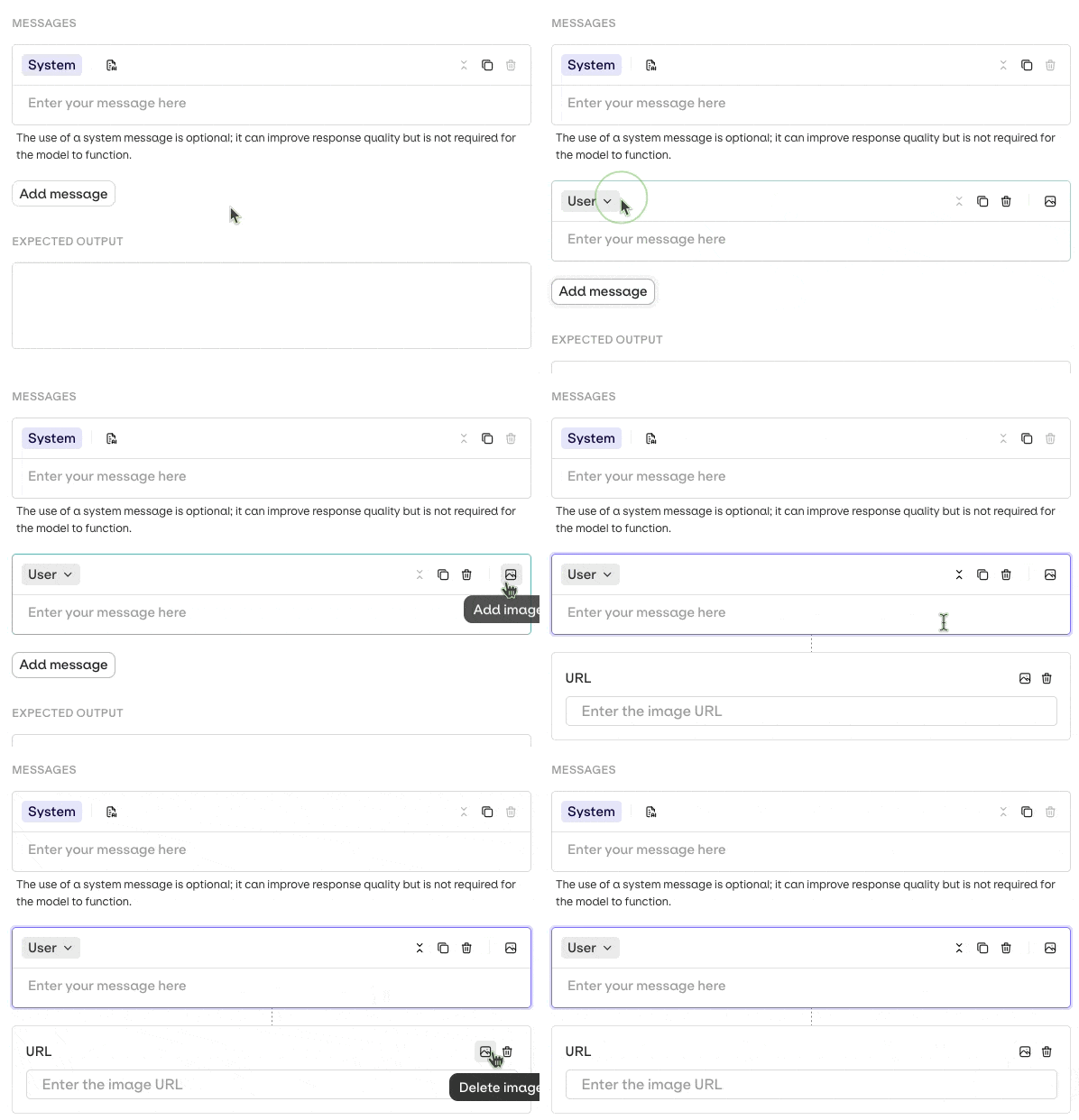
Build datasets with image messages for testing vision models. Supports JPEG, PNG, GIF, and WebP via the AI Studio or API.
Use the button on a Project folder and select Dataset. Enter a Name in the Create dataset dialog and select Create.The table has three columns: Inputs, Messages, and Expected Output. Add as many rows as needed.
Use the Create Dataset API. A unique display_name and a path (the Project folder) are required.
See install and setup to get started with the CLI. Run orq datasets create --help for the full flag reference.
Create a dataset:
Create a dataset called "Support Training Data" in the Default project
The assistant uses create_dataset with the display name and path.Generate a synthetic dataset:
Generate 50 realistic customer support questions about a SaaS product and create a dataset called "Support Training Data"
The assistant generates the entries, uses create_dataset to create the dataset, then uses create_datapoints to add all entries in bulk.Find an existing dataset:
Find the "user-queries" dataset in my workspace
The assistant uses search_entities with type: "dataset" to locate it by name.
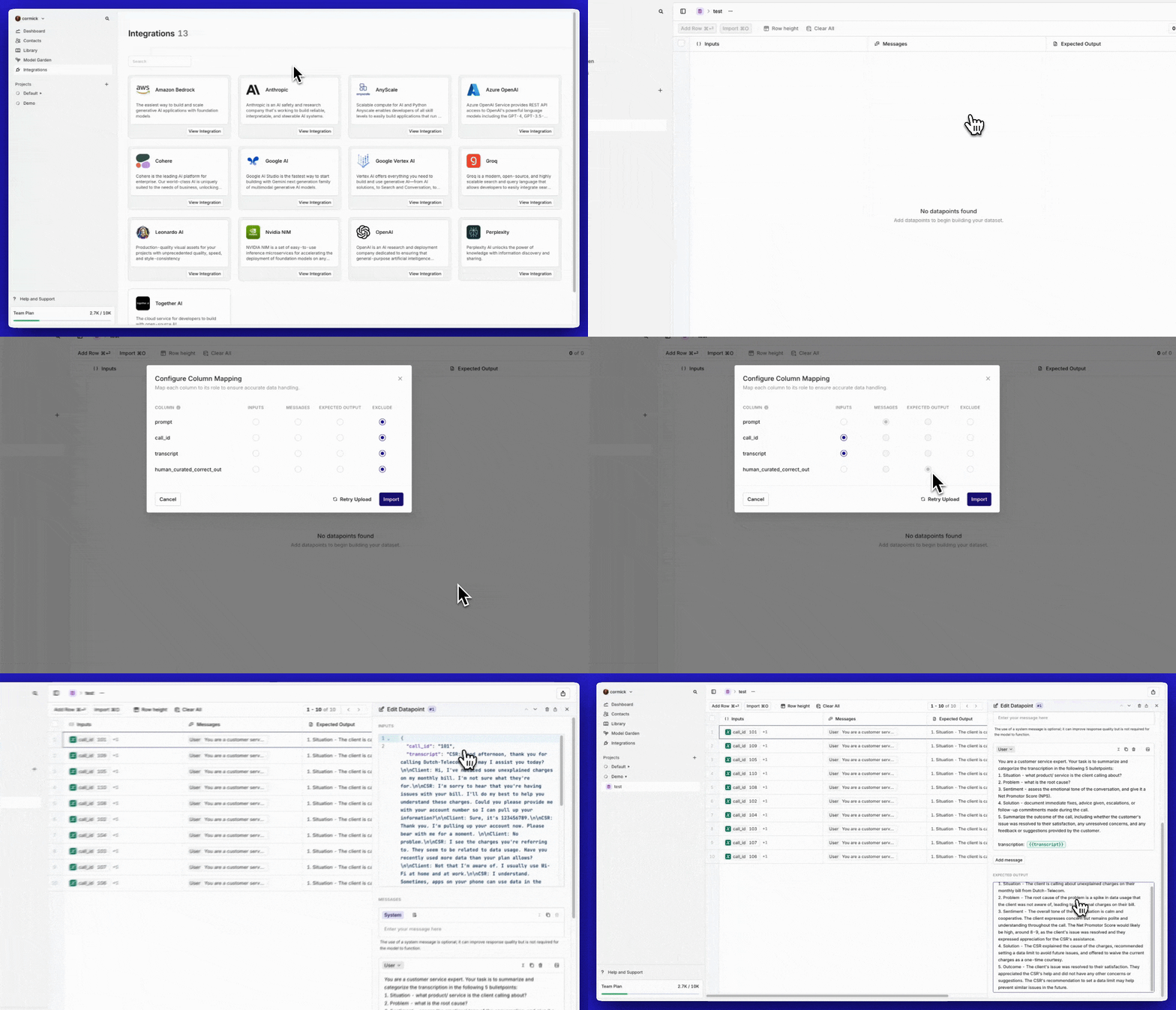
Manually: Click Add Row and fill in each cell.From CSV: Click Import and drag-and-drop a .csv file. Map each CSV column to a role: Inputs, Messages, Expected Output, or Exclude. Each row becomes a separate datapoint.
Use the Create Datapoints API. Send between 1 and 5,000 datapoints per request. Requests over 500 datapoints are automatically chunked.
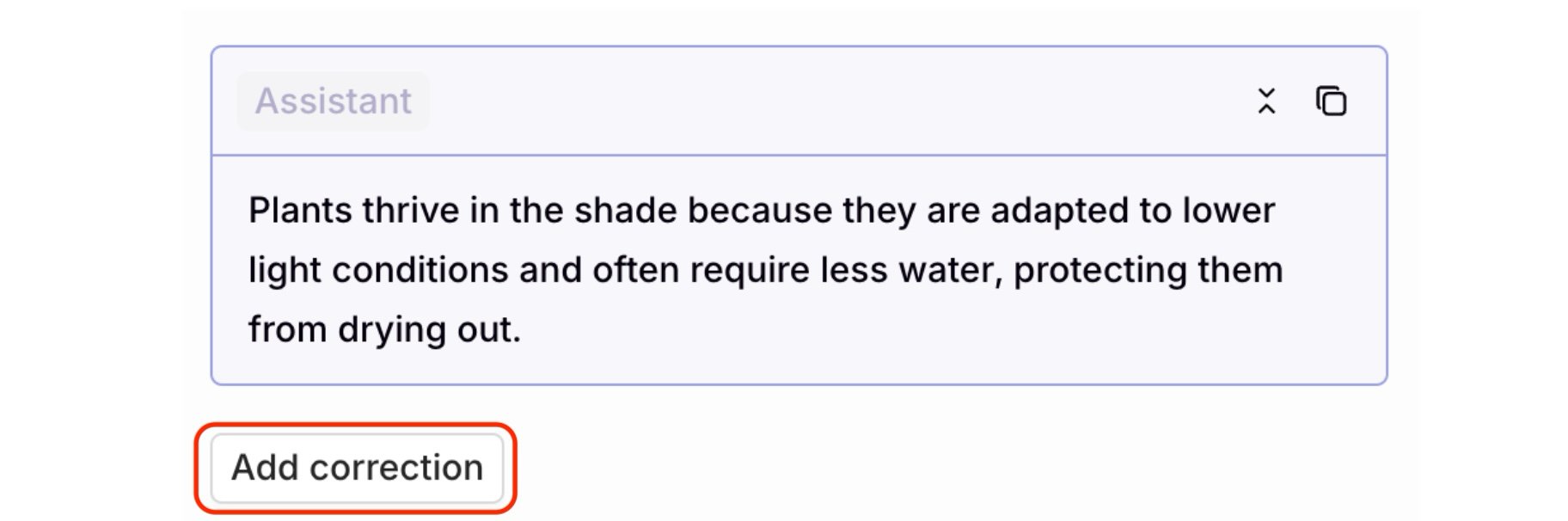
Curated datasets are human-evaluated input and output sets: a prompt paired with a verified expected output. They are used for fine-tuning and as a gold-standard reference in Experiments.Within any module, open the Logs tab and select a log entry. The Feedback panel appears on the right.To add a correction, click Add correction below the assistant response:
The Add correction button is below the assistant response.
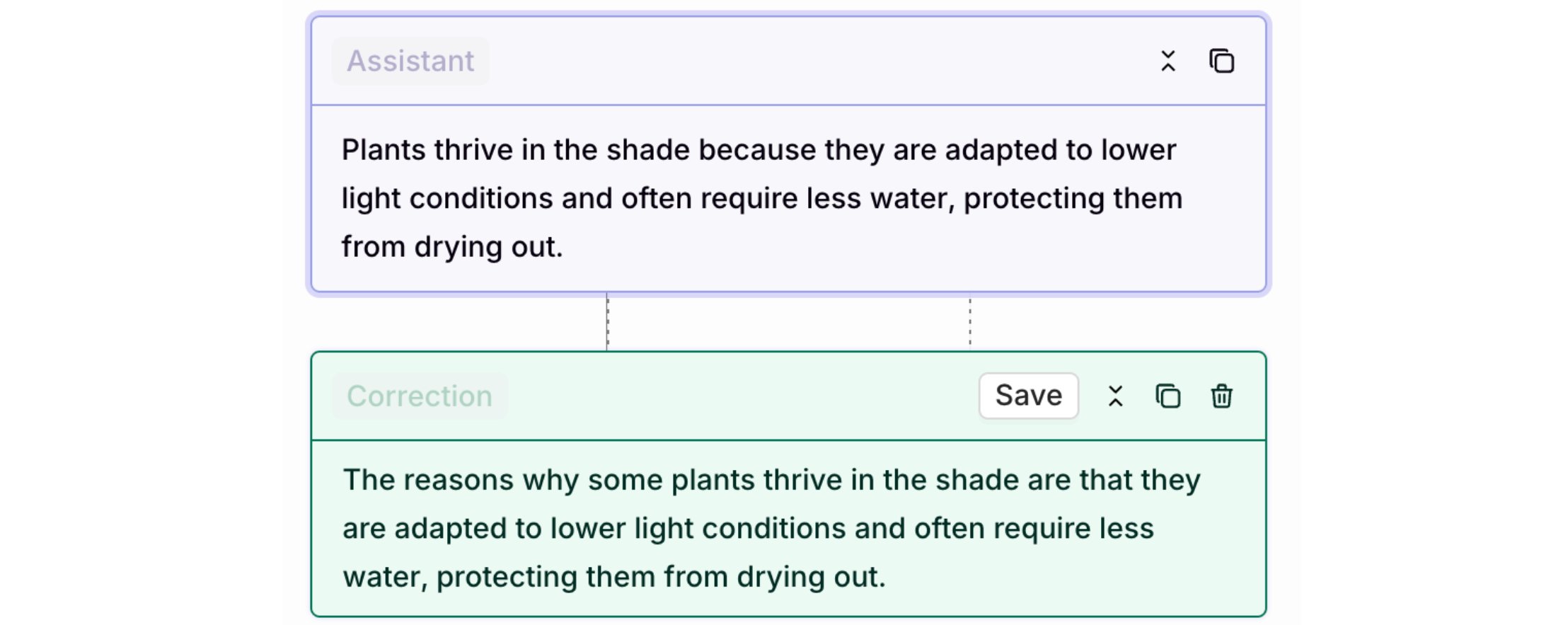
Edit the response in the Correction message that opens, then click Save.
The original and corrected responses appear side by side. The correction is shown in green.
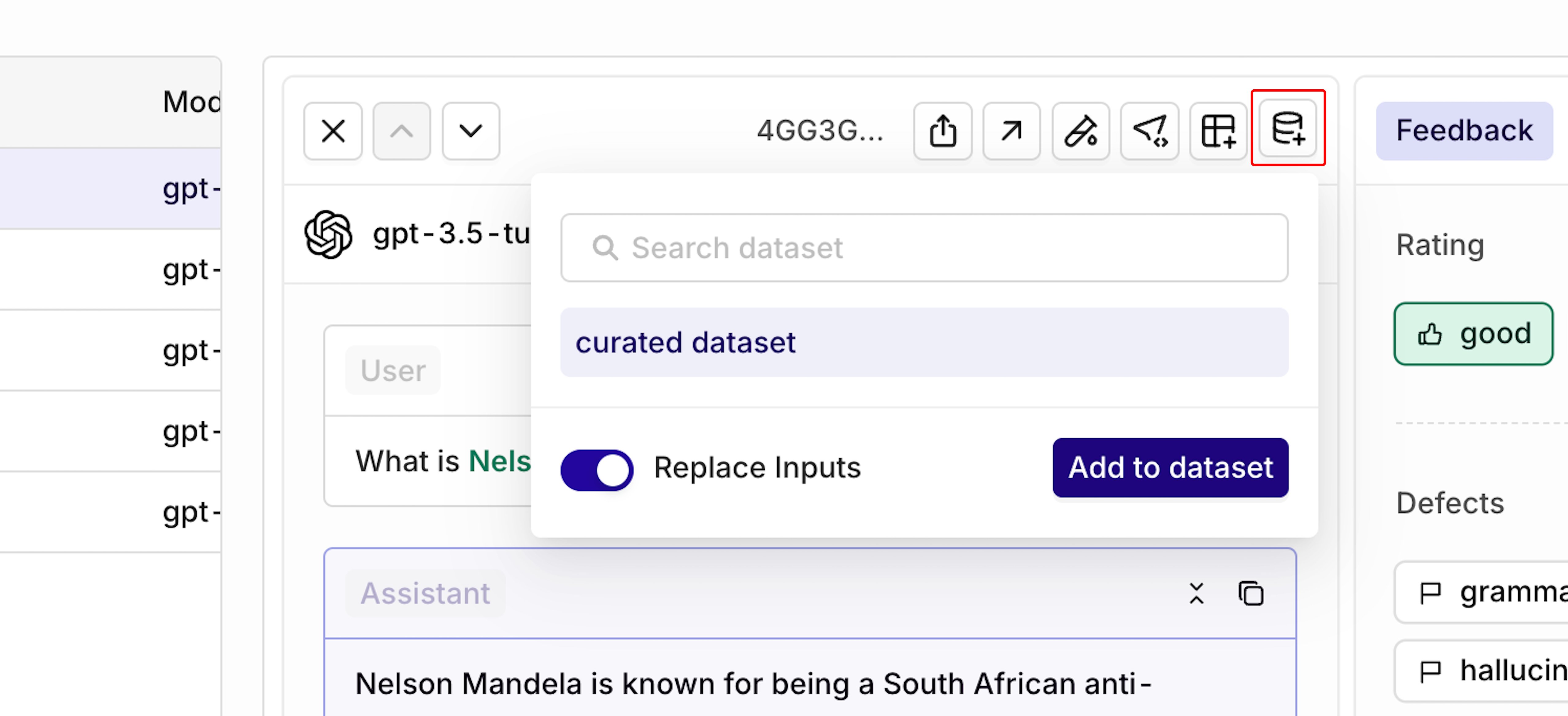
Click the Add to Dataset icon at the top-right of the response to save the corrected entry to a dataset:
Choose to replace the inputs used during generation (recommended).
Import a curated dataset into an Experiment, attach an Evaluator, and see which model or prompt scores best against the curated reference outputs.
# List datasetsorq datasets list --limit 10# Retrieve a datasetorq datasets retrieve <dataset_id>
See install and setup to get started with the CLI. Run orq datasets list --help or orq datasets retrieve --help for the full flag reference.
List datasets in a project:
List all datasets in my workspace
The assistant uses search_entities with type: "dataset".Find a specific dataset:
Find the "user-queries" dataset and show me its datapoints
The assistant uses search_entities to locate the dataset, then list_datapoints to retrieve its entries.
Was this page helpful?
{"docsConfig":{"theme":"aspen","$schema":"https://mintlify.com/docs.json","name":"Orq.ai Documentation","colors":{"primary":"#027f6b","light":"#00d2b5","dark":"#027f6b"},"logo":{"light":"https://mintcdn.com/orqai/OG_14djpK9Yasgfk/images/Orq_ai_Symbol_Dark.svg?fit=max\u0026auto=format\u0026n=OG_14djpK9Yasgfk\u0026q=85\u0026s=d01651850182afdbc6309808b688d470","dark":"https://mintcdn.com/orqai/BYq_L5I_ZDBWL_Pf/images/Orq_ai_Symbol_Light.svg?fit=max\u0026auto=format\u0026n=BYq_L5I_ZDBWL_Pf\u0026q=85\u0026s=3e372f93174202f20c31d2c045af92b9","href":"/ai-gateway/get-started/introduction"},"favicon":"https://mintcdn.com/orqai/rmwcfFw4PPljHRCz/favicon.svg?fit=max\u0026auto=format\u0026n=rmwcfFw4PPljHRCz\u0026q=85\u0026s=1827beca4e1fb46e074d8bda067f3fb1","api":{"openapi":"openapi.json","examples":{"languages":["curl","typescript","python"]}},"background":{"color":{"light":"#f7f6f5","dark":"#171717"}},"navbar":{"links":[],"primary":{"type":"button","label":"Get Started","href":"https://my.orq.ai/auth/signup"}},"footer":{"socials":{"github":"https://github.com/orq-ai","x":"https://x.com/orq_ai","linkedin":"https://www.linkedin.com/company/orqai","website":"https://orq.ai"}},"seo":{"metatags":{"author":"Orq.ai","og:type":"website","og:site_name":"Orq.ai Documentation","og:locale":"en_US","twitter:card":"summary_large_image","twitter:site":"@orq_ai","twitter:creator":"@orq_ai","viewport":"width=device-width, initial-scale=1.0","robots":"index, follow","language":"English"},"organization":{"id":"https://docs.orq.ai/#organization","name":"Orq.ai","legalName":"Orq.AI Holding B.V.","url":"https://orq.ai","logo":"https://docs.orq.ai/images/Orq_ai_Symbol_Dark.svg","sameAs":["https://github.com/orq-ai","https://x.com/orq_ai","https://www.linkedin.com/company/orqai/"]},"indexing":"all"},"fonts":{"heading":{"family":"ES Klarheit Kurrent Semibold","weight":600,"source":"https://framerusercontent.com/assets/HiovZWjG27S5NQhE8dyeECDMc.woff2","format":"woff2"},"body":{"family":"Inter","source":"https://cdn.jsdelivr.net/npm/@fontsource/inter@5.0.8/files/inter-latin-400-normal.woff2","format":"woff2"}},"styling":{"codeblocks":{"theme":{"light":"github-light","dark":"github-dark"}},"latex":true},"integrations":{"posthog":{"apiKey":"phc_MKGkZTCrnrBUKVqT0XxWbfDqCwik8EF2GIob0NhCU3C","apiHost":"https://eu.i.posthog.com"}},"contextual":{"options":["copy","download-spec","chatgpt","claude","view"],"display":"header"},"interaction":{"drilldown":true},"navigation":{"pages":[]}},"deployment":{"deploymentMetadataValue":{"subdomain":"orqai","hasAudioNarration":false,"actualSubdomain":"orqai","customDomains":["docs.orq.ai"],"gitSource":{"type":"github","owner":"orq-ai","repo":"orquesta-web","deployBranch":"main","contentDirectory":"documentation/mintlify","isPrivate":true,"mountPath":"","label":""},"chroma":{"liveDeploymentHistoryId":"6ae126c9282ca4391afebeec","collectionId":"d39ae0d7-37db-4a5f-bcfd-37c215e0c4fd","schemaVersion":"v3","latestBuiltDeploymentHistoryId":"6ae126c9282ca4391afebeec"},"feedback":{"thumbs":true,"agentFeedback":true},"entitlements":{"AI_CHAT":{"status":"ENABLED"},"WEB_MCP":{"status":"ENABLED"},"NARRATION":{"status":"ENABLED"}},"buildId":"6ae126c9282ca4391afebeec","clientVersion":"0.0.3990","searchFilterCounts":[{"language":"default","tag":"API Reference","count":410},{"language":"default","tag":"Platform APIs","count":263},{"language":"default","tag":"Integrations","count":93},{"language":"default","tag":"Orq SDK","count":71},{"language":"default","tag":"AI Gateway","count":69},{"language":"default","tag":"Management APIs","count":68},{"language":"default","tag":"SDK Reference","count":68},{"language":"default","tag":"Cookbooks","count":34},{"language":"default","tag":"Model Providers","count":31},{"language":"default","tag":"Frameworks \u0026 SDKs","count":30}],"searchSettings":{"maxResults":15}},"assistantConfig":{"enableStarterQuestions":true,"enableContextualStarterQuestions":true,"deflection":{"enabled":true,"email":"support@orq.ai","showHelpButton":true}},"basePath":"","hasChatPermissions":true,"hasWebMcpPermissions":true,"toggles":[{"name":"kill-isr","enabled":true,"variant":{"name":"disabled","enabled":false,"feature_enabled":true},"impressionData":false},{"name":"agent-mintlify-slack","enabled":true,"variant":{"name":"disabled","enabled":false,"feature_enabled":true},"impressionData":false},{"name":"editor-v7-file-tree","enabled":true,"variant":{"name":"disabled","enabled":false,"feature_enabled":true},"impressionData":false},{"name":"agent-integrations-settings","enabled":true,"variant":{"name":"disabled","enabled":false,"feature_enabled":true},"impressionData":false},{"name":"automations-pr-grouping","enabled":true,"variant":{"name":"disabled","enabled":false,"feature_enabled":true},"impressionData":false},{"name":"custom-prefix","enabled":true,"variant":{"name":"disabled","enabled":false,"feature_enabled":true},"impressionData":false},{"name":"analytics-v7","enabled":true,"variant":{"name":"disabled","enabled":false,"feature_enabled":true},"impressionData":false},{"name":"user-flows-analytics","enabled":true,"variant":{"name":"disabled","enabled":false,"feature_enabled":true},"impressionData":false},{"name":"no-publish-flow","enabled":true,"variant":{"name":"disabled","enabled":false,"feature_enabled":true},"impressionData":false},{"name":"workos-onboarding","enabled":true,"variant":{"name":"disabled","enabled":false,"feature_enabled":true},"impressionData":false},{"name":"llms-txt-v2","enabled":true,"variant":{"name":"disabled","enabled":false,"feature_enabled":true},"impressionData":false},{"name":"pause-universal-search-reconcile","enabled":true,"variant":{"name":"disabled","enabled":false,"feature_enabled":true},"impressionData":false},{"name":"snapshot-serving-live","enabled":true,"variant":{"name":"disabled","enabled":false,"feature_enabled":true},"impressionData":false},{"name":"stripTemperatureMiddleware","enabled":true,"variant":{"name":"disabled","enabled":false,"feature_enabled":true},"impressionData":false},{"name":"per-site-search-delta","enabled":true,"variant":{"name":"disabled","enabled":false,"feature_enabled":true},"impressionData":false},{"name":"support-platform-pylon-zendesk","enabled":true,"variant":{"name":"disabled","enabled":false,"feature_enabled":true},"impressionData":false},{"name":"snapshot-serving","enabled":true,"variant":{"name":"disabled","enabled":false,"feature_enabled":true},"impressionData":false},{"name":"instant-rollback","enabled":true,"variant":{"name":"disabled","enabled":false,"feature_enabled":true},"impressionData":false},{"name":"granular-notifications-server","enabled":true,"variant":{"name":"disabled","enabled":false,"feature_enabled":true},"impressionData":false},{"name":"granular-notifications","enabled":true,"variant":{"name":"disabled","enabled":false,"feature_enabled":true},"impressionData":false},{"name":"editor-private-page-search","enabled":true,"variant":{"name":"disabled","enabled":false,"feature_enabled":true},"impressionData":false},{"name":"automations-fable","enabled":true,"variant":{"name":"disabled","enabled":false,"feature_enabled":true},"impressionData":false},{"name":"fixed-ai-action-pricing","enabled":true,"variant":{"name":"disabled","enabled":false,"feature_enabled":true},"impressionData":false},{"name":"automation-resolve-merge-conflict","enabled":true,"variant":{"name":"disabled","enabled":false,"feature_enabled":true},"impressionData":false},{"name":"scoped-publishing","enabled":true,"variant":{"name":"disabled","enabled":false,"feature_enabled":true},"impressionData":false},{"name":"mintql","enabled":true,"variant":{"name":"disabled","enabled":false,"feature_enabled":true},"impressionData":false},{"name":"page-level-analytics","enabled":true,"variant":{"name":"disabled","enabled":false,"feature_enabled":true},"impressionData":false},{"name":"editor-version-history-v2","enabled":true,"variant":{"name":"disabled","enabled":false,"feature_enabled":true},"impressionData":false},{"name":"editor-nav-generations","enabled":true,"variant":{"name":"disabled","enabled":false,"feature_enabled":true},"impressionData":false},{"name":"billing-page-v2","enabled":true,"variant":{"name":"disabled","enabled":false,"feature_enabled":true},"impressionData":false},{"name":"workspace-projects","enabled":true,"variant":{"name":"disabled","enabled":false,"feature_enabled":true},"impressionData":false},{"name":"assistant-v5","enabled":true,"variant":{"name":"disabled","enabled":false,"feature_enabled":true},"impressionData":false},{"name":"byok-sep-25","enabled":true,"variant":{"name":"disabled","enabled":false,"feature_enabled":true},"impressionData":false},{"name":"fork-pr-previews","enabled":true,"variant":{"name":"disabled","enabled":false,"feature_enabled":true},"impressionData":false},{"name":"revalidation-jwt","enabled":true,"variant":{"name":"disabled","enabled":false,"feature_enabled":true},"impressionData":false},{"name":"vite-origin","enabled":true,"variant":{"name":"disabled","enabled":false,"feature_enabled":true},"impressionData":false},{"name":"editor-agent-model-picker","enabled":true,"variant":{"name":"disabled","enabled":false,"feature_enabled":true},"impressionData":false},{"name":"billing-updated-9-15","enabled":true,"variant":{"name":"disabled","enabled":false,"feature_enabled":true},"impressionData":false},{"name":"workos-sso-scim","enabled":true,"variant":{"name":"disabled","enabled":false,"feature_enabled":true},"impressionData":false},{"name":"hobby-abuse-scan","enabled":true,"variant":{"name":"disabled","enabled":false,"feature_enabled":true},"impressionData":false},{"name":"dashboard-inbox","enabled":true,"variant":{"name":"disabled","enabled":false,"feature_enabled":true},"impressionData":false},{"name":"workos-signup","enabled":true,"variant":{"name":"disabled","enabled":false,"feature_enabled":true},"impressionData":false},{"name":"workos-enabled","enabled":true,"variant":{"name":"disabled","enabled":false,"feature_enabled":true},"impressionData":false}],"isAtlas":false,"googleFontsInlined":false},"customCss":[{"filePath":"custom.css","content":".nav-anchor img{border-radius:50%}.ig-root{scroll-margin-top:6rem}.ig-search{width:100%;padding:10px 14px 10px 38px;border-radius:8px;border:1px solid rgba(0,0,0,.15);font-size:14px;outline:0;margin-bottom:20px;background:0 0;box-sizing:border-box;background-image:url(\"data:image/svg+xml,%3Csvg xmlns='http://www.w3.org/2000/svg' width='16' height='16' fill='none' viewBox='0 0 24 24'%3E%3Cpath stroke='%23999' stroke-linecap='round' stroke-linejoin='round' stroke-width='2' d='m21 21-4.35-4.35M17 11A6 6 0 1 1 5 11a6 6 0 0 1 12 0Z'/%3E%3C/svg%3E\");background-repeat:no-repeat;background-position:12px center}.dark .ig-search{border-color:rgba(255,255,255,.15)}.ig-search:focus{border-color:#027f6b}.ig-tabs{display:flex;border-bottom:1px solid rgba(0,0,0,.1);margin-bottom:20px;gap:0}.dark .ig-tabs{border-bottom-color:rgba(255,255,255,.1)}.ig-tab{padding:8px 16px;background:0 0;border:0;border-bottom:2px solid transparent;margin-bottom:-1px;cursor:pointer;font-size:14px;font-weight:500;color:#888;white-space:nowrap}.ig-tab:hover{color:#027f6b}.dark .ig-tab:hover{color:#677f78}.ig-tab-active{border-bottom-color:#027f6b!important;color:#027f6b!important}.dark .ig-tab-active{border-bottom-color:#677f78!important;color:#677f78!important}.ig-grid{display:grid;grid-template-columns:repeat(4,1fr);gap:6px}@media (max-width:768px){.ig-grid{grid-template-columns:repeat(3,1fr)}}@media (max-width:480px){.ig-grid{grid-template-columns:repeat(2,1fr)}}.ig-card{display:flex;align-items:center;gap:8px;padding:10px 14px;border:1px solid rgba(0,0,0,.1);border-radius:6px;text-decoration:none!important;color:inherit!important;font-size:14px;font-weight:500;transition:background .12s,border-color .12s}.ig-card:hover{background:rgba(2,127,107,.05);border-color:rgba(2,127,107,.25)}.dark .ig-card{border-color:rgba(255,255,255,.1)}.dark .ig-card:hover{background:rgba(103,127,120,.1);border-color:rgba(103,127,120,.3)}.ig-card-icon{width:20px;height:20px;object-fit:contain;flex-shrink:0}.ig-tab-count{display:inline-flex;align-items:center;justify-content:center;margin-left:6px;padding:0 5px;min-width:18px;height:18px;border-radius:9px;font-size:11px;font-weight:600;background:rgba(0,0,0,.08);color:inherit}.dark .ig-tab-count{background:rgba(255,255,255,.12)}.ig-tab-active .ig-tab-count{background:rgba(2,127,107,.15)}.dark .ig-tab-active .ig-tab-count{background:rgba(103,127,120,.25)}.ig-empty{text-align:center;padding:48px 24px;color:#999;font-size:14px;grid-column:1/-1}kbd.key,kbd.key *{color:#fff!important}kbd.key{background:#242424;border-radius:5px;padding:2px 8px;font-size:.85em;display:inline-flex;align-items:center;gap:6px;border:1px solid #3a3a3a;font-family:inherit;white-space:nowrap}#sidebar-content .flex-1:has(>svg.flex-shrink-0){flex:none!important}#sidebar-content{width:16rem!important;min-width:16rem!important}@media (min-width:1024px){.lg\\:pl-56{padding-left:16rem!important}}.topbar-right-container nav[aria-label=Main] .navbar-link a,.topbar-right-container nav[aria-label=Main] .navbar-link a:hover{background-color:transparent!important}@media (min-width:1024px){.topbar-right-container nav[aria-label=Main] ul{gap:1rem!important}.topbar-right-container nav[aria-label=Main] .navbar-link a{padding-left:0!important;padding-right:0!important}#page-title{font-size:2rem!important;line-height:1.2!important}}.nav-tabs-item:has(a[href^='/reference']){display:none!important}#navbar .nav-tabs-item[href='/ai-studio/integrations/overview']{position:relative}#navbar .nav-tabs-item[href='/ai-studio/integrations/overview']::before{content:'';position:absolute;top:50%;left:-12px;transform:translateY(-50%);height:55%;width:1px;background:rgba(0,0,0,.15)}.dark #navbar .nav-tabs-item[href='/ai-studio/integrations/overview']::before{background:rgba(255,255,255,.15)}@media (min-width:1280px){#content-container{padding-left:3rem!important;padding-right:2rem!important}#content-side-layout{max-width:20rem!important}#content-area{width:calc(100% - 20rem)!important}}.md-export-list{display:none}"}],"page":{"pagePath":"ai-studio/optimize/datasets","slug":"/ai-studio/optimize/datasets","pageMetadata":{"title":"Build Datasets","sidebarTitle":"Datasets","description":"Create datasets to test LLM models at scale. Define inputs, messages, and expected outputs for experiments. Manage datasets via the AI Studio, API, or Orq MCP.","href":"/ai-studio/optimize/datasets"},"description":{"compiledSource":"\"use strict\";\nconst {jsx: _jsx} = arguments[0];\nconst {useMDXComponents: _provideComponents} = arguments[0];\nfunction _createMdxContent(props) {\n const _components = {\n p: \"p\",\n ..._provideComponents(),\n ...props.components\n };\n return _jsx(_components.p, {\n children: \"Create datasets to test LLM models at scale. Define inputs, messages, and expected outputs for experiments. Manage datasets via the AI Studio, API, or Orq MCP.\"\n });\n}\nfunction MDXContent(props = {}) {\n const {wrapper: MDXLayout} = {\n ..._provideComponents(),\n ...props.components\n };\n return MDXLayout ? _jsx(MDXLayout, {\n ...props,\n children: _jsx(_createMdxContent, {\n ...props\n })\n }) : _createMdxContent(props);\n}\nreturn {\n default: MDXContent\n};\n","frontmatter":{},"scope":{}},"pageType":"default","mdx":{"mdxSource":{"compiledSource":"\"use strict\";const{Fragment:_Fragment,jsx:_jsx,jsxs:_jsxs}=arguments[0];const{useMDXComponents:_provideComponents}=arguments[0];function _createMdxContent(props){const _components={a:`a`,code:`code`,hr:`hr`,img:`img`,li:`li`,ol:`ol`,p:`p`,pre:`pre`,span:`span`,strong:`strong`,tbody:`tbody`,td:`td`,th:`th`,thead:`thead`,tr:`tr`,ul:`ul`,..._provideComponents(),...props.components},{Accordion,AccordionGroup,CodeBlock,CodeGroup,Frame,Heading,Icon,Info,OptimizedImage,Step,Steps,Tab,Table,Tabs,Tip}=_components;if(!Accordion)_missingMdxReference(`Accordion`,true);if(!AccordionGroup)_missingMdxReference(`AccordionGroup`,true);if(!CodeBlock)_missingMdxReference(`CodeBlock`,true);if(!CodeGroup)_missingMdxReference(`CodeGroup`,true);if(!Frame)_missingMdxReference(`Frame`,true);if(!Heading)_missingMdxReference(`Heading`,true);if(!Icon)_missingMdxReference(`Icon`,true);if(!Info)_missingMdxReference(`Info`,true);if(!OptimizedImage)_missingMdxReference(`OptimizedImage`,true);if(!Step)_missingMdxReference(`Step`,true);if(!Steps)_missingMdxReference(`Steps`,true);if(!Tab)_missingMdxReference(`Tab`,true);if(!Table)_missingMdxReference(`Table`,true);if(!Tabs)_missingMdxReference(`Tabs`,true);if(!Tip)_missingMdxReference(`Tip`,true);return _jsxs(_Fragment,{children:[_jsxs(_components.p,{children:[`Datasets hold the test data that powers `,_jsx(_components.a,{href:`/ai-studio/optimize/experiments`,children:`Experiments`}),`. Each dataset row contains up to three fields:`]}),`\n`,_jsxs(_components.ul,{children:[`\n`,_jsxs(_components.li,{children:[_jsx(_components.strong,{children:`Inputs`}),`: Variables injected into the prompt at runtime, e.g. `,_jsx(_components.code,{children:`{{firstname}}`}),`.`]}),`\n`,_jsxs(_components.li,{children:[_jsx(_components.strong,{children:`Messages`}),`: The prompt template, structured with system, user, and assistant roles.`]}),`\n`,_jsxs(_components.li,{children:[_jsx(_components.strong,{children:`Expected Output`}),`: Reference responses evaluators compare against model outputs.`]}),`\n`]}),`\n`,_jsx(_components.p,{children:`You don’t need all three fields in every dataset. A dataset with only inputs, or only messages, is valid.`}),`\n`,_jsx(Heading,{level:`2`,id:`use-cases`,children:`Use Cases`}),`\n`,_jsxs(AccordionGroup,{children:[_jsx(Accordion,{title:`Regression and pre-deployment testing`,icon:`flask`,id:`regression-and-pre-deployment-testing`,children:_jsx(_components.p,{children:`Run the same dataset through your prompts before and after a change to verify that updates haven’t degraded performance in any area.`})}),_jsx(Accordion,{title:`Compare models and prompt variants`,icon:`sparkles`,id:`compare-models-and-prompt-variants`,children:_jsxs(_components.p,{children:[`Use the same dataset across multiple models or prompt configurations in an `,_jsx(_components.a,{href:`/ai-studio/optimize/experiments`,children:`Experiment`}),` to find the best combination of quality, cost, and latency.`]})}),_jsx(Accordion,{title:`Curated datasets for fine-tuning`,icon:`sliders`,id:`curated-datasets-for-fine-tuning`,children:_jsx(_components.p,{children:`Have domain experts review and correct model outputs, then save those verified input/output pairs as a curated dataset to use as fine-tuning reference data.`})}),_jsx(Accordion,{title:`Synthetic data generation at scale`,icon:`wand-magic-sparkles`,id:`synthetic-data-generation-at-scale`,children:_jsx(_components.p,{children:`Use the Orq MCP to generate hundreds of realistic test cases programmatically and add them directly to a dataset without leaving your IDE.`})}),_jsx(Accordion,{title:`Vision and image datasets`,icon:`image`,id:`vision-and-image-datasets`,children:_jsx(_components.p,{children:`Build datasets with image messages for testing vision models. Supports JPEG, PNG, GIF, and WebP via the AI Studio or API.`})})]}),`\n`,_jsx(Heading,{level:`2`,id:`create-a-dataset`,children:`Create a Dataset`}),`\n`,_jsxs(Tabs,{children:[_jsxs(Tab,{title:`AI Studio`,icon:`https://mintcdn.com/orqai/My16MDKJXrKALEHC/images/logos/ai-studio-round.svg?fit=max\u0026auto=format\u0026n=My16MDKJXrKALEHC\u0026q=85\u0026s=ac04dd509320d58ab9701cb6d6137733`,\"data-og-width\":`100`,width:`100`,\"data-og-height\":`100`,height:`100`,\"data-path\":`images/logos/ai-studio-round.svg`,\"data-optimize\":`true`,\"data-opv\":`3`,srcset:`https://mintcdn.com/orqai/My16MDKJXrKALEHC/images/logos/ai-studio-round.svg?w=280\u0026fit=max\u0026auto=format\u0026n=My16MDKJXrKALEHC\u0026q=85\u0026s=d9df8d5b2ef07a766e62eaa0623240cd 280w, https://mintcdn.com/orqai/My16MDKJXrKALEHC/images/logos/ai-studio-round.svg?w=560\u0026fit=max\u0026auto=format\u0026n=My16MDKJXrKALEHC\u0026q=85\u0026s=3c40989d2bc47d1ec6d05f8eb3a585dd 560w, https://mintcdn.com/orqai/My16MDKJXrKALEHC/images/logos/ai-studio-round.svg?w=840\u0026fit=max\u0026auto=format\u0026n=My16MDKJXrKALEHC\u0026q=85\u0026s=2c40a18399d00e68a15d7d1262484486 840w, https://mintcdn.com/orqai/My16MDKJXrKALEHC/images/logos/ai-studio-round.svg?w=1100\u0026fit=max\u0026auto=format\u0026n=My16MDKJXrKALEHC\u0026q=85\u0026s=3e853add10f479adccee3068427de43d 1100w, https://mintcdn.com/orqai/My16MDKJXrKALEHC/images/logos/ai-studio-round.svg?w=1650\u0026fit=max\u0026auto=format\u0026n=My16MDKJXrKALEHC\u0026q=85\u0026s=71d1130736022278f4de6d95e7583c9b 1650w, https://mintcdn.com/orqai/My16MDKJXrKALEHC/images/logos/ai-studio-round.svg?w=2500\u0026fit=max\u0026auto=format\u0026n=My16MDKJXrKALEHC\u0026q=85\u0026s=41a312377a09cf0f6da1edb9b02b695c 2500w`,id:`ai-studio`,children:[_jsxs(_components.p,{children:[`Use the `,_jsx(`kbd`,{children:_jsx(Icon,{icon:`plus`})}),` button on a `,_jsx(_components.a,{href:`/ai-studio/get-started/projects`,children:`Project`}),` folder and select `,_jsx(_components.strong,{children:`Dataset`}),`. Enter a `,_jsx(_components.strong,{children:`Name`}),` in the `,_jsx(_components.strong,{children:`Create dataset`}),` dialog and select `,_jsx(_components.strong,{children:`Create`}),`.`]}),_jsxs(_components.p,{children:[`The table has three columns: `,_jsx(_components.strong,{children:`Inputs`}),`, `,_jsx(_components.strong,{children:`Messages`}),`, and `,_jsx(_components.strong,{children:`Expected Output`}),`. Add as many rows as needed.`]}),_jsx(_components.p,{children:_jsx(_components.img,{src:`https://files.readme.io/6c5eb05e76d2417de2b84c55fd348af92f7f96183510b62d5b080312476ee05f-datasetsv2.gif`,alt:`Create a Dataset`})})]}),_jsxs(Tab,{title:`API \u0026 SDK`,icon:`code`,id:`api-%26-sdk`,children:[_jsxs(_components.p,{children:[`Use the `,_jsx(_components.a,{href:`/reference/datasets/create-a-dataset`,children:`Create Dataset API`}),`. A unique `,_jsx(_components.code,{children:`display_name`}),` and a `,_jsx(_components.code,{children:`path`}),` (the Project folder) are required.`]}),_jsxs(CodeGroup,{children:[_jsx(CodeBlock,{filename:`cURL`,numberOfLines:`9`,language:`shellscript`,children:_jsx(_components.pre,{className:`shiki shiki-themes github-light github-dark`,style:{backgroundColor:`#fff`,\"--shiki-dark-bg\":`#24292e`,color:`#24292e`,\"--shiki-dark\":`#e1e4e8`},language:`shellscript`,children:_jsxs(_components.code,{language:`shellscript`,numberOfLines:`9`,children:[_jsxs(_components.span,{className:`line`,children:[_jsx(_components.span,{style:{color:`#6F42C1`,\"--shiki-dark\":`#B392F0`},children:`curl`}),_jsx(_components.span,{style:{color:`#005CC5`,\"--shiki-dark\":`#79B8FF`},children:` --request`}),_jsx(_components.span,{style:{color:`#032F62`,\"--shiki-dark\":`#9ECBFF`},children:` POST`}),_jsx(_components.span,{style:{color:`#005CC5`,\"--shiki-dark\":`#79B8FF`},children:` \\\\`})]}),`\n`,_jsxs(_components.span,{className:`line`,children:[_jsx(_components.span,{style:{color:`#005CC5`,\"--shiki-dark\":`#79B8FF`},children:` --url`}),_jsx(_components.span,{style:{color:`#032F62`,\"--shiki-dark\":`#9ECBFF`},children:` https://my.orq.ai/v2/datasets`}),_jsx(_components.span,{style:{color:`#005CC5`,\"--shiki-dark\":`#79B8FF`},children:` \\\\`})]}),`\n`,_jsxs(_components.span,{className:`line`,children:[_jsx(_components.span,{style:{color:`#005CC5`,\"--shiki-dark\":`#79B8FF`},children:` --header`}),_jsx(_components.span,{style:{color:`#032F62`,\"--shiki-dark\":`#9ECBFF`},children:` 'accept: application/json'`}),_jsx(_components.span,{style:{color:`#005CC5`,\"--shiki-dark\":`#79B8FF`},children:` \\\\`})]}),`\n`,_jsxs(_components.span,{className:`line`,children:[_jsx(_components.span,{style:{color:`#005CC5`,\"--shiki-dark\":`#79B8FF`},children:` --header`}),_jsx(_components.span,{style:{color:`#032F62`,\"--shiki-dark\":`#9ECBFF`},children:` \"authorization: Bearer `}),_jsx(_components.span,{style:{color:`#24292E`,\"--shiki-dark\":`#E1E4E8`},children:`$ORQ_API_KEY`}),_jsx(_components.span,{style:{color:`#032F62`,\"--shiki-dark\":`#9ECBFF`},children:`\"`}),_jsx(_components.span,{style:{color:`#005CC5`,\"--shiki-dark\":`#79B8FF`},children:` \\\\`})]}),`\n`,_jsxs(_components.span,{className:`line`,children:[_jsx(_components.span,{style:{color:`#005CC5`,\"--shiki-dark\":`#79B8FF`},children:` --header`}),_jsx(_components.span,{style:{color:`#032F62`,\"--shiki-dark\":`#9ECBFF`},children:` 'content-type: application/json'`}),_jsx(_components.span,{style:{color:`#005CC5`,\"--shiki-dark\":`#79B8FF`},children:` \\\\`})]}),`\n`,_jsxs(_components.span,{className:`line`,children:[_jsx(_components.span,{style:{color:`#005CC5`,\"--shiki-dark\":`#79B8FF`},children:` --data`}),_jsx(_components.span,{style:{color:`#032F62`,\"--shiki-dark\":`#9ECBFF`},children:` '{`})]}),`\n`,_jsx(_components.span,{className:`line`,children:_jsx(_components.span,{style:{color:`#032F62`,\"--shiki-dark\":`#9ECBFF`},children:` \"display_name\": \"MyDataset\",`})}),`\n`,_jsx(_components.span,{className:`line`,children:_jsx(_components.span,{style:{color:`#032F62`,\"--shiki-dark\":`#9ECBFF`},children:` \"path\": \"Default\"`})}),`\n`,_jsx(_components.span,{className:`line`,children:_jsx(_components.span,{style:{color:`#032F62`,\"--shiki-dark\":`#9ECBFF`},children:`}'`})}),`\n`]})})}),_jsx(CodeBlock,{filename:`Python`,numberOfLines:`9`,language:`python`,children:_jsx(_components.pre,{className:`shiki shiki-themes github-light github-dark`,style:{backgroundColor:`#fff`,\"--shiki-dark-bg\":`#24292e`,color:`#24292e`,\"--shiki-dark\":`#e1e4e8`},language:`python`,children:_jsxs(_components.code,{language:`python`,numberOfLines:`9`,children:[_jsxs(_components.span,{className:`line`,children:[_jsx(_components.span,{style:{color:`#D73A49`,\"--shiki-dark\":`#F97583`},children:`from`}),_jsx(_components.span,{style:{color:`#24292E`,\"--shiki-dark\":`#E1E4E8`},children:` orq_ai_sdk `}),_jsx(_components.span,{style:{color:`#D73A49`,\"--shiki-dark\":`#F97583`},children:`import`}),_jsx(_components.span,{style:{color:`#24292E`,\"--shiki-dark\":`#E1E4E8`},children:` Orq`})]}),`\n`,_jsxs(_components.span,{className:`line`,children:[_jsx(_components.span,{style:{color:`#D73A49`,\"--shiki-dark\":`#F97583`},children:`import`}),_jsx(_components.span,{style:{color:`#24292E`,\"--shiki-dark\":`#E1E4E8`},children:` os`})]}),`\n`,_jsx(_components.span,{className:`line`}),`\n`,_jsxs(_components.span,{className:`line`,children:[_jsx(_components.span,{style:{color:`#D73A49`,\"--shiki-dark\":`#F97583`},children:`with`}),_jsx(_components.span,{style:{color:`#24292E`,\"--shiki-dark\":`#E1E4E8`},children:` Orq(`}),_jsx(_components.span,{style:{color:`#E36209`,\"--shiki-dark\":`#FFAB70`},children:`api_key`}),_jsx(_components.span,{style:{color:`#D73A49`,\"--shiki-dark\":`#F97583`},children:`=`}),_jsx(_components.span,{style:{color:`#24292E`,\"--shiki-dark\":`#E1E4E8`},children:`os.getenv(`}),_jsx(_components.span,{style:{color:`#032F62`,\"--shiki-dark\":`#9ECBFF`},children:`\"ORQ_API_KEY\"`}),_jsx(_components.span,{style:{color:`#24292E`,\"--shiki-dark\":`#E1E4E8`},children:`, `}),_jsx(_components.span,{style:{color:`#032F62`,\"--shiki-dark\":`#9ECBFF`},children:`\"\"`}),_jsx(_components.span,{style:{color:`#24292E`,\"--shiki-dark\":`#E1E4E8`},children:`)) `}),_jsx(_components.span,{style:{color:`#D73A49`,\"--shiki-dark\":`#F97583`},children:`as`}),_jsx(_components.span,{style:{color:`#24292E`,\"--shiki-dark\":`#E1E4E8`},children:` orq:`})]}),`\n`,_jsxs(_components.span,{className:`line`,children:[_jsx(_components.span,{style:{color:`#24292E`,\"--shiki-dark\":`#E1E4E8`},children:` res `}),_jsx(_components.span,{style:{color:`#D73A49`,\"--shiki-dark\":`#F97583`},children:`=`}),_jsx(_components.span,{style:{color:`#24292E`,\"--shiki-dark\":`#E1E4E8`},children:` orq.datasets.create(`})]}),`\n`,_jsxs(_components.span,{className:`line`,children:[_jsx(_components.span,{style:{color:`#E36209`,\"--shiki-dark\":`#FFAB70`},children:` display_name`}),_jsx(_components.span,{style:{color:`#D73A49`,\"--shiki-dark\":`#F97583`},children:`=`}),_jsx(_components.span,{style:{color:`#032F62`,\"--shiki-dark\":`#9ECBFF`},children:`\"MyDataset\"`}),_jsx(_components.span,{style:{color:`#24292E`,\"--shiki-dark\":`#E1E4E8`},children:`,`})]}),`\n`,_jsxs(_components.span,{className:`line`,children:[_jsx(_components.span,{style:{color:`#E36209`,\"--shiki-dark\":`#FFAB70`},children:` path`}),_jsx(_components.span,{style:{color:`#D73A49`,\"--shiki-dark\":`#F97583`},children:`=`}),_jsx(_components.span,{style:{color:`#032F62`,\"--shiki-dark\":`#9ECBFF`},children:`\"Default\"`}),_jsx(_components.span,{style:{color:`#24292E`,\"--shiki-dark\":`#E1E4E8`},children:`,`})]}),`\n`,_jsx(_components.span,{className:`line`,children:_jsx(_components.span,{style:{color:`#24292E`,\"--shiki-dark\":`#E1E4E8`},children:` )`})}),`\n`,_jsxs(_components.span,{className:`line`,children:[_jsx(_components.span,{style:{color:`#005CC5`,\"--shiki-dark\":`#79B8FF`},children:` print`}),_jsx(_components.span,{style:{color:`#24292E`,\"--shiki-dark\":`#E1E4E8`},children:`(res)`})]}),`\n`]})})}),_jsx(CodeBlock,{filename:`TypeScript`,numberOfLines:`10`,language:`typescript`,children:_jsx(_components.pre,{className:`shiki shiki-themes github-light github-dark`,style:{backgroundColor:`#fff`,\"--shiki-dark-bg\":`#24292e`,color:`#24292e`,\"--shiki-dark\":`#e1e4e8`},language:`typescript`,children:_jsxs(_components.code,{language:`typescript`,numberOfLines:`10`,children:[_jsxs(_components.span,{className:`line`,children:[_jsx(_components.span,{style:{color:`#D73A49`,\"--shiki-dark\":`#F97583`},children:`import`}),_jsx(_components.span,{style:{color:`#24292E`,\"--shiki-dark\":`#E1E4E8`},children:` { Orq } `}),_jsx(_components.span,{style:{color:`#D73A49`,\"--shiki-dark\":`#F97583`},children:`from`}),_jsx(_components.span,{style:{color:`#032F62`,\"--shiki-dark\":`#9ECBFF`},children:` \"@orq-ai/node\"`}),_jsx(_components.span,{style:{color:`#24292E`,\"--shiki-dark\":`#E1E4E8`},children:`;`})]}),`\n`,_jsx(_components.span,{className:`line`}),`\n`,_jsxs(_components.span,{className:`line`,children:[_jsx(_components.span,{style:{color:`#D73A49`,\"--shiki-dark\":`#F97583`},children:`const`}),_jsx(_components.span,{style:{color:`#005CC5`,\"--shiki-dark\":`#79B8FF`},children:` orq`}),_jsx(_components.span,{style:{color:`#D73A49`,\"--shiki-dark\":`#F97583`},children:` =`}),_jsx(_components.span,{style:{color:`#D73A49`,\"--shiki-dark\":`#F97583`},children:` new`}),_jsx(_components.span,{style:{color:`#6F42C1`,\"--shiki-dark\":`#B392F0`},children:` Orq`}),_jsx(_components.span,{style:{color:`#24292E`,\"--shiki-dark\":`#E1E4E8`},children:`({ apiKey: process.env[`}),_jsx(_components.span,{style:{color:`#032F62`,\"--shiki-dark\":`#9ECBFF`},children:`\"ORQ_API_KEY\"`}),_jsx(_components.span,{style:{color:`#24292E`,\"--shiki-dark\":`#E1E4E8`},children:`] `}),_jsx(_components.span,{style:{color:`#D73A49`,\"--shiki-dark\":`#F97583`},children:`??`}),_jsx(_components.span,{style:{color:`#032F62`,\"--shiki-dark\":`#9ECBFF`},children:` \"\"`}),_jsx(_components.span,{style:{color:`#24292E`,\"--shiki-dark\":`#E1E4E8`},children:` });`})]}),`\n`,_jsx(_components.span,{className:`line`}),`\n`,_jsxs(_components.span,{className:`line`,children:[_jsx(_components.span,{style:{color:`#D73A49`,\"--shiki-dark\":`#F97583`},children:`const`}),_jsx(_components.span,{style:{color:`#005CC5`,\"--shiki-dark\":`#79B8FF`},children:` result`}),_jsx(_components.span,{style:{color:`#D73A49`,\"--shiki-dark\":`#F97583`},children:` =`}),_jsx(_components.span,{style:{color:`#D73A49`,\"--shiki-dark\":`#F97583`},children:` await`}),_jsx(_components.span,{style:{color:`#24292E`,\"--shiki-dark\":`#E1E4E8`},children:` orq.datasets.`}),_jsx(_components.span,{style:{color:`#6F42C1`,\"--shiki-dark\":`#B392F0`},children:`create`}),_jsx(_components.span,{style:{color:`#24292E`,\"--shiki-dark\":`#E1E4E8`},children:`({`})]}),`\n`,_jsxs(_components.span,{className:`line`,children:[_jsx(_components.span,{style:{color:`#24292E`,\"--shiki-dark\":`#E1E4E8`},children:` displayName: `}),_jsx(_components.span,{style:{color:`#032F62`,\"--shiki-dark\":`#9ECBFF`},children:`\"MyDataset\"`}),_jsx(_components.span,{style:{color:`#24292E`,\"--shiki-dark\":`#E1E4E8`},children:`,`})]}),`\n`,_jsxs(_components.span,{className:`line`,children:[_jsx(_components.span,{style:{color:`#24292E`,\"--shiki-dark\":`#E1E4E8`},children:` path: `}),_jsx(_components.span,{style:{color:`#032F62`,\"--shiki-dark\":`#9ECBFF`},children:`\"Default\"`}),_jsx(_components.span,{style:{color:`#24292E`,\"--shiki-dark\":`#E1E4E8`},children:`,`})]}),`\n`,_jsx(_components.span,{className:`line`,children:_jsx(_components.span,{style:{color:`#24292E`,\"--shiki-dark\":`#E1E4E8`},children:`});`})}),`\n`,_jsx(_components.span,{className:`line`}),`\n`,_jsxs(_components.span,{className:`line`,children:[_jsx(_components.span,{style:{color:`#24292E`,\"--shiki-dark\":`#E1E4E8`},children:`console.`}),_jsx(_components.span,{style:{color:`#6F42C1`,\"--shiki-dark\":`#B392F0`},children:`log`}),_jsx(_components.span,{style:{color:`#24292E`,\"--shiki-dark\":`#E1E4E8`},children:`(result);`})]}),`\n`]})})})]}),_jsxs(_components.p,{children:[`The response includes a `,_jsx(_components.code,{children:`_id`}),` field (the dataset ID) used in subsequent calls.`]}),_jsxs(Tip,{children:[`See the full `,_jsx(_components.a,{href:`/reference/datasets/create-a-dataset`,children:`Create Dataset API reference`}),`.`]})]}),_jsxs(Tab,{title:`CLI`,icon:`terminal`,id:`cli`,children:[_jsxs(_components.p,{children:[`Create a dataset using `,_jsx(_components.a,{href:`/reference/cli`,children:_jsx(_components.code,{children:`orq datasets create`})}),`:`]}),_jsx(CodeBlock,{filename:``,numberOfLines:`3`,language:`shellscript`,children:_jsx(_components.pre,{className:`shiki shiki-themes github-light github-dark`,style:{backgroundColor:`#fff`,\"--shiki-dark-bg\":`#24292e`,color:`#24292e`,\"--shiki-dark\":`#e1e4e8`},language:`shellscript`,children:_jsxs(_components.code,{language:`shellscript`,numberOfLines:`3`,children:[_jsxs(_components.span,{className:`line`,children:[_jsx(_components.span,{style:{color:`#6F42C1`,\"--shiki-dark\":`#B392F0`},children:`orq`}),_jsx(_components.span,{style:{color:`#032F62`,\"--shiki-dark\":`#9ECBFF`},children:` datasets`}),_jsx(_components.span,{style:{color:`#032F62`,\"--shiki-dark\":`#9ECBFF`},children:` create`}),_jsx(_components.span,{style:{color:`#005CC5`,\"--shiki-dark\":`#79B8FF`},children:` \\\\`})]}),`\n`,_jsxs(_components.span,{className:`line`,children:[_jsx(_components.span,{style:{color:`#005CC5`,\"--shiki-dark\":`#79B8FF`},children:` --display-name`}),_jsx(_components.span,{style:{color:`#032F62`,\"--shiki-dark\":`#9ECBFF`},children:` \"MyDataset\"`}),_jsx(_components.span,{style:{color:`#005CC5`,\"--shiki-dark\":`#79B8FF`},children:` \\\\`})]}),`\n`,_jsxs(_components.span,{className:`line`,children:[_jsx(_components.span,{style:{color:`#005CC5`,\"--shiki-dark\":`#79B8FF`},children:` --path`}),_jsx(_components.span,{style:{color:`#032F62`,\"--shiki-dark\":`#9ECBFF`},children:` Default`})]}),`\n`]})})}),_jsxs(Tip,{children:[`See `,_jsx(_components.a,{href:`/reference/cli`,children:`install and setup`}),` to get started with the CLI. Run `,_jsx(_components.code,{children:`orq datasets create --help`}),` for the full flag reference.`]})]}),_jsxs(Tab,{title:`MCP`,icon:`https://mintcdn.com/orqai/E6QxcuOkIZbPb-u-/images/logos/mcp.svg?fit=max\u0026auto=format\u0026n=E6QxcuOkIZbPb-u-\u0026q=85\u0026s=85ff775ba1532474fb9d6b4e81adc322`,\"data-og-width\":`16`,width:`16`,\"data-og-height\":`16`,height:`16`,\"data-path\":`images/logos/mcp.svg`,\"data-optimize\":`true`,\"data-opv\":`3`,srcset:`https://mintcdn.com/orqai/E6QxcuOkIZbPb-u-/images/logos/mcp.svg?w=280\u0026fit=max\u0026auto=format\u0026n=E6QxcuOkIZbPb-u-\u0026q=85\u0026s=180551a6d1b3b915c5f0b83e34e5bc0d 280w, https://mintcdn.com/orqai/E6QxcuOkIZbPb-u-/images/logos/mcp.svg?w=560\u0026fit=max\u0026auto=format\u0026n=E6QxcuOkIZbPb-u-\u0026q=85\u0026s=e5a06a9650d340698043766e024c7766 560w, https://mintcdn.com/orqai/E6QxcuOkIZbPb-u-/images/logos/mcp.svg?w=840\u0026fit=max\u0026auto=format\u0026n=E6QxcuOkIZbPb-u-\u0026q=85\u0026s=3fcbab367f8208f504acc6f00b6f6830 840w, https://mintcdn.com/orqai/E6QxcuOkIZbPb-u-/images/logos/mcp.svg?w=1100\u0026fit=max\u0026auto=format\u0026n=E6QxcuOkIZbPb-u-\u0026q=85\u0026s=a0c4c5b285447d27d21e394c3576f701 1100w, https://mintcdn.com/orqai/E6QxcuOkIZbPb-u-/images/logos/mcp.svg?w=1650\u0026fit=max\u0026auto=format\u0026n=E6QxcuOkIZbPb-u-\u0026q=85\u0026s=866eb1cb70e44a2035ec43c6364f13f3 1650w, https://mintcdn.com/orqai/E6QxcuOkIZbPb-u-/images/logos/mcp.svg?w=2500\u0026fit=max\u0026auto=format\u0026n=E6QxcuOkIZbPb-u-\u0026q=85\u0026s=8925e81917c2cd7c2e94b2cc14560a77 2500w`,id:`mcp`,children:[_jsx(_components.p,{children:_jsx(_components.strong,{children:`Create a dataset:`})}),_jsx(CodeBlock,{filename:``,wrap:`true`,numberOfLines:`2`,language:`text`,children:_jsx(_components.pre,{className:`shiki shiki-themes github-light github-dark`,style:{backgroundColor:`#fff`,\"--shiki-dark-bg\":`#24292e`,color:`#24292e`,\"--shiki-dark\":`#e1e4e8`},language:`text`,children:_jsxs(_components.code,{language:`text`,numberOfLines:`2`,children:[_jsx(_components.span,{className:`line`,children:_jsx(_components.span,{children:`Create a dataset called \"Support Training Data\" in the Default project`})}),`\n`,_jsx(_components.span,{className:`line`,children:_jsx(_components.span,{})})]})})}),_jsxs(_components.p,{children:[`The assistant uses `,_jsx(_components.code,{children:`create_dataset`}),` with the display name and path.`]}),_jsx(_components.hr,{}),_jsx(_components.p,{children:_jsx(_components.strong,{children:`Generate a synthetic dataset:`})}),_jsx(CodeBlock,{filename:``,wrap:`true`,numberOfLines:`2`,language:`text`,children:_jsx(_components.pre,{className:`shiki shiki-themes github-light github-dark`,style:{backgroundColor:`#fff`,\"--shiki-dark-bg\":`#24292e`,color:`#24292e`,\"--shiki-dark\":`#e1e4e8`},language:`text`,children:_jsxs(_components.code,{language:`text`,numberOfLines:`2`,children:[_jsx(_components.span,{className:`line`,children:_jsx(_components.span,{children:`Generate 50 realistic customer support questions about a SaaS product and create a dataset called \"Support Training Data\"`})}),`\n`,_jsx(_components.span,{className:`line`,children:_jsx(_components.span,{})})]})})}),_jsxs(_components.p,{children:[`The assistant generates the entries, uses `,_jsx(_components.code,{children:`create_dataset`}),` to create the dataset, then uses `,_jsx(_components.code,{children:`create_datapoints`}),` to add all entries in bulk.`]}),_jsx(_components.hr,{}),_jsx(_components.p,{children:_jsx(_components.strong,{children:`Find an existing dataset:`})}),_jsx(CodeBlock,{filename:``,wrap:`true`,numberOfLines:`2`,language:`text`,children:_jsx(_components.pre,{className:`shiki shiki-themes github-light github-dark`,style:{backgroundColor:`#fff`,\"--shiki-dark-bg\":`#24292e`,color:`#24292e`,\"--shiki-dark\":`#e1e4e8`},language:`text`,children:_jsxs(_components.code,{language:`text`,numberOfLines:`2`,children:[_jsx(_components.span,{className:`line`,children:_jsx(_components.span,{children:`Find the \"user-queries\" dataset in my workspace`})}),`\n`,_jsx(_components.span,{className:`line`,children:_jsx(_components.span,{})})]})})}),_jsxs(_components.p,{children:[`The assistant uses `,_jsx(_components.code,{children:`search_entities`}),` with `,_jsx(_components.code,{children:`type: \"dataset\"`}),` to locate it by name.`]})]})]}),`\n`,_jsx(Heading,{level:`3`,id:`add-datapoints`,children:`Add Datapoints`}),`\n`,_jsxs(Tabs,{children:[_jsxs(Tab,{title:`AI Studio`,icon:`https://mintcdn.com/orqai/My16MDKJXrKALEHC/images/logos/ai-studio-round.svg?fit=max\u0026auto=format\u0026n=My16MDKJXrKALEHC\u0026q=85\u0026s=ac04dd509320d58ab9701cb6d6137733`,\"data-og-width\":`100`,width:`100`,\"data-og-height\":`100`,height:`100`,\"data-path\":`images/logos/ai-studio-round.svg`,\"data-optimize\":`true`,\"data-opv\":`3`,srcset:`https://mintcdn.com/orqai/My16MDKJXrKALEHC/images/logos/ai-studio-round.svg?w=280\u0026fit=max\u0026auto=format\u0026n=My16MDKJXrKALEHC\u0026q=85\u0026s=d9df8d5b2ef07a766e62eaa0623240cd 280w, https://mintcdn.com/orqai/My16MDKJXrKALEHC/images/logos/ai-studio-round.svg?w=560\u0026fit=max\u0026auto=format\u0026n=My16MDKJXrKALEHC\u0026q=85\u0026s=3c40989d2bc47d1ec6d05f8eb3a585dd 560w, https://mintcdn.com/orqai/My16MDKJXrKALEHC/images/logos/ai-studio-round.svg?w=840\u0026fit=max\u0026auto=format\u0026n=My16MDKJXrKALEHC\u0026q=85\u0026s=2c40a18399d00e68a15d7d1262484486 840w, https://mintcdn.com/orqai/My16MDKJXrKALEHC/images/logos/ai-studio-round.svg?w=1100\u0026fit=max\u0026auto=format\u0026n=My16MDKJXrKALEHC\u0026q=85\u0026s=3e853add10f479adccee3068427de43d 1100w, https://mintcdn.com/orqai/My16MDKJXrKALEHC/images/logos/ai-studio-round.svg?w=1650\u0026fit=max\u0026auto=format\u0026n=My16MDKJXrKALEHC\u0026q=85\u0026s=71d1130736022278f4de6d95e7583c9b 1650w, https://mintcdn.com/orqai/My16MDKJXrKALEHC/images/logos/ai-studio-round.svg?w=2500\u0026fit=max\u0026auto=format\u0026n=My16MDKJXrKALEHC\u0026q=85\u0026s=41a312377a09cf0f6da1edb9b02b695c 2500w`,id:`ai-studio-2`,children:[_jsxs(_components.p,{children:[_jsx(_components.strong,{children:`Manually:`}),` Click `,_jsx(_components.strong,{children:`Add Row`}),` and fill in each cell.`]}),_jsxs(_components.p,{children:[_jsx(_components.strong,{children:`From CSV:`}),` Click `,_jsx(_components.strong,{children:`Import`}),` and drag-and-drop a `,_jsx(_components.code,{children:`.csv`}),` file. Map each CSV column to a role: `,_jsx(_components.strong,{children:`Inputs`}),`, `,_jsx(_components.strong,{children:`Messages`}),`, `,_jsx(_components.strong,{children:`Expected Output`}),`, or `,_jsx(_components.strong,{children:`Exclude`}),`. Each row becomes a separate datapoint.`]})]}),_jsxs(Tab,{title:`API \u0026 SDK`,icon:`code`,id:`api-%26-sdk-2`,children:[_jsxs(_components.p,{children:[`Use the `,_jsx(_components.a,{href:`/reference/datasets/create-a-datapoint`,children:`Create Datapoints API`}),`. Send between 1 and 5,000 datapoints per request. Requests over 500 datapoints are automatically chunked.`]}),_jsxs(CodeGroup,{children:[_jsx(CodeBlock,{filename:`cURL`,numberOfLines:`23`,language:`shellscript`,children:_jsx(_components.pre,{className:`shiki shiki-themes github-light github-dark`,style:{backgroundColor:`#fff`,\"--shiki-dark-bg\":`#24292e`,color:`#24292e`,\"--shiki-dark\":`#e1e4e8`},language:`shellscript`,children:_jsxs(_components.code,{language:`shellscript`,numberOfLines:`23`,children:[_jsxs(_components.span,{className:`line`,children:[_jsx(_components.span,{style:{color:`#6F42C1`,\"--shiki-dark\":`#B392F0`},children:`curl`}),_jsx(_components.span,{style:{color:`#005CC5`,\"--shiki-dark\":`#79B8FF`},children:` --request`}),_jsx(_components.span,{style:{color:`#032F62`,\"--shiki-dark\":`#9ECBFF`},children:` POST`}),_jsx(_components.span,{style:{color:`#005CC5`,\"--shiki-dark\":`#79B8FF`},children:` \\\\`})]}),`\n`,_jsxs(_components.span,{className:`line`,children:[_jsx(_components.span,{style:{color:`#005CC5`,\"--shiki-dark\":`#79B8FF`},children:` --url`}),_jsx(_components.span,{style:{color:`#032F62`,\"--shiki-dark\":`#9ECBFF`},children:` https://my.orq.ai/v2/datasets/DATASET_ID/datapoints`}),_jsx(_components.span,{style:{color:`#005CC5`,\"--shiki-dark\":`#79B8FF`},children:` \\\\`})]}),`\n`,_jsxs(_components.span,{className:`line`,children:[_jsx(_components.span,{style:{color:`#005CC5`,\"--shiki-dark\":`#79B8FF`},children:` --header`}),_jsx(_components.span,{style:{color:`#032F62`,\"--shiki-dark\":`#9ECBFF`},children:` 'accept: application/json'`}),_jsx(_components.span,{style:{color:`#005CC5`,\"--shiki-dark\":`#79B8FF`},children:` \\\\`})]}),`\n`,_jsxs(_components.span,{className:`line`,children:[_jsx(_components.span,{style:{color:`#005CC5`,\"--shiki-dark\":`#79B8FF`},children:` --header`}),_jsx(_components.span,{style:{color:`#032F62`,\"--shiki-dark\":`#9ECBFF`},children:` \"authorization: Bearer `}),_jsx(_components.span,{style:{color:`#24292E`,\"--shiki-dark\":`#E1E4E8`},children:`$ORQ_API_KEY`}),_jsx(_components.span,{style:{color:`#032F62`,\"--shiki-dark\":`#9ECBFF`},children:`\"`}),_jsx(_components.span,{style:{color:`#005CC5`,\"--shiki-dark\":`#79B8FF`},children:` \\\\`})]}),`\n`,_jsxs(_components.span,{className:`line`,children:[_jsx(_components.span,{style:{color:`#005CC5`,\"--shiki-dark\":`#79B8FF`},children:` --header`}),_jsx(_components.span,{style:{color:`#032F62`,\"--shiki-dark\":`#9ECBFF`},children:` 'content-type: application/json'`}),_jsx(_components.span,{style:{color:`#005CC5`,\"--shiki-dark\":`#79B8FF`},children:` \\\\`})]}),`\n`,_jsxs(_components.span,{className:`line`,children:[_jsx(_components.span,{style:{color:`#005CC5`,\"--shiki-dark\":`#79B8FF`},children:` --data`}),_jsx(_components.span,{style:{color:`#032F62`,\"--shiki-dark\":`#9ECBFF`},children:` '[`})]}),`\n`,_jsx(_components.span,{className:`line`,children:_jsx(_components.span,{style:{color:`#032F62`,\"--shiki-dark\":`#9ECBFF`},children:` {`})}),`\n`,_jsx(_components.span,{className:`line`,children:_jsx(_components.span,{style:{color:`#032F62`,\"--shiki-dark\":`#9ECBFF`},children:` \"inputs\": {\"country\": \"France\"},`})}),`\n`,_jsx(_components.span,{className:`line`,children:_jsx(_components.span,{style:{color:`#032F62`,\"--shiki-dark\":`#9ECBFF`},children:` \"messages\": [`})}),`\n`,_jsx(_components.span,{className:`line`,children:_jsx(_components.span,{style:{color:`#032F62`,\"--shiki-dark\":`#9ECBFF`},children:` {\"role\": \"user\", \"content\": \"Capital of {{country}}?\"},`})}),`\n`,_jsx(_components.span,{className:`line`,children:_jsx(_components.span,{style:{color:`#032F62`,\"--shiki-dark\":`#9ECBFF`},children:` {\"role\": \"assistant\", \"content\": \"Paris\"}`})}),`\n`,_jsx(_components.span,{className:`line`,children:_jsx(_components.span,{style:{color:`#032F62`,\"--shiki-dark\":`#9ECBFF`},children:` ],`})}),`\n`,_jsx(_components.span,{className:`line`,children:_jsx(_components.span,{style:{color:`#032F62`,\"--shiki-dark\":`#9ECBFF`},children:` \"expected_output\": \"Paris\"`})}),`\n`,_jsx(_components.span,{className:`line`,children:_jsx(_components.span,{style:{color:`#032F62`,\"--shiki-dark\":`#9ECBFF`},children:` },`})}),`\n`,_jsx(_components.span,{className:`line`,children:_jsx(_components.span,{style:{color:`#032F62`,\"--shiki-dark\":`#9ECBFF`},children:` {`})}),`\n`,_jsx(_components.span,{className:`line`,children:_jsx(_components.span,{style:{color:`#032F62`,\"--shiki-dark\":`#9ECBFF`},children:` \"inputs\": {\"country\": \"Germany\"},`})}),`\n`,_jsx(_components.span,{className:`line`,children:_jsx(_components.span,{style:{color:`#032F62`,\"--shiki-dark\":`#9ECBFF`},children:` \"messages\": [`})}),`\n`,_jsx(_components.span,{className:`line`,children:_jsx(_components.span,{style:{color:`#032F62`,\"--shiki-dark\":`#9ECBFF`},children:` {\"role\": \"user\", \"content\": \"Capital of {{country}}?\"},`})}),`\n`,_jsx(_components.span,{className:`line`,children:_jsx(_components.span,{style:{color:`#032F62`,\"--shiki-dark\":`#9ECBFF`},children:` {\"role\": \"assistant\", \"content\": \"Berlin\"}`})}),`\n`,_jsx(_components.span,{className:`line`,children:_jsx(_components.span,{style:{color:`#032F62`,\"--shiki-dark\":`#9ECBFF`},children:` ],`})}),`\n`,_jsx(_components.span,{className:`line`,children:_jsx(_components.span,{style:{color:`#032F62`,\"--shiki-dark\":`#9ECBFF`},children:` \"expected_output\": \"Berlin\"`})}),`\n`,_jsx(_components.span,{className:`line`,children:_jsx(_components.span,{style:{color:`#032F62`,\"--shiki-dark\":`#9ECBFF`},children:` }`})}),`\n`,_jsx(_components.span,{className:`line`,children:_jsx(_components.span,{style:{color:`#032F62`,\"--shiki-dark\":`#9ECBFF`},children:`]'`})}),`\n`]})})}),_jsx(CodeBlock,{filename:`Python`,numberOfLines:`26`,language:`python`,children:_jsx(_components.pre,{className:`shiki shiki-themes github-light github-dark`,style:{backgroundColor:`#fff`,\"--shiki-dark-bg\":`#24292e`,color:`#24292e`,\"--shiki-dark\":`#e1e4e8`},language:`python`,children:_jsxs(_components.code,{language:`python`,numberOfLines:`26`,children:[_jsxs(_components.span,{className:`line`,children:[_jsx(_components.span,{style:{color:`#D73A49`,\"--shiki-dark\":`#F97583`},children:`from`}),_jsx(_components.span,{style:{color:`#24292E`,\"--shiki-dark\":`#E1E4E8`},children:` orq_ai_sdk `}),_jsx(_components.span,{style:{color:`#D73A49`,\"--shiki-dark\":`#F97583`},children:`import`}),_jsx(_components.span,{style:{color:`#24292E`,\"--shiki-dark\":`#E1E4E8`},children:` Orq`})]}),`\n`,_jsxs(_components.span,{className:`line`,children:[_jsx(_components.span,{style:{color:`#D73A49`,\"--shiki-dark\":`#F97583`},children:`import`}),_jsx(_components.span,{style:{color:`#24292E`,\"--shiki-dark\":`#E1E4E8`},children:` os`})]}),`\n`,_jsx(_components.span,{className:`line`}),`\n`,_jsxs(_components.span,{className:`line`,children:[_jsx(_components.span,{style:{color:`#D73A49`,\"--shiki-dark\":`#F97583`},children:`with`}),_jsx(_components.span,{style:{color:`#24292E`,\"--shiki-dark\":`#E1E4E8`},children:` Orq(`}),_jsx(_components.span,{style:{color:`#E36209`,\"--shiki-dark\":`#FFAB70`},children:`api_key`}),_jsx(_components.span,{style:{color:`#D73A49`,\"--shiki-dark\":`#F97583`},children:`=`}),_jsx(_components.span,{style:{color:`#24292E`,\"--shiki-dark\":`#E1E4E8`},children:`os.getenv(`}),_jsx(_components.span,{style:{color:`#032F62`,\"--shiki-dark\":`#9ECBFF`},children:`\"ORQ_API_KEY\"`}),_jsx(_components.span,{style:{color:`#24292E`,\"--shiki-dark\":`#E1E4E8`},children:`, `}),_jsx(_components.span,{style:{color:`#032F62`,\"--shiki-dark\":`#9ECBFF`},children:`\"\"`}),_jsx(_components.span,{style:{color:`#24292E`,\"--shiki-dark\":`#E1E4E8`},children:`)) `}),_jsx(_components.span,{style:{color:`#D73A49`,\"--shiki-dark\":`#F97583`},children:`as`}),_jsx(_components.span,{style:{color:`#24292E`,\"--shiki-dark\":`#E1E4E8`},children:` orq:`})]}),`\n`,_jsxs(_components.span,{className:`line`,children:[_jsx(_components.span,{style:{color:`#24292E`,\"--shiki-dark\":`#E1E4E8`},children:` res `}),_jsx(_components.span,{style:{color:`#D73A49`,\"--shiki-dark\":`#F97583`},children:`=`}),_jsx(_components.span,{style:{color:`#24292E`,\"--shiki-dark\":`#E1E4E8`},children:` orq.datasets.create_datapoint(`})]}),`\n`,_jsxs(_components.span,{className:`line`,children:[_jsx(_components.span,{style:{color:`#E36209`,\"--shiki-dark\":`#FFAB70`},children:` dataset_id`}),_jsx(_components.span,{style:{color:`#D73A49`,\"--shiki-dark\":`#F97583`},children:`=`}),_jsx(_components.span,{style:{color:`#032F62`,\"--shiki-dark\":`#9ECBFF`},children:`\"DATASET_ID\"`}),_jsx(_components.span,{style:{color:`#24292E`,\"--shiki-dark\":`#E1E4E8`},children:`,`})]}),`\n`,_jsxs(_components.span,{className:`line`,children:[_jsx(_components.span,{style:{color:`#E36209`,\"--shiki-dark\":`#FFAB70`},children:` request_body`}),_jsx(_components.span,{style:{color:`#D73A49`,\"--shiki-dark\":`#F97583`},children:`=`}),_jsx(_components.span,{style:{color:`#24292E`,\"--shiki-dark\":`#E1E4E8`},children:`[`})]}),`\n`,_jsx(_components.span,{className:`line`,children:_jsx(_components.span,{style:{color:`#24292E`,\"--shiki-dark\":`#E1E4E8`},children:` {`})}),`\n`,_jsxs(_components.span,{className:`line`,children:[_jsx(_components.span,{style:{color:`#032F62`,\"--shiki-dark\":`#9ECBFF`},children:` \"inputs\"`}),_jsx(_components.span,{style:{color:`#24292E`,\"--shiki-dark\":`#E1E4E8`},children:`: {`}),_jsx(_components.span,{style:{color:`#032F62`,\"--shiki-dark\":`#9ECBFF`},children:`\"country\"`}),_jsx(_components.span,{style:{color:`#24292E`,\"--shiki-dark\":`#E1E4E8`},children:`: `}),_jsx(_components.span,{style:{color:`#032F62`,\"--shiki-dark\":`#9ECBFF`},children:`\"France\"`}),_jsx(_components.span,{style:{color:`#24292E`,\"--shiki-dark\":`#E1E4E8`},children:`},`})]}),`\n`,_jsxs(_components.span,{className:`line`,children:[_jsx(_components.span,{style:{color:`#032F62`,\"--shiki-dark\":`#9ECBFF`},children:` \"messages\"`}),_jsx(_components.span,{style:{color:`#24292E`,\"--shiki-dark\":`#E1E4E8`},children:`: [`})]}),`\n`,_jsxs(_components.span,{className:`line`,children:[_jsx(_components.span,{style:{color:`#24292E`,\"--shiki-dark\":`#E1E4E8`},children:` {`}),_jsx(_components.span,{style:{color:`#032F62`,\"--shiki-dark\":`#9ECBFF`},children:`\"role\"`}),_jsx(_components.span,{style:{color:`#24292E`,\"--shiki-dark\":`#E1E4E8`},children:`: `}),_jsx(_components.span,{style:{color:`#032F62`,\"--shiki-dark\":`#9ECBFF`},children:`\"user\"`}),_jsx(_components.span,{style:{color:`#24292E`,\"--shiki-dark\":`#E1E4E8`},children:`, `}),_jsx(_components.span,{style:{color:`#032F62`,\"--shiki-dark\":`#9ECBFF`},children:`\"content\"`}),_jsx(_components.span,{style:{color:`#24292E`,\"--shiki-dark\":`#E1E4E8`},children:`: `}),_jsx(_components.span,{style:{color:`#032F62`,\"--shiki-dark\":`#9ECBFF`},children:`\"Capital of `}),_jsx(_components.span,{style:{color:`#005CC5`,\"--shiki-dark\":`#79B8FF`},children:`{{`}),_jsx(_components.span,{style:{color:`#032F62`,\"--shiki-dark\":`#9ECBFF`},children:`country`}),_jsx(_components.span,{style:{color:`#005CC5`,\"--shiki-dark\":`#79B8FF`},children:`}}`}),_jsx(_components.span,{style:{color:`#032F62`,\"--shiki-dark\":`#9ECBFF`},children:`?\"`}),_jsx(_components.span,{style:{color:`#24292E`,\"--shiki-dark\":`#E1E4E8`},children:`},`})]}),`\n`,_jsxs(_components.span,{className:`line`,children:[_jsx(_components.span,{style:{color:`#24292E`,\"--shiki-dark\":`#E1E4E8`},children:` {`}),_jsx(_components.span,{style:{color:`#032F62`,\"--shiki-dark\":`#9ECBFF`},children:`\"role\"`}),_jsx(_components.span,{style:{color:`#24292E`,\"--shiki-dark\":`#E1E4E8`},children:`: `}),_jsx(_components.span,{style:{color:`#032F62`,\"--shiki-dark\":`#9ECBFF`},children:`\"assistant\"`}),_jsx(_components.span,{style:{color:`#24292E`,\"--shiki-dark\":`#E1E4E8`},children:`, `}),_jsx(_components.span,{style:{color:`#032F62`,\"--shiki-dark\":`#9ECBFF`},children:`\"content\"`}),_jsx(_components.span,{style:{color:`#24292E`,\"--shiki-dark\":`#E1E4E8`},children:`: `}),_jsx(_components.span,{style:{color:`#032F62`,\"--shiki-dark\":`#9ECBFF`},children:`\"Paris\"`}),_jsx(_components.span,{style:{color:`#24292E`,\"--shiki-dark\":`#E1E4E8`},children:`}`})]}),`\n`,_jsx(_components.span,{className:`line`,children:_jsx(_components.span,{style:{color:`#24292E`,\"--shiki-dark\":`#E1E4E8`},children:` ],`})}),`\n`,_jsxs(_components.span,{className:`line`,children:[_jsx(_components.span,{style:{color:`#032F62`,\"--shiki-dark\":`#9ECBFF`},children:` \"expected_output\"`}),_jsx(_components.span,{style:{color:`#24292E`,\"--shiki-dark\":`#E1E4E8`},children:`: `}),_jsx(_components.span,{style:{color:`#032F62`,\"--shiki-dark\":`#9ECBFF`},children:`\"Paris\"`})]}),`\n`,_jsx(_components.span,{className:`line`,children:_jsx(_components.span,{style:{color:`#24292E`,\"--shiki-dark\":`#E1E4E8`},children:` },`})}),`\n`,_jsx(_components.span,{className:`line`,children:_jsx(_components.span,{style:{color:`#24292E`,\"--shiki-dark\":`#E1E4E8`},children:` {`})}),`\n`,_jsxs(_components.span,{className:`line`,children:[_jsx(_components.span,{style:{color:`#032F62`,\"--shiki-dark\":`#9ECBFF`},children:` \"inputs\"`}),_jsx(_components.span,{style:{color:`#24292E`,\"--shiki-dark\":`#E1E4E8`},children:`: {`}),_jsx(_components.span,{style:{color:`#032F62`,\"--shiki-dark\":`#9ECBFF`},children:`\"country\"`}),_jsx(_components.span,{style:{color:`#24292E`,\"--shiki-dark\":`#E1E4E8`},children:`: `}),_jsx(_components.span,{style:{color:`#032F62`,\"--shiki-dark\":`#9ECBFF`},children:`\"Germany\"`}),_jsx(_components.span,{style:{color:`#24292E`,\"--shiki-dark\":`#E1E4E8`},children:`},`})]}),`\n`,_jsxs(_components.span,{className:`line`,children:[_jsx(_components.span,{style:{color:`#032F62`,\"--shiki-dark\":`#9ECBFF`},children:` \"messages\"`}),_jsx(_components.span,{style:{color:`#24292E`,\"--shiki-dark\":`#E1E4E8`},children:`: [`})]}),`\n`,_jsxs(_components.span,{className:`line`,children:[_jsx(_components.span,{style:{color:`#24292E`,\"--shiki-dark\":`#E1E4E8`},children:` {`}),_jsx(_components.span,{style:{color:`#032F62`,\"--shiki-dark\":`#9ECBFF`},children:`\"role\"`}),_jsx(_components.span,{style:{color:`#24292E`,\"--shiki-dark\":`#E1E4E8`},children:`: `}),_jsx(_components.span,{style:{color:`#032F62`,\"--shiki-dark\":`#9ECBFF`},children:`\"user\"`}),_jsx(_components.span,{style:{color:`#24292E`,\"--shiki-dark\":`#E1E4E8`},children:`, `}),_jsx(_components.span,{style:{color:`#032F62`,\"--shiki-dark\":`#9ECBFF`},children:`\"content\"`}),_jsx(_components.span,{style:{color:`#24292E`,\"--shiki-dark\":`#E1E4E8`},children:`: `}),_jsx(_components.span,{style:{color:`#032F62`,\"--shiki-dark\":`#9ECBFF`},children:`\"Capital of `}),_jsx(_components.span,{style:{color:`#005CC5`,\"--shiki-dark\":`#79B8FF`},children:`{{`}),_jsx(_components.span,{style:{color:`#032F62`,\"--shiki-dark\":`#9ECBFF`},children:`country`}),_jsx(_components.span,{style:{color:`#005CC5`,\"--shiki-dark\":`#79B8FF`},children:`}}`}),_jsx(_components.span,{style:{color:`#032F62`,\"--shiki-dark\":`#9ECBFF`},children:`?\"`}),_jsx(_components.span,{style:{color:`#24292E`,\"--shiki-dark\":`#E1E4E8`},children:`},`})]}),`\n`,_jsxs(_components.span,{className:`line`,children:[_jsx(_components.span,{style:{color:`#24292E`,\"--shiki-dark\":`#E1E4E8`},children:` {`}),_jsx(_components.span,{style:{color:`#032F62`,\"--shiki-dark\":`#9ECBFF`},children:`\"role\"`}),_jsx(_components.span,{style:{color:`#24292E`,\"--shiki-dark\":`#E1E4E8`},children:`: `}),_jsx(_components.span,{style:{color:`#032F62`,\"--shiki-dark\":`#9ECBFF`},children:`\"assistant\"`}),_jsx(_components.span,{style:{color:`#24292E`,\"--shiki-dark\":`#E1E4E8`},children:`, `}),_jsx(_components.span,{style:{color:`#032F62`,\"--shiki-dark\":`#9ECBFF`},children:`\"content\"`}),_jsx(_components.span,{style:{color:`#24292E`,\"--shiki-dark\":`#E1E4E8`},children:`: `}),_jsx(_components.span,{style:{color:`#032F62`,\"--shiki-dark\":`#9ECBFF`},children:`\"Berlin\"`}),_jsx(_components.span,{style:{color:`#24292E`,\"--shiki-dark\":`#E1E4E8`},children:`}`})]}),`\n`,_jsx(_components.span,{className:`line`,children:_jsx(_components.span,{style:{color:`#24292E`,\"--shiki-dark\":`#E1E4E8`},children:` ],`})}),`\n`,_jsxs(_components.span,{className:`line`,children:[_jsx(_components.span,{style:{color:`#032F62`,\"--shiki-dark\":`#9ECBFF`},children:` \"expected_output\"`}),_jsx(_components.span,{style:{color:`#24292E`,\"--shiki-dark\":`#E1E4E8`},children:`: `}),_jsx(_components.span,{style:{color:`#032F62`,\"--shiki-dark\":`#9ECBFF`},children:`\"Berlin\"`})]}),`\n`,_jsx(_components.span,{className:`line`,children:_jsx(_components.span,{style:{color:`#24292E`,\"--shiki-dark\":`#E1E4E8`},children:` }`})}),`\n`,_jsx(_components.span,{className:`line`,children:_jsx(_components.span,{style:{color:`#24292E`,\"--shiki-dark\":`#E1E4E8`},children:` ]`})}),`\n`,_jsx(_components.span,{className:`line`,children:_jsx(_components.span,{style:{color:`#24292E`,\"--shiki-dark\":`#E1E4E8`},children:` )`})}),`\n`,_jsxs(_components.span,{className:`line`,children:[_jsx(_components.span,{style:{color:`#005CC5`,\"--shiki-dark\":`#79B8FF`},children:` print`}),_jsx(_components.span,{style:{color:`#24292E`,\"--shiki-dark\":`#E1E4E8`},children:`(`}),_jsx(_components.span,{style:{color:`#D73A49`,\"--shiki-dark\":`#F97583`},children:`f`}),_jsx(_components.span,{style:{color:`#032F62`,\"--shiki-dark\":`#9ECBFF`},children:`\"Created `}),_jsx(_components.span,{style:{color:`#005CC5`,\"--shiki-dark\":`#79B8FF`},children:`{len`}),_jsx(_components.span,{style:{color:`#24292E`,\"--shiki-dark\":`#E1E4E8`},children:`(res)`}),_jsx(_components.span,{style:{color:`#005CC5`,\"--shiki-dark\":`#79B8FF`},children:`}`}),_jsx(_components.span,{style:{color:`#032F62`,\"--shiki-dark\":`#9ECBFF`},children:` datapoints\"`}),_jsx(_components.span,{style:{color:`#24292E`,\"--shiki-dark\":`#E1E4E8`},children:`)`})]}),`\n`]})})}),_jsx(CodeBlock,{filename:`TypeScript`,numberOfLines:`25`,language:`typescript`,children:_jsx(_components.pre,{className:`shiki shiki-themes github-light github-dark`,style:{backgroundColor:`#fff`,\"--shiki-dark-bg\":`#24292e`,color:`#24292e`,\"--shiki-dark\":`#e1e4e8`},language:`typescript`,children:_jsxs(_components.code,{language:`typescript`,numberOfLines:`25`,children:[_jsxs(_components.span,{className:`line`,children:[_jsx(_components.span,{style:{color:`#D73A49`,\"--shiki-dark\":`#F97583`},children:`import`}),_jsx(_components.span,{style:{color:`#24292E`,\"--shiki-dark\":`#E1E4E8`},children:` { Orq } `}),_jsx(_components.span,{style:{color:`#D73A49`,\"--shiki-dark\":`#F97583`},children:`from`}),_jsx(_components.span,{style:{color:`#032F62`,\"--shiki-dark\":`#9ECBFF`},children:` \"@orq-ai/node\"`}),_jsx(_components.span,{style:{color:`#24292E`,\"--shiki-dark\":`#E1E4E8`},children:`;`})]}),`\n`,_jsx(_components.span,{className:`line`}),`\n`,_jsxs(_components.span,{className:`line`,children:[_jsx(_components.span,{style:{color:`#D73A49`,\"--shiki-dark\":`#F97583`},children:`const`}),_jsx(_components.span,{style:{color:`#005CC5`,\"--shiki-dark\":`#79B8FF`},children:` orq`}),_jsx(_components.span,{style:{color:`#D73A49`,\"--shiki-dark\":`#F97583`},children:` =`}),_jsx(_components.span,{style:{color:`#D73A49`,\"--shiki-dark\":`#F97583`},children:` new`}),_jsx(_components.span,{style:{color:`#6F42C1`,\"--shiki-dark\":`#B392F0`},children:` Orq`}),_jsx(_components.span,{style:{color:`#24292E`,\"--shiki-dark\":`#E1E4E8`},children:`({ apiKey: process.env[`}),_jsx(_components.span,{style:{color:`#032F62`,\"--shiki-dark\":`#9ECBFF`},children:`\"ORQ_API_KEY\"`}),_jsx(_components.span,{style:{color:`#24292E`,\"--shiki-dark\":`#E1E4E8`},children:`] `}),_jsx(_components.span,{style:{color:`#D73A49`,\"--shiki-dark\":`#F97583`},children:`??`}),_jsx(_components.span,{style:{color:`#032F62`,\"--shiki-dark\":`#9ECBFF`},children:` \"\"`}),_jsx(_components.span,{style:{color:`#24292E`,\"--shiki-dark\":`#E1E4E8`},children:` });`})]}),`\n`,_jsx(_components.span,{className:`line`}),`\n`,_jsxs(_components.span,{className:`line`,children:[_jsx(_components.span,{style:{color:`#D73A49`,\"--shiki-dark\":`#F97583`},children:`await`}),_jsx(_components.span,{style:{color:`#24292E`,\"--shiki-dark\":`#E1E4E8`},children:` orq.datasets.`}),_jsx(_components.span,{style:{color:`#6F42C1`,\"--shiki-dark\":`#B392F0`},children:`createDatapoint`}),_jsx(_components.span,{style:{color:`#24292E`,\"--shiki-dark\":`#E1E4E8`},children:`({`})]}),`\n`,_jsxs(_components.span,{className:`line`,children:[_jsx(_components.span,{style:{color:`#24292E`,\"--shiki-dark\":`#E1E4E8`},children:` datasetId: `}),_jsx(_components.span,{style:{color:`#032F62`,\"--shiki-dark\":`#9ECBFF`},children:`\"DATASET_ID\"`}),_jsx(_components.span,{style:{color:`#24292E`,\"--shiki-dark\":`#E1E4E8`},children:`,`})]}),`\n`,_jsx(_components.span,{className:`line`,children:_jsx(_components.span,{style:{color:`#24292E`,\"--shiki-dark\":`#E1E4E8`},children:` requestBody: [`})}),`\n`,_jsx(_components.span,{className:`line`,children:_jsx(_components.span,{style:{color:`#24292E`,\"--shiki-dark\":`#E1E4E8`},children:` {`})}),`\n`,_jsxs(_components.span,{className:`line`,children:[_jsx(_components.span,{style:{color:`#24292E`,\"--shiki-dark\":`#E1E4E8`},children:` inputs: { country: `}),_jsx(_components.span,{style:{color:`#032F62`,\"--shiki-dark\":`#9ECBFF`},children:`\"France\"`}),_jsx(_components.span,{style:{color:`#24292E`,\"--shiki-dark\":`#E1E4E8`},children:` },`})]}),`\n`,_jsx(_components.span,{className:`line`,children:_jsx(_components.span,{style:{color:`#24292E`,\"--shiki-dark\":`#E1E4E8`},children:` messages: [`})}),`\n`,_jsxs(_components.span,{className:`line`,children:[_jsx(_components.span,{style:{color:`#24292E`,\"--shiki-dark\":`#E1E4E8`},children:` { role: `}),_jsx(_components.span,{style:{color:`#032F62`,\"--shiki-dark\":`#9ECBFF`},children:`\"user\"`}),_jsx(_components.span,{style:{color:`#24292E`,\"--shiki-dark\":`#E1E4E8`},children:`, content: `}),_jsx(_components.span,{style:{color:`#032F62`,\"--shiki-dark\":`#9ECBFF`},children:`\"Capital of {{country}}?\"`}),_jsx(_components.span,{style:{color:`#24292E`,\"--shiki-dark\":`#E1E4E8`},children:` },`})]}),`\n`,_jsxs(_components.span,{className:`line`,children:[_jsx(_components.span,{style:{color:`#24292E`,\"--shiki-dark\":`#E1E4E8`},children:` { role: `}),_jsx(_components.span,{style:{color:`#032F62`,\"--shiki-dark\":`#9ECBFF`},children:`\"assistant\"`}),_jsx(_components.span,{style:{color:`#24292E`,\"--shiki-dark\":`#E1E4E8`},children:`, content: `}),_jsx(_components.span,{style:{color:`#032F62`,\"--shiki-dark\":`#9ECBFF`},children:`\"Paris\"`}),_jsx(_components.span,{style:{color:`#24292E`,\"--shiki-dark\":`#E1E4E8`},children:` }`})]}),`\n`,_jsx(_components.span,{className:`line`,children:_jsx(_components.span,{style:{color:`#24292E`,\"--shiki-dark\":`#E1E4E8`},children:` ],`})}),`\n`,_jsxs(_components.span,{className:`line`,children:[_jsx(_components.span,{style:{color:`#24292E`,\"--shiki-dark\":`#E1E4E8`},children:` expectedOutput: `}),_jsx(_components.span,{style:{color:`#032F62`,\"--shiki-dark\":`#9ECBFF`},children:`\"Paris\"`})]}),`\n`,_jsx(_components.span,{className:`line`,children:_jsx(_components.span,{style:{color:`#24292E`,\"--shiki-dark\":`#E1E4E8`},children:` },`})}),`\n`,_jsx(_components.span,{className:`line`,children:_jsx(_components.span,{style:{color:`#24292E`,\"--shiki-dark\":`#E1E4E8`},children:` {`})}),`\n`,_jsxs(_components.span,{className:`line`,children:[_jsx(_components.span,{style:{color:`#24292E`,\"--shiki-dark\":`#E1E4E8`},children:` inputs: { country: `}),_jsx(_components.span,{style:{color:`#032F62`,\"--shiki-dark\":`#9ECBFF`},children:`\"Germany\"`}),_jsx(_components.span,{style:{color:`#24292E`,\"--shiki-dark\":`#E1E4E8`},children:` },`})]}),`\n`,_jsx(_components.span,{className:`line`,children:_jsx(_components.span,{style:{color:`#24292E`,\"--shiki-dark\":`#E1E4E8`},children:` messages: [`})}),`\n`,_jsxs(_components.span,{className:`line`,children:[_jsx(_components.span,{style:{color:`#24292E`,\"--shiki-dark\":`#E1E4E8`},children:` { role: `}),_jsx(_components.span,{style:{color:`#032F62`,\"--shiki-dark\":`#9ECBFF`},children:`\"user\"`}),_jsx(_components.span,{style:{color:`#24292E`,\"--shiki-dark\":`#E1E4E8`},children:`, content: `}),_jsx(_components.span,{style:{color:`#032F62`,\"--shiki-dark\":`#9ECBFF`},children:`\"Capital of {{country}}?\"`}),_jsx(_components.span,{style:{color:`#24292E`,\"--shiki-dark\":`#E1E4E8`},children:` },`})]}),`\n`,_jsxs(_components.span,{className:`line`,children:[_jsx(_components.span,{style:{color:`#24292E`,\"--shiki-dark\":`#E1E4E8`},children:` { role: `}),_jsx(_components.span,{style:{color:`#032F62`,\"--shiki-dark\":`#9ECBFF`},children:`\"assistant\"`}),_jsx(_components.span,{style:{color:`#24292E`,\"--shiki-dark\":`#E1E4E8`},children:`, content: `}),_jsx(_components.span,{style:{color:`#032F62`,\"--shiki-dark\":`#9ECBFF`},children:`\"Berlin\"`}),_jsx(_components.span,{style:{color:`#24292E`,\"--shiki-dark\":`#E1E4E8`},children:` }`})]}),`\n`,_jsx(_components.span,{className:`line`,children:_jsx(_components.span,{style:{color:`#24292E`,\"--shiki-dark\":`#E1E4E8`},children:` ],`})}),`\n`,_jsxs(_components.span,{className:`line`,children:[_jsx(_components.span,{style:{color:`#24292E`,\"--shiki-dark\":`#E1E4E8`},children:` expectedOutput: `}),_jsx(_components.span,{style:{color:`#032F62`,\"--shiki-dark\":`#9ECBFF`},children:`\"Berlin\"`})]}),`\n`,_jsx(_components.span,{className:`line`,children:_jsx(_components.span,{style:{color:`#24292E`,\"--shiki-dark\":`#E1E4E8`},children:` }`})}),`\n`,_jsx(_components.span,{className:`line`,children:_jsx(_components.span,{style:{color:`#24292E`,\"--shiki-dark\":`#E1E4E8`},children:` ]`})}),`\n`,_jsx(_components.span,{className:`line`,children:_jsx(_components.span,{style:{color:`#24292E`,\"--shiki-dark\":`#E1E4E8`},children:`});`})}),`\n`]})})})]}),_jsx(Accordion,{title:`Large batch example (1,000 datapoints)`,icon:`code`,id:`large-batch-example-1-000-datapoints`,children:_jsx(CodeBlock,{filename:`Python`,numberOfLines:`20`,language:`python`,children:_jsx(_components.pre,{className:`shiki shiki-themes github-light github-dark`,style:{backgroundColor:`#fff`,\"--shiki-dark-bg\":`#24292e`,color:`#24292e`,\"--shiki-dark\":`#e1e4e8`},language:`python`,children:_jsxs(_components.code,{language:`python`,numberOfLines:`20`,children:[_jsxs(_components.span,{className:`line`,children:[_jsx(_components.span,{style:{color:`#D73A49`,\"--shiki-dark\":`#F97583`},children:`from`}),_jsx(_components.span,{style:{color:`#24292E`,\"--shiki-dark\":`#E1E4E8`},children:` orq_ai_sdk `}),_jsx(_components.span,{style:{color:`#D73A49`,\"--shiki-dark\":`#F97583`},children:`import`}),_jsx(_components.span,{style:{color:`#24292E`,\"--shiki-dark\":`#E1E4E8`},children:` Orq`})]}),`\n`,_jsxs(_components.span,{className:`line`,children:[_jsx(_components.span,{style:{color:`#D73A49`,\"--shiki-dark\":`#F97583`},children:`import`}),_jsx(_components.span,{style:{color:`#24292E`,\"--shiki-dark\":`#E1E4E8`},children:` os`})]}),`\n`,_jsx(_components.span,{className:`line`}),`\n`,_jsxs(_components.span,{className:`line`,children:[_jsx(_components.span,{style:{color:`#D73A49`,\"--shiki-dark\":`#F97583`},children:`with`}),_jsx(_components.span,{style:{color:`#24292E`,\"--shiki-dark\":`#E1E4E8`},children:` Orq(`}),_jsx(_components.span,{style:{color:`#E36209`,\"--shiki-dark\":`#FFAB70`},children:`api_key`}),_jsx(_components.span,{style:{color:`#D73A49`,\"--shiki-dark\":`#F97583`},children:`=`}),_jsx(_components.span,{style:{color:`#24292E`,\"--shiki-dark\":`#E1E4E8`},children:`os.getenv(`}),_jsx(_components.span,{style:{color:`#032F62`,\"--shiki-dark\":`#9ECBFF`},children:`\"ORQ_API_KEY\"`}),_jsx(_components.span,{style:{color:`#24292E`,\"--shiki-dark\":`#E1E4E8`},children:`, `}),_jsx(_components.span,{style:{color:`#032F62`,\"--shiki-dark\":`#9ECBFF`},children:`\"\"`}),_jsx(_components.span,{style:{color:`#24292E`,\"--shiki-dark\":`#E1E4E8`},children:`)) `}),_jsx(_components.span,{style:{color:`#D73A49`,\"--shiki-dark\":`#F97583`},children:`as`}),_jsx(_components.span,{style:{color:`#24292E`,\"--shiki-dark\":`#E1E4E8`},children:` orq:`})]}),`\n`,_jsxs(_components.span,{className:`line`,children:[_jsx(_components.span,{style:{color:`#24292E`,\"--shiki-dark\":`#E1E4E8`},children:` datapoints `}),_jsx(_components.span,{style:{color:`#D73A49`,\"--shiki-dark\":`#F97583`},children:`=`}),_jsx(_components.span,{style:{color:`#24292E`,\"--shiki-dark\":`#E1E4E8`},children:` []`})]}),`\n`,_jsxs(_components.span,{className:`line`,children:[_jsx(_components.span,{style:{color:`#D73A49`,\"--shiki-dark\":`#F97583`},children:` for`}),_jsx(_components.span,{style:{color:`#24292E`,\"--shiki-dark\":`#E1E4E8`},children:` i `}),_jsx(_components.span,{style:{color:`#D73A49`,\"--shiki-dark\":`#F97583`},children:`in`}),_jsx(_components.span,{style:{color:`#005CC5`,\"--shiki-dark\":`#79B8FF`},children:` range`}),_jsx(_components.span,{style:{color:`#24292E`,\"--shiki-dark\":`#E1E4E8`},children:`(`}),_jsx(_components.span,{style:{color:`#005CC5`,\"--shiki-dark\":`#79B8FF`},children:`1000`}),_jsx(_components.span,{style:{color:`#24292E`,\"--shiki-dark\":`#E1E4E8`},children:`):`})]}),`\n`,_jsx(_components.span,{className:`line`,children:_jsx(_components.span,{style:{color:`#24292E`,\"--shiki-dark\":`#E1E4E8`},children:` datapoints.append({`})}),`\n`,_jsxs(_components.span,{className:`line`,children:[_jsx(_components.span,{style:{color:`#032F62`,\"--shiki-dark\":`#9ECBFF`},children:` \"inputs\"`}),_jsx(_components.span,{style:{color:`#24292E`,\"--shiki-dark\":`#E1E4E8`},children:`: {`}),_jsx(_components.span,{style:{color:`#032F62`,\"--shiki-dark\":`#9ECBFF`},children:`\"number\"`}),_jsx(_components.span,{style:{color:`#24292E`,\"--shiki-dark\":`#E1E4E8`},children:`: i, `}),_jsx(_components.span,{style:{color:`#032F62`,\"--shiki-dark\":`#9ECBFF`},children:`\"operation\"`}),_jsx(_components.span,{style:{color:`#24292E`,\"--shiki-dark\":`#E1E4E8`},children:`: `}),_jsx(_components.span,{style:{color:`#032F62`,\"--shiki-dark\":`#9ECBFF`},children:`\"square\"`}),_jsx(_components.span,{style:{color:`#24292E`,\"--shiki-dark\":`#E1E4E8`},children:`},`})]}),`\n`,_jsxs(_components.span,{className:`line`,children:[_jsx(_components.span,{style:{color:`#032F62`,\"--shiki-dark\":`#9ECBFF`},children:` \"messages\"`}),_jsx(_components.span,{style:{color:`#24292E`,\"--shiki-dark\":`#E1E4E8`},children:`: [`})]}),`\n`,_jsxs(_components.span,{className:`line`,children:[_jsx(_components.span,{style:{color:`#24292E`,\"--shiki-dark\":`#E1E4E8`},children:` {`}),_jsx(_components.span,{style:{color:`#032F62`,\"--shiki-dark\":`#9ECBFF`},children:`\"role\"`}),_jsx(_components.span,{style:{color:`#24292E`,\"--shiki-dark\":`#E1E4E8`},children:`: `}),_jsx(_components.span,{style:{color:`#032F62`,\"--shiki-dark\":`#9ECBFF`},children:`\"user\"`}),_jsx(_components.span,{style:{color:`#24292E`,\"--shiki-dark\":`#E1E4E8`},children:`, `}),_jsx(_components.span,{style:{color:`#032F62`,\"--shiki-dark\":`#9ECBFF`},children:`\"content\"`}),_jsx(_components.span,{style:{color:`#24292E`,\"--shiki-dark\":`#E1E4E8`},children:`: `}),_jsx(_components.span,{style:{color:`#D73A49`,\"--shiki-dark\":`#F97583`},children:`f`}),_jsx(_components.span,{style:{color:`#032F62`,\"--shiki-dark\":`#9ECBFF`},children:`\"What is `}),_jsx(_components.span,{style:{color:`#005CC5`,\"--shiki-dark\":`#79B8FF`},children:`{`}),_jsx(_components.span,{style:{color:`#24292E`,\"--shiki-dark\":`#E1E4E8`},children:`i`}),_jsx(_components.span,{style:{color:`#005CC5`,\"--shiki-dark\":`#79B8FF`},children:`}`}),_jsx(_components.span,{style:{color:`#032F62`,\"--shiki-dark\":`#9ECBFF`},children:` squared?\"`}),_jsx(_components.span,{style:{color:`#24292E`,\"--shiki-dark\":`#E1E4E8`},children:`},`})]}),`\n`,_jsxs(_components.span,{className:`line`,children:[_jsx(_components.span,{style:{color:`#24292E`,\"--shiki-dark\":`#E1E4E8`},children:` {`}),_jsx(_components.span,{style:{color:`#032F62`,\"--shiki-dark\":`#9ECBFF`},children:`\"role\"`}),_jsx(_components.span,{style:{color:`#24292E`,\"--shiki-dark\":`#E1E4E8`},children:`: `}),_jsx(_components.span,{style:{color:`#032F62`,\"--shiki-dark\":`#9ECBFF`},children:`\"assistant\"`}),_jsx(_components.span,{style:{color:`#24292E`,\"--shiki-dark\":`#E1E4E8`},children:`, `}),_jsx(_components.span,{style:{color:`#032F62`,\"--shiki-dark\":`#9ECBFF`},children:`\"content\"`}),_jsx(_components.span,{style:{color:`#24292E`,\"--shiki-dark\":`#E1E4E8`},children:`: `}),_jsx(_components.span,{style:{color:`#D73A49`,\"--shiki-dark\":`#F97583`},children:`f`}),_jsx(_components.span,{style:{color:`#032F62`,\"--shiki-dark\":`#9ECBFF`},children:`\"`}),_jsx(_components.span,{style:{color:`#005CC5`,\"--shiki-dark\":`#79B8FF`},children:`{`}),_jsx(_components.span,{style:{color:`#24292E`,\"--shiki-dark\":`#E1E4E8`},children:`i`}),_jsx(_components.span,{style:{color:`#005CC5`,\"--shiki-dark\":`#79B8FF`},children:`}`}),_jsx(_components.span,{style:{color:`#032F62`,\"--shiki-dark\":`#9ECBFF`},children:` squared is `}),_jsx(_components.span,{style:{color:`#005CC5`,\"--shiki-dark\":`#79B8FF`},children:`{`}),_jsx(_components.span,{style:{color:`#24292E`,\"--shiki-dark\":`#E1E4E8`},children:`i`}),_jsx(_components.span,{style:{color:`#D73A49`,\"--shiki-dark\":`#F97583`},children:`**`}),_jsx(_components.span,{style:{color:`#005CC5`,\"--shiki-dark\":`#79B8FF`},children:`2}`}),_jsx(_components.span,{style:{color:`#032F62`,\"--shiki-dark\":`#9ECBFF`},children:`\"`}),_jsx(_components.span,{style:{color:`#24292E`,\"--shiki-dark\":`#E1E4E8`},children:`}`})]}),`\n`,_jsx(_components.span,{className:`line`,children:_jsx(_components.span,{style:{color:`#24292E`,\"--shiki-dark\":`#E1E4E8`},children:` ],`})}),`\n`,_jsxs(_components.span,{className:`line`,children:[_jsx(_components.span,{style:{color:`#032F62`,\"--shiki-dark\":`#9ECBFF`},children:` \"expected_output\"`}),_jsx(_components.span,{style:{color:`#24292E`,\"--shiki-dark\":`#E1E4E8`},children:`: `}),_jsx(_components.span,{style:{color:`#005CC5`,\"--shiki-dark\":`#79B8FF`},children:`str`}),_jsx(_components.span,{style:{color:`#24292E`,\"--shiki-dark\":`#E1E4E8`},children:`(i`}),_jsx(_components.span,{style:{color:`#D73A49`,\"--shiki-dark\":`#F97583`},children:`**`}),_jsx(_components.span,{style:{color:`#005CC5`,\"--shiki-dark\":`#79B8FF`},children:`2`}),_jsx(_components.span,{style:{color:`#24292E`,\"--shiki-dark\":`#E1E4E8`},children:`)`})]}),`\n`,_jsx(_components.span,{className:`line`,children:_jsx(_components.span,{style:{color:`#24292E`,\"--shiki-dark\":`#E1E4E8`},children:` })`})}),`\n`,_jsx(_components.span,{className:`line`}),`\n`,_jsxs(_components.span,{className:`line`,children:[_jsx(_components.span,{style:{color:`#24292E`,\"--shiki-dark\":`#E1E4E8`},children:` res `}),_jsx(_components.span,{style:{color:`#D73A49`,\"--shiki-dark\":`#F97583`},children:`=`}),_jsx(_components.span,{style:{color:`#24292E`,\"--shiki-dark\":`#E1E4E8`},children:` orq.datasets.create_datapoint(`})]}),`\n`,_jsxs(_components.span,{className:`line`,children:[_jsx(_components.span,{style:{color:`#E36209`,\"--shiki-dark\":`#FFAB70`},children:` dataset_id`}),_jsx(_components.span,{style:{color:`#D73A49`,\"--shiki-dark\":`#F97583`},children:`=`}),_jsx(_components.span,{style:{color:`#032F62`,\"--shiki-dark\":`#9ECBFF`},children:`\"DATASET_ID\"`}),_jsx(_components.span,{style:{color:`#24292E`,\"--shiki-dark\":`#E1E4E8`},children:`,`})]}),`\n`,_jsxs(_components.span,{className:`line`,children:[_jsx(_components.span,{style:{color:`#E36209`,\"--shiki-dark\":`#FFAB70`},children:` request_body`}),_jsx(_components.span,{style:{color:`#D73A49`,\"--shiki-dark\":`#F97583`},children:`=`}),_jsx(_components.span,{style:{color:`#24292E`,\"--shiki-dark\":`#E1E4E8`},children:`datapoints`})]}),`\n`,_jsx(_components.span,{className:`line`,children:_jsx(_components.span,{style:{color:`#24292E`,\"--shiki-dark\":`#E1E4E8`},children:` )`})}),`\n`,_jsxs(_components.span,{className:`line`,children:[_jsx(_components.span,{style:{color:`#005CC5`,\"--shiki-dark\":`#79B8FF`},children:` print`}),_jsx(_components.span,{style:{color:`#24292E`,\"--shiki-dark\":`#E1E4E8`},children:`(`}),_jsx(_components.span,{style:{color:`#D73A49`,\"--shiki-dark\":`#F97583`},children:`f`}),_jsx(_components.span,{style:{color:`#032F62`,\"--shiki-dark\":`#9ECBFF`},children:`\"Created `}),_jsx(_components.span,{style:{color:`#005CC5`,\"--shiki-dark\":`#79B8FF`},children:`{len`}),_jsx(_components.span,{style:{color:`#24292E`,\"--shiki-dark\":`#E1E4E8`},children:`(res)`}),_jsx(_components.span,{style:{color:`#005CC5`,\"--shiki-dark\":`#79B8FF`},children:`}`}),_jsx(_components.span,{style:{color:`#032F62`,\"--shiki-dark\":`#9ECBFF`},children:` datapoints\"`}),_jsx(_components.span,{style:{color:`#24292E`,\"--shiki-dark\":`#E1E4E8`},children:`)`})]}),`\n`]})})})}),_jsxs(Tip,{children:[`See the full `,_jsx(_components.a,{href:`/reference/datasets/create-a-datapoint`,children:`Create Datapoints API reference`}),`.`]})]}),_jsxs(Tab,{title:`CLI`,icon:`terminal`,id:`cli-2`,children:[_jsxs(_components.p,{children:[`Add datapoints using `,_jsx(_components.a,{href:`/reference/cli`,children:_jsx(_components.code,{children:`orq datasets create-datapoint`})}),`. The request body is an array of datapoints, piped via stdin:`]}),_jsx(CodeBlock,{filename:``,numberOfLines:`18`,language:`shellscript`,children:_jsx(_components.pre,{className:`shiki shiki-themes github-light github-dark`,style:{backgroundColor:`#fff`,\"--shiki-dark-bg\":`#24292e`,color:`#24292e`,\"--shiki-dark\":`#e1e4e8`},language:`shellscript`,children:_jsxs(_components.code,{language:`shellscript`,numberOfLines:`18`,children:[_jsxs(_components.span,{className:`line`,children:[_jsx(_components.span,{style:{color:`#005CC5`,\"--shiki-dark\":`#79B8FF`},children:`echo`}),_jsx(_components.span,{style:{color:`#032F62`,\"--shiki-dark\":`#9ECBFF`},children:` '[`})]}),`\n`,_jsx(_components.span,{className:`line`,children:_jsx(_components.span,{style:{color:`#032F62`,\"--shiki-dark\":`#9ECBFF`},children:` {`})}),`\n`,_jsx(_components.span,{className:`line`,children:_jsx(_components.span,{style:{color:`#032F62`,\"--shiki-dark\":`#9ECBFF`},children:` \"inputs\": {\"country\": \"France\"},`})}),`\n`,_jsx(_components.span,{className:`line`,children:_jsx(_components.span,{style:{color:`#032F62`,\"--shiki-dark\":`#9ECBFF`},children:` \"messages\": [`})}),`\n`,_jsx(_components.span,{className:`line`,children:_jsx(_components.span,{style:{color:`#032F62`,\"--shiki-dark\":`#9ECBFF`},children:` {\"role\": \"user\", \"content\": \"Capital of {{country}}?\"},`})}),`\n`,_jsx(_components.span,{className:`line`,children:_jsx(_components.span,{style:{color:`#032F62`,\"--shiki-dark\":`#9ECBFF`},children:` {\"role\": \"assistant\", \"content\": \"Paris\"}`})}),`\n`,_jsx(_components.span,{className:`line`,children:_jsx(_components.span,{style:{color:`#032F62`,\"--shiki-dark\":`#9ECBFF`},children:` ],`})}),`\n`,_jsx(_components.span,{className:`line`,children:_jsx(_components.span,{style:{color:`#032F62`,\"--shiki-dark\":`#9ECBFF`},children:` \"expected_output\": \"Paris\"`})}),`\n`,_jsx(_components.span,{className:`line`,children:_jsx(_components.span,{style:{color:`#032F62`,\"--shiki-dark\":`#9ECBFF`},children:` },`})}),`\n`,_jsx(_components.span,{className:`line`,children:_jsx(_components.span,{style:{color:`#032F62`,\"--shiki-dark\":`#9ECBFF`},children:` {`})}),`\n`,_jsx(_components.span,{className:`line`,children:_jsx(_components.span,{style:{color:`#032F62`,\"--shiki-dark\":`#9ECBFF`},children:` \"inputs\": {\"country\": \"Germany\"},`})}),`\n`,_jsx(_components.span,{className:`line`,children:_jsx(_components.span,{style:{color:`#032F62`,\"--shiki-dark\":`#9ECBFF`},children:` \"messages\": [`})}),`\n`,_jsx(_components.span,{className:`line`,children:_jsx(_components.span,{style:{color:`#032F62`,\"--shiki-dark\":`#9ECBFF`},children:` {\"role\": \"user\", \"content\": \"Capital of {{country}}?\"},`})}),`\n`,_jsx(_components.span,{className:`line`,children:_jsx(_components.span,{style:{color:`#032F62`,\"--shiki-dark\":`#9ECBFF`},children:` {\"role\": \"assistant\", \"content\": \"Berlin\"}`})}),`\n`,_jsx(_components.span,{className:`line`,children:_jsx(_components.span,{style:{color:`#032F62`,\"--shiki-dark\":`#9ECBFF`},children:` ],`})}),`\n`,_jsx(_components.span,{className:`line`,children:_jsx(_components.span,{style:{color:`#032F62`,\"--shiki-dark\":`#9ECBFF`},children:` \"expected_output\": \"Berlin\"`})}),`\n`,_jsx(_components.span,{className:`line`,children:_jsx(_components.span,{style:{color:`#032F62`,\"--shiki-dark\":`#9ECBFF`},children:` }`})}),`\n`,_jsxs(_components.span,{className:`line`,children:[_jsx(_components.span,{style:{color:`#032F62`,\"--shiki-dark\":`#9ECBFF`},children:`]'`}),_jsx(_components.span,{style:{color:`#D73A49`,\"--shiki-dark\":`#F97583`},children:` |`}),_jsx(_components.span,{style:{color:`#6F42C1`,\"--shiki-dark\":`#B392F0`},children:` orq`}),_jsx(_components.span,{style:{color:`#032F62`,\"--shiki-dark\":`#9ECBFF`},children:` datasets`}),_jsx(_components.span,{style:{color:`#032F62`,\"--shiki-dark\":`#9ECBFF`},children:` create-datapoint`}),_jsx(_components.span,{style:{color:`#D73A49`,\"--shiki-dark\":`#F97583`},children:` \u003c`}),_jsx(_components.span,{style:{color:`#032F62`,\"--shiki-dark\":`#9ECBFF`},children:`dataset_i`}),_jsx(_components.span,{style:{color:`#032F62`,\"--shiki-dark\":`#9ECBFF`},children:`d`}),_jsx(_components.span,{style:{color:`#D73A49`,\"--shiki-dark\":`#F97583`},children:`>`}),_jsx(_components.span,{style:{color:`#005CC5`,\"--shiki-dark\":`#79B8FF`},children:` --stdin`})]}),`\n`]})})}),_jsxs(Tip,{children:[`See `,_jsx(_components.a,{href:`/reference/cli`,children:`install and setup`}),` to get started with the CLI. Run `,_jsx(_components.code,{children:`orq datasets create-datapoint --help`}),` for the full flag reference.`]})]}),_jsxs(Tab,{title:`MCP`,icon:`https://mintcdn.com/orqai/E6QxcuOkIZbPb-u-/images/logos/mcp.svg?fit=max\u0026auto=format\u0026n=E6QxcuOkIZbPb-u-\u0026q=85\u0026s=85ff775ba1532474fb9d6b4e81adc322`,\"data-og-width\":`16`,width:`16`,\"data-og-height\":`16`,height:`16`,\"data-path\":`images/logos/mcp.svg`,\"data-optimize\":`true`,\"data-opv\":`3`,srcset:`https://mintcdn.com/orqai/E6QxcuOkIZbPb-u-/images/logos/mcp.svg?w=280\u0026fit=max\u0026auto=format\u0026n=E6QxcuOkIZbPb-u-\u0026q=85\u0026s=180551a6d1b3b915c5f0b83e34e5bc0d 280w, https://mintcdn.com/orqai/E6QxcuOkIZbPb-u-/images/logos/mcp.svg?w=560\u0026fit=max\u0026auto=format\u0026n=E6QxcuOkIZbPb-u-\u0026q=85\u0026s=e5a06a9650d340698043766e024c7766 560w, https://mintcdn.com/orqai/E6QxcuOkIZbPb-u-/images/logos/mcp.svg?w=840\u0026fit=max\u0026auto=format\u0026n=E6QxcuOkIZbPb-u-\u0026q=85\u0026s=3fcbab367f8208f504acc6f00b6f6830 840w, https://mintcdn.com/orqai/E6QxcuOkIZbPb-u-/images/logos/mcp.svg?w=1100\u0026fit=max\u0026auto=format\u0026n=E6QxcuOkIZbPb-u-\u0026q=85\u0026s=a0c4c5b285447d27d21e394c3576f701 1100w, https://mintcdn.com/orqai/E6QxcuOkIZbPb-u-/images/logos/mcp.svg?w=1650\u0026fit=max\u0026auto=format\u0026n=E6QxcuOkIZbPb-u-\u0026q=85\u0026s=866eb1cb70e44a2035ec43c6364f13f3 1650w, https://mintcdn.com/orqai/E6QxcuOkIZbPb-u-/images/logos/mcp.svg?w=2500\u0026fit=max\u0026auto=format\u0026n=E6QxcuOkIZbPb-u-\u0026q=85\u0026s=8925e81917c2cd7c2e94b2cc14560a77 2500w`,id:`mcp-2`,children:[_jsx(_components.p,{children:_jsx(_components.strong,{children:`Add datapoints to an existing dataset:`})}),_jsx(CodeBlock,{filename:``,wrap:`true`,numberOfLines:`2`,language:`text`,children:_jsx(_components.pre,{className:`shiki shiki-themes github-light github-dark`,style:{backgroundColor:`#fff`,\"--shiki-dark-bg\":`#24292e`,color:`#24292e`,\"--shiki-dark\":`#e1e4e8`},language:`text`,children:_jsxs(_components.code,{language:`text`,numberOfLines:`2`,children:[_jsx(_components.span,{className:`line`,children:_jsx(_components.span,{children:`Import this JSON array as datapoints into the \"Support Training Data\" dataset`})}),`\n`,_jsx(_components.span,{className:`line`,children:_jsx(_components.span,{})})]})})}),_jsxs(_components.p,{children:[`The assistant uses `,_jsx(_components.code,{children:`create_datapoints`}),` to add entries in batches (max 100 per call).`]}),_jsx(_components.hr,{}),_jsx(_components.p,{children:_jsx(_components.strong,{children:`Update a datapoint:`})}),_jsx(CodeBlock,{filename:``,wrap:`true`,numberOfLines:`2`,language:`text`,children:_jsx(_components.pre,{className:`shiki shiki-themes github-light github-dark`,style:{backgroundColor:`#fff`,\"--shiki-dark-bg\":`#24292e`,color:`#24292e`,\"--shiki-dark\":`#e1e4e8`},language:`text`,children:_jsxs(_components.code,{language:`text`,numberOfLines:`2`,children:[_jsx(_components.span,{className:`line`,children:_jsx(_components.span,{children:`Update the expected output of datapoint ID \"abc123\" in the \"user-queries\" dataset to \"New expected answer\"`})}),`\n`,_jsx(_components.span,{className:`line`,children:_jsx(_components.span,{})})]})})}),_jsxs(_components.p,{children:[`The assistant uses `,_jsx(_components.code,{children:`update_datapoint`}),` with the datapoint ID and updated fields.`]}),_jsx(_components.hr,{}),_jsx(_components.p,{children:_jsx(_components.strong,{children:`Clean up a dataset:`})}),_jsx(CodeBlock,{filename:``,wrap:`true`,numberOfLines:`2`,language:`text`,children:_jsx(_components.pre,{className:`shiki shiki-themes github-light github-dark`,style:{backgroundColor:`#fff`,\"--shiki-dark-bg\":`#24292e`,color:`#24292e`,\"--shiki-dark\":`#e1e4e8`},language:`text`,children:_jsxs(_components.code,{language:`text`,numberOfLines:`2`,children:[_jsx(_components.span,{className:`line`,children:_jsx(_components.span,{children:`Delete all datapoints in the \"staging-tests\" dataset that have an empty expected_output field`})}),`\n`,_jsx(_components.span,{className:`line`,children:_jsx(_components.span,{})})]})})}),_jsxs(_components.p,{children:[`The assistant uses `,_jsx(_components.code,{children:`list_datapoints`}),` to retrieve all entries, filters for empty `,_jsx(_components.code,{children:`expected_output`}),`, then uses `,_jsx(_components.code,{children:`delete_datapoints`}),` to remove them in batches.`]})]})]}),`\n`,_jsx(Heading,{level:`3`,id:`create-image-datasets`,children:`Create Image Datasets`}),`\n`,_jsxs(Tabs,{children:[_jsxs(Tab,{title:`AI Studio`,icon:`https://mintcdn.com/orqai/My16MDKJXrKALEHC/images/logos/ai-studio-round.svg?fit=max\u0026auto=format\u0026n=My16MDKJXrKALEHC\u0026q=85\u0026s=ac04dd509320d58ab9701cb6d6137733`,\"data-og-width\":`100`,width:`100`,\"data-og-height\":`100`,height:`100`,\"data-path\":`images/logos/ai-studio-round.svg`,\"data-optimize\":`true`,\"data-opv\":`3`,srcset:`https://mintcdn.com/orqai/My16MDKJXrKALEHC/images/logos/ai-studio-round.svg?w=280\u0026fit=max\u0026auto=format\u0026n=My16MDKJXrKALEHC\u0026q=85\u0026s=d9df8d5b2ef07a766e62eaa0623240cd 280w, https://mintcdn.com/orqai/My16MDKJXrKALEHC/images/logos/ai-studio-round.svg?w=560\u0026fit=max\u0026auto=format\u0026n=My16MDKJXrKALEHC\u0026q=85\u0026s=3c40989d2bc47d1ec6d05f8eb3a585dd 560w, https://mintcdn.com/orqai/My16MDKJXrKALEHC/images/logos/ai-studio-round.svg?w=840\u0026fit=max\u0026auto=format\u0026n=My16MDKJXrKALEHC\u0026q=85\u0026s=2c40a18399d00e68a15d7d1262484486 840w, https://mintcdn.com/orqai/My16MDKJXrKALEHC/images/logos/ai-studio-round.svg?w=1100\u0026fit=max\u0026auto=format\u0026n=My16MDKJXrKALEHC\u0026q=85\u0026s=3e853add10f479adccee3068427de43d 1100w, https://mintcdn.com/orqai/My16MDKJXrKALEHC/images/logos/ai-studio-round.svg?w=1650\u0026fit=max\u0026auto=format\u0026n=My16MDKJXrKALEHC\u0026q=85\u0026s=71d1130736022278f4de6d95e7583c9b 1650w, https://mintcdn.com/orqai/My16MDKJXrKALEHC/images/logos/ai-studio-round.svg?w=2500\u0026fit=max\u0026auto=format\u0026n=My16MDKJXrKALEHC\u0026q=85\u0026s=41a312377a09cf0f6da1edb9b02b695c 2500w`,id:`ai-studio-3`,children:[_jsxs(_components.p,{children:[`Start by `,_jsx(_components.a,{href:`#create-a-dataset`,children:`creating a dataset`}),`, then add messages with images.`]}),_jsx(_components.p,{children:`When editing a message cell:`}),_jsxs(_components.ol,{children:[`\n`,_jsxs(_components.li,{children:[`Click `,_jsx(_components.strong,{children:`Add image`}),` in the message editor.`]}),`\n`]}),_jsx(Frame,{caption:`Click the Add image button to include images in your messages.`,children:_jsx(OptimizedImage,{src:`https://mintcdn.com/orqai/UEF-O8ISq_K3Qbdc/images/studio-add-image-button.png?fit=max\u0026auto=format\u0026n=UEF-O8ISq_K3Qbdc\u0026q=85\u0026s=86af146bb4d0a2e988bcc62ecb653229`,alt:`User message input box with an Add image button in the bottom-right corner.`,\"data-og-width\":`614`,width:`614`,\"data-og-height\":`122`,height:`122`,\"data-path\":`images/studio-add-image-button.png`,\"data-optimize\":`true`,\"data-opv\":`3`,srcset:`https://mintcdn.com/orqai/UEF-O8ISq_K3Qbdc/images/studio-add-image-button.png?w=280\u0026fit=max\u0026auto=format\u0026n=UEF-O8ISq_K3Qbdc\u0026q=85\u0026s=5dbef244f5ae408ec4e1b93133278b81 280w, https://mintcdn.com/orqai/UEF-O8ISq_K3Qbdc/images/studio-add-image-button.png?w=560\u0026fit=max\u0026auto=format\u0026n=UEF-O8ISq_K3Qbdc\u0026q=85\u0026s=81cf74b56a3f9621142ae592480a549d 560w, https://mintcdn.com/orqai/UEF-O8ISq_K3Qbdc/images/studio-add-image-button.png?w=840\u0026fit=max\u0026auto=format\u0026n=UEF-O8ISq_K3Qbdc\u0026q=85\u0026s=659f90feea481ffff957c06f723878e1 840w, https://mintcdn.com/orqai/UEF-O8ISq_K3Qbdc/images/studio-add-image-button.png?w=1100\u0026fit=max\u0026auto=format\u0026n=UEF-O8ISq_K3Qbdc\u0026q=85\u0026s=824cfc15ee2c85de5c0cd869b2a8fbd3 1100w, https://mintcdn.com/orqai/UEF-O8ISq_K3Qbdc/images/studio-add-image-button.png?w=1650\u0026fit=max\u0026auto=format\u0026n=UEF-O8ISq_K3Qbdc\u0026q=85\u0026s=3c5ad92498eb1f3ef3ff46b64c11857b 1650w, https://mintcdn.com/orqai/UEF-O8ISq_K3Qbdc/images/studio-add-image-button.png?w=2500\u0026fit=max\u0026auto=format\u0026n=UEF-O8ISq_K3Qbdc\u0026q=85\u0026s=3f81aa4eb34ef71da6d506422de0ba9c 2500w`})}),_jsxs(_components.ol,{start:`2`,children:[`\n`,_jsxs(_components.li,{children:[`Choose how to provide the image:`,`\n`,_jsxs(_components.ul,{children:[`\n`,_jsxs(_components.li,{children:[_jsx(_components.strong,{children:`Upload locally`}),`: Select a file from your computer.`]}),`\n`,_jsxs(_components.li,{children:[_jsx(_components.strong,{children:`Enter URL`}),`: Paste an image URL directly.`]}),`\n`]}),`\n`]}),`\n`]}),_jsx(Frame,{caption:`Enter an image URL or upload a local image file.`,children:_jsx(OptimizedImage,{src:`https://mintcdn.com/orqai/UEF-O8ISq_K3Qbdc/images/studio-image-url-input.png?fit=max\u0026auto=format\u0026n=UEF-O8ISq_K3Qbdc\u0026q=85\u0026s=5e13b4d60dd39e68e03774cbe6d84b6d`,alt:`URL input field for entering an image URL, with a Select image button to browse locally.`,\"data-og-width\":`609`,width:`609`,\"data-og-height\":`120`,height:`120`,\"data-path\":`images/studio-image-url-input.png`,\"data-optimize\":`true`,\"data-opv\":`3`,srcset:`https://mintcdn.com/orqai/UEF-O8ISq_K3Qbdc/images/studio-image-url-input.png?w=280\u0026fit=max\u0026auto=format\u0026n=UEF-O8ISq_K3Qbdc\u0026q=85\u0026s=c3d83b522d821e77cf5a911b93d5a502 280w, https://mintcdn.com/orqai/UEF-O8ISq_K3Qbdc/images/studio-image-url-input.png?w=560\u0026fit=max\u0026auto=format\u0026n=UEF-O8ISq_K3Qbdc\u0026q=85\u0026s=10e5991ef26a5c5da94aa0dbcd3f2421 560w, https://mintcdn.com/orqai/UEF-O8ISq_K3Qbdc/images/studio-image-url-input.png?w=840\u0026fit=max\u0026auto=format\u0026n=UEF-O8ISq_K3Qbdc\u0026q=85\u0026s=fe7431c8f8a4736a27c1207a15a8a6fb 840w, https://mintcdn.com/orqai/UEF-O8ISq_K3Qbdc/images/studio-image-url-input.png?w=1100\u0026fit=max\u0026auto=format\u0026n=UEF-O8ISq_K3Qbdc\u0026q=85\u0026s=3c876f33df203a05d872248582c9b508 1100w, https://mintcdn.com/orqai/UEF-O8ISq_K3Qbdc/images/studio-image-url-input.png?w=1650\u0026fit=max\u0026auto=format\u0026n=UEF-O8ISq_K3Qbdc\u0026q=85\u0026s=daf37d484effad222fced1f70f0ab3c0 1650w, https://mintcdn.com/orqai/UEF-O8ISq_K3Qbdc/images/studio-image-url-input.png?w=2500\u0026fit=max\u0026auto=format\u0026n=UEF-O8ISq_K3Qbdc\u0026q=85\u0026s=61263eac6d8f7e65ca775f7f5999509f 2500w`})}),_jsx(Frame,{caption:`Complete workflow: Adding images to dataset messages.`,children:_jsx(OptimizedImage,{src:`https://mintcdn.com/orqai/To3XzWzRTtsV_zsh/images/add-image-dataset.gif?s=2e4dbd94e1c7196094e7fcbb96662366`,alt:`Animated walkthrough of adding an image to a dataset message by URL or local file upload.`,\"data-og-width\":`598`,width:`598`,\"data-og-height\":`414`,height:`414`,\"data-path\":`images/add-image-dataset.gif`,\"data-optimize\":`true`,\"data-opv\":`3`})}),_jsxs(_components.p,{children:[_jsx(_components.strong,{children:`Supported formats:`}),` JPEG, PNG, GIF, WebP.`]})]}),_jsxs(Tab,{title:`API \u0026 SDK`,icon:`code`,id:`api-%26-sdk-3`,children:[_jsx(_components.p,{children:`Images must be encoded as base64 data URLs before adding to the dataset.`}),_jsxs(Steps,{children:[_jsx(Step,{title:`Create a Dataset`,children:_jsxs(CodeGroup,{children:[_jsx(CodeBlock,{filename:`cURL`,numberOfLines:`7`,language:`shellscript`,children:_jsx(_components.pre,{className:`shiki shiki-themes github-light github-dark`,style:{backgroundColor:`#fff`,\"--shiki-dark-bg\":`#24292e`,color:`#24292e`,\"--shiki-dark\":`#e1e4e8`},language:`shellscript`,children:_jsxs(_components.code,{language:`shellscript`,numberOfLines:`7`,children:[_jsxs(_components.span,{className:`line`,children:[_jsx(_components.span,{style:{color:`#6F42C1`,\"--shiki-dark\":`#B392F0`},children:`curl`}),_jsx(_components.span,{style:{color:`#005CC5`,\"--shiki-dark\":`#79B8FF`},children:` -X`}),_jsx(_components.span,{style:{color:`#032F62`,\"--shiki-dark\":`#9ECBFF`},children:` POST`}),_jsx(_components.span,{style:{color:`#032F62`,\"--shiki-dark\":`#9ECBFF`},children:` https://my.orq.ai/v2/datasets`}),_jsx(_components.span,{style:{color:`#005CC5`,\"--shiki-dark\":`#79B8FF`},children:` \\\\`})]}),`\n`,_jsxs(_components.span,{className:`line`,children:[_jsx(_components.span,{style:{color:`#005CC5`,\"--shiki-dark\":`#79B8FF`},children:` -H`}),_jsx(_components.span,{style:{color:`#032F62`,\"--shiki-dark\":`#9ECBFF`},children:` \"Authorization: Bearer `}),_jsx(_components.span,{style:{color:`#24292E`,\"--shiki-dark\":`#E1E4E8`},children:`$ORQ_API_KEY`}),_jsx(_components.span,{style:{color:`#032F62`,\"--shiki-dark\":`#9ECBFF`},children:`\"`}),_jsx(_components.span,{style:{color:`#005CC5`,\"--shiki-dark\":`#79B8FF`},children:` \\\\`})]}),`\n`,_jsxs(_components.span,{className:`line`,children:[_jsx(_components.span,{style:{color:`#005CC5`,\"--shiki-dark\":`#79B8FF`},children:` -H`}),_jsx(_components.span,{style:{color:`#032F62`,\"--shiki-dark\":`#9ECBFF`},children:` \"Content-Type: application/json\"`}),_jsx(_components.span,{style:{color:`#005CC5`,\"--shiki-dark\":`#79B8FF`},children:` \\\\`})]}),`\n`,_jsxs(_components.span,{className:`line`,children:[_jsx(_components.span,{style:{color:`#005CC5`,\"--shiki-dark\":`#79B8FF`},children:` -d`}),_jsx(_components.span,{style:{color:`#032F62`,\"--shiki-dark\":`#9ECBFF`},children:` '{`})]}),`\n`,_jsx(_components.span,{className:`line`,children:_jsx(_components.span,{style:{color:`#032F62`,\"--shiki-dark\":`#9ECBFF`},children:` \"display_name\": \"Image Analysis Dataset\",`})}),`\n`,_jsx(_components.span,{className:`line`,children:_jsx(_components.span,{style:{color:`#032F62`,\"--shiki-dark\":`#9ECBFF`},children:` \"path\": \"Default\"`})}),`\n`,_jsx(_components.span,{className:`line`,children:_jsx(_components.span,{style:{color:`#032F62`,\"--shiki-dark\":`#9ECBFF`},children:` }'`})}),`\n`]})})}),_jsx(CodeBlock,{filename:`Python`,numberOfLines:`4`,language:`python`,children:_jsx(_components.pre,{className:`shiki shiki-themes github-light github-dark`,style:{backgroundColor:`#fff`,\"--shiki-dark-bg\":`#24292e`,color:`#24292e`,\"--shiki-dark\":`#e1e4e8`},language:`python`,children:_jsxs(_components.code,{language:`python`,numberOfLines:`4`,children:[_jsxs(_components.span,{className:`line`,children:[_jsx(_components.span,{style:{color:`#24292E`,\"--shiki-dark\":`#E1E4E8`},children:`response `}),_jsx(_components.span,{style:{color:`#D73A49`,\"--shiki-dark\":`#F97583`},children:`=`}),_jsx(_components.span,{style:{color:`#24292E`,\"--shiki-dark\":`#E1E4E8`},children:` orq.datasets.create(`})]}),`\n`,_jsxs(_components.span,{className:`line`,children:[_jsx(_components.span,{style:{color:`#E36209`,\"--shiki-dark\":`#FFAB70`},children:` display_name`}),_jsx(_components.span,{style:{color:`#D73A49`,\"--shiki-dark\":`#F97583`},children:`=`}),_jsx(_components.span,{style:{color:`#032F62`,\"--shiki-dark\":`#9ECBFF`},children:`\"Image Analysis Dataset\"`}),_jsx(_components.span,{style:{color:`#24292E`,\"--shiki-dark\":`#E1E4E8`},children:`, `}),_jsx(_components.span,{style:{color:`#E36209`,\"--shiki-dark\":`#FFAB70`},children:`path`}),_jsx(_components.span,{style:{color:`#D73A49`,\"--shiki-dark\":`#F97583`},children:`=`}),_jsx(_components.span,{style:{color:`#032F62`,\"--shiki-dark\":`#9ECBFF`},children:`\"Default\"`})]}),`\n`,_jsx(_components.span,{className:`line`,children:_jsx(_components.span,{style:{color:`#24292E`,\"--shiki-dark\":`#E1E4E8`},children:`)`})}),`\n`,_jsxs(_components.span,{className:`line`,children:[_jsx(_components.span,{style:{color:`#24292E`,\"--shiki-dark\":`#E1E4E8`},children:`dataset_id `}),_jsx(_components.span,{style:{color:`#D73A49`,\"--shiki-dark\":`#F97583`},children:`=`}),_jsx(_components.span,{style:{color:`#24292E`,\"--shiki-dark\":`#E1E4E8`},children:` response.id`})]}),`\n`]})})}),_jsx(CodeBlock,{filename:`TypeScript`,numberOfLines:`5`,language:`typescript`,children:_jsx(_components.pre,{className:`shiki shiki-themes github-light github-dark`,style:{backgroundColor:`#fff`,\"--shiki-dark-bg\":`#24292e`,color:`#24292e`,\"--shiki-dark\":`#e1e4e8`},language:`typescript`,children:_jsxs(_components.code,{language:`typescript`,numberOfLines:`5`,children:[_jsxs(_components.span,{className:`line`,children:[_jsx(_components.span,{style:{color:`#D73A49`,\"--shiki-dark\":`#F97583`},children:`const`}),_jsx(_components.span,{style:{color:`#005CC5`,\"--shiki-dark\":`#79B8FF`},children:` dataset`}),_jsx(_components.span,{style:{color:`#D73A49`,\"--shiki-dark\":`#F97583`},children:` =`}),_jsx(_components.span,{style:{color:`#D73A49`,\"--shiki-dark\":`#F97583`},children:` await`}),_jsx(_components.span,{style:{color:`#24292E`,\"--shiki-dark\":`#E1E4E8`},children:` orq.datasets.`}),_jsx(_components.span,{style:{color:`#6F42C1`,\"--shiki-dark\":`#B392F0`},children:`create`}),_jsx(_components.span,{style:{color:`#24292E`,\"--shiki-dark\":`#E1E4E8`},children:`({`})]}),`\n`,_jsxs(_components.span,{className:`line`,children:[_jsx(_components.span,{style:{color:`#24292E`,\"--shiki-dark\":`#E1E4E8`},children:` displayName: `}),_jsx(_components.span,{style:{color:`#032F62`,\"--shiki-dark\":`#9ECBFF`},children:`\"Image Analysis Dataset\"`}),_jsx(_components.span,{style:{color:`#24292E`,\"--shiki-dark\":`#E1E4E8`},children:`,`})]}),`\n`,_jsxs(_components.span,{className:`line`,children:[_jsx(_components.span,{style:{color:`#24292E`,\"--shiki-dark\":`#E1E4E8`},children:` path: `}),_jsx(_components.span,{style:{color:`#032F62`,\"--shiki-dark\":`#9ECBFF`},children:`\"Default\"`}),_jsx(_components.span,{style:{color:`#24292E`,\"--shiki-dark\":`#E1E4E8`},children:`,`})]}),`\n`,_jsx(_components.span,{className:`line`,children:_jsx(_components.span,{style:{color:`#24292E`,\"--shiki-dark\":`#E1E4E8`},children:`});`})}),`\n`,_jsxs(_components.span,{className:`line`,children:[_jsx(_components.span,{style:{color:`#D73A49`,\"--shiki-dark\":`#F97583`},children:`const`}),_jsx(_components.span,{style:{color:`#005CC5`,\"--shiki-dark\":`#79B8FF`},children:` datasetId`}),_jsx(_components.span,{style:{color:`#D73A49`,\"--shiki-dark\":`#F97583`},children:` =`}),_jsx(_components.span,{style:{color:`#24292E`,\"--shiki-dark\":`#E1E4E8`},children:` dataset.id;`})]}),`\n`]})})})]})}),_jsx(Step,{title:`Convert Images to Base64`,children:_jsxs(CodeGroup,{children:[_jsx(CodeBlock,{filename:`Python`,numberOfLines:`10`,language:`python`,children:_jsx(_components.pre,{className:`shiki shiki-themes github-light github-dark`,style:{backgroundColor:`#fff`,\"--shiki-dark-bg\":`#24292e`,color:`#24292e`,\"--shiki-dark\":`#e1e4e8`},language:`python`,children:_jsxs(_components.code,{language:`python`,numberOfLines:`10`,children:[_jsxs(_components.span,{className:`line`,children:[_jsx(_components.span,{style:{color:`#D73A49`,\"--shiki-dark\":`#F97583`},children:`import`}),_jsx(_components.span,{style:{color:`#24292E`,\"--shiki-dark\":`#E1E4E8`},children:` base64`})]}),`\n`,_jsx(_components.span,{className:`line`}),`\n`,_jsxs(_components.span,{className:`line`,children:[_jsx(_components.span,{style:{color:`#D73A49`,\"--shiki-dark\":`#F97583`},children:`def`}),_jsx(_components.span,{style:{color:`#6F42C1`,\"--shiki-dark\":`#B392F0`},children:` image_to_base64`}),_jsx(_components.span,{style:{color:`#24292E`,\"--shiki-dark\":`#E1E4E8`},children:`(image_path):`})]}),`\n`,_jsxs(_components.span,{className:`line`,children:[_jsx(_components.span,{style:{color:`#D73A49`,\"--shiki-dark\":`#F97583`},children:` with`}),_jsx(_components.span,{style:{color:`#005CC5`,\"--shiki-dark\":`#79B8FF`},children:` open`}),_jsx(_components.span,{style:{color:`#24292E`,\"--shiki-dark\":`#E1E4E8`},children:`(image_path, `}),_jsx(_components.span,{style:{color:`#032F62`,\"--shiki-dark\":`#9ECBFF`},children:`\"rb\"`}),_jsx(_components.span,{style:{color:`#24292E`,\"--shiki-dark\":`#E1E4E8`},children:`) `}),_jsx(_components.span,{style:{color:`#D73A49`,\"--shiki-dark\":`#F97583`},children:`as`}),_jsx(_components.span,{style:{color:`#24292E`,\"--shiki-dark\":`#E1E4E8`},children:` f:`})]}),`\n`,_jsxs(_components.span,{className:`line`,children:[_jsx(_components.span,{style:{color:`#24292E`,\"--shiki-dark\":`#E1E4E8`},children:` encoded `}),_jsx(_components.span,{style:{color:`#D73A49`,\"--shiki-dark\":`#F97583`},children:`=`}),_jsx(_components.span,{style:{color:`#24292E`,\"--shiki-dark\":`#E1E4E8`},children:` base64.b64encode(f.read()).decode(`}),_jsx(_components.span,{style:{color:`#032F62`,\"--shiki-dark\":`#9ECBFF`},children:`\"utf-8\"`}),_jsx(_components.span,{style:{color:`#24292E`,\"--shiki-dark\":`#E1E4E8`},children:`)`})]}),`\n`,_jsxs(_components.span,{className:`line`,children:[_jsx(_components.span,{style:{color:`#24292E`,\"--shiki-dark\":`#E1E4E8`},children:` ext `}),_jsx(_components.span,{style:{color:`#D73A49`,\"--shiki-dark\":`#F97583`},children:`=`}),_jsx(_components.span,{style:{color:`#24292E`,\"--shiki-dark\":`#E1E4E8`},children:` image_path.lower().split(`}),_jsx(_components.span,{style:{color:`#032F62`,\"--shiki-dark\":`#9ECBFF`},children:`\".\"`}),_jsx(_components.span,{style:{color:`#24292E`,\"--shiki-dark\":`#E1E4E8`},children:`)[`}),_jsx(_components.span,{style:{color:`#D73A49`,\"--shiki-dark\":`#F97583`},children:`-`}),_jsx(_components.span,{style:{color:`#005CC5`,\"--shiki-dark\":`#79B8FF`},children:`1`}),_jsx(_components.span,{style:{color:`#24292E`,\"--shiki-dark\":`#E1E4E8`},children:`]`})]}),`\n`,_jsxs(_components.span,{className:`line`,children:[_jsx(_components.span,{style:{color:`#24292E`,\"--shiki-dark\":`#E1E4E8`},children:` mime_types `}),_jsx(_components.span,{style:{color:`#D73A49`,\"--shiki-dark\":`#F97583`},children:`=`}),_jsx(_components.span,{style:{color:`#24292E`,\"--shiki-dark\":`#E1E4E8`},children:` {`}),_jsx(_components.span,{style:{color:`#032F62`,\"--shiki-dark\":`#9ECBFF`},children:`\"png\"`}),_jsx(_components.span,{style:{color:`#24292E`,\"--shiki-dark\":`#E1E4E8`},children:`: `}),_jsx(_components.span,{style:{color:`#032F62`,\"--shiki-dark\":`#9ECBFF`},children:`\"image/png\"`}),_jsx(_components.span,{style:{color:`#24292E`,\"--shiki-dark\":`#E1E4E8`},children:`, `}),_jsx(_components.span,{style:{color:`#032F62`,\"--shiki-dark\":`#9ECBFF`},children:`\"gif\"`}),_jsx(_components.span,{style:{color:`#24292E`,\"--shiki-dark\":`#E1E4E8`},children:`: `}),_jsx(_components.span,{style:{color:`#032F62`,\"--shiki-dark\":`#9ECBFF`},children:`\"image/gif\"`}),_jsx(_components.span,{style:{color:`#24292E`,\"--shiki-dark\":`#E1E4E8`},children:`, `}),_jsx(_components.span,{style:{color:`#032F62`,\"--shiki-dark\":`#9ECBFF`},children:`\"webp\"`}),_jsx(_components.span,{style:{color:`#24292E`,\"--shiki-dark\":`#E1E4E8`},children:`: `}),_jsx(_components.span,{style:{color:`#032F62`,\"--shiki-dark\":`#9ECBFF`},children:`\"image/webp\"`}),_jsx(_components.span,{style:{color:`#24292E`,\"--shiki-dark\":`#E1E4E8`},children:`,`})]}),`\n`,_jsxs(_components.span,{className:`line`,children:[_jsx(_components.span,{style:{color:`#032F62`,\"--shiki-dark\":`#9ECBFF`},children:` \"jpg\"`}),_jsx(_components.span,{style:{color:`#24292E`,\"--shiki-dark\":`#E1E4E8`},children:`: `}),_jsx(_components.span,{style:{color:`#032F62`,\"--shiki-dark\":`#9ECBFF`},children:`\"image/jpeg\"`}),_jsx(_components.span,{style:{color:`#24292E`,\"--shiki-dark\":`#E1E4E8`},children:`, `}),_jsx(_components.span,{style:{color:`#032F62`,\"--shiki-dark\":`#9ECBFF`},children:`\"jpeg\"`}),_jsx(_components.span,{style:{color:`#24292E`,\"--shiki-dark\":`#E1E4E8`},children:`: `}),_jsx(_components.span,{style:{color:`#032F62`,\"--shiki-dark\":`#9ECBFF`},children:`\"image/jpeg\"`}),_jsx(_components.span,{style:{color:`#24292E`,\"--shiki-dark\":`#E1E4E8`},children:`}`})]}),`\n`,_jsxs(_components.span,{className:`line`,children:[_jsx(_components.span,{style:{color:`#24292E`,\"--shiki-dark\":`#E1E4E8`},children:` mime_type `}),_jsx(_components.span,{style:{color:`#D73A49`,\"--shiki-dark\":`#F97583`},children:`=`}),_jsx(_components.span,{style:{color:`#24292E`,\"--shiki-dark\":`#E1E4E8`},children:` mime_types.get(ext, `}),_jsx(_components.span,{style:{color:`#032F62`,\"--shiki-dark\":`#9ECBFF`},children:`\"image/jpeg\"`}),_jsx(_components.span,{style:{color:`#24292E`,\"--shiki-dark\":`#E1E4E8`},children:`)`})]}),`\n`,_jsxs(_components.span,{className:`line`,children:[_jsx(_components.span,{style:{color:`#D73A49`,\"--shiki-dark\":`#F97583`},children:` return`}),_jsx(_components.span,{style:{color:`#D73A49`,\"--shiki-dark\":`#F97583`},children:` f`}),_jsx(_components.span,{style:{color:`#032F62`,\"--shiki-dark\":`#9ECBFF`},children:`\"data:`}),_jsx(_components.span,{style:{color:`#005CC5`,\"--shiki-dark\":`#79B8FF`},children:`{`}),_jsx(_components.span,{style:{color:`#24292E`,\"--shiki-dark\":`#E1E4E8`},children:`mime_type`}),_jsx(_components.span,{style:{color:`#005CC5`,\"--shiki-dark\":`#79B8FF`},children:`}`}),_jsx(_components.span,{style:{color:`#032F62`,\"--shiki-dark\":`#9ECBFF`},children:`;base64,`}),_jsx(_components.span,{style:{color:`#005CC5`,\"--shiki-dark\":`#79B8FF`},children:`{`}),_jsx(_components.span,{style:{color:`#24292E`,\"--shiki-dark\":`#E1E4E8`},children:`encoded`}),_jsx(_components.span,{style:{color:`#005CC5`,\"--shiki-dark\":`#79B8FF`},children:`}`}),_jsx(_components.span,{style:{color:`#032F62`,\"--shiki-dark\":`#9ECBFF`},children:`\"`})]}),`\n`]})})}),_jsx(CodeBlock,{filename:`TypeScript`,numberOfLines:`12`,language:`typescript`,children:_jsx(_components.pre,{className:`shiki shiki-themes github-light github-dark`,style:{backgroundColor:`#fff`,\"--shiki-dark-bg\":`#24292e`,color:`#24292e`,\"--shiki-dark\":`#e1e4e8`},language:`typescript`,children:_jsxs(_components.code,{language:`typescript`,numberOfLines:`12`,children:[_jsxs(_components.span,{className:`line`,children:[_jsx(_components.span,{style:{color:`#D73A49`,\"--shiki-dark\":`#F97583`},children:`import`}),_jsx(_components.span,{style:{color:`#24292E`,\"--shiki-dark\":`#E1E4E8`},children:` fs `}),_jsx(_components.span,{style:{color:`#D73A49`,\"--shiki-dark\":`#F97583`},children:`from`}),_jsx(_components.span,{style:{color:`#032F62`,\"--shiki-dark\":`#9ECBFF`},children:` \"fs\"`}),_jsx(_components.span,{style:{color:`#24292E`,\"--shiki-dark\":`#E1E4E8`},children:`;`})]}),`\n`,_jsxs(_components.span,{className:`line`,children:[_jsx(_components.span,{style:{color:`#D73A49`,\"--shiki-dark\":`#F97583`},children:`import`}),_jsx(_components.span,{style:{color:`#24292E`,\"--shiki-dark\":`#E1E4E8`},children:` path `}),_jsx(_components.span,{style:{color:`#D73A49`,\"--shiki-dark\":`#F97583`},children:`from`}),_jsx(_components.span,{style:{color:`#032F62`,\"--shiki-dark\":`#9ECBFF`},children:` \"path\"`}),_jsx(_components.span,{style:{color:`#24292E`,\"--shiki-dark\":`#E1E4E8`},children:`;`})]}),`\n`,_jsx(_components.span,{className:`line`}),`\n`,_jsxs(_components.span,{className:`line`,children:[_jsx(_components.span,{style:{color:`#D73A49`,\"--shiki-dark\":`#F97583`},children:`function`}),_jsx(_components.span,{style:{color:`#6F42C1`,\"--shiki-dark\":`#B392F0`},children:` imageToBase64`}),_jsx(_components.span,{style:{color:`#24292E`,\"--shiki-dark\":`#E1E4E8`},children:`(`}),_jsx(_components.span,{style:{color:`#E36209`,\"--shiki-dark\":`#FFAB70`},children:`imagePath`}),_jsx(_components.span,{style:{color:`#D73A49`,\"--shiki-dark\":`#F97583`},children:`:`}),_jsx(_components.span,{style:{color:`#005CC5`,\"--shiki-dark\":`#79B8FF`},children:` string`}),_jsx(_components.span,{style:{color:`#24292E`,\"--shiki-dark\":`#E1E4E8`},children:`)`}),_jsx(_components.span,{style:{color:`#D73A49`,\"--shiki-dark\":`#F97583`},children:`:`}),_jsx(_components.span,{style:{color:`#005CC5`,\"--shiki-dark\":`#79B8FF`},children:` string`}),_jsx(_components.span,{style:{color:`#24292E`,\"--shiki-dark\":`#E1E4E8`},children:` {`})]}),`\n`,_jsxs(_components.span,{className:`line`,children:[_jsx(_components.span,{style:{color:`#D73A49`,\"--shiki-dark\":`#F97583`},children:` const`}),_jsx(_components.span,{style:{color:`#005CC5`,\"--shiki-dark\":`#79B8FF`},children:` encoded`}),_jsx(_components.span,{style:{color:`#D73A49`,\"--shiki-dark\":`#F97583`},children:` =`}),_jsx(_components.span,{style:{color:`#24292E`,\"--shiki-dark\":`#E1E4E8`},children:` fs.`}),_jsx(_components.span,{style:{color:`#6F42C1`,\"--shiki-dark\":`#B392F0`},children:`readFileSync`}),_jsx(_components.span,{style:{color:`#24292E`,\"--shiki-dark\":`#E1E4E8`},children:`(imagePath).`}),_jsx(_components.span,{style:{color:`#6F42C1`,\"--shiki-dark\":`#B392F0`},children:`toString`}),_jsx(_components.span,{style:{color:`#24292E`,\"--shiki-dark\":`#E1E4E8`},children:`(`}),_jsx(_components.span,{style:{color:`#032F62`,\"--shiki-dark\":`#9ECBFF`},children:`\"base64\"`}),_jsx(_components.span,{style:{color:`#24292E`,\"--shiki-dark\":`#E1E4E8`},children:`);`})]}),`\n`,_jsxs(_components.span,{className:`line`,children:[_jsx(_components.span,{style:{color:`#D73A49`,\"--shiki-dark\":`#F97583`},children:` const`}),_jsx(_components.span,{style:{color:`#005CC5`,\"--shiki-dark\":`#79B8FF`},children:` ext`}),_jsx(_components.span,{style:{color:`#D73A49`,\"--shiki-dark\":`#F97583`},children:` =`}),_jsx(_components.span,{style:{color:`#24292E`,\"--shiki-dark\":`#E1E4E8`},children:` path.`}),_jsx(_components.span,{style:{color:`#6F42C1`,\"--shiki-dark\":`#B392F0`},children:`extname`}),_jsx(_components.span,{style:{color:`#24292E`,\"--shiki-dark\":`#E1E4E8`},children:`(imagePath).`}),_jsx(_components.span,{style:{color:`#6F42C1`,\"--shiki-dark\":`#B392F0`},children:`toLowerCase`}),_jsx(_components.span,{style:{color:`#24292E`,\"--shiki-dark\":`#E1E4E8`},children:`();`})]}),`\n`,_jsxs(_components.span,{className:`line`,children:[_jsx(_components.span,{style:{color:`#D73A49`,\"--shiki-dark\":`#F97583`},children:` const`}),_jsx(_components.span,{style:{color:`#005CC5`,\"--shiki-dark\":`#79B8FF`},children:` mimeTypes`}),_jsx(_components.span,{style:{color:`#D73A49`,\"--shiki-dark\":`#F97583`},children:`:`}),_jsx(_components.span,{style:{color:`#6F42C1`,\"--shiki-dark\":`#B392F0`},children:` Record`}),_jsx(_components.span,{style:{color:`#24292E`,\"--shiki-dark\":`#E1E4E8`},children:`\u003c`}),_jsx(_components.span,{style:{color:`#005CC5`,\"--shiki-dark\":`#79B8FF`},children:`string`}),_jsx(_components.span,{style:{color:`#24292E`,\"--shiki-dark\":`#E1E4E8`},children:`, `}),_jsx(_components.span,{style:{color:`#005CC5`,\"--shiki-dark\":`#79B8FF`},children:`string`}),_jsx(_components.span,{style:{color:`#24292E`,\"--shiki-dark\":`#E1E4E8`},children:`> `}),_jsx(_components.span,{style:{color:`#D73A49`,\"--shiki-dark\":`#F97583`},children:`=`}),_jsx(_components.span,{style:{color:`#24292E`,\"--shiki-dark\":`#E1E4E8`},children:` {`})]}),`\n`,_jsxs(_components.span,{className:`line`,children:[_jsx(_components.span,{style:{color:`#032F62`,\"--shiki-dark\":`#9ECBFF`},children:` \".png\"`}),_jsx(_components.span,{style:{color:`#24292E`,\"--shiki-dark\":`#E1E4E8`},children:`: `}),_jsx(_components.span,{style:{color:`#032F62`,\"--shiki-dark\":`#9ECBFF`},children:`\"image/png\"`}),_jsx(_components.span,{style:{color:`#24292E`,\"--shiki-dark\":`#E1E4E8`},children:`, `}),_jsx(_components.span,{style:{color:`#032F62`,\"--shiki-dark\":`#9ECBFF`},children:`\".gif\"`}),_jsx(_components.span,{style:{color:`#24292E`,\"--shiki-dark\":`#E1E4E8`},children:`: `}),_jsx(_components.span,{style:{color:`#032F62`,\"--shiki-dark\":`#9ECBFF`},children:`\"image/gif\"`}),_jsx(_components.span,{style:{color:`#24292E`,\"--shiki-dark\":`#E1E4E8`},children:`, `}),_jsx(_components.span,{style:{color:`#032F62`,\"--shiki-dark\":`#9ECBFF`},children:`\".webp\"`}),_jsx(_components.span,{style:{color:`#24292E`,\"--shiki-dark\":`#E1E4E8`},children:`: `}),_jsx(_components.span,{style:{color:`#032F62`,\"--shiki-dark\":`#9ECBFF`},children:`\"image/webp\"`}),_jsx(_components.span,{style:{color:`#24292E`,\"--shiki-dark\":`#E1E4E8`},children:`,`})]}),`\n`,_jsxs(_components.span,{className:`line`,children:[_jsx(_components.span,{style:{color:`#032F62`,\"--shiki-dark\":`#9ECBFF`},children:` \".jpg\"`}),_jsx(_components.span,{style:{color:`#24292E`,\"--shiki-dark\":`#E1E4E8`},children:`: `}),_jsx(_components.span,{style:{color:`#032F62`,\"--shiki-dark\":`#9ECBFF`},children:`\"image/jpeg\"`}),_jsx(_components.span,{style:{color:`#24292E`,\"--shiki-dark\":`#E1E4E8`},children:`, `}),_jsx(_components.span,{style:{color:`#032F62`,\"--shiki-dark\":`#9ECBFF`},children:`\".jpeg\"`}),_jsx(_components.span,{style:{color:`#24292E`,\"--shiki-dark\":`#E1E4E8`},children:`: `}),_jsx(_components.span,{style:{color:`#032F62`,\"--shiki-dark\":`#9ECBFF`},children:`\"image/jpeg\"`}),_jsx(_components.span,{style:{color:`#24292E`,\"--shiki-dark\":`#E1E4E8`},children:`,`})]}),`\n`,_jsx(_components.span,{className:`line`,children:_jsx(_components.span,{style:{color:`#24292E`,\"--shiki-dark\":`#E1E4E8`},children:` };`})}),`\n`,_jsxs(_components.span,{className:`line`,children:[_jsx(_components.span,{style:{color:`#D73A49`,\"--shiki-dark\":`#F97583`},children:` return`}),_jsx(_components.span,{style:{color:`#032F62`,\"--shiki-dark\":`#9ECBFF`},children:\" `data:${\"}),_jsx(_components.span,{style:{color:`#24292E`,\"--shiki-dark\":`#E1E4E8`},children:`mimeTypes`}),_jsx(_components.span,{style:{color:`#032F62`,\"--shiki-dark\":`#9ECBFF`},children:`[`}),_jsx(_components.span,{style:{color:`#24292E`,\"--shiki-dark\":`#E1E4E8`},children:`ext`}),_jsx(_components.span,{style:{color:`#032F62`,\"--shiki-dark\":`#9ECBFF`},children:`] `}),_jsx(_components.span,{style:{color:`#D73A49`,\"--shiki-dark\":`#F97583`},children:`||`}),_jsx(_components.span,{style:{color:`#032F62`,\"--shiki-dark\":`#9ECBFF`},children:' \"image/jpeg\"};base64,${'}),_jsx(_components.span,{style:{color:`#24292E`,\"--shiki-dark\":`#E1E4E8`},children:`encoded`}),_jsx(_components.span,{style:{color:`#032F62`,\"--shiki-dark\":`#9ECBFF`},children:\"}`\"}),_jsx(_components.span,{style:{color:`#24292E`,\"--shiki-dark\":`#E1E4E8`},children:`;`})]}),`\n`,_jsx(_components.span,{className:`line`,children:_jsx(_components.span,{style:{color:`#24292E`,\"--shiki-dark\":`#E1E4E8`},children:`}`})}),`\n`]})})})]})}),_jsx(Step,{title:`Add Images to the Dataset`,children:_jsxs(CodeGroup,{children:[_jsx(CodeBlock,{filename:`cURL`,numberOfLines:`15`,language:`shellscript`,children:_jsx(_components.pre,{className:`shiki shiki-themes github-light github-dark`,style:{backgroundColor:`#fff`,\"--shiki-dark-bg\":`#24292e`,color:`#24292e`,\"--shiki-dark\":`#e1e4e8`},language:`shellscript`,children:_jsxs(_components.code,{language:`shellscript`,numberOfLines:`15`,children:[_jsxs(_components.span,{className:`line`,children:[_jsx(_components.span,{style:{color:`#24292E`,\"--shiki-dark\":`#E1E4E8`},children:`DATASET_ID`}),_jsx(_components.span,{style:{color:`#D73A49`,\"--shiki-dark\":`#F97583`},children:`=`}),_jsx(_components.span,{style:{color:`#032F62`,\"--shiki-dark\":`#9ECBFF`},children:`\"DATASET_ID\"`})]}),`\n`,_jsxs(_components.span,{className:`line`,children:[_jsx(_components.span,{style:{color:`#24292E`,\"--shiki-dark\":`#E1E4E8`},children:`IMAGE_DATA`}),_jsx(_components.span,{style:{color:`#D73A49`,\"--shiki-dark\":`#F97583`},children:`=`}),_jsx(_components.span,{style:{color:`#24292E`,\"--shiki-dark\":`#E1E4E8`},children:`$(`}),_jsx(_components.span,{style:{color:`#6F42C1`,\"--shiki-dark\":`#B392F0`},children:`base64`}),_jsx(_components.span,{style:{color:`#D73A49`,\"--shiki-dark\":`#F97583`},children:` \u003c`}),_jsx(_components.span,{style:{color:`#032F62`,\"--shiki-dark\":`#9ECBFF`},children:` \"/path/to/image.jpg\"`}),_jsx(_components.span,{style:{color:`#D73A49`,\"--shiki-dark\":`#F97583`},children:` |`}),_jsx(_components.span,{style:{color:`#6F42C1`,\"--shiki-dark\":`#B392F0`},children:` tr`}),_jsx(_components.span,{style:{color:`#005CC5`,\"--shiki-dark\":`#79B8FF`},children:` -d`}),_jsx(_components.span,{style:{color:`#032F62`,\"--shiki-dark\":`#9ECBFF`},children:` '\\\\n'`}),_jsx(_components.span,{style:{color:`#24292E`,\"--shiki-dark\":`#E1E4E8`},children:`)`})]}),`\n`,_jsx(_components.span,{className:`line`}),`\n`,_jsxs(_components.span,{className:`line`,children:[_jsx(_components.span,{style:{color:`#6F42C1`,\"--shiki-dark\":`#B392F0`},children:`curl`}),_jsx(_components.span,{style:{color:`#005CC5`,\"--shiki-dark\":`#79B8FF`},children:` -X`}),_jsx(_components.span,{style:{color:`#032F62`,\"--shiki-dark\":`#9ECBFF`},children:` POST`}),_jsx(_components.span,{style:{color:`#032F62`,\"--shiki-dark\":`#9ECBFF`},children:` \"https://my.orq.ai/v2/datasets/`}),_jsx(_components.span,{style:{color:`#24292E`,\"--shiki-dark\":`#E1E4E8`},children:`$DATASET_ID`}),_jsx(_components.span,{style:{color:`#032F62`,\"--shiki-dark\":`#9ECBFF`},children:`/datapoints\"`}),_jsx(_components.span,{style:{color:`#005CC5`,\"--shiki-dark\":`#79B8FF`},children:` \\\\`})]}),`\n`,_jsxs(_components.span,{className:`line`,children:[_jsx(_components.span,{style:{color:`#005CC5`,\"--shiki-dark\":`#79B8FF`},children:` -H`}),_jsx(_components.span,{style:{color:`#032F62`,\"--shiki-dark\":`#9ECBFF`},children:` \"Authorization: Bearer `}),_jsx(_components.span,{style:{color:`#24292E`,\"--shiki-dark\":`#E1E4E8`},children:`$ORQ_API_KEY`}),_jsx(_components.span,{style:{color:`#032F62`,\"--shiki-dark\":`#9ECBFF`},children:`\"`}),_jsx(_components.span,{style:{color:`#005CC5`,\"--shiki-dark\":`#79B8FF`},children:` \\\\`})]}),`\n`,_jsxs(_components.span,{className:`line`,children:[_jsx(_components.span,{style:{color:`#005CC5`,\"--shiki-dark\":`#79B8FF`},children:` -H`}),_jsx(_components.span,{style:{color:`#032F62`,\"--shiki-dark\":`#9ECBFF`},children:` \"Content-Type: application/json\"`}),_jsx(_components.span,{style:{color:`#005CC5`,\"--shiki-dark\":`#79B8FF`},children:` \\\\`})]}),`\n`,_jsxs(_components.span,{className:`line`,children:[_jsx(_components.span,{style:{color:`#005CC5`,\"--shiki-dark\":`#79B8FF`},children:` -d`}),_jsx(_components.span,{style:{color:`#032F62`,\"--shiki-dark\":`#9ECBFF`},children:` '{`})]}),`\n`,_jsx(_components.span,{className:`line`,children:_jsx(_components.span,{style:{color:`#032F62`,\"--shiki-dark\":`#9ECBFF`},children:` \"messages\": [{`})}),`\n`,_jsx(_components.span,{className:`line`,children:_jsx(_components.span,{style:{color:`#032F62`,\"--shiki-dark\":`#9ECBFF`},children:` \"role\": \"user\",`})}),`\n`,_jsx(_components.span,{className:`line`,children:_jsx(_components.span,{style:{color:`#032F62`,\"--shiki-dark\":`#9ECBFF`},children:` \"content\": [`})}),`\n`,_jsx(_components.span,{className:`line`,children:_jsx(_components.span,{style:{color:`#032F62`,\"--shiki-dark\":`#9ECBFF`},children:` {\"type\": \"text\", \"text\": \"Describe what you see in this image\"},`})}),`\n`,_jsxs(_components.span,{className:`line`,children:[_jsx(_components.span,{style:{color:`#032F62`,\"--shiki-dark\":`#9ECBFF`},children:` {\"type\": \"image_url\", \"image_url\": {\"url\": \"data:image/jpeg;base64,'`}),_jsx(_components.span,{style:{color:`#24292E`,\"--shiki-dark\":`#E1E4E8`},children:`$IMAGE_DATA`}),_jsx(_components.span,{style:{color:`#032F62`,\"--shiki-dark\":`#9ECBFF`},children:`'\", \"detail\": \"auto\"}}`})]}),`\n`,_jsx(_components.span,{className:`line`,children:_jsx(_components.span,{style:{color:`#032F62`,\"--shiki-dark\":`#9ECBFF`},children:` ]`})}),`\n`,_jsx(_components.span,{className:`line`,children:_jsx(_components.span,{style:{color:`#032F62`,\"--shiki-dark\":`#9ECBFF`},children:` }]`})}),`\n`,_jsx(_components.span,{className:`line`,children:_jsx(_components.span,{style:{color:`#032F62`,\"--shiki-dark\":`#9ECBFF`},children:` }'`})}),`\n`]})})}),_jsx(CodeBlock,{filename:`Python`,numberOfLines:`12`,language:`python`,children:_jsx(_components.pre,{className:`shiki shiki-themes github-light github-dark`,style:{backgroundColor:`#fff`,\"--shiki-dark-bg\":`#24292e`,color:`#24292e`,\"--shiki-dark\":`#e1e4e8`},language:`python`,children:_jsxs(_components.code,{language:`python`,numberOfLines:`12`,children:[_jsx(_components.span,{className:`line`,children:_jsx(_components.span,{style:{color:`#24292E`,\"--shiki-dark\":`#E1E4E8`},children:`orq.datasets.create_datapoint(`})}),`\n`,_jsxs(_components.span,{className:`line`,children:[_jsx(_components.span,{style:{color:`#E36209`,\"--shiki-dark\":`#FFAB70`},children:` dataset_id`}),_jsx(_components.span,{style:{color:`#D73A49`,\"--shiki-dark\":`#F97583`},children:`=`}),_jsx(_components.span,{style:{color:`#24292E`,\"--shiki-dark\":`#E1E4E8`},children:`dataset_id,`})]}),`\n`,_jsxs(_components.span,{className:`line`,children:[_jsx(_components.span,{style:{color:`#E36209`,\"--shiki-dark\":`#FFAB70`},children:` request_body`}),_jsx(_components.span,{style:{color:`#D73A49`,\"--shiki-dark\":`#F97583`},children:`=`}),_jsx(_components.span,{style:{color:`#24292E`,\"--shiki-dark\":`#E1E4E8`},children:`[{`})]}),`\n`,_jsxs(_components.span,{className:`line`,children:[_jsx(_components.span,{style:{color:`#032F62`,\"--shiki-dark\":`#9ECBFF`},children:` \"messages\"`}),_jsx(_components.span,{style:{color:`#24292E`,\"--shiki-dark\":`#E1E4E8`},children:`: [{`})]}),`\n`,_jsxs(_components.span,{className:`line`,children:[_jsx(_components.span,{style:{color:`#032F62`,\"--shiki-dark\":`#9ECBFF`},children:` \"role\"`}),_jsx(_components.span,{style:{color:`#24292E`,\"--shiki-dark\":`#E1E4E8`},children:`: `}),_jsx(_components.span,{style:{color:`#032F62`,\"--shiki-dark\":`#9ECBFF`},children:`\"user\"`}),_jsx(_components.span,{style:{color:`#24292E`,\"--shiki-dark\":`#E1E4E8`},children:`,`})]}),`\n`,_jsxs(_components.span,{className:`line`,children:[_jsx(_components.span,{style:{color:`#032F62`,\"--shiki-dark\":`#9ECBFF`},children:` \"content\"`}),_jsx(_components.span,{style:{color:`#24292E`,\"--shiki-dark\":`#E1E4E8`},children:`: [`})]}),`\n`,_jsxs(_components.span,{className:`line`,children:[_jsx(_components.span,{style:{color:`#24292E`,\"--shiki-dark\":`#E1E4E8`},children:` {`}),_jsx(_components.span,{style:{color:`#032F62`,\"--shiki-dark\":`#9ECBFF`},children:`\"type\"`}),_jsx(_components.span,{style:{color:`#24292E`,\"--shiki-dark\":`#E1E4E8`},children:`: `}),_jsx(_components.span,{style:{color:`#032F62`,\"--shiki-dark\":`#9ECBFF`},children:`\"text\"`}),_jsx(_components.span,{style:{color:`#24292E`,\"--shiki-dark\":`#E1E4E8`},children:`, `}),_jsx(_components.span,{style:{color:`#032F62`,\"--shiki-dark\":`#9ECBFF`},children:`\"text\"`}),_jsx(_components.span,{style:{color:`#24292E`,\"--shiki-dark\":`#E1E4E8`},children:`: `}),_jsx(_components.span,{style:{color:`#032F62`,\"--shiki-dark\":`#9ECBFF`},children:`\"Describe what you see in this image\"`}),_jsx(_components.span,{style:{color:`#24292E`,\"--shiki-dark\":`#E1E4E8`},children:`},`})]}),`\n`,_jsxs(_components.span,{className:`line`,children:[_jsx(_components.span,{style:{color:`#24292E`,\"--shiki-dark\":`#E1E4E8`},children:` {`}),_jsx(_components.span,{style:{color:`#032F62`,\"--shiki-dark\":`#9ECBFF`},children:`\"type\"`}),_jsx(_components.span,{style:{color:`#24292E`,\"--shiki-dark\":`#E1E4E8`},children:`: `}),_jsx(_components.span,{style:{color:`#032F62`,\"--shiki-dark\":`#9ECBFF`},children:`\"image_url\"`}),_jsx(_components.span,{style:{color:`#24292E`,\"--shiki-dark\":`#E1E4E8`},children:`, `}),_jsx(_components.span,{style:{color:`#032F62`,\"--shiki-dark\":`#9ECBFF`},children:`\"image_url\"`}),_jsx(_components.span,{style:{color:`#24292E`,\"--shiki-dark\":`#E1E4E8`},children:`: {`}),_jsx(_components.span,{style:{color:`#032F62`,\"--shiki-dark\":`#9ECBFF`},children:`\"url\"`}),_jsx(_components.span,{style:{color:`#24292E`,\"--shiki-dark\":`#E1E4E8`},children:`: image_to_base64(`}),_jsx(_components.span,{style:{color:`#032F62`,\"--shiki-dark\":`#9ECBFF`},children:`\"/path/to/image.jpg\"`}),_jsx(_components.span,{style:{color:`#24292E`,\"--shiki-dark\":`#E1E4E8`},children:`), `}),_jsx(_components.span,{style:{color:`#032F62`,\"--shiki-dark\":`#9ECBFF`},children:`\"detail\"`}),_jsx(_components.span,{style:{color:`#24292E`,\"--shiki-dark\":`#E1E4E8`},children:`: `}),_jsx(_components.span,{style:{color:`#032F62`,\"--shiki-dark\":`#9ECBFF`},children:`\"auto\"`}),_jsx(_components.span,{style:{color:`#24292E`,\"--shiki-dark\":`#E1E4E8`},children:`}}`})]}),`\n`,_jsx(_components.span,{className:`line`,children:_jsx(_components.span,{style:{color:`#24292E`,\"--shiki-dark\":`#E1E4E8`},children:` ]`})}),`\n`,_jsx(_components.span,{className:`line`,children:_jsx(_components.span,{style:{color:`#24292E`,\"--shiki-dark\":`#E1E4E8`},children:` }]`})}),`\n`,_jsx(_components.span,{className:`line`,children:_jsx(_components.span,{style:{color:`#24292E`,\"--shiki-dark\":`#E1E4E8`},children:` }]`})}),`\n`,_jsx(_components.span,{className:`line`,children:_jsx(_components.span,{style:{color:`#24292E`,\"--shiki-dark\":`#E1E4E8`},children:`)`})}),`\n`]})})}),_jsx(CodeBlock,{filename:`TypeScript`,numberOfLines:`12`,language:`typescript`,children:_jsx(_components.pre,{className:`shiki shiki-themes github-light github-dark`,style:{backgroundColor:`#fff`,\"--shiki-dark-bg\":`#24292e`,color:`#24292e`,\"--shiki-dark\":`#e1e4e8`},language:`typescript`,children:_jsxs(_components.code,{language:`typescript`,numberOfLines:`12`,children:[_jsxs(_components.span,{className:`line`,children:[_jsx(_components.span,{style:{color:`#D73A49`,\"--shiki-dark\":`#F97583`},children:`await`}),_jsx(_components.span,{style:{color:`#24292E`,\"--shiki-dark\":`#E1E4E8`},children:` orq.datasets.`}),_jsx(_components.span,{style:{color:`#6F42C1`,\"--shiki-dark\":`#B392F0`},children:`createDatapoint`}),_jsx(_components.span,{style:{color:`#24292E`,\"--shiki-dark\":`#E1E4E8`},children:`({`})]}),`\n`,_jsx(_components.span,{className:`line`,children:_jsx(_components.span,{style:{color:`#24292E`,\"--shiki-dark\":`#E1E4E8`},children:` datasetId,`})}),`\n`,_jsx(_components.span,{className:`line`,children:_jsx(_components.span,{style:{color:`#24292E`,\"--shiki-dark\":`#E1E4E8`},children:` requestBody: [{`})}),`\n`,_jsx(_components.span,{className:`line`,children:_jsx(_components.span,{style:{color:`#24292E`,\"--shiki-dark\":`#E1E4E8`},children:` messages: [{`})}),`\n`,_jsxs(_components.span,{className:`line`,children:[_jsx(_components.span,{style:{color:`#24292E`,\"--shiki-dark\":`#E1E4E8`},children:` role: `}),_jsx(_components.span,{style:{color:`#032F62`,\"--shiki-dark\":`#9ECBFF`},children:`\"user\"`}),_jsx(_components.span,{style:{color:`#24292E`,\"--shiki-dark\":`#E1E4E8`},children:`,`})]}),`\n`,_jsx(_components.span,{className:`line`,children:_jsx(_components.span,{style:{color:`#24292E`,\"--shiki-dark\":`#E1E4E8`},children:` content: [`})}),`\n`,_jsxs(_components.span,{className:`line`,children:[_jsx(_components.span,{style:{color:`#24292E`,\"--shiki-dark\":`#E1E4E8`},children:` { type: `}),_jsx(_components.span,{style:{color:`#032F62`,\"--shiki-dark\":`#9ECBFF`},children:`\"text\"`}),_jsx(_components.span,{style:{color:`#24292E`,\"--shiki-dark\":`#E1E4E8`},children:`, text: `}),_jsx(_components.span,{style:{color:`#032F62`,\"--shiki-dark\":`#9ECBFF`},children:`\"Describe what you see in this image\"`}),_jsx(_components.span,{style:{color:`#24292E`,\"--shiki-dark\":`#E1E4E8`},children:` },`})]}),`\n`,_jsxs(_components.span,{className:`line`,children:[_jsx(_components.span,{style:{color:`#24292E`,\"--shiki-dark\":`#E1E4E8`},children:` { type: `}),_jsx(_components.span,{style:{color:`#032F62`,\"--shiki-dark\":`#9ECBFF`},children:`\"image_url\"`}),_jsx(_components.span,{style:{color:`#24292E`,\"--shiki-dark\":`#E1E4E8`},children:`, imageUrl: { url: `}),_jsx(_components.span,{style:{color:`#6F42C1`,\"--shiki-dark\":`#B392F0`},children:`imageToBase64`}),_jsx(_components.span,{style:{color:`#24292E`,\"--shiki-dark\":`#E1E4E8`},children:`(`}),_jsx(_components.span,{style:{color:`#032F62`,\"--shiki-dark\":`#9ECBFF`},children:`\"/path/to/image.jpg\"`}),_jsx(_components.span,{style:{color:`#24292E`,\"--shiki-dark\":`#E1E4E8`},children:`), detail: `}),_jsx(_components.span,{style:{color:`#032F62`,\"--shiki-dark\":`#9ECBFF`},children:`\"auto\"`}),_jsx(_components.span,{style:{color:`#24292E`,\"--shiki-dark\":`#E1E4E8`},children:` } }`})]}),`\n`,_jsx(_components.span,{className:`line`,children:_jsx(_components.span,{style:{color:`#24292E`,\"--shiki-dark\":`#E1E4E8`},children:` ]`})}),`\n`,_jsx(_components.span,{className:`line`,children:_jsx(_components.span,{style:{color:`#24292E`,\"--shiki-dark\":`#E1E4E8`},children:` }]`})}),`\n`,_jsx(_components.span,{className:`line`,children:_jsx(_components.span,{style:{color:`#24292E`,\"--shiki-dark\":`#E1E4E8`},children:` }]`})}),`\n`,_jsx(_components.span,{className:`line`,children:_jsx(_components.span,{style:{color:`#24292E`,\"--shiki-dark\":`#E1E4E8`},children:`});`})}),`\n`]})})})]})})]}),_jsx(_components.p,{children:_jsx(_components.strong,{children:`Detail parameter:`})}),_jsxs(Table,{children:[_jsx(_components.thead,{children:_jsxs(_components.tr,{children:[_jsx(_components.th,{children:`Value`}),_jsx(_components.th,{children:`Behaviour`})]})}),_jsxs(_components.tbody,{children:[_jsxs(_components.tr,{children:[_jsxs(_components.td,{children:[_jsx(_components.code,{children:`auto`}),` (recommended)`]}),_jsx(_components.td,{children:`Automatically optimises based on image size`})]}),_jsxs(_components.tr,{children:[_jsx(_components.td,{children:_jsx(_components.code,{children:`low`})}),_jsx(_components.td,{children:`Faster processing, lower token usage`})]}),_jsxs(_components.tr,{children:[_jsx(_components.td,{children:_jsx(_components.code,{children:`high`})}),_jsx(_components.td,{children:`More detailed analysis, higher token usage`})]})]})]}),_jsx(_components.p,{children:_jsx(_components.strong,{children:`Supported formats:`})}),_jsxs(Table,{children:[_jsx(_components.thead,{children:_jsxs(_components.tr,{children:[_jsx(_components.th,{children:`Format`}),_jsx(_components.th,{children:`MIME Type`}),_jsx(_components.th,{children:`Extension`})]})}),_jsxs(_components.tbody,{children:[_jsxs(_components.tr,{children:[_jsx(_components.td,{children:`JPEG`}),_jsx(_components.td,{children:_jsx(_components.code,{children:`image/jpeg`})}),_jsxs(_components.td,{children:[_jsx(_components.code,{children:`.jpg`}),`, `,_jsx(_components.code,{children:`.jpeg`})]})]}),_jsxs(_components.tr,{children:[_jsx(_components.td,{children:`PNG`}),_jsx(_components.td,{children:_jsx(_components.code,{children:`image/png`})}),_jsx(_components.td,{children:_jsx(_components.code,{children:`.png`})})]}),_jsxs(_components.tr,{children:[_jsx(_components.td,{children:`GIF`}),_jsx(_components.td,{children:_jsx(_components.code,{children:`image/gif`})}),_jsx(_components.td,{children:_jsx(_components.code,{children:`.gif`})})]}),_jsxs(_components.tr,{children:[_jsx(_components.td,{children:`WebP`}),_jsx(_components.td,{children:_jsx(_components.code,{children:`image/webp`})}),_jsx(_components.td,{children:_jsx(_components.code,{children:`.webp`})})]})]})]}),_jsx(_components.p,{children:_jsx(_components.strong,{children:`Common errors:`})}),_jsxs(Table,{children:[_jsx(_components.thead,{children:_jsxs(_components.tr,{children:[_jsx(_components.th,{children:`Error`}),_jsx(_components.th,{children:`Cause`}),_jsx(_components.th,{children:`Solution`})]})}),_jsxs(_components.tbody,{children:[_jsxs(_components.tr,{children:[_jsx(_components.td,{children:`Invalid API key`}),_jsx(_components.td,{children:`Authentication failed`}),_jsx(_components.td,{children:`Check your API key in the workspace settings`})]}),_jsxs(_components.tr,{children:[_jsx(_components.td,{children:`File not found`}),_jsx(_components.td,{children:`Image path is incorrect`}),_jsx(_components.td,{children:`Verify the path and file permissions`})]}),_jsxs(_components.tr,{children:[_jsx(_components.td,{children:`Unsupported format`}),_jsx(_components.td,{children:`Format not supported`}),_jsx(_components.td,{children:`Convert to JPEG, PNG, GIF, or WebP`})]}),_jsxs(_components.tr,{children:[_jsx(_components.td,{children:`Payload too large`}),_jsx(_components.td,{children:`Image file is too large`}),_jsx(_components.td,{children:`Compress or resize before upload`})]})]})]})]}),_jsxs(Tab,{title:`CLI`,icon:`terminal`,id:`cli-3`,children:[_jsxs(_components.p,{children:[`Encode the image as a base64 data URL, then add it as a datapoint using `,_jsx(_components.a,{href:`/reference/cli`,children:_jsx(_components.code,{children:`orq datasets create-datapoint`})}),`:`]}),_jsx(CodeBlock,{filename:``,numberOfLines:`11`,language:`shellscript`,children:_jsx(_components.pre,{className:`shiki shiki-themes github-light github-dark`,style:{backgroundColor:`#fff`,\"--shiki-dark-bg\":`#24292e`,color:`#24292e`,\"--shiki-dark\":`#e1e4e8`},language:`shellscript`,children:_jsxs(_components.code,{language:`shellscript`,numberOfLines:`11`,children:[_jsxs(_components.span,{className:`line`,children:[_jsx(_components.span,{style:{color:`#24292E`,\"--shiki-dark\":`#E1E4E8`},children:`IMAGE_DATA`}),_jsx(_components.span,{style:{color:`#D73A49`,\"--shiki-dark\":`#F97583`},children:`=`}),_jsx(_components.span,{style:{color:`#24292E`,\"--shiki-dark\":`#E1E4E8`},children:`$(`}),_jsx(_components.span,{style:{color:`#6F42C1`,\"--shiki-dark\":`#B392F0`},children:`base64`}),_jsx(_components.span,{style:{color:`#D73A49`,\"--shiki-dark\":`#F97583`},children:` \u003c`}),_jsx(_components.span,{style:{color:`#032F62`,\"--shiki-dark\":`#9ECBFF`},children:` /path/to/image.jpg`}),_jsx(_components.span,{style:{color:`#D73A49`,\"--shiki-dark\":`#F97583`},children:` |`}),_jsx(_components.span,{style:{color:`#6F42C1`,\"--shiki-dark\":`#B392F0`},children:` tr`}),_jsx(_components.span,{style:{color:`#005CC5`,\"--shiki-dark\":`#79B8FF`},children:` -d`}),_jsx(_components.span,{style:{color:`#032F62`,\"--shiki-dark\":`#9ECBFF`},children:` '\\\\n'`}),_jsx(_components.span,{style:{color:`#24292E`,\"--shiki-dark\":`#E1E4E8`},children:`)`})]}),`\n`,_jsx(_components.span,{className:`line`}),`\n`,_jsxs(_components.span,{className:`line`,children:[_jsx(_components.span,{style:{color:`#005CC5`,\"--shiki-dark\":`#79B8FF`},children:`echo`}),_jsx(_components.span,{style:{color:`#032F62`,\"--shiki-dark\":`#9ECBFF`},children:` '[{`})]}),`\n`,_jsx(_components.span,{className:`line`,children:_jsx(_components.span,{style:{color:`#032F62`,\"--shiki-dark\":`#9ECBFF`},children:` \"messages\": [{`})}),`\n`,_jsx(_components.span,{className:`line`,children:_jsx(_components.span,{style:{color:`#032F62`,\"--shiki-dark\":`#9ECBFF`},children:` \"role\": \"user\",`})}),`\n`,_jsx(_components.span,{className:`line`,children:_jsx(_components.span,{style:{color:`#032F62`,\"--shiki-dark\":`#9ECBFF`},children:` \"content\": [`})}),`\n`,_jsx(_components.span,{className:`line`,children:_jsx(_components.span,{style:{color:`#032F62`,\"--shiki-dark\":`#9ECBFF`},children:` {\"type\": \"text\", \"text\": \"Describe what you see in this image\"},`})}),`\n`,_jsxs(_components.span,{className:`line`,children:[_jsx(_components.span,{style:{color:`#032F62`,\"--shiki-dark\":`#9ECBFF`},children:` {\"type\": \"image_url\", \"image_url\": {\"url\": \"data:image/jpeg;base64,'\"`}),_jsx(_components.span,{style:{color:`#24292E`,\"--shiki-dark\":`#E1E4E8`},children:`$IMAGE_DATA`}),_jsx(_components.span,{style:{color:`#032F62`,\"--shiki-dark\":`#9ECBFF`},children:`\"'\", \"detail\": \"auto\"}}`})]}),`\n`,_jsx(_components.span,{className:`line`,children:_jsx(_components.span,{style:{color:`#032F62`,\"--shiki-dark\":`#9ECBFF`},children:` ]`})}),`\n`,_jsx(_components.span,{className:`line`,children:_jsx(_components.span,{style:{color:`#032F62`,\"--shiki-dark\":`#9ECBFF`},children:` }]`})}),`\n`,_jsxs(_components.span,{className:`line`,children:[_jsx(_components.span,{style:{color:`#032F62`,\"--shiki-dark\":`#9ECBFF`},children:`}]'`}),_jsx(_components.span,{style:{color:`#D73A49`,\"--shiki-dark\":`#F97583`},children:` |`}),_jsx(_components.span,{style:{color:`#6F42C1`,\"--shiki-dark\":`#B392F0`},children:` orq`}),_jsx(_components.span,{style:{color:`#032F62`,\"--shiki-dark\":`#9ECBFF`},children:` datasets`}),_jsx(_components.span,{style:{color:`#032F62`,\"--shiki-dark\":`#9ECBFF`},children:` create-datapoint`}),_jsx(_components.span,{style:{color:`#D73A49`,\"--shiki-dark\":`#F97583`},children:` \u003c`}),_jsx(_components.span,{style:{color:`#032F62`,\"--shiki-dark\":`#9ECBFF`},children:`dataset_i`}),_jsx(_components.span,{style:{color:`#032F62`,\"--shiki-dark\":`#9ECBFF`},children:`d`}),_jsx(_components.span,{style:{color:`#D73A49`,\"--shiki-dark\":`#F97583`},children:`>`}),_jsx(_components.span,{style:{color:`#005CC5`,\"--shiki-dark\":`#79B8FF`},children:` --stdin`})]}),`\n`]})})}),_jsxs(Tip,{children:[`See `,_jsx(_components.a,{href:`/reference/cli`,children:`install and setup`}),` to get started with the CLI. Run `,_jsx(_components.code,{children:`orq datasets create-datapoint --help`}),` for the full flag reference.`]})]})]}),`\n`,_jsx(Heading,{level:`3`,id:`create-curated-datasets`,children:`Create Curated Datasets`}),`\n`,_jsx(_components.p,{children:`Curated datasets are human-evaluated input and output sets: a prompt paired with a verified expected output. They are used for fine-tuning and as a gold-standard reference in Experiments.`}),`\n`,_jsxs(_components.p,{children:[`Within any module, open the `,_jsx(_components.strong,{children:`Logs`}),` tab and select a log entry. The `,_jsx(_components.strong,{children:`Feedback`}),` panel appears on the right.`]}),`\n`,_jsxs(_components.p,{children:[`To add a correction, click `,_jsx(_components.strong,{children:`Add correction`}),` below the assistant response:`]}),`\n`,_jsx(Frame,{caption:`The Add correction button is below the assistant response.`,children:_jsx(OptimizedImage,{src:`https://mintcdn.com/orqai/83k4_RKHhrJhLScC/images/logs-add-correction-button.png?fit=max\u0026auto=format\u0026n=83k4_RKHhrJhLScC\u0026q=85\u0026s=308c61614973cde35b1e94a9cee6a108`,alt:`Assistant response box with an Add correction button highlighted in red below it.`,\"data-og-width\":`1824`,width:`1824`,\"data-og-height\":`606`,height:`606`,\"data-path\":`images/logs-add-correction-button.png`,\"data-optimize\":`true`,\"data-opv\":`3`,srcset:`https://mintcdn.com/orqai/83k4_RKHhrJhLScC/images/logs-add-correction-button.png?w=280\u0026fit=max\u0026auto=format\u0026n=83k4_RKHhrJhLScC\u0026q=85\u0026s=cfae4dc3b238ca5b859a475159cf0cb3 280w, https://mintcdn.com/orqai/83k4_RKHhrJhLScC/images/logs-add-correction-button.png?w=560\u0026fit=max\u0026auto=format\u0026n=83k4_RKHhrJhLScC\u0026q=85\u0026s=5787966f24dfa4897f44482d1e6f75f4 560w, https://mintcdn.com/orqai/83k4_RKHhrJhLScC/images/logs-add-correction-button.png?w=840\u0026fit=max\u0026auto=format\u0026n=83k4_RKHhrJhLScC\u0026q=85\u0026s=45d7323f20e7ac4f2de2a0eb75b455cc 840w, https://mintcdn.com/orqai/83k4_RKHhrJhLScC/images/logs-add-correction-button.png?w=1100\u0026fit=max\u0026auto=format\u0026n=83k4_RKHhrJhLScC\u0026q=85\u0026s=7b6a3d7d5a2739a37d58efd9e1698359 1100w, https://mintcdn.com/orqai/83k4_RKHhrJhLScC/images/logs-add-correction-button.png?w=1650\u0026fit=max\u0026auto=format\u0026n=83k4_RKHhrJhLScC\u0026q=85\u0026s=a8b97abb6ad4dad781c63fa6734a97c0 1650w, https://mintcdn.com/orqai/83k4_RKHhrJhLScC/images/logs-add-correction-button.png?w=2500\u0026fit=max\u0026auto=format\u0026n=83k4_RKHhrJhLScC\u0026q=85\u0026s=c181296c666f1b68ec52613f282bcbc9 2500w`})}),`\n`,_jsxs(_components.p,{children:[`Edit the response in the `,_jsx(_components.strong,{children:`Correction`}),` message that opens, then click `,_jsx(_components.strong,{children:`Save`}),`.`]}),`\n`,_jsx(Frame,{caption:`The original and corrected responses appear side by side. The correction is shown in green.`,children:_jsx(OptimizedImage,{src:`https://mintcdn.com/orqai/83k4_RKHhrJhLScC/images/logs-correction-editor.png?fit=max\u0026auto=format\u0026n=83k4_RKHhrJhLScC\u0026q=85\u0026s=46554b2e2dee2276cc1cbf0fcaabcbbb`,alt:`Original assistant response shown in purple above a Correction box in green, with the corrected text entered and a Save button.`,\"data-og-width\":`2216`,width:`2216`,\"data-og-height\":`883`,height:`883`,\"data-path\":`images/logs-correction-editor.png`,\"data-optimize\":`true`,\"data-opv\":`3`,srcset:`https://mintcdn.com/orqai/83k4_RKHhrJhLScC/images/logs-correction-editor.png?w=280\u0026fit=max\u0026auto=format\u0026n=83k4_RKHhrJhLScC\u0026q=85\u0026s=1422e40b03bc94b049ce0cc57f00aa2a 280w, https://mintcdn.com/orqai/83k4_RKHhrJhLScC/images/logs-correction-editor.png?w=560\u0026fit=max\u0026auto=format\u0026n=83k4_RKHhrJhLScC\u0026q=85\u0026s=0e3fc569804a9bcb1da2659b16877ac7 560w, https://mintcdn.com/orqai/83k4_RKHhrJhLScC/images/logs-correction-editor.png?w=840\u0026fit=max\u0026auto=format\u0026n=83k4_RKHhrJhLScC\u0026q=85\u0026s=b229b209f01db803d7b9132efe8302a7 840w, https://mintcdn.com/orqai/83k4_RKHhrJhLScC/images/logs-correction-editor.png?w=1100\u0026fit=max\u0026auto=format\u0026n=83k4_RKHhrJhLScC\u0026q=85\u0026s=4bde8b80e009c655048df0d7a184236c 1100w, https://mintcdn.com/orqai/83k4_RKHhrJhLScC/images/logs-correction-editor.png?w=1650\u0026fit=max\u0026auto=format\u0026n=83k4_RKHhrJhLScC\u0026q=85\u0026s=b9f1fa795d8d60cd4ec24e5e491273a3 1650w, https://mintcdn.com/orqai/83k4_RKHhrJhLScC/images/logs-correction-editor.png?w=2500\u0026fit=max\u0026auto=format\u0026n=83k4_RKHhrJhLScC\u0026q=85\u0026s=24d8a502a0ebc92e7c22965313aec8f7 2500w`})}),`\n`,_jsxs(_components.p,{children:[`Click the `,_jsx(_components.strong,{children:`Add to Dataset`}),` icon at the top-right of the response to save the corrected entry to a dataset:`]}),`\n`,_jsx(Frame,{caption:`Choose to replace the inputs used during generation (recommended).`,children:_jsx(OptimizedImage,{src:`https://mintcdn.com/orqai/83k4_RKHhrJhLScC/images/datasets-add-to-dataset-dialog.png?fit=max\u0026auto=format\u0026n=83k4_RKHhrJhLScC\u0026q=85\u0026s=a94a52d6bad974501a73fa04d235784e`,alt:`Log view showing an Add to dataset dropdown with curated dataset selected, a Replace Inputs toggle, and an Add to dataset button.`,\"data-og-width\":`5112`,width:`5112`,\"data-og-height\":`2333`,height:`2333`,\"data-path\":`images/datasets-add-to-dataset-dialog.png`,\"data-optimize\":`true`,\"data-opv\":`3`,srcset:`https://mintcdn.com/orqai/83k4_RKHhrJhLScC/images/datasets-add-to-dataset-dialog.png?w=280\u0026fit=max\u0026auto=format\u0026n=83k4_RKHhrJhLScC\u0026q=85\u0026s=da900790bcda35921f8bb3f6c2027c47 280w, https://mintcdn.com/orqai/83k4_RKHhrJhLScC/images/datasets-add-to-dataset-dialog.png?w=560\u0026fit=max\u0026auto=format\u0026n=83k4_RKHhrJhLScC\u0026q=85\u0026s=63ff6f27b4a6ec74e8133b877d98590f 560w, https://mintcdn.com/orqai/83k4_RKHhrJhLScC/images/datasets-add-to-dataset-dialog.png?w=840\u0026fit=max\u0026auto=format\u0026n=83k4_RKHhrJhLScC\u0026q=85\u0026s=97fb79ef7aaef7c1757ed50a7ac82dfc 840w, https://mintcdn.com/orqai/83k4_RKHhrJhLScC/images/datasets-add-to-dataset-dialog.png?w=1100\u0026fit=max\u0026auto=format\u0026n=83k4_RKHhrJhLScC\u0026q=85\u0026s=d9c32ca49479054599e4ce8aeb3c4027 1100w, https://mintcdn.com/orqai/83k4_RKHhrJhLScC/images/datasets-add-to-dataset-dialog.png?w=1650\u0026fit=max\u0026auto=format\u0026n=83k4_RKHhrJhLScC\u0026q=85\u0026s=a3b2b1c2668b9015dfda5ac4ab84632d 1650w, https://mintcdn.com/orqai/83k4_RKHhrJhLScC/images/datasets-add-to-dataset-dialog.png?w=2500\u0026fit=max\u0026auto=format\u0026n=83k4_RKHhrJhLScC\u0026q=85\u0026s=30d326d2fe5be72a00844ebe9524bf58 2500w`})}),`\n`,_jsx(Info,{children:_jsxs(_components.p,{children:[`Import a curated dataset into an `,_jsx(_components.a,{href:`/ai-studio/optimize/experiments`,children:`Experiment`}),`, attach an `,_jsx(_components.a,{href:`/ai-studio/optimize/evaluators`,children:`Evaluator`}),`, and see which model or prompt scores best against the curated reference outputs.`]})}),`\n`,_jsx(Heading,{level:`2`,id:`list-and-retrieve-datasets`,children:`List and Retrieve Datasets`}),`\n`,_jsxs(Tabs,{children:[_jsxs(Tab,{title:`API \u0026 SDK`,icon:`code`,id:`api-%26-sdk-4`,children:[_jsx(_components.p,{children:_jsx(_components.strong,{children:`List datasets:`})}),_jsxs(CodeGroup,{children:[_jsx(CodeBlock,{filename:`cURL`,numberOfLines:`4`,language:`shellscript`,children:_jsx(_components.pre,{className:`shiki shiki-themes github-light github-dark`,style:{backgroundColor:`#fff`,\"--shiki-dark-bg\":`#24292e`,color:`#24292e`,\"--shiki-dark\":`#e1e4e8`},language:`shellscript`,children:_jsxs(_components.code,{language:`shellscript`,numberOfLines:`4`,children:[_jsxs(_components.span,{className:`line`,children:[_jsx(_components.span,{style:{color:`#6F42C1`,\"--shiki-dark\":`#B392F0`},children:`curl`}),_jsx(_components.span,{style:{color:`#005CC5`,\"--shiki-dark\":`#79B8FF`},children:` --request`}),_jsx(_components.span,{style:{color:`#032F62`,\"--shiki-dark\":`#9ECBFF`},children:` GET`}),_jsx(_components.span,{style:{color:`#005CC5`,\"--shiki-dark\":`#79B8FF`},children:` \\\\`})]}),`\n`,_jsxs(_components.span,{className:`line`,children:[_jsx(_components.span,{style:{color:`#005CC5`,\"--shiki-dark\":`#79B8FF`},children:` --url`}),_jsx(_components.span,{style:{color:`#032F62`,\"--shiki-dark\":`#9ECBFF`},children:` https://my.orq.ai/v2/datasets`}),_jsx(_components.span,{style:{color:`#005CC5`,\"--shiki-dark\":`#79B8FF`},children:` \\\\`})]}),`\n`,_jsxs(_components.span,{className:`line`,children:[_jsx(_components.span,{style:{color:`#005CC5`,\"--shiki-dark\":`#79B8FF`},children:` --header`}),_jsx(_components.span,{style:{color:`#032F62`,\"--shiki-dark\":`#9ECBFF`},children:` 'accept: application/json'`}),_jsx(_components.span,{style:{color:`#005CC5`,\"--shiki-dark\":`#79B8FF`},children:` \\\\`})]}),`\n`,_jsxs(_components.span,{className:`line`,children:[_jsx(_components.span,{style:{color:`#005CC5`,\"--shiki-dark\":`#79B8FF`},children:` --header`}),_jsx(_components.span,{style:{color:`#032F62`,\"--shiki-dark\":`#9ECBFF`},children:` \"authorization: Bearer `}),_jsx(_components.span,{style:{color:`#24292E`,\"--shiki-dark\":`#E1E4E8`},children:`$ORQ_API_KEY`}),_jsx(_components.span,{style:{color:`#032F62`,\"--shiki-dark\":`#9ECBFF`},children:`\"`})]}),`\n`]})})}),_jsx(CodeBlock,{filename:`Python`,numberOfLines:`6`,language:`python`,children:_jsx(_components.pre,{className:`shiki shiki-themes github-light github-dark`,style:{backgroundColor:`#fff`,\"--shiki-dark-bg\":`#24292e`,color:`#24292e`,\"--shiki-dark\":`#e1e4e8`},language:`python`,children:_jsxs(_components.code,{language:`python`,numberOfLines:`6`,children:[_jsxs(_components.span,{className:`line`,children:[_jsx(_components.span,{style:{color:`#D73A49`,\"--shiki-dark\":`#F97583`},children:`from`}),_jsx(_components.span,{style:{color:`#24292E`,\"--shiki-dark\":`#E1E4E8`},children:` orq_ai_sdk `}),_jsx(_components.span,{style:{color:`#D73A49`,\"--shiki-dark\":`#F97583`},children:`import`}),_jsx(_components.span,{style:{color:`#24292E`,\"--shiki-dark\":`#E1E4E8`},children:` Orq`})]}),`\n`,_jsxs(_components.span,{className:`line`,children:[_jsx(_components.span,{style:{color:`#D73A49`,\"--shiki-dark\":`#F97583`},children:`import`}),_jsx(_components.span,{style:{color:`#24292E`,\"--shiki-dark\":`#E1E4E8`},children:` os`})]}),`\n`,_jsx(_components.span,{className:`line`}),`\n`,_jsxs(_components.span,{className:`line`,children:[_jsx(_components.span,{style:{color:`#D73A49`,\"--shiki-dark\":`#F97583`},children:`with`}),_jsx(_components.span,{style:{color:`#24292E`,\"--shiki-dark\":`#E1E4E8`},children:` Orq(`}),_jsx(_components.span,{style:{color:`#E36209`,\"--shiki-dark\":`#FFAB70`},children:`api_key`}),_jsx(_components.span,{style:{color:`#D73A49`,\"--shiki-dark\":`#F97583`},children:`=`}),_jsx(_components.span,{style:{color:`#24292E`,\"--shiki-dark\":`#E1E4E8`},children:`os.getenv(`}),_jsx(_components.span,{style:{color:`#032F62`,\"--shiki-dark\":`#9ECBFF`},children:`\"ORQ_API_KEY\"`}),_jsx(_components.span,{style:{color:`#24292E`,\"--shiki-dark\":`#E1E4E8`},children:`, `}),_jsx(_components.span,{style:{color:`#032F62`,\"--shiki-dark\":`#9ECBFF`},children:`\"\"`}),_jsx(_components.span,{style:{color:`#24292E`,\"--shiki-dark\":`#E1E4E8`},children:`)) `}),_jsx(_components.span,{style:{color:`#D73A49`,\"--shiki-dark\":`#F97583`},children:`as`}),_jsx(_components.span,{style:{color:`#24292E`,\"--shiki-dark\":`#E1E4E8`},children:` orq:`})]}),`\n`,_jsxs(_components.span,{className:`line`,children:[_jsx(_components.span,{style:{color:`#24292E`,\"--shiki-dark\":`#E1E4E8`},children:` res `}),_jsx(_components.span,{style:{color:`#D73A49`,\"--shiki-dark\":`#F97583`},children:`=`}),_jsx(_components.span,{style:{color:`#24292E`,\"--shiki-dark\":`#E1E4E8`},children:` orq.datasets.list(`}),_jsx(_components.span,{style:{color:`#E36209`,\"--shiki-dark\":`#FFAB70`},children:`limit`}),_jsx(_components.span,{style:{color:`#D73A49`,\"--shiki-dark\":`#F97583`},children:`=`}),_jsx(_components.span,{style:{color:`#005CC5`,\"--shiki-dark\":`#79B8FF`},children:`10`}),_jsx(_components.span,{style:{color:`#24292E`,\"--shiki-dark\":`#E1E4E8`},children:`)`})]}),`\n`,_jsxs(_components.span,{className:`line`,children:[_jsx(_components.span,{style:{color:`#005CC5`,\"--shiki-dark\":`#79B8FF`},children:` print`}),_jsx(_components.span,{style:{color:`#24292E`,\"--shiki-dark\":`#E1E4E8`},children:`(res)`})]}),`\n`]})})}),_jsx(CodeBlock,{filename:`TypeScript`,numberOfLines:`5`,language:`typescript`,children:_jsx(_components.pre,{className:`shiki shiki-themes github-light github-dark`,style:{backgroundColor:`#fff`,\"--shiki-dark-bg\":`#24292e`,color:`#24292e`,\"--shiki-dark\":`#e1e4e8`},language:`typescript`,children:_jsxs(_components.code,{language:`typescript`,numberOfLines:`5`,children:[_jsxs(_components.span,{className:`line`,children:[_jsx(_components.span,{style:{color:`#D73A49`,\"--shiki-dark\":`#F97583`},children:`import`}),_jsx(_components.span,{style:{color:`#24292E`,\"--shiki-dark\":`#E1E4E8`},children:` { Orq } `}),_jsx(_components.span,{style:{color:`#D73A49`,\"--shiki-dark\":`#F97583`},children:`from`}),_jsx(_components.span,{style:{color:`#032F62`,\"--shiki-dark\":`#9ECBFF`},children:` \"@orq-ai/node\"`}),_jsx(_components.span,{style:{color:`#24292E`,\"--shiki-dark\":`#E1E4E8`},children:`;`})]}),`\n`,_jsx(_components.span,{className:`line`}),`\n`,_jsxs(_components.span,{className:`line`,children:[_jsx(_components.span,{style:{color:`#D73A49`,\"--shiki-dark\":`#F97583`},children:`const`}),_jsx(_components.span,{style:{color:`#005CC5`,\"--shiki-dark\":`#79B8FF`},children:` orq`}),_jsx(_components.span,{style:{color:`#D73A49`,\"--shiki-dark\":`#F97583`},children:` =`}),_jsx(_components.span,{style:{color:`#D73A49`,\"--shiki-dark\":`#F97583`},children:` new`}),_jsx(_components.span,{style:{color:`#6F42C1`,\"--shiki-dark\":`#B392F0`},children:` Orq`}),_jsx(_components.span,{style:{color:`#24292E`,\"--shiki-dark\":`#E1E4E8`},children:`({ apiKey: process.env[`}),_jsx(_components.span,{style:{color:`#032F62`,\"--shiki-dark\":`#9ECBFF`},children:`\"ORQ_API_KEY\"`}),_jsx(_components.span,{style:{color:`#24292E`,\"--shiki-dark\":`#E1E4E8`},children:`] `}),_jsx(_components.span,{style:{color:`#D73A49`,\"--shiki-dark\":`#F97583`},children:`??`}),_jsx(_components.span,{style:{color:`#032F62`,\"--shiki-dark\":`#9ECBFF`},children:` \"\"`}),_jsx(_components.span,{style:{color:`#24292E`,\"--shiki-dark\":`#E1E4E8`},children:` });`})]}),`\n`,_jsxs(_components.span,{className:`line`,children:[_jsx(_components.span,{style:{color:`#D73A49`,\"--shiki-dark\":`#F97583`},children:`const`}),_jsx(_components.span,{style:{color:`#005CC5`,\"--shiki-dark\":`#79B8FF`},children:` result`}),_jsx(_components.span,{style:{color:`#D73A49`,\"--shiki-dark\":`#F97583`},children:` =`}),_jsx(_components.span,{style:{color:`#D73A49`,\"--shiki-dark\":`#F97583`},children:` await`}),_jsx(_components.span,{style:{color:`#24292E`,\"--shiki-dark\":`#E1E4E8`},children:` orq.datasets.`}),_jsx(_components.span,{style:{color:`#6F42C1`,\"--shiki-dark\":`#B392F0`},children:`list`}),_jsx(_components.span,{style:{color:`#24292E`,\"--shiki-dark\":`#E1E4E8`},children:`({});`})]}),`\n`,_jsxs(_components.span,{className:`line`,children:[_jsx(_components.span,{style:{color:`#24292E`,\"--shiki-dark\":`#E1E4E8`},children:`console.`}),_jsx(_components.span,{style:{color:`#6F42C1`,\"--shiki-dark\":`#B392F0`},children:`log`}),_jsx(_components.span,{style:{color:`#24292E`,\"--shiki-dark\":`#E1E4E8`},children:`(result);`})]}),`\n`]})})})]}),_jsx(_components.p,{children:_jsx(_components.strong,{children:`Retrieve a dataset by ID:`})}),_jsxs(CodeGroup,{children:[_jsx(CodeBlock,{filename:`cURL`,numberOfLines:`4`,language:`shellscript`,children:_jsx(_components.pre,{className:`shiki shiki-themes github-light github-dark`,style:{backgroundColor:`#fff`,\"--shiki-dark-bg\":`#24292e`,color:`#24292e`,\"--shiki-dark\":`#e1e4e8`},language:`shellscript`,children:_jsxs(_components.code,{language:`shellscript`,numberOfLines:`4`,children:[_jsxs(_components.span,{className:`line`,children:[_jsx(_components.span,{style:{color:`#6F42C1`,\"--shiki-dark\":`#B392F0`},children:`curl`}),_jsx(_components.span,{style:{color:`#005CC5`,\"--shiki-dark\":`#79B8FF`},children:` --request`}),_jsx(_components.span,{style:{color:`#032F62`,\"--shiki-dark\":`#9ECBFF`},children:` GET`}),_jsx(_components.span,{style:{color:`#005CC5`,\"--shiki-dark\":`#79B8FF`},children:` \\\\`})]}),`\n`,_jsxs(_components.span,{className:`line`,children:[_jsx(_components.span,{style:{color:`#005CC5`,\"--shiki-dark\":`#79B8FF`},children:` --url`}),_jsx(_components.span,{style:{color:`#032F62`,\"--shiki-dark\":`#9ECBFF`},children:` https://my.orq.ai/v2/datasets/DATASET_ID`}),_jsx(_components.span,{style:{color:`#005CC5`,\"--shiki-dark\":`#79B8FF`},children:` \\\\`})]}),`\n`,_jsxs(_components.span,{className:`line`,children:[_jsx(_components.span,{style:{color:`#005CC5`,\"--shiki-dark\":`#79B8FF`},children:` --header`}),_jsx(_components.span,{style:{color:`#032F62`,\"--shiki-dark\":`#9ECBFF`},children:` 'accept: application/json'`}),_jsx(_components.span,{style:{color:`#005CC5`,\"--shiki-dark\":`#79B8FF`},children:` \\\\`})]}),`\n`,_jsxs(_components.span,{className:`line`,children:[_jsx(_components.span,{style:{color:`#005CC5`,\"--shiki-dark\":`#79B8FF`},children:` --header`}),_jsx(_components.span,{style:{color:`#032F62`,\"--shiki-dark\":`#9ECBFF`},children:` \"authorization: Bearer `}),_jsx(_components.span,{style:{color:`#24292E`,\"--shiki-dark\":`#E1E4E8`},children:`$ORQ_API_KEY`}),_jsx(_components.span,{style:{color:`#032F62`,\"--shiki-dark\":`#9ECBFF`},children:`\"`})]}),`\n`]})})}),_jsx(CodeBlock,{filename:`Python`,numberOfLines:`3`,language:`python`,children:_jsx(_components.pre,{className:`shiki shiki-themes github-light github-dark`,style:{backgroundColor:`#fff`,\"--shiki-dark-bg\":`#24292e`,color:`#24292e`,\"--shiki-dark\":`#e1e4e8`},language:`python`,children:_jsxs(_components.code,{language:`python`,numberOfLines:`3`,children:[_jsxs(_components.span,{className:`line`,children:[_jsx(_components.span,{style:{color:`#D73A49`,\"--shiki-dark\":`#F97583`},children:`with`}),_jsx(_components.span,{style:{color:`#24292E`,\"--shiki-dark\":`#E1E4E8`},children:` Orq(`}),_jsx(_components.span,{style:{color:`#E36209`,\"--shiki-dark\":`#FFAB70`},children:`api_key`}),_jsx(_components.span,{style:{color:`#D73A49`,\"--shiki-dark\":`#F97583`},children:`=`}),_jsx(_components.span,{style:{color:`#24292E`,\"--shiki-dark\":`#E1E4E8`},children:`os.getenv(`}),_jsx(_components.span,{style:{color:`#032F62`,\"--shiki-dark\":`#9ECBFF`},children:`\"ORQ_API_KEY\"`}),_jsx(_components.span,{style:{color:`#24292E`,\"--shiki-dark\":`#E1E4E8`},children:`, `}),_jsx(_components.span,{style:{color:`#032F62`,\"--shiki-dark\":`#9ECBFF`},children:`\"\"`}),_jsx(_components.span,{style:{color:`#24292E`,\"--shiki-dark\":`#E1E4E8`},children:`)) `}),_jsx(_components.span,{style:{color:`#D73A49`,\"--shiki-dark\":`#F97583`},children:`as`}),_jsx(_components.span,{style:{color:`#24292E`,\"--shiki-dark\":`#E1E4E8`},children:` orq:`})]}),`\n`,_jsxs(_components.span,{className:`line`,children:[_jsx(_components.span,{style:{color:`#24292E`,\"--shiki-dark\":`#E1E4E8`},children:` res `}),_jsx(_components.span,{style:{color:`#D73A49`,\"--shiki-dark\":`#F97583`},children:`=`}),_jsx(_components.span,{style:{color:`#24292E`,\"--shiki-dark\":`#E1E4E8`},children:` orq.datasets.retrieve(`}),_jsx(_components.span,{style:{color:`#E36209`,\"--shiki-dark\":`#FFAB70`},children:`dataset_id`}),_jsx(_components.span,{style:{color:`#D73A49`,\"--shiki-dark\":`#F97583`},children:`=`}),_jsx(_components.span,{style:{color:`#032F62`,\"--shiki-dark\":`#9ECBFF`},children:`\"DATASET_ID\"`}),_jsx(_components.span,{style:{color:`#24292E`,\"--shiki-dark\":`#E1E4E8`},children:`)`})]}),`\n`,_jsxs(_components.span,{className:`line`,children:[_jsx(_components.span,{style:{color:`#005CC5`,\"--shiki-dark\":`#79B8FF`},children:` print`}),_jsx(_components.span,{style:{color:`#24292E`,\"--shiki-dark\":`#E1E4E8`},children:`(res)`})]}),`\n`]})})}),_jsx(CodeBlock,{filename:`TypeScript`,numberOfLines:`2`,language:`typescript`,children:_jsx(_components.pre,{className:`shiki shiki-themes github-light github-dark`,style:{backgroundColor:`#fff`,\"--shiki-dark-bg\":`#24292e`,color:`#24292e`,\"--shiki-dark\":`#e1e4e8`},language:`typescript`,children:_jsxs(_components.code,{language:`typescript`,numberOfLines:`2`,children:[_jsxs(_components.span,{className:`line`,children:[_jsx(_components.span,{style:{color:`#D73A49`,\"--shiki-dark\":`#F97583`},children:`const`}),_jsx(_components.span,{style:{color:`#005CC5`,\"--shiki-dark\":`#79B8FF`},children:` result`}),_jsx(_components.span,{style:{color:`#D73A49`,\"--shiki-dark\":`#F97583`},children:` =`}),_jsx(_components.span,{style:{color:`#D73A49`,\"--shiki-dark\":`#F97583`},children:` await`}),_jsx(_components.span,{style:{color:`#24292E`,\"--shiki-dark\":`#E1E4E8`},children:` orq.datasets.`}),_jsx(_components.span,{style:{color:`#6F42C1`,\"--shiki-dark\":`#B392F0`},children:`retrieve`}),_jsx(_components.span,{style:{color:`#24292E`,\"--shiki-dark\":`#E1E4E8`},children:`({ datasetId: `}),_jsx(_components.span,{style:{color:`#032F62`,\"--shiki-dark\":`#9ECBFF`},children:`\"DATASET_ID\"`}),_jsx(_components.span,{style:{color:`#24292E`,\"--shiki-dark\":`#E1E4E8`},children:` });`})]}),`\n`,_jsxs(_components.span,{className:`line`,children:[_jsx(_components.span,{style:{color:`#24292E`,\"--shiki-dark\":`#E1E4E8`},children:`console.`}),_jsx(_components.span,{style:{color:`#6F42C1`,\"--shiki-dark\":`#B392F0`},children:`log`}),_jsx(_components.span,{style:{color:`#24292E`,\"--shiki-dark\":`#E1E4E8`},children:`(result);`})]}),`\n`]})})})]}),_jsxs(Tip,{children:[`See the `,_jsx(_components.a,{href:`/reference/datasets/list-datasets`,children:`List Datasets`}),` and `,_jsx(_components.a,{href:`/reference/datasets/retrieve-a-dataset`,children:`Retrieve a Dataset`}),` API references.`]})]}),_jsxs(Tab,{title:`CLI`,icon:`terminal`,id:`cli-4`,children:[_jsxs(_components.p,{children:[`List and retrieve datasets using `,_jsx(_components.a,{href:`/reference/cli`,children:_jsx(_components.code,{children:`orq datasets list`})}),` and `,_jsx(_components.a,{href:`/reference/cli`,children:_jsx(_components.code,{children:`orq datasets retrieve`})}),`:`]}),_jsx(CodeBlock,{filename:``,numberOfLines:`5`,language:`shellscript`,children:_jsx(_components.pre,{className:`shiki shiki-themes github-light github-dark`,style:{backgroundColor:`#fff`,\"--shiki-dark-bg\":`#24292e`,color:`#24292e`,\"--shiki-dark\":`#e1e4e8`},language:`shellscript`,children:_jsxs(_components.code,{language:`shellscript`,numberOfLines:`5`,children:[_jsx(_components.span,{className:`line`,children:_jsx(_components.span,{style:{color:`#6A737D`,\"--shiki-dark\":`#6A737D`},children:`# List datasets`})}),`\n`,_jsxs(_components.span,{className:`line`,children:[_jsx(_components.span,{style:{color:`#6F42C1`,\"--shiki-dark\":`#B392F0`},children:`orq`}),_jsx(_components.span,{style:{color:`#032F62`,\"--shiki-dark\":`#9ECBFF`},children:` datasets`}),_jsx(_components.span,{style:{color:`#032F62`,\"--shiki-dark\":`#9ECBFF`},children:` list`}),_jsx(_components.span,{style:{color:`#005CC5`,\"--shiki-dark\":`#79B8FF`},children:` --limit`}),_jsx(_components.span,{style:{color:`#005CC5`,\"--shiki-dark\":`#79B8FF`},children:` 10`})]}),`\n`,_jsx(_components.span,{className:`line`}),`\n`,_jsx(_components.span,{className:`line`,children:_jsx(_components.span,{style:{color:`#6A737D`,\"--shiki-dark\":`#6A737D`},children:`# Retrieve a dataset`})}),`\n`,_jsxs(_components.span,{className:`line`,children:[_jsx(_components.span,{style:{color:`#6F42C1`,\"--shiki-dark\":`#B392F0`},children:`orq`}),_jsx(_components.span,{style:{color:`#032F62`,\"--shiki-dark\":`#9ECBFF`},children:` datasets`}),_jsx(_components.span,{style:{color:`#032F62`,\"--shiki-dark\":`#9ECBFF`},children:` retrieve`}),_jsx(_components.span,{style:{color:`#D73A49`,\"--shiki-dark\":`#F97583`},children:` \u003c`}),_jsx(_components.span,{style:{color:`#032F62`,\"--shiki-dark\":`#9ECBFF`},children:`dataset_i`}),_jsx(_components.span,{style:{color:`#032F62`,\"--shiki-dark\":`#9ECBFF`},children:`d`}),_jsx(_components.span,{style:{color:`#D73A49`,\"--shiki-dark\":`#F97583`},children:`>`})]}),`\n`]})})}),_jsxs(Tip,{children:[`See `,_jsx(_components.a,{href:`/reference/cli`,children:`install and setup`}),` to get started with the CLI. Run `,_jsx(_components.code,{children:`orq datasets list --help`}),` or `,_jsx(_components.code,{children:`orq datasets retrieve --help`}),` for the full flag reference.`]})]}),_jsxs(Tab,{title:`MCP`,icon:`https://mintcdn.com/orqai/E6QxcuOkIZbPb-u-/images/logos/mcp.svg?fit=max\u0026auto=format\u0026n=E6QxcuOkIZbPb-u-\u0026q=85\u0026s=85ff775ba1532474fb9d6b4e81adc322`,\"data-og-width\":`16`,width:`16`,\"data-og-height\":`16`,height:`16`,\"data-path\":`images/logos/mcp.svg`,\"data-optimize\":`true`,\"data-opv\":`3`,srcset:`https://mintcdn.com/orqai/E6QxcuOkIZbPb-u-/images/logos/mcp.svg?w=280\u0026fit=max\u0026auto=format\u0026n=E6QxcuOkIZbPb-u-\u0026q=85\u0026s=180551a6d1b3b915c5f0b83e34e5bc0d 280w, https://mintcdn.com/orqai/E6QxcuOkIZbPb-u-/images/logos/mcp.svg?w=560\u0026fit=max\u0026auto=format\u0026n=E6QxcuOkIZbPb-u-\u0026q=85\u0026s=e5a06a9650d340698043766e024c7766 560w, https://mintcdn.com/orqai/E6QxcuOkIZbPb-u-/images/logos/mcp.svg?w=840\u0026fit=max\u0026auto=format\u0026n=E6QxcuOkIZbPb-u-\u0026q=85\u0026s=3fcbab367f8208f504acc6f00b6f6830 840w, https://mintcdn.com/orqai/E6QxcuOkIZbPb-u-/images/logos/mcp.svg?w=1100\u0026fit=max\u0026auto=format\u0026n=E6QxcuOkIZbPb-u-\u0026q=85\u0026s=a0c4c5b285447d27d21e394c3576f701 1100w, https://mintcdn.com/orqai/E6QxcuOkIZbPb-u-/images/logos/mcp.svg?w=1650\u0026fit=max\u0026auto=format\u0026n=E6QxcuOkIZbPb-u-\u0026q=85\u0026s=866eb1cb70e44a2035ec43c6364f13f3 1650w, https://mintcdn.com/orqai/E6QxcuOkIZbPb-u-/images/logos/mcp.svg?w=2500\u0026fit=max\u0026auto=format\u0026n=E6QxcuOkIZbPb-u-\u0026q=85\u0026s=8925e81917c2cd7c2e94b2cc14560a77 2500w`,id:`mcp-3`,children:[_jsx(_components.p,{children:_jsx(_components.strong,{children:`List datasets in a project:`})}),_jsx(CodeBlock,{filename:``,wrap:`true`,numberOfLines:`2`,language:`text`,children:_jsx(_components.pre,{className:`shiki shiki-themes github-light github-dark`,style:{backgroundColor:`#fff`,\"--shiki-dark-bg\":`#24292e`,color:`#24292e`,\"--shiki-dark\":`#e1e4e8`},language:`text`,children:_jsxs(_components.code,{language:`text`,numberOfLines:`2`,children:[_jsx(_components.span,{className:`line`,children:_jsx(_components.span,{children:`List all datasets in my workspace`})}),`\n`,_jsx(_components.span,{className:`line`,children:_jsx(_components.span,{})})]})})}),_jsxs(_components.p,{children:[`The assistant uses `,_jsx(_components.code,{children:`search_entities`}),` with `,_jsx(_components.code,{children:`type: \"dataset\"`}),`.`]}),_jsx(_components.hr,{}),_jsx(_components.p,{children:_jsx(_components.strong,{children:`Find a specific dataset:`})}),_jsx(CodeBlock,{filename:``,wrap:`true`,numberOfLines:`2`,language:`text`,children:_jsx(_components.pre,{className:`shiki shiki-themes github-light github-dark`,style:{backgroundColor:`#fff`,\"--shiki-dark-bg\":`#24292e`,color:`#24292e`,\"--shiki-dark\":`#e1e4e8`},language:`text`,children:_jsxs(_components.code,{language:`text`,numberOfLines:`2`,children:[_jsx(_components.span,{className:`line`,children:_jsx(_components.span,{children:`Find the \"user-queries\" dataset and show me its datapoints`})}),`\n`,_jsx(_components.span,{className:`line`,children:_jsx(_components.span,{})})]})})}),_jsxs(_components.p,{children:[`The assistant uses `,_jsx(_components.code,{children:`search_entities`}),` to locate the dataset, then `,_jsx(_components.code,{children:`list_datapoints`}),` to retrieve its entries.`]})]})]})]})}function MDXContent(props={}){const{wrapper:MDXLayout}={..._provideComponents(),...props.components};return MDXLayout?_jsx(MDXLayout,{...props,children:_jsx(_createMdxContent,{...props})}):_createMdxContent(props)}return{default:MDXContent};function _missingMdxReference(id,component){throw new Error(`Expected `+(component?`component`:`object`)+\" `\"+id+\"` to be defined: you likely forgot to import, pass, or provide it.\")}","frontmatter":{},"scope":{"codeStyling":{"theme":{"light":"github-light","dark":"github-dark"}},"config":{},"pageMetadata":{"title":"Build Datasets","sidebarTitle":"Datasets","description":"Create datasets to test LLM models at scale. Define inputs, messages, and expected outputs for experiments. Manage datasets via the AI Studio, API, or Orq MCP.","href":"/ai-studio/optimize/datasets"}}},"mdxSourceWithNoJs":null},"mdxExtracts":{"tableOfContents":[{"title":"Use Cases","slug":"use-cases","depth":2,"children":[]},{"title":"Create a Dataset","slug":"create-a-dataset","depth":2,"children":[{"title":"Add Datapoints","slug":"add-datapoints","depth":3,"children":[]},{"title":"Create Image Datasets","slug":"create-image-datasets","depth":3,"children":[]},{"title":"Create Curated Datasets","slug":"create-curated-datasets","depth":3,"children":[]}]},{"title":"List and Retrieve Datasets","slug":"list-and-retrieve-datasets","depth":2,"children":[]}],"codeExamples":{}},"jsLinks":["/_mintlify/custom/orqai/19ee3574279bbaa0/gtm.js","/_mintlify/custom/orqai/1f1a49b99957b631/commonroom-signals.js"],"subdomain":"orqai","siteName":"Orq.ai Documentation","title":"Build Datasets - Orq.ai Documentation","contextualStarterQuestions":[{"_id":"6ad89c9c33eb92b0413870e8","deploymentId":"68c9bcd7a1b07562da8b036b","questionText":"What fields go in a dataset?","status":"active","generatedBy":"contextual","path":"ai-studio/optimize/datasets","createdAt":"2026-10-21T11:06:04.112Z","updatedAt":"2026-10-21T11:06:04.112Z","__v":0},{"_id":"6ad89c9c33eb92b0413870ea","deploymentId":"68c9bcd7a1b07562da8b036b","questionText":"Can I use datasets for fine-tuning?","status":"active","generatedBy":"contextual","path":"ai-studio/optimize/datasets","createdAt":"2026-10-21T11:06:04.112Z","updatedAt":"2026-10-21T11:06:04.112Z","__v":0},{"_id":"6ad89c9c33eb92b0413870e9","deploymentId":"68c9bcd7a1b07562da8b036b","questionText":"How do I create a dataset?","status":"active","generatedBy":"contextual","path":"ai-studio/optimize/datasets","createdAt":"2026-10-21T11:06:04.112Z","updatedAt":"2026-10-21T11:06:04.112Z","__v":0}],"navMaps":{"firstHrefInVersion":{},"firstHrefInLanguage":{}},"lastModified":"2026-10-21T11:05:57.849Z","originalFileLocation":"ai-studio/optimize/datasets.mdx"},"headHtml":"\u003cscript data-mint-head>(function(){var d=document.documentElement,p=null;if(!p){try{p=localStorage.getItem(\"isDarkMode\")}catch(e){}if(p==='true')p='dark';else if(p==='false')p='light';if(p!=='light'\u0026\u0026p!=='dark'\u0026\u0026p!=='system')p=\"system\"}var r=p==='system'?(matchMedia(\"(prefers-color-scheme: dark)\").matches?'dark':'light'):p;d.classList.remove(r==='dark'?'light':'dark');d.classList.add(r);d.setAttribute(\"data-theme-preference\",p)})();\u003c/script>\u003cmeta data-mint-head name=\"description\" content=\"Create datasets to test LLM models at scale. Define inputs, messages, and expected outputs for experiments. Manage datasets via the AI Studio, API, or Orq MCP.\">\u003cmeta data-mint-head name=\"application-name\" content=\"Orq.ai Documentation\">\u003cmeta data-mint-head name=\"generator\" content=\"Mintlify\">\u003cmeta data-mint-head name=\"robots\" content=\"index, follow\">\u003clink data-mint-head rel=\"icon\" type=\"image/png\" sizes=\"192x192\" href=\"/mintlify-assets/_mintlify/favicons/orqai/5zquLIiRlftT1q7X/_generated/favicon/android-chrome-192x192.png\" media=\"(prefers-color-scheme: light)\">\u003clink data-mint-head rel=\"apple-touch-icon\" type=\"image/png\" sizes=\"180x180\" href=\"/mintlify-assets/_mintlify/favicons/orqai/5zquLIiRlftT1q7X/_generated/favicon/apple-touch-icon.png\">\u003clink data-mint-head rel=\"icon\" type=\"image/png\" sizes=\"16x16\" href=\"/mintlify-assets/_mintlify/favicons/orqai/5zquLIiRlftT1q7X/_generated/favicon/favicon-16x16.png\" media=\"(prefers-color-scheme: light)\">\u003clink data-mint-head rel=\"icon\" type=\"image/png\" sizes=\"32x32\" href=\"/mintlify-assets/_mintlify/favicons/orqai/5zquLIiRlftT1q7X/_generated/favicon/favicon-32x32.png\" media=\"(prefers-color-scheme: light)\">\u003clink data-mint-head rel=\"shortcut icon\" type=\"image/x-icon\" href=\"/mintlify-assets/_mintlify/favicons/orqai/5zquLIiRlftT1q7X/_generated/favicon/favicon.ico\" media=\"(prefers-color-scheme: light)\">\u003clink data-mint-head rel=\"icon\" type=\"image/png\" sizes=\"192x192\" href=\"/mintlify-assets/_mintlify/favicons/orqai/5zquLIiRlftT1q7X/_generated/favicon-dark/android-chrome-192x192.png\" media=\"(prefers-color-scheme: dark)\">\u003clink data-mint-head rel=\"icon\" type=\"image/png\" sizes=\"16x16\" href=\"/mintlify-assets/_mintlify/favicons/orqai/5zquLIiRlftT1q7X/_generated/favicon-dark/favicon-16x16.png\" media=\"(prefers-color-scheme: dark)\">\u003clink data-mint-head rel=\"icon\" type=\"image/png\" sizes=\"32x32\" href=\"/mintlify-assets/_mintlify/favicons/orqai/5zquLIiRlftT1q7X/_generated/favicon-dark/favicon-32x32.png\" media=\"(prefers-color-scheme: dark)\">\u003clink data-mint-head rel=\"shortcut icon\" type=\"image/x-icon\" href=\"/mintlify-assets/_mintlify/favicons/orqai/5zquLIiRlftT1q7X/_generated/favicon-dark/favicon.ico\" media=\"(prefers-color-scheme: dark)\">\u003cmeta data-mint-head property=\"og:title\" content=\"Build Datasets - Orq.ai Documentation\">\u003cmeta data-mint-head property=\"og:description\" content=\"Create datasets to test LLM models at scale. Define inputs, messages, and expected outputs for experiments. Manage datasets via the AI Studio, API, or Orq MCP.\">\u003cmeta data-mint-head property=\"og:site_name\" content=\"Orq.ai Documentation\">\u003cmeta data-mint-head property=\"og:url\" content=\"https://docs.orq.ai/ai-studio/optimize/datasets\">\u003cmeta data-mint-head property=\"og:type\" content=\"website\">\u003cmeta data-mint-head property=\"og:image\" content=\"https://orqai.mintlify.app/_mintlify/api/og/v2?division=Test+%26+Evaluate\u0026amp;title=Build+Datasets\u0026amp;description=Create+datasets+to+test+LLM+models+at+scale.+Define+inputs%2C+messages%2C+and+expected+outputs+for+experiments.+Manage+datasets+via+the+AI+Studio%2C+API%2C+or+Orq+MCP.\u0026amp;theme=0116d0baa6ba6403f431e631\u0026amp;signature=054c22056697145ae1c325fbb9f8dc9e8c37c09f41b3d74a825bb489a6e7110f\">\u003cmeta data-mint-head property=\"og:image:width\" content=\"1200\">\u003cmeta data-mint-head property=\"og:image:height\" content=\"630\">\u003cmeta data-mint-head name=\"twitter:card\" content=\"summary_large_image\">\u003cmeta data-mint-head name=\"twitter:title\" content=\"Build Datasets - Orq.ai Documentation\">\u003cmeta data-mint-head name=\"twitter:description\" content=\"Create datasets to test LLM models at scale. Define inputs, messages, and expected outputs for experiments. Manage datasets via the AI Studio, API, or Orq MCP.\">\u003cmeta data-mint-head name=\"twitter:image\" content=\"https://orqai.mintlify.app/_mintlify/api/og/v2?division=Test+%26+Evaluate\u0026amp;title=Build+Datasets\u0026amp;description=Create+datasets+to+test+LLM+models+at+scale.+Define+inputs%2C+messages%2C+and+expected+outputs+for+experiments.+Manage+datasets+via+the+AI+Studio%2C+API%2C+or+Orq+MCP.\u0026amp;theme=0116d0baa6ba6403f431e631\u0026amp;signature=054c22056697145ae1c325fbb9f8dc9e8c37c09f41b3d74a825bb489a6e7110f\">\u003cmeta data-mint-head name=\"twitter:image:width\" content=\"1200\">\u003cmeta data-mint-head name=\"twitter:image:height\" content=\"630\">\u003cmeta data-mint-head name=\"msapplication-config\" content=\"/mintlify-assets/_mintlify/favicons/orqai/5zquLIiRlftT1q7X/_generated/favicon/browserconfig.xml\">\u003cmeta data-mint-head name=\"apple-mobile-web-app-title\" content=\"Orq.ai Documentation\">\u003cmeta data-mint-head name=\"msapplication-TileColor\" content=\"#027f6b\">\u003cmeta data-mint-head name=\"og:locale\" content=\"en_US\">\u003cmeta data-mint-head name=\"author\" content=\"Orq.ai\">\u003cmeta data-mint-head name=\"twitter:creator\" content=\"@orq_ai\">\u003cmeta data-mint-head name=\"viewport\" content=\"width=device-width, initial-scale=1.0\">\u003cmeta data-mint-head name=\"language\" content=\"English\">\u003clink data-mint-head rel=\"canonical\" href=\"https://docs.orq.ai/ai-studio/optimize/datasets\">\u003clink data-mint-head rel=\"alternate\" type=\"application/xml\" href=\"/sitemap.xml\">\u003clink data-mint-head rel=\"alternate\" type=\"text/markdown\" href=\"/ai-studio/optimize/datasets.md\">\u003cscript data-mint-head type=\"application/ld+json\">{\"@context\":\"https://schema.org\",\"@graph\":[{\"@type\":\"Organization\",\"@id\":\"https://docs.orq.ai/#organization\",\"name\":\"Orq.ai\",\"legalName\":\"Orq.AI Holding B.V.\",\"url\":\"https://orq.ai\",\"logo\":{\"@type\":\"ImageObject\",\"url\":\"https://docs.orq.ai/images/Orq_ai_Symbol_Dark.svg\"},\"sameAs\":[\"https://github.com/orq-ai\",\"https://x.com/orq_ai\",\"https://www.linkedin.com/company/orqai/\"]},{\"@type\":\"WebSite\",\"@id\":\"https://docs.orq.ai#website\",\"name\":\"Orq.ai Documentation\",\"url\":\"https://docs.orq.ai\",\"publisher\":{\"@id\":\"https://docs.orq.ai/#organization\"}},{\"@type\":\"WebPage\",\"@id\":\"https://docs.orq.ai/ai-studio/optimize/datasets#webpage\",\"url\":\"https://docs.orq.ai/ai-studio/optimize/datasets\",\"name\":\"Build Datasets\",\"description\":\"Create datasets to test LLM models at scale. Define inputs, messages, and expected outputs for experiments. Manage datasets via the AI Studio, API, or Orq MCP.\",\"dateModified\":\"2026-10-21T11:05:57.849Z\",\"isPartOf\":{\"@id\":\"https://docs.orq.ai#website\"},\"breadcrumb\":{\"@id\":\"https://docs.orq.ai/ai-studio/optimize/datasets#breadcrumb\"}},{\"@type\":\"BreadcrumbList\",\"@id\":\"https://docs.orq.ai/ai-studio/optimize/datasets#breadcrumb\",\"itemListElement\":[{\"@type\":\"ListItem\",\"position\":1,\"name\":\"Test \u0026 Evaluate\",\"item\":\"https://docs.orq.ai/ai-studio/prompts/playgrounds\"},{\"@type\":\"ListItem\",\"position\":2,\"name\":\"Build Datasets\",\"item\":\"https://docs.orq.ai/ai-studio/optimize/datasets\"}]},{\"@type\":[\"Article\",\"TechArticle\"],\"@id\":\"https://docs.orq.ai/ai-studio/optimize/datasets#article\",\"headline\":\"Build Datasets\",\"name\":\"Build Datasets\",\"description\":\"Create datasets to test LLM models at scale. Define inputs, messages, and expected outputs for experiments. Manage datasets via the AI Studio, API, or Orq MCP.\",\"url\":\"https://docs.orq.ai/ai-studio/optimize/datasets\",\"mainEntityOfPage\":{\"@id\":\"https://docs.orq.ai/ai-studio/optimize/datasets#webpage\"},\"dateModified\":\"2026-10-21T11:05:57.849Z\",\"publisher\":{\"@id\":\"https://docs.orq.ai/#organization\"},\"isPartOf\":{\"@id\":\"https://docs.orq.ai#website\"}}]}\u003c/script>\u003cscript data-mint-head type=\"application/ld+json\">{\"@context\":\"https://schema.org\",\"@type\":\"WebSite\",\"name\":\"Orq.ai Documentation\",\"creator\":{\"@type\":\"Organization\",\"name\":\"Mintlify\",\"url\":\"https://mintlify.com\"}}\u003c/script>","siteName":"Orq.ai Documentation","nav":{"global":null,"tabs":[{"tab":"AI Gateway","pages":[{"title":"AI Gateway","href":"/ai-gateway/get-started/introduction"}]},{"tab":"AI Observability","pages":[{"title":"AI Observability","href":"/ai-studio/observability/quickstart"}]},{"tab":"Managed agents","groups":[{"group":"Overview","icon":"rocket","pages":[{"title":"Build an AI agent with Orq.ai","sidebarTitle":"Quickstart","href":"/ai-studio/ai-engineering/quickstart"},{"title":"Cookbooks and tutorials","sidebarTitle":"Cookbooks","mode":"wide","href":"/ai-studio/cookbooks/cookbooks"},{"title":"Marketplace","sidebarTitle":"Marketplace","href":"/ai-studio/marketplace"}]},{"group":"Managed Agents","icon":"robot","pages":[{"title":"Build Agents","sidebarTitle":"Build Agents","href":"/ai-studio/ai-engineering/build-agents"},{"title":"Run Agents","sidebarTitle":"Run Agents","href":"/ai-studio/ai-engineering/run-agents"},{"title":"Schedule Agents","sidebarTitle":"Schedule Agents","href":"/ai-studio/ai-engineering/schedule-agents"},{"title":"Create Tools","sidebarTitle":"Create Tools","href":"/ai-studio/ai-engineering/create-tools"},{"title":"Skills","sidebarTitle":"Skills","href":"/ai-studio/ai-engineering/skills"},{"title":"Prompts","sidebarTitle":"Prompts","href":"/ai-studio/prompts/prompts"},{"title":"Create a Deployment","sidebarTitle":"Deployments","href":"/ai-studio/ai-engineering/deployments"}]},{"group":"Context Management","icon":"brain","pages":[{"title":"Knowledge Bases","sidebarTitle":"Knowledge Bases","href":"/ai-studio/ai-engineering/knowledge-bases"},{"title":"External Knowledge Bases","sidebarTitle":"External Knowledge Bases","href":"/ai-studio/ai-engineering/external-knowledge-bases"},{"title":"Chunking","sidebarTitle":"Chunking","href":"/ai-studio/ai-engineering/chunking"},{"title":"Memory Stores","sidebarTitle":"Memory Stores","href":"/ai-studio/ai-engineering/memory-stores"},{"title":"Files API","sidebarTitle":"Files","href":"/ai-studio/ai-engineering/files"}]},{"group":"Test \u0026 Evaluate","icon":"flask","pages":[{"title":"Create Playgrounds","sidebarTitle":"Playgrounds","description":"Test LLM prompts in an interactive environment. Compare models side-by-side, adjust parameters, and iterate on prompts before deploying to production.","href":"/ai-studio/prompts/playgrounds"},{"title":"Build Datasets","sidebarTitle":"Datasets","href":"/ai-studio/optimize/datasets"},{"title":"Build Experiments","sidebarTitle":"Experiments","description":"Test prompts and models at scale. Compare performance metrics, evaluate outputs, and iterate on configurations via the AI Studio, API, or Orq MCP.","href":"/ai-studio/optimize/experiments"},{"title":"Create Evaluators","sidebarTitle":"Evaluators","href":"/ai-studio/optimize/evaluators"},{"title":"Red Teaming","href":"/ai-studio/optimize/red-teaming"},{"title":"Agent Simulation","href":"/ai-studio/optimize/agent-simulations"}]},{"group":"Chat","icon":"https://mintlify.s3.us-west-1.amazonaws.com/orqai/images/logos/chat.svg","pages":[{"title":"Chat","sidebarTitle":"Using Chat","href":"/ai-studio/ai-chat/using-chat"}]}]},{"tab":"Administration","pages":[{"title":"Administration","href":"/ai-studio/organization/workspace-settings"}]},{"tab":"Integrations","pages":[{"title":"Integrations","href":"/ai-studio/integrations/overview"}]},{"tab":"API Reference","pages":[{"title":"API Reference","href":"/reference/client-libraries"}]},{"tab":"Cookbooks","hidden":true,"pages":[{"title":"Cookbooks","href":"/ai-studio/cookbooks/cookbooks"}]},{"tab":"Changelog","pages":[{"title":"Changelog","href":"/changelog/release-4-17"}]}]},"title":"Build Datasets - Orq.ai Documentation","buildId":"dpl_2oYXwqkEXirXBPk8wV1FtM5USFWi","deploymentId":"dpl_2oYXwqkEXirXBPk8wV1FtM5USFWi","dynamics":["a74be98ba7","07c022d89b"],"chunks":["zoom-image-lightbox-D7yRe3On.js","lightbox-handle-r17bVUz3.js","Frame-BbYRHtLl.js","DynamicMarkdown-DN96a4Ur.js"]}


 AI Studio
 MCP
MCP