

These are third-party MCP Servers that Orq connects to. This is a different feature from Orq’s own MCP server, which coding assistants connect to for workspace administration.
Use Cases
- Connecting third-party SaaS tools (Slack, Linear, Figma, etc.) to agents without writing custom integrations.
- Exposing internal APIs as callable tools for agents.
- Centralizing MCP server management instead of configuring connections per tool or per agent.
- Sharing a single MCP server across multiple agents and MCP Gateways with controlled tool exposure.
How It Works
Each MCP Server registers an upstream endpoint. Orq.ai connects to it, discovers the available tools, and tracks the sync state. Tools can be exposed to all agents, filtered by an allow-list, or hidden entirely. When a server is linked to an MCP Gateway, the gateway routes tool calls and handles authentication, so clients only need the gateway URL.Tool schemas
Tool input schemas are validated on every sync. Supported dialects: JSON Schema 2020-12 when the schema omits$schema; explicit draft-04, draft-06, draft-07, 2019-09 and 2020-12 declarations are accepted.
A sync fails on a missing or invalid input schema, an unsupported dialect, or a schema over a limit. The error names the tool and the schema field; fix the upstream schema and sync again.
Local
$defs and references resolve inside the document; a reference to another file or URL is blocked. Imported OpenAPI schemas keep their constraints, and a request body that cannot become flat tool arguments stays under a body or request_body argument.
MCP Servers List
Open AI Gateway > MCP Portal in the sidebar. The MCP Servers tab lists all registered servers, one row per server:- Connection: the server key, with the provider logo when the server comes from the catalog
- Tools: the tool count from the last sync
- Access: which projects can use the server
- Synced at: when the server last synced
- Created by: the workspace member who added it
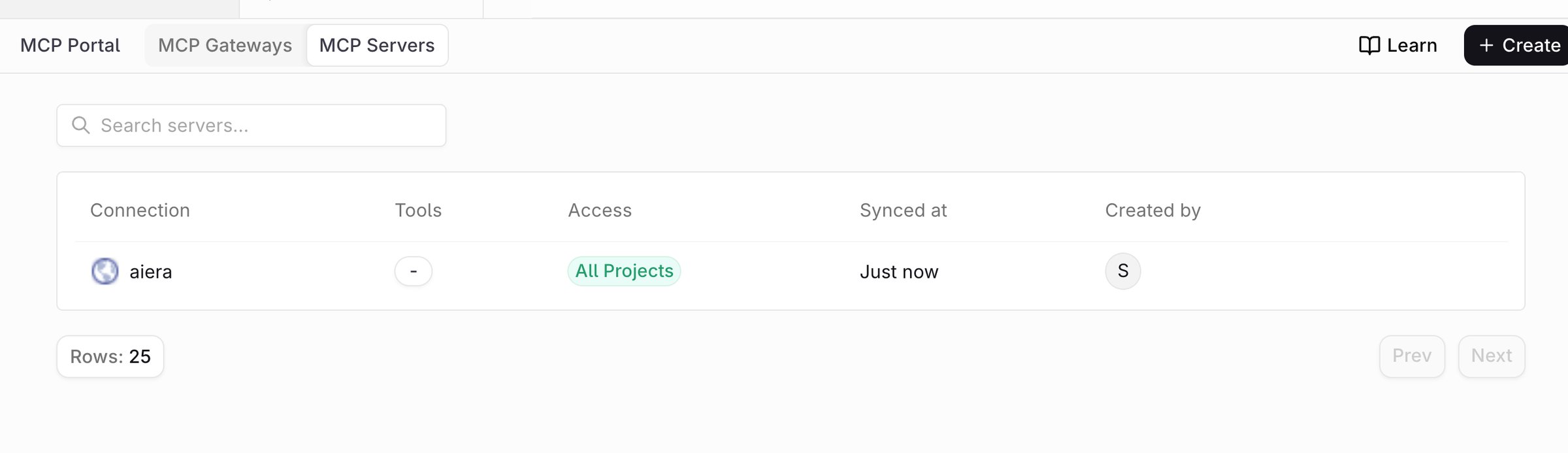
The MCP Servers list, with one row per connected server.
MCP connections were previously created as an MCP Tool under Create Tools. That tool type is retired, and existing MCP Tools now appear here in the MCP Portal.
Set Up an MCP Server
Select Create in the MCP Servers tab. The create page offers three starting points: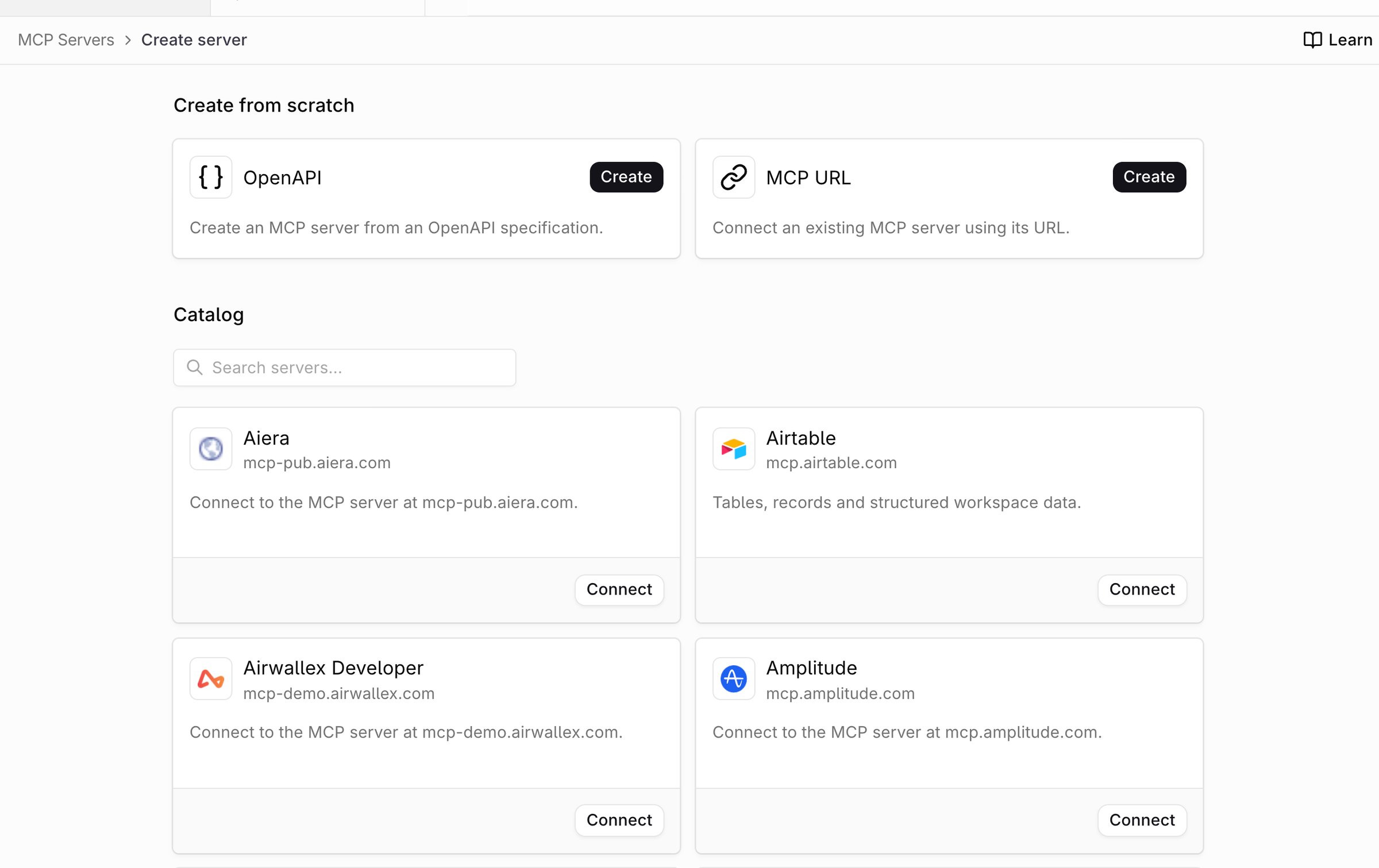
The create page: an OpenAPI specification, an MCP URL, or a server from the catalog.
- OpenAPI: turns a REST API that publishes an OpenAPI document into tools. See Create from an OpenAPI Specification.
- MCP URL: connects an existing MCP server by its endpoint.
- Catalog: a pre-configured provider. Selecting one fills in the connection URL and the authentication it expects.
-
Fill in the general details.
- Key (required): lowercase letters, digits,
-and_, up to 64 characters. Prefixes tool names in an MCP Gateway and setsdisplay_name. The API also requiresdefault_tool_exposure. - Description (optional): a note about what this server provides.
- Key (required): lowercase letters, digits,
-
Set the connection.
- Type: HTTP (default) or SSE for streaming-capable servers.
- URL (required): the endpoint of the upstream MCP server.
-
Configure authentication.
- None (default): for public servers that require no credentials.
- Static Headers: send fixed headers with every request. Header values are stored encrypted and never returned by the API. A
{{variable}}placeholder keeps a value out of storage: the server stores only the name, and the value is supplied when the server is tested, synced, or a tool is called. Placeholder values are not persisted. A server with template variables cannot be used in an MCP Gateway. - OAuth Client Credentials: authenticate with an upstream OAuth 2.0 authorization server using the client credentials grant. Fill in Client ID, Client secret, Token URL and optional Scopes. The secret is stored encrypted and never returned by the API. See How OAuth Client Credentials works. This credential is separate from the OAuth flow MCP clients use to connect to an MCP Gateway.
- Per-user OAuth: each user connects their own account through the OAuth authorization code flow, and tool calls run with that user’s token. The client settings are optional and sit under Advanced configuration. The option is listed for HTTP and SSE connections. See Per-user OAuth.
- Enterprise managed (ID-JAG): call the server through an MCP Gateway on behalf of each SSO user. The option is listed when the workspace’s plan includes SSO and the connection is not OpenAPI. Turn on Cross App Access before relying on it: without it, the form warns that tool calls fail until an admin enables it. See Enterprise-managed authorization.
- Test the connection. Click Test connection to probe the server before saving. For Enterprise managed (ID-JAG), this checks authorization discovery without requesting a user token or listing tools. Other authentication types validate the connection and return discovered tools.
- Click Create.
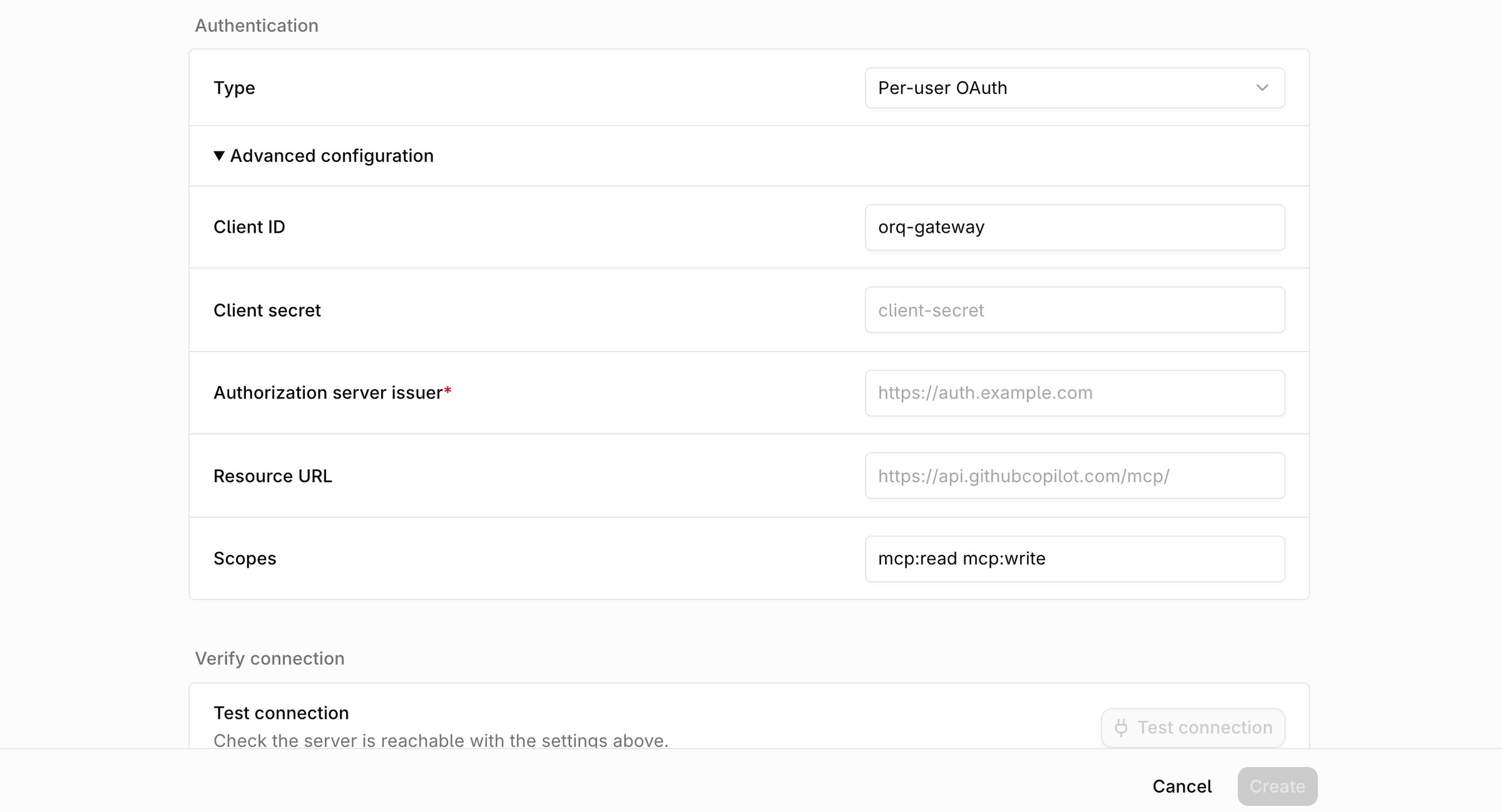
Per-user OAuth keeps the optional client fields under Advanced configuration: Client ID, Client secret, Authorization server issuer, Resource URL and Scopes.
How OAuth Client Credentials works
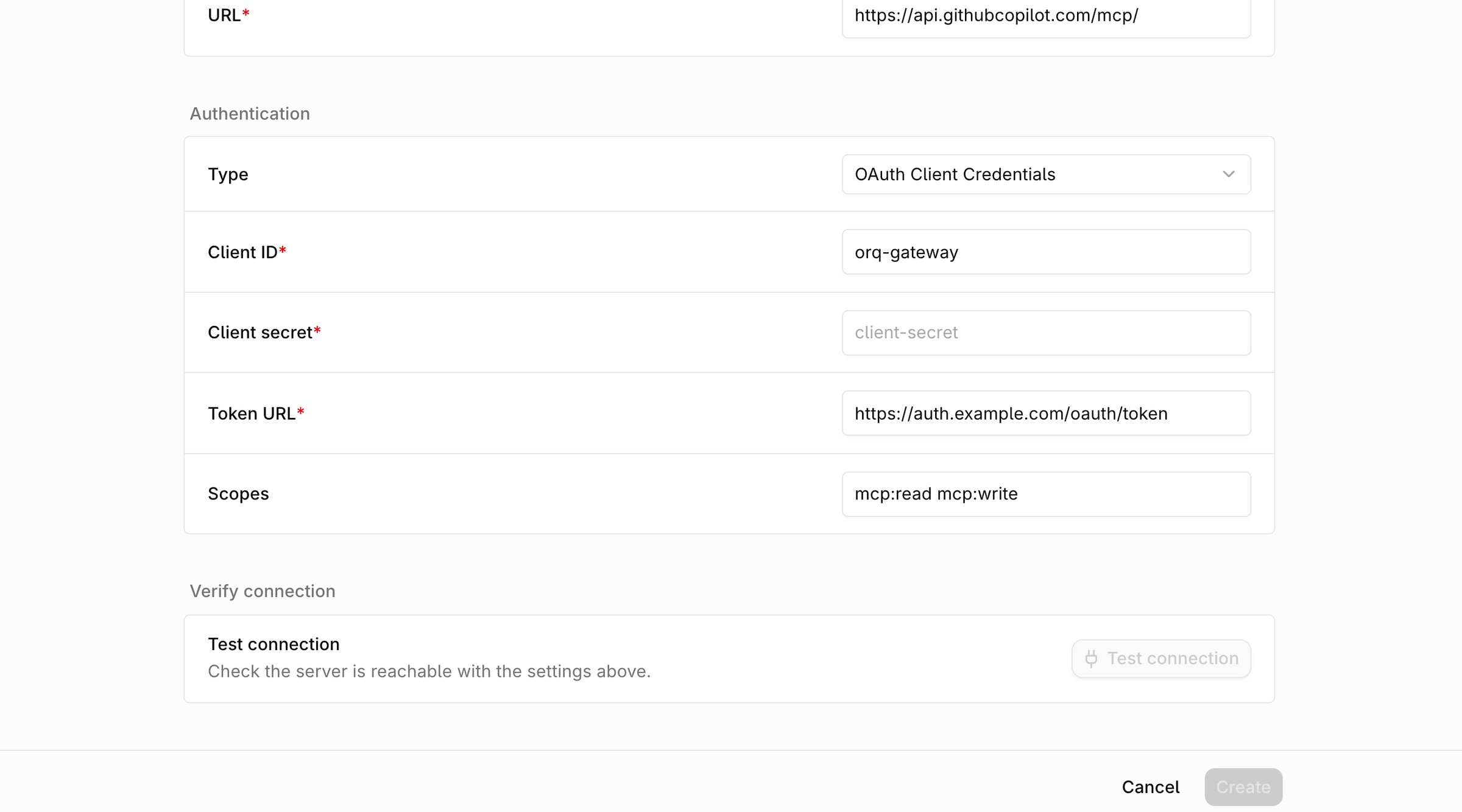
OAuth Client Credentials in the server form.
- Test connection runs.
- The server syncs its tools.
- A tool is executed through an Agent or an MCP Gateway.
Tokens are not shared between MCP Servers. Each server holds its own token and its own upstream connection, and a change to the connection or authentication settings replaces the token.
Scopes are optional and space-separated. Orq.ai sends them as the
scope parameter on the token request (auth.oauth.scopes in the API). When the token endpoint refuses the credentials, tool calls through an MCP Gateway fail with UPSTREAM_CREDENTIALS_UNAVAILABLE plus the endpoint’s answer, and Test connection and sync report the same message.
The token endpoint must answer directly over
https, from a host reachable on the public internet, and redirects from the Token URL are refused. An allowed-domain list on a linked MCP Gateway restricts the upstream server URL but not the Token URL, since authorization servers commonly live on a different domain.Per-user OAuth
Use Per-user OAuth when each user must act on the upstream server with their own account. Orq.ai runs the OAuth authorization code flow with PKCE once per user and stores each user’s tokens separately. Tool calls from Agents and MCP Gateways then use the token of the user who made the call. Select Per-user OAuth under Authentication. Every client field is optional and sits under Advanced configuration:
Test connection checks that the authorization server can be discovered and, when set, that its issuer matches. It does not connect an account or list tools. Use fixed URLs for both URL and Resource URL: per-user servers reject
{{variable}} placeholders in either field.
For API requests, set auth.type to MCP_AUTH_TYPE_PER_USER_OAUTH and optionally provide auth.oauth with client_id, client_secret, issuer, resource, and scopes. token_url is rejected, since the token endpoint is discovered from the resource. See Create an MCP server.
Connect an account
- From the server detail page: click Connect account and complete the sign-in at the upstream server. The page then shows Connected and syncs the server’s tools. When a stored connection stops working, the button reads Reconnect account.
- From an Agent: an attached per-user server without a connection shows Connect account in the Agent configuration. An Agent run that reaches the server without a connection fails with
Connect your account to this MCP server before using it. - Through an MCP Gateway: when the calling user has no connection, the gateway asks the MCP client to open a connection link (
Connect your account for <server>). Clients without URL elicitation support receive the link in a tool error instead. The link opens a Connect account page listing the server, resource, client, and scopes. Click Continue to authorize or Decline to stop the pending operation, then retry the request from the client. Requests that carry no user identity fail withThis server requires a signed-in user connection.
Enterprise-managed authorization
Use Enterprise managed when the organization’s identity provider controls which users can access an upstream MCP Server. The MCP Gateway exchanges an identity assertion grant (ID-JAG) from that provider for a user access token at the server’s authorization server. Users sign in through SSO without a separate consent flow for each upstream server. Configure Cross App Access on an enabled SSO connection before creating, duplicating, or switching a server to Enterprise managed. The identity provider must support ID-JAG issuance. The upstream server must publish OAuth protected resource metadata, and its authorization server must accept ID-JAGs through the JWT bearer grant. SSO support alone does not meet these requirements. Select Enterprise managed (ID-JAG) under Authentication, then fill in:
These client credentials belong to the upstream authorization server. Configure the identity provider’s client separately in SSO settings. Orq.ai discovers the upstream token endpoint automatically and stores the client secret encrypted.
For API requests, set
auth.type to MCP_AUTH_TYPE_ENTERPRISE_MANAGED and provide auth.oauth with client_id, client_secret, and optional resource and scopes, the same object OAuth Client Credentials uses without token_url. The earlier auth.enterprise object is superseded: requests that still send it are accepted (auth.oauth wins when both are present), and responses return it next to auth.oauth until it is removed. See Create an MCP server.
Use fixed URLs for both URL and Resource URL. Enterprise-managed servers reject {{variable}} placeholders in either field.
After saving, sign in through SSO and sync the server to discover its tools. Use Run tool to check access with the signed-in user’s identity. A successful Test connection only confirms discovery; it does not confirm that the client credentials work or that the identity provider allows access.
Troubleshoot enterprise-managed authorization
Create from an OpenAPI Specification
Turn a REST API that publishes an OpenAPI document into an MCP Server without writing or hosting one. Each selected operation becomes a tool, and calling the tool sends the HTTP request to the API.- Select Create in the MCP Servers tab, then Create on the OpenAPI card.
- Under Specification, pick a Source:
- URL: the address of the document. Sync fetches it again to pick up changes.
- Paste or upload: a JSON or YAML document. The document is not stored, so changing the tools later means loading the document again in Settings.
- Click Load operations and select the operations to expose. Operations that cannot become tools are listed under Skipped operations with the reason.
- Check Base URL: requests are sent there. It is filled from the first
serversentry of the document. - Configure Authentication with None, Static Headers (for example an API key header or
Authorization: Bearer {{token}}), or OAuth Client Credentials. - Click Create. The tools are available right away; there is nothing to sync.
The response body is returned as the tool result. A response with status 400 or higher is returned as a tool error that includes the status and body.
Limits:
- OpenAPI 3.0, 3.1 and 3.2. Swagger 2.0 documents are rejected.
- JSON request bodies only.
- At most 300 tools per server and a 10 MB document.
$refto other files or URLs is not followed; operations that use one are skipped.- Enterprise managed authentication is not available.
- IDE exports reach OpenAPI servers only through an MCP Gateway.
connection.type to MCP_CONNECTION_TYPE_OPENAPI, connection.url to the base URL, and openapi to either document or document_url. openapi.operations lists the tool names to expose; leave it empty to expose every operation.
cURL
After Creation
Once saved, Orq.ai syncs with the upstream server and discovers its tools. The detail page carries Overview for sync state and traffic, Tools for the discovered tools, Skills when the upstream server publishes skills, and Settings for the connection, authentication, and project access.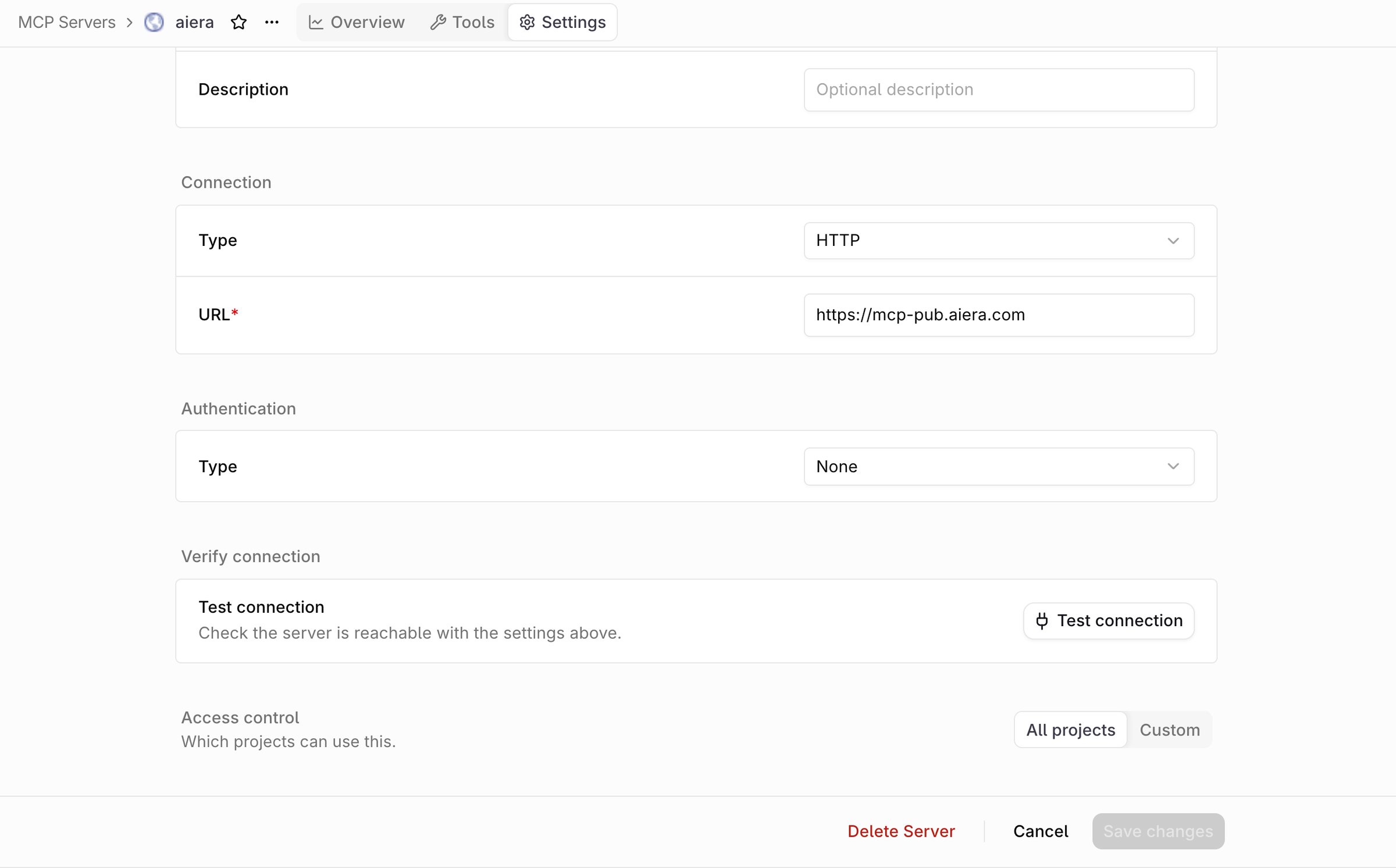
The Settings tab of an MCP Server, with the connection, authentication, project access, and the Delete Server action.
- View discovered tools in the Tools tab: discovered tools sit on the left and the selected tool’s details on the right. Select a tool for its description, arguments, and schema. Filters keeps Read only, Destructive, Idempotent, or Open world tools. Sync state sits on Overview.
- Control tool exposure when the server is linked to an MCP Gateway: select the tool checkboxes on the gateway’s MCP Servers tab (see MCP Gateways). Exposure also accepts a read-only filter in the API. It keeps only the tools the upstream server annotates as read-only (
readOnlyHint). The gateway trusts that annotation and does not check what the tool does. - Test a tool by filling in the arguments and clicking Run tool. The test invokes the tool on the upstream server and shows the response.
- Sync tools adds new tools and keeps missing ones marked
MISSING. - Manage from a menu: row menu Sync tools, Edit, Delete; detail overflow Edit, Share, Duplicate, Delete. Share copies the page link, and Duplicate reuses the connection and tool settings under a new key.
- Configure project access in the Settings tab. Under Access control, pick All projects to share the server with the whole workspace, or Custom and set each project to Enabled or Disabled. An MCP Gateway can only link servers whose project access covers it.
Delete a Server
Unlink the server from every MCP Gateway first: deleting a server that an MCP Gateway still links fails.- AI Studio
- API & SDK
 AI Studio
On the MCP Gateway’s MCP Servers tab, open the server’s row menu and choose Remove from gateway.Then delete the server from the Delete item in the server list row menu, the Delete item in the detail page overflow menu, or the Delete Server button in the Settings form footer. Each asks for confirmation.
Monitor Usage
The Overview tab reports tool usage for the server, aggregated across every MCP Gateway that exposes it. It opens on the last 7 days, and the badge next to the heading carries the sync state, the discovered tool count, and the time of the last sync.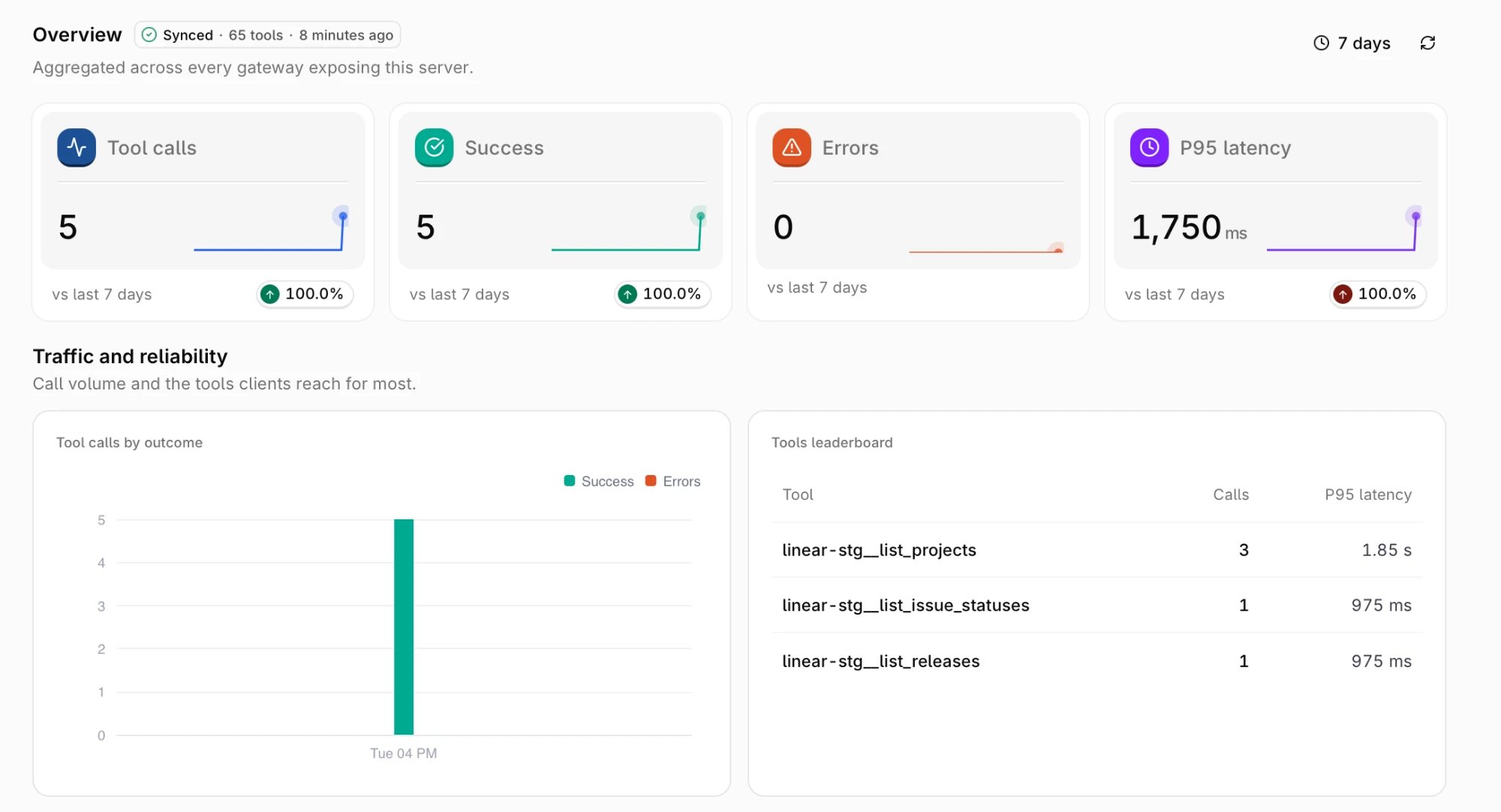
MCP Server Overview tab over the last 7 days