Organize production traces into annotation queues in AI Studio to review LLM outputs and apply human feedback annotations in bulk.
Annotation Queues organize Traces into review workflows so Annotations can be applied in bulk in AI Studio. To define annotations and apply them individually, through the API and SDK, or the CLI, see Annotations.
Once a queue exists, fill it with the Traces to review. Traces can be added automatically or manually.
Automatically
Manually
Use Trace Automations to route Traces into a queue based on configured rules. Add an Add to Annotation Queue action to an automation and select the target queue. As matching Traces arrive, they are added to the queue without manual effort, which keeps a steady stream of relevant Traces ready for review.
An automation with an Add to Annotation Queue action routing matching Traces into a queue.
Open a Trace, select a span, and choose Add to annotation queue to send it to a queue one at a time. This is useful for ad hoc review of specific Traces that are worth a closer look.
The Add to annotation queue button on a selected span in the Traces view.
Open an Annotation Queue to step through its Traces one at a time in the review screen.
Annotation Queue review screen. Left: Inputs, Metrics, and Task. Center: the full interaction. Right: the Annotations panel.
The screen is divided into three panels:
Left: details for the selected Trace.
Inputs: the variables mapped to inputs, when configured.
Metrics: latency, cost, and token usage.
Task: the model, provider, and other configuration parameters.
The header shows the current position, the total number of items in the queue, and how many have already been reviewed.
Center: the full interaction for the selected Trace.
Right: the Annotations panel with the Annotations defined on the queue’s project, such as a rating with categorical buttons or an open comment field. Selecting a value saves immediately and marks the Trace as reviewed.
Navigate between items with K (previous) and J (next), or use the up and down buttons at the top left.When a data point is worth reusing, select Add to dataset to send the Trace to a Dataset for use in a future Experiment.
Adding a Trace to a Dataset copies annotations only when Copy annotations is selected. The annotation values stay on the originating Trace as well, where they remain queryable via the Orq MCP.
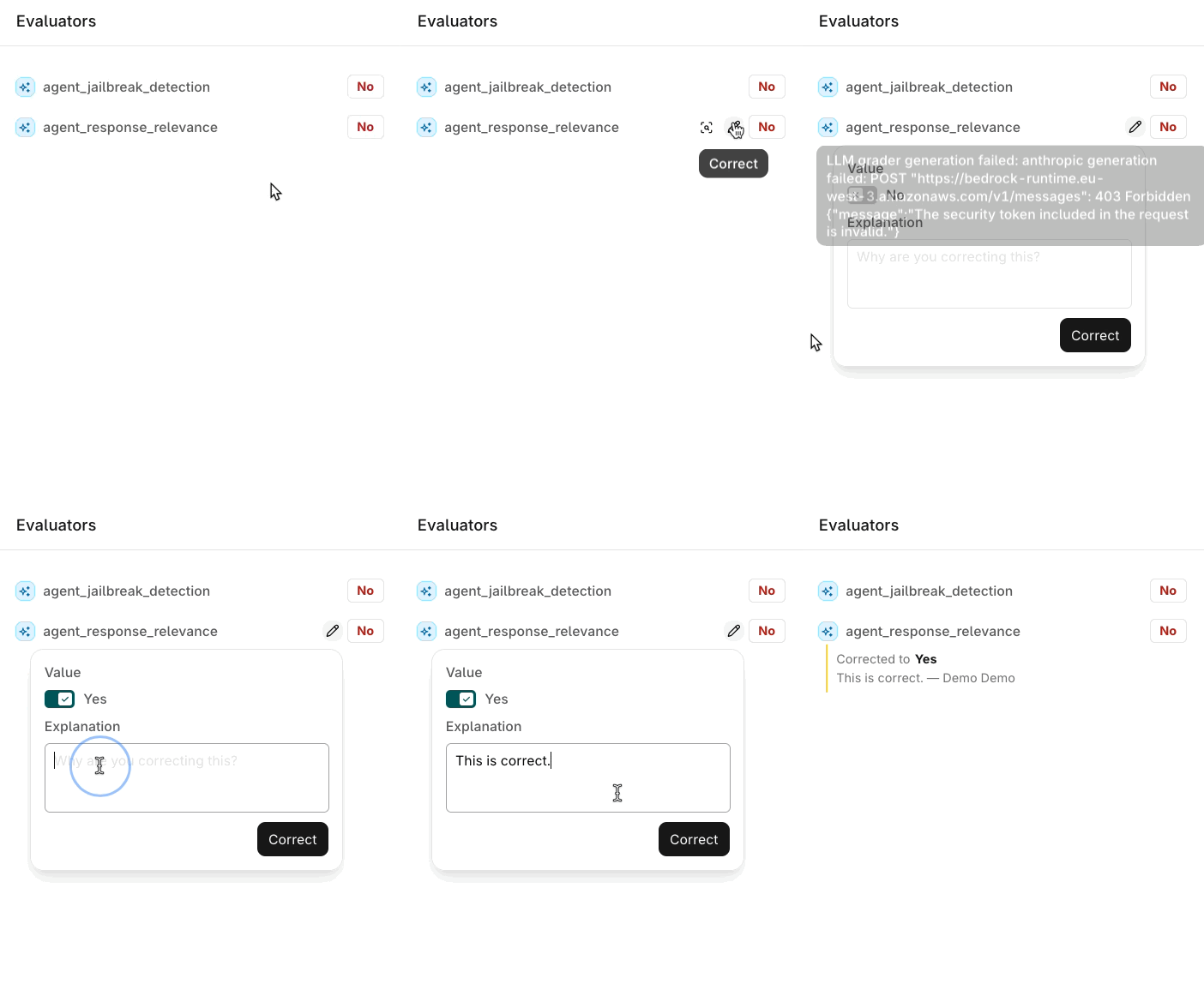
Evaluator results shown in the review screen can also be corrected, not just annotated.
Correcting an Evaluator result in the review screen.
{"docsConfig":{"theme":"aspen","$schema":"https://mintlify.com/docs.json","name":"Orq.ai Documentation","description":"Documentation for Orq.ai, the EU-built control plane for enterprise AI: govern every LLM and MCP call with the AI Gateway, and ship backlog work with the Software Factory.","colors":{"primary":"#027f6b","light":"#00d2b5","dark":"#027f6b"},"logo":{"light":"https://mintcdn.com/orqai/OG_14djpK9Yasgfk/images/Orq_ai_Symbol_Dark.svg?fit=max\u0026auto=format\u0026n=OG_14djpK9Yasgfk\u0026q=85\u0026s=d01651850182afdbc6309808b688d470","dark":"https://mintcdn.com/orqai/BYq_L5I_ZDBWL_Pf/images/Orq_ai_Symbol_Light.svg?fit=max\u0026auto=format\u0026n=BYq_L5I_ZDBWL_Pf\u0026q=85\u0026s=3e372f93174202f20c31d2c045af92b9","href":"/ai-gateway/get-started/introduction"},"favicon":"https://mintcdn.com/orqai/rmwcfFw4PPljHRCz/favicon.svg?fit=max\u0026auto=format\u0026n=rmwcfFw4PPljHRCz\u0026q=85\u0026s=1827beca4e1fb46e074d8bda067f3fb1","api":{"openapi":"openapi.json","examples":{"languages":["curl","typescript","python"]}},"background":{"color":{"light":"#f7f6f5","dark":"#171717"}},"navbar":{"links":[],"primary":{"type":"button","label":"Get Started","href":"https://my.orq.ai/auth/signup"}},"footer":{"socials":{"github":"https://github.com/orq-ai","x":"https://x.com/orq_ai","linkedin":"https://www.linkedin.com/company/orqai","website":"https://orq.ai"}},"seo":{"metatags":{"author":"Orq.ai","og:type":"website","og:site_name":"Orq.ai Documentation","og:locale":"en_US","twitter:card":"summary_large_image","twitter:site":"@orq_ai","twitter:creator":"@orq_ai","viewport":"width=device-width, initial-scale=1.0","robots":"index, follow","language":"English"},"organization":{"id":"https://docs.orq.ai/#organization","name":"Orq.ai","legalName":"Orq.AI Holding B.V.","url":"https://orq.ai","logo":"https://docs.orq.ai/images/Orq_ai_Symbol_Dark.svg","sameAs":["https://github.com/orq-ai","https://x.com/orq_ai","https://www.linkedin.com/company/orqai/"]},"indexing":"all"},"fonts":{"heading":{"family":"ES Klarheit Kurrent Semibold","weight":600,"source":"https://framerusercontent.com/assets/HiovZWjG27S5NQhE8dyeECDMc.woff2","format":"woff2"},"body":{"family":"Inter","weight":400,"source":"fonts/inter-latin-400-normal.woff2","format":"woff2"}},"styling":{"codeblocks":{"theme":{"light":"github-light","dark":"github-dark"}},"latex":true},"contextual":{"options":["copy","download-spec","chatgpt","claude","view"],"display":"header"},"interaction":{"drilldown":true},"navigation":{"pages":[]}},"deployment":{"deploymentMetadataValue":{"subdomain":"orqai","hasAudioNarration":false,"actualSubdomain":"orqai","customDomains":["docs.orq.ai"],"gitSource":{"type":"github","owner":"orq-ai","repo":"orquesta-web","deployBranch":"main","contentDirectory":"documentation/mintlify","isPrivate":true,"mountPath":"","label":""},"chroma":{"liveDeploymentHistoryId":"6aec613bada4d37850e27e55","collectionId":"97d33066-b9a1-4280-87e1-bbb0adeceadf","schemaVersion":"v3","latestBuiltDeploymentHistoryId":"6aec613bada4d37850e27e55"},"feedback":{"thumbs":true,"agentFeedback":true},"entitlements":{"AI_CHAT":{"status":"ENABLED"},"WEB_MCP":{"status":"ENABLED"},"NARRATION":{"status":"ENABLED"}},"buildId":"6aec613bada4d37850e27e55","clientVersion":"0.0.4071","searchFilterCounts":[{"language":"default","tag":"API Reference","count":404},{"language":"default","tag":"Platform APIs","count":258},{"language":"default","tag":"Integrations","count":93},{"language":"default","tag":"Orq SDK","count":70},{"language":"default","tag":"AI Gateway","count":69},{"language":"default","tag":"Management APIs","count":68},{"language":"default","tag":"SDK Reference","count":67},{"language":"default","tag":"Cookbooks","count":34},{"language":"default","tag":"Model Providers","count":31},{"language":"default","tag":"Frameworks \u0026 SDKs","count":30}],"searchSettings":{"maxResults":15}},"assistantConfig":{"enableStarterQuestions":true,"enableContextualStarterQuestions":true,"deflection":{"enabled":true,"email":"support@orq.ai","showHelpButton":true}},"basePath":"","hasChatPermissions":true,"hasWebMcpPermissions":true,"toggles":[],"googleFontsInlined":false},"customCss":[{"filePath":"custom.css","content":".nav-anchor img{border-radius:50%}.ig-root{scroll-margin-top:6rem}.ig-search{width:100%;padding:10px 14px 10px 38px;border-radius:8px;border:1px solid rgba(0, 0, 0, 0.15);font-size:14px;outline:none;margin-bottom:20px;background:transparent;box-sizing:border-box;background-image:url(\"data:image/svg+xml,%3Csvg xmlns='http://www.w3.org/2000/svg' width='16' height='16' fill='none' viewBox='0 0 24 24'%3E%3Cpath stroke='%23999' stroke-linecap='round' stroke-linejoin='round' stroke-width='2' d='m21 21-4.35-4.35M17 11A6 6 0 1 1 5 11a6 6 0 0 1 12 0Z'/%3E%3C/svg%3E\");background-repeat:no-repeat;background-position:12px center}.dark .ig-search{border-color:rgba(255, 255, 255, 0.15)}.ig-search:focus{border-color:#027f6b}.ig-tabs{display:flex;border-bottom:1px solid rgba(0, 0, 0, 0.1);margin-bottom:20px;gap:0}.dark .ig-tabs{border-bottom-color:rgba(255, 255, 255, 0.1)}.ig-tab{padding:8px 16px;background:none;border:none;border-bottom:2px solid transparent;margin-bottom:-1px;cursor:pointer;font-size:14px;font-weight:500;color:#888;white-space:nowrap}.ig-tab:hover{color:#027f6b}.dark .ig-tab:hover{color:#677F78}.ig-tab-active{border-bottom-color:#027f6b!important;color:#027f6b!important}.dark .ig-tab-active{border-bottom-color:#677F78!important;color:#677F78!important}.ig-grid{display:grid;grid-template-columns:repeat(4, 1fr);gap:6px}@media (max-width: 768px){.ig-grid{grid-template-columns:repeat(3, 1fr)}}@media (max-width: 480px){.ig-grid{grid-template-columns:repeat(2, 1fr)}}.ig-card{display:flex;align-items:center;gap:8px;padding:10px 14px;border:1px solid rgba(0, 0, 0, 0.1);border-radius:6px;text-decoration:none!important;color:inherit!important;font-size:14px;font-weight:500;transition:background 0.12s, border-color 0.12s}.ig-card:hover{background:rgba(2, 127, 107, 0.05);border-color:rgba(2, 127, 107, 0.25)}.dark .ig-card{border-color:rgba(255, 255, 255, 0.1)}.dark .ig-card:hover{background:rgba(103, 127, 120, 0.1);border-color:rgba(103, 127, 120, 0.3)}.ig-card-icon{width:20px;height:20px;object-fit:contain;flex-shrink:0}.ig-tab-count{display:inline-flex;align-items:center;justify-content:center;margin-left:6px;padding:0 5px;min-width:18px;height:18px;border-radius:9px;font-size:11px;font-weight:600;background:rgba(0, 0, 0, 0.08);color:inherit}.dark .ig-tab-count{background:rgba(255, 255, 255, 0.12)}.ig-tab-active .ig-tab-count{background:rgba(2, 127, 107, 0.15)}.dark .ig-tab-active .ig-tab-count{background:rgba(103, 127, 120, 0.25)}.ig-empty{text-align:center;padding:48px 24px;color:#999;font-size:14px;grid-column:1 / -1}kbd.key,kbd.key *{color:#fff!important}kbd.key{background:#242424;border-radius:5px;padding:2px 8px;font-size:0.85em;display:inline-flex;align-items:center;gap:6px;border:1px solid #3a3a3a;font-family:inherit;white-space:nowrap}#sidebar-content .flex-1:has(>svg.flex-shrink-0){flex:none!important}#sidebar-content{width:16rem!important;min-width:16rem!important}@media (min-width: 1024px){.lg\\:pl-56{padding-left:16rem!important}}.topbar-right-container nav[aria-label=\"Main\"] .navbar-link a,.topbar-right-container nav[aria-label=\"Main\"] .navbar-link a:hover{background-color:transparent!important}@media (min-width: 1024px){.topbar-right-container nav[aria-label=\"Main\"] ul{gap:1rem!important}.topbar-right-container nav[aria-label=\"Main\"] .navbar-link a{padding-left:0!important;padding-right:0!important}#page-title{font-size:2rem!important;line-height:1.2!important}}.nav-tabs-item:has(a[href^=\"/reference\"]){display:none!important}#navbar .nav-tabs-item[href=\"/ai-studio/integrations/overview\"]{position:relative}#navbar .nav-tabs-item[href=\"/ai-studio/integrations/overview\"]::before{content:'';position:absolute;top:50%;left:-12px;transform:translateY(-50%);height:55%;width:1px;background:rgba(0, 0, 0, 0.15)}.dark #navbar .nav-tabs-item[href=\"/ai-studio/integrations/overview\"]::before{background:rgba(255, 255, 255, 0.15)}@media (min-width: 1280px){#content-container{padding-left:3rem!important;padding-right:2rem!important}#content-side-layout{max-width:20rem!important}#content-area{width:calc(100% - 20rem)!important}}.md-export-list{display:none}@font-face{font-family:'Inter';src:url('/fonts/inter-latin-400-normal.woff2') format('woff2');font-style:normal;font-weight:400;font-display:optional}"}],"page":{"pagePath":"ai-studio/observability/annotation-queues","slug":"/ai-studio/observability/annotation-queues","pageMetadata":{"title":"Annotation Queues","sidebarTitle":"Annotation Queues","description":"Organize production traces into annotation queues in AI Studio to review LLM outputs and apply human feedback annotations in bulk.","keywords":["feedback"],"href":"/ai-studio/observability/annotation-queues"},"description":{"compiledSource":"\"use strict\";\nconst {jsx: _jsx} = arguments[0];\nconst {useMDXComponents: _provideComponents} = arguments[0];\nfunction _createMdxContent(props) {\n const _components = {\n p: \"p\",\n ..._provideComponents(),\n ...props.components\n };\n return _jsx(_components.p, {\n children: \"Organize production traces into annotation queues in AI Studio to review LLM outputs and apply human feedback annotations in bulk.\"\n });\n}\nfunction MDXContent(props = {}) {\n const {wrapper: MDXLayout} = {\n ..._provideComponents(),\n ...props.components\n };\n return MDXLayout ? _jsx(MDXLayout, {\n ...props,\n children: _jsx(_createMdxContent, {\n ...props\n })\n }) : _createMdxContent(props);\n}\nreturn {\n default: MDXContent\n};\n","frontmatter":{},"scope":{}},"pageType":"default","mdx":{"mdxSource":{"compiledSource":"\"use strict\";const{Fragment:_Fragment,jsx:_jsx,jsxs:_jsxs}=arguments[0];const{useMDXComponents:_provideComponents}=arguments[0];function _createMdxContent(props){const _components={a:`a`,code:`code`,li:`li`,p:`p`,strong:`strong`,ul:`ul`,..._provideComponents(),...props.components},{Frame,Heading,Note,OptimizedImage,Tab,Tabs}=_components;if(!Frame)_missingMdxReference(`Frame`,true);if(!Heading)_missingMdxReference(`Heading`,true);if(!Note)_missingMdxReference(`Note`,true);if(!OptimizedImage)_missingMdxReference(`OptimizedImage`,true);if(!Tab)_missingMdxReference(`Tab`,true);if(!Tabs)_missingMdxReference(`Tabs`,true);return _jsxs(_Fragment,{children:[_jsxs(_components.p,{children:[`Annotation Queues organize Traces into review workflows so `,_jsx(_components.a,{href:`/ai-studio/observability/annotations`,children:`Annotations`}),` can be applied in bulk in `,_jsx(_components.strong,{children:`AI Studio`}),`. To define annotations and apply them individually, through the API and SDK, or the CLI, see `,_jsx(_components.a,{href:`/ai-studio/observability/annotations`,children:`Annotations`}),`.`]}),`\n`,_jsx(Heading,{level:`2`,id:`create-annotation-queues`,children:`Create Annotation Queues`}),`\n`,_jsx(_components.p,{children:`Annotation Queues help you organize and apply annotations effectively to relevant incoming Traces.`}),`\n`,_jsx(Tabs,{children:_jsxs(Tab,{title:`AI Studio`,icon:`https://mintcdn.com/orqai/My16MDKJXrKALEHC/images/logos/ai-studio-round.svg?fit=max\u0026auto=format\u0026n=My16MDKJXrKALEHC\u0026q=85\u0026s=ac04dd509320d58ab9701cb6d6137733`,\"data-og-width\":`100`,width:`100`,\"data-og-height\":`100`,height:`100`,\"data-path\":`images/logos/ai-studio-round.svg`,\"data-optimize\":`true`,\"data-opv\":`3`,srcset:`https://mintcdn.com/orqai/My16MDKJXrKALEHC/images/logos/ai-studio-round.svg?w=280\u0026fit=max\u0026auto=format\u0026n=My16MDKJXrKALEHC\u0026q=85\u0026s=d9df8d5b2ef07a766e62eaa0623240cd 280w, https://mintcdn.com/orqai/My16MDKJXrKALEHC/images/logos/ai-studio-round.svg?w=560\u0026fit=max\u0026auto=format\u0026n=My16MDKJXrKALEHC\u0026q=85\u0026s=3c40989d2bc47d1ec6d05f8eb3a585dd 560w, https://mintcdn.com/orqai/My16MDKJXrKALEHC/images/logos/ai-studio-round.svg?w=840\u0026fit=max\u0026auto=format\u0026n=My16MDKJXrKALEHC\u0026q=85\u0026s=2c40a18399d00e68a15d7d1262484486 840w, https://mintcdn.com/orqai/My16MDKJXrKALEHC/images/logos/ai-studio-round.svg?w=1100\u0026fit=max\u0026auto=format\u0026n=My16MDKJXrKALEHC\u0026q=85\u0026s=3e853add10f479adccee3068427de43d 1100w, https://mintcdn.com/orqai/My16MDKJXrKALEHC/images/logos/ai-studio-round.svg?w=1650\u0026fit=max\u0026auto=format\u0026n=My16MDKJXrKALEHC\u0026q=85\u0026s=71d1130736022278f4de6d95e7583c9b 1650w, https://mintcdn.com/orqai/My16MDKJXrKALEHC/images/logos/ai-studio-round.svg?w=2500\u0026fit=max\u0026auto=format\u0026n=My16MDKJXrKALEHC\u0026q=85\u0026s=41a312377a09cf0f6da1edb9b02b695c 2500w`,id:`ai-studio`,children:[_jsxs(_components.p,{children:[`To create an Annotation Queue, head to `,_jsx(_components.strong,{children:`AI Studio > Annotation Queue`}),`.`]}),_jsxs(_components.p,{children:[`Choose `,_jsx(_components.strong,{children:`Create Annotation Queue`}),`.`]}),_jsx(_components.p,{children:`The following fields are configurable:`}),_jsxs(_components.ul,{children:[`\n`,_jsxs(_components.li,{children:[`The `,_jsx(_components.strong,{children:`Name`}),` of the queue`]}),`\n`,_jsxs(_components.li,{children:[`The `,_jsx(_components.strong,{children:`Description`}),` of the Annotation Queue`]}),`\n`,_jsxs(_components.li,{children:[`The `,_jsx(_components.strong,{children:`Project`}),` that owns the queue, chosen from `,_jsx(_components.strong,{children:`Select a project`}),`. The queue shows the `,_jsx(_components.a,{href:`/ai-studio/observability/annotations#create-annotations`,children:_jsx(_components.strong,{children:`Annotations`})}),` defined on that project.`]}),`\n`]}),_jsx(Frame,{caption:`Create Annotation Queue panel with Name, Description, and Project fields.`,children:_jsx(OptimizedImage,{src:`https://mintcdn.com/orqai/xcLYpNxifrsLt2a_/images/creating-annotation-queue.png?fit=max\u0026auto=format\u0026n=xcLYpNxifrsLt2a_\u0026q=85\u0026s=565b565b828df137e583279a666d37fd`,alt:`Create Annotation Queue panel with a Name field, a Description field, and a required Project selector set to Default, with Cancel and Create buttons.`,\"data-og-width\":`820`,width:`820`,\"data-og-height\":`594`,height:`594`,\"data-path\":`images/creating-annotation-queue.png`,\"data-optimize\":`true`,\"data-opv\":`3`,srcset:`https://mintcdn.com/orqai/xcLYpNxifrsLt2a_/images/creating-annotation-queue.png?w=280\u0026fit=max\u0026auto=format\u0026n=xcLYpNxifrsLt2a_\u0026q=85\u0026s=32d8c116291ebc9f1f067aa4c0906e3e 280w, https://mintcdn.com/orqai/xcLYpNxifrsLt2a_/images/creating-annotation-queue.png?w=560\u0026fit=max\u0026auto=format\u0026n=xcLYpNxifrsLt2a_\u0026q=85\u0026s=a52f10b2255a7e5bd65a2a8bbff855b2 560w, https://mintcdn.com/orqai/xcLYpNxifrsLt2a_/images/creating-annotation-queue.png?w=840\u0026fit=max\u0026auto=format\u0026n=xcLYpNxifrsLt2a_\u0026q=85\u0026s=d24d4e7d78155f3bb122abfb94e875be 840w, https://mintcdn.com/orqai/xcLYpNxifrsLt2a_/images/creating-annotation-queue.png?w=1100\u0026fit=max\u0026auto=format\u0026n=xcLYpNxifrsLt2a_\u0026q=85\u0026s=80cc6313406b1288324aa365c3fe408b 1100w, https://mintcdn.com/orqai/xcLYpNxifrsLt2a_/images/creating-annotation-queue.png?w=1650\u0026fit=max\u0026auto=format\u0026n=xcLYpNxifrsLt2a_\u0026q=85\u0026s=44dffea3ba44971b9927378f7900940c 1650w, https://mintcdn.com/orqai/xcLYpNxifrsLt2a_/images/creating-annotation-queue.png?w=2500\u0026fit=max\u0026auto=format\u0026n=xcLYpNxifrsLt2a_\u0026q=85\u0026s=7d3c36ec29102f7fdb7e5ed9451f3c01 2500w`})})]})}),`\n`,_jsx(Heading,{level:`2`,id:`fill-annotation-queues`,children:`Fill Annotation Queues`}),`\n`,_jsx(_components.p,{children:`Once a queue exists, fill it with the Traces to review. Traces can be added automatically or manually.`}),`\n`,_jsxs(Tabs,{children:[_jsxs(Tab,{title:`Automatically`,id:`automatically`,children:[_jsxs(_components.p,{children:[`Use `,_jsx(_components.a,{href:`/ai-studio/observability/automations`,children:`Trace Automations`}),` to route Traces into a queue based on configured rules. Add an `,_jsx(_components.strong,{children:`Add to Annotation Queue`}),` action to an automation and select the target queue. As matching Traces arrive, they are added to the queue without manual effort, which keeps a steady stream of relevant Traces ready for review.`]}),_jsx(Frame,{caption:`An automation with an Add to Annotation Queue action routing matching Traces into a queue.`,children:_jsx(OptimizedImage,{src:`https://mintcdn.com/orqai/lqVyDy-llJ4XuTsl/images/annotation-queue-fill-automation.png?fit=max\u0026auto=format\u0026n=lqVyDy-llJ4XuTsl\u0026q=85\u0026s=5201f33466f9df74a07bfe64dded526f`,alt:`Edit Automation panel with a metadata filter on request_id, an Add to Annotation Queue action selecting an annotation queue, and an Apply Evaluator action marked Coming soon.`,\"data-og-width\":`1872`,width:`1872`,\"data-og-height\":`1060`,height:`1060`,\"data-path\":`images/annotation-queue-fill-automation.png`,\"data-optimize\":`true`,\"data-opv\":`3`,srcset:`https://mintcdn.com/orqai/lqVyDy-llJ4XuTsl/images/annotation-queue-fill-automation.png?w=280\u0026fit=max\u0026auto=format\u0026n=lqVyDy-llJ4XuTsl\u0026q=85\u0026s=ac9f51fc07ec39ec5c5c6b298e06004b 280w, https://mintcdn.com/orqai/lqVyDy-llJ4XuTsl/images/annotation-queue-fill-automation.png?w=560\u0026fit=max\u0026auto=format\u0026n=lqVyDy-llJ4XuTsl\u0026q=85\u0026s=6b440e8828a95fb44333c1f26f6def7f 560w, https://mintcdn.com/orqai/lqVyDy-llJ4XuTsl/images/annotation-queue-fill-automation.png?w=840\u0026fit=max\u0026auto=format\u0026n=lqVyDy-llJ4XuTsl\u0026q=85\u0026s=e86eb52d38e0d1800818d4d099f81b0b 840w, https://mintcdn.com/orqai/lqVyDy-llJ4XuTsl/images/annotation-queue-fill-automation.png?w=1100\u0026fit=max\u0026auto=format\u0026n=lqVyDy-llJ4XuTsl\u0026q=85\u0026s=05b72c1400f25b85fa7130a091764c38 1100w, https://mintcdn.com/orqai/lqVyDy-llJ4XuTsl/images/annotation-queue-fill-automation.png?w=1650\u0026fit=max\u0026auto=format\u0026n=lqVyDy-llJ4XuTsl\u0026q=85\u0026s=16819684acec1e4bda5af7ac615445fe 1650w, https://mintcdn.com/orqai/lqVyDy-llJ4XuTsl/images/annotation-queue-fill-automation.png?w=2500\u0026fit=max\u0026auto=format\u0026n=lqVyDy-llJ4XuTsl\u0026q=85\u0026s=90c73e4c368936863a867711f37b9198 2500w`})})]}),_jsxs(Tab,{title:`Manually`,id:`manually`,children:[_jsxs(_components.p,{children:[`Open a Trace, select a span, and choose `,_jsx(_components.strong,{children:`Add to annotation queue`}),` to send it to a queue one at a time. This is useful for ad hoc review of specific Traces that are worth a closer look.`]}),_jsx(Frame,{caption:`The Add to annotation queue button on a selected span in the Traces view.`,children:_jsx(OptimizedImage,{src:`https://mintcdn.com/orqai/lqVyDy-llJ4XuTsl/images/annotation-queue-fill-manual.png?fit=max\u0026auto=format\u0026n=lqVyDy-llJ4XuTsl\u0026q=85\u0026s=256bfb756e505a16610f403461f2d44b`,alt:`Trace detail view with a selected claude-haiku span showing Add to dataset, Add to annotation queue, and Try Prompt buttons, with Add to annotation queue highlighted.`,\"data-og-width\":`2004`,width:`2004`,\"data-og-height\":`868`,height:`868`,\"data-path\":`images/annotation-queue-fill-manual.png`,\"data-optimize\":`true`,\"data-opv\":`3`,srcset:`https://mintcdn.com/orqai/lqVyDy-llJ4XuTsl/images/annotation-queue-fill-manual.png?w=280\u0026fit=max\u0026auto=format\u0026n=lqVyDy-llJ4XuTsl\u0026q=85\u0026s=9a8ae15539c719c721fd50f34b8c8dc2 280w, https://mintcdn.com/orqai/lqVyDy-llJ4XuTsl/images/annotation-queue-fill-manual.png?w=560\u0026fit=max\u0026auto=format\u0026n=lqVyDy-llJ4XuTsl\u0026q=85\u0026s=aca4770d002ca1d96c08ea20e084f0ad 560w, https://mintcdn.com/orqai/lqVyDy-llJ4XuTsl/images/annotation-queue-fill-manual.png?w=840\u0026fit=max\u0026auto=format\u0026n=lqVyDy-llJ4XuTsl\u0026q=85\u0026s=f3880566c3c5adf30434eb89ebd3993c 840w, https://mintcdn.com/orqai/lqVyDy-llJ4XuTsl/images/annotation-queue-fill-manual.png?w=1100\u0026fit=max\u0026auto=format\u0026n=lqVyDy-llJ4XuTsl\u0026q=85\u0026s=110976154526a513970ce61010fc6600 1100w, https://mintcdn.com/orqai/lqVyDy-llJ4XuTsl/images/annotation-queue-fill-manual.png?w=1650\u0026fit=max\u0026auto=format\u0026n=lqVyDy-llJ4XuTsl\u0026q=85\u0026s=e5f56757b5501b15c983532574b5b780 1650w, https://mintcdn.com/orqai/lqVyDy-llJ4XuTsl/images/annotation-queue-fill-manual.png?w=2500\u0026fit=max\u0026auto=format\u0026n=lqVyDy-llJ4XuTsl\u0026q=85\u0026s=948de9c8427b608bb064f0e11ba02505 2500w`})})]})]}),`\n`,_jsx(Heading,{level:`2`,id:`use-annotation-queues`,children:`Use Annotation Queues`}),`\n`,_jsx(_components.p,{children:`Open an Annotation Queue to step through its Traces one at a time in the review screen.`}),`\n`,_jsx(Frame,{caption:`Annotation Queue review screen. Left: Inputs, Metrics, and Task. Center: the full interaction. Right: the Annotations panel.`,children:_jsx(OptimizedImage,{src:`https://mintcdn.com/orqai/lqVyDy-llJ4XuTsl/images/annotation-queue.png?fit=max\u0026auto=format\u0026n=lqVyDy-llJ4XuTsl\u0026q=85\u0026s=96c8157b2f81322f102c9bc137d97916`,alt:`Annotation Queue review screen showing Item 7 of 43 in the header, a left panel with Inputs, Metrics (Latency, Cost, tokens), and Task (Model claude-haiku-4-5, Provider anthropic), a center panel with the System instructions, User input, and Assistant output, and a right Annotations panel with a comment field and a rating with good and bad buttons. A dataset selector and Add to dataset button sit at the bottom.`,\"data-og-width\":`1894`,width:`1894`,\"data-og-height\":`1376`,height:`1376`,\"data-path\":`images/annotation-queue.png`,\"data-optimize\":`true`,\"data-opv\":`3`,srcset:`https://mintcdn.com/orqai/lqVyDy-llJ4XuTsl/images/annotation-queue.png?w=280\u0026fit=max\u0026auto=format\u0026n=lqVyDy-llJ4XuTsl\u0026q=85\u0026s=f48f164a99ea4d96b3d6d8b43a230b55 280w, https://mintcdn.com/orqai/lqVyDy-llJ4XuTsl/images/annotation-queue.png?w=560\u0026fit=max\u0026auto=format\u0026n=lqVyDy-llJ4XuTsl\u0026q=85\u0026s=99b1a2f2c1e5b57f41d9c5a57dd462ac 560w, https://mintcdn.com/orqai/lqVyDy-llJ4XuTsl/images/annotation-queue.png?w=840\u0026fit=max\u0026auto=format\u0026n=lqVyDy-llJ4XuTsl\u0026q=85\u0026s=1b433f021b4efa68bf30e08a83650dec 840w, https://mintcdn.com/orqai/lqVyDy-llJ4XuTsl/images/annotation-queue.png?w=1100\u0026fit=max\u0026auto=format\u0026n=lqVyDy-llJ4XuTsl\u0026q=85\u0026s=7cef9c6acfed56ab50784cafa2aebccc 1100w, https://mintcdn.com/orqai/lqVyDy-llJ4XuTsl/images/annotation-queue.png?w=1650\u0026fit=max\u0026auto=format\u0026n=lqVyDy-llJ4XuTsl\u0026q=85\u0026s=b463e466b55375db0f76b8a2dba07d2f 1650w, https://mintcdn.com/orqai/lqVyDy-llJ4XuTsl/images/annotation-queue.png?w=2500\u0026fit=max\u0026auto=format\u0026n=lqVyDy-llJ4XuTsl\u0026q=85\u0026s=714905ae205e536dd8672127efef005d 2500w`})}),`\n`,_jsx(_components.p,{children:`The screen is divided into three panels:`}),`\n`,_jsxs(_components.ul,{children:[`\n`,_jsxs(_components.li,{children:[`\n`,_jsxs(_components.p,{children:[_jsx(_components.strong,{children:`Left`}),`: details for the selected Trace.`]}),`\n`,_jsxs(_components.ul,{children:[`\n`,_jsxs(_components.li,{children:[_jsx(_components.strong,{children:`Inputs`}),`: the variables mapped to inputs, when configured.`]}),`\n`,_jsxs(_components.li,{children:[_jsx(_components.strong,{children:`Metrics`}),`: latency, cost, and token usage.`]}),`\n`,_jsxs(_components.li,{children:[_jsx(_components.strong,{children:`Task`}),`: the model, provider, and other configuration parameters.`]}),`\n`]}),`\n`,_jsx(_components.p,{children:`The header shows the current position, the total number of items in the queue, and how many have already been reviewed.`}),`\n`]}),`\n`,_jsxs(_components.li,{children:[`\n`,_jsxs(_components.p,{children:[_jsx(_components.strong,{children:`Center`}),`: the full interaction for the selected Trace.`]}),`\n`]}),`\n`,_jsxs(_components.li,{children:[`\n`,_jsxs(_components.p,{children:[_jsx(_components.strong,{children:`Right`}),`: the `,_jsx(_components.strong,{children:`Annotations`}),` panel with the `,_jsx(_components.a,{href:`/ai-studio/observability/annotations#create-annotations`,children:_jsx(_components.strong,{children:`Annotations`})}),` defined on the queue’s project, such as a rating with categorical buttons or an open comment field. Selecting a value saves immediately and marks the Trace as reviewed.`]}),`\n`]}),`\n`]}),`\n`,_jsxs(_components.p,{children:[`Navigate between items with `,_jsx(_components.strong,{children:_jsx(_components.code,{children:`K`})}),` (previous) and `,_jsx(_components.strong,{children:_jsx(_components.code,{children:`J`})}),` (next), or use the up and down buttons at the top left.`]}),`\n`,_jsxs(_components.p,{children:[`When a data point is worth reusing, select `,_jsx(_components.strong,{children:`Add to dataset`}),` to send the Trace to a `,_jsx(_components.a,{href:`/ai-studio/optimize/datasets`,children:`Dataset`}),` for use in a future `,_jsx(_components.a,{href:`/ai-studio/optimize/experiments`,children:`Experiment`}),`.`]}),`\n`,_jsx(Note,{children:_jsxs(_components.p,{children:[`Adding a Trace to a Dataset copies annotations only when `,_jsx(_components.strong,{children:`Copy annotations`}),` is selected. The annotation values stay on the originating Trace as well, where they remain queryable via the `,_jsx(_components.strong,{children:`Orq MCP`}),`.`]})}),`\n`,_jsx(_components.p,{children:`Evaluator results shown in the review screen can also be corrected, not just annotated.`}),`\n`,_jsx(Frame,{caption:`Correcting an Evaluator result in the review screen.`,children:_jsx(OptimizedImage,{src:`https://mintcdn.com/orqai/nflqfhu6mcOarrbT/images/evaluation-correction.gif?s=f5ab855dba2c6ea6987aac1f296bf368`,alt:`Evaluators panel listing agent_jailbreak_detection and agent_response_relevance, both marked No, showing the pencil icon used to open the correction popover.`,\"data-og-width\":`468`,width:`468`,\"data-og-height\":`588`,height:`588`,\"data-path\":`images/evaluation-correction.gif`,\"data-optimize\":`true`,\"data-opv\":`3`})}),`\n`,_jsxs(_components.p,{children:[`See `,_jsx(_components.a,{href:`/ai-studio/observability/traces#correct-an-evaluator-result`,children:`Correct an Evaluator Result`}),` on the Traces page for the full flow.`]})]})}function MDXContent(props={}){const{wrapper:MDXLayout}={..._provideComponents(),...props.components};return MDXLayout?_jsx(MDXLayout,{...props,children:_jsx(_createMdxContent,{...props})}):_createMdxContent(props)}return{default:MDXContent};function _missingMdxReference(id,component){throw new Error(`Expected `+(component?`component`:`object`)+\" `\"+id+\"` to be defined: you likely forgot to import, pass, or provide it.\")}","frontmatter":{},"scope":{"codeStyling":{"theme":{"light":"github-light","dark":"github-dark"}},"config":{},"pageMetadata":{"title":"Annotation Queues","sidebarTitle":"Annotation Queues","description":"Organize production traces into annotation queues in AI Studio to review LLM outputs and apply human feedback annotations in bulk.","keywords":["feedback"],"href":"/ai-studio/observability/annotation-queues"}}},"mdxSourceWithNoJs":null},"mdxExtracts":{"tableOfContents":[{"title":"Create Annotation Queues","slug":"create-annotation-queues","depth":2,"children":[]},{"title":"Fill Annotation Queues","slug":"fill-annotation-queues","depth":2,"children":[]},{"title":"Use Annotation Queues","slug":"use-annotation-queues","depth":2,"children":[]}],"codeExamples":{}},"jsLinks":["/_mintlify/custom/orqai/19ee3574279bbaa0/gtm.js","/_mintlify/custom/orqai/1f1a49b99957b631/commonroom-signals.js"],"subdomain":"orqai","siteName":"Orq.ai Documentation","title":"Annotation Queues - Orq.ai Documentation","contextualStarterQuestions":[{"_id":"6adf525172c00c5abf74778c","deploymentId":"68c9bcd7a1b07562da8b036b","questionText":"How do I apply bulk annotations?","status":"active","generatedBy":"contextual","path":"ai-studio/observability/annotation-queues","createdAt":"2026-10-26T13:14:57.642Z","updatedAt":"2026-10-26T13:14:57.642Z","__v":0},{"_id":"6adf525172c00c5abf74778a","deploymentId":"68c9bcd7a1b07562da8b036b","questionText":"How do I create a queue?","status":"active","generatedBy":"contextual","path":"ai-studio/observability/annotation-queues","createdAt":"2026-10-26T13:14:57.642Z","updatedAt":"2026-10-26T13:14:57.642Z","__v":0},{"_id":"6adf525172c00c5abf74778b","deploymentId":"68c9bcd7a1b07562da8b036b","questionText":"What are annotation queues for?","status":"active","generatedBy":"contextual","path":"ai-studio/observability/annotation-queues","createdAt":"2026-10-26T13:14:57.642Z","updatedAt":"2026-10-26T13:14:57.642Z","__v":0}],"navMaps":{"firstHrefInVersion":{},"firstHrefInLanguage":{}},"lastModified":"2026-10-26T13:14:52.361Z","originalFileLocation":"ai-studio/observability/annotation-queues.mdx"},"headHtml":"\u003cscript data-mint-head>(function(){var d=document.documentElement,p=null;if(!p){try{p=localStorage.getItem(\"isDarkMode\")}catch(e){}if(p==='true')p='dark';else if(p==='false')p='light';if(p!=='light'\u0026\u0026p!=='dark'\u0026\u0026p!=='system')p=\"system\"}var r=p==='system'?(matchMedia(\"(prefers-color-scheme: dark)\").matches?'dark':'light'):p;d.classList.remove(r==='dark'?'light':'dark');d.classList.add(r);d.setAttribute(\"data-theme-preference\",p)})();\u003c/script>\u003cmeta data-mint-head name=\"description\" content=\"Organize production traces into annotation queues in AI Studio to review LLM outputs and apply human feedback annotations in bulk.\">\u003cmeta data-mint-head name=\"application-name\" content=\"Orq.ai Documentation\">\u003cmeta data-mint-head name=\"generator\" content=\"Mintlify\">\u003cmeta data-mint-head name=\"robots\" content=\"index, follow\">\u003clink data-mint-head rel=\"icon\" type=\"image/png\" sizes=\"192x192\" href=\"/mintlify-assets/_mintlify/favicons/orqai/5zquLIiRlftT1q7X/_generated/favicon/android-chrome-192x192.png\" media=\"(prefers-color-scheme: light)\">\u003clink data-mint-head rel=\"apple-touch-icon\" type=\"image/png\" sizes=\"180x180\" href=\"/mintlify-assets/_mintlify/favicons/orqai/5zquLIiRlftT1q7X/_generated/favicon/apple-touch-icon.png\">\u003clink data-mint-head rel=\"icon\" type=\"image/png\" sizes=\"16x16\" href=\"/mintlify-assets/_mintlify/favicons/orqai/5zquLIiRlftT1q7X/_generated/favicon/favicon-16x16.png\" media=\"(prefers-color-scheme: light)\">\u003clink data-mint-head rel=\"icon\" type=\"image/png\" sizes=\"32x32\" href=\"/mintlify-assets/_mintlify/favicons/orqai/5zquLIiRlftT1q7X/_generated/favicon/favicon-32x32.png\" media=\"(prefers-color-scheme: light)\">\u003clink data-mint-head rel=\"shortcut icon\" type=\"image/x-icon\" href=\"/mintlify-assets/_mintlify/favicons/orqai/5zquLIiRlftT1q7X/_generated/favicon/favicon.ico\" media=\"(prefers-color-scheme: light)\">\u003clink data-mint-head rel=\"icon\" type=\"image/png\" sizes=\"192x192\" href=\"/mintlify-assets/_mintlify/favicons/orqai/5zquLIiRlftT1q7X/_generated/favicon-dark/android-chrome-192x192.png\" media=\"(prefers-color-scheme: dark)\">\u003clink data-mint-head rel=\"icon\" type=\"image/png\" sizes=\"16x16\" href=\"/mintlify-assets/_mintlify/favicons/orqai/5zquLIiRlftT1q7X/_generated/favicon-dark/favicon-16x16.png\" media=\"(prefers-color-scheme: dark)\">\u003clink data-mint-head rel=\"icon\" type=\"image/png\" sizes=\"32x32\" href=\"/mintlify-assets/_mintlify/favicons/orqai/5zquLIiRlftT1q7X/_generated/favicon-dark/favicon-32x32.png\" media=\"(prefers-color-scheme: dark)\">\u003clink data-mint-head rel=\"shortcut icon\" type=\"image/x-icon\" href=\"/mintlify-assets/_mintlify/favicons/orqai/5zquLIiRlftT1q7X/_generated/favicon-dark/favicon.ico\" media=\"(prefers-color-scheme: dark)\">\u003cmeta data-mint-head property=\"og:title\" content=\"Annotation Queues - Orq.ai Documentation\">\u003cmeta data-mint-head property=\"og:description\" content=\"Organize production traces into annotation queues in AI Studio to review LLM outputs and apply human feedback annotations in bulk.\">\u003cmeta data-mint-head property=\"og:site_name\" content=\"Orq.ai Documentation\">\u003cmeta data-mint-head property=\"og:url\" content=\"https://docs.orq.ai/ai-studio/observability/annotation-queues\">\u003cmeta data-mint-head property=\"og:type\" content=\"website\">\u003cmeta data-mint-head property=\"og:image\" content=\"https://orqai.mintlify.app/_mintlify/api/og/v2?division=Review\u0026amp;title=Annotation+Queues\u0026amp;description=Organize+production+traces+into+annotation+queues+in+AI+Studio+to+review+LLM+outputs+and+apply+human+feedback+annotations+in+bulk.\u0026amp;theme=0116d0baa6ba6403f431e631\u0026amp;signature=f4a0705ff97a926e202765e1510ab8b1be6189577252222369d602bb2e5fe0d3\">\u003cmeta data-mint-head property=\"og:image:width\" content=\"1200\">\u003cmeta data-mint-head property=\"og:image:height\" content=\"630\">\u003cmeta data-mint-head name=\"twitter:card\" content=\"summary_large_image\">\u003cmeta data-mint-head name=\"twitter:title\" content=\"Annotation Queues - Orq.ai Documentation\">\u003cmeta data-mint-head name=\"twitter:description\" content=\"Organize production traces into annotation queues in AI Studio to review LLM outputs and apply human feedback annotations in bulk.\">\u003cmeta data-mint-head name=\"twitter:image\" content=\"https://orqai.mintlify.app/_mintlify/api/og/v2?division=Review\u0026amp;title=Annotation+Queues\u0026amp;description=Organize+production+traces+into+annotation+queues+in+AI+Studio+to+review+LLM+outputs+and+apply+human+feedback+annotations+in+bulk.\u0026amp;theme=0116d0baa6ba6403f431e631\u0026amp;signature=f4a0705ff97a926e202765e1510ab8b1be6189577252222369d602bb2e5fe0d3\">\u003cmeta data-mint-head name=\"twitter:image:width\" content=\"1200\">\u003cmeta data-mint-head name=\"twitter:image:height\" content=\"630\">\u003cmeta data-mint-head name=\"msapplication-config\" content=\"/mintlify-assets/_mintlify/favicons/orqai/5zquLIiRlftT1q7X/_generated/favicon/browserconfig.xml\">\u003cmeta data-mint-head name=\"apple-mobile-web-app-title\" content=\"Orq.ai Documentation\">\u003cmeta data-mint-head name=\"msapplication-TileColor\" content=\"#027f6b\">\u003cmeta data-mint-head name=\"og:locale\" content=\"en_US\">\u003cmeta data-mint-head name=\"author\" content=\"Orq.ai\">\u003cmeta data-mint-head name=\"twitter:creator\" content=\"@orq_ai\">\u003cmeta data-mint-head name=\"viewport\" content=\"width=device-width, initial-scale=1.0\">\u003cmeta data-mint-head name=\"language\" content=\"English\">\u003clink data-mint-head rel=\"canonical\" href=\"https://docs.orq.ai/ai-studio/observability/annotation-queues\">\u003clink data-mint-head rel=\"alternate\" type=\"application/xml\" href=\"/sitemap.xml\">\u003clink data-mint-head rel=\"alternate\" type=\"text/markdown\" href=\"/ai-studio/observability/annotation-queues.md\">\u003cscript data-mint-head type=\"application/ld+json\">{\"@context\":\"https://schema.org\",\"@graph\":[{\"@type\":\"Organization\",\"@id\":\"https://docs.orq.ai/#organization\",\"name\":\"Orq.ai\",\"legalName\":\"Orq.AI Holding B.V.\",\"url\":\"https://orq.ai\",\"logo\":{\"@type\":\"ImageObject\",\"url\":\"https://docs.orq.ai/images/Orq_ai_Symbol_Dark.svg\"},\"sameAs\":[\"https://github.com/orq-ai\",\"https://x.com/orq_ai\",\"https://www.linkedin.com/company/orqai/\"]},{\"@type\":\"WebSite\",\"@id\":\"https://docs.orq.ai#website\",\"name\":\"Orq.ai Documentation\",\"url\":\"https://docs.orq.ai\",\"publisher\":{\"@id\":\"https://docs.orq.ai/#organization\"}},{\"@type\":\"WebPage\",\"@id\":\"https://docs.orq.ai/ai-studio/observability/annotation-queues#webpage\",\"url\":\"https://docs.orq.ai/ai-studio/observability/annotation-queues\",\"name\":\"Annotation Queues\",\"description\":\"Organize production traces into annotation queues in AI Studio to review LLM outputs and apply human feedback annotations in bulk.\",\"dateModified\":\"2026-10-26T13:14:52.361Z\",\"isPartOf\":{\"@id\":\"https://docs.orq.ai#website\"},\"breadcrumb\":{\"@id\":\"https://docs.orq.ai/ai-studio/observability/annotation-queues#breadcrumb\"}},{\"@type\":\"BreadcrumbList\",\"@id\":\"https://docs.orq.ai/ai-studio/observability/annotation-queues#breadcrumb\",\"itemListElement\":[{\"@type\":\"ListItem\",\"position\":1,\"name\":\"Review\",\"item\":\"https://docs.orq.ai/ai-studio/observability/annotations\"},{\"@type\":\"ListItem\",\"position\":2,\"name\":\"Annotation Queues\",\"item\":\"https://docs.orq.ai/ai-studio/observability/annotation-queues\"}]},{\"@type\":[\"Article\",\"TechArticle\"],\"@id\":\"https://docs.orq.ai/ai-studio/observability/annotation-queues#article\",\"headline\":\"Annotation Queues\",\"name\":\"Annotation Queues\",\"description\":\"Organize production traces into annotation queues in AI Studio to review LLM outputs and apply human feedback annotations in bulk.\",\"url\":\"https://docs.orq.ai/ai-studio/observability/annotation-queues\",\"mainEntityOfPage\":{\"@id\":\"https://docs.orq.ai/ai-studio/observability/annotation-queues#webpage\"},\"dateModified\":\"2026-10-26T13:14:52.361Z\",\"keywords\":\"feedback\",\"publisher\":{\"@id\":\"https://docs.orq.ai/#organization\"},\"isPartOf\":{\"@id\":\"https://docs.orq.ai#website\"}}]}\u003c/script>\u003cscript data-mint-head type=\"application/ld+json\">{\"@context\":\"https://schema.org\",\"@type\":\"WebSite\",\"name\":\"Orq.ai Documentation\",\"creator\":{\"@type\":\"Organization\",\"name\":\"Mintlify\",\"url\":\"https://mintlify.com\"}}\u003c/script>","siteName":"Orq.ai Documentation","nav":{"global":null,"tabs":[{"tab":"AI Gateway","pages":[{"title":"AI Gateway","href":"/ai-gateway/get-started/introduction"}]},{"tab":"AI Observability","groups":[{"group":"Overview","icon":"rocket","pages":[{"title":"Quick Start","sidebarTitle":"Quickstart","href":"/ai-studio/observability/quickstart"},{"title":"Activity","sidebarTitle":"Activity","href":"/ai-studio/observability/activity"},{"title":"Orq span attributes reference","sidebarTitle":"Span Attributes","href":"/ai-studio/observability/span-attributes"},{"title":"Token and cost tracking","sidebarTitle":"Token \u0026 Cost Tracking","href":"/ai-studio/observability/token-cost-tracking"}]},{"group":"Instrument your app","icon":"code","pages":[{"title":"App tracking and analytics for AI requests","sidebarTitle":"App Tracking","href":"/ai-gateway/app-tracking"},{"title":"Thread management for grouped requests","sidebarTitle":"Thread Management","href":"/ai-gateway/thread-management"},{"title":"Track usage by identity","sidebarTitle":"Identities","href":"/ai-studio/observability/identities"}]},{"group":"Explore","icon":"compass","pages":[{"title":"LLM traces for debugging","sidebarTitle":"Traces","href":"/ai-studio/observability/traces"},{"title":"Agent Graphs","href":"/ai-studio/observability/agent-graphs"},{"title":"Conversation threads in traces","sidebarTitle":"Threads","tag":"Studio","href":"/ai-studio/observability/threads"},{"title":"Application logs","sidebarTitle":"Logs","href":"/ai-studio/observability/logs"},{"title":"Trace and log selection with OQL","sidebarTitle":"OQL","href":"/ai-studio/observability/oql"},{"title":"Views API","href":"/ai-studio/observability/views-api"},{"title":"Trace evaluations","sidebarTitle":"Trace Evaluations","href":"/ai-studio/observability/trace-evaluations"},{"title":"MCP Tracing","href":"/ai-studio/observability/mcp-tracing"}]},{"group":"Monitor","icon":"chart-line","pages":[{"title":"Alerts","sidebarTitle":"Alerts","href":"/ai-studio/observability/alerts"},{"title":"Notifiers for alert destinations","sidebarTitle":"Notifiers","href":"/ai-studio/observability/notifiers"},{"title":"Monitors","sidebarTitle":"Monitors","href":"/ai-studio/observability/monitors"},{"title":"Trace Automations","sidebarTitle":"Automations","tag":"Studio","href":"/ai-studio/observability/automations"}]},{"group":"Export","icon":"arrow-up-from-bracket","pages":[{"title":"Reporting API","sidebarTitle":"Reporting API","tag":"Deprecated","href":"/ai-studio/observability/reporting-api"},{"title":"Telemetry API","sidebarTitle":"Telemetry API","href":"/ai-studio/observability/telemetry-api"}]},{"group":"Review","icon":"clipboard-check","pages":[{"title":"Annotations","sidebarTitle":"Annotations","href":"/ai-studio/observability/annotations"},{"title":"Annotations API","sidebarTitle":"Annotations API","description":"Apply structured feedback to traces and spans via the Annotations API. Add ratings, defect tags, corrections, and evaluator overrides programmatically.","href":"/ai-studio/observability/annotations-api"},{"title":"Annotation Queues","sidebarTitle":"Annotation Queues","href":"/ai-studio/observability/annotation-queues"}]},{"group":"Data privacy \u0026 security","icon":"shield-check","pages":[{"title":"Data privacy and security","sidebarTitle":"Data Privacy \u0026 Security","description":"Control what Orq.ai stores from traces, how long observability data is kept, and which compliance, secret and access controls apply to a workspace.","href":"/ai-studio/observability/data-privacy"}]}]},{"tab":"Managed agents","pages":[{"title":"Managed agents","href":"/ai-studio/ai-engineering/quickstart"}]},{"tab":"Administration","pages":[{"title":"Administration","href":"/ai-studio/organization/workspace-settings"}]},{"tab":"Integrations","pages":[{"title":"Integrations","href":"/ai-studio/integrations/overview"}]},{"tab":"API Reference","pages":[{"title":"API Reference","href":"/reference/client-libraries"}]},{"tab":"Cookbooks","hidden":true,"pages":[{"title":"Cookbooks","href":"/ai-studio/cookbooks/cookbooks"}]},{"tab":"Changelog","pages":[{"title":"Changelog","href":"/changelog/release-4-17"}]}]},"basePath":"","title":"Annotation Queues - Orq.ai Documentation","buildId":"dpl_GZsjphRpnhWkstV12jxWNcMHFyox","deploymentId":"dpl_GZsjphRpnhWkstV12jxWNcMHFyox","dynamics":["07c022d89b","a74be98ba7"],"chunks":["Frame-BJc2v2A3.js","DynamicMarkdown-CWvhfcZc.js","zoom-image-lightbox-CAita2ok.js","lightbox-handle-r17bVUz3.js"]}


 AI Studio