

What Are Trace Automations
Trace Automations provide a way to build datasets, trigger actions, and streamline monitoring directly from trace activity.Each automation consists of:
- Filters: define which traces to target (for example, by span attributes such as status, model, or metadata, and by evaluator output and human feedback)
- Sampling rate: choose the percentage of matching spans that trigger actions,
0to100. An Automation created without a value runs on every span. - Actions: define what happens when a trace meets the conditions
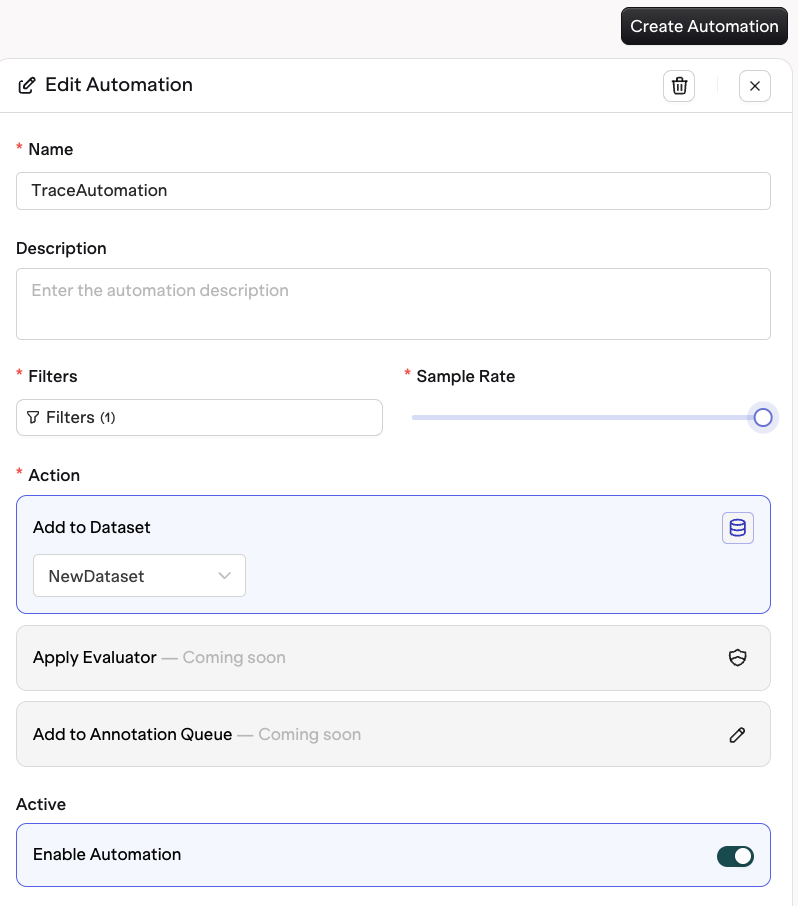
Configuring your automation
Why Use Automations
As your LLM applications grow, the number of traces generated can quickly become too large to review manually. Automations ensure that your most important traces are captured and acted on without manual work — whether for quality assurance, retraining, or debugging. You can use automations to:- Automatically add traces to a dataset for future evaluation or fine-tuning
- Send traces with low feedback scores to an annotation queue for annotation
- Sample a percentage of traces for random quality checks
Setting Up Trace Automations
To create a new automation:1
Open Automations
Open Automations in the Observability section of the sidebar.
2
Create Automation
Click Create Automation.
3
Set Filters
Define the Filters for the Traces.Matching Traces will execute the desired Action.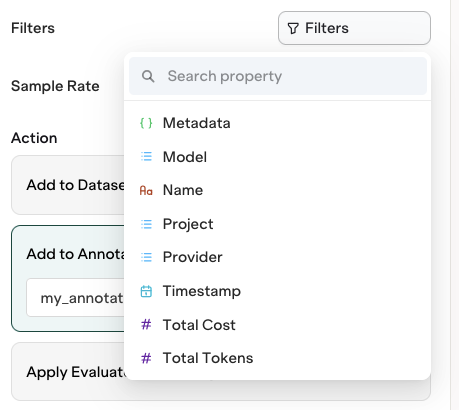
4
Set Sampling Rate
Define the Sampling Rate (
0 to 100; 0 skips every span). Each matching span is sampled independently, so a 10% rate triggers the Action on roughly one in ten.5
Define Action
Choose from the following actions:
- Add to Dataset: copies the trace into a Dataset.
- Add to Annotation Queue: sends the trace to an Annotation Queue.
- Apply Evaluator: runs an Evaluator on the trace. The option is marked Coming soon.
6
Enable Automation
Once saved, your automation runs on Traces that arrive from that point on. It is not applied retroactively to Traces already in the Platform.
Filtering on evaluations and human feedback
Automations can filter on the results your evaluators produce and on the feedback your team leaves during review. This closes the loop between traces, evaluations, and downstream actions — for example, sending every trace your hallucination evaluator scored highly to an annotation queue, or collecting the traces a reviewer marked as poor into a dataset for retraining. Evaluators and human reviews appear in the same filter menu as the rest of your trace fields, under Evals and Annotations. Picking one filters on that evaluator’s own result, and the operators and values offered match how it scores — a numeric evaluator offers thresholds, a pass/fail evaluator offers true or false, and a review with fixed options offers exactly those options.How these filters are matched
A filter is scoped to the evaluator or review named in it. Filtering on
hallucination > 0.8 matches only when the hallucination evaluator itself scored above 0.8, never when a different evaluator did. Two filters on the same evaluator describe one result, so > 0.5 and < 0.9 together mean a single score inside that range.A rule is re-checked every time an evaluation or annotation is recorded on a trace. Repeat runs refresh rather than accumulate: Add to dataset keeps one datapoint per rule and span, updating it in place, and Add to annotation queue leaves a span that is already in the queue alone. A trace that contains several matching spans produces one datapoint per span, and two different rules writing to the same dataset each keep their own datapoint.