

tools tag in the AI Gateway.
The following Tools are available:
Function Tool
JSON Schema Tool
HTTP Tool

MCP Tool
Python Tool
Function Tool
- AI Studio
- API & SDK
- CLI
 AI Studio
Add a new Tool to a Project

Select Function Tool
Enter Tool Details
- Key, used by models to reference the tool
- Name, used in the studio to find the tool
- Description, used to describe the tool
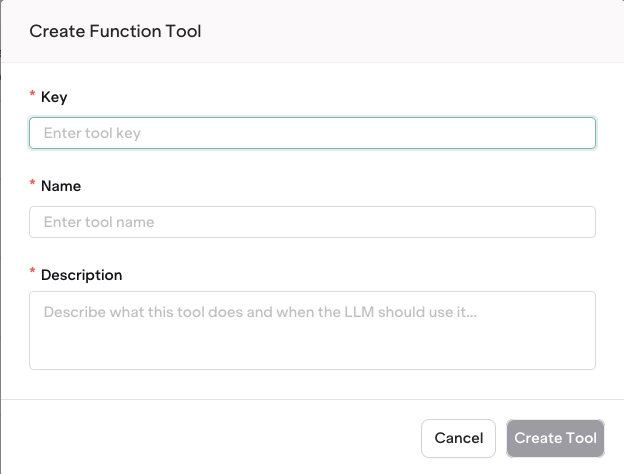
Configure all fields
Configure your Function Tool
get_current_weather that declares the fields location (string) and unit (string):object, string, integer, number, array, etc. The top-level type will most commonly be an object holding other properties.Learn more about all JSON types in the JSON Schema definition.PropertiesProperties are definitions of fields within an object. Here you can define any new variable. Nested properties are allowed.RequiredThe required array within an object defines which fields must be entered for a JSON payload to be validated.Publish your Tool
JSON Schema Tool
- AI Studio
- API & SDK
- CLI
Add a new Tool to a Project
Select JSON Schema Tool
Enter Tool Details
- Key, used by models to reference the tool
- Name, used in the studio to find the tool
- Description, used to describe the tool
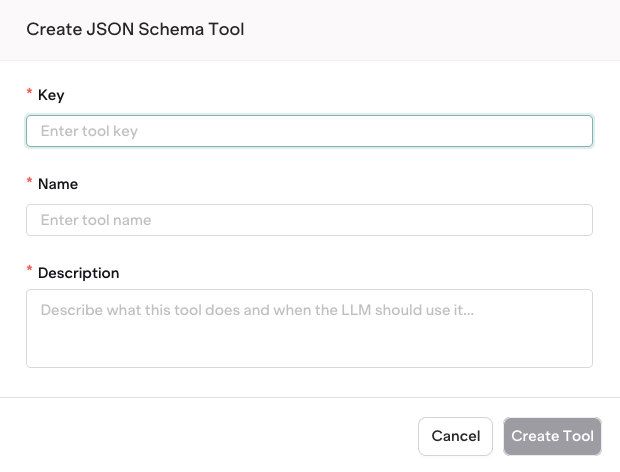
Configure all fields
Configure your JSON Schema Tool
get_current_weather that declares the fields location (string) and unit (string):object, string, integer, number, array, etc. The top-level type will most commonly be an object holding other properties.Learn more about all JSON types in the JSON Schema definition.PropertiesProperties are definitions of fields within an object. Here you can define any new variable. Nested properties are allowed.RequiredThe required array within an object defines which fields must be entered for a JSON payload to be validated.Publish your Tool
HTTP Tool
- AI Studio
- API & SDK
- CLI
{{variable}} syntax to inject dynamic values into any field.Add a new Tool to a Project
Select HTTP Tool
Enter Tool Details
- Key, used by models to reference the tool
- Name, used in the studio to find the tool
- Description, used to describe the tool
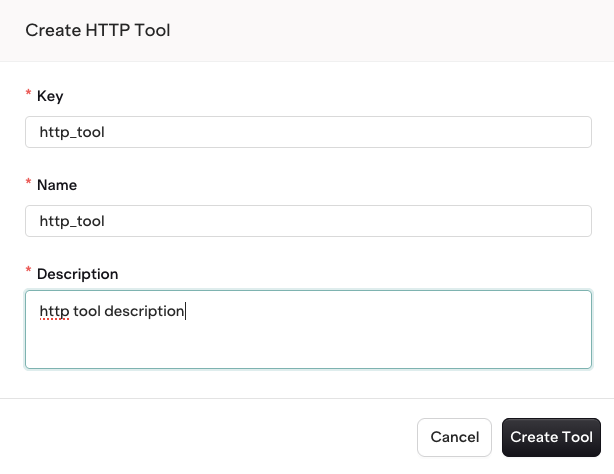
Configure all fields
Configure your HTTP Tool
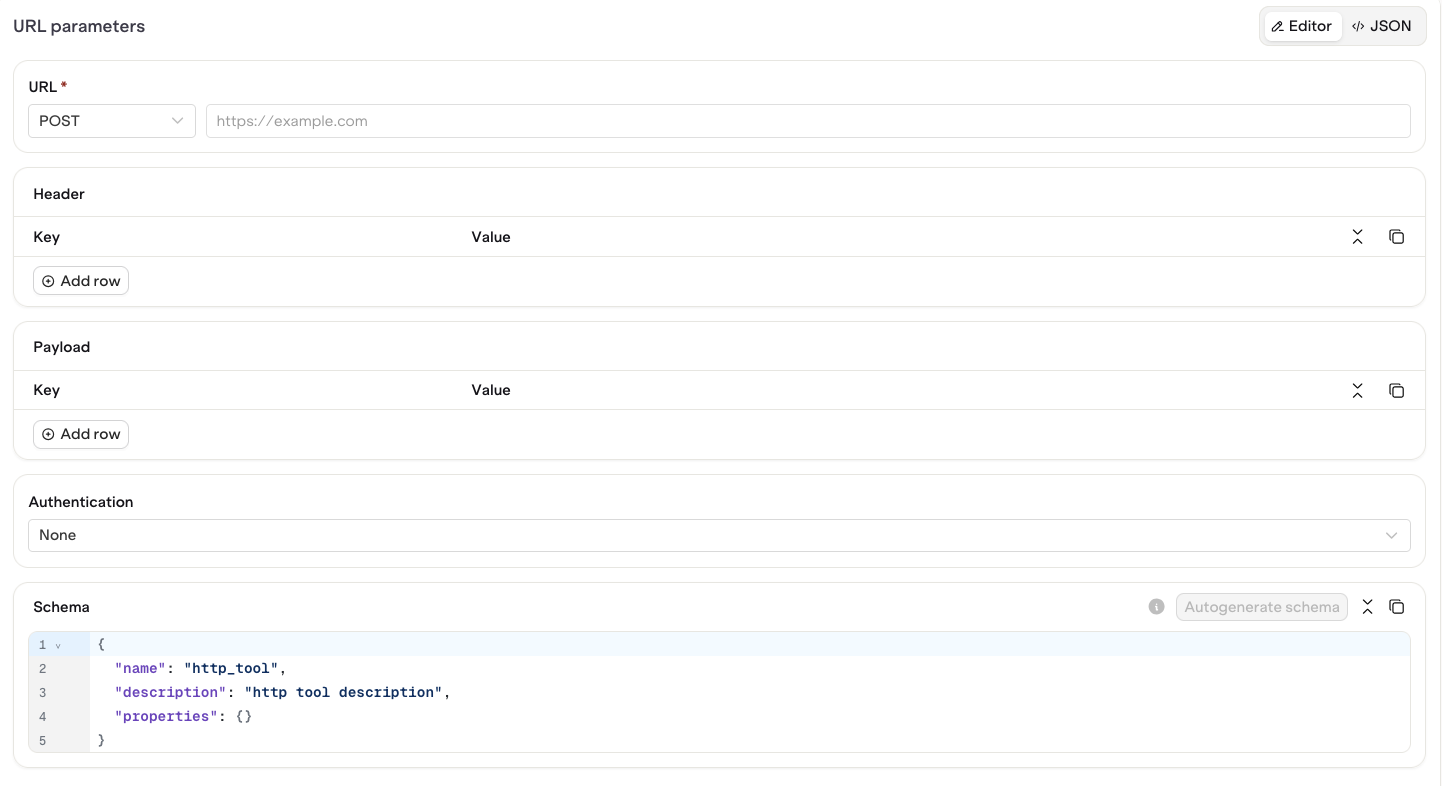
Configure your HTTP Tool
{{variable}} syntax within any configuration field. The variable will be resolved at runtime when the payload is built for the HTTP call.Autogenerate Schema when using variables to ensure variable definition is correctly created.Publish your Tool
MCP Tool
- AI Studio
- API & SDK
- CLI
Add a new Tool to a Project
Select MCP Tool
Enter Tool Details
- Key, used by models to reference the tool
- Name, used in the studio to find the tool
- Description, used to describe the tool
- MCP Server URL, a valid MCP server endpoint
-
Header, key-value pairs sent with every request to the MCP server. Use
{{variable}}syntax for sensitive values such as API keys.
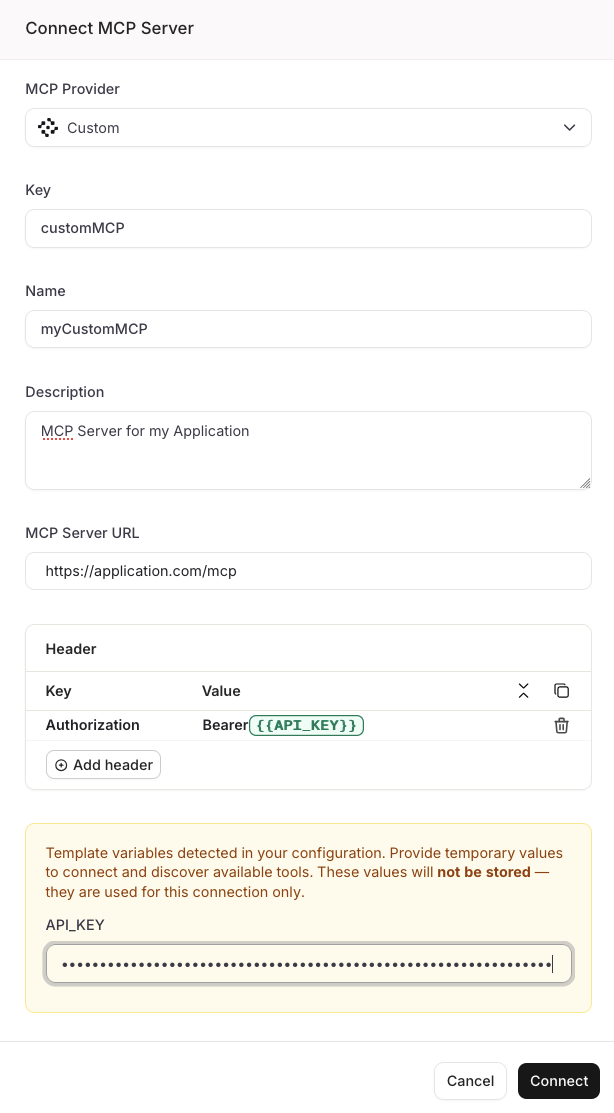
Configure all fields
{{variable}} placeholders.When template variables are detected, a prompt appears below the form asking for temporary values. These values are used only to connect to the MCP server and discover its available tools. They are not stored after the connection.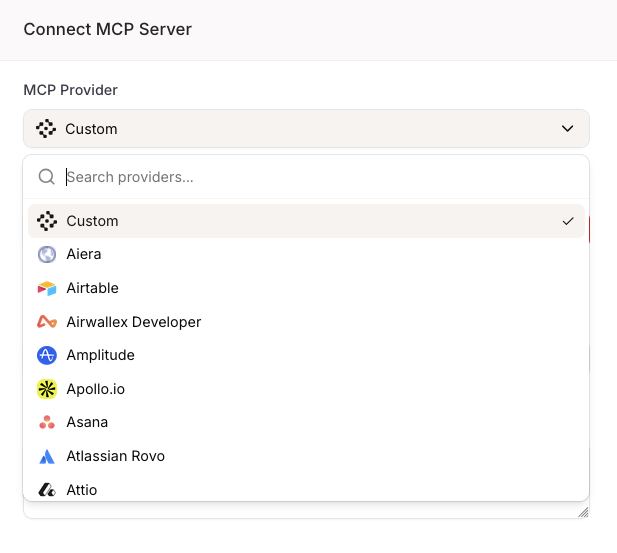
Select a provider to pre-fill connection details
View all supported providers
View all supported providers
View your MCP configuration
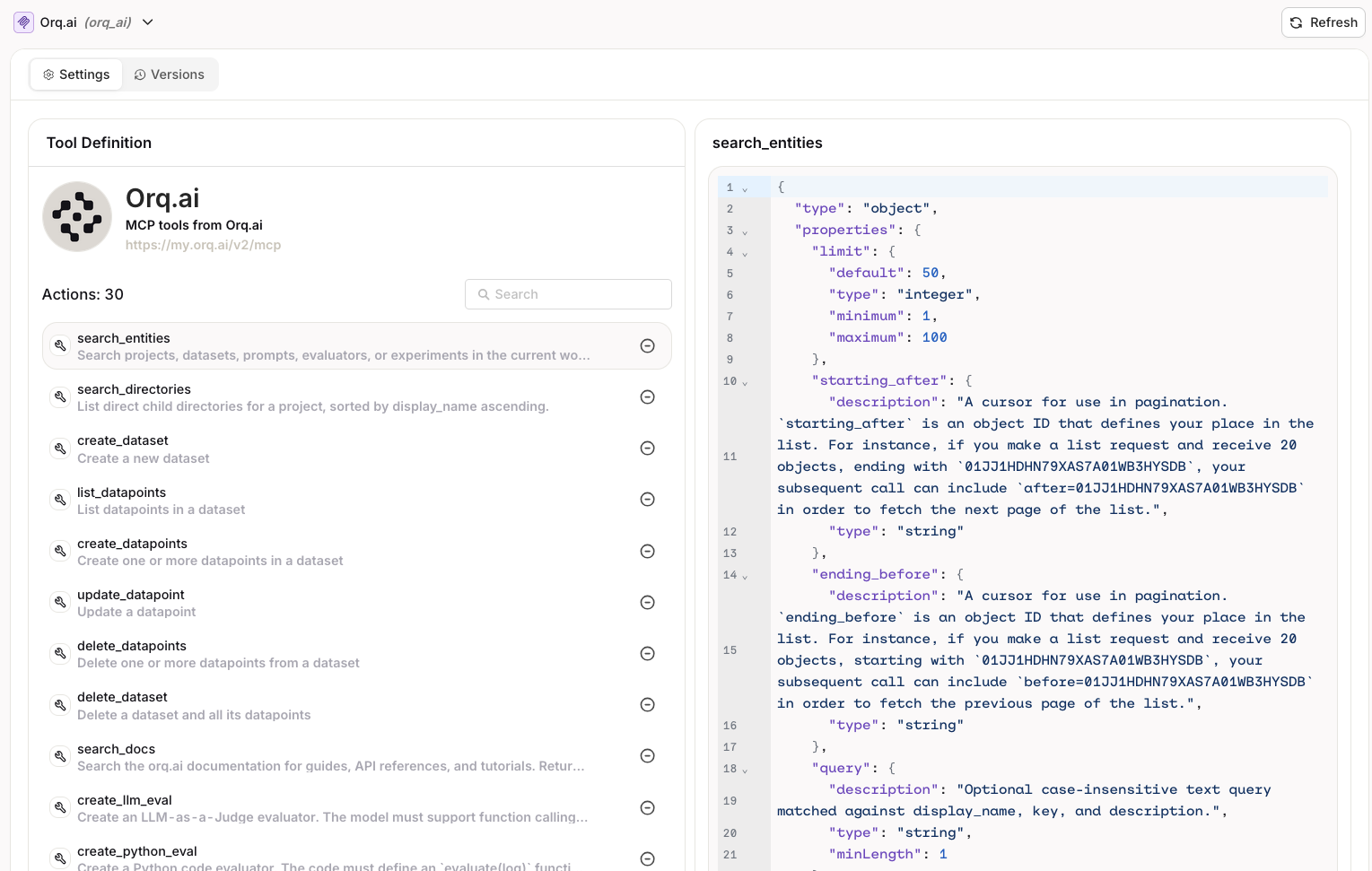
View MCP Tool Actions
Python Tool
Code exceeds maximum size error and does not run.- AI Studio
- API & SDK
- CLI
params and store the result in result.Add a new Tool to a Project
Select Python Tool
Enter Tool Details
- Key, used by models to reference the tool
- Name, used in the studio to find the tool
- Description, used to describe the tool
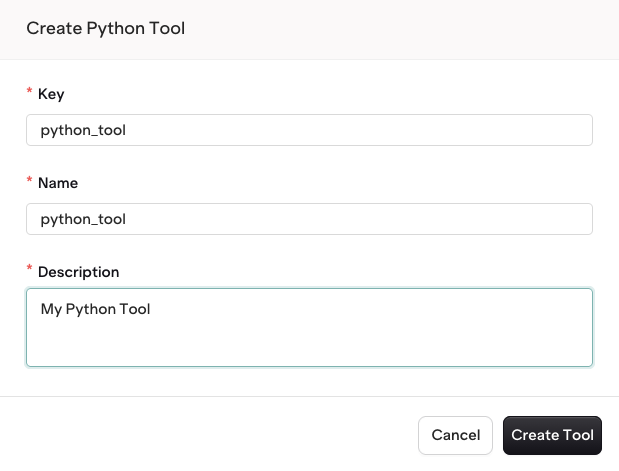
Configure all fields
Configure your Python Tool
name field defined and then further fetched using params.get('name').Ensure your return value is stored within the result field.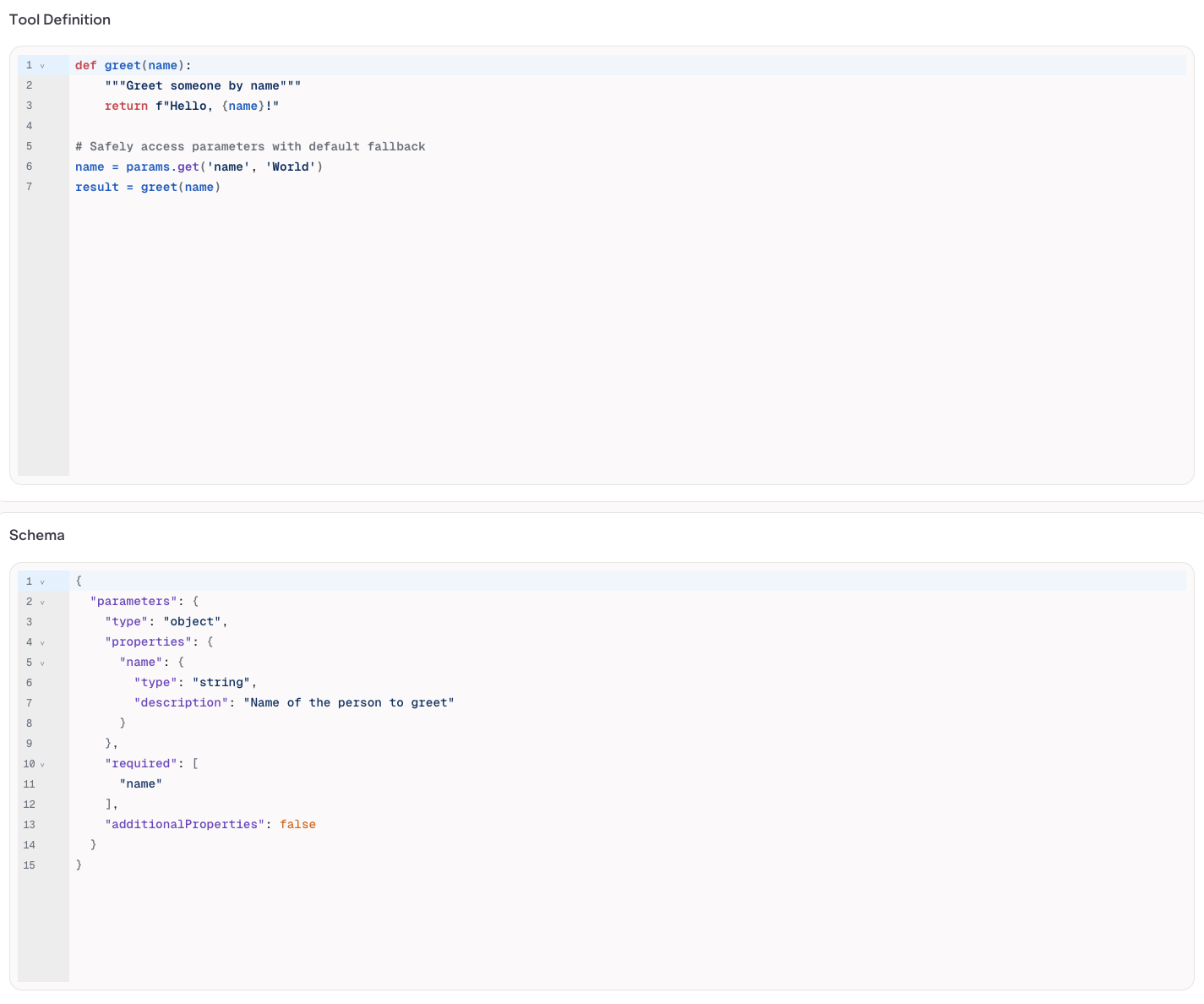
Configure your Python Tool
Publish your Tool
Versions
When you are done editing, click Publish to save your changes. You will be prompted to write a commit message and choose a version bump: major, minor, or patch.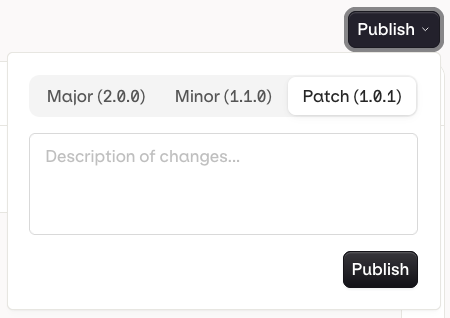
Publish a new version of your Tool
- Patch (e.g.
v1.0.0tov1.0.1): small fixes, no behavior change - Minor (e.g.
v1.0.0tov1.1.0): new functionality, backwards compatible - Major (e.g.
v1.0.0tov2.0.0): breaking change or significant rework
v1.0.0, v1.1.0) and each entry shows the author and publish timestamp.
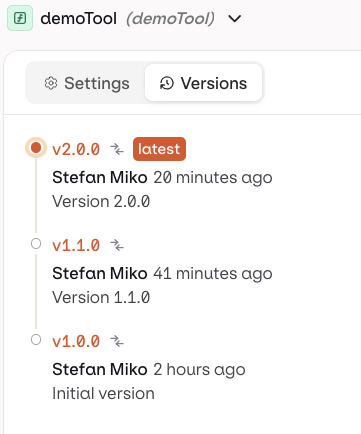
Version history in the Versions tab
Using Tools
Agents
Agents
key in the settings.tools array. Your agent’s instructions must explicitly describe each tool and when to use it.Deployments
Deployments