

Using Projects
Switching projects Click the project name in the top bar to open the project dropdown. Search for a project, select one from the list, or click Create New Project.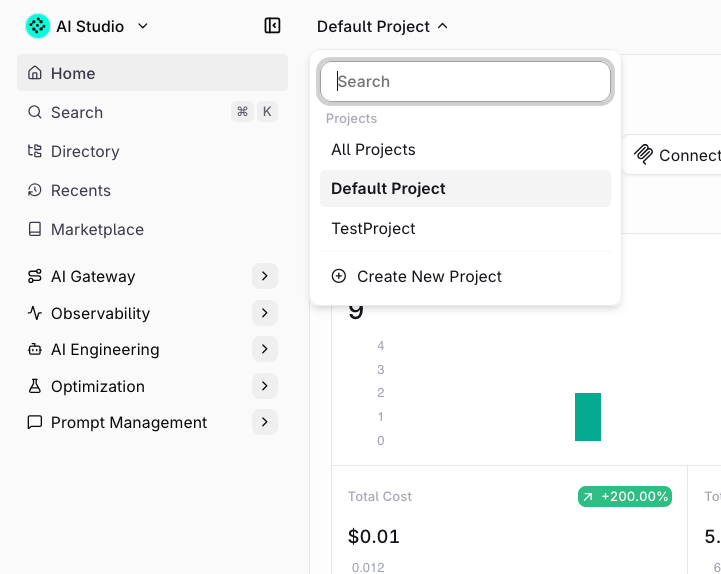
Select or create a Project from the top bar dropdown.
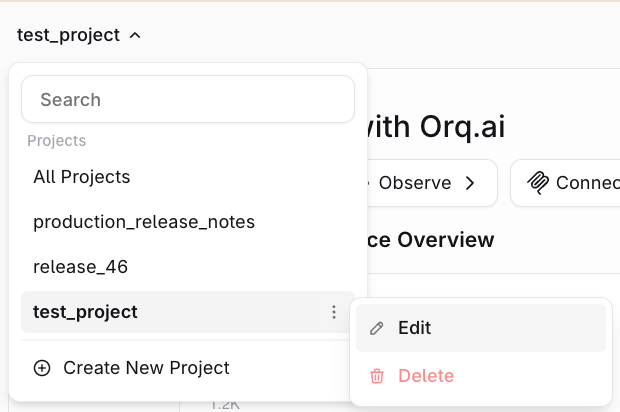
Edit or delete a project from the project dropdown menu.
A project can only be deleted if it’s empty. Remove all entities from the project first.
Project settings
Open Settings → Project → General to edit the active project. Select Save Changes to apply a new Name and Description. Delete Project removes the project once it is empty.Find the project ID
The Project ID row on the project settings page holds the value to copy.GET /v2/projects returns it as project_id, a UUID such as 0192f0a0-8c3e-7b1f-9a6d-2f5c8e1b4d7a. Requests that take project_id accept this value.
Create an API key for this project
Keys belong to a project. Create one under API Keys, select this project, and copy the token from the Save your key dialog, which shows it once. Requests send it asAuthorization: Bearer <key>.
Browsing Projects
Use Directory in the sidebar to view all entities in the current project. The breadcrumb shows which project is active.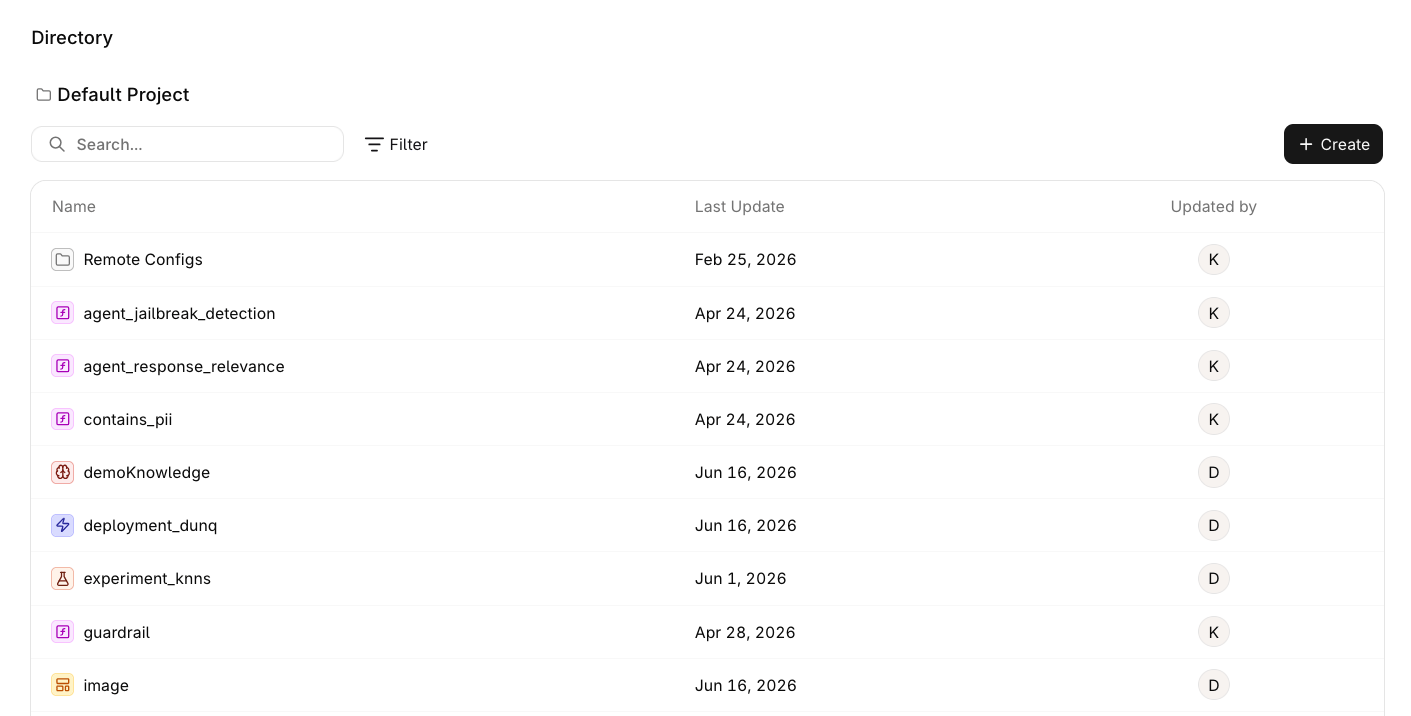
Directory view showing all entities in the Default Project with last update date and team member.
Permissions
When creating a project, assign which Teams have access. Each team has members with different access levels across the project entities.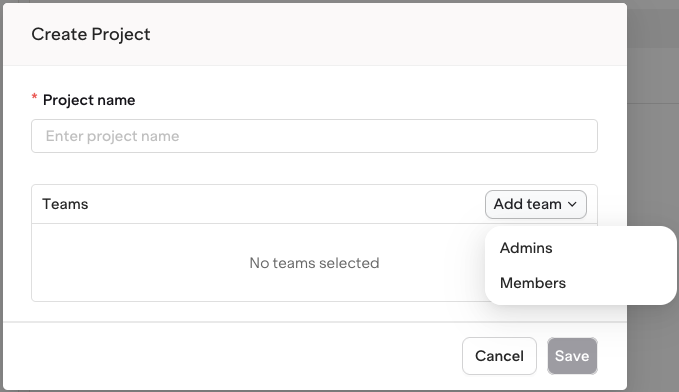
Choose which team to add to a Project.